You put real hours into that Photoshop brochure. The color grading is precise, the typography is dialed in, the layout breathes. Then you export a PDF, attach it to an email, and watch it get ignored. A static document in 2026 simply does not carry the same weight it used to. Flipbooks AI changes that in about three minutes, converting your polished PSD export into a page-turning, clickable digital experience that people actually read.
Why a Static PDF Leaves Money on the Table
Most Photoshop designers work toward a print or PDF deliverable, and that is where the workflow stops. The problem is that a PDF requires downloading, opening a separate application, and scrolling. It offers no tactile feedback, no interactivity, and no analytics. You have no idea if anyone even opened it.
A clickable flipbook solves all three problems at once:
- Interactivity: Pages physically turn with a realistic curl and shadow effect.
- Accessibility: No download required. Any browser on any device opens it instantly.
- Data: Track views, time on page, and reader drop-off on the Professional plan.
Real estate agents sending property brochures, hotels distributing amenity guides, and marketing teams sharing campaign materials have all shifted to digital flipbooks because the conversion data is measurably better.
What You Need Before You Start
Before you touch any converter, your Photoshop file needs to be in the right shape. Two things matter above everything else: color mode and export quality.
Color Mode: RGB, Not CMYK
Print brochures are often built in CMYK for press accuracy. Digital flipbooks render in RGB. If you export a CMYK Photoshop file to PDF and upload it, colors can shift noticeably, especially in rich blues and warm reds.
Fix it before exporting:
- Open your
.psd file in Photoshop
- Go to Image > Mode > RGB Color
- When prompted about merged layers, click Don't Merge to keep your layers intact
- Save as a new file so your original CMYK version is preserved
Resolution: 150 DPI Is Your Target
Screen resolution does not need to match print resolution. A 300 DPI export creates a massive PDF that takes longer to upload and longer to load in browsers. 150 DPI is the sweet spot: crisp on retina screens without the file size penalty.
💡 For text-heavy brochures, bump to 200 DPI. Fine serif fonts at 150 DPI can appear slightly soft on some displays.
Exporting Your PSD as a PDF the Right Way
The export step is where most designers make small but consequential mistakes. Here is the exact sequence that produces a clean, web-ready PDF from Photoshop.
Step-by-Step PDF Export
- Flatten linked Smart Objects: Go to Layer > Smart Objects > Convert to Layers for any externally linked objects to avoid missing asset warnings during export.
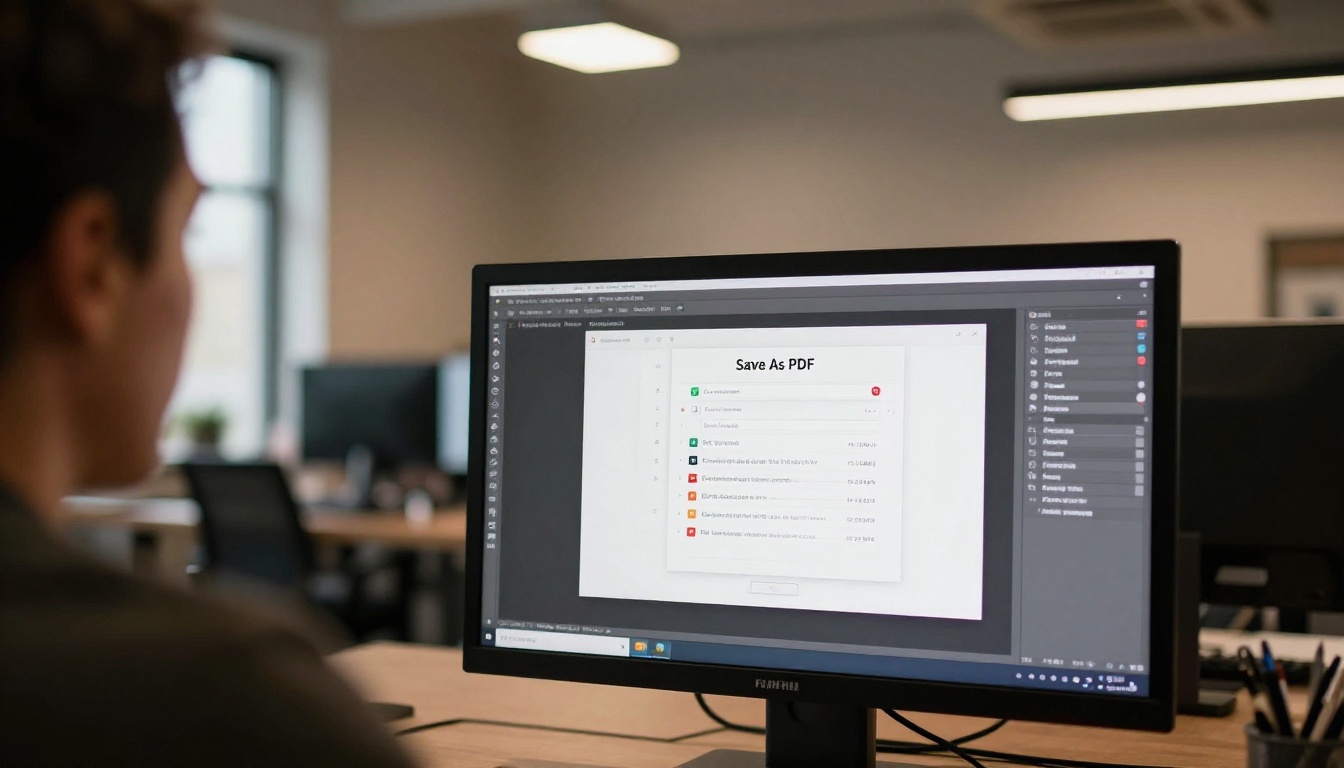
- Go to File > Export > Export As and choose PDF from the format dropdown. Alternatively, use File > Save a Copy and select Photoshop PDF.
- In the PDF export dialog, select the "Smallest File Size" preset as your starting point, then customize:
- Image Compression: JPEG with quality 8/10
- Compress Text and Line Art: checked
- Color Profile: sRGB IEC61966-2.1
- Under Output, set Color Conversion to Convert to Destination and select sRGB.
- Disable Preserve Photoshop Editing Capabilities to remove unnecessary file weight.
- Click Save PDF.
⚠️ Never use the "High Quality Print" preset for web uploads. It embeds full print data, creating PDFs that can exceed 50MB and time out during upload.
PDF Settings Comparison Table
| Setting | Print Use | Web / Flipbook Use |
|---|
| Color Mode | CMYK | RGB / sRGB |
| Resolution | 300 DPI | 150 DPI |
| PDF Preset | High Quality Print | Smallest File Size |
| Compression | Minimal | JPEG Quality 8 |
| Editing Data | Preserved | Disabled |
| Typical File Size | 25-80 MB | 3-12 MB |
A 5-8 MB PDF is what you are aiming for. Anything under 100 MB will upload to Flipbooks AI without issue, but leaner files convert faster and load faster for your readers.
How to Create Your Flipbook with Flipbooks AI
With a clean PDF in hand, the conversion takes under three minutes. Here is the full workflow from account creation to shareable link.
Step 1: Create Your Account
Go to Flipbooks AI and sign up for free. The free tier lets you test the full conversion process. When you are ready for watermark-free publications with custom branding, the Standard plan and above covers unlimited flipbooks with no restrictions.
Step 2: Upload Your Photoshop PDF
Once inside your dashboard, click New Flipbook and either drag your PDF directly into the upload zone or click to browse your files. The converter processes your file page by page, preserving all imagery, typography, and layout exactly as you designed it in Photoshop.
✅ Name your PDF file with a descriptive slug before uploading (e.g., hotel-summer-brochure-2026.pdf). This carries into the auto-generated flipbook URL, making sharing cleaner.

Step 3: Customize Your Flipbook
After conversion, the editor opens with your pages displayed. This is where your static PDF becomes a proper interactive experience:
- Custom Branding: Add your logo, set a custom background color, or apply a textured background image that appears when the book is open.
- Page Effects: Choose from hard-cover, soft-cover, or no-cover page styles. The soft-cover has a more natural curl that works beautifully for marketing brochures.
- Table of Contents: Add clickable chapter navigation for multi-section brochures.
- Multimedia: Embed YouTube or Vimeo videos directly into specific pages. A hotel brochure can have a walkthrough video of the pool embedded on the amenities page.
- Hyperlinks: Any URLs that existed in your Photoshop design as text or buttons become clickable automatically after conversion.
💡 Use the Brochure Flipbook Maker tool for brochure-specific templates and layout suggestions pre-optimized for marketing material.
Step 4: Share and Embed Everywhere
Once customized, the Share panel gives you several distribution options:
- Direct Link: A clean URL you can drop into emails, WhatsApp, SMS, or social profiles.
- Embed Code: An
<iframe> snippet for embedding the live flipbook directly on your website or landing page.
- Password Protection: Set a private password for internal documents, agency client previews, or confidential reports.
- QR Code: Auto-generated QR code linking directly to your flipbook, perfect for printed materials that reference the digital version.
Customization Options Worth Knowing
The difference between a generic converted PDF and a polished branded flipbook comes down to a handful of details most people overlook.
Branding That Sticks
Your flipbook should feel like an extension of the Photoshop design work you already did, not a generic viewer. These options matter:
- Custom domain: Point the flipbook URL to your own subdomain (e.g.,
brochure.yourcompany.com) on Professional plans.
- Favicon: Upload your brand icon so it appears in the browser tab when readers have the flipbook open.
- Loading screen logo: The brief loading screen shows your logo instead of a generic spinner.
- Color theme: The reader interface (navigation arrows, dots, fullscreen button) matches your brand palette exactly.
Interactive Elements That Drive Action
A brochure's job is to prompt a response: a booking, an inquiry, a purchase. These interactive elements increase conversion rates significantly:
- Clickable buttons: Any call-to-action buttons in your Photoshop layout become live clickable links without any additional work.
- Contact forms: Embed lead capture forms on specific pages (Professional plan via pricing).
- Audio: Add ambient background audio or voiceover narration to specific pages.
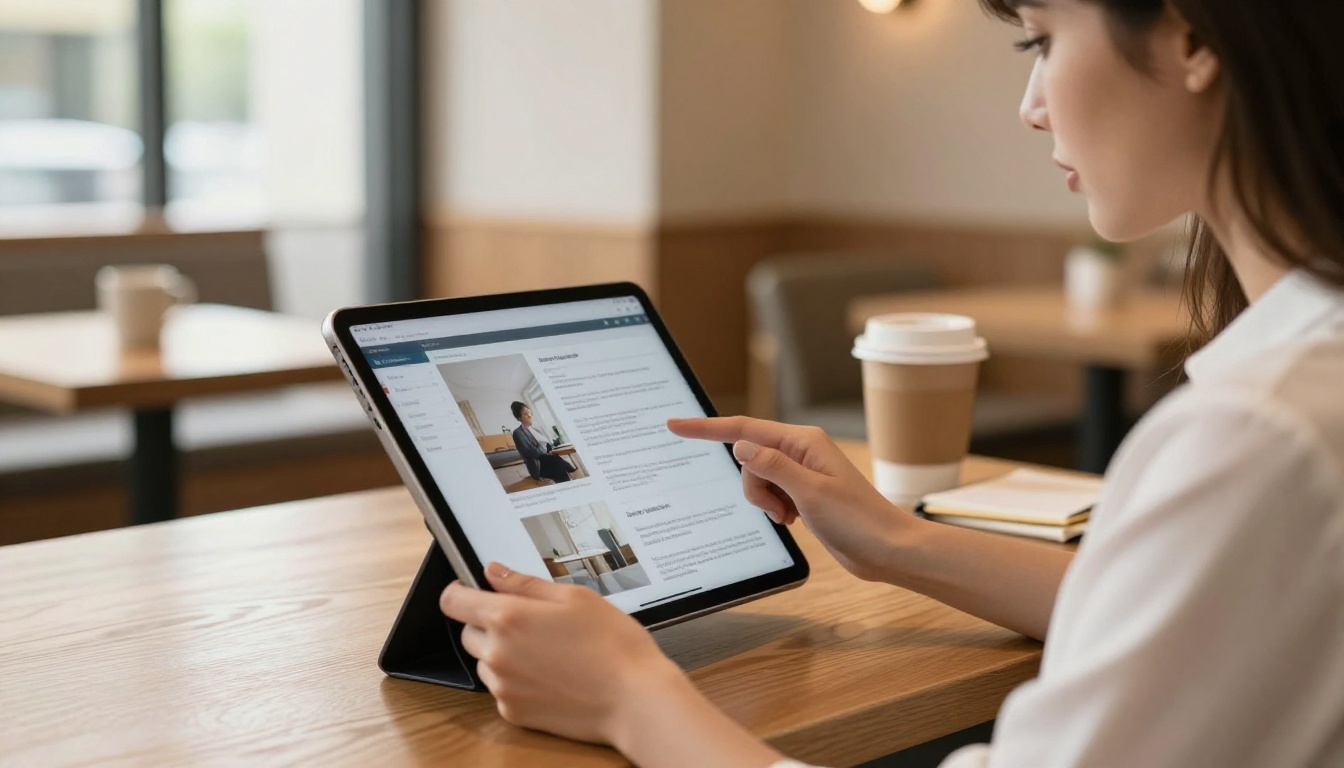
- Zoom and search: Readers can pinch-zoom on any page and use full-text search across the entire brochure.
Sharing Your Clickable Brochure
Distribution strategy matters as much as the flipbook itself. Different use cases call for different sharing methods.
Comparison: Sharing Methods by Use Case
| Use Case | Best Method | Why |
|---|
| Email campaign | Direct link | No attachment size limits |
| Website / landing page | Embed code | Keeps readers on your domain |
| Printed materials | QR code | Bridges print to digital |
| Client proofs | Password-protected link | Controls access completely |
| Social media | Direct link | Easy one-click sharing |
| Internal documents | Password-protected + offline download | Security and offline access |
✅ For hotel and real estate brochures, embed the flipbook on your website using the embed code from Embed Flipbook on Website. Embedded flipbooks keep visitors on your domain longer, which positively affects SEO dwell time.
Embed Codes and Where to Use Them
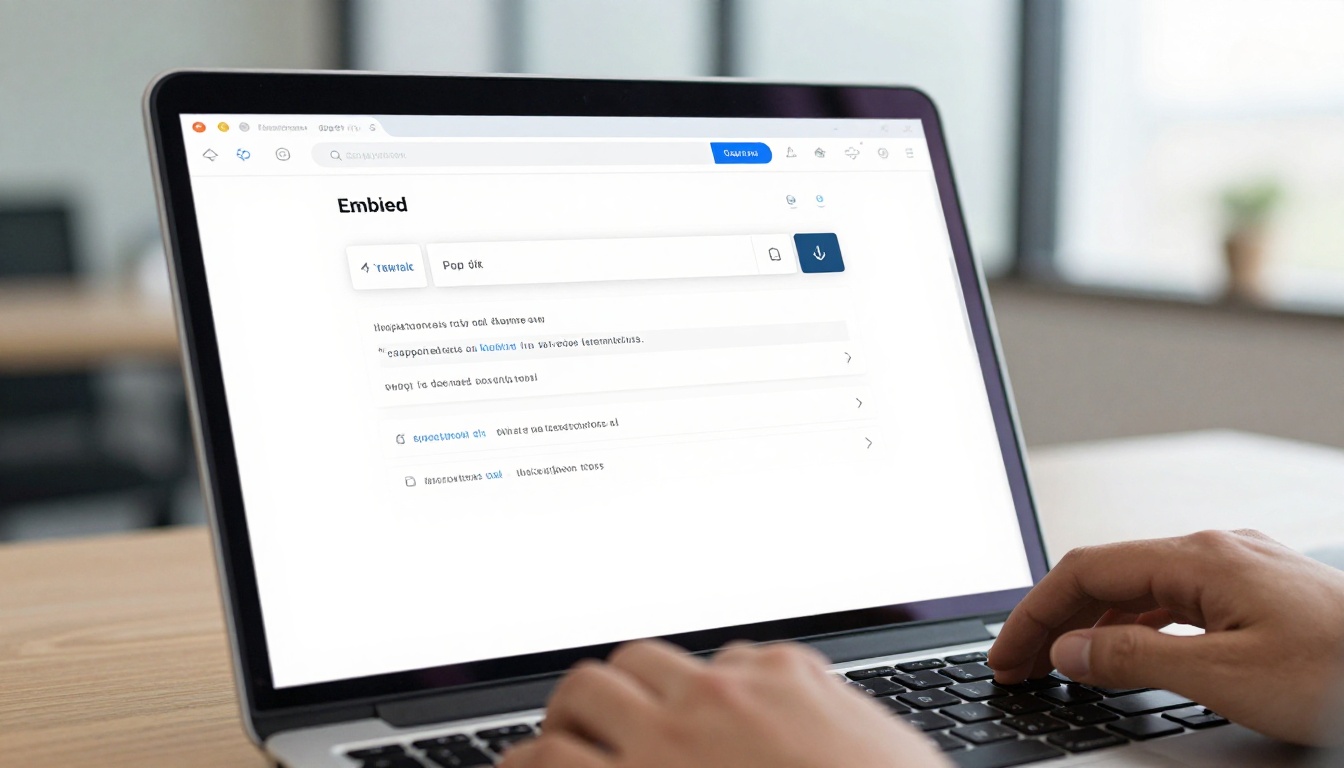
The embed code from the Share panel is a standard iframe snippet you can drop directly into:
- WordPress: Use the HTML block in Gutenberg or the Classic editor's text mode.
- Squarespace / Wix: Use their native code embed widget.
- Webflow: Use the HTML embed element in any section.
- Email clients: Most email clients block iframes. Use a static screenshot of the flipbook's cover as the email image, linked to the direct URL instead. This gets around the iframe restriction entirely.
Plans and What You Actually Get
Not every use case needs the same feature set. Here is a clear breakdown so you can choose without surprises.
| Feature | Free | Standard | Professional |
|---|
| Flipbooks | 1 | Unlimited | Unlimited |
| Watermark | Yes | No | No |
| Custom branding | No | Yes | Yes |
| Password protection | No | Yes | Yes |
| Offline downloads | No | Yes | Yes |
| Analytics | No | Basic | Advanced |
| Lead generation | No | No | Yes |
| Custom domain | No | No | Yes |
| Embed on website | Limited | Yes | Yes |
| Video and audio embed | No | Yes | Yes |
For one-off projects (a single product launch brochure, a client pitch), the Standard plan is sufficient. For ongoing marketing operations with multiple brochures, landing pages, and ROI tracking, Professional pays for itself quickly. Compare all plans at flipbooksai.com/pricing.
Real-World Uses for Photoshop Brochure Flipbooks
The conversion workflow above applies across dozens of industries. Here are the most common use cases where designers are switching from static PDFs to interactive flipbooks.
Hospitality and Hotels
A hotel marketing team designs seasonal brochures in Photoshop with photography, room details, and dining menus. As a flipbook, the brochure can be emailed to guests pre-arrival, embedded on the booking confirmation page, and displayed on lobby kiosk screens. The Hotel Brochure tool provides additional templates purpose-built for hospitality.
Real Estate
Property listings and development brochures designed in Photoshop convert cleanly into flipbooks that agents send via text message or embed on listing pages. Virtual tour videos can be embedded directly on floor plan pages. The Real Estate Brochure tool offers pre-built layouts for this exact workflow.
Automotive Dealerships
Model specification sheets and seasonal offers brochures become clickable price guides with live links to online configurators. The Automotive Brochure tool supports multi-model comparison layouts.
Agencies and Freelancers
Designers delivering brochures to clients can add a premium touch by converting the final deliverable into a flipbook, providing the shareable link alongside the PDF. It is a differentiator that takes three minutes and costs nothing extra on Standard plans.
Fashion and Retail
Lookbooks and seasonal catalogs designed in Photoshop become shoppable interactive publications. The Interactive Lookbook Designer is built specifically for this use case, with product tagging and visual layout support.

3 Common Mistakes to Avoid
Even with a clean PDF, these three errors trip up most first-time converters.
-
Uploading PSD files directly: Flipbooks AI accepts PDFs, not PSD files. Always export to PDF first. Multi-artboard Photoshop documents export each artboard as a separate PDF page, which is exactly what you want for a multi-page flipbook.
-
Forgetting to embed fonts: If your Photoshop file uses fonts that are not embedded in the PDF export, text may render incorrectly on some systems. Under File > Save a Copy (PDF), check Embed All Fonts in the Fonts section of the export dialog.
-
Landscape spreads without proper pagination: Single landscape pages display well. If your brochure uses double-page spreads designed as one wide image, export each spread as two separate portrait pages. Flipbook readers open spreads side-by-side, which re-creates the original visual design correctly.
⚠️ Do not password-protect the PDF itself before uploading. A locked PDF will fail during conversion. Apply password protection after conversion inside the Flipbooks AI dashboard.
Your Photoshop Workflow, Now Digital
The step from a finished Photoshop brochure to a live, clickable digital publication used to require specialist tools, developers, or expensive software. That gap no longer exists. Export your PSD as a clean sRGB PDF, upload it to Flipbooks AI, and your brochure becomes a dynamic, embeddable, shareable experience in the time it takes to make coffee.
Ready to put your next brochure to work? Create your free account and convert your first PDF today. Browse all brochure and publication tools to find templates matched to your industry. When you are ready for analytics, lead capture, and custom domains, check the pricing plans to see what fits your volume.



