Canva has become the default design tool for millions of creators, marketers, teachers, and business owners who need professional visuals without spending hours in complex software. The designs look great, but sharing them as flat PDFs or static image files means your audience misses something important: the experience of actually turning pages. Converting your Canva design into an interactive flipbook changes that completely. With Flipbooks AI, the process takes under five minutes, and the result is a fully interactive digital publication with smooth page-curl animations, custom branding, and sharing options that work across every device.
This article walks through every step of the process, from choosing the right Canva template to publishing a flipbook that your audience can actually interact with.
Why Canva Designs Convert So Well
Canva's templates are built for visual impact with clean layouts, consistent typography, and strong color systems. These are exactly the qualities that make a flipbook compelling. When a well-structured Canva design gets wrapped in an interactive page-turning interface, it stops being a document and starts being an experience.
The PDF format is the bridge between the two platforms. Canva exports high-quality PDFs that preserve fonts, colors, images, and layout at full resolution. Flipbooks AI accepts that PDF and rebuilds it as a fully navigable digital publication. No redesign required. No technical knowledge needed. You keep every design decision you already made.
Designs That Work Best as Flipbooks
Not every Canva project has the same impact as a flipbook, but these types consistently perform well:

💡 Multi-page Canva designs with 10 or more pages give the best flipbook experience because readers have more content to interact with, making the page-turning effect genuinely satisfying rather than a novelty.
How to Export Your Canva Design as a PDF
The first real step happens inside Canva. You need a print-quality PDF to get the best result from any flipbook converter.
Choosing the Right Export Settings
Canva offers two PDF options: PDF Standard and PDF Print. For flipbook conversion, PDF Print is the right choice every time. It exports at 300 DPI, preserves vector elements at full sharpness, and embeds all fonts correctly. PDF Standard compresses images and can introduce subtle quality loss that becomes visible on large screens.
Here is what to select when exporting:
- Open your Canva design and click Share in the top right corner.
- Select Download from the dropdown menu.
- Choose PDF Print as the file type.
- Check Crop marks and bleed if your design has a full-bleed background that reaches the edges.
- Leave Flatten PDF unchecked if you want text to remain selectable in the flipbook.
- Click Download and save the file to your device.
⚠️ If your Canva design uses animated elements, those animations will not carry over to the PDF. The static version of each element will appear instead. Plan your design around static visuals if the flipbook presentation is the primary goal.
File Size and Page Count
Flipbooks AI handles PDFs of up to 500 pages and large file sizes without issue. Still, a well-optimized PDF will load faster for your readers. If your Canva design includes high-resolution photography across dozens of pages, consider whether PDF Standard might serve the web-sharing use case better, since file size affects initial load time on slower connections.
Upload and Convert Your PDF on Flipbooks AI
Once you have your PDF downloaded, the conversion process on Flipbooks AI is one of the fastest parts of the whole workflow.
Step 1: Create Your Account
Go to flipbooksai.com/account and sign up for free. The free plan lets you create your first flipbook immediately with no watermark and no credit card required. The Standard plan removes all limitations on the number of flipbooks you can create, which makes it the practical choice for anyone creating content on a regular basis.
Step 2: Upload Your PDF
From your dashboard, click New Flipbook and drag your PDF file into the upload area, or click to browse your files. The platform accepts PDFs up to several hundred pages. You will see an upload progress indicator as your file transfers to the server.
Step 3: Watch the Conversion
Flipbooks AI processes your PDF page by page, building the interactive flipbook automatically. Depending on your PDF size and page count, conversion typically completes within 30 to 60 seconds. The result is a fully interactive flipbook with smooth page-curl animations ready to preview before you publish.
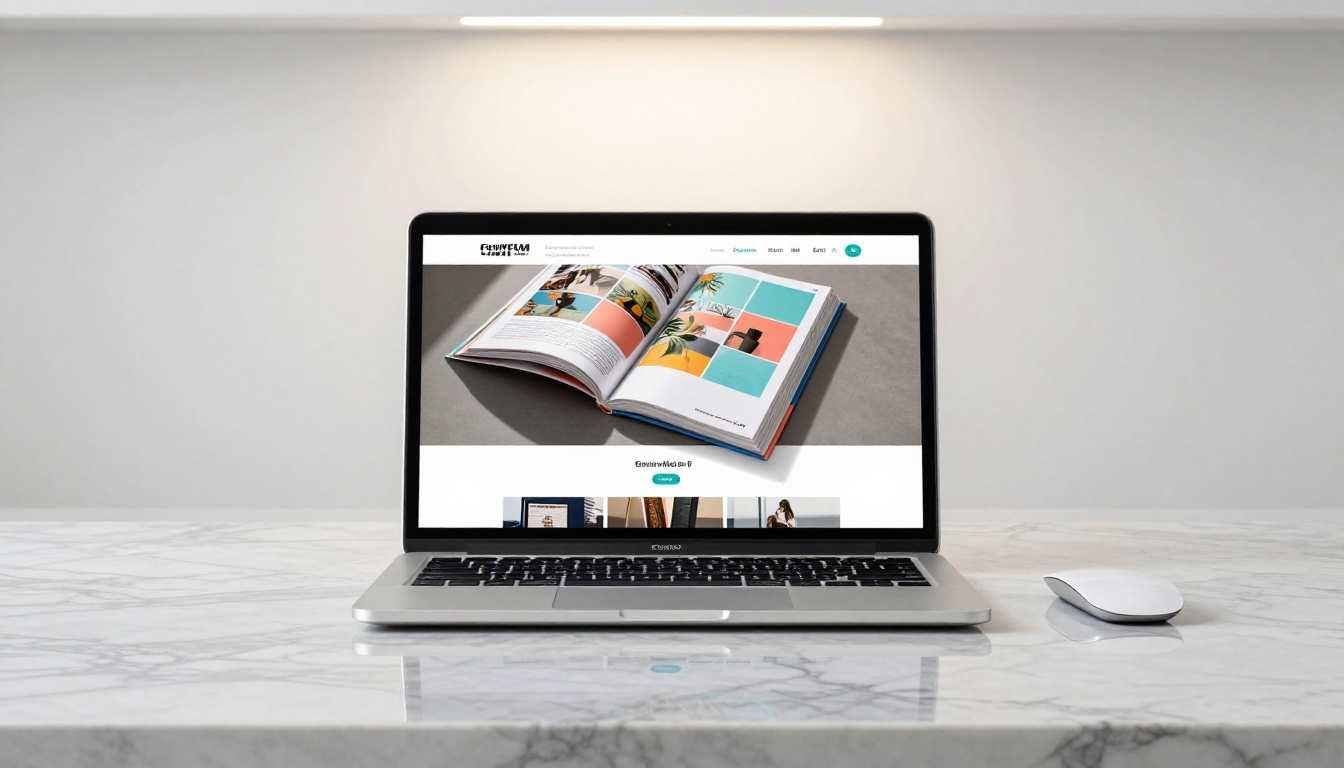
✅ Preview your flipbook immediately after conversion. Flip through every page to confirm that fonts loaded correctly, images are sharp, and the layout matches your original Canva design. This is the moment to catch any export issues before sharing with your audience.
Customize Your Flipbook After Upload
The conversion is automatic, but the real power of Flipbooks AI comes from the customization options available after the initial upload. Your Canva design sets the visual foundation, and the platform lets you build on top of it.
Branding and Colors
Within the flipbook editor, you can set a custom background color or texture behind the open book, update the toolbar colors to match your brand palette, and add your logo to the viewer interface. If you designed a brochure in coral and cream tones for a fashion brand in Canva, you can carry those exact colors through to the flipbook interface so the entire experience feels like one cohesive branded product.
You can also configure the flipbook title, author name, and metadata, which affects how the flipbook appears when shared or embedded on external sites.
Adding Multimedia to Your Pages
This is where the flipbook format genuinely surpasses a static PDF. After conversion, you can add:
- Embedded videos: Drop YouTube or Vimeo links onto specific pages so readers can watch content without leaving the flipbook.
- Audio tracks: Add background music or narration to specific pages or the entire flipbook.
- Clickable links: Any URL in your original Canva design that was preserved in the PDF can be made interactive, directing readers to product pages, booking forms, or contact pages.
- Pop-up galleries: Add image galleries that open in a lightbox when readers click on a specific area of a page.

💡 If you are converting a Canva restaurant menu, add a link on the contact page that opens directly in Google Maps. Small interactive additions like this make your flipbook genuinely useful for readers, not just visually polished.
Sharing and Embedding Your Flipbook
Once your flipbook is customized, getting it in front of the right audience is a one-step process. Flipbooks AI provides multiple distribution options so you can match the sharing method to your specific situation.
Link Sharing and Password Protection
Every flipbook gets its own unique URL the moment it is published. You can copy that link and share it anywhere: email campaigns, social media bios, LinkedIn posts, WhatsApp messages, or SMS campaigns. The link opens the flipbook in a full-screen interactive reader without requiring your audience to download anything.
For private content like internal reports, client-specific proposals, or member-only publications, Flipbooks AI offers password protection. Set a password on your flipbook and only readers who have it can access the content. This is particularly useful for:
- Sales proposals sent to specific clients
- Internal training materials for staff
- Paid content or member-exclusive magazines
- Confidential corporate reports shared with board members

Embed Your Flipbook on a Website
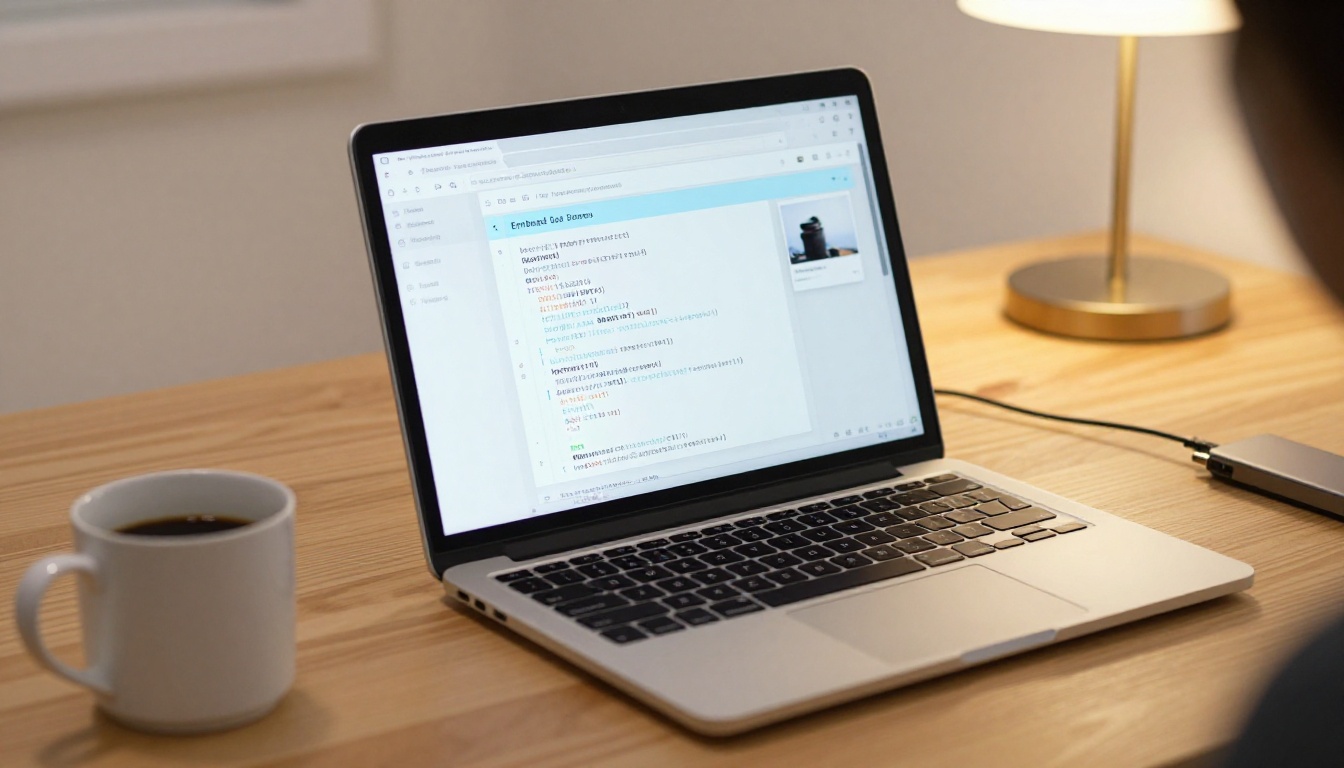
The Embed Flipbook on Website tool generates an iframe code snippet that drops directly into any website, Squarespace page, WordPress post, Webflow section, or Notion page. The embedded flipbook is fully interactive and mobile-responsive, meaning it adjusts fluidly to any screen size automatically.
This is especially valuable for:
- Real estate agencies that embed property brochures directly on listing pages
- Hotels that embed digital property brochures on their booking pages (see: Hotel Brochure Designer)
- E-commerce brands that embed product catalogs on collection pages
- Educators who embed course materials directly in their course website or LMS
Real-World Uses for Canva Flipbooks
The Canva-to-flipbook workflow fits a surprisingly wide range of industries and content types. Here are some of the most impactful real-world applications:
A few specific scenarios worth looking at more closely:
A restaurant designs their seasonal menu in Canva using brand colors and custom photography. They download it as PDF Print, upload it to Flipbooks AI in under a minute, and immediately have an interactive menu linked from their Google Business profile, embedded on their website, and accessible via a QR code printed on each table placard.
A real estate agent creates a property brochure in Canva with professional listing photos and floor plan graphics. Converted to a flipbook, it becomes an interactive presentation they can send via a simple link to prospective buyers who can flip through every detail from their phone, without downloading a PDF.
A freelance photographer builds a 20-page portfolio in Canva with consistent layout and typography. As a flipbook, it becomes a shareable link they add to their Instagram bio and email signature so every potential client sees the same polished, interactive presentation.
Flipbooks AI Plans at a Glance
One of the most common questions is which plan fits which type of user. Here is a straightforward breakdown:
| Feature | Free | Standard | Professional |
|---|
| Flipbooks | 1 | Unlimited | Unlimited |
| Watermark | No | No | No |
| Password protection | No | Yes | Yes |
| Custom branding | No | Yes | Yes |
| Video and audio embed | No | Yes | Yes |
| Analytics | No | No | Yes |
| Lead generation forms | No | No | Yes |
| Offline downloads | No | No | Yes |
| Custom domain | No | No | Yes |
No plan includes a watermark, which is a meaningful difference from many competing tools that force their branding onto free-tier users. The Standard plan is where most small businesses, freelancers, and content creators will land because it removes the single-flipbook limit and opens branding customization. The Professional plan adds analytics and lead generation features that marketing teams rely on for tracking reader behavior and capturing contacts directly from the flipbook.
Compare all plan details at flipbooksai.com/pricing.
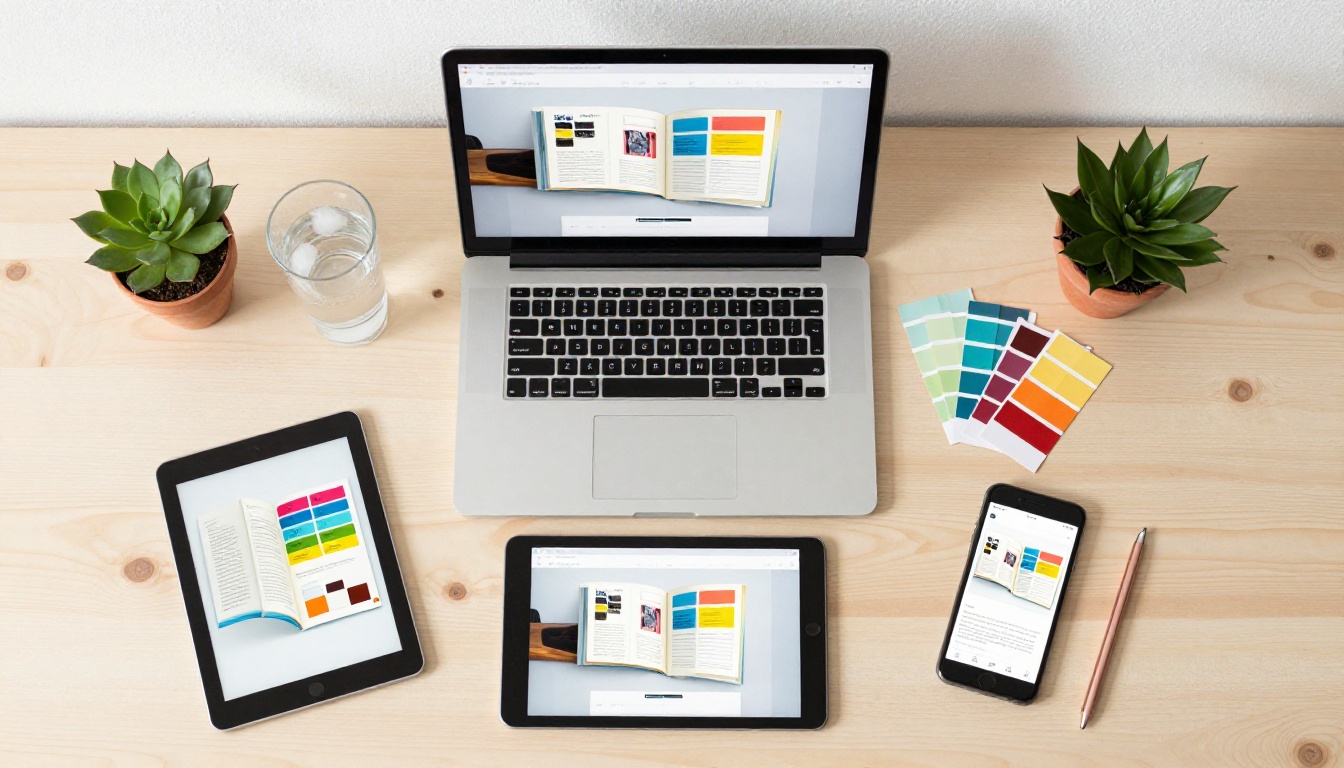
✅ Every flipbook created on any plan is automatically mobile-responsive. Readers on phones, tablets, and desktop computers all get an optimized version of your flipbook without any additional configuration from you.
Your Next Step
The workflow is simpler than most people expect: design in Canva, download as PDF Print, upload to Flipbooks AI, customize, and share. Five steps. Under ten minutes for most projects.
If you have a Canva design sitting in your files right now, it is already halfway to becoming a polished interactive flipbook. The only remaining step is the upload.

Ready to see how your design looks as a flipbook? Create your account on Flipbooks AI and upload your first PDF for free. No credit card, no watermark, no waiting.
Want to see what specific tools are available for your industry or use case? Browse the full tools directory to find the right starting point. And when you are ready to remove the one-flipbook limit and add branding customization, check the pricing plans to find what works best for you.



