Google Slides makes it easy to build beautiful presentations, but sharing them as flat, static files rarely does the work justice. When you make a flipbook from Google Slides, you give your content a physical, page-turning feel that keeps readers clicking through to the end. Whether you are sharing a sales deck, a school project, or a product catalog, the flipbook format turns passive viewers into active readers. Flipbooks AI makes this conversion simple, fast, and completely code-free.

Why Static Slides Fall Short
Sending a Google Slides link works, but it carries real limitations. Viewers need a Google account in some sharing configurations, the layout can break on certain screen sizes, and there is no way to track who actually read past page two. Printed PDFs are worse: they sit in a downloads folder, forgotten.
A flipbook solves all of that. It runs in any browser, looks polished on every device, and the better platforms give you analytics so you can see exactly how far people scrolled.
What Makes a Flipbook Different
| Feature | Static PDF | Google Slides Link | Flipbook |
|---|
| Works without login | ✅ | ❌ (sometimes) | ✅ |
| Page-flip animation | ❌ | ❌ | ✅ |
| Mobile responsive | Partial | Partial | ✅ |
| Embeddable on websites | ❌ | Limited | ✅ |
| Analytics and tracking | ❌ | ❌ | ✅ (Pro) |
| Password protection | ❌ | Limited | ✅ |
| Custom branding | ❌ | ❌ | ✅ |
The flipbook wins on every dimension that matters for professional sharing. Now, here is exactly how to get your Google Slides into that format.

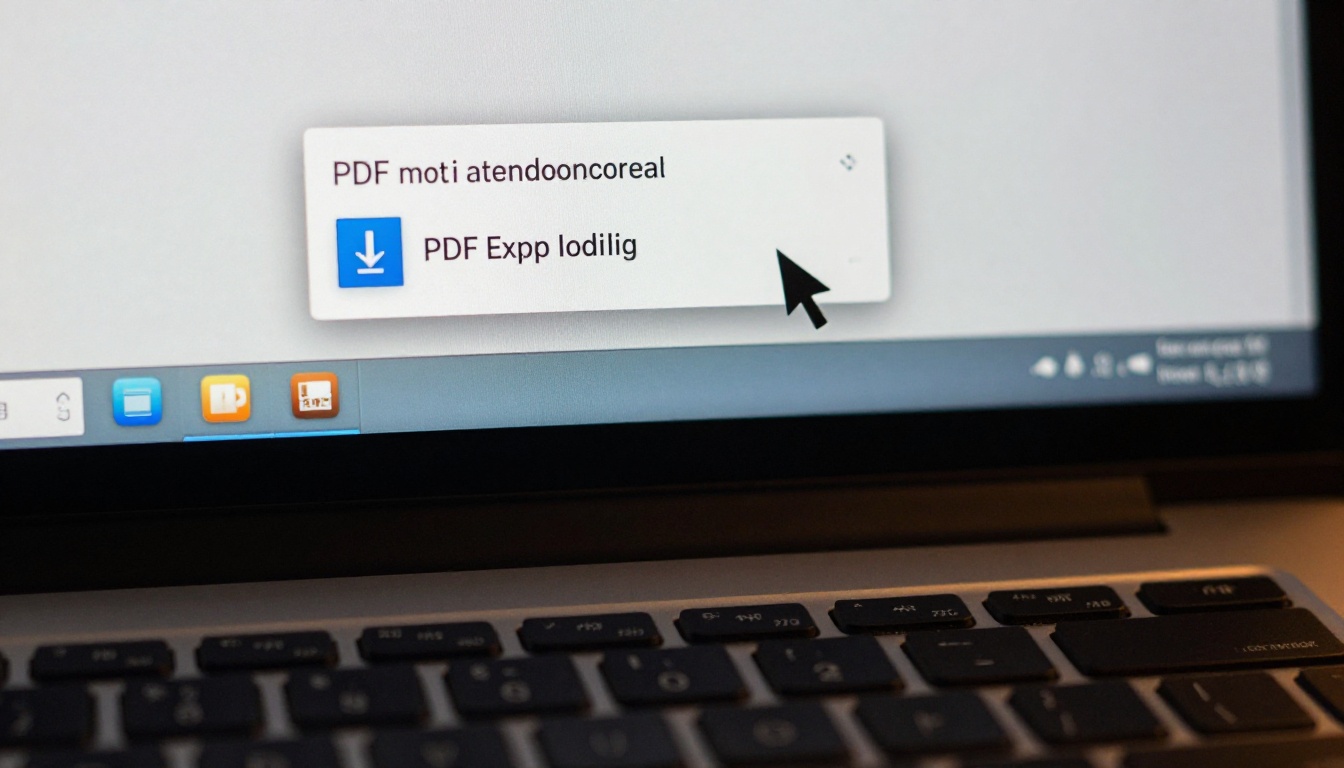
Step 1: Export Your Google Slides as a PDF
The bridge between Google Slides and any flipbook tool is a PDF file. Every flipbook converter works from PDF, so this is always your first move.
How to Export from Google Slides
- Open your presentation in Google Slides.
- Click File in the top menu bar.
- Select Download.
- Choose PDF Document (.pdf) from the submenu.
- The file downloads to your computer immediately.
💡 Before downloading, set your slide size to 16:9 widescreen (File > Page Setup) for the best flipbook display. Widescreen ratios look sharper on modern screens and give each page more visual breathing room.
Slide Quality Tips Before You Export
- Use high-contrast fonts: Small text at 10pt or below becomes unreadable on mobile flipbooks.
- Avoid heavy animations: Slide transitions do not carry into PDF, so simplify your design.
- Check image resolution: Embed images at 150 DPI minimum to avoid blurry flipbook pages.
- Limit slides: Flipbooks work best at 8 to 50 pages. Very long decks can slow down loading.
Step 2: Convert PDF to Flipbook with Flipbooks AI
Once you have your PDF, Flipbooks AI converts it into a full interactive flipbook in seconds. No coding, no design skills, and no desktop software required.
How to Create Your Flipbook
- Go to Flipbooks AI and sign up for a free account.
- Click Create New Flipbook from your dashboard.
- Drag and drop your exported Google Slides PDF into the upload area.
- Wait for the conversion to finish, usually under 30 seconds for standard decks.
- Your flipbook is live with an automatic page-flip effect applied.
✅ Flipbooks AI never adds watermarks, even on free usage. Your content stays clean and professional from the first page to the last.
Customizing Your Flipbook
After conversion, you have a full set of branding and design options:
- Custom colors: Match your company palette so the flipbook feels on-brand.
- Logo upload: Place your logo in the viewer header for a polished look.
- Background themes: Choose from paper textures, solid colors, or custom uploads.
- Page effects: Adjust the speed and style of the page-flip animation.
- Table of contents: Auto-generated from your slide titles, making navigation instant.
- Multimedia embeds: Add video and audio clips directly into flipbook pages.
Step 3: Share, Embed, and Distribute
A flipbook is only useful if people see it. Flipbooks AI gives you multiple distribution channels, each suited to a different audience.
Sharing Options at a Glance
| Method | Best For | Requires Login? |
|---|
| Direct link | Email campaigns, social media | No |
| Embed code | Websites, blogs, landing pages | No |
| Password protection | Private client docs, internal reports | No |
| QR code | Print materials, event handouts | No |
| Offline download | Conferences, offline presentations | Professional plan |
How to Share Your Flipbook
- Copy the direct link and paste it into any email, Slack message, or social post.
- Use the embed code to place the flipbook directly on your website or blog using a simple iframe snippet.
- Set a password for sensitive content: board presentations, confidential proposals, or client-only catalogs.
- Download a QR code that links directly to the flipbook, perfect for printed brochures or event banners.
💡 Embed codes work on WordPress, Squarespace, Wix, Webflow, and any platform that accepts HTML. Use the Embed Flipbook on Website tool for a one-click embed snippet.

Real-World Use Cases for Google Slides Flipbooks
Different industries use this workflow in very different ways. Here is how the conversion from slides to flipbook plays out in practice.
Business Presentations
Sales teams convert slide decks into flipbooks to send after client meetings. Instead of attaching a PDF that gets buried, they send a clean link the client can open on any device. The Sales Presentation tool is built for exactly this use case, with layouts optimized for B2B pitches and product demos. A real estate agency, for example, can convert a property listing deck into a shareable flipbook that clients forward to their families without any friction.
Education and Training
Teachers who build lessons in Google Slides can publish them as flipbooks for students to review at their own pace. The page-flip interaction keeps attention higher than a flat PDF, and the mobile-responsive design means students can read on any device. Corporate trainers benefit from the same approach: the Training Manual Flipbook and Course Material Publisher tools cover both K-12 and professional training contexts with equal ease.
Marketing and Product Catalogs
A product team that builds catalog slides in Google Slides can export and convert to a fully interactive catalog in minutes. The Digital Catalog Maker supports embedded links within pages, so readers can click directly from a product page to your store. Fashion brands use the Fashion Catalog Creator for seasonal lookbooks that customers actually want to flip through.
Event Programs and Creative Portfolios
Event coordinators use slide decks to build programs and agendas. Converting to a flipbook via the Event Program Maker gives attendees a shareable digital version long after the event ends. Creatives who build portfolio slides can use the Digital Portfolio Creator for a more immersive presentation of their work, complete with page animations that static PDFs simply cannot replicate.

Flipbooks AI Plans: What You Get at Each Level
The feature set varies by plan. Here is the breakdown so you can pick the right tier before uploading your first deck.
| Feature | Free | Standard | Professional |
|---|
| Watermarks | None | None | None |
| Unlimited flipbooks | ❌ | ✅ | ✅ |
| Custom branding | Partial | ✅ | ✅ |
| Password protection | ❌ | ✅ | ✅ |
| Embed on websites | ✅ | ✅ | ✅ |
| Analytics dashboard | ❌ | ❌ | ✅ |
| Lead generation forms | ❌ | ❌ | ✅ |
| Offline downloads | ❌ | ❌ | ✅ |
| Priority support | ❌ | ❌ | ✅ |
For most personal and small-team use cases, the Standard plan covers everything you need. If you send flipbooks to sales prospects and want to see who opened them and how long they spent on each page, the Professional plan pays for itself quickly. Compare pricing plans to find the right fit for your team.
Common Problems When Converting Google Slides
Even with a smooth workflow, a few hiccups come up regularly. Here is how to handle each one.
Fonts Look Wrong After Conversion
Problem: Custom fonts in Google Slides do not embed into PDFs by default, causing substitution to a generic fallback font in the flipbook.
Fix: Google Slides embeds most standard fonts automatically during PDF export. If you are using a rare custom font, switch to a Google Font that is widely supported before exporting. Alternatively, flatten your text by duplicating the slide, pasting it as an image, and overlaying it on the original.
Images Appear Blurry
Problem: Low-resolution images in your original slides export poorly and look pixelated in the flipbook viewer.
Fix: Replace source images with versions at 300 DPI or higher before exporting. In Google Slides, right-click any image and choose Replace image to swap in a higher-resolution version from your files or Google Drive.
Slide Animations Are Missing
Problem: Slide transitions and element animations are baked into Google Slides but do not transfer to PDF or flipbook formats.
Fix: This is expected behavior. PDFs are static snapshots of each slide. Design your slides so they communicate clearly without animation, using strong typography and visual hierarchy instead.
⚠️ If your presentation depends heavily on animation sequences to tell a story, consider recording it as a video using Google Slides' "Publish to web" feature as a supplementary asset, then embed the video into your flipbook page using Flipbooks AI's multimedia embed feature.
Tips to Make Your Flipbook Stand Out
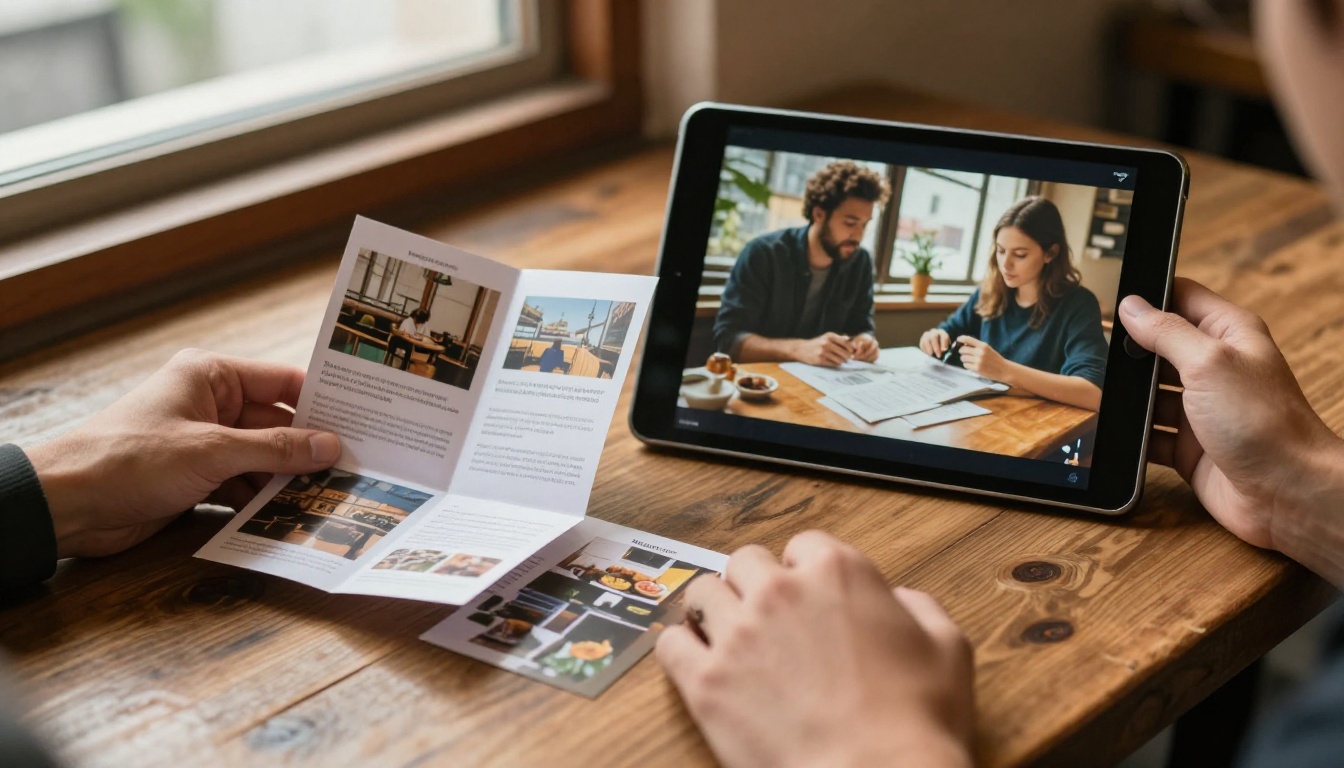
Converting slides to a flipbook is just the starting point. These practices push the final result from good to genuinely impressive.
Structure Your Slides Like Pages
Flipbooks are read like books, not watched like presentations. Each slide should work as a standalone page:
- Put one main idea per slide.
- Use clear section headers so readers can orient themselves without a presenter narrating.
- Add page numbers in Google Slides before exporting (Insert > Page Numbers).
- Write captions for charts and data visuals so they are self-explanatory.
Use Visual Consistency
- Stick to two typefaces maximum across all slides.
- Use a consistent color palette of three to five colors.
- Align elements to a grid so pages feel cohesive when flipped rapidly.
- Avoid background patterns that compete with text legibility.
Make the First Page Count
The first page is what readers see when the flipbook loads. Make it count as the strongest first impression:
- Include your title prominently with clear, legible typography.
- Add a relevant, high-quality image that sets the mood.
- State clearly what the reader will get from the document.
- Keep it clean, with enough white space to feel professional.
Optimize for Mobile
Over half of flipbook views happen on mobile devices. Before publishing:
- Test your flipbook link on a smartphone.
- Check that fonts are readable at phone scale (minimum 14pt body text).
- Make sure any clickable links within the flipbook are large enough to tap without zooming.
- Test both portrait and landscape orientations.
Once you have the Google Slides-to-flipbook workflow down, the same process applies to any document you already own. The PDF is the universal intermediate format.
Whatever you build, as long as it exports to PDF, Flipbooks AI can turn it into an interactive flipbook that works on any screen, in any browser, without any technical setup on the reader's end.

Start Publishing Your Flipbooks Today
The full workflow takes about five minutes once you have done it once. Build your presentation in Google Slides the way you normally would, export it as a PDF, upload it to Flipbooks AI, and share a link that works anywhere, on any device, without requiring the viewer to have a Google account or install anything.
Your Google Slides presentation deserves better than a static file sitting in someone's downloads folder. Give it the interactive, page-turning experience it was always meant to have.
Ready to try it? Create your free account and upload your first flipbook in the next five minutes. Want to see which plan fits your needs? Check the pricing options and pick the tier that works for your team size and output volume.
Browse all available flipbook tools to find the perfect format for every type of content you create, from sales presentations to training manuals to product catalogs.



