Making a flipbook feels straightforward until the final result looks nothing like what you imagined. Blurry pages, broken navigation, fonts that refuse to display correctly, and a layout that falls apart on mobile are just a few of the problems that trip up creators at every skill level. Whether you are working on a digital product catalog, a school magazine, or a business brochure, the same recurring errors show up again and again. Flipbooks AI has processed thousands of documents, and the patterns are clear. Here is a breakdown of every major mistake, why it happens, and exactly how to fix it before your next publish.
Why Your PDF Source File Matters Most
The flipbook is only as good as the file you start with. Most problems people encounter after conversion trace back directly to issues in the original PDF. Skipping quality checks at this stage means every downstream problem multiplies.
Resolution Too Low

Uploading a PDF exported at 72 DPI is the single most common mistake beginners make. Screens may seem forgiving at a glance, but when a reader zooms in on a product image or a fine-print detail, the pixelation becomes immediately obvious and unprofessional. The minimum for a readable flipbook export is 150 DPI. For any flipbook where readers are expected to zoom, 300 DPI is the standard.
⚠️ Warning: Exporting from PowerPoint or Google Slides often defaults to screen resolution (72-96 DPI). Always check your export settings before uploading. Look for a "High Quality" or "Press Quality" option in your PDF export dialog.
Oversized Files That Load Slowly
On the other end of the spectrum, exporting an uncompressed 300 DPI document with embedded high-resolution photos can result in a file over 200MB. Nobody waits for that to load. Page abandonment spikes sharply when load times exceed three seconds, and an oversized flipbook almost guarantees a poor experience, especially on mobile connections.
The ideal file size range for a flipbook PDF is between 5MB and 30MB per document.
Quick fixes for oversized PDFs:
- Compress images inside your layout software before exporting
- Use JPEG compression at 80% quality for photographs
- Embed only the fonts you actually use in the document
- Remove hidden layers, unused assets, and metadata bloat
- Downsample embedded images to 150 DPI for screen-only use
Fonts Not Embedded Properly
When fonts are not embedded in your PDF, the reader's browser substitutes a fallback. This breaks your layout, shifts text positions, causes unexpected line wraps, and makes professional content look careless. Always flatten fonts or embed them fully before exporting. In Adobe Acrobat, you can check embedded fonts under File > Properties > Fonts.
Layout and Design Mistakes That Break the Experience
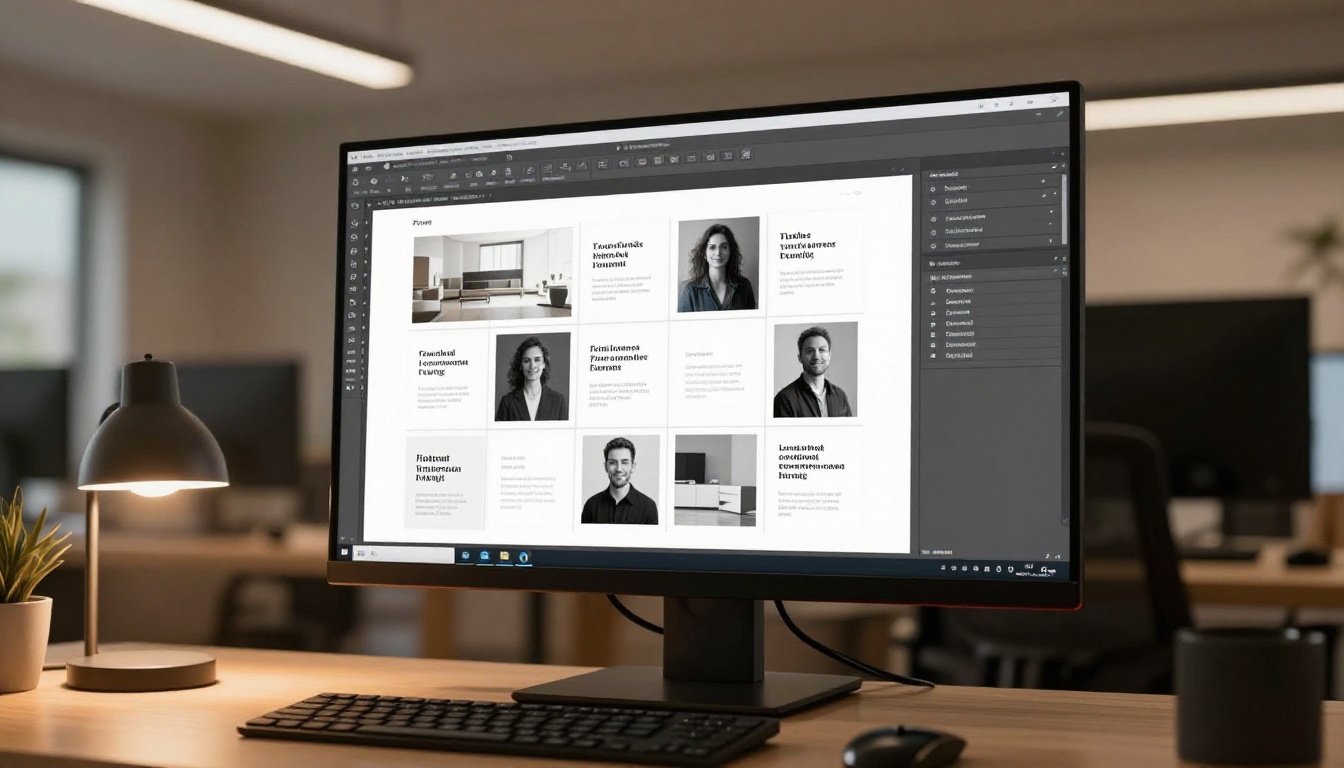
Even with a perfect source file, design decisions made inside the document can undermine the entire reading experience. These are the layout mistakes that most frequently damage reader retention.
Too Many Pages in One Document
There is a temptation to pack everything into a single flipbook. A 400-page document is hard to browse, slow to load, and overwhelming for any reader. Break long content into focused volumes. For a product catalog, split by category. For a magazine, publish individual issues. For a training program, separate modules into standalone flipbooks.
💡 Pro Tip: Readers typically spend 3-5 minutes on a digital flipbook. A 40-60 page document with strong visuals and clear structure consistently outperforms a 200-page text-heavy equivalent. Design for attention spans, not for comprehensiveness.
No Clear Cover Page
A flipbook's cover is the first thing a reader sees when the file loads. Creators frequently repurpose an interior page as the cover without thinking about how it appears as a thumbnail in links and social previews. Your cover should clearly communicate the topic, feature your strongest visual, include a title readable at small sizes, and match your brand's color identity.
Cluttered Pages With No White Space
Every inch of the page does not need content. Cramming text, icons, charts, and images onto one spread creates visual noise that readers scroll past without absorbing. White space directs the eye, creates breathing room between ideas, and signals intentional design.
| Design Approach | Reader Experience | Retention |
|---|
| Dense, text-heavy pages | Overwhelming, quickly skimmed | Low |
| Balanced text and visuals | Engaging and readable | Medium |
| White space with strong visuals | Immersive and focused | High |
| Infographic-heavy layouts | Visual and shareable | Very High |
Ignoring Mobile Users Entirely
More than 60% of digital content is consumed on mobile devices. Designing a flipbook solely for a desktop layout and never testing it on a phone is one of the most costly errors a creator can make. Your readers are almost certainly on their phones.
Text Too Small to Read
Body text that reads clearly at 11pt on a desktop spread becomes unreadable when scaled down on a 6-inch screen. A safe minimum for body text in flipbooks is 12-14pt in the source document. Section headers should be at least 18-24pt. Callout text and captions need extra attention since they are often set smaller than body copy.
Interactive Elements Not Built for Touch
Hover-dependent effects, fine hyperlinks, and small click targets simply do not work on touchscreens. If your flipbook includes calls-to-action or navigation buttons, they need to be large enough to tap comfortably, at least 44x44 pixels in the rendered output. Think about how the experience feels with a thumb, not a mouse cursor.
✅ Best Practice: Always preview your finished flipbook on an actual mobile device before sharing. Do not rely on a desktop browser's mobile simulation mode. Real-world testing catches issues that emulators miss.
A Platform That Does Not Prioritize Mobile
Some flipbook tools simply render a static PDF zoom, forcing mobile users into a constant pinch-and-scroll experience. Platforms built for modern readers handle mobile responsiveness automatically. Flipbooks AI delivers a smooth, mobile-optimized reading experience across all screen sizes with no extra configuration on your part.
Branding and Visual Identity Errors
Inconsistent Colors and Fonts
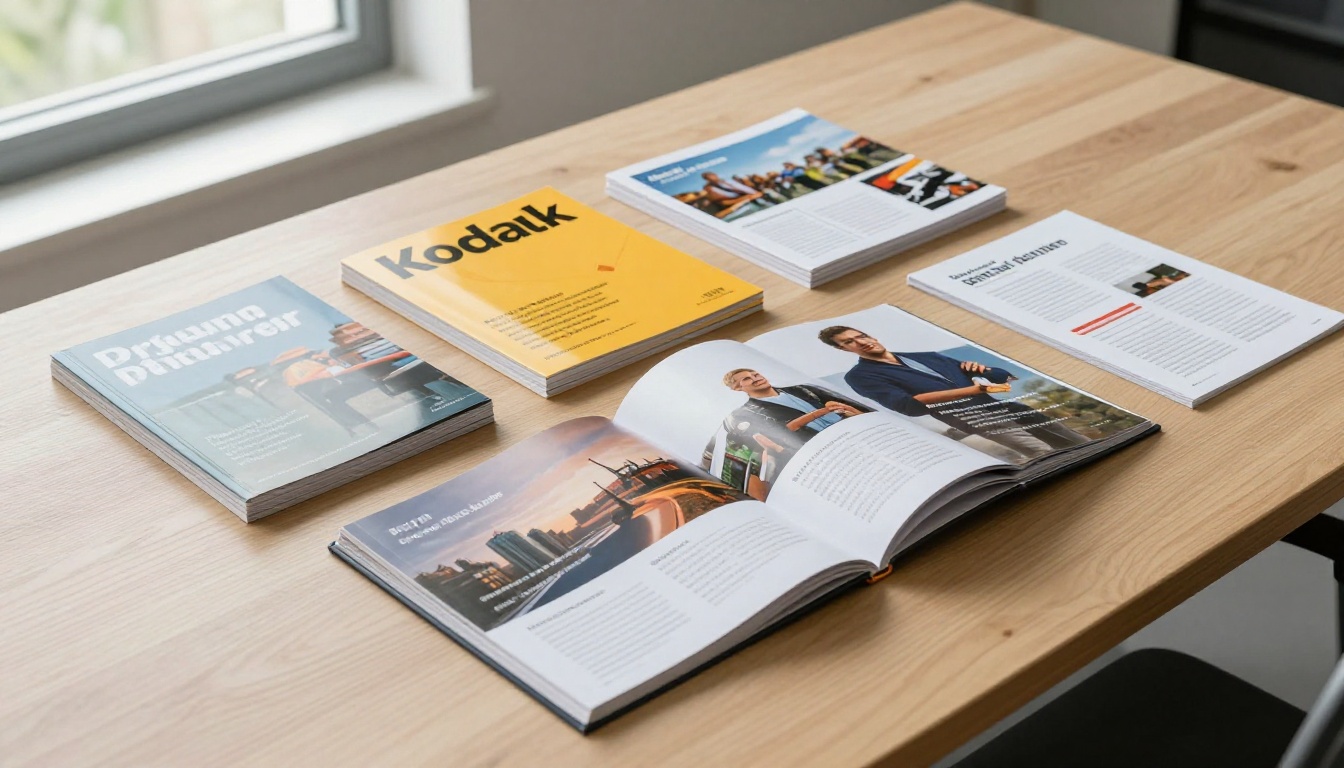
A flipbook that uses five different typefaces and shifts color schemes between sections signals a lack of cohesion. Readers may not consciously identify the problem, but they feel it as a general sense of unprofessionalism or distrust. This is especially damaging for brand publications where credibility is the entire point.
Brand consistency checklist:
- Use a maximum of 2-3 fonts throughout the entire document
- Stick to your brand's defined primary and secondary color palette
- Keep heading styles consistent across every section and chapter
- Maintain a unified image style, all photography or all illustration, never mixed at random
Platform Watermarks on Your Content
Many flipbook platforms add their own logo or watermark to the viewer interface. This pulls attention away from your content and undermines brand credibility, particularly when sharing with clients, prospects, or investors. A watermark-free experience is not optional for professional use.
Flipbooks AI removes watermarks entirely on all Standard plans and above, giving you a clean, branded presentation every time a reader opens your content.
Broken Internal and External Links
Hyperlinks embedded in your PDF should carry over cleanly into the flipbook. When they break, or when they point to outdated pages, every broken link is a missed opportunity and an active frustration for your reader. Before publishing, click through every link in both desktop and mobile views. Check outbound links, internal navigation anchors, and any email or phone links.
⚠️ Warning: PDF hyperlinks created with certain desktop publishing tools sometimes fail to export correctly. Always open the finished PDF in a browser and test every link before uploading it to your flipbook platform.
Missing or Generic Alt Text
Alt text on images serves two purposes: accessibility for visually impaired readers using screen readers, and search engine indexing. Leaving alt text blank or using generic filenames like "image001.jpg" wastes both opportunities. Write accurate, descriptive alt text for every image and include relevant terms where they fit naturally.
No Table of Contents for Long Documents
A 60-page flipbook with no navigation structure forces readers to page through sequentially to find what they want. For any document over 20 pages, include a clickable table of contents at the beginning. Linking section headings in the TOC directly to their pages dramatically improves the experience and reduces bounce rates.
Sharing and Distribution Mistakes

Sharing a PDF Attachment Instead of a Link
Sending a raw PDF attachment via email instead of a live flipbook link is a habit that costs you every time. A PDF attachment cannot be tracked, provides no analytics, offers no interactivity, and gives the reader a flat, static experience. Sharing a live flipbook URL keeps the experience rich and gives you visibility into who is reading it and for how long.
No Password Protection for Private Content
If your flipbook contains confidential pricing, internal training materials, or exclusive content reserved for specific clients, publishing it without password protection is a significant oversight. Once a public link is shared, you have no control over who accesses it.
💡 Pro Tip: Flipbooks AI includes password protection on all plans. Setting a password takes seconds and keeps your private content exactly that.
Not Using Embed Codes
Creators frequently share flipbooks only as standalone links, missing the opportunity to embed them directly inside a website page or email campaign. An embedded flipbook keeps readers in your environment, increases dwell time on your site, and creates a far more immersive brand experience than a redirect link.
Use the Embed Flipbook on Website tool to generate a clean, responsive embed code in seconds.
Common Mistakes at a Glance
Here is a full overview of the most frequent errors and their direct solutions:
| Mistake | Impact | Fix |
|---|
| Low-resolution PDF (72 DPI) | Blurry images on zoom | Export at 150-300 DPI |
| No font embedding | Layout breaks, wrong fonts display | Flatten or embed all fonts |
| File too large (200MB+) | Slow load, reader abandonment | Compress to 5-30MB range |
| No mobile testing | Unreadable on phones | Test on real devices before sharing |
| Inconsistent branding | Low trust, unprofessional look | Apply a style guide consistently |
| Broken hyperlinks | Missed CTAs, poor reader experience | Click every link before publishing |
| No table of contents | Poor navigation, high bounce rate | Add clickable TOC for 20+ pages |
| Sharing PDF attachments | No tracking, flat experience | Use live flipbook URL |
| No password on private content | Security risk, unauthorized access | Enable password protection |
| Platform watermarks | Undermines brand credibility | Use a no-watermark platform |
How to Build a Flipbook the Right Way on Flipbooks AI

Avoiding all of these mistakes becomes significantly easier when you use a platform built to handle the technical side for you. Here is how to create a polished flipbook from scratch using Flipbooks AI.
Step 1: Create Your Account
Visit flipbooksai.com/account and sign up. No credit card is required to start, and you can build and publish your first flipbook in minutes.
Step 2: Upload Your PDF
From your dashboard, select New Flipbook and upload your prepared PDF file. The platform automatically converts it into a smooth, animated page-turning experience. Before uploading, confirm your PDF is exported at 150 DPI minimum and all fonts are embedded.
✅ Best Practice: Run your PDF through a free compression tool like Smallpdf or Adobe Acrobat's optimizer if it exceeds 30MB, then upload the compressed version.
Step 3: Customize Branding and Design
Once converted, open the customization panel to:
- Upload your logo to the viewer interface
- Set your brand's primary and secondary colors for navigation elements
- Select a page-turn animation style (classic flip, slide, or fade)
- Add a custom background color or texture behind the pages
Step 4: Add Interactive Elements
Enrich your flipbook with embedded media:
- Video links that play inline on any page
- Audio clips for narration, product walkthroughs, or background sound
- Hyperlinks to products, landing pages, booking forms, or external resources
For restaurant owners, the Restaurant Menu Creator builds interactive menus with embedded ordering links. For real estate professionals, the Real Estate Brochure Creator produces branded property flipbooks with direct agent contact CTAs.
Step 5: Configure Sharing and Security
Before publishing:
- Enable password protection for any private or client-only documents
- Generate an embed code for your website, landing page, or email campaign
- Copy the shareable link for direct distribution
Step 6: Publish and Track Results
Hit Publish and your flipbook is live immediately. On the Professional plan, you unlock:
- Page-by-page analytics showing exactly where readers spend time and where they stop
- Lead generation forms embedded directly inside the flipbook
- Offline downloads for readers who need access without a connection
Flipbooks AI Plan Comparison
| Feature | Free | Standard | Professional |
|---|
| Watermark-free | No | Yes | Yes |
| Unlimited flipbooks | No | Yes | Yes |
| Password protection | No | Yes | Yes |
| Custom branding | No | Yes | Yes |
| Embedded video and audio | No | Yes | Yes |
| Mobile-responsive design | Yes | Yes | Yes |
| Analytics | No | No | Yes |
| Lead generation forms | No | No | Yes |
| Offline downloads | No | No | Yes |
💡 Pro Tip: If you share flipbooks as part of a sales workflow, the Professional plan's page-level analytics pay for themselves. Knowing which pages hold attention and which lose it tells you exactly where your content is working.

A well-made flipbook does not just display content. It shapes how readers feel about that content. When loading is fast, pages are crisp, layout breathes, and navigation is effortless, readers assign more credibility to everything inside. Each mistake on this list has the opposite effect: it introduces friction, erodes trust, and shortens the time a reader spends with your work.
The good news is that every single issue covered here is preventable. Start with a high-quality source file, test on mobile before publishing, choose a platform that handles branding and performance for you, and always share as a live link rather than a static attachment.
Whether you are building a digital product catalog, a corporate annual report, an interactive lookbook, a training manual, or a recipe book, the process is the same: clean source file, intentional layout, and a professional platform that does not get in your way.
Ready to build a flipbook that actually works? Create your account on Flipbooks AI for free and see the difference a proper workflow makes. Browse all available tools to find the right template for your use case, or check out the pricing plans to choose the tier that fits your needs.



