PDF files are the internet's most stubborn format. They display beautifully when printed, open reliably on every device, and hold layouts together without falling apart. But the moment you share one online, you run into the same problem every time: the experience is flat, passive, and forgettable. That's exactly why PDF-to-flipbook conversion has become one of the fastest-growing requests in digital publishing. A flipbook takes your existing PDF and gives it a physical dimension online, complete with realistic page-turn animations, clickable links, embedded media, and a reading experience that actually holds attention. Before you upload your first file to Flipbooks AI and hit convert, there are a few things worth knowing. The quality of your output depends more on decisions you make before conversion than anything the tool does afterward.
What Actually Happens During Conversion
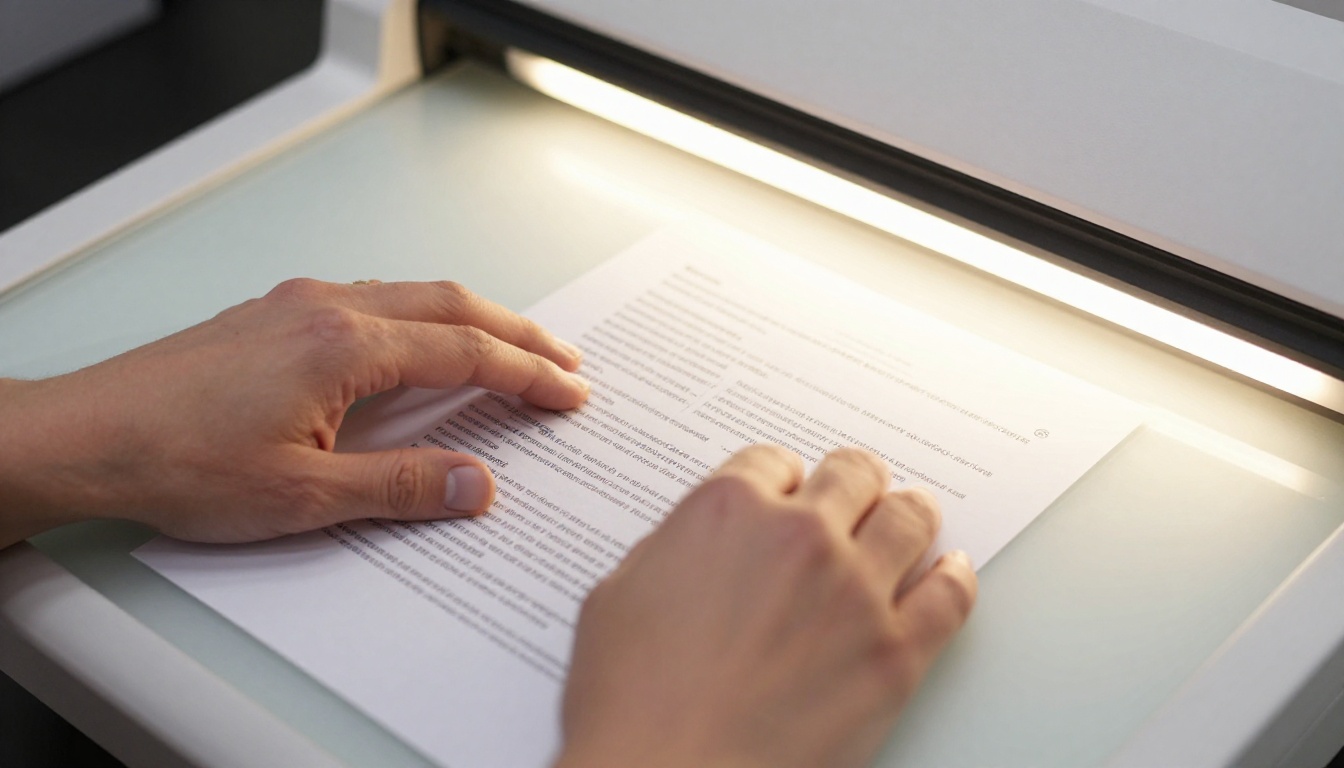
When you upload a PDF to a flipbook converter, the tool doesn't just display your PDF in a new frame. It extracts each page as a rendered image or vector layer, maps those pages into an interactive HTML5 viewer, and adds the page-turning physics that make it feel like a real publication.
The conversion process typically follows these stages:
- Upload and parsing: The converter reads your PDF's structure, extracting pages, embedded fonts, vector elements, and raster images.
- Page rendering: Each page is rendered at a set resolution, typically 72 to 300 DPI depending on the tool and its settings.
- Viewer assembly: Rendered pages are assembled into an HTML5 flipbook viewer with page-turn physics, navigation controls, and a responsive layout.
- Optional processing: Some tools extract text layers for SEO indexing, link detection, or in-flipbook search functionality.
💡 The rendering resolution matters more than almost anything else. A PDF rendered at 72 DPI will look fine on small screens but blurry when zoomed. Always check whether your flipbook platform renders at 150 DPI or higher before committing.
PDF Quality Matters More Than You Think
The single biggest variable in flipbook output quality is the PDF itself, not the conversion tool. Many people blame the converter when blurry pages or broken layouts appear, but the source is almost always the original file.
Resolution and DPI
PDFs created from design software like Adobe InDesign or Illustrator typically embed fonts as vectors, which scale perfectly at any size. PDFs created from scans or exported from slideshow software often use compressed raster images that look fine at 100% zoom but fall apart when enlarged.
| PDF Source | Typical Quality | Flipbook Output |
|---|
| Adobe InDesign / Illustrator | Vector-based, scalable | Sharp at all sizes |
| Microsoft Word / PowerPoint | Mixed vector and raster | Good at standard zoom |
| Scanned physical document | Raster only, 150-300 DPI | Acceptable if scan is clean |
| Screenshot-to-PDF | Low resolution raster | Often blurry when zoomed |
| Online PDF compressors | Degraded quality | Noticeable quality loss |
Font Embedding
If your PDF doesn't embed its fonts and the viewer's system doesn't have them installed, text will substitute to a fallback font. This can completely break carefully typeset layouts. Always export your PDF with Embed All Fonts selected in your design software before uploading anywhere.
File Size
Oversized PDFs with uncompressed images slow down conversion and can cause timeout errors on some platforms. Aim to compress images inside your PDF before uploading, but avoid aggressive compression that degrades visual quality. The sweet spot for most documents is between 2 and 10 MB.
⚠️ Avoid re-saving a PDF multiple times with image compression applied each time. Each pass degrades image quality further. Always work from the original source file whenever possible.
Why Static PDFs Fail Online
Static PDFs were built for printing and offline reading. They weren't designed for the expectations people bring to digital content today.
Here's where PDFs fall short in an online context:
- No page-turn experience: Scrolling through a PDF feels like reading a spreadsheet. There's no physical metaphor to draw the reader in.
- Difficult to embed: Embedding PDFs on websites requires iframes with inconsistent cross-browser behavior, often resulting in download prompts instead of in-page reading.
- Poor mobile performance: PDF viewers on mobile are inconsistent. Zooming, panning, and text flow don't adapt well to small screens.
- No analytics: You can't tell whether anyone read past page 3, which sections held attention, or where readers dropped off.
- No interactivity: Clickable links in PDFs work inconsistently depending on the viewer, and embedding video or audio is not possible.
Flipbooks solve every one of these problems. They load directly in the browser, scale to any screen size, support embedded media, and on platforms like Flipbooks AI, they include built-in analytics to show exactly how readers interact with your content.
What Your Flipbook Can Do That Your PDF Cannot
The jump from PDF to flipbook isn't just aesthetic. It opens up a set of capabilities that change how people interact with your content entirely.
| Feature | Static PDF | Flipbook |
|---|
| Page-turn animation | No | Yes |
| Mobile-responsive layout | Limited | Yes |
| Embedded video and audio | No | Yes |
| Password protection | Limited | Yes |
| Analytics and reader tracking | No | Yes (Professional plan) |
| Custom branding and colors | No | Yes |
| Embeddable on any website | Unreliable | Yes |
| Offline download option | Yes | Yes |
| Lead capture forms | No | Yes (Professional plan) |
| No watermarks | N/A | Yes (Standard plan and above) |
These capabilities make flipbooks practical for a much wider range of scenarios. A printed restaurant menu becomes a tappable browsing experience. A real estate listing brochure becomes an interactive property tour. A company report becomes a presentation that stakeholders actually open and read through.
✅ Flipbooks work best when the original content was designed for sequential reading, such as catalogs, menus, brochures, reports, portfolios, and educational materials.
Real-World Use Cases by Industry
Seeing where flipbooks create real value helps you decide whether conversion is the right move for your specific document.
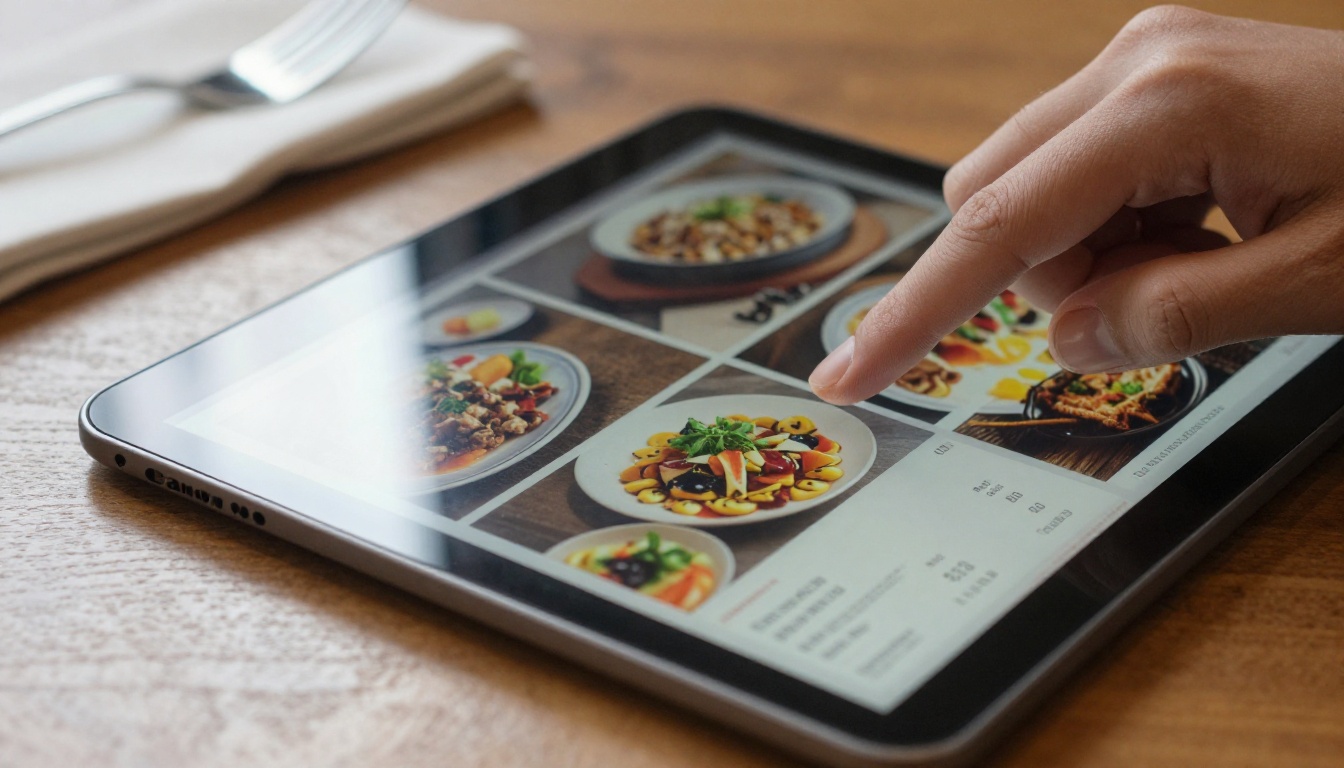
Restaurants and hospitality: A restaurant can replace a printed menu with a flipbook that updates instantly, embeds photos of each dish, and works perfectly on a guest's smartphone. The Restaurant Menu Creator takes this further with purpose-built templates.
Real estate: Property agents benefit from turning listing brochures into shareable flipbooks that clients can browse on any device. The Real Estate Brochure Creator is designed specifically for this workflow.
Education: Teachers and trainers convert course materials and manuals into flipbooks that are easier to navigate than linear PDFs. The Training Manual Flipbook tool supports this without requiring any design experience.
Retail and e-commerce: Product catalogs in flipbook format outperform static PDFs for reader interaction because they feel like browsing a physical catalog. The Digital Catalog Maker is a purpose-built option for this use case.
Corporate communications: Annual reports, press kits, and investor presentations converted to flipbooks project more professionalism and allow for deeper analytics on reader behavior.
Not all flipbook converters are equal. The differences between them become obvious the moment you try to do anything beyond a basic conversion.
| Capability | Free Tools | Basic Paid | Professional Platforms |
|---|
| Custom domain / branding | No | Partial | Yes |
| Watermark-free output | No | Sometimes | Yes |
| Analytics dashboard | No | No | Yes |
| Password protection | No | Limited | Yes |
| Video embedding | No | No | Yes |
| Offline downloads | No | No | Yes |
| Unlimited flipbooks | No | Limited | Yes |
| Lead generation forms | No | No | Yes |
Free tools are fine for testing whether a specific PDF converts well. For anything shared with clients, customers, or the public, a professional platform makes a clear difference. The watermark alone on free tools signals a lack of professionalism, and the absence of analytics means you're publishing without any visibility into results.
💡 Before committing to any platform, test your actual PDF rather than a sample document. The way your specific file handles fonts, images, and layout is what matters, and no demo document will tell you that.
3 Common Mistakes Before You Convert
Most conversion problems trace back to decisions made before anyone opens the converter.

Mistake 1: Using a print-optimized PDF without adjusting for screen
Print PDFs often use CMYK color profiles, bleed margins, and crop marks that look wrong on a screen. If your PDF was designed for printing, export a separate screen-optimized version with RGB colors, 72 to 150 DPI images, and no print marks before converting.
Mistake 2: Ignoring page orientation inconsistencies
A PDF that mixes portrait and landscape pages creates awkward layout problems in most flipbook viewers. Standardize your page orientation before uploading, or check whether your platform handles mixed orientations gracefully before proceeding.
Mistake 3: Uploading without testing the output first
Many people upload a final version of an important document and only discover quality issues after sharing the link. Always convert a test version first, review the output on both desktop and mobile, then publish the final file once you're satisfied.
How to Create Your First Flipbook with Flipbooks AI
If your PDF is ready and you want to see the conversion in action, here's how the process works on Flipbooks AI.
-
Create an account: Go to Flipbooks AI and sign up. No credit card is required to start.
-
Upload your PDF: From your dashboard, click "New Flipbook" and drag your PDF file into the upload area. Flipbooks AI accepts standard document file sizes and processes them in seconds.
-
Review the conversion: Once processing completes, preview your flipbook. Check that fonts render correctly, images are sharp, and page layouts match the original document.
-
Apply your branding: Set your brand colors, add a logo, assign a custom thumbnail for the opening page, and adjust page-turn effects. This step takes the output from generic to polished.
-
Add multimedia where relevant: For product catalogs or portfolio flipbooks, embed video clips directly onto specific pages. This is particularly effective for showcasing product demos or property walkthroughs.
-
Configure sharing settings: Choose whether the flipbook is public or password-protected, generate an embed code for your website, or copy the direct link for email campaigns.
-
Publish and track: Once live, use the analytics dashboard available on the Professional plan to track page views, read-through rates, and the exact pages where readers stop.
✅ Flipbooks AI delivers flipbooks with no watermarks on the Standard plan and above, unlimited flipbooks with full customization options, and mobile-responsive output that works on every device without any extra configuration.

Not every document should become a flipbook. The format works best when content is designed for sequential reading and benefits from visual presentation. Here's a quick reference:
Before You Convert, Check These 5 Things
A brief pre-conversion checklist saves a significant amount of time and avoids the most common quality issues:
- Color profile: Is your PDF in RGB, not CMYK?
- Font embedding: Are all fonts embedded in the export settings?
- Image resolution: Are images at least 150 DPI within the PDF?
- File size: Is the file under 15 MB for fast upload and processing?
- Page consistency: Are all pages the same orientation and size?
If all five boxes are checked, your conversion will produce clean, professional output. If any are off, fix them in the source file before uploading. No converter can fix a low-resolution image or a missing font after the fact, so the preparation you do upfront directly determines what you get out.
Converting a PDF to a flipbook is one of the most practical upgrades you can make to any digital document. The difference in how readers interact with the same content is measurable, and the setup takes minutes rather than hours when you go in prepared.
Ready to convert your first PDF? Create a free account on Flipbooks AI and see the result for yourself. Check out pricing plans to find the right tier for your needs, or browse the full list of flipbook tools to find one built specifically for your document type. If you already know what you're creating, the PDF to Flipbook Converter is the fastest place to start.



