You spent real hours building that design in Photoshop. Layers organized, typography dialed in, color profiles locked, artboards named. And then you hit the wall everyone hits: how do you get this into a format people can actually interact with online? Not a flat PDF sitting in an inbox with a 20% open rate, but something that pages, flips, and works on mobile without making anyone install a plugin. The answer is simpler than most Photoshop workflows make it feel, and Flipbooks AI removes the hard part entirely.

Why Photoshop Alone Won't Cut It
What Photoshop Does Well (and Doesn't)
Photoshop is exactly the right tool for the design phase. Pixel-perfect layouts, smart objects, non-destructive layer adjustments, precise typography control, custom blend modes for photography, and total command over every pixel on the page. It handles all of it at a professional level that no other raster editor touches.
But Photoshop was built for print production and image editing, not interactive digital publishing. It exports PDFs and PNGs. That's where its job ends. There's no built-in mechanism to make your multi-page catalog browsable online, shareable via link, or embeddable in a website with a page-turning animation. The tools for that live somewhere else entirely.
The problem isn't the software. The problem is assuming Photoshop should handle the full publishing chain when it was never designed to.
The Missing Link Between Design and Publishing
The gap between "finished in Photoshop" and "live online as an interactive document" used to require four separate steps: an export to InDesign for multi-page structure, a specialized flipbook software license, manual file hosting, and often a developer to handle embedding. That's four tools, four logins, and several hours of work you didn't budget for.
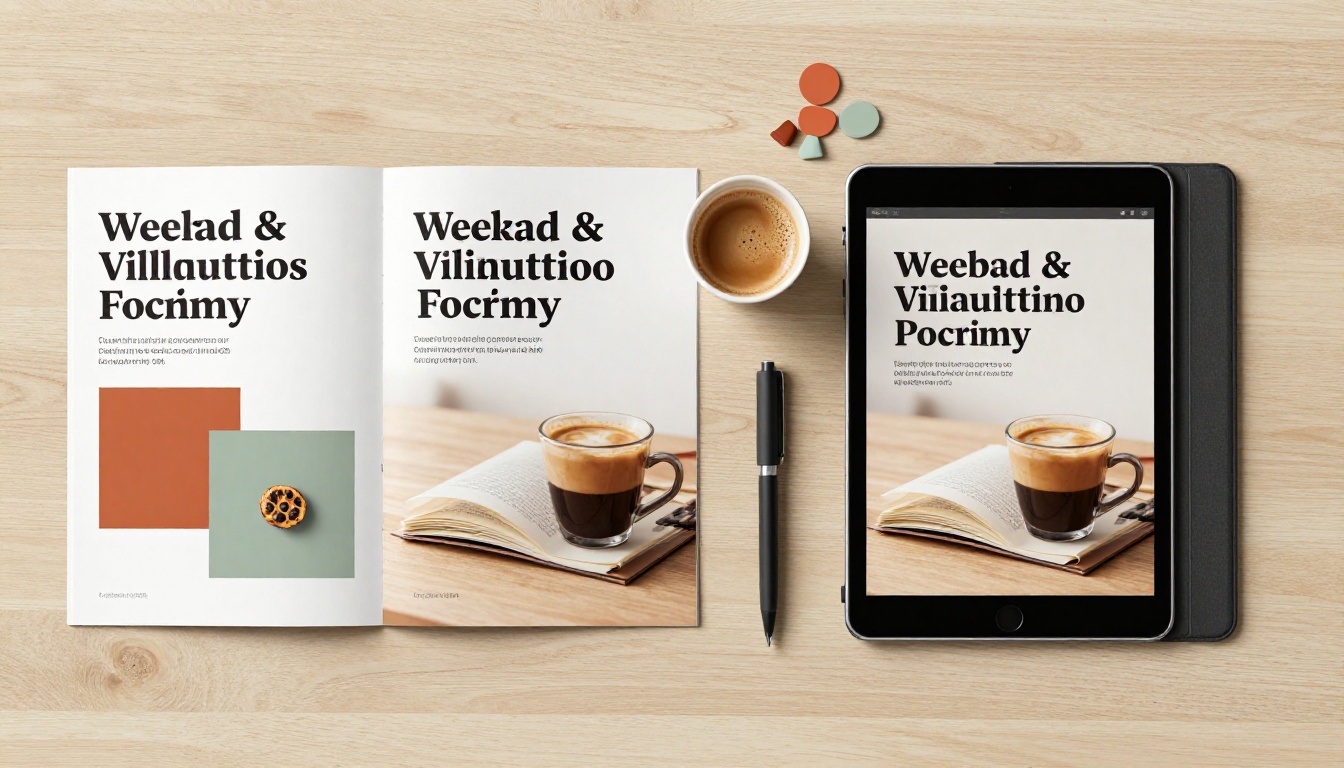
The modern workflow collapses all of that into three actions: export a PDF from Photoshop, upload it to a flipbook platform, share the link. One of those steps is already part of your existing Photoshop routine.
The 3-Step Workflow That Actually Works
Step 1: Export the Right Way from Photoshop
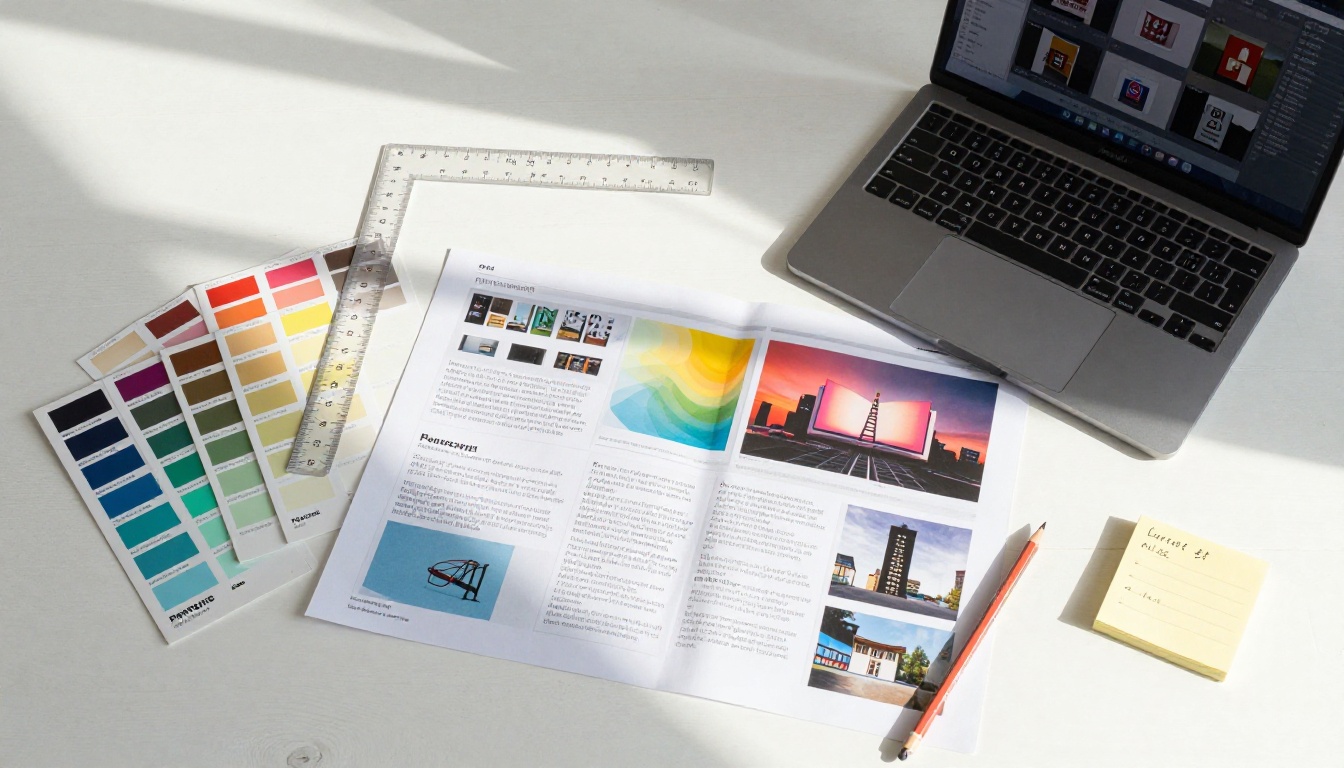
The only bridge you need between Photoshop and any flipbook platform is a PDF. Not every PDF export configuration produces the same results, though. Here's the exact process that works:
- Go to File > Save As and select Photoshop PDF from the format dropdown
- In the PDF settings dialog, choose High Quality Print as your starting preset
- Set Compatibility to Acrobat 5 or higher (PDF 1.4+) for broadest device support
- Under Compression, target 150 DPI for screen-only flipbooks (300 DPI is overkill and inflates file size by 4x)
- Make sure Preserve Photoshop Editing Capabilities is unchecked (this alone can cut file size by 50%)
- Verify your document color mode is RGB, not CMYK (Image > Mode to check)
- Click Save PDF
That file is your publishing-ready asset. Everything after this happens in a browser, automatically.
💡 Pro Tip: If your Photoshop document uses multiple artboards (one per catalog page), go to File > Export > Export As and choose PDF format. Photoshop will compile all artboards into a single multi-page PDF in sequential order, exactly as needed for a flipbook upload.
Step 2: Upload to Flipbooks AI
With your PDF in hand, the next step takes under two minutes:
- Go to Flipbooks AI and create your free account
- Click New Flipbook from your dashboard
- Drag and drop your exported PDF into the upload zone, or browse to select it
- The platform automatically converts each PDF page into a sharp, browsable flipbook spread
- Within seconds, a live preview appears, with realistic page-curl animation ready to share
The conversion process handles all the technical work behind the scenes: rendering each page at the right resolution, generating mobile-optimized assets, setting up responsive behavior across screen sizes, and providing a hosted URL. No server to configure, no code to write.
Step 3: Customize and Publish
After the upload processes, you have full control over the presentation:
- Custom branding: Set your brand colors for the flipbook interface and controls
- Page transitions: Choose animation speed and style for the page-curl effect
- Password protection: Lock access for private client reviews before the public launch
- Custom domain: Share under your own subdomain rather than a generic platform URL
- Embed code: A single
<iframe> snippet drops the flipbook directly into any website, CMS, or email template
- Analytics: Track views, page-level engagement, and audience location (Professional plan)
✅ Best Practice: Before any public share, use password protection to send a private review link to your client. Collect sign-off. Then remove the password and distribute the clean public URL. This workflow prevents preliminary versions from circulating uncontrolled.
Export Settings That Actually Matter
Resolution and Color Mode
Most Photoshop designers default to 300 DPI for every export because that's the print production standard. For flipbooks viewed on screens, 150 DPI is almost always the better choice. At typical reading distances on monitors and phone screens, the difference is invisible to the eye, but the file size reduction is dramatic.
| Setting | Print PDF | Flipbook PDF |
|---|
| Resolution | 300 DPI | 150 DPI recommended |
| Color Mode | CMYK | RGB (required) |
| Compression | Minimal | JPEG Quality 8 |
| PS Editing Data | Optional | Off (reduces file size) |
| ICC Profile Embed | Yes | sRGB preferred |
| Ideal File Size | Any | Under 50MB |
File Size and Page Count
Flipbooks AI handles large files well, but a leaner PDF means faster load times for every viewer, every time the flipbook is opened:
- Photo-heavy pages: Use JPEG compression at quality 8 in Photoshop. Most images look identical to quality 10 at half the size.
- Vector and text pages: Use lossless compression. These pages contain minimal image data and benefit from sharper rendering.
- Large catalogs (100+ pages): Consider splitting into chapters and creating linked flipbooks. Shorter flipbooks load faster and give readers cleaner navigation.
- Flatten when done: If you no longer need to edit a layer, flatten that layer group. Unflattened smart objects can bloat export file sizes unnecessarily.
⚠️ Warning: Never export in CMYK for a flipbook. CMYK colors render unpredictably and often incorrectly in web browsers, which only interpret RGB values. Check your document mode under Image > Mode and convert to RGB before exporting if needed.
Common Mistakes That Waste Time
Designers who struggle with the Photoshop-to-flipbook process usually run into the same three problems, all of which are easily avoided:
Keeping Photoshop editing capabilities on: This embeds the full PSD data into the PDF. The file becomes enormous (sometimes 10x larger than necessary) and uploads slowly. Always uncheck this option.
Exporting at print resolution for screen use: A 300 DPI PDF of a 100-page catalog can exceed 200MB. A 150 DPI version of the same catalog is typically 40-60MB, loads faster, and looks identical on screen.
Using CMYK color mode: This is the most common error from designers who work in print environments. CMYK documents exported as PDFs and then rendered in web browsers produce dull, desaturated colors. The web is RGB. Convert before you export.

What You Can Build with This Workflow
The Photoshop-to-flipbook pipeline isn't specific to one type of document or industry. The same three-step process produces dramatically different outputs depending on the original design.
Menus and Hospitality
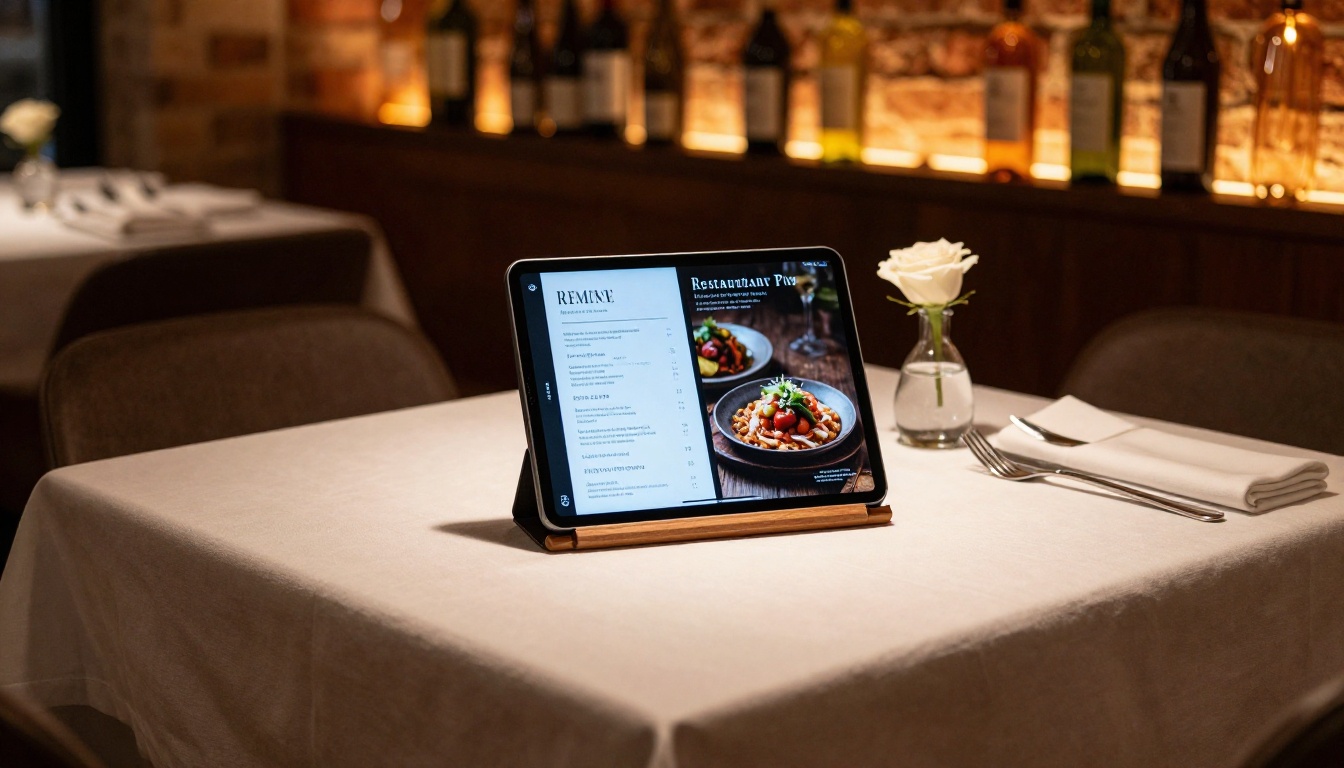
Restaurants and hospitality brands design menus in Photoshop because they need precise control over typography, food photography placement, and brand consistency that no drag-and-drop menu builder provides. Exporting that design as a PDF and uploading it to create a flipbook turns a printed menu into a QR-code-accessible digital experience that guests browse on their phones at the table.
The Restaurant Menu Creator tool offers templates built around this workflow. Spa and wellness brands use the same approach through the Spa and Wellness Menu Creator, and hospitality groups use the Menu Flipbook Designer to keep consistent formatting across locations.
Real Estate and Property Marketing
Real estate agents commission or produce property brochures with precise image placement, neighborhood maps, and feature highlights that require real design tools. A Photoshop PDF converted to a flipbook becomes a link the agent texts or emails to a prospective buyer, who views it without needing to download anything.
The Real Estate Brochure Creator extends this for teams working at volume. The Hotel Brochure Designer applies the same approach to hospitality properties.

Catalogs, Lookbooks, and Portfolios
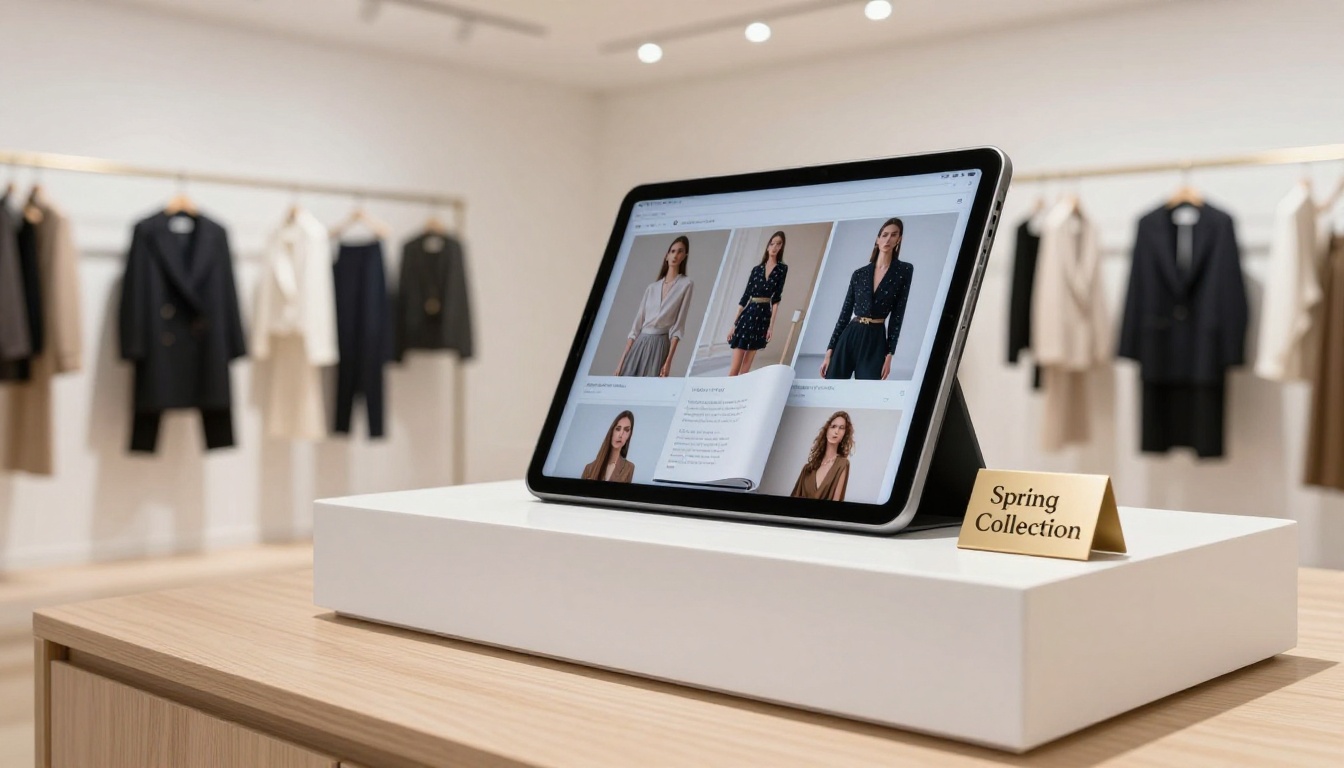
Fashion brands, photographers, and creative agencies produce catalog and lookbook designs where visual impact is the entire point. A realistic page-turn interaction makes a fashion catalog feel premium in a way a flat PDF file never achieves. Prospective clients who receive a flipbook link spend more time with the content.
Relevant tools include the Fashion Catalog Creator, Interactive Lookbook Designer, Photography Portfolio, and Digital Portfolio Creator for individual creatives building their client-facing work.
Business Reports and Presentations
Annual reports, investor presentations, and corporate sales decks built in Photoshop convert cleanly to flipbooks. Instead of emailing a heavy PDF attachment that gets buried in an inbox, teams share a live link that opens instantly in any browser, on any device, without requiring an account or download from the recipient.
The Annual Report Creator, Corporate Report Maker, and Sales Presentation Flipbook tools serve different segments of this use case for teams working at scale.

Understanding where each tool fits in the workflow makes clear why this combination works so well and why neither tool replaces the other.
| Capability | Photoshop | Flipbooks AI |
|---|
| Pixel-perfect design | ✅ Best in class | Not applicable |
| Typography control | ✅ Full professional | Basic only |
| Image retouching | ✅ Professional | Not applicable |
| Interactive page-turn | Not available | ✅ Built-in, realistic |
| Mobile-responsive output | Not available | ✅ Automatic |
| Shareable link | Not available | ✅ Instant, hosted |
| Embed on website | Not available | ✅ One-line iframe code |
| Analytics dashboard | Not available | ✅ Professional plan |
| Password protection | Not available | ✅ All plans |
| No watermark | Not applicable | ✅ All paid plans |
| Offline downloads | Not applicable | ✅ Standard and above |
The tools are complementary by design. Photoshop owns the creative phase. Flipbooks AI owns the publishing and distribution phase. Trying to force either tool to do the other's job is where time gets wasted.
Plan Comparison: What You Actually Get
Flipbooks AI pricing is structured around publishing volume and the features that matter at each stage of growth.
| Feature | Free | Standard | Professional |
|---|
| Flipbooks | Limited | Unlimited | Unlimited |
| Watermark | Yes | No | No |
| Password protection | No | ✅ | ✅ |
| Custom branding | No | ✅ | ✅ |
| Embed on website | No | ✅ | ✅ |
| Video and audio embed | No | ✅ | ✅ |
| Offline downloads | No | ✅ | ✅ |
| Analytics | No | No | ✅ |
| Lead generation forms | No | No | ✅ |
| Mobile-responsive | ✅ | ✅ | ✅ |
💡 Pro Tip: Start on the Free plan to validate the PDF-to-flipbook workflow with your actual Photoshop files before committing. Upgrade to Standard once you need clean branding and embeds for client delivery. Move to Professional when you need to know exactly how recipients engage with your content page by page.
Organize Your Photoshop Files for Faster Exports
This is the step most designers skip, and it slows down every subsequent project.
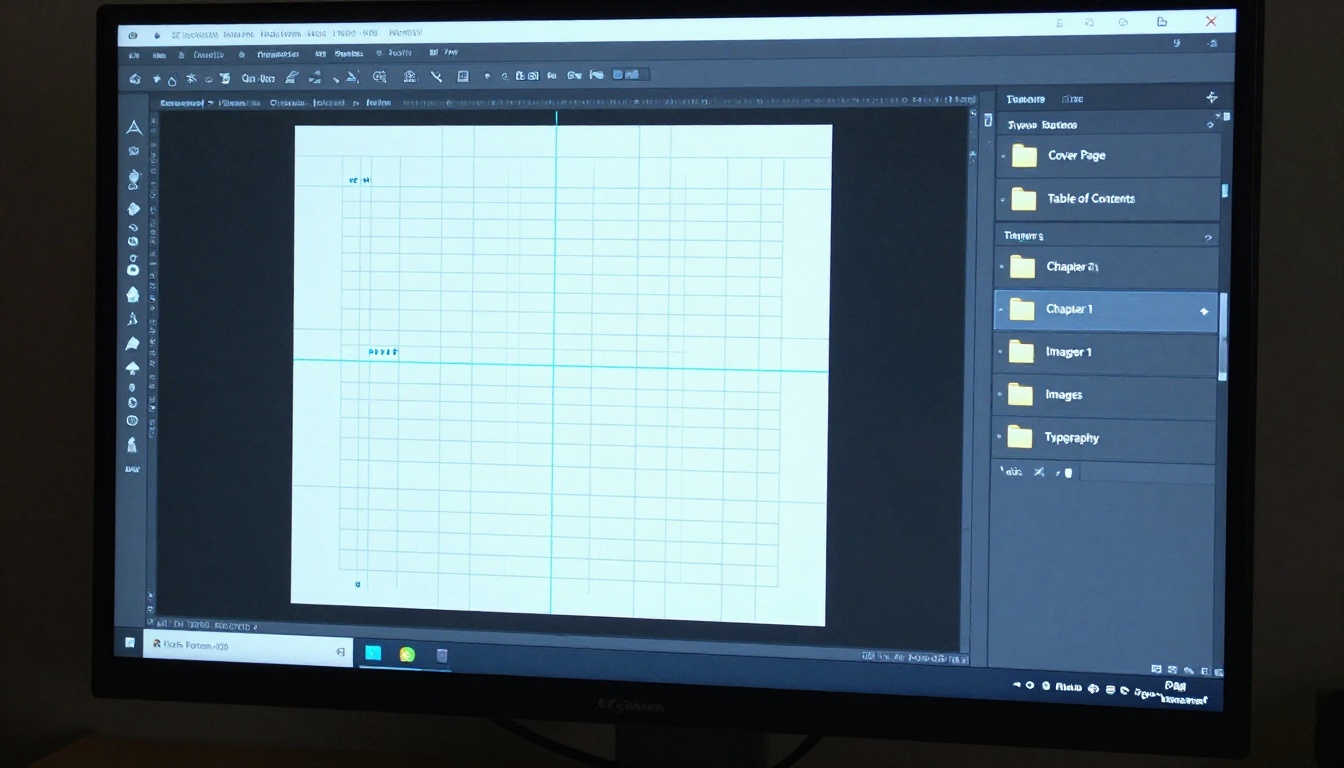
Organized Photoshop files export faster, produce smaller PDFs, and make revision requests 10 times less painful. A few consistent habits:
- Name every layer group by page: "Page 01 Cover", "Page 02 Table of Contents", "Page 03 Intro" keeps the layers panel navigable across 40+ page documents
- Flatten finalized page groups: Once a page is approved and locked, flatten that layer group before the final export pass
- Use Smart Objects for repeated brand elements: Logos, headers, and footers placed as Smart Objects update site-wide with a single edit
- Set up artboards for new projects: Photoshop 2021+ artboards produce cleaner multi-page PDFs than stacked layers on a single canvas
- Save a PDF export preset: After dialing in the 150 DPI, RGB, no-PS-data settings, save it as a named preset. Every future export uses the same settings with one click.
This discipline also makes client revision rounds faster. When a client asks to update the pricing table on page 12, you know exactly where it lives.
How to Share, Embed, and Protect Your Flipbook
Once your flipbook is live on Flipbooks AI, distribution takes under a minute:
Direct Link: Every flipbook gets a unique hosted URL. Copy it into an email, text message, LinkedIn post, or digital proposal. It opens on any device in any browser without requiring the recipient to have an account or download anything.
Embed on a Website: Use the Embed Flipbook on Website tool to generate a single <iframe> snippet. Paste it into WordPress, Webflow, Squarespace, Wix, or any HTML file. The flipbook renders inline at whatever dimensions you specify, fully interactive.
Password Protection: Add a password before sharing client previews or confidential materials. Recipients enter the password once on the flipbook landing page. Remove it later to open access publicly.
QR Code: Generate a QR code from your flipbook dashboard and print it on physical materials, packaging, business cards, or event signage. Anyone who scans it goes directly to the live, interactive flipbook.
Viewer Analytics: On the Professional plan, the analytics dashboard shows total views, page-by-page engagement heatmaps, time spent on each spread, and geographic distribution of viewers. For sales teams and marketing departments, this data identifies which pages drive interest and which are being skipped, informing the next design iteration.
Photoshop gets you a professionally crafted design that looks exactly how it should. What it doesn't provide is a published, shareable, mobile-ready document that gets opened, read, and forwarded. The bridge is straightforward: export your PDF with the right settings and upload it to Flipbooks AI. The platform handles the rest automatically.
Whether you are building restaurant menus, property brochures, fashion lookbooks, annual reports, product catalogs, or employee handbooks, the workflow is identical. Three steps. No plugins, no coding, no specialized desktop software, no extra license fees, no developers.
Your Photoshop design is already done. Publishing it takes three minutes.
Create your free account and see your first Photoshop file as a live flipbook today. Browse the full tools directory to find purpose-built templates for your specific use case, or compare plans to choose the right publishing tier for your volume and needs.



