Most business cards end up in a drawer within 48 hours of being handed out. The contact information sits there, static, doing nothing. But what if scanning that card opened an interactive flipbook with your portfolio, menu, or product catalog? That is exactly what a QR code on your business card can do when it links directly to a Flipbooks AI digital flipbook.
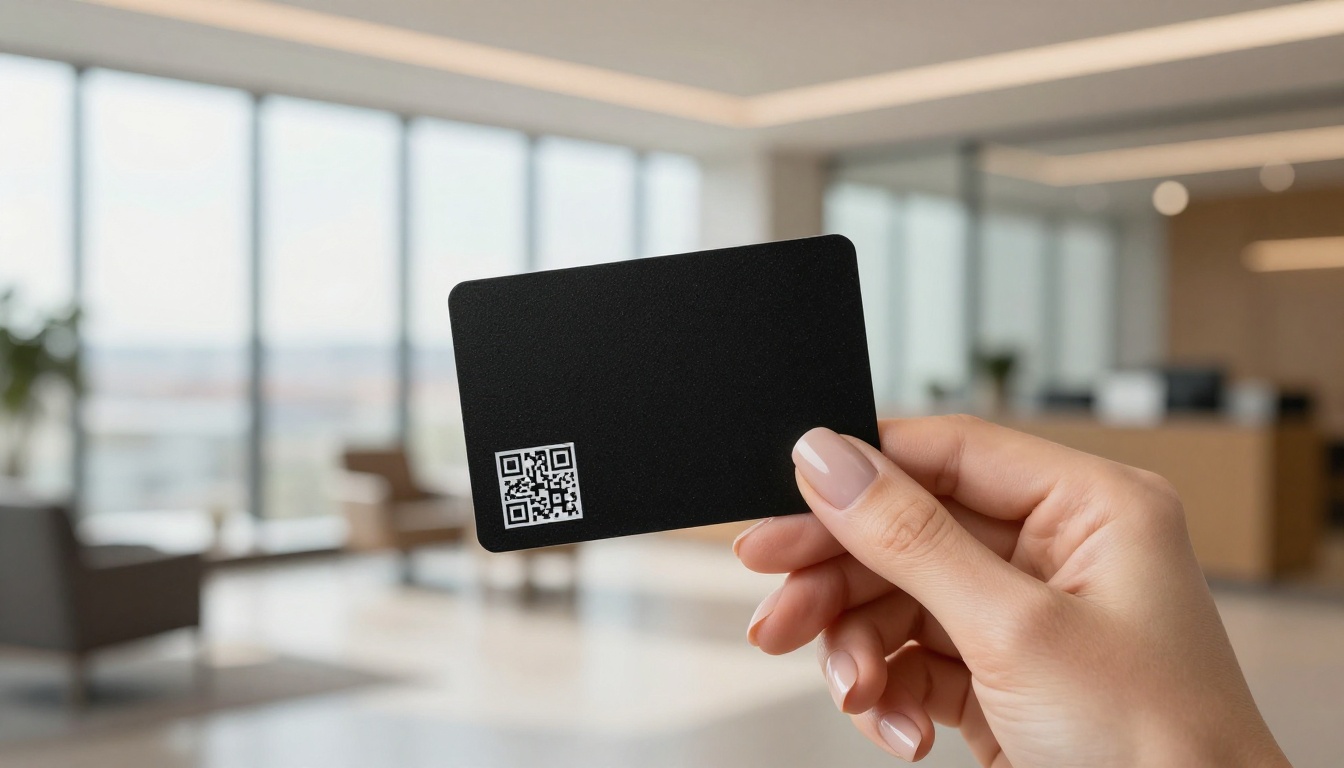
Why QR Codes on Business Cards Actually Work
From Paper to Digital in One Scan
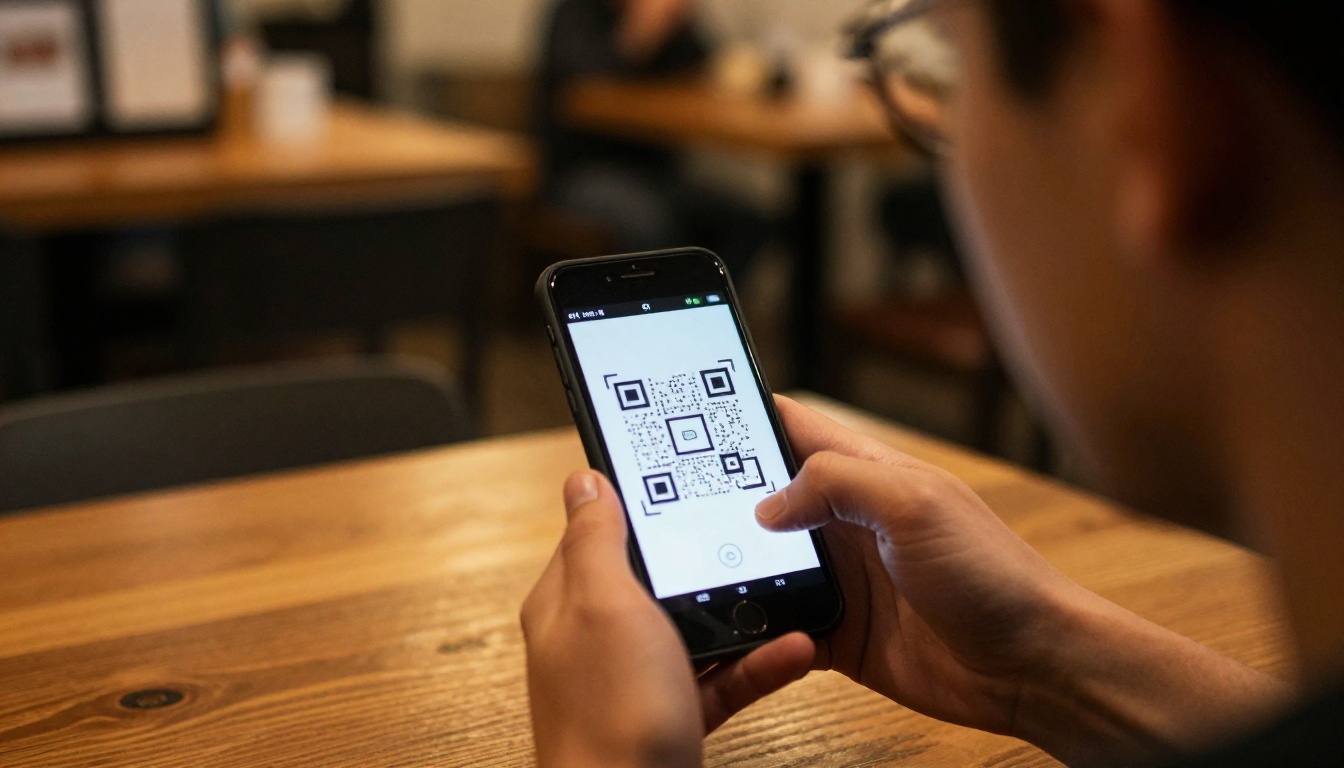
QR codes hit mainstream adoption faster than any other contactless technology. Every modern smartphone camera app scans them instantly, no third-party app required. That frictionless entry point is what makes them valuable on a business card: the person holding your card can go from introduction to browsing your full flipbook in under three seconds.
A static business card gives someone your name, number, and maybe a website domain. A business card with a QR code linking to a flipbook gives them your whole story. They can flip through your portfolio, read your service menu, browse your product catalog, or review your brand pitch, all from a scan at the coffee shop table after you walk away.
The Stats That Make the Case
QR code scans in physical marketing contexts have grown consistently since 2020. The adoption happened because smartphones removed friction: iOS and Android both scan natively without a separate app. For business cards specifically, recipients are more likely to interact with a card that has a scannable element than one that only carries text.
💡 Pro tip: A QR code linked to a flipbook is evergreen. You can update the flipbook's content without reprinting the card, keeping the digital experience fresh while the printed card stays the same.
What You Need Before You Print
Your Flipbook URL
The first requirement is a published flipbook with a shareable public link. Flipbooks AI generates a direct URL for every published flipbook automatically. Once you publish, that URL is permanent and ready to encode into a QR code.
A QR Code Generator
You do not need expensive software. Dozens of free tools convert a URL into a downloadable QR code image. The critical detail is output format: get a high-resolution SVG or PNG at minimum 1000x1000px. A blurry QR code on a printed card will fail to scan, and that is a broken first impression.
Your Business Card Design
Whether you are using a professional print service or designing the card yourself, you need a dedicated spot for the QR code. The back of the card is the most common placement, but the front works when the design accommodates it without cluttering your primary information.
⚠️ Warning: Never size a QR code smaller than 1.5cm x 1.5cm on print. Below that threshold, scanning reliability drops significantly, especially in low-light conditions like restaurants or conference halls.
How to Add a Flipbook QR Code to Your Business Card

Step 1: Create and Publish Your Flipbook
Head to Flipbooks AI and create an account. Upload your PDF, whether it is a portfolio, product catalog, service menu, or lookbook. The platform converts it into a page-turning digital flipbook in seconds.
Once converted, customize it with your branding: colors, fonts, cover design. The Standard plan and above give you unlimited flipbooks with no watermarks, which matters for professional use on a business card.
Step 2: Copy Your Flipbook Link
After publishing, copy the shareable URL from your flipbook dashboard. This is the URL you will encode into the QR code. It should be a clean, permanent link, not a temporary preview link.
✅ Best practice: Test the URL in a browser before generating the QR code. Confirm the flipbook loads quickly on mobile, since that is where most scans will land.
Step 3: Generate the QR Code
Paste your flipbook URL into a QR code generator. Download the output as an SVG file for the best print quality. Most professional designers and print shops work with SVG because it scales without losing sharpness at any size.
QR code color choices matter. Black modules on a white background is the most reliable option for scanning accuracy. If you want colored QR codes to match your branding, test them thoroughly before printing a full batch.
Step 4: Drop It Into Your Card Design
Import the QR code SVG into your card design tool (Canva, Adobe Illustrator, InDesign, or Figma). Resize it to at least 1.5cm x 1.5cm on the printed card. Add a short label beneath it: something like "Scan to see my portfolio" or "View our full catalog". A label increases scan rates because people know what they are getting before they point their camera.
Step 5: Test Before You Print
Before ordering 500 cards, print one test copy at home or at a local print shop. Scan the QR code from that physical print under different lighting conditions: bright daylight, indoor office light, dim restaurant lighting. Confirm the flipbook loads correctly and looks professional on a mobile screen.
💡 Pro tip: Send the final print file to two people with different phones (iPhone and Android) to test scanning. This eliminates any compatibility uncertainty before bulk printing.
What to Put in Your Flipbook
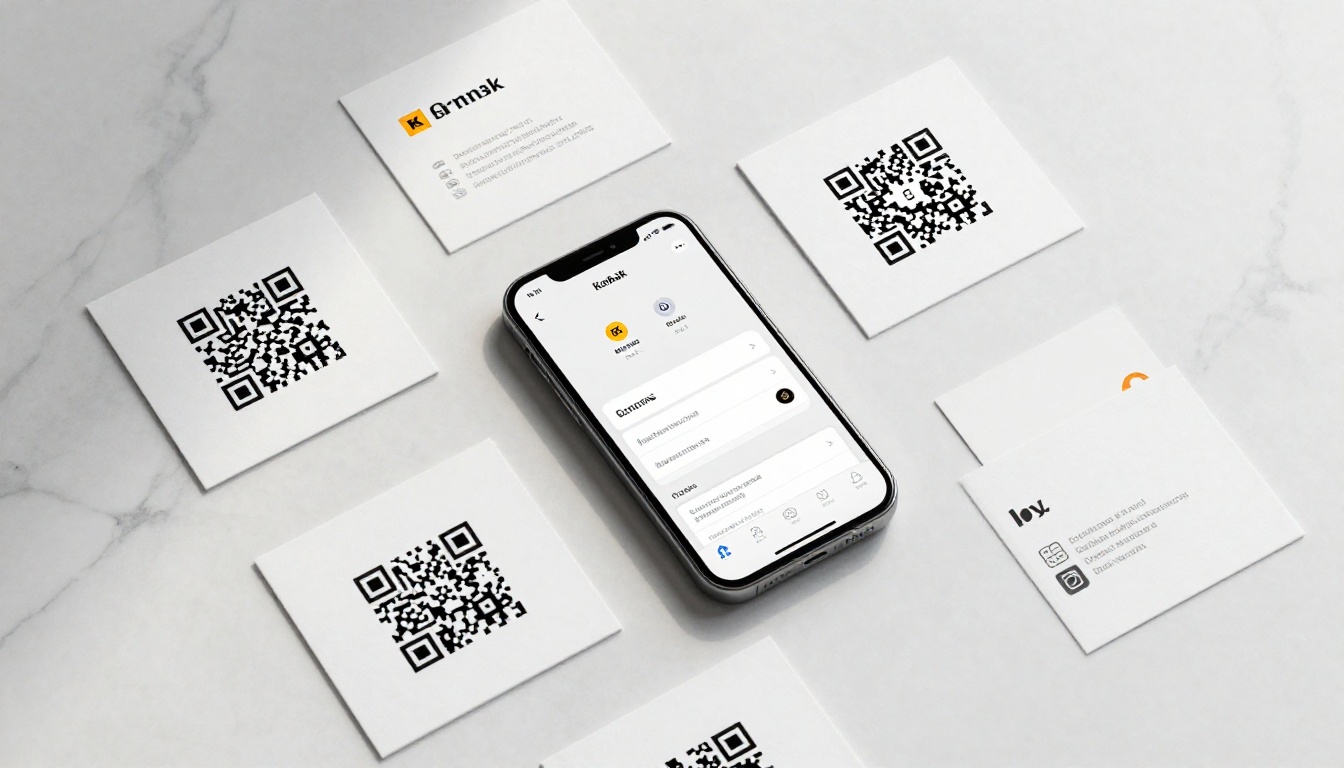
The power of linking a QR code to a flipbook (versus a plain website) is the immersive, page-turning experience. Flipbooks hold attention longer than a static page because they mimic the tactile feel of reading a physical document, but with interactive elements built in.
For Freelancers and Creatives
A Digital Portfolio Creator flipbook is the ideal destination for a creative professional's business card QR code. Fill it with:
- Work samples with full-resolution images in a curated layout
- Client testimonials formatted cleanly across two pages
- Services and pricing in a clear table format
- Contact information with clickable email and social links on the final page
A photographer handing out cards at a wedding expo can link to a Photography Portfolio that loads in under two seconds and shows 30 or more images in a browsable format. That is not possible with a plain website URL on a card.
For Sales and Business Development
Sales professionals benefit from linking to a Sales Presentation or a full Product Catalog. When you hand a card to a prospect at a trade show, they can scan it on the spot and browse your full offering while you are still in conversation.
Real estate agents can link to a Real Estate Brochure with current listings, agent biography, and market insights, delivering a full pitch from a 3.5-inch card.
For Restaurants and Local Shops
A restaurant owner handing cards at a food festival can link to a fully branded Restaurant Menu Creator flipbook, with food photography, pricing, and operating hours. It is more impactful than a plain menu URL because the page-turn format feels like holding a real menu.
Spa owners can link to a Spa and Wellness Menu that showcases treatments, pricing tiers, and booking information in a beautiful, scrollable format.
QR Code Placement Tips That Actually Get Scanned
Size and Contrast Rules
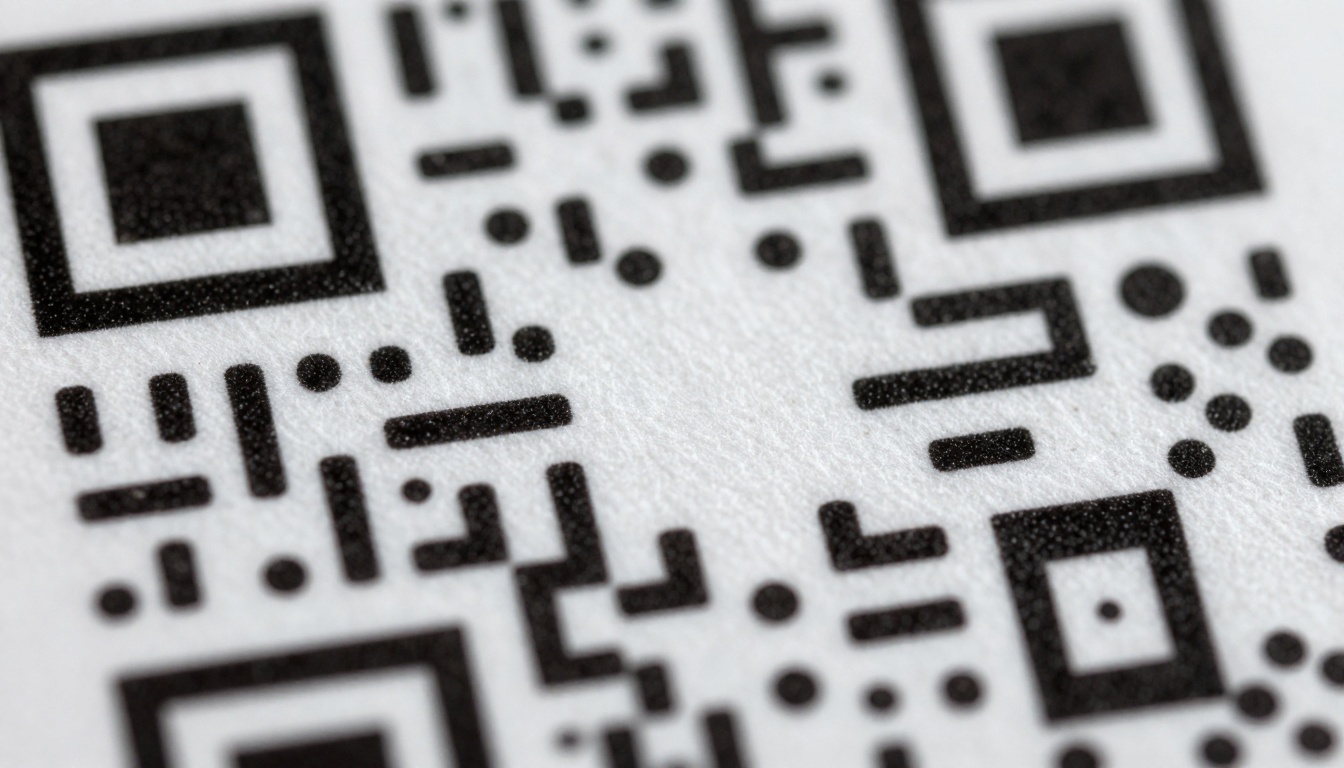
The two variables that determine whether a QR code gets scanned on a printed card are size and contrast. Below 1.5cm, scanning fails in imperfect lighting. Below a 4:1 contrast ratio between the modules and background, camera apps struggle to read the pattern reliably.
| Rule | Minimum Standard | Recommended |
|---|
| QR Code Size | 1.5cm x 1.5cm | 2.5cm x 2.5cm |
| Module Color Contrast | 4:1 ratio | Black on white |
| Quiet Zone (white border) | 4 modules wide | 6 modules wide |
| Output Format for Print | 300 DPI PNG | SVG (scalable) |
| Error Correction Level | L (7% recovery) | M (15% recovery) |
Higher error correction levels (Q or H) make QR codes more dense but more fault-tolerant, which matters if your card design places the code on a textured or colored background.
Where to Put It on the Card
Placement affects how naturally people interact with the code. The back of the card is the default because it leaves the front clean for your primary information. But placement varies by profession:
- Back center: Best for minimalist card designs. Dominant, clear, easy to find.
- Back bottom-right corner: Good if you want to add other back content (tagline, social handles).
- Front bottom-right corner: Bold choice that signals the QR code is part of your primary identity.
- Front top-left corner: Less common, works well on horizontal card formats with centered main content.
✅ Best practice: Always include a short call-to-action text label below the QR code. "Scan to view portfolio", "See our menu", or "View catalog" increases scan rates by telling people what they will get.

Choosing the right QR code tool matters more than most people realize. Free tools work fine for simple use cases, but paid tools add tracking capabilities that turn your business card into a data source.
| Tool Type | Cost | Scan Tracking | Dynamic QR | Best For |
|---|
| Free generators (QR Code Monkey, etc.) | Free | No | No | One-off use, simple cards |
| Freemium tools (Bitly, etc.) | Free / Paid tier | Basic scan count | Yes | Small business with light tracking needs |
| QR analytics platforms | $5-$30/month | Full analytics (device, location, time) | Yes | Sales teams, trade show campaigns |
| Print shop QR integration | Bundled with print | Usually none | No | Convenience for non-technical users |
Dynamic QR codes are worth paying for if you plan to reuse the card design for months. A dynamic code points to an intermediate redirect URL, meaning you can update the destination (your flipbook URL) without reprinting the card. This is especially useful when you update your flipbook content or release a new version.
💡 Pro tip: If you are on the Flipbooks AI Professional plan, you get analytics on who views your flipbook. Combine that with a dynamic QR code's scan analytics, and you get a full picture of how your business card is performing.
How to Create Your QR Code Flipbook with Flipbooks AI

This is where everything comes together. Flipbooks AI makes the flipbook side of this process fast and professional, with no technical skills required.
1. Sign up
Go to flipbooksai.com/account and create your account. The free tier lets you test the workflow before committing to a plan.
2. Upload your PDF
Prepare your content in PDF format: portfolio pages, product catalog, menu, brochure, or any document. Upload it through the PDF to Flipbook Converter. The conversion takes seconds.
3. Customize your branding
Set your brand colors, choose a page-turn animation style, and configure the flipbook's mobile layout. Mobile responsiveness is non-negotiable here because your QR code scans will come almost entirely from phones.
4. Publish and copy the link
Hit publish, copy the shareable URL, and you have the destination for your QR code. The Standard plan gives you unlimited flipbooks with no watermarks, which is the minimum acceptable setup for professional use.
5. Generate and test
Drop the URL into your QR code generator, download the SVG, place it on your card design, and test on a physical print before bulk ordering.
| Flipbooks AI Plan | Flipbooks | Watermark | Analytics | Offline Download |
|---|
| Free | 1 | Yes | No | No |
| Standard | Unlimited | No | No | No |
| Professional | Unlimited | No | Yes | Yes |
See full details on the pricing page. The Professional plan's analytics feature is especially valuable for business card campaigns: you can see exactly when someone scans your card and how long they spend in the flipbook.
Turn Your Flipbook Into a Marketing System

A QR code on a business card is not just a sharing mechanism. When paired with the right tools, it becomes a measurable marketing asset.
Track Who Scans Your Card
The Professional plan on Flipbooks AI includes built-in analytics: view counts, time spent, and page-level data. When you know that a prospect scanned your card and spent four minutes on your services page, that is a warm follow-up signal that a plain business card can never give you.
Combined with a dynamic QR code platform that tracks scan location and device type, you get a full attribution chain from card hand-off to flipbook view.
Update Content Without Reprinting
One of the most practical advantages of linking a business card to a flipbook (instead of a PDF or static page) is that you can update the flipbook's content at any time without changing the URL. Swap out old portfolio work, update pricing, add new products, change seasonal menus. Your printed cards stay valid indefinitely.
This matters most for:
- Seasonal businesses that update menus or offerings quarterly
- Freelancers who add new client work regularly
- Sales teams with evolving product catalogs
- Restaurants with daily specials or rotating seasonal menus
✅ Best practice: Set a calendar reminder to review your flipbook content every 90 days. Fresh content keeps the experience relevant for people who scan your card weeks after receiving it.
Which Flipbook Type Fits Your Business Card Strategy

Not every business needs the same flipbook format. Here is a quick matching table to find the right fit:
Ready to Print Your First QR Code Card
The process from idea to printed card takes less than an hour once you have your flipbook live. Create your flipbook on Flipbooks AI, copy the URL, generate the QR code, drop it into your card design, and test on a physical print before ordering your full batch.
Every business card you hand out after that becomes a live link to your best work, with content you can update anytime and interactions you can measure. Not bad for a 3.5-inch piece of paper.
Browse the full range of flipbook tools to find the right format for your business, or check pricing plans to pick the tier that fits your needs.



