If you've ever exported a Canva design as a PDF and shared it via email or a download link, you already know the feeling: you put hours into something beautiful, and then it disappears into someone's downloads folder, never to be opened again. There's a smarter way to share your work with Flipbooks AI, and once you see what's possible, you'll never go back to the static PDF workflow.
Why Canva PDFs Let You Down
You designed something incredible in Canva. The colors are right, the layout is polished, the content is solid. Then you hit "Export as PDF," attach it to an email, and wait. Nothing. No replies. No engagement. No idea whether anyone even opened it.
That's not a you problem. That's a PDF problem.
They Open Flat and Die There
PDFs were built for print. They're static by design. When someone opens your PDF, they get a scrollable document with zero interactivity. No page-flip animations. No embedded video. No clickable links that actually invite action. The design loses all the life you gave it the moment it becomes a flat file.
Even the best Canva templates become forgettable once they're flattened into PDF format. That stunning brochure? It's now a two-page scroll. That product catalog with 20 items? It's a wall of text and images with no hierarchy, no navigation, and no way to highlight what matters most.
Nobody Forwards a PDF
Here's the thing about PDFs: they don't travel well. People don't share PDFs the way they share links. When you receive a PDF, your first instinct is to download it, maybe skim it, and close the tab. You don't send it to three colleagues. You don't embed it on your website. You definitely don't post it to social media.
Interactive content behaves completely differently. A link to a flipbook is shareable, clickable, and works on any device without a download. That alone changes how your content gets distributed and how far it reaches.
The Engagement Gap Nobody Talks About
There's no analytics in a PDF. You send it out and have no idea what happens next. Did anyone open page 5? Did they spend time on your pricing section? Did they bounce after the first page? You'll never know.
⚠️ Sending PDFs means flying blind. You have zero visibility into how your audience actually interacts with your content once it leaves your inbox.
This engagement gap is one of the biggest hidden costs of the Canva-to-PDF workflow, and most designers don't realize it until they've been doing it for years without measurable results.
What People Actually Do With Your Files
Understanding recipient behavior changes how you think about file format. Most people follow a predictable pattern when they receive a PDF.
The Download Black Hole
When someone receives a PDF attachment, the typical sequence looks like this:
- They download it (maybe, if the file size isn't too large)
- It lands in their downloads folder
- It gets buried under other files within 48 hours
- It never gets shared further
- You never find out if it helped or not
This is the default outcome for the vast majority of PDF files shared by email. The content you worked on doesn't get the audience it deserves simply because the format works against you.
What Happens to Untracked Links
Even when you share a PDF via a cloud link (Google Drive, Dropbox), the fundamental problem persists: the experience is static. There's no page-turn effect that makes browsing feel natural. There's no way to embed video or audio. The link works, but the experience on the other end is flat and impersonal.
💡 The goal isn't just delivery. It's experience. The format you choose shapes how people feel about your content before they've read a single word.
An interactive flipbook takes your existing PDF and converts it into a digital publication with real page-flip animations, embedded multimedia support, mobile-responsive layout, and a shareable link that works anywhere. No software installation. No download required on the reader's end.
What Makes a Flipbook Different
A flipbook created on Flipbooks AI does things a PDF simply cannot:
- Page-flip animations that mimic the feel of a physical magazine or book
- Embedded videos and audio directly within pages
- Clickable links that invite action from every section
- Mobile-responsive layout that adjusts perfectly to any screen size
- Password protection for private or confidential content
- Analytics to see exactly how people engage, page by page (available on Professional plan)
- Lead generation forms embedded directly inside the flipbook
- Embed codes to place your flipbook on any website instantly
When you share a flipbook, you share a link. The recipient clicks it, the flipbook opens instantly in their browser, and the experience is closer to reading a premium magazine than scrolling a downloaded document.

PDF vs Flipbook: The Real Comparison
| Feature | PDF | Interactive Flipbook |
|---|
| Page-flip animations | ✗ | ✓ |
| Embeddable on website | Limited | ✓ Native embed code |
| Mobile-optimized viewing | Inconsistent | ✓ Always |
| Embedded video and audio | ✗ | ✓ |
| Shareable link, no download | ✗ | ✓ |
| Analytics and page tracking | ✗ | ✓ Pro plan |
| Custom branding | ✗ | ✓ |
| Password protection | ✗ | ✓ |
| Lead generation forms | ✗ | ✓ Pro plan |
| Offline download option | ✗ | ✓ |
The difference isn't subtle. A flipbook is a better container for visual content in every measurable way.
How to Turn Your Canva Design Into a Flipbook
The workflow is short. If you already have a Canva design, you're most of the way there.
Step 1: Export from Canva as PDF
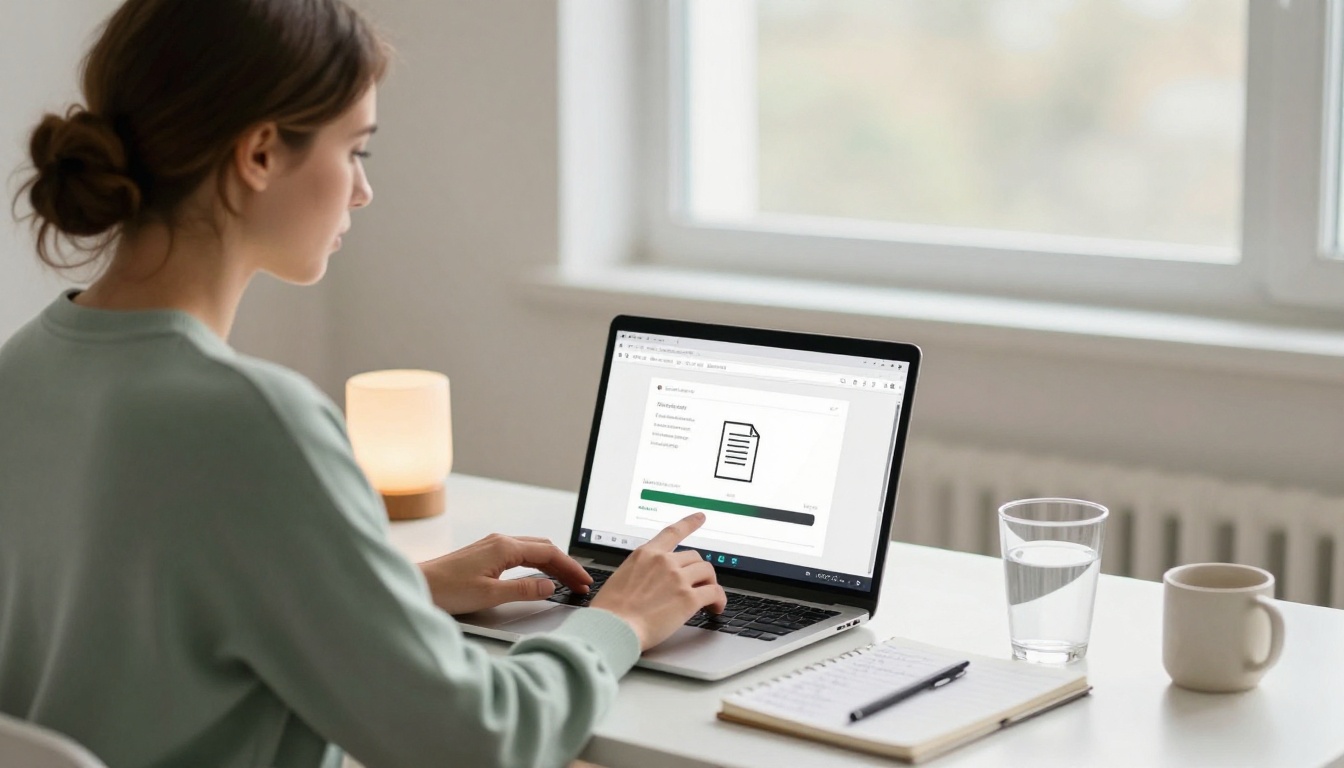
In Canva, open your design and click Share in the top-right corner. Select Download, then choose PDF Standard (for screen sharing) or PDF Print (for higher resolution). Download the file to your computer.
This is the only time you'll ever need a PDF in this workflow. From here, the PDF is just a bridge to something better.
Step 2: Upload to Flipbooks AI
Go to Flipbooks AI and create a free account. Once logged in, use the PDF to Flipbook Converter to upload your file. The platform converts it automatically, preserving your Canva layout, typography, colors, and imagery exactly as designed.
The conversion takes seconds for most files. Once it's done, you'll see your design as a fully interactive flipbook with page-flip animations already active.
✅ No redesign needed. The conversion is automatic. Your Canva layout comes through intact, with all visual fidelity preserved.
Step 3: Brand It and Customize
This is where Flipbooks AI adds real value beyond a simple file conversion. Inside the editor, you can:
- Add your logo and brand colors to the flipbook viewer frame
- Set a custom background for the reading environment
- Build a table of contents for longer documents
- Embed YouTube or Vimeo videos directly on specific pages
- Add hyperlinks to any element within the flipbook
- Enable or disable the page-flip sound effect
- Set a password for private or confidential content
Password protection works well for client presentations, internal training documents, and confidential proposals that should only be seen by specific recipients.
Step 4: Share or Embed Anywhere
Once your flipbook is ready, you have multiple distribution options:
- Direct link: Copy and paste into any email, message, or social post
- Embed code: Drop the iframe onto any website or blog with Embed Flipbook on Website
- QR code: Download and print for physical materials, menus, or event signage
- Social sharing: Built-in share buttons for direct posting
No attachment. No download required. Your recipient clicks the link and the flipbook opens immediately in their browser on any device.
Who This Works For
The Canva-to-flipbook workflow isn't niche. It fits almost every use case where you'd currently reach for a PDF export.

Businesses Sharing Sales Materials
Sales teams sending product catalogs no longer need to attach PDFs to cold emails. They share a flipbook link that loads instantly. The Digital Catalog Maker lets them build branded, interactive catalogs that prospects actually browse rather than download and forget.
Marketing teams use the Online Brochure Designer to create company brochures that live on their website as embedded flipbooks, replacing outdated PDF downloads with an experience visitors actually stay with.
HR departments use the Training Manual Flipbook to publish onboarding documents as interactive publications, complete with embedded video walkthroughs and clickable section navigation.
Real Estate Agents Using Digital Brochures
Real estate is one of the clearest wins for this format. Agents design property brochures in Canva, convert them to flipbooks, and share links that clients can open on any device in seconds.

The Real Estate Brochure Creator takes this further, with templates built specifically for property listings. Agents embed these flipbooks directly on listing pages or share them via WhatsApp and email without any file size issues.
💡 Real estate tip: Add a video walkthrough embedded on page 2 of your flipbook. Prospective buyers spend dramatically more time on listings with embedded video than static image galleries.
Restaurants Replacing Printed Menus
Restaurants design seasonal menus in Canva, convert them, and display them on tablets or share via a QR code that opens the flipbook instantly on any phone. The Restaurant Menu Creator is built precisely for this: rich food photography, elegant typography, and a page-flip experience that feels premium without any printing cost.
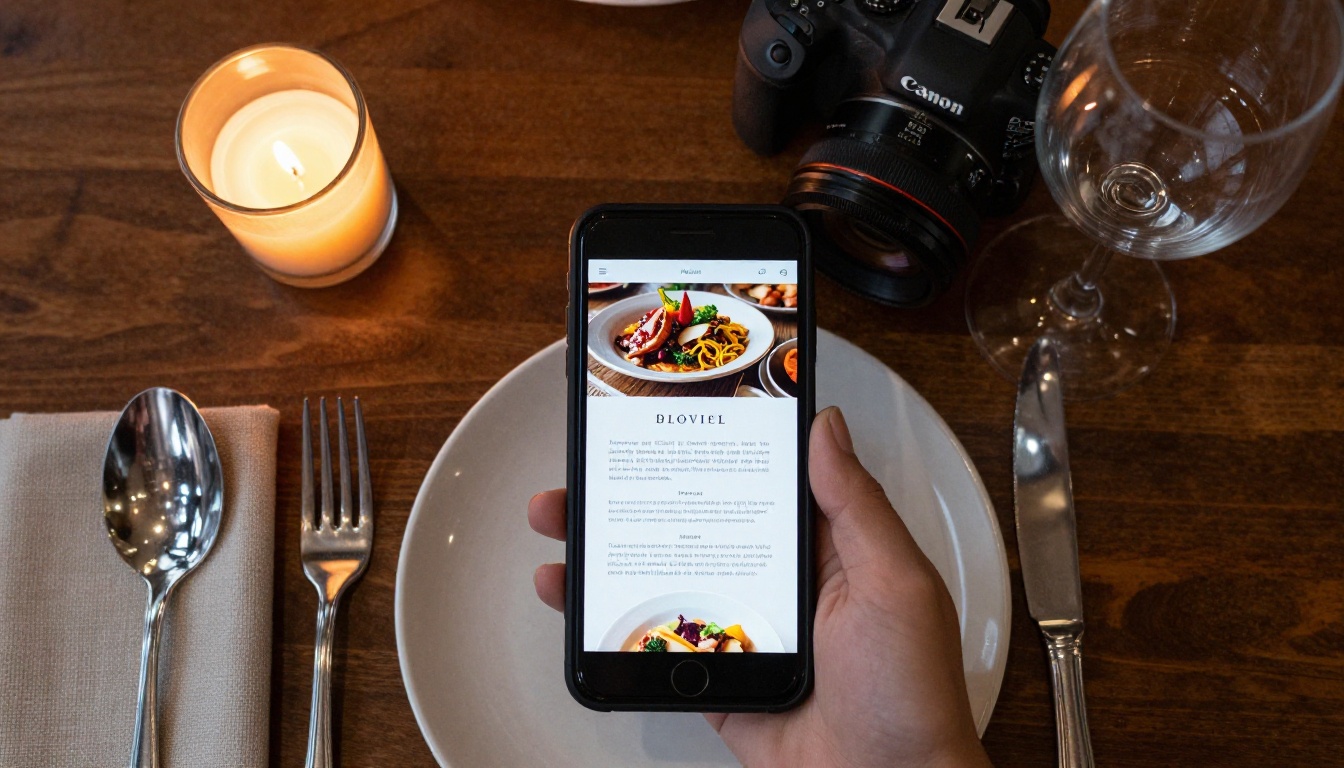
When the menu changes seasonally, update the Canva file, re-export the PDF, and re-upload. The flipbook link and QR code stay the same. No reprinting costs. No new QR codes. No delays.
Plans and What You Actually Get
Flipbooks AI pricing is built around different usage levels. Here's a clear comparison of what each tier delivers:
| Feature | Free | Standard | Professional |
|---|
| Number of flipbooks | Limited | Unlimited | Unlimited |
| Watermarks | Yes | No | No |
| Custom branding | ✗ | ✓ | ✓ |
| Password protection | ✗ | ✓ | ✓ |
| Embedded video and audio | ✗ | ✓ | ✓ |
| Offline downloads | ✗ | ✓ | ✓ |
| Analytics dashboard | ✗ | ✗ | ✓ |
| Lead generation forms | ✗ | ✗ | ✓ |
| Priority support | ✗ | ✗ | ✓ |
⚠️ Note: The free plan includes watermarks on all flipbooks. For professional use, client-facing content, or branded publications, the Standard plan removes all watermarks and adds full custom branding.
For teams that need analytics to see how leads engage with proposals or catalogs, the Professional plan provides full engagement tracking and lead capture forms that collect viewer information directly inside the flipbook itself.

Every Content Type That Works Better as a Flipbook
If you create it in Canva, it almost certainly works better as a flipbook than a PDF. Here's a quick reference across content categories:
The only content type that genuinely still belongs as a PDF is a form that needs to be filled out, printed, and physically signed. Everything else benefits from the flipbook format in ways that are immediately visible to both you and your audience.
💡 Think of Canva as your design studio and Flipbooks AI as your publishing platform. They work better together than either does alone.
Make the Switch Today
If you've been defaulting to PDF exports out of habit, this is the moment to change that. Your Canva designs are too good to be trapped in a flat file that nobody opens twice.
The workflow is straightforward: design in Canva, export as PDF once, upload to Flipbooks AI, and share a link that works everywhere. Your audience gets a better experience, you get visibility into engagement, and your content actually reaches the people it was made for.
Create a free account and convert your first Canva design in under two minutes. Browse all available tools to find the right template for your content type. And when you're ready to remove watermarks and add custom branding, check the pricing plans to find what fits your workflow.
Static PDFs had their moment. That moment is over.



