Most people share a Google Doc the same way: they click "Share," copy the link, and paste it somewhere. The person on the other end opens a plain editor view with no visual polish, no presentation feel, and no reason to be impressed. If that document is a business proposal, a client report, a class handout, or a product catalog, that experience does not do it justice.
Turning your Google Doc into an interactive flipbook changes all of that. Instead of a scrollable text page, your readers get a real page-turning digital publication that feels like something worth reading. The best part: you can do it for free, in about five minutes, using Flipbooks AI.
This article walks through every step, from getting your doc ready to publishing a flipbook anyone can open on any device, with no download required.

Why Sharing a Google Doc Still Falls Short
The link problem nobody talks about
When you share a Google Doc via link, the recipient either needs a Google account or lands on a view-only editor page. It works functionally, but it carries no presentation value. The document looks like a work-in-progress draft, even if it represents a finished, polished product.
There is also a trust problem. A raw Google Docs link in a client email does not signal professionalism. It signals "I wrote this quickly and sent it as-is." For internal collaboration that is fine. For any external-facing document, it is a missed opportunity.
When your doc needs to feel like a publication
Some documents deserve more than a plain shared link:
- Business proposals that need to build trust the moment someone opens them
- Course syllabi and class materials that should feel organized and authoritative
- Product catalogs and service menus where visual impact drives decisions
- Event programs that people actually want to flip through
- Portfolios and lookbooks that represent a personal or professional brand
- Annual reports and company updates distributed to stakeholders
A Google Doc can hold all of that content. A flipbook is what turns it into something worth looking at and sharing.
What a Flipbook Does to Your Document
Page-turning vs. scrolling: a real difference
Scrolling is functional. Page-turning is experiential. When content has a page-flip effect, readers naturally engage more deeply, slow down, and spend longer with each section. The paginated format mirrors the experience of reading a physical magazine or book, which creates an intuitive reading rhythm that infinite scroll simply does not replicate.
💡 Pro tip: Page-flip formats work especially well for documents with clear sections, chapters, or categories. If your Google Doc already uses headers and logical page breaks, it is already structured for a great flipbook conversion.
Who actually uses Google Doc flipbooks
The people converting docs to flipbooks are not just designers or marketers. They include:
- Teachers sharing weekly lesson packets, syllabi, and reading materials
- Freelancers sending polished proposals and service guides to clients
- Small business owners distributing menus, price lists, and staff handbooks
- HR teams publishing onboarding documents and company policy guides
- Community organizers sharing event programs, church bulletins, and newsletters
- Real estate agents sending property brochures and neighborhood guides
The format works for anyone who wants their document to be genuinely read, not just opened.

Export Your Google Doc as a PDF
The conversion process from Google Doc to flipbook has two stages. First, export the doc as a PDF. Then upload that PDF to a flipbook platform. This section covers the first step.
From Docs to PDF in two clicks
- Open your Google Doc.
- Click File in the top navigation menu.
- Hover over Download in the dropdown.
- Select PDF Document (.pdf).
Your browser will download the file immediately. That PDF is what you will upload to your flipbook tool.
✅ Best practice: Before downloading, use File > Print preview to confirm how each page looks. Multi-column layouts, large tables, and wide images sometimes reflow or get clipped unexpectedly when rendered as PDF.
Formatting to check before exporting
Small formatting issues in your Google Doc become visible formatting problems in the flipbook. Check these before you download:
| Element | What to Fix |
|---|
| Page margins | Set to at least 0.5 inch on all sides |
| Font size | Minimum 11pt for body text so it reads on mobile |
| Images | Must be embedded, not linked from external URLs |
| Headers and footers | Confirm they do not overlap with flipbook navigation |
| Page breaks | Add explicit breaks before each major section |
| Color choices | Avoid very light or neon colors that lose contrast in print |
| Tables | Keep tables within a single page when possible |
Spending two minutes on this before exporting produces a noticeably better flipbook on the other end.

How to Turn Your PDF into a Flipbook for Free
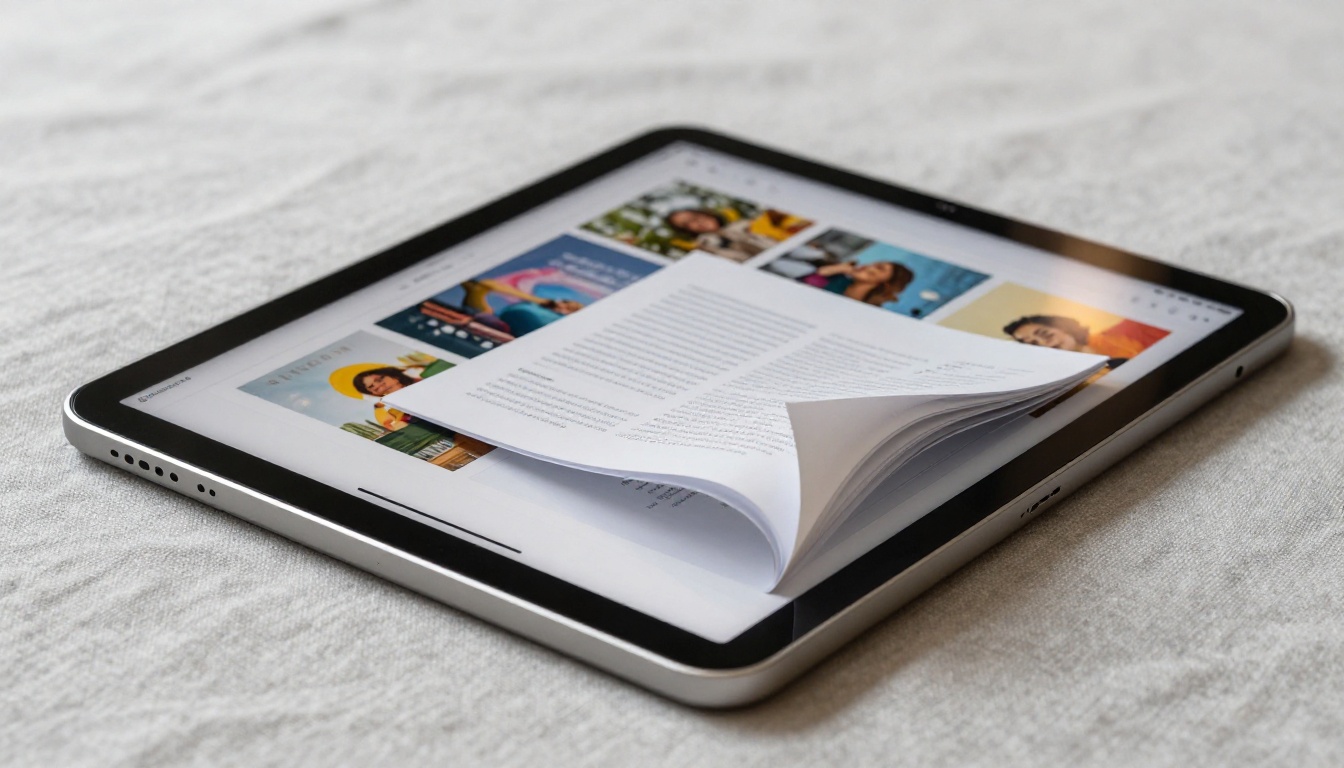
Once you have your PDF, the actual conversion takes under a minute. Flipbooks AI converts any PDF into a fully interactive flipbook with realistic page-turning effects, no software installation, no design experience, and no cost to get started.
Step 1: Create your free account
Go to flipbooksai.com/account and sign up. The process takes about 30 seconds. No credit card is required for the free tier.
Step 2: Upload your PDF
From your dashboard, click New Flipbook or the upload area. Drag and drop your exported PDF directly onto the page, or click to browse your files and select it. The platform accepts PDFs of any page count, from a one-page flyer to a 200-page manual.
Step 3: Wait for conversion
Within seconds, Flipbooks AI processes the file and converts each page into a realistic digital leaf. The resulting flipbook includes:
- Smooth page-curl animations with natural shadow effects
- Zoom capability on every page
- Auto-generated navigation if your PDF has clear sections
- Mobile-responsive layout that works on phones and tablets without any extra setup
💡 Pro tip: For text-heavy documents, the PDF export from Google Docs uses vector-quality text by default, which means your content stays razor-sharp even when readers zoom in to 200% inside the flipbook viewer.
Step 4: Copy your link and share
Once the flipbook is ready, you get a direct public link. Send it in an email, post it on social media, embed it on a website, add it to a QR code for print materials, or drop it into a messaging app. The reader needs no account, no download, no app install. They click the link and the flipbook opens instantly in their browser.
Free vs. Paid: What You Actually Get
The free tier covers genuinely useful functionality for most basic use cases. Here is a full breakdown of what each plan includes:
| Feature | Free | Standard | Professional |
|---|
| Flipbooks | 3 | Unlimited | Unlimited |
| Watermarks | None | None | None |
| Custom branding | No | Yes | Yes |
| Password protection | No | Yes | Yes |
| Embed on website | Yes | Yes | Yes |
| Analytics | No | Basic | Advanced |
| Lead generation forms | No | No | Yes |
| Offline downloads | No | Yes | Yes |
| Custom domain | No | No | Yes |
| Priority support | No | No | Yes |
✅ Important: Flipbooks AI never adds watermarks on any plan, including free. Your document looks professional and clean regardless of which tier you are on.
For teachers, freelancers, and occasional creators, the free plan covers daily needs without any friction. For businesses distributing marketing materials, running lead generation campaigns, or tracking reader engagement across documents, the Professional plan adds analytics, lead capture forms, and custom domain support that meaningfully upgrade the experience.

5 Real Ways People Use Google Doc Flipbooks
Class materials and syllabi
Teachers create course syllabi and reading packets in Google Docs because they are fast to write and easy to update mid-semester. Converting them to flipbooks gives students a far more organized reading experience. Each week's material becomes its own section, easy to navigate and follow along. The Course Material Publisher handles multi-page academic docs particularly well, preserving document structure and tables of contents automatically.
Business proposals and reports
A 20-page business proposal sent as a PDF attachment is easy to overlook. The same document as a flipbook link in an email is something a client actually opens, spends time with, and remembers. The page-turning format creates a natural reading flow that mirrors a formal presentation.
For data-heavy documents, the Annual Report Creator and Corporate Report Maker provide additional structure for charts, graphs, and executive summaries.
Restaurant menus and price lists
Many restaurant and cafe owners build their menus directly in Google Docs because pricing and item updates are fast and easy. Exporting to a flipbook takes that functional doc and turns it into something you can display on a tablet at the counter, link from an Instagram bio, or embed on a booking or reservation page. The Restaurant Menu Creator adds food-specific design options for businesses that want to go further. The Digital Price List Generator handles service businesses with tiered pricing.
Digital portfolios and lookbooks
Creatives who build portfolio pages or case studies in Google Docs can convert them into visual showcases in minutes. A photographer's service list, a designer's project breakdown, or a stylist's seasonal lookbook all benefit from the flipbook format. The Digital Portfolio Creator and Lookbook Flipbook Builder handle image-heavy layouts cleanly.
Event programs and community newsletters
Church bulletins, concert programs, school newsletters, and community event guides are consistently produced in Google Docs and then printed or distributed as email attachments. Moving them to flipbook format eliminates printing costs, speeds up distribution, and allows last-minute content updates even after sharing the link. The Newsletter Flipbook Publisher and Event Program Maker offer purpose-built options for these recurring use cases.

Make Your Flipbook Look Better
Formatting tips inside Google Docs
The flipbook reflects your PDF exactly. Better source formatting means a sharper, more professional result. Apply these before you export:
- Use Heading styles (Heading 1, Heading 2, Heading 3) instead of manually bolding text. This creates clean visual hierarchy and enables automatic table of contents generation in the flipbook.
- Add explicit page breaks before major sections with Insert > Break > Page break. This keeps sections from awkwardly splitting mid-page.
- Keep margins consistent at 0.75 to 1 inch on all sides for a clean visual border on every page.
- Use high-resolution images embedded directly in the document. Low-quality or compressed images appear blurry when readers zoom in inside the flipbook.
- Avoid tables that span multiple pages when possible. They sometimes split in unexpected ways during PDF conversion.
- Choose high-contrast color combinations for any text overlaid on colored backgrounds. Low contrast is difficult to read at the small size of a flipbook page thumbnail.
Customization options after conversion
Once your flipbook is live on Flipbooks AI, you can fine-tune the viewer experience directly in your dashboard:
| Option | What It Controls |
|---|
| Background color | The canvas color surrounding each page in the viewer |
| Brand colors | Navigation buttons, loading bar, and interface accents |
| Logo | Displayed in the viewer header for branded distribution |
| Page shadow | Controls the depth shadow under each turned page |
| Auto-flip speed | Sets automatic timed page progression |
| Start page | Determines which page the flipbook opens on by default |
| Table of contents | Auto-generated from PDF headings for quick navigation |
These adjustments take about two minutes and visibly elevate how the finished product feels for the reader.
More Than Just Google Docs
Works with any PDF
The conversion process works with any PDF, not only Google Docs exports. This means you can also bring in:
- Microsoft Word documents saved as PDF from Word or through Print to PDF
- Google Slides presentations exported as PDF for a slide-by-slide flipbook experience
- Canva designs downloaded in PDF print quality
- PowerPoint files exported via Save As PDF
- Scanned physical documents saved as PDF using any scanner app
If it exports to PDF, Flipbooks AI can convert it. Browse the full tools directory to find purpose-built options for specific document types, from hotel brochures to real estate materials to training manuals.
Embed anywhere, share everywhere
Beyond sharing a link, Flipbooks AI generates an embed code that you paste directly into any website builder, WordPress site, Webflow project, or custom HTML page. The flipbook appears natively inside your page, not as an external link that opens a new tab.
This is especially useful for:
- Landing pages featuring a product catalog or brochure as primary content
- Blog posts that reference a longer guide or report
- Online stores with a lookbook or seasonal catalog section
- Educational platforms where course materials live on a dedicated resource page
- Real estate listings featuring a property brochure embedded alongside photos
⚠️ Warning: Avoid relying on Google Drive embed links for public-facing content. Shared Drive files can break if permissions change or the original editor inadvertently restricts access. A dedicated flipbook platform keeps your published link stable and independent of your Google account settings.
Tracking What Happens After You Share
One of the questions people rarely think about when sharing a Google Doc is: did anyone actually read it? A shared link gives you no signal. You have no idea if the recipient opened it, read three pages, or forwarded it to someone else.
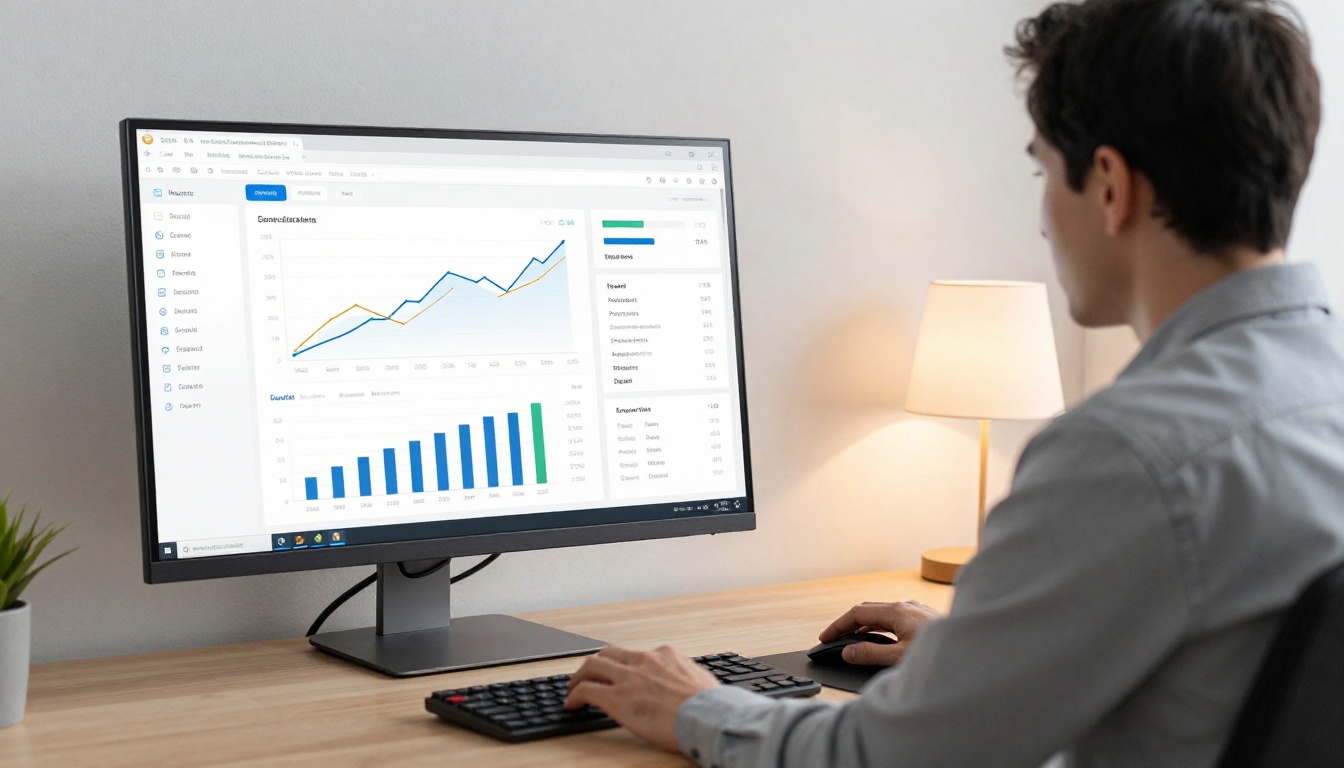
Flipbooks AI changes this on paid plans. The analytics dashboard shows you:
- Total views per flipbook
- Average time spent per session
- Which pages readers spend the most time on
- Geographic distribution of views
- Device breakdown (mobile vs. desktop vs. tablet)
For business users, this data is valuable. If a proposal's analytics show the recipient spent ten minutes on the pricing page and revisited it twice, that is context you simply cannot get from a Google Doc share link. The Professional plan includes advanced analytics and lead capture forms that can convert readers into contacts automatically.
Start Publishing Your Docs Today
If you have a Google Doc that deserves a better audience, converting it to a flipbook is the fastest upgrade you can make. No new tools to learn, no design work to do, no budget required to get started.
The entire process comes down to four steps:
- Open your Google Doc and click File > Download > PDF Document
- Create a free account on Flipbooks AI
- Upload your PDF and let it convert automatically
- Copy your flipbook link and share it anywhere
From there, you can customize the viewer with your branding, set a password for private distribution, embed it on your website, or upgrade to access reader analytics and lead generation through the Professional plan.
Whether you are a teacher putting together this week's reading packet, a freelancer sending a proposal that needs to stand out, or a business owner whose service guide deserves more than a plain PDF, the flipbook format delivers real impact with almost zero effort.
Ready to see how your Google Doc looks with pages that actually turn? Get started for free on Flipbooks AI and have your first flipbook published in minutes.



