Turn Any Photoshop Layout into a Shareable Flipbook
If you've spent hours crafting a stunning layout in Photoshop, sharing it as a flat PDF feels like a waste. This article walks you through the exact steps to export your Photoshop files and convert them into interactive, shareable flipbooks that work on any device, reach any audience, and actually get viewed.
If you've spent hours crafting a polished layout in Photoshop, sending it as a flat PDF is a disservice to the work. Static files get downloaded, forgotten, or blocked by email filters. Interactive flipbooks, on the other hand, get shared, bookmarked, and actually read. This article walks you through every step of converting your Photoshop layouts into shareable, web-ready flipbooks using Flipbooks AI.
Why Your Photoshop Layouts Deserve More Than a PDF
Static PDFs Have Real Limitations
A PDF is a delivery format, not a presentation format. When you send a PDF, you lose control of how it's displayed. There's no page-turning animation, no embedded video, no analytics to tell you who read it, and no easy sharing link. For presentations, portfolios, catalogs, or editorial content, that's a significant missed opportunity.
What Makes a Flipbook Different
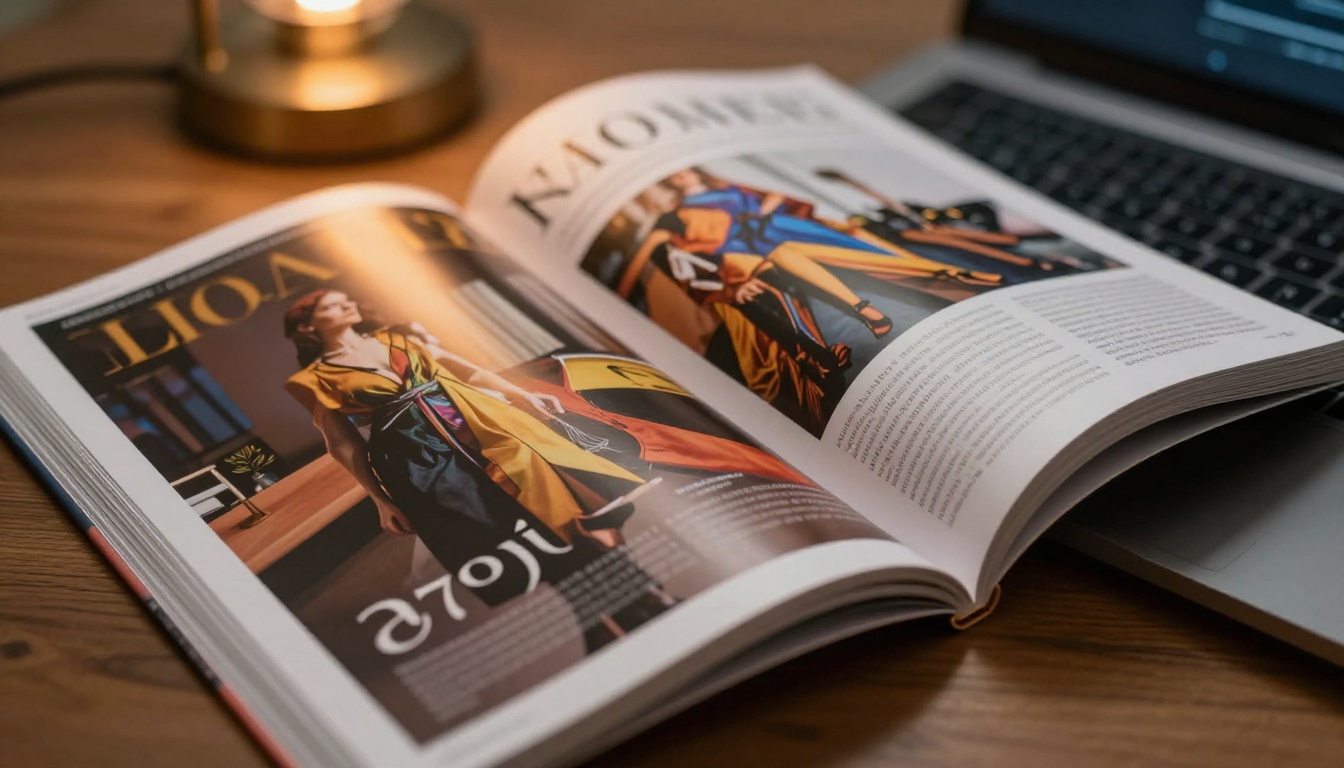
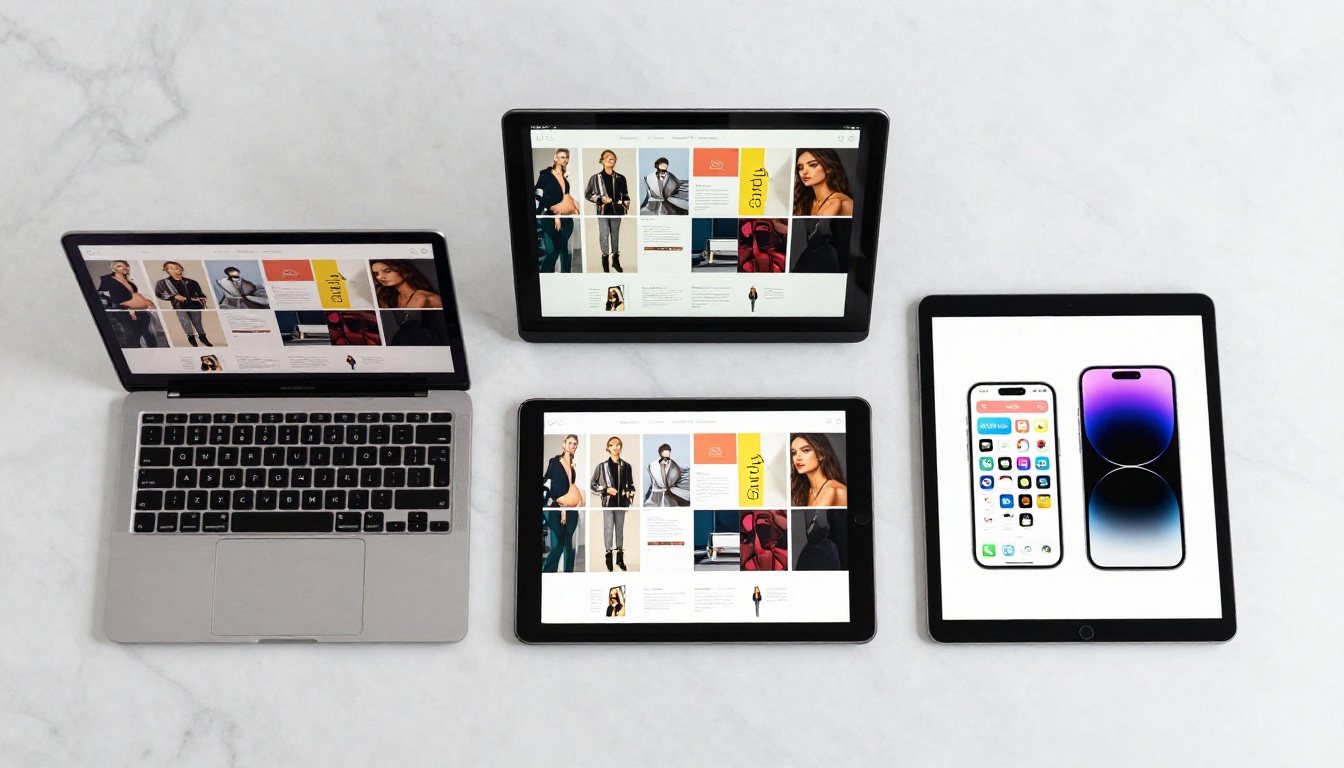
A flipbook adds a page-flip animation, mobile responsiveness, and shareable links to your existing design. The layout you built in Photoshop stays exactly as you created it. The difference is the delivery: instead of a file attachment, you get a live URL that anyone can open in a browser. No downloads, no compatibility issues, no version confusion.
💡 Pro tip: Flipbooks work especially well for content that benefits from sequential reading: catalogs, lookbooks, portfolios, menus, brochures, and magazines.
Setting Up Your Photoshop File for Export
Artboard Structure Matters
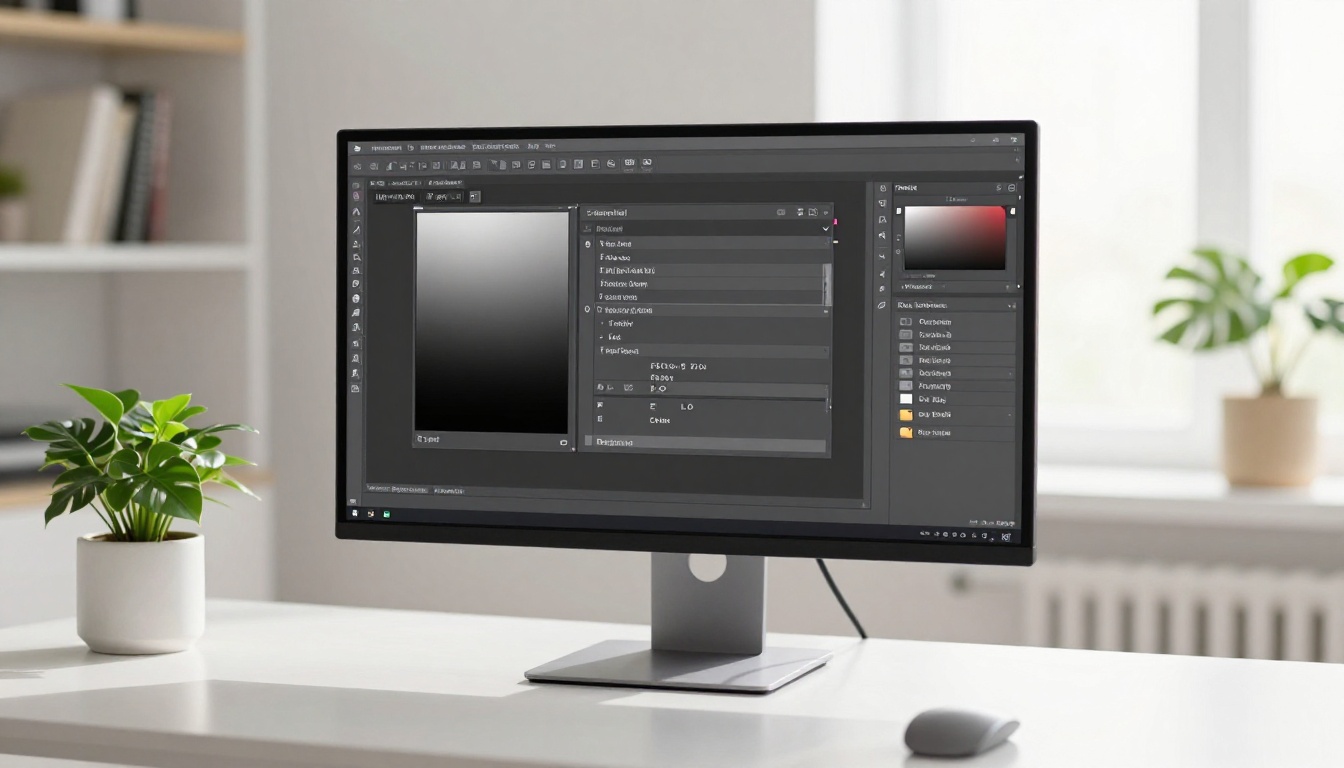
Before you export, the structure of your Photoshop document directly impacts how clean your final PDF will be. Each artboard in Photoshop becomes one page in your flipbook. If you're building a multi-page document, use Photoshop's artboard feature rather than a single canvas with layers.
To create artboards in Photoshop:
Go to File > New and select "Artboard" as the document type
Or convert an existing layer to an artboard via Layer > New > Artboard from Layers
Set each artboard to the same dimensions for consistent page sizing
Choosing the Right Dimensions
Flipbooks render best when pages have a consistent aspect ratio. The most common formats for digital publications:
Format
Dimensions
Best For
A4 Portrait
2480 x 3508 px
Brochures, reports, magazines
Letter Portrait
2550 x 3300 px
US-standard documents
Square
2000 x 2000 px
Lookbooks, portfolios
Landscape
3508 x 2480 px
Presentations, catalogs
16:9 Widescreen
1920 x 1080 px
Digital-first presentations
⚠️ Warning: Mixing artboard sizes in the same document will result in inconsistent page dimensions in your flipbook. Stick to one size throughout.
Color Mode and Resolution
For digital flipbooks, use RGB color mode at 72-150 DPI for screen-optimized files. If you're also printing, keep the file in CMYK at 300 DPI but export a separate RGB PDF for the flipbook conversion. Higher DPI doesn't improve screen quality but significantly increases file size.
Organizing Layers Before Export
Clean layer organization prevents export issues. Group your layers by artboard, name them clearly, and flatten any Smart Objects or adjustment layers that don't need to remain editable. Hidden layers with placeholder content should be deleted or made invisible before export.
Exporting Your Layout as a PDF
The Right Export Path
Photoshop offers two PDF export options. Use File > Export > Export As for quick single-artboard exports, or use File > Save a Copy with PDF format for multi-artboard documents where each artboard becomes a separate page.
For multi-page flipbooks, the workflow is:
Open your multi-artboard Photoshop document
Go to File > Save a Copy (or File > Save As in older versions)
Choose Photoshop PDF from the format dropdown
In the PDF options dialog, select "PDF/X-4:2008" for wide compatibility
Under Compression, set image quality to Maximum for crisp visuals
Check "Include All Open Documents" if exporting multiple artboards as pages
PDF Settings That Actually Matter
Not every PDF setting has a visible impact on your flipbook. Here's what matters and what you can ignore:
Setting
Recommended Value
Why It Matters
Compatibility
Acrobat 7 (PDF 1.6) or higher
Ensures font and transparency support
Color Profile
sRGB IEC61966-2.1
Consistent color across browsers
Image Compression
Maximum / Lossless
Preserves sharp text and details
Flatten Layers
Yes
Reduces file size significantly
Embed Fonts
Yes
Prevents font substitution issues
Include Bleed
No
Not needed for digital flipbooks
💡 Pro tip: After exporting, open the PDF in Acrobat Reader or Preview to verify all pages display correctly before uploading.
Common Export Mistakes
Forgetting to flatten transparency: Photoshop blend modes and opacity effects may render inconsistently in PDFs if not flattened. Use Layer > Flatten Image on a duplicate before export.
Wrong color profile: Exporting with CMYK settings creates dull colors on screen. Always convert to RGB before exporting for digital use.
File size too large: PDFs over 100MB will upload slowly and may cause issues. Use the Reduce File Size option in Acrobat, or lower the image compression setting during export.
From your dashboard, click "New Flipbook" and select "Upload PDF"
Drag and drop your exported PDF or click to browse
The platform processes each page and applies the flip animation automatically
Within seconds, your Photoshop layout becomes a live, shareable flipbook
What Happens to Your Design
Flipbooks AI preserves every element of your Photoshop layout during conversion. Typography, image placement, color accuracy, and spacing all carry over from the PDF. The platform does not alter your design. It adds the interactive layer on top: page-flip physics, navigation controls, and the sharing infrastructure.
✅ Best practice: If your PDF has more than 30 pages, split it into sections before uploading. This keeps loading times fast and the reading experience smooth.
Customizing Your Flipbook After Upload
Branding Your Flipbook
After upload, the customization panel lets you tailor the flipbook to match your brand identity. The main options include:
Custom domain or subdomain for professional sharing links
Brand colors for the flipbook toolbar and controls
Logo placement on the viewer interface
Custom background around the pages (solid color, gradient, or image)
Intro/outro pages for context and calls-to-action
Adding Interactive Elements
One of the biggest advantages of a flipbook over a static PDF is the ability to embed interactive elements directly in the pages:
Clickable links: Product pages, social profiles, external resources
Embedded videos: Tutorials, product demos, brand films
Audio tracks: Background music for lookbooks or ambient presentations
Lead generation forms: Collect emails directly from the flipbook (Professional plan)
Page Effects and Animation Settings
The flipbook viewer supports several animation styles. The classic page-flip effect works well for editorial content and catalogs. A slide transition suits presentations. You can also control:
Flip speed: Faster for catalogs, slower for immersive editorial
Auto-play: Useful for digital signage or unattended displays
Double-page spread: Mirrors print layout for magazine-style viewing
Zoom level: Readers can zoom in on fine typography or product details
Sharing Options That Actually Work
Direct Link Sharing
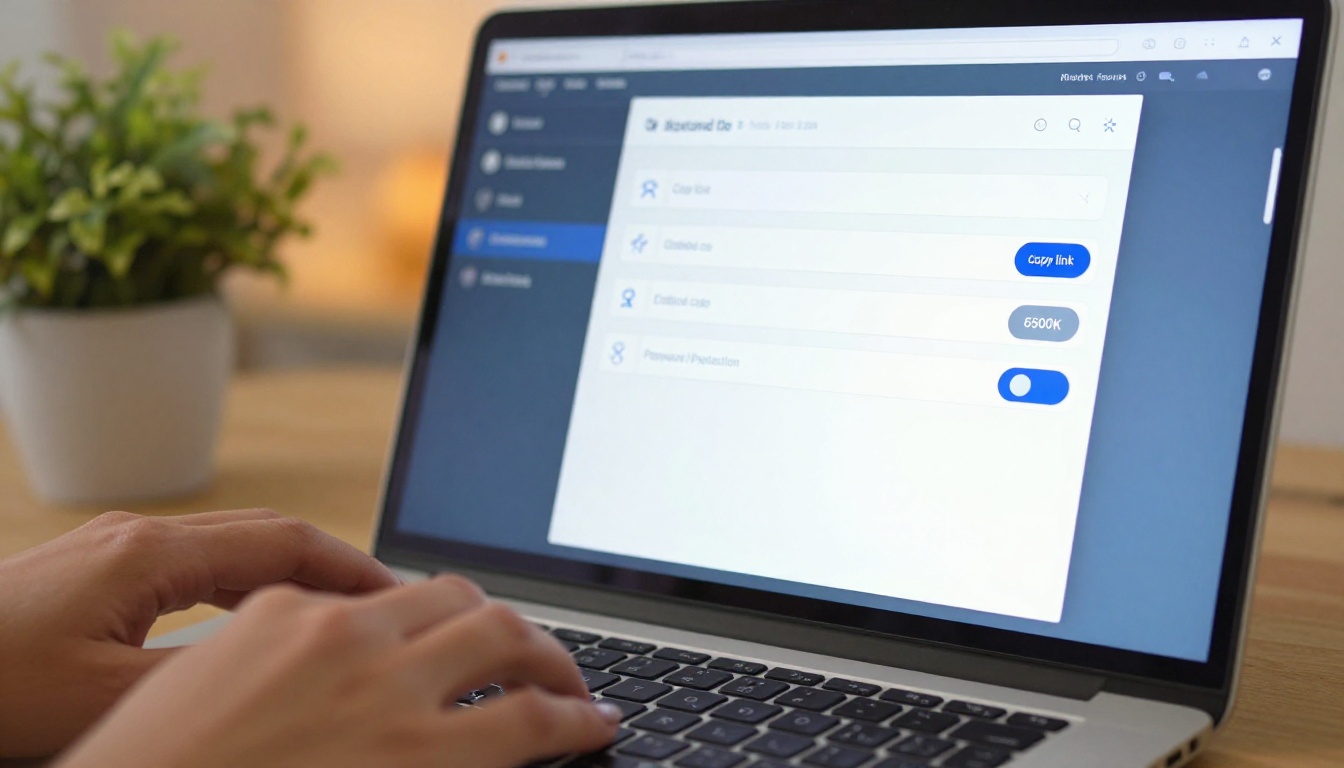
Every flipbook gets a permanent URL. Copy it, paste it in an email, drop it in a Slack message, or share it in a WhatsApp thread. The recipient opens a browser, and the flipbook loads instantly. No app required, no download, no friction.
Embedding in Websites
The Embed Flipbook on Website tool generates an iframe code snippet. Paste it into any website builder, CMS, or HTML file and the flipbook appears inline on the page, fully interactive.
💡 Pro tip: Set the iframe height to match your flipbook's aspect ratio for the cleanest embed appearance.
Password Protection
For client presentations, private lookbooks, or confidential reports, password protection keeps your content visible only to the right audience. Set a password in the share settings, and anyone clicking the link will need to enter it before viewing.
Social Sharing
Flipbooks include built-in social sharing buttons for direct posting to LinkedIn, Facebook, Twitter, and Pinterest. For visual content like fashion lookbooks or design portfolios, these social share options drive organic reach without extra effort.
Tracking Who Reads Your Flipbook
Built-In Analytics
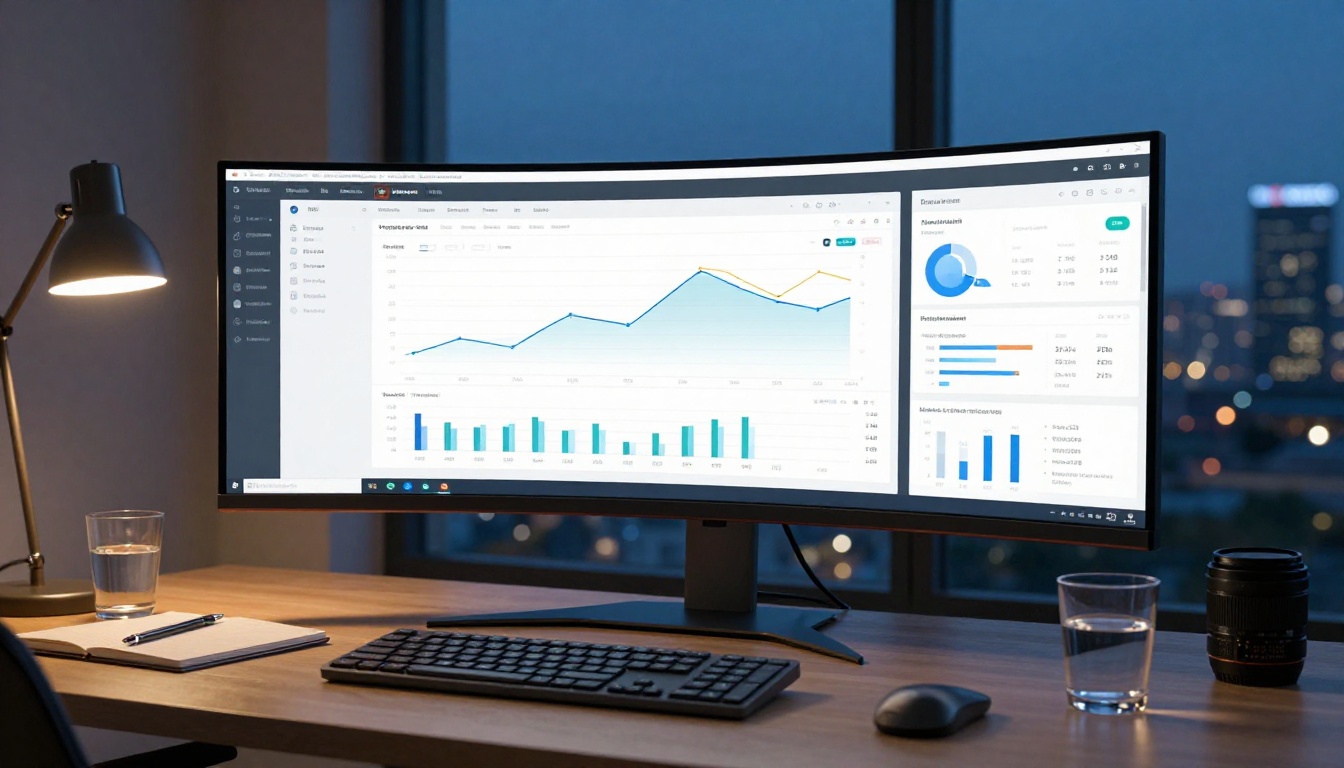
With the Professional plan on Flipbooks AI, every flipbook comes with a built-in analytics panel. You can see:
Total views and unique visitors
Average reading time per session
Most-viewed pages (heatmap-style data)
Traffic sources: direct link, embed, social
Device breakdown: desktop, tablet, mobile
This data is invaluable for designers and marketers who need to prove that content was actually viewed. A PDF sent by email gives you nothing. A flipbook link tells you exactly how far the reader got.
Lead Generation
The Professional plan also supports lead generation forms that appear before or during the reading experience. Collect names and emails from people who view your portfolio, catalog, or brochure directly inside the flipbook viewer. This turns passive content into an active conversion tool.
Use Cases by Photoshop Design Type
Different Photoshop layouts map to different flipbook formats. Here's a breakdown of the most common use cases:
Flipbooks AI offers plans that scale with your needs. Here's how the main features compare across tiers:
Feature
Free
Standard
Professional
Flipbooks
3
Unlimited
Unlimited
Watermark
Yes
No
No
Custom branding
No
Yes
Yes
Password protection
No
Yes
Yes
Analytics
No
No
Yes
Lead generation
No
No
Yes
Offline downloads
No
Yes
Yes
Embed on website
Yes
Yes
Yes
Custom domain
No
No
Yes
✅ Best practice: Start on the free plan to test the workflow, then upgrade to Standard for client-facing work where the watermark needs to go.
A Real-World Workflow from File to Link
Here's a practical scenario from design file to shareable link:
A freelance designer finishes a 12-page product catalog in Photoshop for a fashion client. The catalog uses custom fonts, layered photography, and color grading that makes the PDF look stunning on screen.
The old way: Export as PDF, attach to email, hope the client doesn't lose it.
The flipbook way:
Export the Photoshop file as a high-quality RGB PDF (12 pages, ~8MB)
Apply the client's brand colors to the flipbook toolbar
Enable password protection with the client's access code
Copy the shareable link and send it in one email
The client opens it in their browser, sees the page-turn animation, and shares it with their team via the same link. The designer checks analytics the next day and sees 14 unique views, with the longest session lasting 4 minutes on the pricing spread.
That same flipbook link can be embedded on the client's product page, posted to their Instagram bio, or sent as a QR code on printed materials. One Photoshop file becomes a living, shareable publication.
Take Your Photoshop Work Further
Your designs are already doing most of the work. Converting them to flipbooks is the last step that makes them shareable, trackable, and professional. Whether it's a fashion portfolio, a client catalog, a restaurant menu, or an annual report, the workflow is always the same: export your Photoshop file as a PDF and upload it to Flipbooks AI.
Ready to start? Create a free account and upload your first Photoshop layout today. Browse all flipbook tools to find the right format for your project, or check pricing plans to choose what works for your workflow.