Your Google Slides presentations work hard during a live meeting, but the moment that meeting ends, they disappear into a shared drive folder that nobody revisits. A static .pptx link does not captivate, it does not build credibility, and it certainly does not leave a lasting impression. That is where Flipbooks AI changes everything for professionals who want their content to actually be read.
Why Static Slides Fall Flat
The attention problem with shared decks
Most presentations get shared as a file link. The recipient opens it, skims the first three slides, and moves on. There is no interactive element, no page-turning sensation, and no reason to slow down and actually absorb the content. This is a structural problem with the format, not the content.
Static slide exports, whether as .pdf, .pptx, or even a Google Slides link, strip away all sense of pacing and experience. They feel like a document, not a presentation. The momentum that made your live deck compelling is completely lost.
What a flipbook does differently
A flipbook restores that sense of movement. Pages turn with a realistic curl effect. Readers scroll at their own pace. The experience feels more like browsing a magazine than downloading a file. That shift in perception changes how your audience interacts with your content.
Beyond the aesthetics, a flipbook is far easier to share. One URL, one embed code, works across every device without requiring a specific app, a Google account, or any software installation.

💡 Flipbooks load instantly in any browser on any device. No plugins, no downloads, no friction for your audience.
From Google Slides to Flipbook in 3 Steps
The process breaks down into three clean steps. No technical skills required.
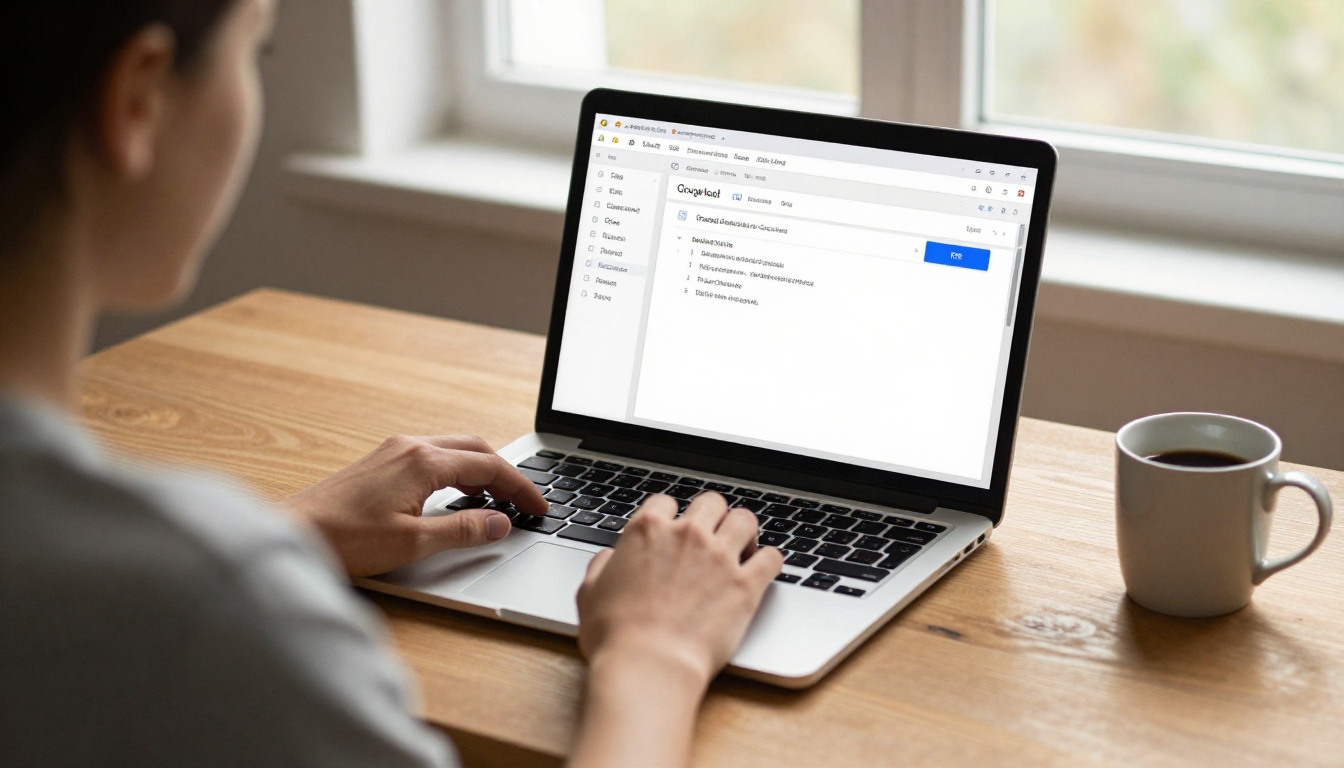
Step 1: Export your slides as a PDF
Google Slides does not export directly to a flipbook format, so the first step is converting your deck to a PDF.
- Open your presentation in Google Slides
- Click File in the top menu
- Hover over Download
- Select PDF Document (.pdf)
Your browser downloads the full slide deck as a single PDF file within seconds.
✅ Before exporting, check your slide aspect ratio. Widescreen (16:9) works better in flipbook format than the older 4:3 ratio. You can adjust this under Slide > Slide setup in Google Slides.
Step 2: Upload your PDF to Flipbooks AI
Once your PDF is ready, head to Flipbooks AI and upload it.
- Create a free account or log in
- Click Create New Flipbook
- Drag and drop your PDF into the upload zone, or click to browse
- Wait a few seconds while the system converts each slide into a flipbook page
The conversion is automatic. The platform reads each page of your PDF and renders it as an interactive flipbook page with a realistic page-curl effect built in.
Step 3: Customize, publish, and share
After uploading, you land in the flipbook editor. This is where the personalization happens.
- Set a custom title and thumbnail
- Apply your brand colors to the toolbar and background
- Choose a page-flip animation style (smooth, fast, or realistic)
- Add background music or ambient audio if relevant
- Set a password if the content is private or client-specific
When you are satisfied with the result, hit Publish. You immediately receive a shareable URL and an embed code you can drop into any website, email, or LMS.
How to Build a Presentation Flipbook with Flipbooks AI
Flipbooks AI is purpose-built for exactly this workflow. Here is a step-by-step walkthrough of the full process from account setup to sharing a polished flipbook.
1. Sign up and access your dashboard
Go to flipbooksai.com/account and create your free account. No credit card required for the free tier. Your dashboard gives you an overview of all your flipbooks, usage stats, and quick-create buttons.
2. Start a new flipbook
Click the Create Flipbook button from your dashboard. You will be presented with an upload screen where you drop your Google Slides PDF.
3. Upload your PDF
Drag your exported PDF onto the upload zone. Conversion typically takes 10 to 30 seconds depending on the number of slides.
⚠️ If your Google Slides uses custom fonts, embed them before exporting. Go to File > Download > PDF and confirm fonts are not substituted during export. Substituted fonts can break visual alignment in your flipbook pages.
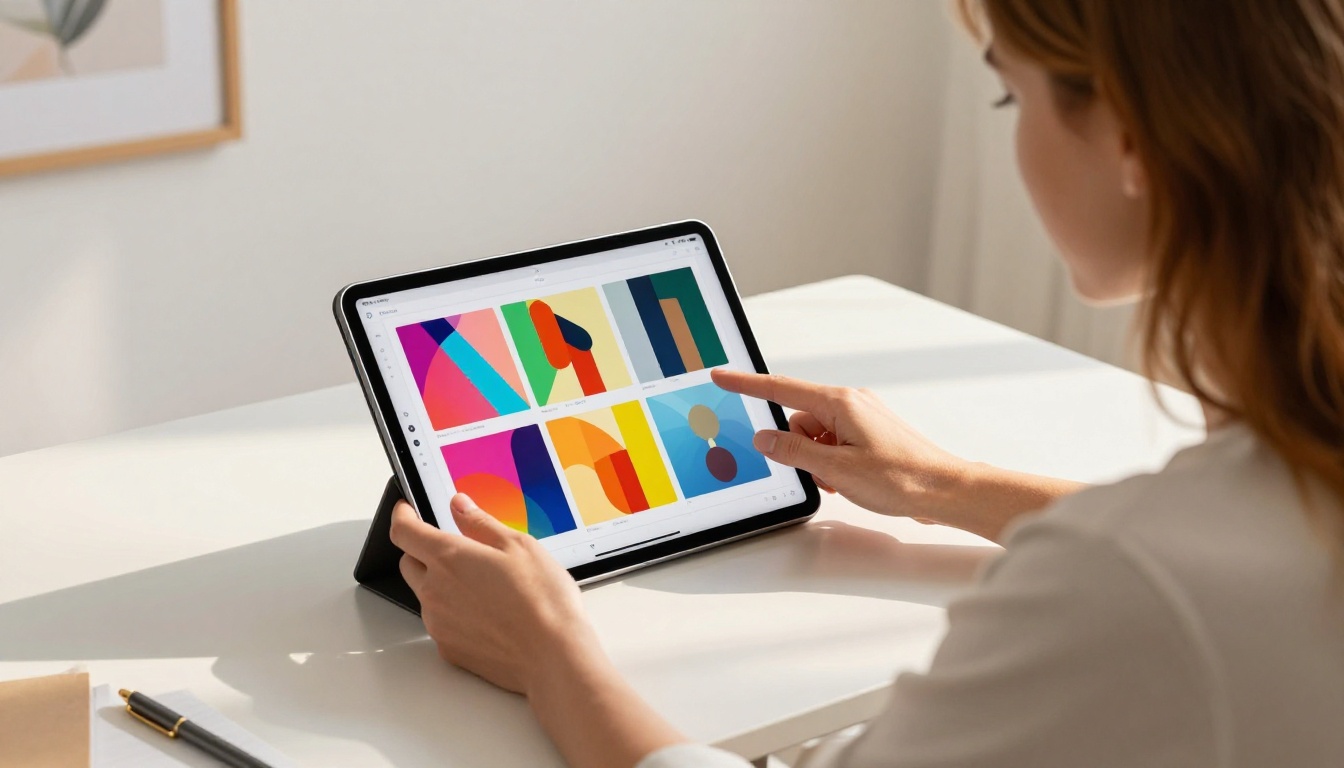
4. Apply your branding
Once converted, open the Customize panel:
- Upload your company logo to appear in the toolbar
- Set primary and secondary colors to match your brand palette
- Choose a background style (solid color, gradient, or subtle texture)
- Configure the page shadow intensity for the flip effect
5. Configure sharing options
Under the Share settings:
- Public link: Anyone with the URL can view (great for marketing decks)
- Password protected: Set a password for confidential presentations
- Embed code: Copy the iframe snippet to add the flipbook to any website
- Download permission: Allow or block reader downloads
6. Publish and track performance
Hit Publish. Your flipbook is now live. On the Professional plan, you also get access to analytics: total views, pages read, average time spent, and lead capture forms that collect viewer emails directly from inside the flipbook.
The Presentation Flipbook Designer and Sales Presentation Flipbook tools on Flipbooks AI are particularly well-suited for business slide decks that need to perform as polished leave-behind materials.
Business presentations and proposals
Sales teams convert their pitch decks into flipbooks to send as professional follow-up materials after meetings. A flipbook link in an email feels more substantial than a PDF attachment. Prospects are more likely to open and browse it.
Real estate agents use the Real Estate Brochure tool to turn property presentations into shareable portfolio pieces. Automotive companies convert spec sheets and product presentations using the Automotive Brochure tool.

Education and training
Teachers convert their lesson slides into flipbooks that students can access asynchronously. The page-flip format encourages sequential reading rather than random jumping between slides. The Course Material Publisher and Training Manual Flipbook tools streamline this for educators and corporate trainers alike.
Corporate HR teams use slide-to-flipbook conversion to distribute onboarding materials that new hires can revisit at their own pace, without needing access to a specific presentation tool or company account.

Marketing and brand communications
Marketing teams convert campaign decks, media kits, and product overviews into flipbooks that live permanently on their website or are shared via email. The Digital Portfolio Creator and Interactive Lookbook Designer are ideal for brand-forward content.
The Press Kit Designer tool is especially useful for PR teams that regularly distribute slide-based press decks to journalists and media partners.
Sharing a Flipbook vs. Sharing a Slide File
| Method | Requires Account | Mobile Friendly | Embed on Website | Analytics | Page-Flip Effect |
|---|
| Google Slides link | Yes (Google) | Partial | No | No | No |
| PowerPoint file | Yes (Office) | No | No | No | No |
| PDF attachment | No | Partial | No | No | No |
| Flipbook (Flipbooks AI) | No (viewer) | Yes | Yes | Yes (Pro) | Yes |
The difference is clear. A flipbook removes every barrier between your audience and your content.

Flipbooks AI Plans at a Glance
| Feature | Free | Standard | Professional |
|---|
| Flipbooks per month | 3 | Unlimited | Unlimited |
| Watermark | Yes | No | No |
| Custom domain | No | No | Yes |
| Password protection | No | Yes | Yes |
| Analytics | No | No | Yes |
| Lead generation forms | No | No | Yes |
| Offline download | No | Yes | Yes |
| Embed on website | Yes | Yes | Yes |
| Custom branding | No | Yes | Yes |
💡 The Standard plan is the sweet spot for freelancers and small teams who need unlimited flipbooks without watermarks. Compare all plans to find the right fit.
Tips for Better Flipbook Results
Optimize your slides before exporting
- Use high-contrast text on every slide. Small fonts do not scale well in flipbook format.
- Avoid full-bleed background images on slides that contain a lot of text. They reduce readability.
- Group related information onto fewer, cleaner slides. Dense slides that worked on a projected screen can feel overwhelming in a flipbook.
- Remove animation effects before exporting. Slide transitions do not carry over to a static PDF and can create awkward duplicate states.
Make the most of Flipbooks AI features
- Add a table of contents: Flipbooks AI can auto-generate a navigation panel from your slide titles. This is useful for long presentations with many sections.
- Replace the auto-thumbnail: The auto-generated thumbnail may not always capture the best first impression. Replace it with a custom image that represents the deck's purpose.
- Enable the fullscreen button: This is essential for presentations with detailed charts or small text elements.
- Use password protection: For client proposals or internal documents, a password-protected flipbook keeps your content from spreading beyond the intended audience.
Think about your distribution channel
- Website embed: Use the iframe embed code and set a fixed height that matches your slide aspect ratio. For 16:9 content, 560px height at a 1000px wide container works well.
- Email campaigns: Share the direct flipbook URL rather than a file attachment. Link from a thumbnail image in your email for better click rates.
- Social media: Flipbooks AI provides a short, clean URL you can share directly on LinkedIn or in newsletters.
- QR codes: Generate a QR code for your flipbook URL and add it to printed materials so readers can access the digital version immediately by scanning.
Real-World Use Case Breakdown
Every row in that table starts with a slide deck and ends with a shareable interactive flipbook. The only variable is the specific tool you use to style and distribute it.
Flipbooks on Every Screen
One of the most practical benefits of using Flipbooks AI over a static file link is full mobile responsiveness. Your flipbook resizes cleanly to any screen width, from a 27-inch desktop monitor down to a 5-inch smartphone. Page navigation adapts to swipe gestures on touch screens automatically.
This matters because a significant share of your audience will open your shared presentation link on a phone. A Google Slides link on mobile often requires signing in or downloading an app. A flipbook URL opens instantly in any browser, no friction, no barriers, no sign-in prompt.

✅ Flipbooks AI flipbooks are fully responsive out of the box. No extra setup required for mobile optimization.
Make Your Next Presentation Worth Sharing
Static slides served their purpose, but audiences today expect more. Turning your Google Slides deck into a flipbook takes less than five minutes and produces a result that feels polished, professional, and genuinely enjoyable to browse through.
Whether you are a sales rep sending a follow-up deck, a teacher distributing course materials, or a marketer sharing a product overview, the flipbook format raises how your content is received and remembered.
Ready to get started? Create your first flipbook for free on Flipbooks AI. Browse all available tools and templates to find the right fit for your use case, or compare pricing plans to choose the plan that works best for your team.



