Google Workspace is where most modern teams do their best work. Docs, Slides, Sheets, and Drive hold reports, pitches, manuals, and catalogs that deserve a better reading experience than a shared link or a static PDF attachment. Flipbooks AI gives you that: an interactive, page-turning publication you can share with anyone, on any device, without requiring a Google account.
This article walks you through exactly how to turn your Google Workspace files into professional flipbooks, from the PDF export step to customization, sharing, and tracking who reads every page.

Why Static Documents Fall Short
The Problem with Google Docs Links
When you share a Google Doc link, recipients land inside a working file with edit history, comment threads, and a formatting experience designed for collaboration, not reading. It signals "draft" even when your work is polished and final.
PDFs solve the formatting problem but create new ones. Email attachments go unopened. Shared Drive links require Google account access. Neither gives you any signal about whether anyone actually read the content past page one.
What a Flipbook Changes
A flipbook is a hosted, interactive publication built from your PDF. Pages turn like a physical book. It loads instantly on any device without downloads or account logins. You get a shareable URL you can track, embed on your website, or lock behind a password for private audiences.
The difference matters most when the content matters: a client proposal, a sales deck, a company report, or an employee handbook. These documents deserve a reading experience that reflects the effort put into creating them.
💡 Pro tip: Sharing a flipbook link instead of a raw Google Doc URL immediately signals professionalism to clients, prospects, and stakeholders.
Which Google Workspace Files Work Best
Not every file type converts equally well. Here is a practical breakdown of what to expect from each.

Google Docs: Reports, Proposals, and Manuals
Google Docs exports cleanly to PDF and converts beautifully into flipbooks. Long-form reports, client proposals, HR manuals, and onboarding documents all work well. Use proper heading styles in Docs before exporting to keep page breaks clean and predictable.
Best for: Annual reports, white papers, HR manuals, client proposals, project documentation
Google Slides: Presentations and Pitches
Slides is the strongest starting point. Each slide becomes one flipbook page, the visual design is already built for display, and the landscape aspect ratio works naturally for horizontal reading. Sales pitches, product overviews, and event programs convert almost perfectly without any extra formatting work.
Best for: Sales decks, product catalogs, company profiles, event programs, pitch decks
Use the Sales Presentation Flipbook tool for purpose-built templates designed around pitch deck conversion.
Google Sheets: Price Lists and Tables
Sheets requires formatting work before export. Columns need to fit within a single page width, fonts need to be readable at standard zoom, and you should hide any working-formula sheets before exporting. Once formatted correctly, price lists and comparison tables from Sheets work well as flipbook pages.
Best for: Price lists, product comparisons, budget summaries, inventory tables
The Digital Price List Generator is purpose-built for this exact use case.
Google Drive PDFs: Any Existing File
Any PDF already stored in Google Drive, regardless of its original source, downloads directly and uploads to Flipbooks AI without any additional conversion work. Files created in Word, PowerPoint, InDesign, or any other tool and stored in Drive work perfectly.
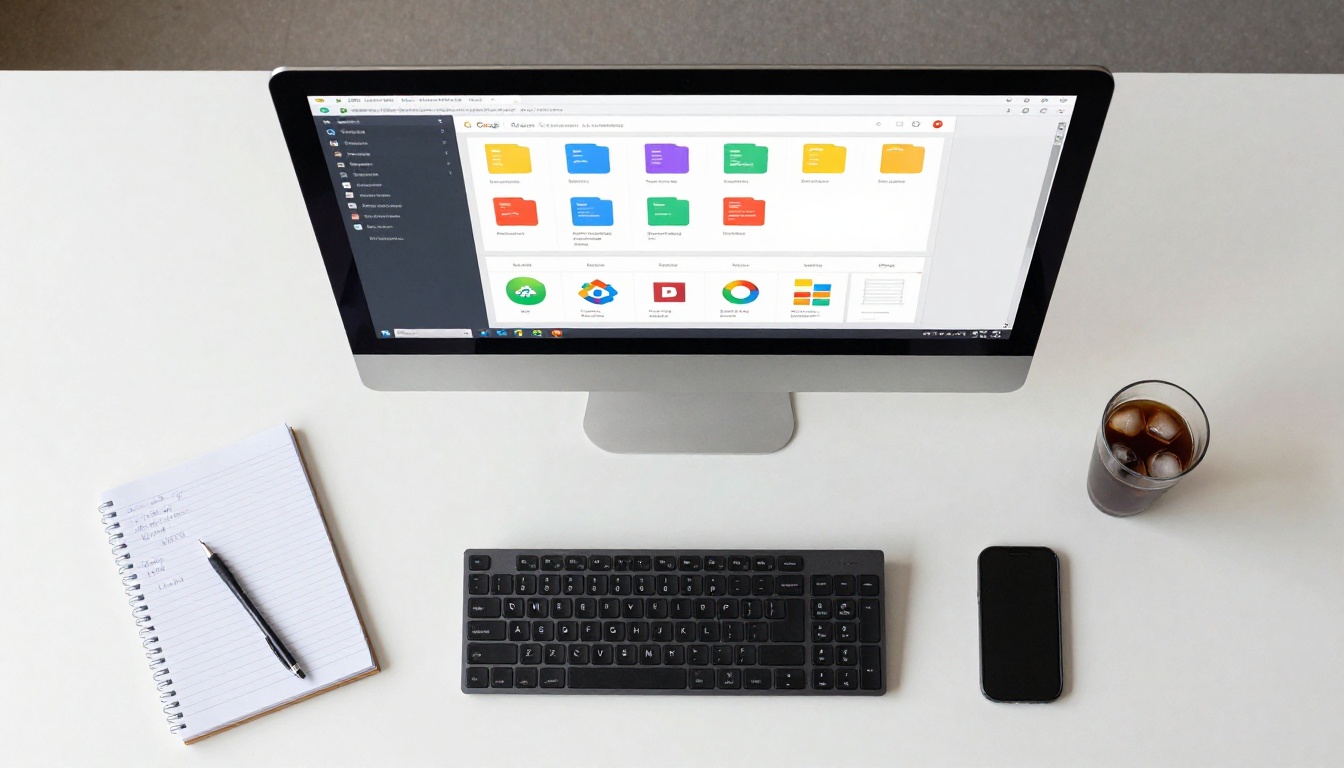
File Type Comparison:
| Google Workspace File | Flipbook Quality | Best Use Case | Preparation Needed |
|---|
| Google Slides | Excellent | Presentations, catalogs, pitches | Minimal |
| Google Docs | Very Good | Reports, proposals, manuals | Use heading styles |
| Google Sheets | Good | Price lists, tables | Format columns carefully |
| Google Drive PDF | Excellent | Any existing PDF | None |
The Conversion Process, Step by Step
Step 1: Export as PDF
In Google Docs or Slides, go to File > Download > PDF Document (.pdf). In Google Sheets, go to File > Download > PDF Document (.pdf) and configure the page scaling and sheet selection in the export dialog before saving.
⚠️ Warning: Check your page breaks before exporting. Docs with automatic page breaks sometimes split tables or images awkwardly. Preview the PDF in your browser before uploading to catch these issues early.
Step 2: Upload to Flipbooks AI
Go to Flipbooks AI and create your account. From your dashboard, select New Flipbook and drag your PDF into the upload area. Most files under 100 pages process in under 30 seconds.
The PDF to Flipbook Converter handles files of any complexity and automatically detects page count, aspect ratio, and content layout.
Step 3: Customize Your Flipbook
Once uploaded, the customization panel lets you set your brand identity across every element:
- Thumbnail: Set a custom opening image instead of defaulting to page one
- Brand colors: Match your company palette in the page-flip interface
- Logo: Add your logo to the flipbook header
- Background: Choose from solid colors, gradients, or custom images
- Page effects: Adjust the page-turn animation style and speed
✅ Best practice: Always preview on mobile before publishing. Flipbooks AI flipbooks are mobile-responsive by default, but confirm that your exported PDF's font sizes remain legible on a small screen before sharing.
Step 4: Share, Embed, or Protect
Your flipbook gets a unique shareable URL the moment it's published. From there, three main distribution options are available:
- Direct link: Copy and paste into emails, Slack messages, or social posts
- Embed code: Use the Embed Flipbook on Website tool to generate an iframe for your website or Google Sites page
- Password protection: Set a password so only intended recipients can open the flipbook

How to Build a Flipbook from Google Workspace Files
Here is the full step-by-step workflow, from your file to a published, shareable flipbook.
1. Sign in at flipbooksai.com
New accounts get immediate access to the platform. No credit card required.
2. Open your Google Workspace file
Open your Doc, Slides deck, or Sheet in the browser and confirm the formatting looks exactly as intended before exporting.
3. Export as PDF
Go to File > Download > PDF Document. Save the file to your desktop or local downloads folder.
4. Upload to Flipbooks AI
From your dashboard, select New Flipbook and upload your PDF. The conversion to a flipbook is fully automatic.
5. Set your flipbook title and thumbnail
Name your flipbook clearly. Set a compelling thumbnail image, either defaulting to page one or uploading a custom image separately.
6. Add branding
Add your logo, brand colors, and preferred page-flip style. Two minutes spent here makes a significant difference in how your content is perceived.
7. Add multimedia (optional)
On Standard and Professional plans, you can embed videos and audio directly into flipbook pages. This works particularly well for product demos, training modules, or presentations that referenced video content.
8. Set sharing permissions
Choose between public, private (link only), or password-protected. Password protection keeps internal documents secure without requiring readers to create any accounts of their own.
9. Copy your link or embed code
Share via direct link or drop the embed code into your website or Google Sites page.
10. Track readership (Professional plan)
On the Professional plan, you get analytics: total views, per-page data, geographic information, and lead capture forms you can embed directly in the flipbook.

Real-World Use Cases That Work
Marketing Teams
Marketing teams producing monthly reports, campaign recaps, or content newsletters share flipbook links instead of emailing PDFs. They see exactly how many people opened the content and which sections held the most attention, without chasing anyone for a read receipt.
The Newsletter Flipbook Publisher is built specifically for recurring publications like this.
Educators and Trainers
Teachers converting Google Slides lesson plans into flipbooks give students an interactive reading experience on any device. Training managers using Docs-based employee handbooks get a publication that loads instantly without requiring Google account access from every new hire.
The Training Manual Flipbook and Course Material Publisher tools match these workflows directly.

Sales Professionals
Sales teams using Google Slides for pitch decks turn every deck into a tracked asset. Share the flipbook link with a prospect and know exactly when they opened it, how far they read, and whether they came back a second time. The Sales Presentation Flipbook tool is purpose-built for this workflow.
HR Departments
HR teams managing onboarding materials, policy documents, or benefits packages in Google Docs publish them as password-protected flipbooks. New hires get a professional reading experience without needing access to any shared Drive folders or company Google accounts.

Flipbooks AI Plans at a Glance
Choosing the right plan depends on how many flipbooks you need, whether branding control matters, and whether tracking who reads your content is a priority.
| Feature | Free | Standard | Professional |
|---|
| Flipbooks | 3 | Unlimited | Unlimited |
| Watermarks | Yes | No | No |
| Custom branding | No | Yes | Yes |
| Password protection | No | Yes | Yes |
| Embed on website | No | Yes | Yes |
| Analytics | No | No | Yes |
| Lead generation | No | No | Yes |
| Offline downloads | No | No | Yes |
| Multimedia (video/audio) | No | Yes | Yes |
| Mobile-responsive | Yes | Yes | Yes |
💡 Pro tip: The Standard plan suits most teams converting Google Workspace files regularly. Unlimited flipbooks, no watermarks, and full branding control. Move to Professional when you need to know who is reading your content and how far they got.
See the full breakdown on the Flipbooks AI pricing page.
Common Mistakes to Avoid
Skipping the PDF Preview
Exporting to PDF first gives you a fixed, final version of your document. The mistake most teams make is uploading without previewing. Page breaks in the wrong place, fonts that are too small, or hidden formula sheets all become obvious problems once the flipbook is live.
Ignoring the Mobile Preview
Around 60 percent of document views happen on mobile devices. If your Google Slides deck uses small body fonts or complex multi-column layouts, those elements may become unreadable on a phone screen. Always check the mobile preview in the Flipbooks AI editor before sharing.
⚠️ Warning: Slides with body text under 16pt often become unreadable on mobile. Return to Google Slides, increase the font size, and re-export before uploading.
Publishing Without Branding
An unbranded flipbook with default colors and no logo looks like a generic document viewer. Adding your logo and brand colors in the customization panel takes under two minutes and makes the difference between a polished publication and an afterthought.

Here is a quick reference matching common document types to the most relevant tools on the platform.
Your Google Workspace Files, Published Right

Your Google Workspace files already hold your best work. The gap between that work and the experience your audience gets when they read it is exactly what flipbooks close.
Whether you're sharing a sales pitch with a prospect, distributing a training manual to new hires, or publishing a company report for stakeholders, a flipbook built from your Google Workspace files gives readers something they actually want to open and finish reading.
Create your first flipbook for free and see the difference in under five minutes.
Want to find the right tool for your specific document type? Browse all flipbook tools or compare pricing plans to choose what works for your team.



