You built something worth showing. Clean slides, bold typography, a color palette that actually makes sense — your Canva presentation looks great. The problem? Sharing it as a PDF attachment feels like handing someone a printed brochure when they asked for a website. Nobody wants to download a file, open a reader, and scroll through flat pages. There is a better way: convert it into an interactive flipbook that people can click, flip through, and share in seconds. Flipbooks AI makes that process straightforward, and this article shows you exactly how to do it.
Why a Flipbook Beats a PDF Every Time
Presentations are designed to be experienced, not archived. When you send a PDF, you lose the momentum your design created. A flipbook restores that experience digitally, adding realistic page-turn animations, a shareable link, and the kind of visual pull that keeps people reading.

The attachment problem
Email attachments get ignored. Files sit in downloads folders. PDFs have no analytics, no branding control after delivery, and no way to update them once sent. If you discover a typo after sending 200 emails, you are stuck.
A flipbook lives at a URL. You can update it, track who viewed it, and share it across any channel: social media, email, embedded in a website, or sent via a direct link that works on any device.
What modern readers expect
Attention spans are short and screens are everywhere. People reading your presentation on a phone do not want to pinch-and-zoom a landscape PDF. Flipbooks are mobile-responsive by default. The page-turn effect is intuitive. The experience feels premium, which reflects well on whoever created it.
💡 Pro tip: Flipbooks are especially effective for client proposals, pitch decks, and educational materials — any content where first impressions matter.
Export Your Canva Design as a PDF First
Before anything else, you need to get your Canva presentation out as a PDF. This takes about 30 seconds.
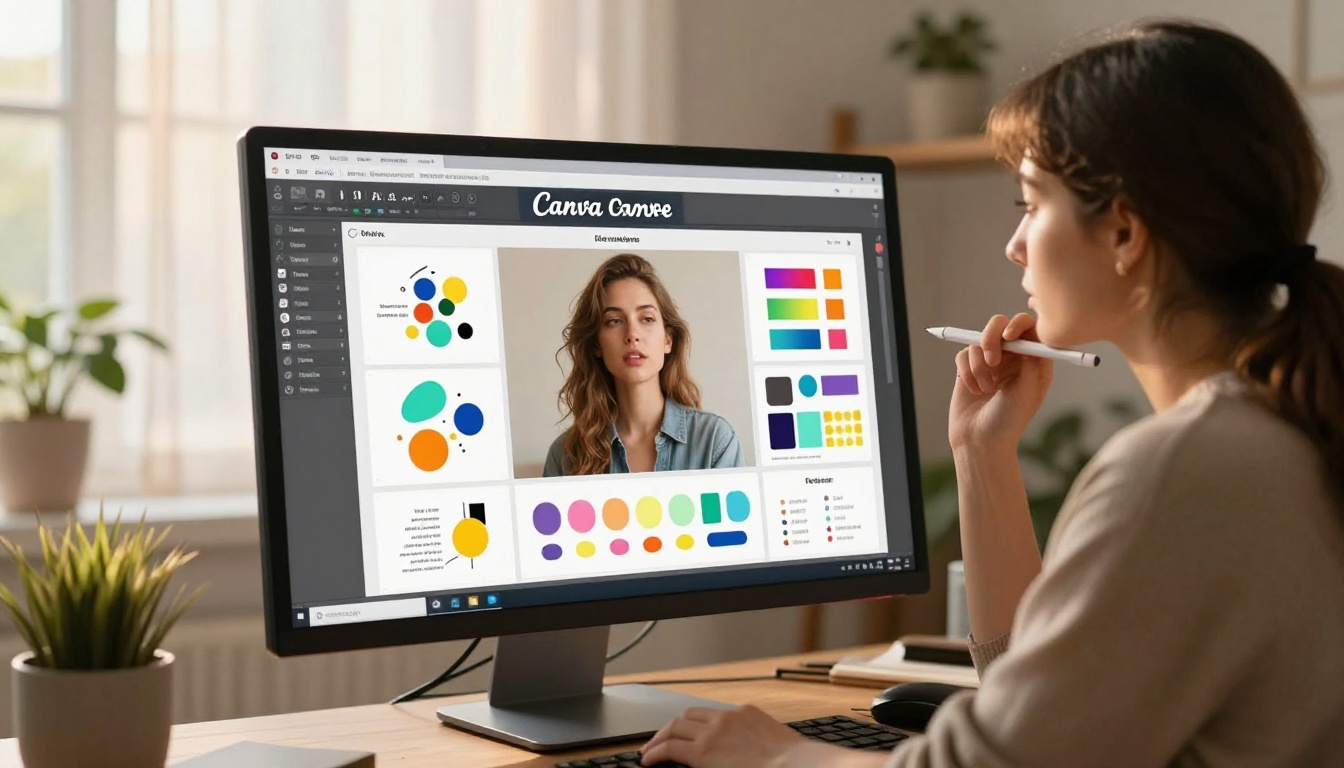
Finish and review your slides
Check your design before exporting. Flipbooks preserve your layout exactly as it appears in Canva, so any alignment issues or missing images will carry through. Use Canva's built-in presentation preview to scroll through every slide.
Pay particular attention to:
- Font consistency: Make sure no slides are using a substitute font Canva defaulted to
- Image resolution: Low-res images will look blurry in a flipbook
- Slide dimensions: Standard 16:9 works perfectly for digital flipbooks
Download as PDF Print quality
- Click the Share button in the top-right corner of Canva
- Select Download
- Choose PDF Print (not PDF Standard) for the sharpest output
- Enable Crop marks and bleed only if your design intentionally uses full-bleed backgrounds
- Click Download
⚠️ Important: Choose "PDF Print" over "PDF Standard" for better image quality. The difference is visible, especially on detailed graphics and photography.
One file, all your slides
Canva bundles every slide into a single multi-page PDF. That is exactly what a flipbook converter needs. Each page of the PDF becomes one page of your flipbook, in the same order, with the same dimensions.
Convert PDF to Flipbook: The Full Process
Once you have your PDF, the actual conversion is fast. Flipbooks AI handles the technical work automatically.
Upload your PDF
Visit Flipbooks AI and create a free account if you have not already. From your dashboard, click New Flipbook and upload your Canva PDF. Files under 100MB upload in seconds. Larger files with high-resolution images may take a moment longer.
The platform accepts standard PDF format from any source, so any PDF exported from Canva works perfectly.
Automatic page-flip conversion
The system reads each page of your PDF, processes the layout, and generates a flipbook with realistic page-turn animation. You do not need to configure individual pages or map anything manually.
What you get automatically:
- Page-flip animation with realistic physics
- Zoom controls for readers
- Mobile-responsive layout that adapts to any screen size
- Fast loading optimized for web delivery
Preview before publishing
Before sharing, use the preview mode to flip through your presentation from a reader's perspective. This is the moment to catch anything that looks off: cropped content, pages in the wrong order, or images that did not render clearly.
✅ Best practice: Always preview on both desktop and mobile before sharing the final link.
Customize Your Flipbook Before Sharing
The default output is already good. A few minutes of customization makes it great.
Add your branding
Flipbooks AI offers custom branding on Standard plans and above. You can set:
- Custom logo displayed in the flipbook viewer
- Brand colors for the toolbar and controls
- Custom domain to host your flipbook at your own URL
This matters especially for client-facing presentations. A branded flipbook at presentations.yourbrand.com reads very differently from a generic hosted link.
Control the viewer experience
Within the flipbook editor, you can configure:
- Auto-flip speed for kiosk or display use
- Sound on/off for page-turn effects
- Table of contents generated from your slide headings
- Fullscreen default for immersive presentations
Add multimedia on Standard plan and above
Unlike a static PDF, your flipbook can include embedded video and audio. If your Canva presentation references a product demo or explainer video, you can embed it directly into the flipbook page rather than linking out. Readers stay in the experience.
How to Share Your Flipbook
This is where things get genuinely useful. A flipbook is not just a nicer PDF. It is a shareable digital object with multiple delivery options.
Direct link sharing
Every flipbook gets a unique URL. Copy it and paste it anywhere: email, Slack, LinkedIn, WhatsApp, or a QR code. Anyone who clicks it can view the flipbook immediately in their browser. No downloads, no plugins, no account required.
Embed on any website
For website owners, the embed option is particularly powerful. Flipbooks AI generates an iframe code that drops your flipbook directly into any webpage. The viewer stays on your site while getting the full flipbook experience.
Use cases for embedded flipbooks:
- Portfolio pages: Show your work without asking visitors to download files
- Product pages: Embed a catalog or lookbook alongside your products
- Blog posts: Include an interactive reading experience within your content
- Landing pages: Replace static PDFs with a more engaging alternative
Password protection for private content
Not all presentations are meant for everyone. Flipbooks AI supports password protection on any flipbook. Set a password before sharing and only people with the right credentials can view it.
This is useful for:
- Internal company presentations shared externally
- Client-specific proposals that should not be forwarded
- Early-access content gated for subscribers
💡 Pro tip: Password-protected flipbooks are perfect for sales proposals. You can share a premium-feeling document while keeping it out of the wrong hands.
Not all sharing methods are equal. Here is how flipbooks stack up against the alternatives most Canva users reach for:
| Feature | PDF Attachment | Canva Share Link | Flipbook |
|---|
| Mobile-responsive | ❌ Often poor | ✅ Yes | ✅ Yes |
| No download required | ❌ Required | ✅ Yes | ✅ Yes |
| Custom branding | ❌ No | ❌ Canva branding | ✅ Full control |
| Password protection | ❌ No | ❌ No | ✅ Yes |
| Analytics and tracking | ❌ No | ❌ No | ✅ Yes (Professional) |
| Embed on website | ❌ No | ❌ Limited | ✅ Yes |
| Offline access | ✅ Yes | ❌ No | ✅ Yes (Professional) |
| Page-flip animation | ❌ No | ❌ No | ✅ Yes |
| Lead generation | ❌ No | ❌ No | ✅ Yes (Professional) |
The Canva share link is fine for internal reviews. PDFs have their place for documents that will be printed. But for anything meant to be experienced by an audience, a flipbook is the clear choice.
Who Benefits Most from This Workflow
Understanding real-world scenarios helps you see where to apply the Canva-to-flipbook workflow.

Marketing and creative teams
A marketing team building a campaign deck in Canva can convert it to a flipbook for client review. Instead of emailing a 25MB PDF and waiting for feedback, they share a link. The client opens it on their phone during their commute, flips through it, and responds by end of day.
The Presentation Flipbook Designer tool is built specifically for this workflow.
Educators and trainers
Educators using Canva to build visual lesson plans or training materials can convert each module into a flipbook. Students access them via direct link from a learning management system or course platform. The page-flip format draws sequential reading rather than random scrolling.
The Course Material Publisher and Training Manual Flipbook tools are purpose-built for this use case.
Freelancers and consultants
A freelance designer or consultant regularly sending proposals and case studies will find the flipbook format distinctly different from the competition. A proposal that looks like a magazine rather than a Word document positions you differently in the prospect's mind. And the analytics tell you exactly when they opened it and which pages held their attention.
Real estate professionals
Real estate agents already use Canva for property presentations. Converting those to shareable flipbooks means sending clients a browsable property showcase instead of a flat document. The Real Estate Brochure tool extends this further into polished territory.
Flipbooks AI Plans at a Glance
Before committing to a workflow, it helps to know what each plan provides:
| Feature | Free | Standard | Professional |
|---|
| Flipbooks | Limited | Unlimited | Unlimited |
| Watermarks | Yes | None | None |
| Custom branding | ❌ | ✅ | ✅ |
| Password protection | ❌ | ✅ | ✅ |
| Embed on website | ❌ | ✅ | ✅ |
| Analytics | ❌ | Basic | Full |
| Lead generation | ❌ | ❌ | ✅ |
| Offline downloads | ❌ | ❌ | ✅ |
| Multimedia embed | ❌ | ✅ | ✅ |
For most users sharing Canva presentations professionally, the Standard plan covers everything needed. The Professional plan adds full analytics and lead generation — useful for marketing teams tracking on sales material.
See all options at flipbooksai.com/pricing.
Step-by-Step: Your First Canva Flipbook
Here is the complete process from a finished Canva design to a live shareable flipbook:

- Open your Canva presentation and review all slides for quality
- Click Share in the top-right corner, then select Download
- Choose PDF Print for maximum quality, then click Download
- Go to flipbooksai.com and sign in or create your account
- Click New Flipbook from your dashboard
- Upload your PDF: drag and drop or browse to select the file
- Wait for conversion: typically 10 to 30 seconds depending on page count
- Preview your flipbook: click through every page to verify quality
- Customize: add your logo, set brand colors, configure viewer settings
- Publish and share: copy the direct link, set a password if needed, or grab the embed code
✅ Best practice: Publish to a test link first and share with one colleague before broadcasting widely. A second set of eyes catches things you have stopped seeing.
Track Who Views Your Flipbook
Sharing without knowing what happens next is guesswork. The Professional plan on Flipbooks AI includes detailed analytics so you can see exactly how people interact with your presentation.

What analytics reveal
- Total views and unique viewer count
- Time spent per page: which slides get attention, which get skipped
- Geographic location of viewers
- Device breakdown: mobile vs. desktop
- Referral source: where clicks come from
Why this changes your work
When you know that 80% of viewers drop off at slide 5, you redesign slide 5. When you see most viewers are on mobile, you reconsider your text size choices in Canva. Analytics close the feedback loop that email attachments leave permanently open.
For sales teams, the lead generation feature lets you gate the flipbook behind a form, capturing name and email before granting access.
Embed Your Flipbook on a Website
For anyone with a website, embedding is often more valuable than link sharing. A visitor landing on your portfolio, product page, or blog post can interact with your full presentation without leaving the page.
Getting the embed code
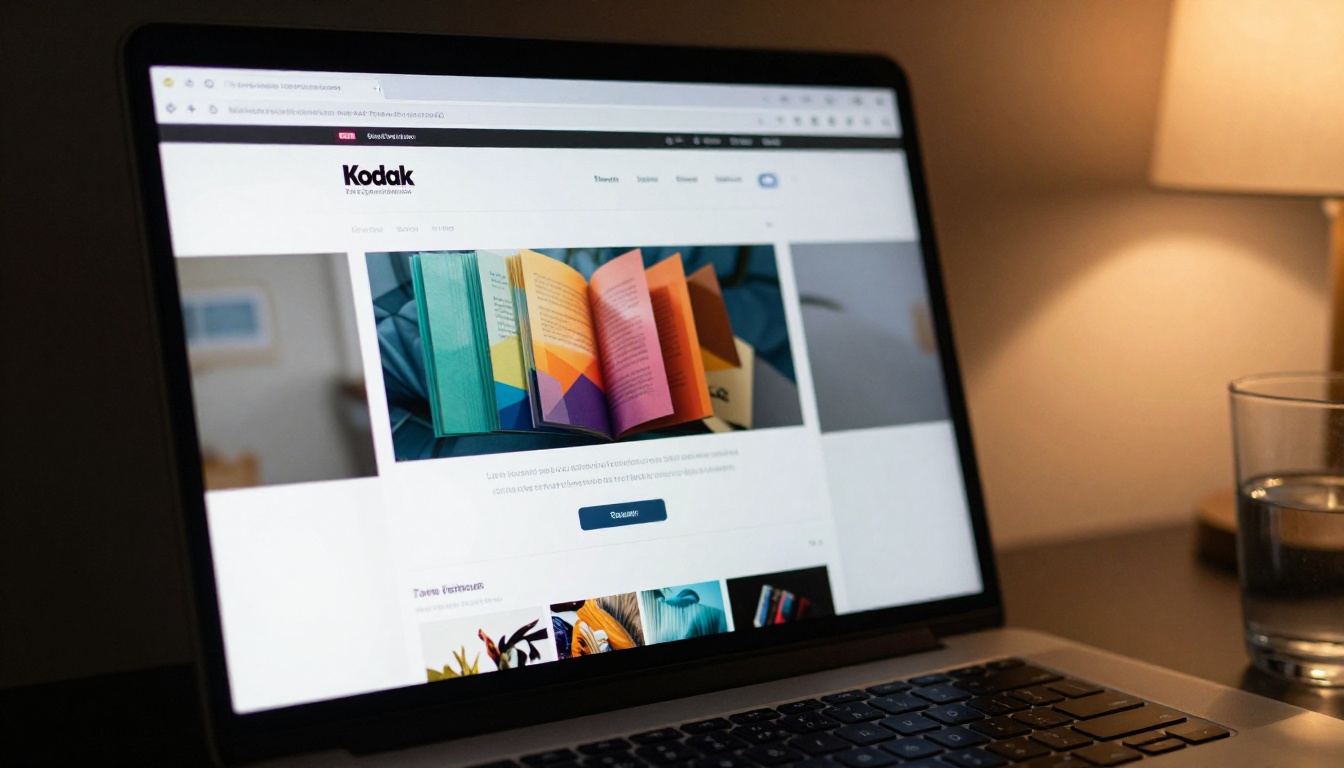
From your flipbook dashboard, open the sharing options and select Embed. Flipbooks AI generates a standard iframe snippet you can paste into any HTML editor, WordPress block, Webflow component, or website builder.
The embed is responsive, adjusting to whatever width your page column allows.
Content types and the right tool for each
Browse all options at the Flipbooks AI tools directory to find the specific format that fits your use case.
Stop Sending Flat Files
Your Canva presentations deserve better than a downloads folder. Every slide you designed with care should be seen in full: on any device, without friction, with the visual impact you intended. Converting to a flipbook takes minutes and the difference in how your audience experiences your work is immediate.
Ready to try it? Create your first flipbook for free and have your Canva presentation live as a shareable link within the hour. If you are doing this regularly for clients or a team, check pricing plans to find the right fit. Browse all available flipbook tools to see how far you can take it beyond presentations.



