If you've spent hours building a stunning Photoshop design, the last thing you want is for it to collect digital dust on your hard drive. Turning your PSD into an interactive flipbook is one of the fastest ways to publish, share, and impress, whether you're a designer, marketer, or business owner. Flipbooks AI makes this process smooth from start to finish.
What Is a PSD Flipbook?
A flipbook is a digital publication that mimics the sensation of flipping through a real printed book, with animated page-turn effects, responsive layouts, and interactive elements. When you take a multi-page Photoshop design, export it as a PDF, and upload it to a flipbook platform, those pages come alive with a tactile, engaging reading experience.
Designers use this workflow for:
- Product catalogs built in Photoshop
- Lookbooks and fashion editorials
- Event programs and brochures
- Photography portfolios
- Annual reports with custom layouts
- Restaurant menus with visual flair
The beauty is that Photoshop gives you total visual control, and the flipbook platform handles publishing, sharing, and interactivity.
Why Photoshop Is the Right Starting Point
Photoshop PSD files are the gold standard for pixel-perfect design. You have full control over typography, imagery, layer effects, blending modes, and color profiles. The challenge is that PSDs are not natively shareable on the web, you need an intermediate format.
That intermediate format is PDF. Once you export your PSD as a PDF, the file becomes universally readable and fully compatible with flipbook converters. The entire workflow, from layered PSD to published interactive flipbook, can be done in under 10 minutes once you know the steps.
💡 Pro Tip: If your Photoshop file has multiple artboards, each artboard becomes one page in your final PDF and flipbook. Use artboards deliberately to control your flipbook's page structure.
Preparing Your PSD File the Right Way
Rushing the export step creates problems later. Before you save anything, spend two minutes reviewing these preparation steps.
Organize Your Layers
Messy layer panels don't affect your exported PDF, but they make revisions painful later. Group related elements, name your groups clearly, and merge any layers that are finalized. This also reduces file size before export.
Set the Right Document Size
For digital flipbooks, a landscape orientation (16:9 or A4 landscape) works best for desktop viewing, but portrait (A4, US Letter) is fine and better for mobile. Whatever you choose, keep it consistent across all artboards or pages.
Embed All Linked Assets
Before exporting, go to Edit > Package or ensure all smart object links are embedded. Missing links result in blank boxes in your exported PDF.
Check Color Mode
Flipbooks are viewed on screens, so your document should be in RGB color mode (Image > Mode > RGB Color). If you designed for print in CMYK, convert before exporting for sharper, more vibrant screen colors.
⚠️ Warning: CMYK-to-RGB conversion can shift colors. Always preview after converting and adjust hues as needed before final export.
How to Export PSD to PDF
This is the core step. Photoshop gives you multiple export paths, and choosing the right one matters.
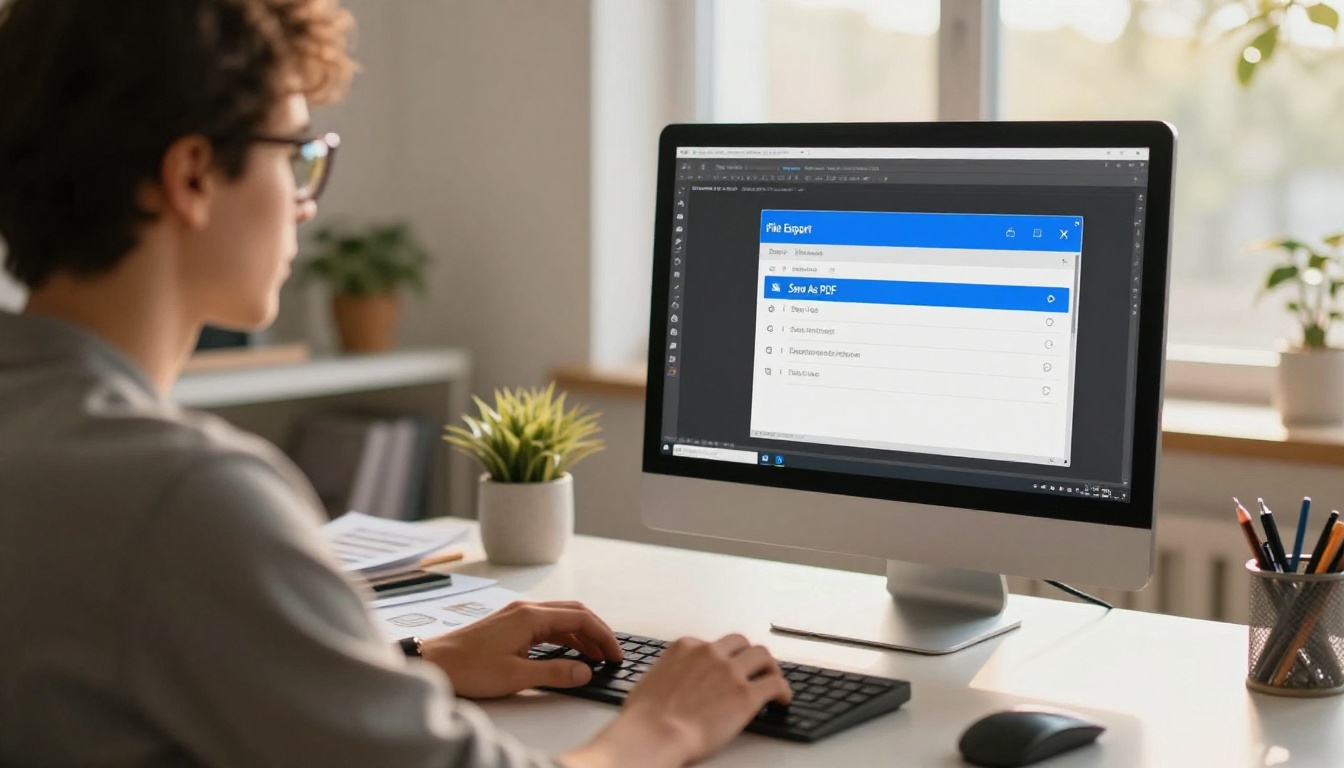
Option 1: File > Save As (Best for Simple Files)
- Go to File > Save As
- Choose Photoshop PDF from the format dropdown
- In the PDF settings dialog, select High Quality Print preset
- Uncheck Preserve Photoshop Editing Capabilities to reduce file size
- Click Save PDF
Option 2: File > Export > Export As (Best for Artboard Files)
If you're using artboards:
- Go to File > Export > Export As
- Set format to PDF
- Enable All Artboards export
- Choose a destination folder and save
Option 3: Print to PDF (Universal Fallback)
On both Windows and macOS, you can print your PSD to a PDF using the system print dialog. This flattens all layers and embeds fonts cleanly, making it a reliable fallback if other methods cause issues.
Comparing Export Methods
| Export Method | Best For | Preserves Layers | File Size | Speed |
|---|
| Save As PDF | Simple single-page designs | No (flattened) | Medium | Fast |
| Export As (Artboards) | Multi-page artboard layouts | No (rasterized) | Small-Medium | Fast |
| Print to PDF | All file types, universal | No (flattened) | Small | Medium |
| PDF Presentation | Batch multiple PSDs | No | Variable | Slow |
For most flipbook projects, Save As PDF with High Quality Print preset delivers the best balance of quality and compatibility.
From PDF to Flipbook in Minutes
Once your PDF is ready, the heavy lifting is done. Now it's time to upload it and publish your interactive document.
Flipbooks AI is purpose-built for exactly this workflow. Upload your PDF, and within moments you have a page-turning digital publication ready to share. No coding, no complex software, no watermarks.
How to Create Your Flipbook with Flipbooks AI
Here's a step-by-step breakdown of publishing your Photoshop-designed PDF as a flipbook:
1. Create your account
Head to Flipbooks AI and sign up. No credit card required to start.
2. Upload your PDF
From your dashboard, click the upload button and select the PDF you exported from Photoshop. The platform processes your pages and automatically generates a page-turning preview. Most PDFs convert in under 60 seconds.
3. Customize your flipbook
Once uploaded, you can:
- Set a custom cover thumbnail
- Add your brand colors and logo
- Choose between 3D flip effects or slide transitions
- Add a background texture or color
- Embed videos or audio directly into pages
- Enable or disable the download button
4. Set sharing and privacy options
- Share via a direct link instantly
- Embed the flipbook on your website with a one-line code snippet
- Set a password for private client presentations
- Control whether viewers can download the PDF
5. Publish and track performance
On the Professional plan, you get full analytics showing page views, time-on-page, and reader engagement. You can also set up lead generation forms to capture viewer emails directly inside the flipbook.
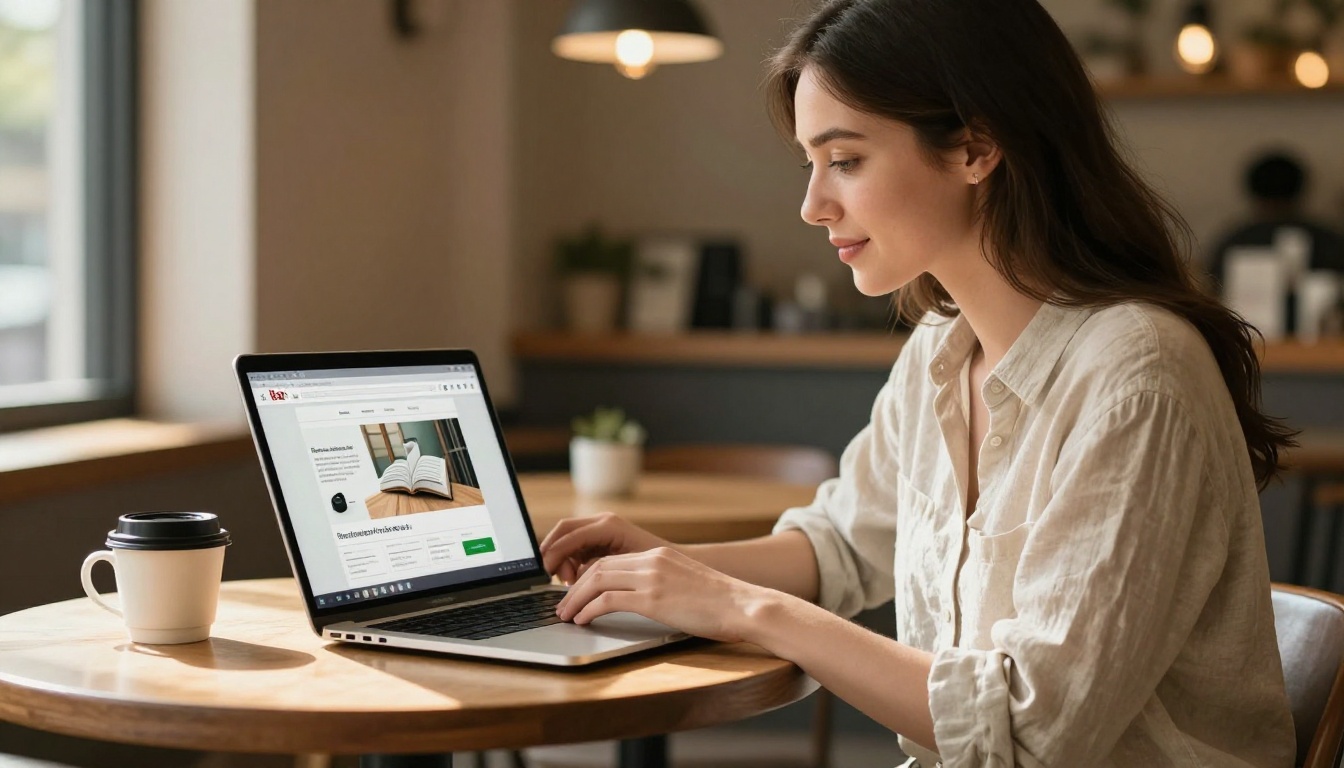
✅ Best Practice: Use Flipbooks AI's custom branding to remove all platform references and present the flipbook as fully yours. This is especially important for client deliverables.
Real-World Use Cases
Different industries use the Photoshop-to-flipbook workflow in different ways. Here are practical examples of how this pipeline delivers real value.
Designers and Agencies
A freelance designer creates a full brand identity book in Photoshop, complete with logo usage, typography, color palettes, and brand voice pages. Exporting to PDF and uploading to Flipbooks AI turns this into a polished, interactive brand guide they can share with clients via a private link, no bulky file attachments needed.
Retailers and E-Commerce
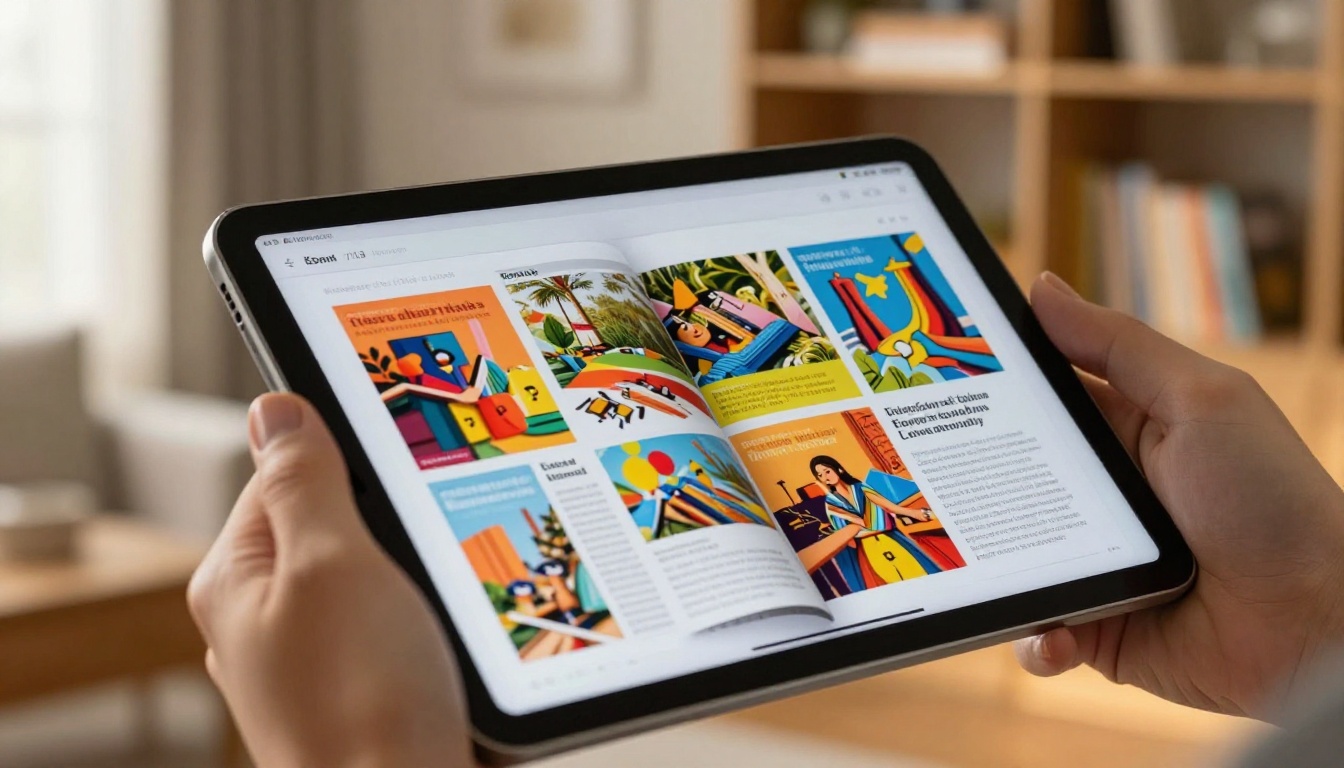
A fashion label designs their seasonal lookbook in Photoshop, with carefully art-directed product spreads and editorial photography. Using the Interactive Lookbook Designer, they turn this into a scrollable, shareable digital catalog that customers can flip through on any device.
Real Estate Professionals
A real estate agency builds property brochures in Photoshop with custom typography and photography. Converting these to flipbooks via the Real Estate Brochure Creator gives them a shareable digital version for email campaigns and website embeds.
Photographers
A photographer compiles a Photoshop-designed portfolio book and publishes it as a Photography Portfolio Flipbook, making it easy to share with art directors, agencies, or potential clients with a single link.
Flipbooks AI Plan Comparison
Not all plans fit every need. Here's a breakdown to help you decide:
| Feature | Free | Standard | Professional |
|---|
| Flipbooks | 3 | Unlimited | Unlimited |
| Custom Branding | No | Yes | Yes |
| Watermark | Yes | No | No |
| Password Protection | No | Yes | Yes |
| Analytics | No | No | Yes |
| Lead Generation | No | No | Yes |
| Offline Downloads | No | Yes | Yes |
| Embed on Website | Yes | Yes | Yes |
| Video and Audio Embed | No | Yes | Yes |
For professional client work or marketing use, the Standard or Professional plan is the right move. Explore full details on the pricing page.
Common Mistakes When Converting PSD to Flipbook
Even experienced designers trip up on a few recurring issues. Here's what to watch for.
Fonts Not Embedding
If you share or export from a system without the required fonts installed, text can shift or disappear entirely. Always rasterize text layers or embed fonts before exporting your PDF.
Oversized File Size
Photoshop PSDs can be enormous. A 200MB PSD can export a PDF that's still 50MB, which is slow to upload and process. Reduce image resolution to 150-200 DPI for web-only flipbooks. Screen display rarely benefits from anything higher.
Too Many Pages
Flipbooks work beautifully for 8-80 pages. Very long documents (200+ pages) can be slow to navigate and reduce the impact of the page-turn effect. Consider breaking long projects into multiple focused flipbooks.
Wrong Orientation Mix
Mixing portrait and landscape pages within one PDF creates an inconsistent flipbook experience. Stick to one orientation throughout your Photoshop file.
⚠️ Warning: If your PDF contains transparent pages or blank artboards, these will appear as empty pages in your flipbook. Check your artboard sequence before exporting.
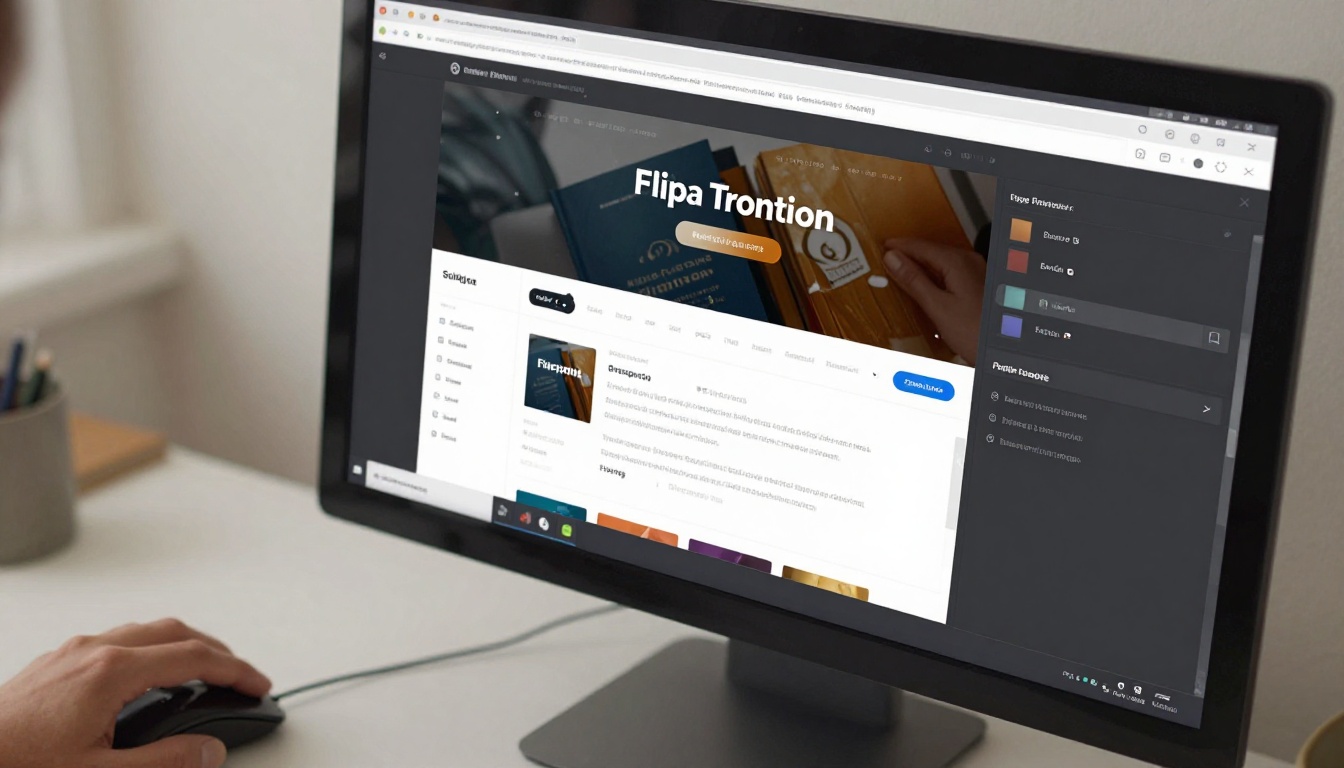
If your Photoshop file is built for a specific purpose, there's likely a dedicated tool on Flipbooks AI that adds even more value to your converted PDF:
These tools don't replace your Photoshop design process, they augment the publishing end with purpose-built templates and features that match your industry.
Optimizing Your Flipbook After Publishing
Publishing is not the finish line. Here's how to get more out of your flipbook once it's live.
Add a Table of Contents
Most flipbook platforms support chapter markers or TOC links. Adding these to a long Photoshop-designed document makes navigation far easier for readers.
Embed on Your Website
Use the embed code from Flipbooks AI to place your flipbook directly into any web page. A product page with an embedded lookbook converts better than a plain text description.
Share on Social and Email
Most flipbook platforms give you a shareable URL that works directly in social posts and email campaigns. The preview thumbnail and page-turn animation make these links far more clickable than a plain PDF attachment.
Use Analytics to Iterate
On the Professional plan, track which pages readers spend the most time on and which ones they skip. This data is invaluable for improving your next design iteration in Photoshop.
💡 Pro Tip: Combine lead generation forms with your flipbook to capture contact details from engaged readers. This turns a static design document into an active sales tool.
Sharing and Collaboration Options
One of the biggest advantages of converting your Photoshop file to a flipbook is the sharing flexibility you gain. A PSD file requires Photoshop to open. A PDF requires a reader. But a flipbook link opens in any browser, on any device, instantly.
Key sharing options on Flipbooks AI:
- Direct link: Copy and paste into any email, message, or social post
- Embed code: Drop into websites, landing pages, or intranets
- Password protection: Keep sensitive client work secure
- QR code: Print on physical materials to link to the digital version
- Offline download: Allow viewers to save a copy for offline reading
This flexibility makes a flipbook dramatically more useful than a static PDF for anyone who needs to distribute Photoshop-designed content at scale.
Make Your Photoshop Work Go Further
Your Photoshop file deserves to be seen. Whether it's a lookbook, a product catalog, a real estate brochure, or a photography portfolio, converting it to an interactive flipbook takes less time than most designers expect.
The workflow is simple: prepare your PSD, export it as a PDF, upload to Flipbooks AI, customize your branding and sharing settings, and publish. That's it.
Browse all flipbook tools to find the right fit for your project, or head straight to pricing to pick the plan that matches your publishing needs. The Standard plan removes watermarks and includes unlimited flipbooks, making it the right choice for anyone doing this professionally.
Stop letting your best Photoshop work live in a folder. Put it online, make it interactive, and share it with the world.



