Static PDFs are forgettable. You spend hours building a polished presentation, and the moment you send it as an attachment, it lands flat. People scroll through it once, close it, and move on. Converting your presentation into a flipbook changes that entirely, and you can do it for free, right now, without installing anything. Flipbooks AI makes the whole process take under three minutes.
This piece covers every method worth knowing, what "free" actually means on each platform, which formats work, and how to get the best-looking results from your first upload.
What Is a Presentation Flipbook?
A presentation flipbook is a digital version of your slides that mimics the physical experience of flipping through a printed booklet. Pages curl from one to the next. The content is fully zoomable. It works on any screen without needing special software.

The format matters because it shifts how people interact with your content. Instead of a passive scroll, readers feel like they are physically turning pages. For business pitches, product launches, educational materials, or any content that benefits from a sense of progression, this format performs better.
💡 Pro Tip: Flipbooks load in a browser tab, which means no download barriers for your audience. Anyone with a link can view your content instantly on any device.
Why Static PDFs Fall Short
The problem with sending a PDF or sharing a raw PowerPoint is simple: the experience feels unfinished. PDFs are designed for print. Slide decks are designed for projector rooms. Neither format translates well to a shared link that someone opens on their phone.
Flipbooks solve all of this:
- Mobile-responsive: The layout adapts to any screen size automatically
- No downloads required: Opens directly in the browser
- Page-turn experience: Feels like a physical document, not a file
- Embeddable: Can be placed inside a website, email, or landing page
- Shareable by link: One URL works for everyone, everywhere
Formats You Can Convert
Most flipbook tools accept the following input formats:
| Format | Compatibility | Notes |
|---|
| PDF | Universal | Best quality, most recommended |
| PowerPoint (.pptx) | Most platforms | Export to PDF first for best results |
| Google Slides | Via PDF export | Download as PDF, then upload |
| Keynote | Via PDF export | Export from Keynote as PDF |
| Images (.jpg, .png) | Some platforms | Combine into PDF for consistency |
⚠️ Important: If your slides contain custom fonts or embedded animations, export to PDF first. This preserves the visual design exactly as intended during the conversion process.
How to Turn Your Presentation into a Flipbook for Free
The process is the same regardless of which presentation software you started in. Here is the full workflow:
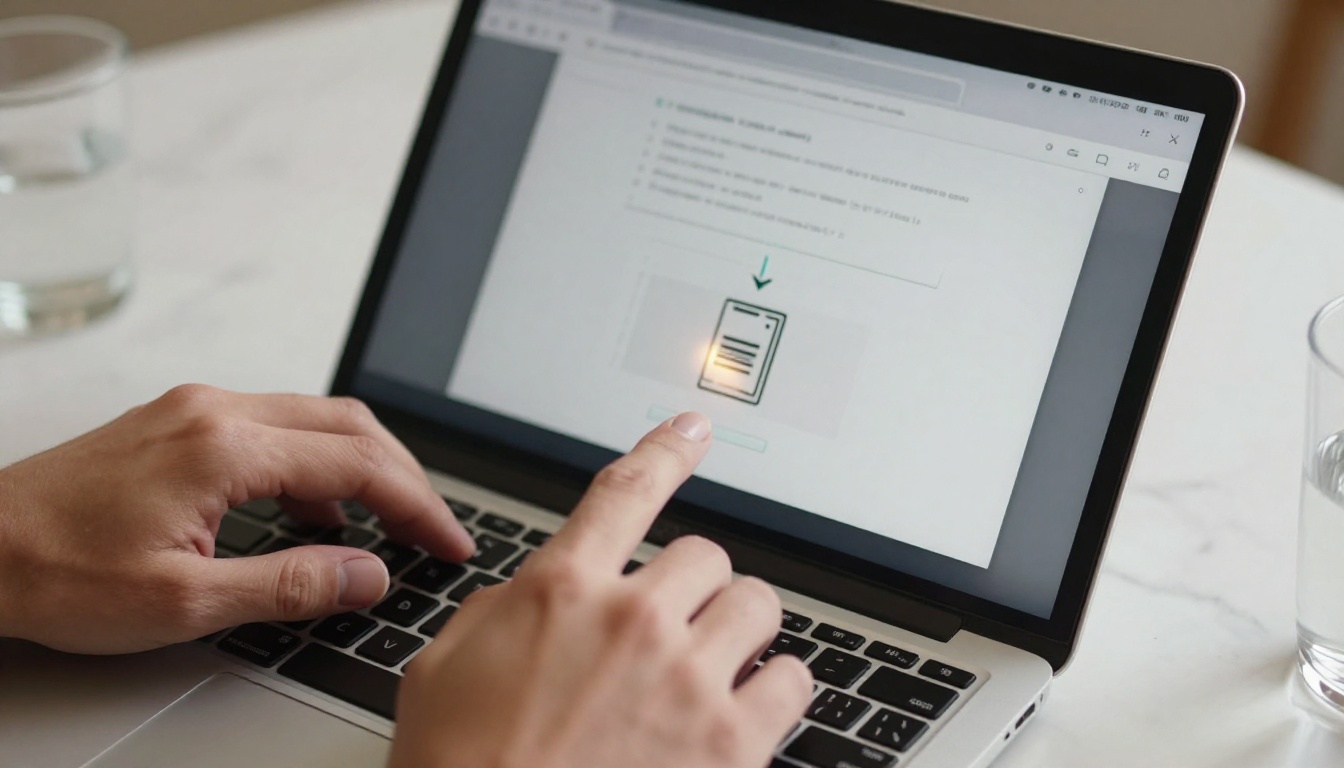
Step 1: Export Your Slides as a PDF
Open your slide deck in PowerPoint, Google Slides, or Keynote. Export or download it as a PDF file. In Google Slides, go to File > Download > PDF Document. In PowerPoint, choose File > Export > Create PDF/XPS.
This single step preserves all your fonts, colors, images, and layout exactly as designed.
Step 2: Upload to Flipbooks AI
Go to Flipbooks AI and create a free account. From your dashboard, click Upload and drag your PDF into the upload zone. The platform processes files in seconds and generates the flipbook automatically.
Step 3: Customize Your Flipbook
Once uploaded, you can adjust several settings before publishing:
- Cover style: Choose how the first page appears as a thumbnail
- Background color: Match your brand palette
- Page effects: Enable realistic page-turn shadows and curl
- Branding: Add your logo or custom domain on Standard plan and above
- Embed options: Get an iframe code ready for your website
Step 4: Share or Embed
When ready, hit Publish. You get:
- A direct shareable link anyone can open without an account
- An embed code for websites and landing pages
- Password protection options for private content
The link works on desktop, tablet, and mobile without any app installation required.
✅ Best Practice: Test your flipbook link on a mobile device before sending it to clients. The majority of your audience will open it on a phone, so mobile experience matters most.

What "Free" Actually Means
The word "free" gets used loosely across different tools. Here is a clear breakdown of what you actually get on a free plan versus paid plans on Flipbooks AI:
| Feature | Free Plan | Standard Plan | Professional Plan |
|---|
| Flipbooks | Limited | Unlimited | Unlimited |
| Watermarks | No watermarks | No watermarks | No watermarks |
| Custom branding | Basic | Full | Full |
| Password protection | No | Yes | Yes |
| Analytics | No | Basic | Advanced |
| Lead generation | No | No | Yes |
| Offline downloads | No | Yes | Yes |
| Embedded video/audio | No | Yes | Yes |
| Custom domain | No | No | Yes |
💡 No watermarks, ever. Flipbooks AI does not add watermarks to your content on any plan. This is a significant difference compared to many competitors that force a watermark until you pay.
The free plan is genuinely useful for personal projects, one-off presentations, and testing the platform. For ongoing business use, comparing plans makes sense once you need password protection or analytics data.
Real-World Use Cases by Industry
Presentations take different shapes depending on who is making them and why. Here is how professionals across different fields are using flipbooks right now:

Business Presentations
Sales teams use the Sales Presentation Flipbook tool to send proposals that clients can read on any device. Instead of attaching a 15MB PowerPoint to an email, you send a single link. The client opens it on their phone during their commute, flips through it at their own pace, and can share it internally with one click.
Practical example: A SaaS company sends a 24-slide product demo as a flipbook link instead of scheduling a Zoom call for every prospect. Response rates on the follow-up email increase because the prospect has already engaged with the content before the call.
Marketing Materials
Marketing teams convert campaign decks, brand presentations, and product launches into flipbooks for easy distribution. The Presentation Flipbook Designer handles all of this with full custom branding options built in.
Education
Teachers and course creators turn lecture slides into interactive reading material. Students prefer it because they can zoom in on diagrams, bookmark pages, and read at their own pace. The Course Material Publisher and Training Manual Flipbook are built specifically for this workflow.

Real Estate
Property presentations sent as flipbooks convert better than flat PDFs. Agents use the Real Estate Brochure Creator to build property tour flipbooks that clients flip through on mobile while walking through a neighborhood or between viewings.

Internal Reports and Decks
Annual reports, quarterly reviews, and department decks get far more engagement when shared as flipbooks. Colleagues actually read them instead of skimming a pinned PDF that nobody opens twice. The Annual Report Creator and Corporate Report Maker are optimized for these formats.
Not all flipbooks are built from presentations. Here is how different source content types map to the best flipbook format and the right tool for each:
Browse the full tools directory to find purpose-built templates for any content type you work with regularly.
How to Make Your Flipbook Stand Out
Converting is the easy part. Getting people to actually read your flipbook takes a bit more thought.

Design Principles That Convert
Keep slides clean: Busy slides with too much text are harder to read on a phone screen. Aim for one key idea per slide, supported by strong visuals.
Use high-contrast color schemes: Dark text on light backgrounds reads better across all screen types, especially mobile OLED screens viewed in bright light conditions.
Add visual hierarchy: Large headlines, medium subheadings, small body text. This makes flipping through feel intuitive rather than overwhelming.
Front-load the value: The first three pages determine whether someone keeps reading. Put your strongest insight or hook there, not a long agenda.
⚠️ Avoid this mistake: Starting your presentation with a plain title slide and a multi-point agenda is the fastest way to lose the reader. Open with the result or insight you are delivering, then explain how you got there.
Technical Optimization Tips
- File size: Keep PDFs under 50MB for fast loading on mobile. Compress images inside your slide software before exporting.
- Page count: 10-30 slides is the sweet spot for online flipbooks. Longer content is fine, but add a table of contents for anything over 20 pages.
- Aspect ratio: 16:9 widescreen slides produce better-looking flipbooks than 4:3 format on modern screens.
- Font size: Minimum 18px for body text in slides, so it remains legible when viewed on a phone screen.
Sharing and Embedding Your Flipbook
Once published, Flipbooks AI gives you multiple ways to distribute your content depending on the context:
Direct Link: A clean URL you can paste anywhere, including email, Slack, WhatsApp, or LinkedIn. Anyone with the link can view it without needing an account or app.
Embed Code: An iframe snippet you drop into any website, landing page, or blog post. The flipbook renders inside your site with full brand control on paid plans.
Password Protection: Available on Standard plan and above. Set a password so only authorized viewers can access the content. This is especially useful for client proposals, confidential internal reports, and pre-launch materials.
Analytics: Professional plan users see exactly how many people opened the flipbook, how many pages they read, and where they dropped off. This data makes follow-up conversations significantly more precise and effective.
💡 Pro Tip: Embedding a flipbook on your website adds dwell time. Visitors spend longer on the page, which sends positive signals to search engines and reduces your bounce rate simultaneously.
When Free Is Not Enough
The free plan works well for individuals who need to share the occasional presentation. The moment you need any of the following features, it is worth reviewing the paid options:
- Password protection for client-facing or proprietary content
- Analytics to track real engagement, not just link clicks
- Offline downloads so recipients can access content without an internet connection
- Lead generation forms embedded inside the flipbook (Professional plan only)
- Custom domains for white-label distribution under your own brand
- Unlimited flipbooks for teams publishing content regularly
The Professional plan's lead generation feature alone often covers its cost. Instead of sending a flipbook and waiting for a reply, you capture contact information directly from readers as they engage with your content, turning every shared presentation into an active pipeline asset.
Start With What You Already Have
You already have the presentation. Converting it takes three minutes. The free plan at Flipbooks AI is a no-risk starting point: no watermarks, no credit card required, and your first flipbook is ready to share before your next meeting starts.
If you are publishing presentations regularly for clients, a team, or a broader audience, take a look at the available plans to see which one fits your volume. The Standard plan removes every meaningful limitation for most professional use cases. The Professional plan adds the analytics and lead generation tools that make each published flipbook measurably valuable to your business.
Browse all tools and templates across every category. There is a purpose-built option for every type of content you create, from sales presentations and product catalogs to event programs and annual reports. Start with what you have today, and build from there.



