You put real effort into that Canva eBook. The fonts are dialed in, the colors match your brand, and the layout looks sharp. But when readers open a PDF attachment in their email or click a static download link, the experience rarely matches the quality of your design. Pages feel flat. Scrolling feels tedious. Most people close it before page five.
Converting your Canva eBook into an interactive flipbook solves this in one step, and the difference in how people respond to your content is immediate. Flipbooks AI turns your PDF into a page-turning, mobile-friendly, embeddable publication without any technical skill required.
Why Static PDFs Are Hurting Your eBook
People do not read PDFs the way you think
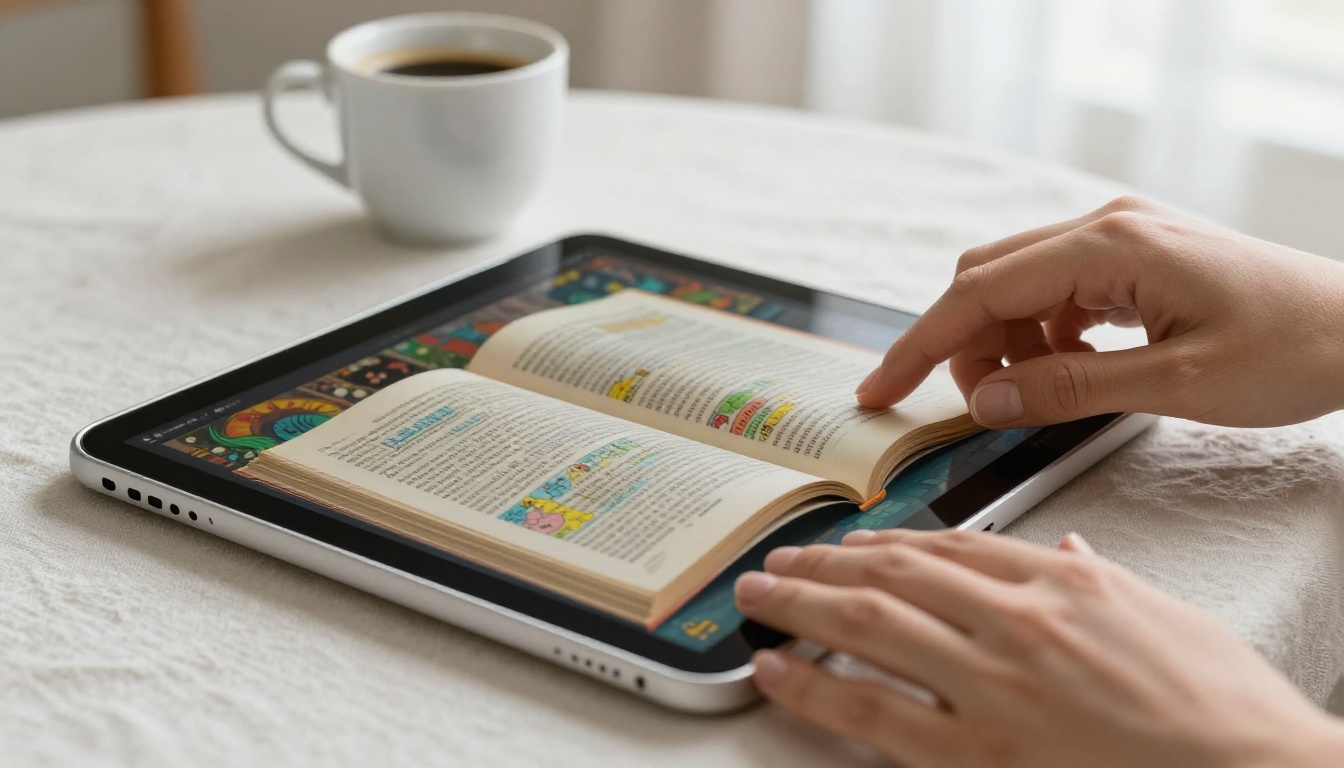
PDF is a format designed for printing. It handles digital reading well enough, but it was never built for the way people actually consume content on screens today. Readers scroll through pages instead of turning them. There is no sense of progress, no tactile satisfaction, and nothing that makes the experience feel like reading a real publication.
The average PDF download gets opened once. Sometimes twice. A well-designed flipbook with page-turn animation gets bookmarked, revisited, and shared because it feels worth coming back to.
The visual gap between design and delivery
When you export from Canva, you get a high-quality file. But that file lands differently depending on how it is opened. On some devices, fonts shift. On others, images compress. The PDF viewer on a phone looks nothing like the polished Canva preview you spent time perfecting.
A flipbook preserves your design at full fidelity and presents it in a purpose-built reading interface. Your Canva layout stays exactly as intended, with proportions, spacing, and imagery intact, whether someone opens it on a laptop or a phone.
What a Flipbook Does That a PDF Cannot
Real page-turn animation
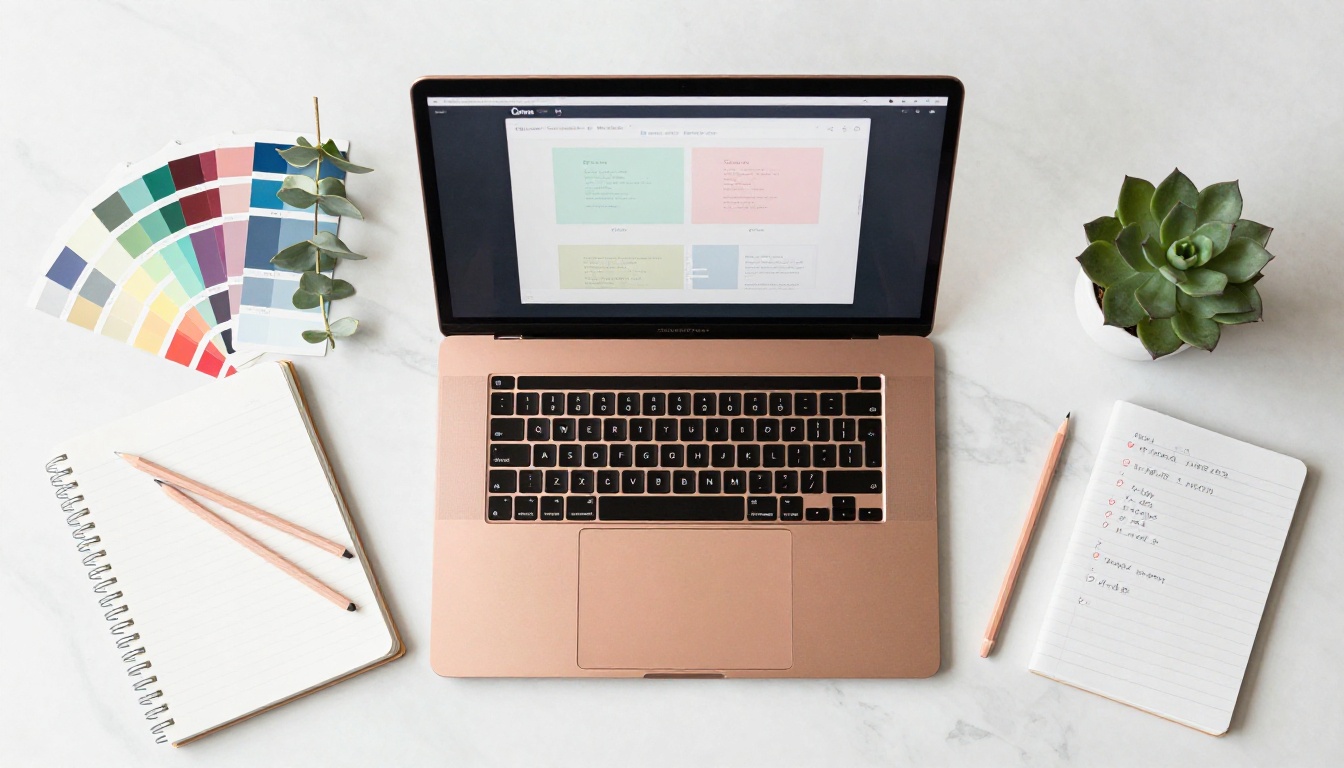
The most obvious difference is the page-turning effect. When a reader clicks to advance through your eBook, pages actually curl and turn like a physical book. It sounds like a small detail but it changes the entire reading rhythm. People slow down, actually read, and feel like they are holding something worth their attention.
This effect is particularly powerful for visual content like lookbooks, recipe books, course materials, and product catalogs, where the layout and imagery are part of the value.
Clickable content and embedded media
PDFs technically support hyperlinks, but many email clients and mobile PDF viewers strip or disable them. In a flipbook, every link you placed in your Canva design stays active and clickable. You can add external links, social profiles, product pages, or signup forms directly into the reading experience.
With Flipbooks AI, you can also embed videos and audio into your flipbook after uploading your PDF. That means your eBook can include a tutorial video, a product demo, or background audio without any extra editing in Canva.
A reading experience built for screens
Flipbooks are responsive by design. The interface adjusts automatically to any screen size, from a 27-inch desktop monitor to a mobile phone. Readers can zoom into pages, use a thumbnail navigation panel, and search through the content. None of that exists in a standard PDF viewer.
💡 If your Canva eBook includes a table of contents, the chapter links will work inside the flipbook automatically. No extra setup needed.

From Canva to Flipbook: The Actual Process
This is simpler than most people expect. You do not need to redesign anything, re-export in a special format, or use any plugins inside Canva. The entire process runs in under five minutes once your Canva file is ready.
Step 1: Export your Canva design as a PDF
Inside Canva, go to Share in the top right corner, then select Download. Choose PDF Print for the highest quality version or PDF Standard if you want a smaller file size. Make sure to download all pages.
⚠️ Use PDF Print quality for any eBook that contains detailed images or photography. Standard quality compresses visuals noticeably.
Step 2: Sign in to Flipbooks AI
Go to flipbooksai.com/account and create your free account. No credit card required to get started. The free tier lets you upload and publish flipbooks immediately so you can see the result before committing to a plan.
Step 3: Upload your PDF
Once inside your dashboard, click Create New Flipbook and upload the PDF you exported from Canva. The conversion runs automatically. Depending on the page count, it typically finishes in under 60 seconds. Every page of your Canva design becomes a page in the flipbook, with your original layout fully preserved.
Step 4: Customize the reading experience
This is where you go beyond what Canva alone can offer. Inside the flipbook editor, you can:
- Add your brand colors to the reader interface
- Set a custom background behind the pages
- Choose between different page-turn animation styles
- Add a logo to the top of the reader
- Enable or disable the table of contents panel
- Set a thumbnail image for social sharing
Step 5: Share or embed anywhere
When you are satisfied with the result, click Publish. You get a direct shareable link that opens your flipbook in a browser, no app or download required. You also get an embed code that places your flipbook directly into any website, blog post, or landing page.
✅ Use the embed code on your lead generation pages. Readers who interact with embedded flipbooks convert at higher rates than those who download PDFs.

Canva eBook vs. Interactive Flipbook: Side by Side
| Feature | Canva PDF Export | Interactive Flipbook |
|---|
| Page-turn animation | None | Full page-curl effect |
| Mobile reading experience | Basic PDF viewer | Optimized responsive interface |
| Clickable hyperlinks | Often disabled | Always active |
| Embeddable in websites | Not directly | Yes, with one embed code |
| Video and audio support | No | Yes |
| Analytics and tracking | None | Available (Professional plan) |
| Password protection | No | Yes |
| Offline download | No | Yes (Professional plan) |
| Custom branding | Not after export | Full interface customization |
| Shareable link | Download link only | Direct browser link |
This table shows the core gap between what Canva gives you at export and what a flipbook platform adds to that same file. The design work stays in Canva. The delivery experience lives in the flipbook.
Who Gets the Most Out of This Workflow
Educators and course creators
If you create Canva-designed workbooks, study guides, or course materials, converting them to flipbooks changes how students interact with the content. The page-turn format signals structure. Students know they are working through a real document with a beginning and an end, not scrolling through a flat file.
The Course Material Publisher and Training Manual Flipbook tools are built specifically for this use case. You get a reading format that feels professional without redesigning a single slide in Canva.
Small business owners and marketers
A Canva-designed product catalog or company brochure exports beautifully but distributes awkwardly as a PDF. A flipbook version can sit directly on a product page, be shared via a single link in a marketing email, or be embedded in a social media bio link.
Real estate agents using Canva for property brochures can use the Real Estate Brochure Creator to convert listings into interactive publications that potential buyers actually browse rather than download and forget.
Restaurant owners with Canva menus benefit from the Restaurant Menu Creator to turn their designs into mobile-accessible, shareable digital menus without printing costs or app development.
Content creators and bloggers
If you publish Canva-designed content regularly, lookbooks, style guides, recipe collections, or editorial pieces, the flipbook format adds polish to the presentation without adding production time. Your audience gets a reading experience that feels like a real magazine.
The Interactive Lookbook Designer and Magazine Flipbook Creator are purpose-built for visual content publishing.
Flipbooks AI Plan Comparison
If you are deciding which plan fits your workflow, here is a clear breakdown of what each tier includes:
| Feature | Free | Standard | Professional |
|---|
| Flipbooks published | Limited | Unlimited | Unlimited |
| Watermarks | None | None | None |
| Custom branding | Basic | Full | Full |
| Password protection | No | Yes | Yes |
| Analytics and tracking | No | No | Yes |
| Lead generation forms | No | No | Yes |
| Offline downloads | No | No | Yes |
| Video and audio embeds | No | Yes | Yes |
| Priority support | No | No | Yes |
💡 The Standard plan is the sweet spot for most Canva users who want unlimited flipbooks with full branding and media embeds. See all options at flipbooksai.com/pricing.
Common Questions About Converting Canva eBooks
Does converting change my Canva design?
Not at all. The flipbook is built from your exported PDF. Your original Canva file stays unchanged. You can update the design in Canva, re-export the PDF, and re-upload it to create an updated flipbook at any time.
What if my eBook has a lot of pages?
Flipbooks AI handles large files without issues. Long eBooks actually benefit more from the flipbook format because the page count gives the reading experience tangible weight. Readers can see how far through a long eBook they are using the thumbnail navigation panel.
Can I keep my flipbook private?
Yes. Password protection is available on Standard plan and above. You can share a private flipbook link with a password for clients, paid course students, or internal team documents without making the content publicly accessible.
Will my Canva links and buttons still work?
Any hyperlink embedded in your Canva design and exported into the PDF will remain active inside the flipbook. Buttons, CTAs, and linked images all stay functional. This is one of the biggest practical advantages over standard PDF delivery.
How do I embed the flipbook on my website?
After publishing, Flipbooks AI provides a ready-to-paste embed code. You paste it into your website HTML, a WordPress page, a Webflow component, or any other CMS. The flipbook renders inline without loading screens or redirects. For dedicated embedding guidance, see the Embed Flipbook on Website tool.
| Use Case | PDF | Flipbook |
|---|
| Internal document sharing | Good | Not necessary |
| Marketing and sales content | Adequate | Strongly preferred |
| Lead magnets and opt-ins | Acceptable | Significantly better |
| Educational course materials | Functional | Better reader retention |
| Product catalogs and lookbooks | Poor experience | Purpose-built format |
| Website embeds | Not possible | Native capability |
| Event programs and menus | Printable only | Mobile and shareable |
The takeaway is not that PDFs are bad. They serve their purpose. But when your goal is reader retention, brand presentation, or conversion, a flipbook version of your Canva design consistently outperforms a PDF in every measurable way.
Your eBook Already Has What It Needs
The design is done. The content is written. You have already done the hard work inside Canva. Converting to a flipbook is not a redesign project. It is the last step that makes everything you built actually land the way it deserves to.
Flipbooks AI is built for exactly this workflow: design in Canva, export as PDF, upload and publish as a polished interactive flipbook in minutes. No technical skills, no additional design work, and no watermarks on any paid plan.
If you have an eBook sitting as a PDF file right now, open it and think about what it could look like as a page-turning publication.

Create your account and upload your Canva PDF today. Browse all available flipbook tools to find the right format for your content type, and compare pricing plans to choose the tier that fits your publishing frequency.



