You spent hours perfecting your Canva presentation. The colors are on-point, the layout is clean, the slides tell a story. And then you share it as a PDF, or worse, a static image sequence, and somehow all that effort disappears into a flat, scrollable document nobody wants to click through. There is a better way. Flipbooks AI converts your Canva export into an interactive flipbook with realistic page-turn effects, making your presentation feel alive, professional, and worth sharing.
Why a Static PDF Kills Your Presentation
Canva is brilliant for design. But the moment your presentation leaves Canva, it often loses its impact. PDFs load as flat pages. Slideshows require presenter controls. Neither format communicates the care you put into your slides.
A flipbook changes that instantly. The page-turn animation creates a physical reading experience in a digital space. Viewers lean in. They interact. They actually go through every slide because the format invites them to.
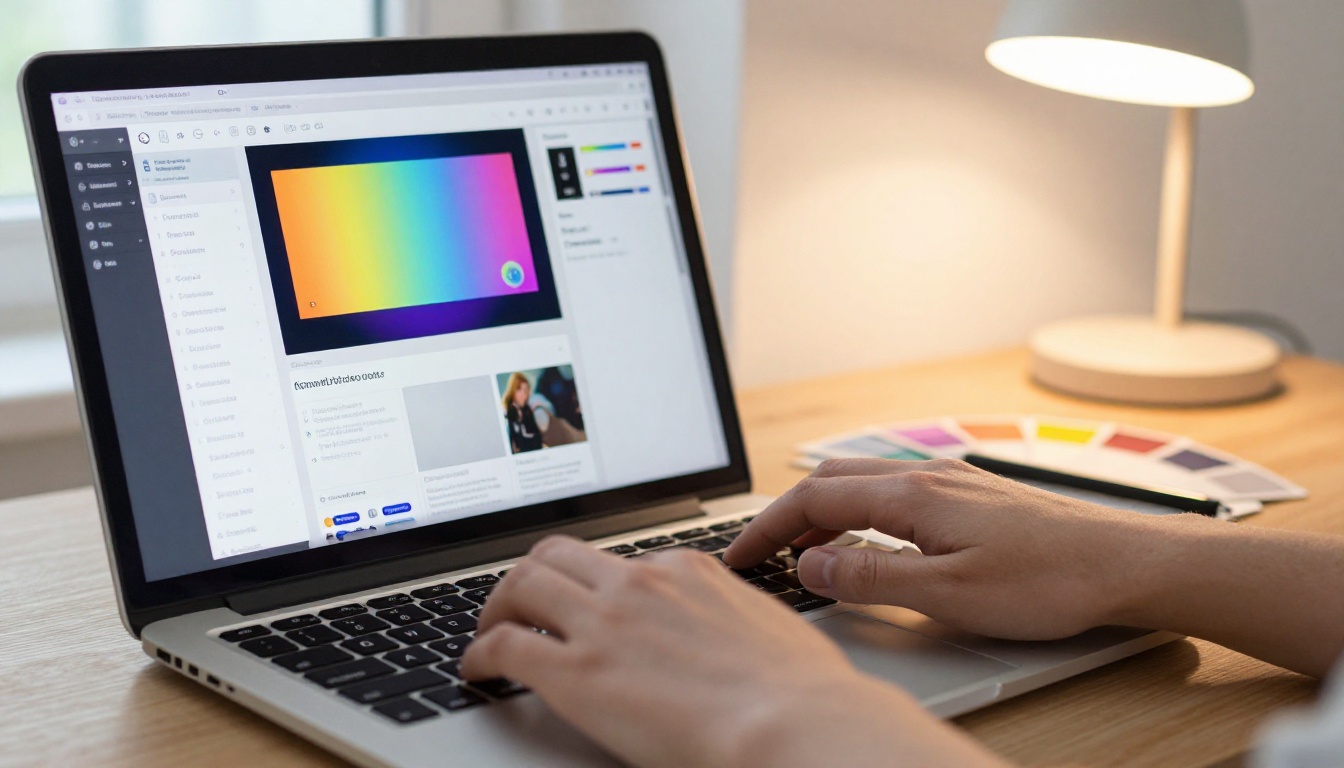
Here is what a flipbook gives your Canva presentation that a PDF cannot:
- Page-turn animation that mimics physical books and magazines
- Embeddable viewer you can drop onto any website or email
- Mobile-responsive layout that scales to any screen size
- Password protection for private or client-specific decks
- Analytics showing who opened it, how far they read, and when they dropped off
💡 The page-turn effect is not just cosmetic. Digital reading behavior consistently shows that interactive formats achieve higher read-through rates than static PDFs.
What Canva Cannot Do for Sharing
Canva's native sharing options are solid for collaboration, but they have clear limits when you need to publish or send something polished to an external audience.
| Sharing Method | Interactive | Embeddable | Analytics | Page-Turn Effect |
|---|
| Canva Share Link | No | No | Basic | No |
| Downloaded PDF | No | No | No | No |
| Canva Presentation Mode | Yes (live only) | No | No | No |
| Flipbook via Flipbooks AI | Yes | Yes | Yes | Yes |
The difference is not subtle. A flipbook is a publication-grade format. A Canva share link is a collaboration tool. They serve different purposes, and once you need to impress someone outside your workspace, the flipbook wins on every measure.
How to Convert Your Canva Presentation into a Flipbook
The process takes about three minutes. Here is exactly what to do.
Step 1: Export Your Canva Slides as PDF
Open your presentation in Canva and click Share in the top right corner. Select Download, choose PDF Standard for web sharing or PDF Print for higher resolution, and download the file. That PDF is your source file.
✅ Use PDF Print quality if your presentation has photography or detailed illustrations. The higher resolution translates directly into sharper flipbook pages.
Step 2: Create Your Account
Go to Flipbooks AI and sign up for free. The free plan lets you test the conversion instantly. For unlimited flipbooks with no watermarks, the Standard plan is the right starting point.
Step 3: Upload Your PDF
Once inside your dashboard, click New Flipbook and upload your exported PDF. The conversion engine processes each slide as a page and builds the flipbook automatically. For a 20-slide Canva deck, this typically takes under 30 seconds.
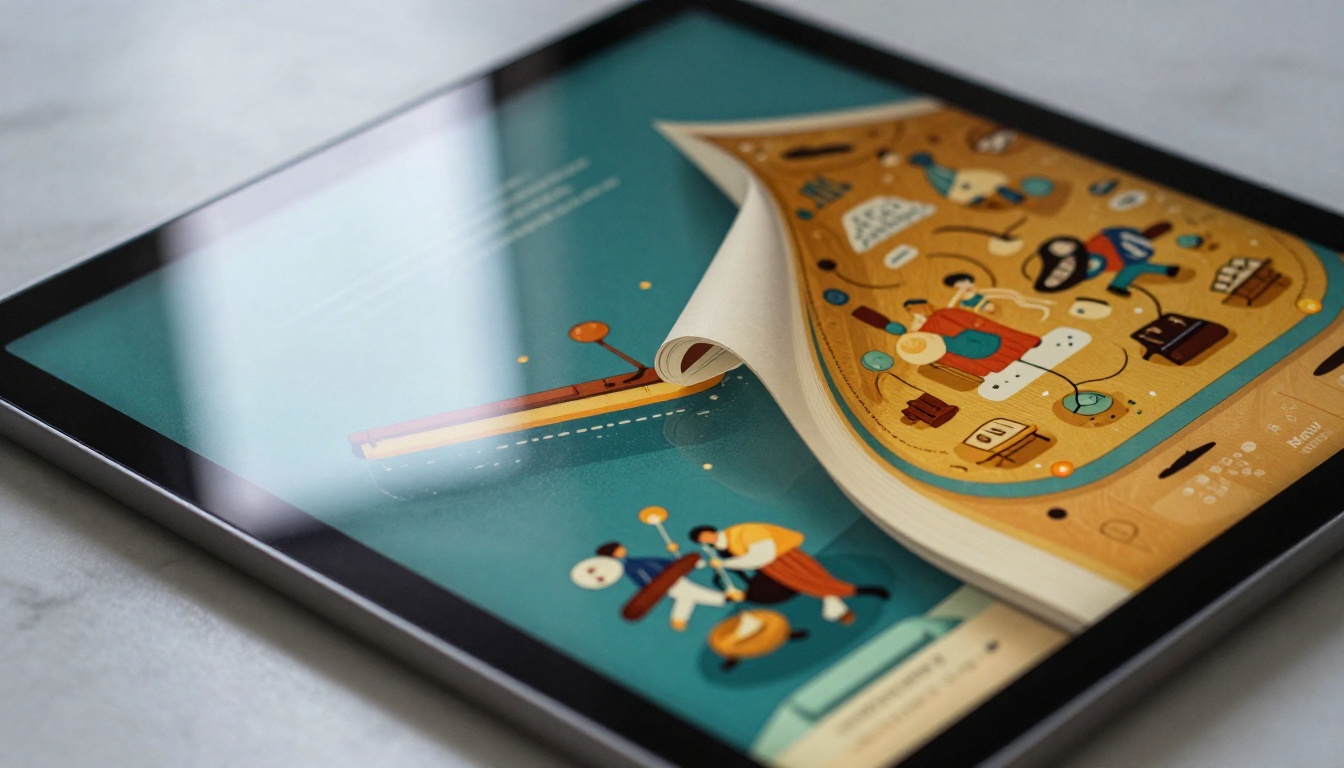
Step 4: Customize Branding and Appearance
After conversion, you can adjust:
- Background color behind the flipbook viewer
- Logo placement so your brand appears in the reader interface
- Page flip direction for left-to-right or right-to-left international layouts
- Auto-flip speed for kiosk or display mode presentations
Step 5: Share, Embed, or Download
Flipbooks AI gives you multiple output options:
- Direct link you can paste anywhere
- Embed code (iframe) for websites and landing pages
- QR code for print materials pointing to your flipbook
- Offline download so recipients can view it without internet (Professional plan)
💡 If you are sending the flipbook to a client, enable password protection so only they can access it. This is especially useful for proposals, pitch decks, and confidential reports.
Real-World Scenarios Where This Changes Everything
Sales Teams Sending Proposals
A sales deck shared as a PDF often gets skimmed or ignored. The same content in a flipbook format gets clicked, read, and forwarded. The Sales Presentation Flipbook tool is built exactly for this use case. Sales teams see higher response rates simply by changing the delivery format.

Marketing Teams Publishing Lookbooks
Canva is the go-to tool for visual content in marketing departments. A brand lookbook, product launch deck, or seasonal campaign presentation deserves better than a downloadable PDF. The Interactive Lookbook Designer takes your Canva export and turns it into a shareable, embeddable experience that feels like a premium magazine.
Real Estate Agents Sharing Property Portfolios
Real estate presentations created in Canva, with professional photos, floor plans, and pricing details, look dramatically better as flipbooks. Agents can send clients a link to a password-protected flipbook rather than a bulky PDF attachment.

Educators Distributing Course Material
Teachers and trainers who build their course slides in Canva can convert their decks into interactive digital publications. Students flip through lessons on any device, at their own pace. The Course Material Publisher handles this workflow directly.

Corporate Teams Presenting Annual Reports
An annual report built in Canva and shared as a flipbook looks like a professionally published document. The Annual Report Creator is designed for exactly this format, and the result is something stakeholders actually want to read.
Flipbooks AI Plan Comparison
Understanding which plan fits your needs takes about 30 seconds. Here is how the options break down:
| Feature | Free | Standard | Professional |
|---|
| Flipbooks | 1 | Unlimited | Unlimited |
| Watermark | Yes | No | No |
| Custom Branding | No | Yes | Yes |
| Password Protection | No | Yes | Yes |
| Analytics | No | No | Yes |
| Lead Generation | No | No | Yes |
| Offline Downloads | No | No | Yes |
| Embed on Website | Yes | Yes | Yes |
⚠️ The free plan is great for testing the conversion, but for client-facing work you want at least the Standard plan to remove the watermark and enable custom branding.
Check pricing plans to see current rates and feature details.
Embedding Your Flipbook Presentation on a Website
Once your Canva presentation is converted, embedding it on a website is a single copy-paste operation. Flipbooks AI generates an iframe embed code you can drop into any website builder, WordPress, Squarespace, Webflow, or raw HTML.
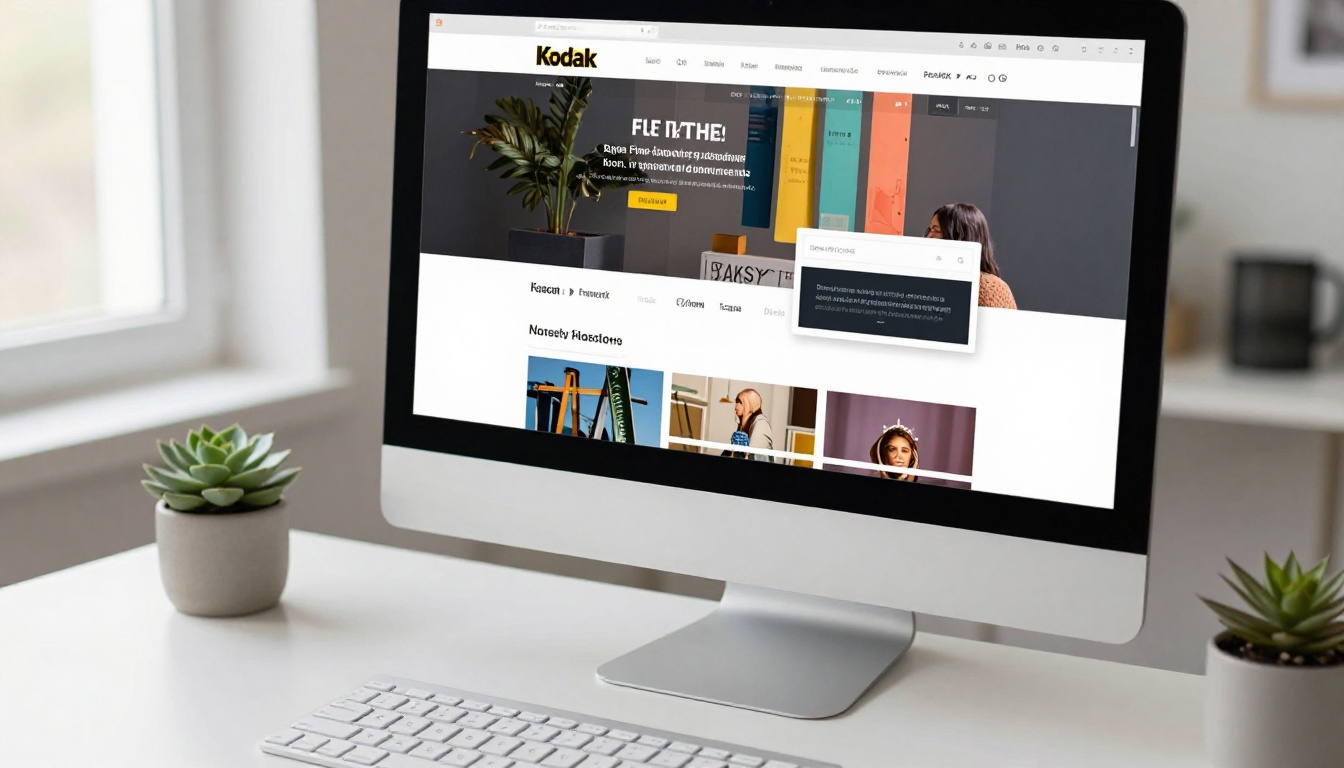
The Embed Flipbook on Website tool gives you full control over the viewer dimensions. You can set it to fill the entire page, appear as a widget in a sidebar, or pop up as a modal on button click.
This is particularly powerful for:
- Portfolio websites featuring design or photography work
- Landing pages for product launches or events
- Help documentation or onboarding materials
- Press kits embedded on media or about pages
Tracking Who Actually Reads Your Presentation
One of the most underused reasons to convert a Canva deck to a flipbook is the analytics capability available on the Professional plan.
When you share a PDF, you have no idea if anyone opened it, which pages they read, or where they stopped. With Flipbooks AI analytics, you get:
- Total views per flipbook
- Average reading time per session
- Page-by-page drop-off data showing exactly where readers lose interest
- Lead capture forms triggered at specific pages, great for collecting emails or gating content
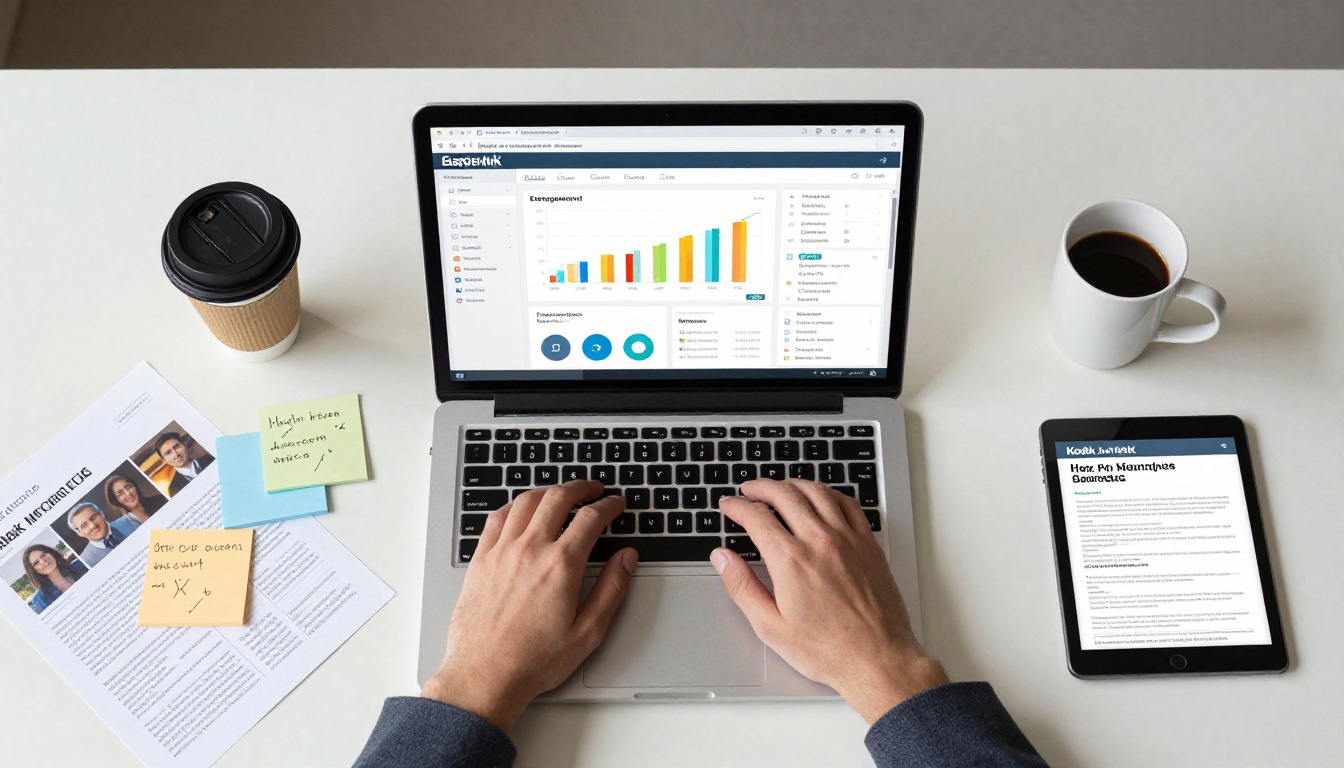
For sales teams, this data is gold. Knowing that a prospect opened your proposal and read through slide 12 before stopping tells you exactly what to follow up on.
Not every Canva presentation converts identically. Here is what works best and what to watch for:
| Canva Template Type | Flipbook Result | Notes |
|---|
| Pitch Deck (16:9) | Excellent | Standard widescreen renders cleanly |
| Business Proposal | Excellent | Full text and charts convert perfectly |
| Lookbook / Portfolio | Excellent | Photography-heavy pages look stunning |
| Infographic Presentation | Very Good | Complex layouts preserved accurately |
| Simple Slide Deck | Good | Works well, more page-flip animation impact |
✅ Avoid using Canva's animated elements if you plan to export for flipbook conversion. The PDF export removes animations, so static designs always produce the best flipbook output.
One thing a PDF export from Canva cannot capture is embedded multimedia. But Flipbooks AI lets you add it directly inside the flipbook editor after uploading:
- Embedded YouTube or Vimeo videos that play inside specific pages
- Audio narration for presentation pages that need voiceover
- Clickable links on text and images within slides
- Pop-up image galleries for photography-heavy presentations
This turns a Canva export into something far more dynamic than the original design ever was.

If you create presentations regularly for specific industries, Flipbooks AI has purpose-built tools for common formats:
Each tool comes with recommended settings for that content type, saving time when you are converting a specialized Canva export.
There is an uncomfortable gap between the effort designers put into Canva presentations and the format those presentations are typically shared in. A beautifully crafted slide deck deserves a format that honors the work, one that people actually open, read through, and remember.

The flipbook format does exactly that. It adds physical dimension to digital design, makes sharing effortless, and gives you visibility into how your content performs. The three-minute workflow from Canva export to live flipbook is one of the simplest upgrades available for anyone who creates presentations regularly.
Ready to see what your Canva presentation looks like as a flipbook? Create your first flipbook free and upload your PDF in minutes.
Browse all available tools to find the right format for your content, or compare pricing plans to choose what fits your workflow.



