Type "flipbook animation generator" into a search bar and you will get three different kinds of results mixed together: tools that turn drawings into a flick-through animation, tools that turn a PDF into a page-turning digital publication, and AI video generators that claim to do both. They are not the same thing, and picking the wrong one wastes an afternoon. This article sorts them out, shows what free actually gets you, and flags the limits before you hit them. If your goal is a polished, shareable page-turn publication, Flipbooks AI is the platform we will use for the hands-on part.
What "Flipbook Animation" Really Means
The phrase covers three separate ideas. Know which one you want before you open a single tool.
The Paper Version
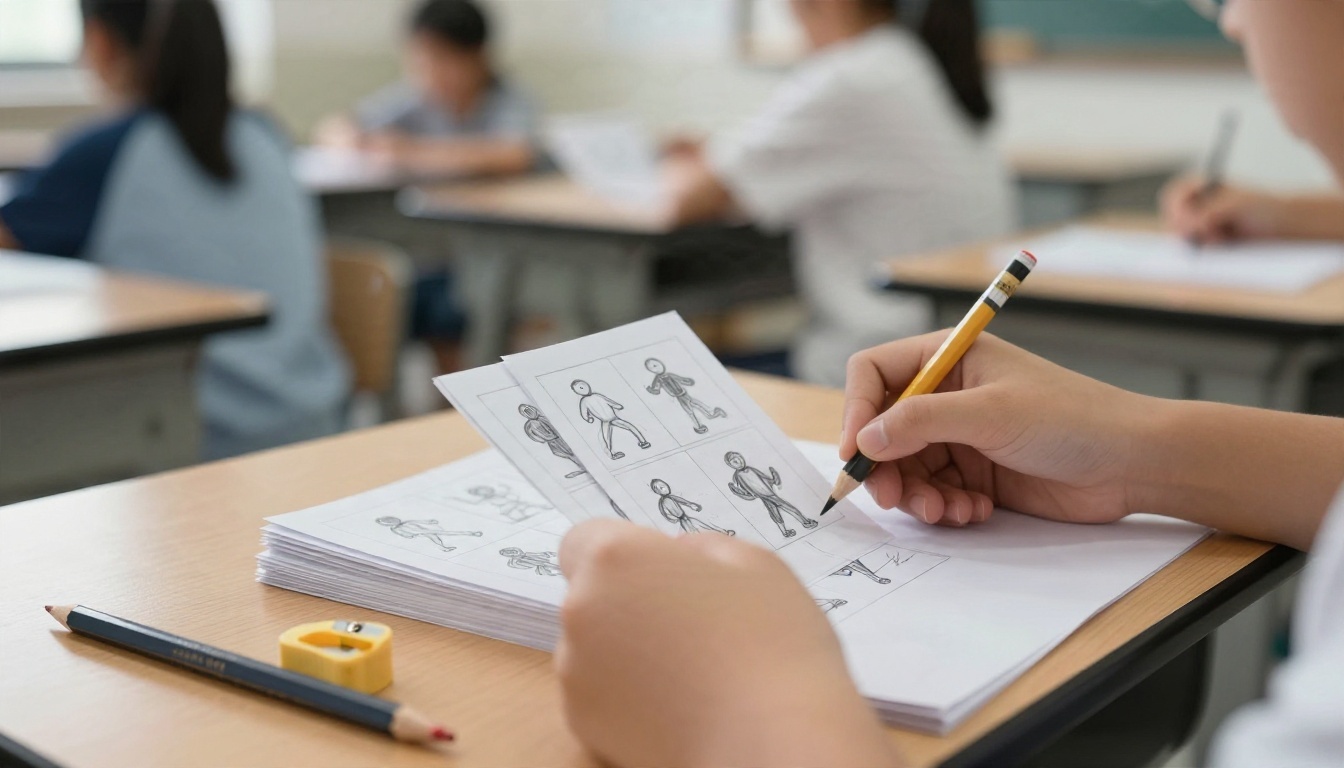
The original flipbook is a stack of small pages, each with a slightly different drawing. Flick the edge with your thumb and the images blur into motion. It is still a favorite in classrooms, and it is the reason the word "animation" shows up in this search at all.
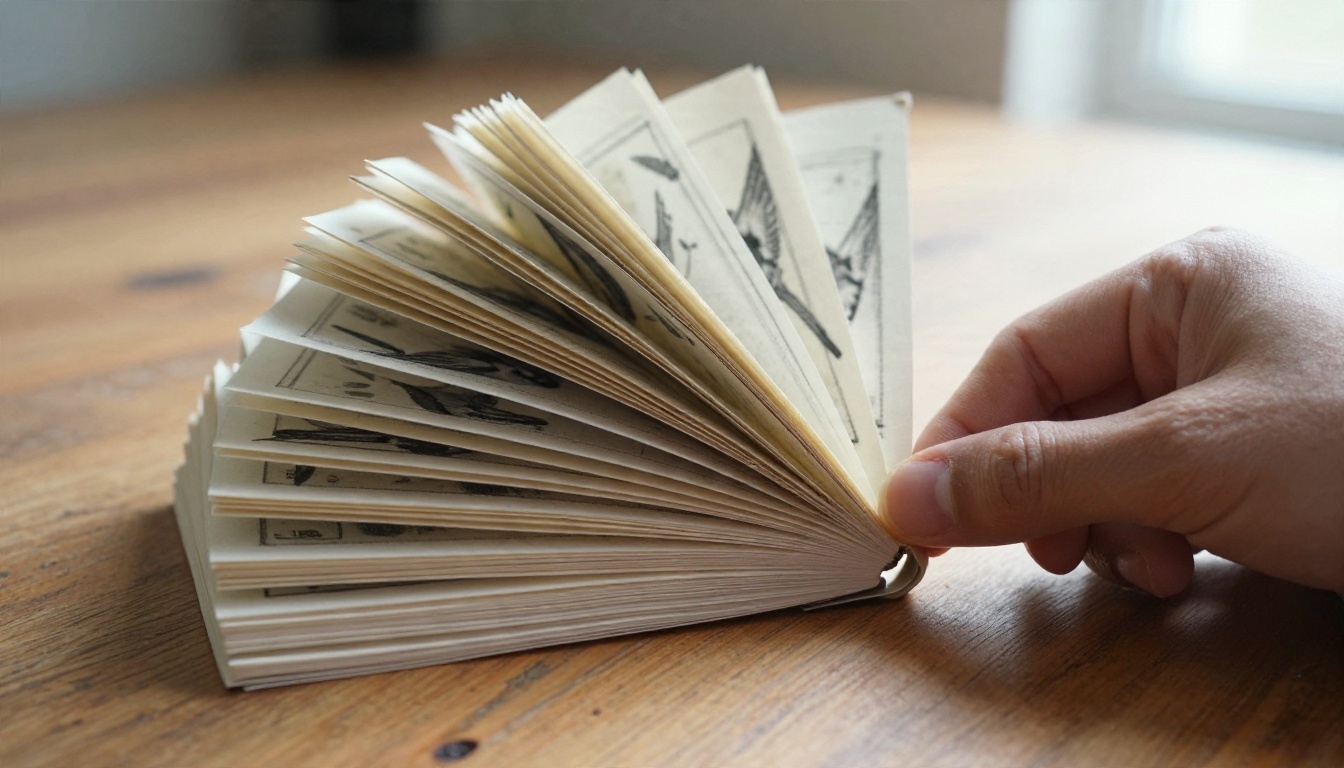
AI helps here in a modest way. You can generate a sequence of reference frames, print them, and bind them. The limit is consistency: image generators rarely produce twenty frames where a character keeps the same face, clothes, and proportions.
The Digital Page Turn Version
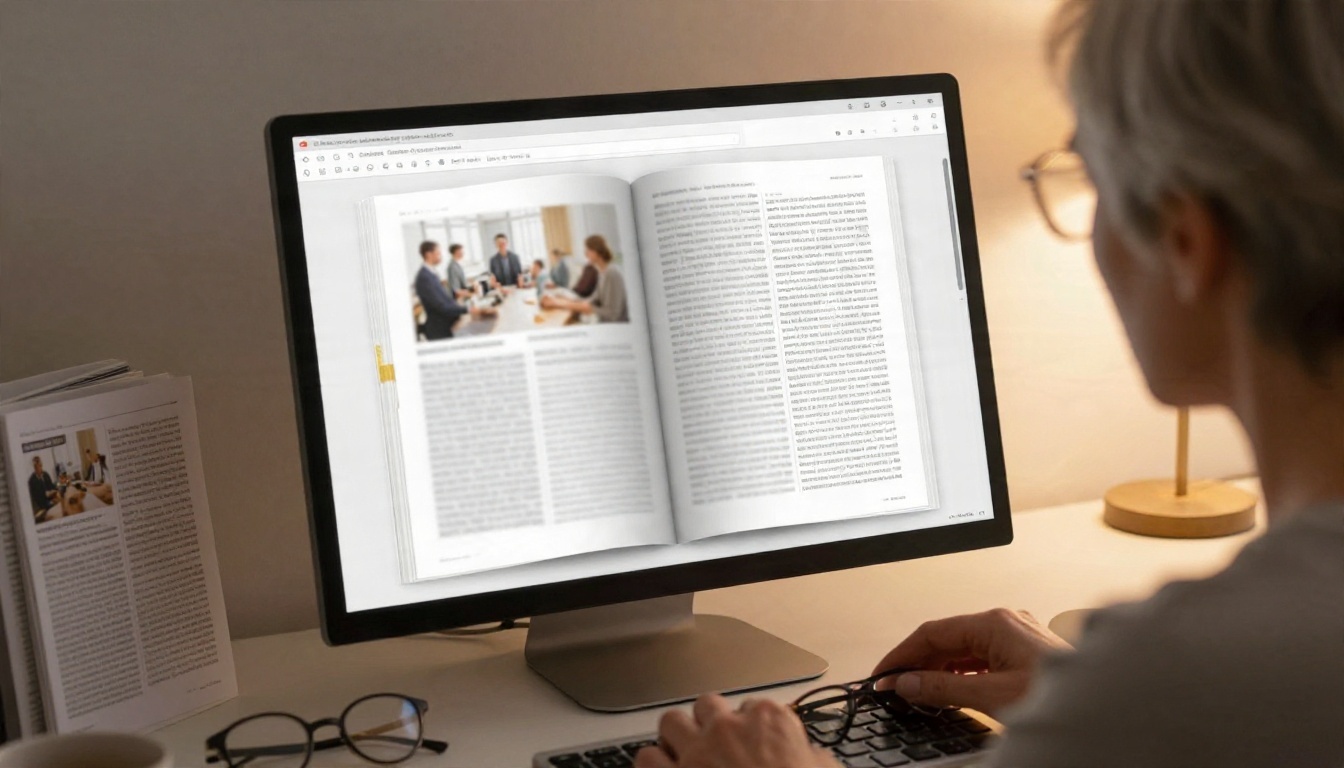
This is the format most businesses mean. A PDF becomes a web page with a realistic page curl, a sound effect, and a cover you can click open. Nothing is animated in the cartoon sense. The motion is the turning of the page itself. A PDF to Flipbook Converter handles this in minutes.
The AI Video Version
Some tools generate a short clip from a prompt or a still image and label it "flipbook style". The output is a video file, not a flipbook. That can be useful, but it belongs in a different workflow, which we will get to below.
| Meaning | Output | Best for | AI role |
|---|
| Paper flipbook | Printed booklet | Classrooms, gifts, hobby projects | Reference frames |
| Digital page turn | Web based publication | Catalogs, menus, magazines, reports | Layout and conversion |
| AI video clip | MP4 or GIF | Social posts, teasers | Full frame generation |
💡 Pro tip: Write one sentence describing the final file you want (printed booklet, link, or video) before choosing a tool. Most wasted time comes from skipping this.
Free tools exist in every category above, but the word "free" hides a lot of variation. We cannot verify every third party service's current terms, and they change often, so treat the table below as a checklist of what to look for rather than a promise about any specific brand.
What Free Usually Includes
Across the market, free tiers tend to follow a pattern:
- A small number of projects or a single active flipbook.
- A watermark or badge on the viewer or exported file.
- Page or file size caps, often a few dozen pages or a modest number of megabytes.
- Limited export formats, with downloads or HTML export locked behind a plan.
- Public links only, with password protection reserved for paid plans.
How to Compare Free Plans
Open three tools in separate tabs and run the same test file through each. Then fill in a table like this one.
| Checklist item | Why it matters | What to record |
|---|
| Watermark | Looks unprofessional on client work | Yes or no, and where it appears |
| Page limit | Long catalogs fail silently | Maximum pages accepted |
| File size cap | Image heavy PDFs get big | Maximum MB per upload |
| Embed support | Needed for websites | Iframe code available or not |
| Video and audio | Decides if pages can move | Supported formats |
| Privacy | Client files need protection | Password or private link option |
⚠️ Warning: A tool that looks free can still add a watermark after you have spent an hour on layout. Test with a throwaway file first.
Where Flipbooks AI Fits
Flipbooks AI focuses on the digital page-turn category. It turns PDFs into responsive flipbooks without watermarks, supports embedded video and audio, and offers password protection and analytics on higher plans. Check the current pricing page for exactly what each plan includes, since limits are the part that changes most often.
Video Options and How They Work
Video is where this topic gets confusing, so here is the honest version. A page-turn flipbook platform is not a text-to-video generator. What it does well is hold video inside pages, so the reader sees motion without leaving the publication.
Turning Video into Page Frames
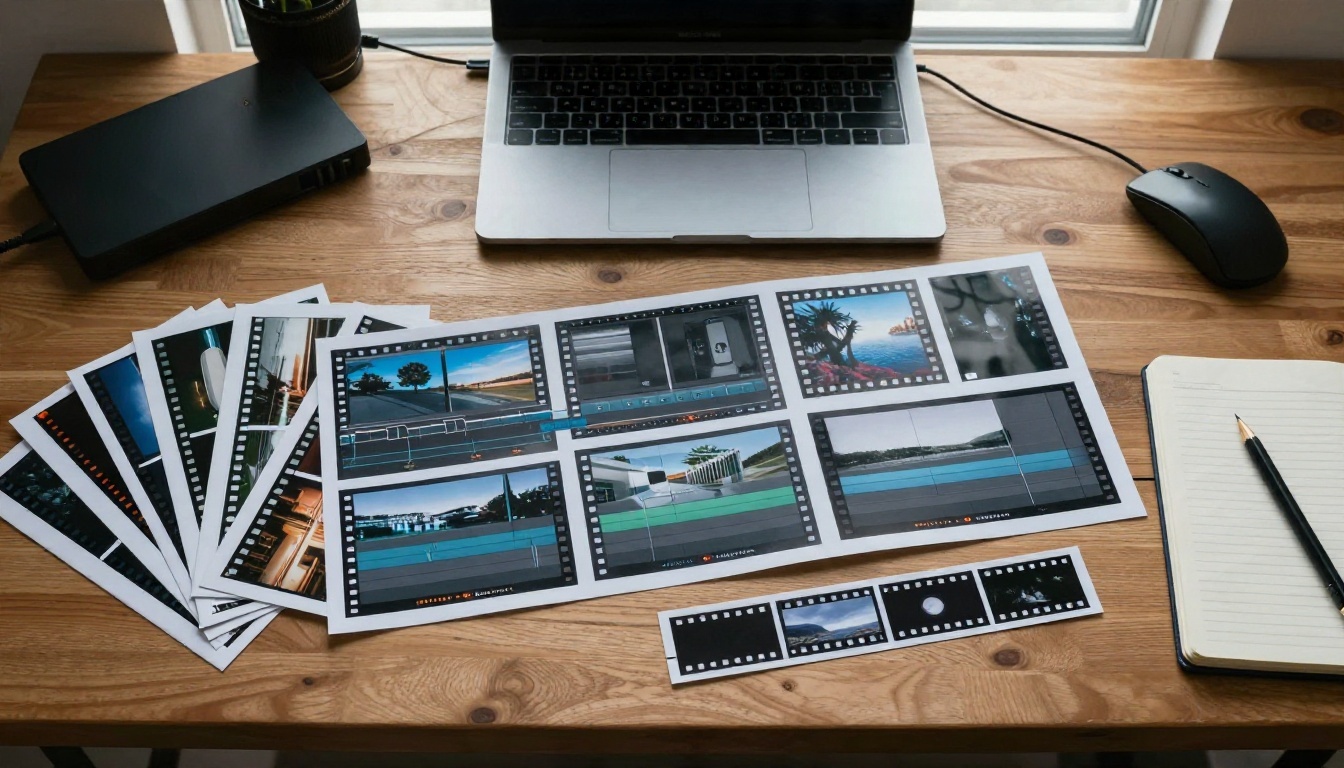
You can go the other direction too. Export a short clip as still frames, drop them into a layout, and publish the sequence as pages. Each page becomes one moment of the clip, and the reader controls the speed by turning pages. It is a literal digital flipbook, and it works best with clips under ten seconds.
Steps for a simple version:
- Export your clip at a low frame rate, such as 6 to 12 frames per second.
- Save every frame as a numbered image.
- Place one frame per page in a layout tool and export a PDF.
- Convert the PDF into a flipbook.
Embedding Video in Pages
The more practical route for most people is the opposite one. Keep your video as a video, then place it on a page next to text and images. A product page can carry a ten second demo. A recipe page can show the whisking technique. This keeps file sizes sensible and quality high.
Audio and Page Sounds
Audio is the quiet option. A soft page-turn sound makes a digital publication feel physical, and a short voiceover on an opening page works better than most people expect. Keep clips short, because autoplay audio annoys readers and some browsers block it anyway.
| Approach | Effort | File weight | Reader experience |
|---|
| Clip exported as page frames | High | Heavy | Reader scrubs through motion |
| Video embedded on a page | Low | Moderate | Reader presses play |
| Looping GIF on a page | Low | Heavy for the quality | Constant motion, no controls |
| Audio on the opening page | Very low | Light | Adds atmosphere |
The Limits Nobody Mentions
Marketing pages for generators tend to show the best result. Here are the constraints you will meet in real use.

File Size and Length
Image heavy PDFs balloon quickly. A forty page catalog with full bleed photos can pass a free tier cap before you notice. Compress images to a sensible width, roughly 1600 pixels for full pages, and your file will often drop to a fraction of its size with no visible loss on screen.
Watermarks and Export Rules
Many free tools place a badge on the viewer, and some restrict downloads. Decide early whether the project is personal or client facing. For anything client facing, a watermark free option matters, and Flipbooks AI does not add watermarks at any plan level.
Consistency Between Frames
If you use an AI image generator to draw animation frames, expect drift. Faces change, a hand gains a finger, a background shifts. Three ways to reduce it:
- Use the same seed and a fixed written description of the character.
- Keep the camera angle identical across frames.
- Generate fewer frames and let the viewer fill the gaps.
Mobile Behavior
Most readers will open your flipbook on a phone. A page spread that looks gorgeous on a monitor may need pinch zoom on a small screen. Responsive viewers handle this, but you should still test on an actual device.
| Limit | Typical free tier | What to do |
|---|
| Watermark | Present | Test on a throwaway file first |
| Pages | Capped | Split long documents into volumes |
| Upload size | Capped | Compress images before export |
| Frame consistency | Not controlled by the tool | Fix seed, angle, and description |
| Privacy | Public only | Use a plan with passwords for private work |
How to Build One with Flipbooks AI
If your goal is a digital page-turn flipbook, here is the workflow from blank page to shareable link. It takes around ten minutes for a short document.
Step 1: Prepare Your PDF
Export from your design or document tool at screen resolution. Keep text live (not flattened into images) so it stays sharp. Aim for pages of equal size.
Step 2: Upload and Convert
- Go to Flipbooks AI and create an account.
- Choose to create a new flipbook and upload your PDF.
- Wait for conversion. The pages appear in a viewer with a page curl effect.
Not sure which template suits you? The tools directory lists dedicated starting points for catalogs, menus, brochures, and more.
Step 3: Customize the Look
Inside the editor you can adjust the following:
- Branding: upload a logo and set your brand colors.
- Background: pick a color or image behind the book.
- Page effects: choose the flip style and turn sound.
- Multimedia: drop video or audio onto individual pages.
💡 Pro tip: Put your video on page two, not page one. The cover should load instantly, and the first interaction can be a deliberate click.
Step 4: Share It
You have three ways to publish:
- Direct link: paste it into an email or message.
- Embed code: place it on a page using the Embed Flipbook on Website tool.
- Password protection: lock private material such as internal reports or client proposals.
Step 5: Use Professional Features
On the Professional plan you get analytics showing which pages people read, lead generation forms that gate content, and offline downloads. Unlimited flipbooks begin at the Standard plan. See the plan comparison before you commit.
| Feature | Basic use | Professional use |
|---|
| Page turn viewer | Yes | Yes |
| No watermarks | Yes | Yes |
| Video and audio embeds | Yes | Yes |
| Password protection | By plan | Yes |
| Analytics | By plan | Yes |
| Lead generation | No | Yes |
| Offline downloads | By plan | Yes |
Real Use Cases That Work
Theory is fine, but examples show where the format earns its place.

Brochures with Motion
A hotel can turn its brochure into a flipbook and place a twelve second room tour on the suite page. The Hotel Brochure Designer is built for exactly this. Guests see the room moving before they read the rate.
Catalogs That Show Products
A boutique owner can publish a seasonal lookbook with a short fabric movement clip on each featured piece. The Fashion Catalog Creator gives a starting point, and the same link works on Instagram, in email, and on the shop tablet.

Classroom Projects
Teachers can combine both worlds. Students draw a paper flipbook, photograph each page, and assemble the photos into a digital version with narration. The result is a keepsake and a lesson about frame rate. The Course Material Publisher suits the packaged version.
| Scenario | Format | Motion source | Suggested tool |
|---|
| Hotel brochure | Page turn flipbook | Embedded video | Hotel Brochure Designer |
| Fashion lookbook | Page turn flipbook | Short clips | Interactive Lookbook Designer |
| Class project | Paper plus digital | Student frames | Course Material Publisher |
| Product demo | Flipbook with video | Embedded demo | Product Catalog Generator |
Mistakes to Avoid
A few errors show up again and again.
- Choosing by the word "free." Check watermarks, page limits, and privacy before building anything.
- Using too many frames. Thirty well-chosen frames beat three hundred inconsistent ones.
- Skipping mobile testing. Open the final link on your phone before sending it.
- Autoplaying audio. Give readers a play button.
- Uploading uncompressed files. Compress first, publish second.
✅ Best practice: Keep a one page checklist (watermark, size, privacy, mobile) and run every new tool through it before you invest time.
Pick Your Next Step
If you want hand-drawn motion, use paper, a scanner, and a free image editor. If you want AI video, use a dedicated video generator and treat the output as a clip. If you want a polished, shareable page-turn publication that can hold those clips alongside text and images, that is where a flipbook platform belongs.
Ready to try it? Create a free account on Flipbooks AI, upload a short PDF, and see how it looks on your phone. Browse the full set of flipbook tools to find a template for your project, or compare pricing plans when you are ready for analytics, passwords, and unlimited flipbooks.



