Your phone holds thousands of photos, and almost none of them will ever be seen again. They sit in a camera roll, buried between screenshots and receipts. An album maker app fixes that, but most of them ask you to download software, create a profile, and wait for a heavy installation. There is a lighter way. With Flipbooks AI, you can turn your photos into a page-turning online album that opens in any browser, on any device, with nothing to install.
This article walks through how a browser-based photo album flipbook works, how to build one in a few minutes, and how to share it without handing your memories to strangers. You will also find comparison tables, real examples for weddings, babies, and trips, and a short list of mistakes that make albums feel flat.
💡 Quick answer: Put your photos into a PDF with a tool you already use, upload it to a flipbook maker, and share the link. The result looks and feels like a real album, and nobody has to download anything to view it.
Why Browser Based Albums Win
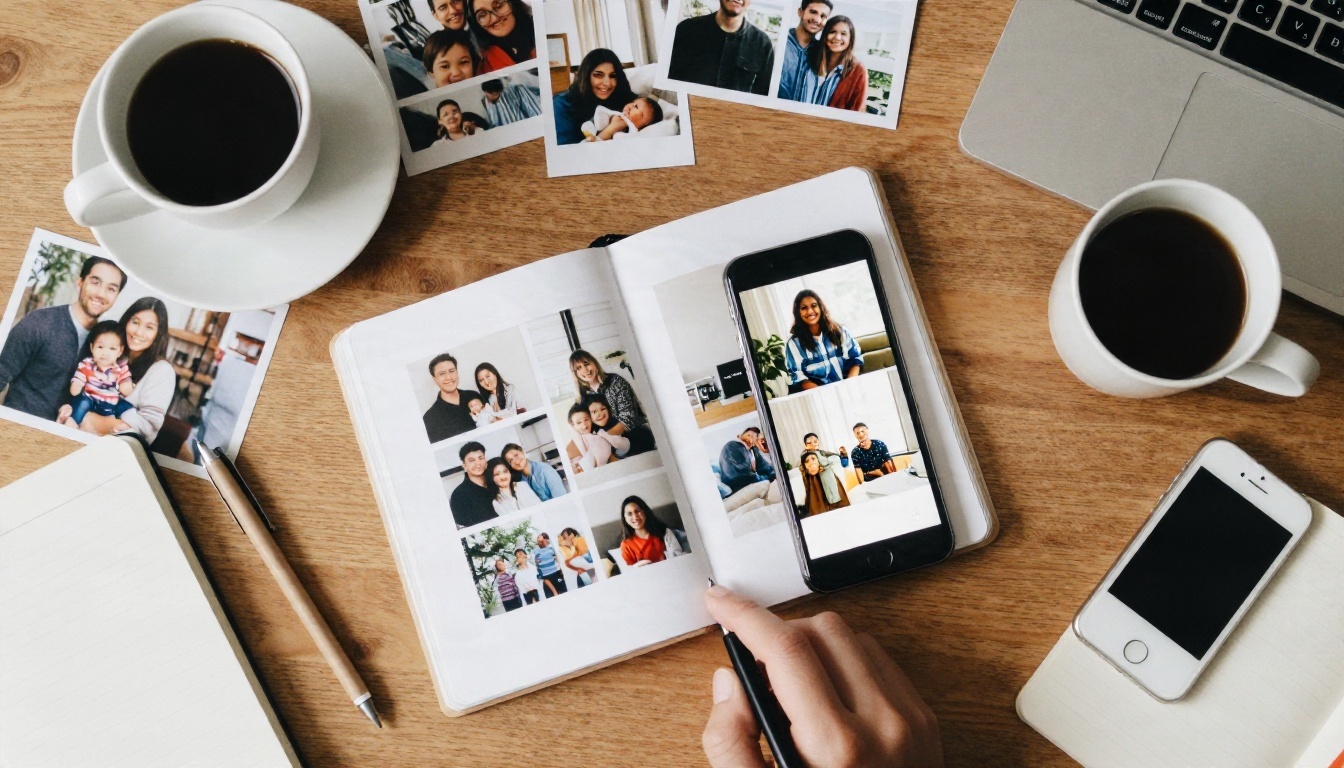
A flipbook is a digital publication that imitates a printed book. Pages turn with a smooth curl, the spine sits in the middle, and the reader swipes or clicks to move forward. When that experience runs inside a web page, a lot of friction disappears.
The Problem With Installed Apps
Traditional album software has three recurring annoyances:
- Storage: Large installers eat space on phones that are already full of pictures.
- Compatibility: An app built for one system may not run on another, so your aunt on an older tablet is left out.
- Updates and accounts: Every viewer needs the same software, and sometimes the same login, just to look at your holiday.
An online photo album removes all three. The viewer clicks a link, and the album opens. Grandparents do not need instructions, and you do not need to explain how to install anything.
What "Without Downloading" Really Means
Two different things get mixed up here. One is that you do not install a creation tool. The other is that your viewers do not install a reader. A browser flipbook solves both. You build it on a website, and people read it on a website. The pages are streamed to the screen, so nothing sits on the device unless you choose to allow an offline copy.
| Feature | Installed album app | Printed photo book | Browser flipbook album |
|---|
| Install required | Yes | No | No |
| Works on phone, tablet, laptop | Sometimes | Not applicable | Yes |
| Sharing with many people | Needs same app | One copy per person | One link |
| Fix a typo after publishing | Often hard | Impossible | Replace the file |
| Cost per copy | Free to high | Medium to high | Free to low |
| Page-turn feel | Varies | Real paper | Realistic animation |
The table shows why many people now keep one printed book for the coffee table and a digital twin for everyone else.
How to Build Your Album Online
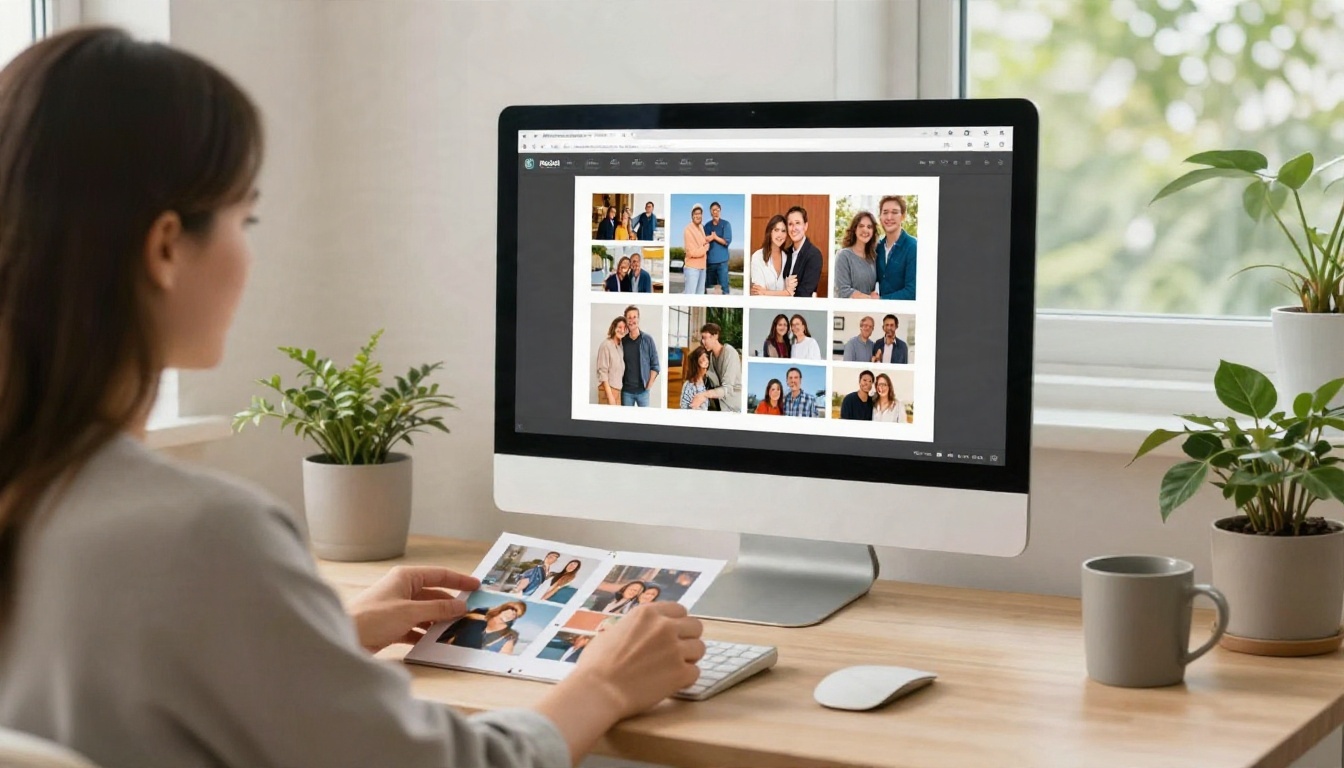
Here is the full workflow with Flipbooks AI. It takes roughly ten minutes for a first album, and less once you have a routine. The platform turns a PDF into a flipbook, so the trick is to prepare your photos as a PDF first.
Step 1: Gather and Pick Your Photos
Start with a theme. "Summer 2026" is a better album than "All photos from my phone." Choose between 20 and 60 images. That range gives you enough pages to feel substantial without tiring the reader.
- Pick the sharpest version of each moment.
- Delete near duplicates.
- Keep a mix of wide scenes, portraits, and small details such as hands, food, or a street sign.
Step 2: Build a PDF From Your Photos
You do not need special software. Use whatever you already have:
- Google Slides or PowerPoint: One photo per slide, export as PDF.
- Canva or a similar design site: Choose a photo book layout, then export as PDF.
- Word or Pages: Insert pictures, add short captions, save as PDF.
- Your phone's photo app: Select images, choose the print option, and save the result as a PDF.
⚠️ Use a landscape or square page size if most of your photos are horizontal. A portrait page crops wide pictures and wastes space.
Step 3: Upload and Convert
Create an account and drag your PDF into the upload area. The PDF to Flipbook Converter reads every page and turns it into a flipbook with realistic page curls. Conversion usually takes less than a minute, even for image-heavy files.
Step 4: Check the Preview
Open the preview and flip through it the way a guest would. Look for blurry pages, cropped faces, and captions that run off the edge. If something is wrong, fix the PDF and upload it again. This is the fast loop that printed albums never gave you.
Step 5: Customize the Look
Pick a background color that matches the mood of the photos. Warm cream suits family pictures, deep charcoal makes landscape photos stand out. You can also add your own logo or name for a personal touch, switch page effects, and add background music if the album deserves a soundtrack.
Step 6: Share the Album
Copy the direct link, send it in a message, or embed the album on a personal website with the Embed Flipbook on Website tool. We will look at privacy settings in the sharing section below.
Make It Look Personal
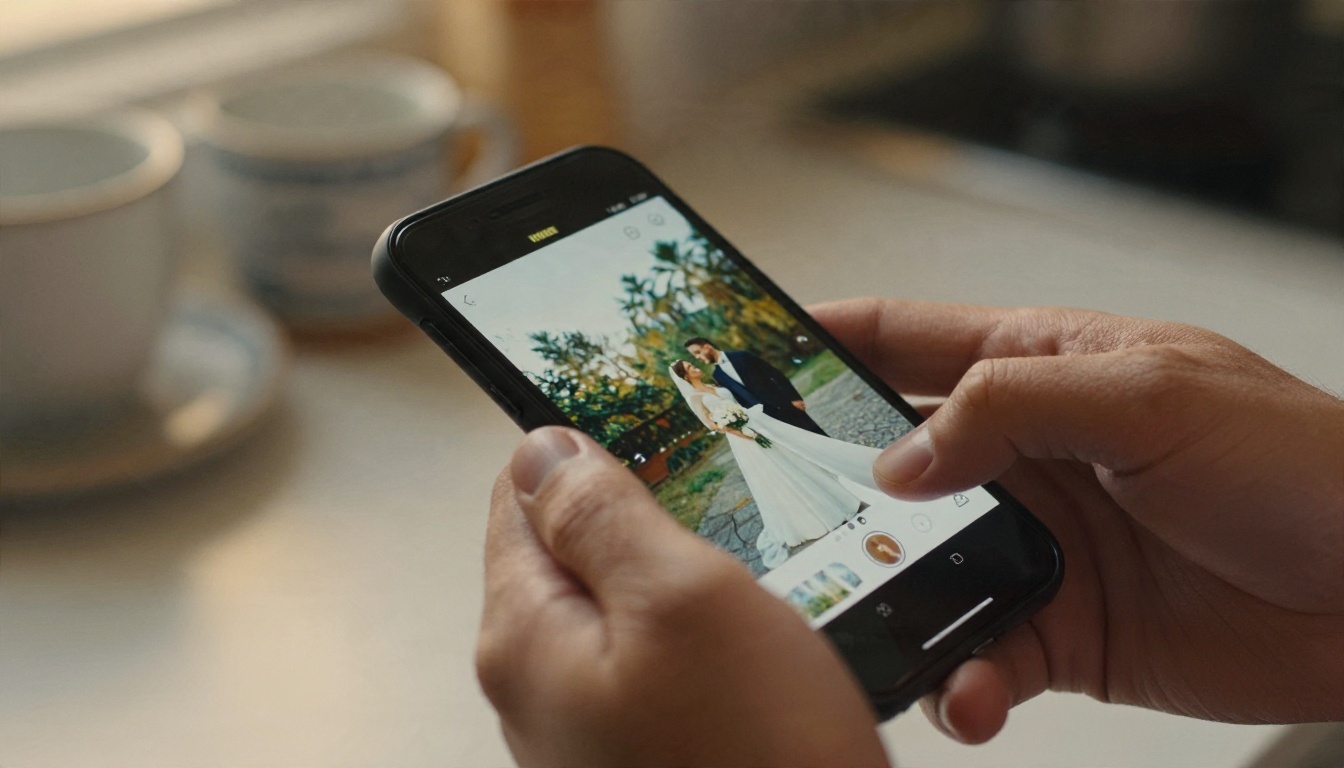
A good album has a point of view. Customization is where a pile of pictures becomes a story.
Colors and Page Effects
The background behind the pages matters more than most people expect. A neutral tone keeps attention on the photos, while a bold color can fight with them. Start neutral, then adjust.
| Album type | Suggested background | Why it works |
|---|
| Wedding | Soft ivory or blush | Echoes the dress and flowers |
| Newborn | Pale sage or warm white | Calm and gentle |
| Road trip | Sand or dusty blue | Feels like open sky and earth |
| Black and white portraits | Deep charcoal | Increases contrast |
| Kids' birthday | Light yellow or sky blue | Playful without clashing |
Captions, Audio, and Video
Short captions change everything. Write the place, the date, and one detail only you would remember: "Lisbon, August. We got lost and found the best pastry shop." You can also embed audio so a short voice note from a grandparent plays on a specific page, or add a short video clip to a favorite scene.
💡 Keep captions under two lines. Readers on phones will skip long paragraphs, and a caption that fits at a glance gets read every time.
Branding for Creators
If you shoot photos for friends or clients, add your own branding. Flipbooks AI never places its own watermark on your work, so the album carries your name only. Photographers who want a more polished showcase can look at the Photography Portfolio tool or the Digital Portfolio Creator.
Share Without Losing Control
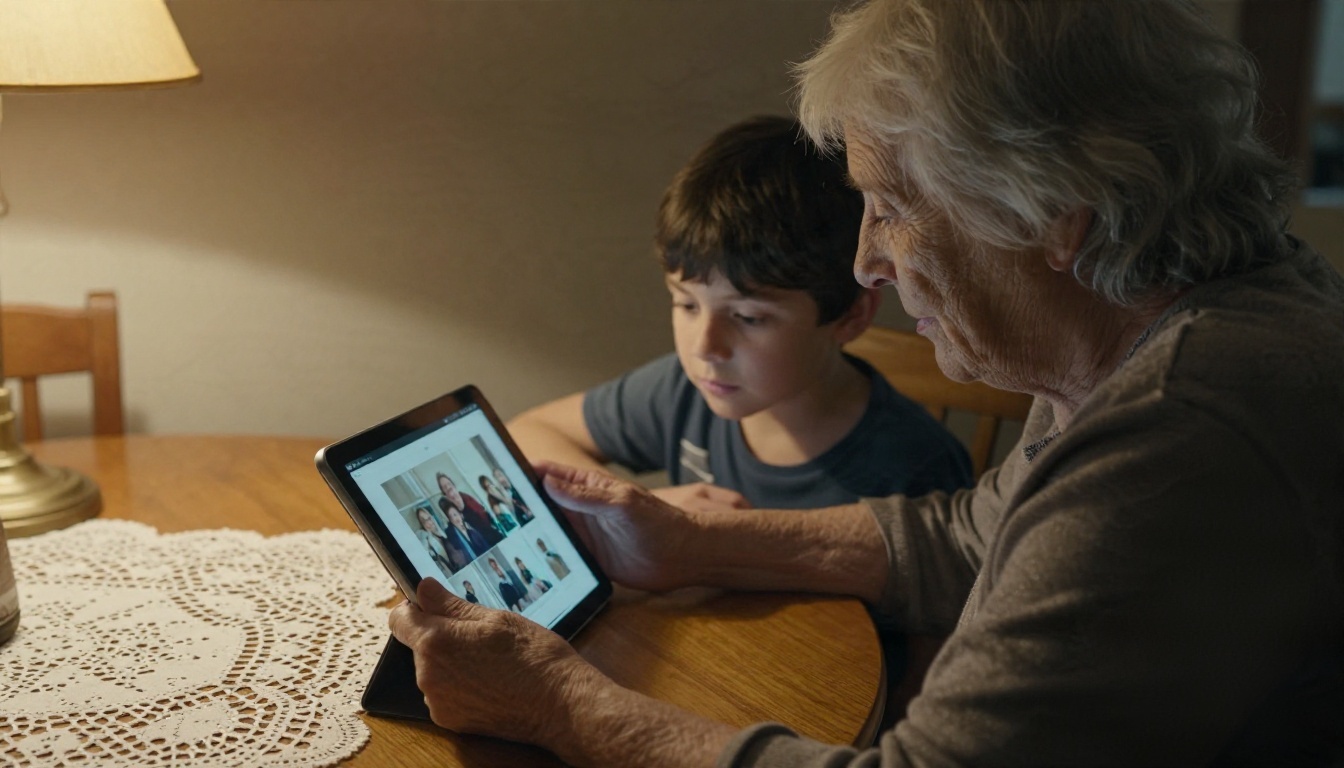
Photos of children, weddings, and homes are personal. Sharing them online deserves a bit of thought.
Link, Embed, or Offline Copy
You have three common ways to deliver an album:
- Direct link: The simplest option. Paste it into a chat or email.
- Embed code: Place the album inside a blog or family website so it opens right on the page.
- Offline download: Useful for relatives with weak internet. They can save a copy and read it later on a plane or at a cabin.
Password Protection
Add a password for anything private. Send the link in one message and the password in another. A family reunion album with 80 photos of cousins probably should not be open to the whole internet.
✅ Best practice: Use a short, memorable phrase everyone in the family knows, such as the name of your grandmother's street. It is easy to share and hard for strangers to guess.
Who Opened It and When
If you want to see whether the album is being read, the Professional plan adds analytics and lead generation. For a family album that is a fun extra, since you can see which relatives opened the link. For a photographer delivering client galleries, it shows whether a customer has looked at their proofs. You can compare options on the pricing page.
Album Ideas for Every Occasion
The same tool works for very different projects. Here are four that people make again and again.
Wedding Albums
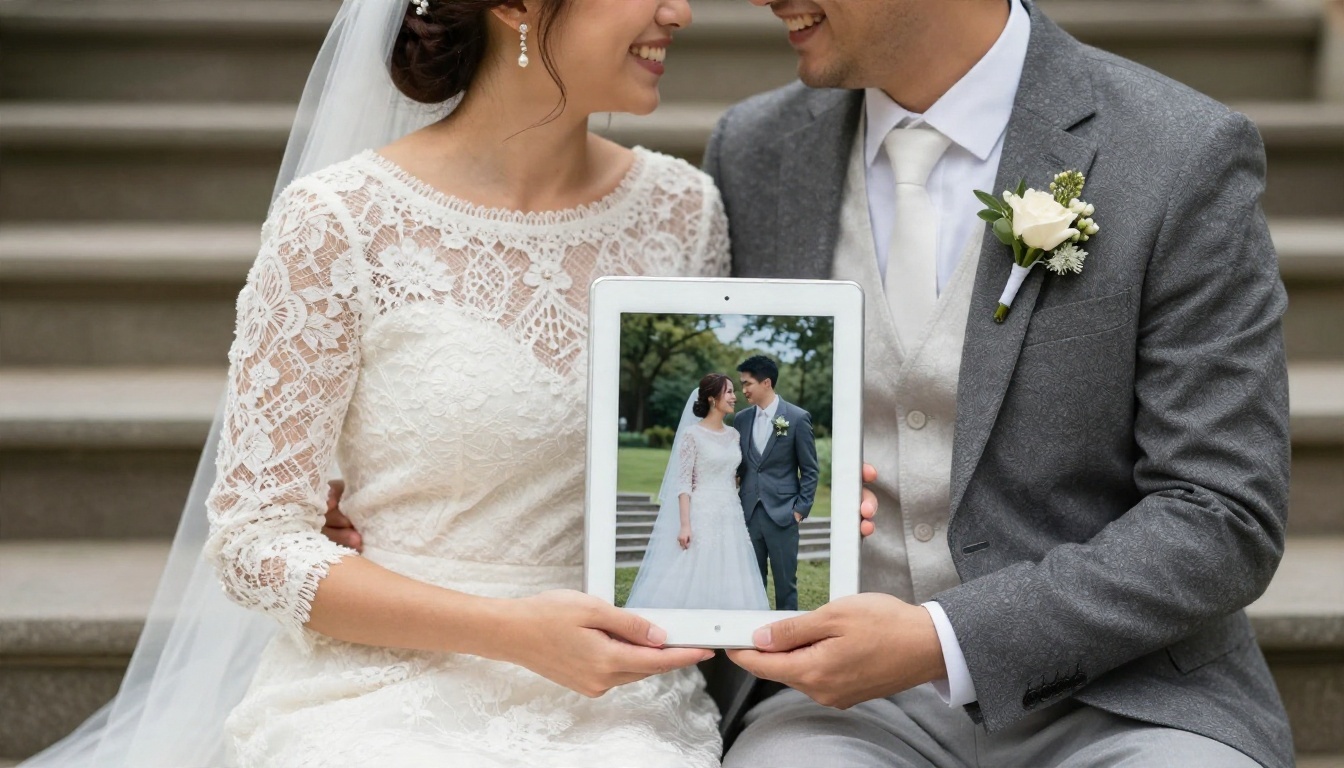
Couples often wait months for the professional photographer's final gallery, then struggle to share it with guests. A flipbook lets you collect the best 40 images, add the vows as a caption, and send one link to everyone who could not attend. The Wedding Album Flipbook tool is built for exactly this.
Baby's First Year
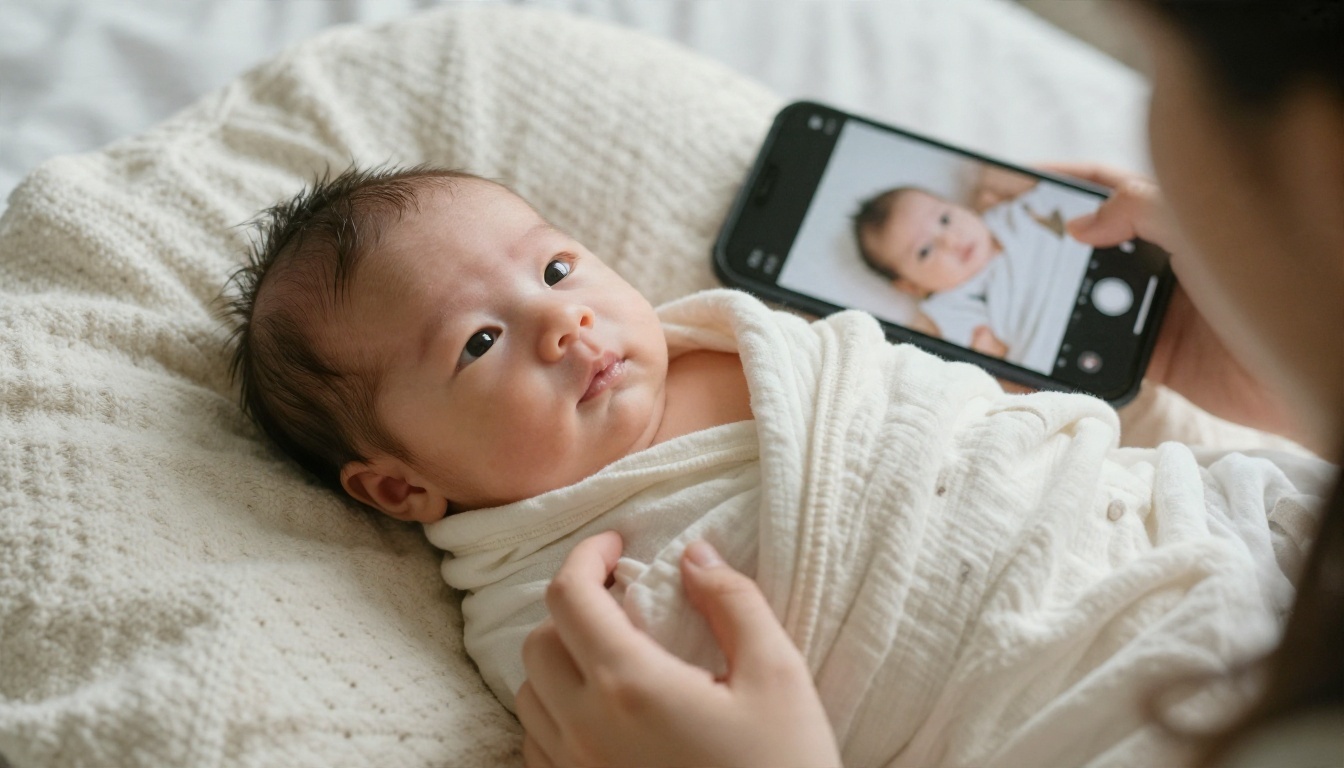
Parents rarely get around to printing a baby book. A monthly album solves it. Add one page per month, a short note about what changed, and a close-up of tiny hands. Because you can replace the file whenever you like, the album grows with the child, and the same link keeps working for grandparents abroad.
Travel Journals
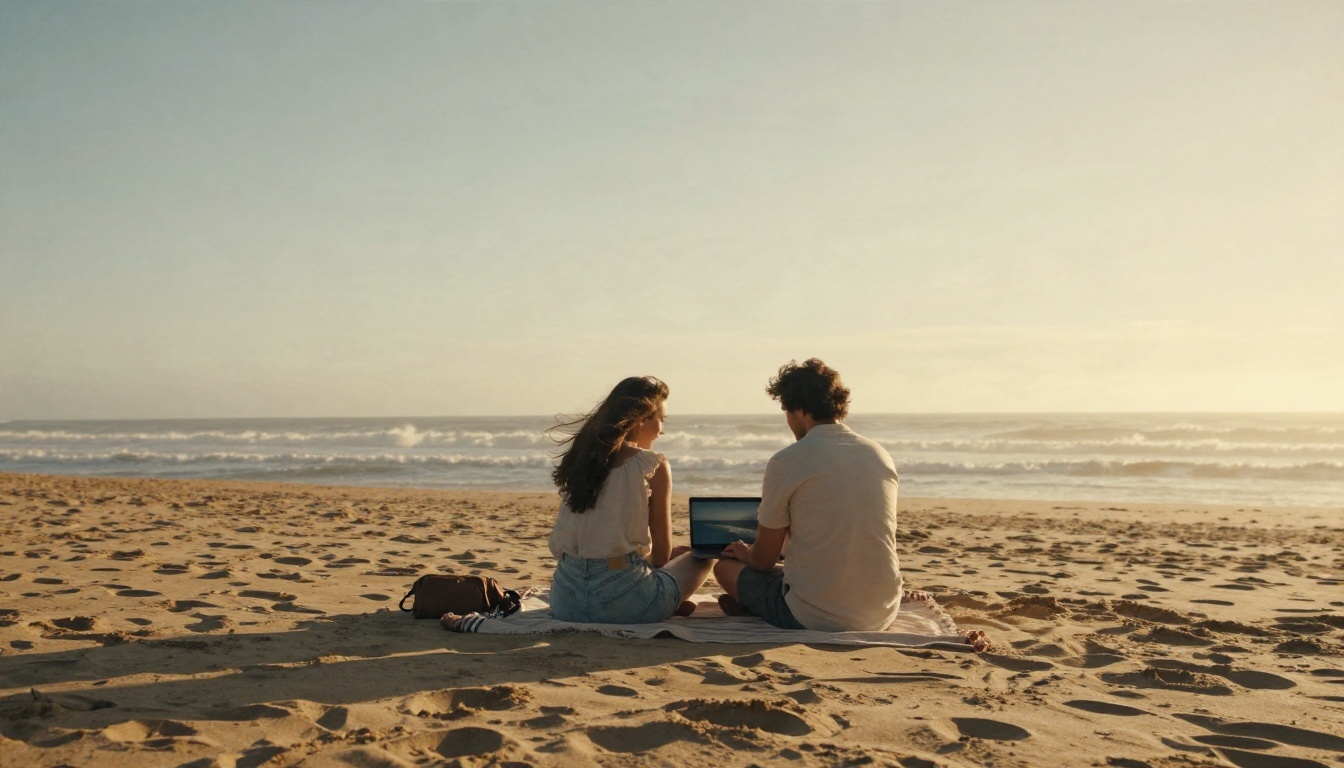
Trips are the classic case for a photo flipbook. Group images by day, add a map screenshot on the first page, and write a short tip on each spread. If you want something more structured, look at the Travel Guide Flipbook tool.

Friend Groups and Events
Birthday parties, bachelorette weekends, graduations, and reunions all produce a flood of photos across a dozen phones. Pick one person to assemble the best shots and publish a single album. Everybody gets the same link, and nobody has to search group chats for that one picture. School groups can take the idea further with the Yearbook Flipbook Maker.

Which Project Needs What
| Project | Typical page count | Best extras | Suggested privacy |
|---|
| Wedding gallery | 30 to 60 | Music, captions with vows | Password |
| Baby's first year | 12 to 24 | Audio notes, month labels | Password |
| Holiday journal | 20 to 40 | Map page, short tips | Link only or public |
| Group event | 15 to 30 | One shared theme, funny captions | Link only |
| Photographer proofs | 20 to 50 | Branding, analytics | Password |
Free Plan or Paid Plan
For a single family album, you can start without spending anything. Try it free, build one album, and see whether the format suits you. Paid plans make sense once you create albums regularly, or when you want features designed for professionals.
| Need | Starter use | Standard plan and above | Professional plan |
|---|
| Convert PDF to flipbook | ✅ | ✅ | ✅ |
| No watermarks | ✅ | ✅ | ✅ |
| Unlimited flipbooks | Limited | ✅ | ✅ |
| Password protection | Check plan | ✅ | ✅ |
| Custom branding | Basic | ✅ | ✅ |
| Analytics | No | No | ✅ |
| Lead generation | No | No | ✅ |
⚠️ Plan details can change, so check the current pricing before you decide. The table above shows the general pattern: simple use is easy to start, and the Professional plan is aimed at people who want to track readers.
Who Should Pay
- Hobbyists with a few albums a year: The entry level is usually enough.
- Parents building monthly updates: Unlimited flipbooks on the Standard plan keep every month in its own album.
- Photographers and small studios: Professional features, including analytics, justify the cost once you deliver to clients.
Common Mistakes to Avoid
Most weak albums fail for the same handful of reasons. Fix these and yours will feel professional on the first try.
- Too many photos. Two hundred pictures is a camera roll, not an album. Cut until each page earns its place.
- Low resolution exports. Export your PDF at a good quality setting. Blurry pages look worse on a large monitor than on a phone.
- No order. Arrange photos by time or by theme. Random order confuses readers.
- Skipping captions. A date and a place turn a nice picture into a memory, and you will thank yourself in ten years.
- Forgetting privacy. Photos of children and addresses visible in the background deserve a password.
- Never testing on a phone. Most viewers will open your link on a small screen. Always check the phone view first.
💡 Ask one friend to open the link before you send it to everyone. A fresh pair of eyes will catch a crooked page or a missing caption in seconds.
Make Your First Album Today
An album maker app should not feel like a chore, and a browser-based flipbook proves it. You pick your photos, export a PDF, upload it, and receive a link that works on any device without a single installation. Watermarks stay out of your pictures, and passwords keep private moments private.
Ready to see your own photos turn into a real page-turning album? Get started for free on Flipbooks AI and have your first one ready before your coffee gets cold.



