You have 2,000 photos on your phone, a wedding, a trip or a baby's first year worth remembering, and no idea which website deserves them. The market is crowded: print shops, phone apps, design tools and digital platforms like Flipbooks AI all promise a beautiful book in minutes. Some deliver. Others bury you in watermarks, surprise shipping fees and clumsy editors. This ranking sorts the options by what actually matters: cost, ease, quality, and how easily you can share the finished book by link with people who live far away.
💡 Quick answer: If you want a physical book, pick a print-first retailer. If you want something free, instant and shareable by link, build a digital photo book and publish it as a page-turning flipbook. Many people do both.
What Makes a Photo Book Site Good
Before comparing names, decide what you are shopping for. "Best" changes completely depending on whether you want paper in your hands or a link in a group chat.
Print vs Digital Photo Books
A printed photo book is a keepsake. It sits on a coffee table, survives a power cut and makes a great gift. It also costs money, takes days to arrive and cannot be edited once it ships.
A digital photo book (often a flipbook) costs little or nothing, updates instantly and reaches anyone with a browser. Grandparents abroad can flip through it the same day you finish it.
| Factor | Printed Photo Book | Digital Photo Book |
|---|
| Typical cost | Paid per book, plus shipping | Free to low monthly cost |
| Time to finish | Days to weeks | Minutes |
| Editing after publishing | Not possible | Anytime |
| Sharing | One copy per person | Unlimited viewers by link |
| Best for | Gifts, shelves, milestones | Updates, travel, remote family |
Hidden Costs to Watch
Most disappointments come from fine print, not from the editor. Check these before you spend an evening designing:
- Watermarks on free exports or previews
- Page minimums that force you to pad the book
- Shipping and tax added at the last checkout step
- Premium layouts or paper locked behind upgrades
- Subscription auto-renewals hidden in a free trial
- Expiring links that kill your shared book after 30 days
⚠️ Always preview the final export. A beautiful editor means nothing if the output has a logo stamped across every page.
Free Options Compared
"Free" is the most searched word in this topic, and also the most misleading. Here is how the main categories really behave.
What "Free" Usually Means
Free rarely means unlimited. It usually means one of four things:
- Free editor, paid print. You design for nothing and pay only when you order a physical copy.
- Free trial. Full features for a short period, then a paywall.
- Free with watermark. You can export, but with branding on the pages.
- Free tier with limits. A fixed number of books, pages or storage.
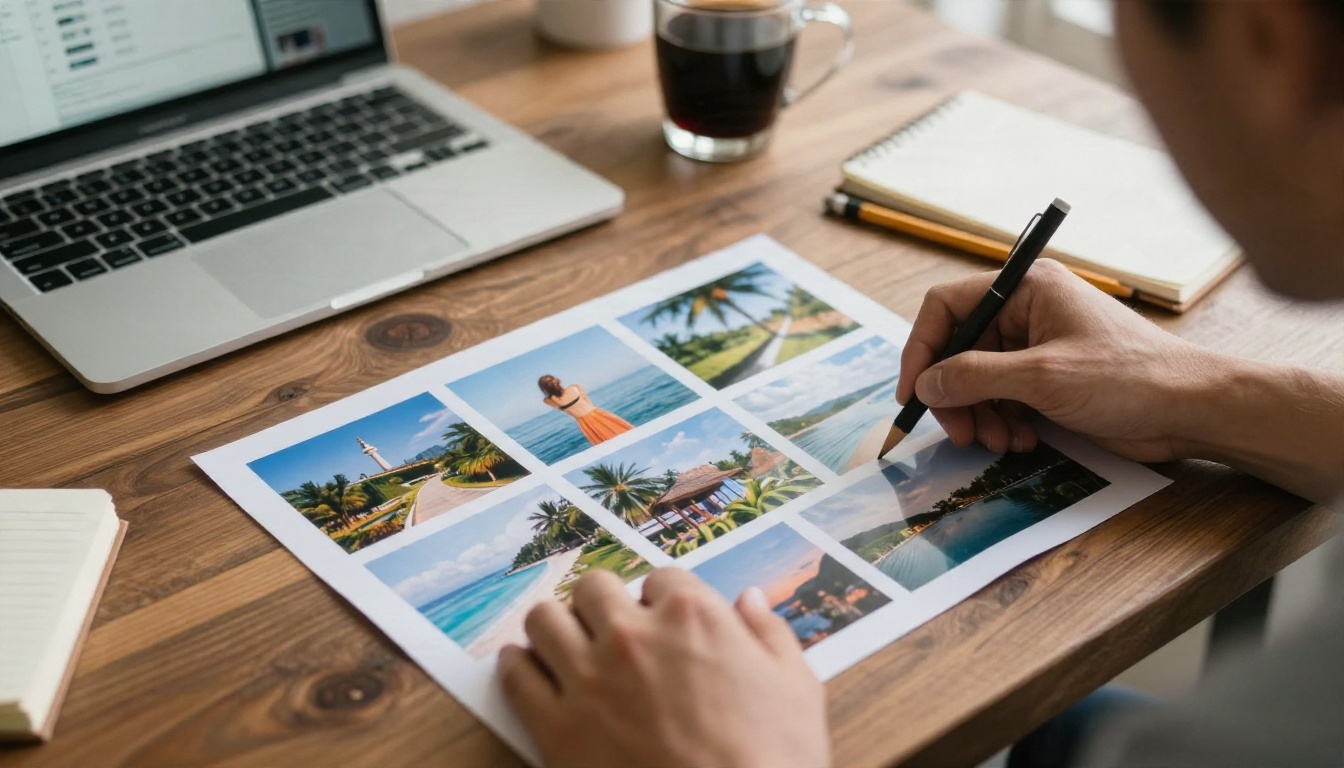
Free Tools Worth Trying
| Option Type | Cost to Design | Watermark Risk | Share by Link | Best For |
|---|
| Print-first retailer editor | Free | Low | Sometimes a preview link | Ordering paper books |
| Phone gallery app | Free | Low | Usually yes, limited | Quick albums |
| Template design tool | Free tier | Medium | Yes | Custom layouts |
| PDF-based flipbook platform | Free to try | Check plan | Yes, native | Digital sharing |
| Slideshow or video maker | Free tier | High | Yes | Motion, not books |
If your goal is a shareable book with no branding on the pages, check the Flipbooks AI pricing page for current plan limits. The platform's stated policy is no watermarks, ever, which removes the biggest annoyance of free tools.
💡 Whatever you choose, test the free option with a five-page sample first. Ten minutes of testing saves an entire weekend of redoing work.
Best Apps for Photo Books
Most people take their photos on a phone, so starting there makes sense. An app wins on convenience: your gallery is already open, and face recognition or date sorting can pre-build an album for you.

Phone Workflow Step by Step
A reliable mobile routine looks like this:
- Make a shared album on your phone for the event or trip.
- Delete duplicates and blurry shots before importing anything.
- Pick 30 to 60 of your best photos, not all 500.
- Choose an auto-layout and then adjust the opening and closing pages by hand.
- Add short captions: a place, a date, one funny line.
- Export as a PDF so you can reuse it anywhere.
That last step matters. A PDF is the universal format: you can send it to a printer, or convert it into an online flipbook with the PDF to Flipbook Converter.
App vs Desktop Editor
| Feature | Phone App | Desktop Editor |
|---|
| Speed | Very fast | Moderate |
| Layout control | Limited | Precise |
| Photo selection | Easy from gallery | Needs file transfer |
| Caption typing | Slower on a small screen | Comfortable |
| Best for | Trips, quick albums | Weddings, large projects |
Verdict: use the phone for gathering and picking photos, then finish on a laptop when the book has more than 40 pages. Editing a 100-page wedding on a small screen is a miserable experience.
Photo Book Examples That Work
Seeing a finished book helps more than any feature list. These four formats consistently get the best reactions.
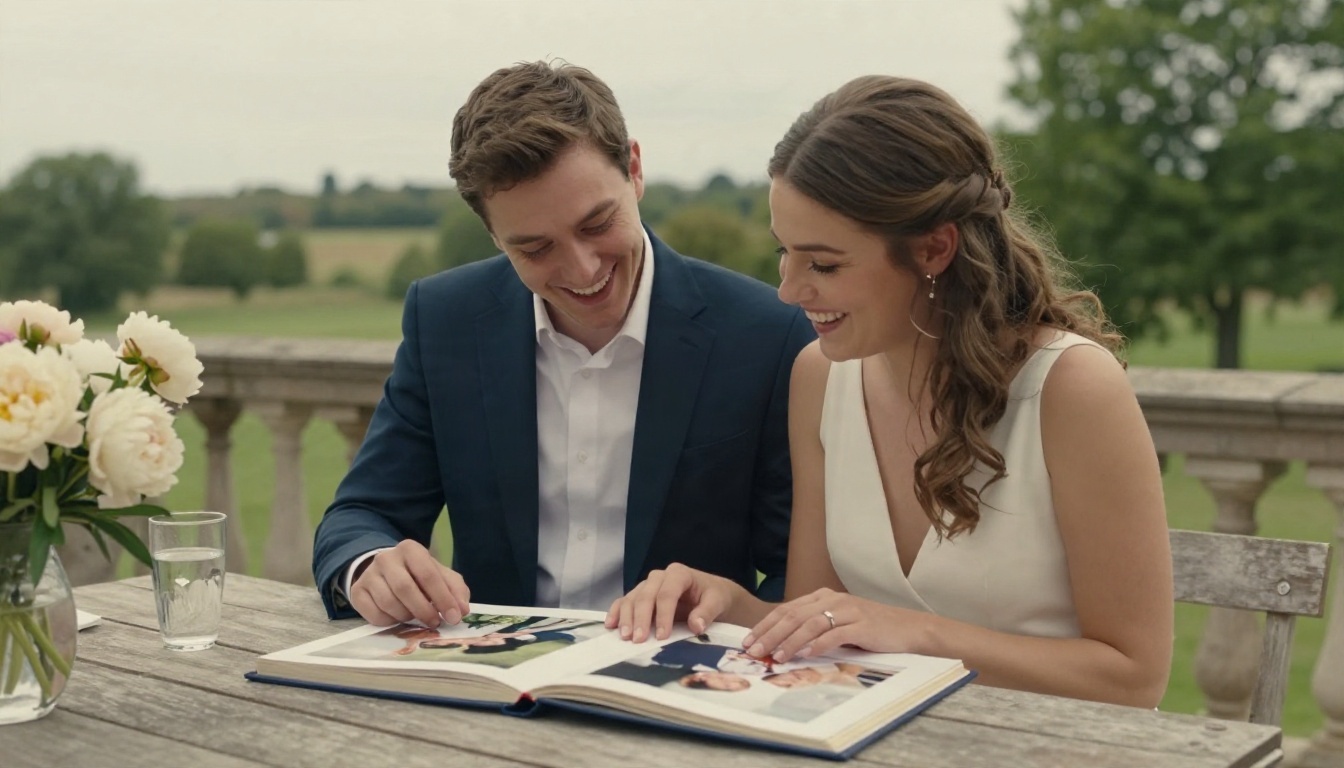
Wedding Album
A wedding book works best in story order: getting ready, ceremony, portraits, party. Open with a single full-bleed portrait, then use two or three photos per page and leave breathing room. A photographer can hand the whole album to a couple as a link, and the couple can forward it to relatives. The Wedding Album Flipbook tool is built for exactly this.
Travel Journal
Think one spread per day. Add a map screenshot, a ticket stub photo and a one-line caption. Travel books stay lively when you mix wide landscapes with small close-ups of food and street details.
Family Yearbook
Once a year, pick the best 12 photos per month and build a 12-chapter book. It becomes a ritual, and the books line up on a shelf like a diary. A school or club can do the same with the Yearbook Flipbook Maker.
Baby's First Year
Monthly milestones, a size comparison photo each month and handwritten notes from parents make a book the child will treasure. Because digital versions can be updated, you can add each new month as it happens and re-share the same link.
| Example | Pages | Photos per Page | Best Format |
|---|
| Wedding | 40 to 80 | 1 to 3 | Print plus link |
| Travel | 20 to 40 | 2 to 4 | Digital link |
| Family yearbook | 30 to 60 | 3 to 5 | Print plus link |
| Baby's first year | 24 to 48 | 1 to 3 | Digital, then print |
Photographers who build client galleries can also use the Photography Portfolio or Digital Portfolio Creator tools to present a polished book instead of a folder of files.
How to Create a Photo Book with Flipbooks AI
Flipbooks AI is not a print shop. It turns a PDF into an interactive, page-turning online book, which makes it an excellent fit when your priority is a book that opens instantly in any browser and can be shared by link. Here is the workflow from first photo to finished book.
Prepare Your Photos as a PDF
Build your layout in any editor you like (a phone app, a design tool, even a slide deck) and export it as a PDF. Use one page per photo spread, and keep image resolution high so zooming stays crisp.
Upload and Convert
- Open Flipbooks AI and create an account.
- Click to start a new flipbook and upload your PDF.
- Wait a few moments while the pages are converted into a flippable book with realistic page-turn effects.
- Check the preview on both desktop and phone. The design is mobile-responsive, so it adapts to small screens.
✅ Best practice: name the file clearly before uploading, for example "Italy Trip 2026", so the book title is correct from the start.
Customize the Look
This is where a plain PDF becomes a personal book:
- Custom branding: add your own logo or name if you are a photographer or studio
- Colors and background: match the page backdrop to the mood of your photos
- Page effects: adjust the flip animation and sound
- Multimedia: embed video and audio, such as the wedding vows or a baby's first laugh
- Links: add buttons that jump to a gallery, website or booking page
| Customization | What It Does | Great For |
|---|
| Branding | Adds your logo and name | Photographers |
| Background color | Sets the mood | Weddings, travel |
| Page flip effect | Controls animation | All books |
| Video and audio | Brings pages to life | Family memories |
| Clickable links | Sends viewers onward | Portfolios |
Share Your Photo Book by Link
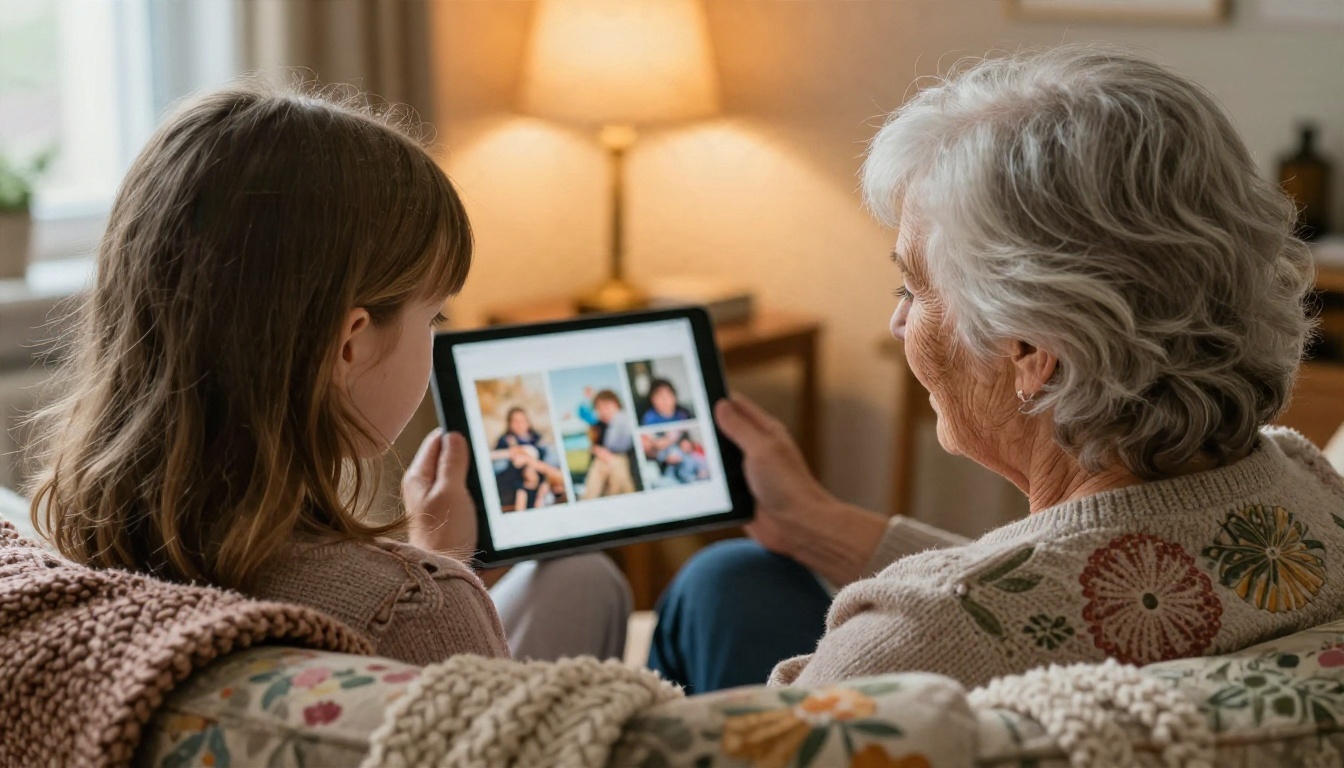
Sharing is where digital books beat paper. One link reaches every relative at once, and nobody needs to install anything.
Link, Embed, Password
You have three main options:
- Direct link. Copy it into WhatsApp, email or a message thread.
- Embed code. Place the book on a blog, a wedding site or a studio page with the Embed Flipbook on Website tool.
- Password protection. Lock private family photos so only people you trust can open them.
⚠️ Children's photos and private events deserve a password. Do not post a public link in a public group unless you are comfortable with strangers seeing it.
Offline Downloads and Analytics
Digital sharing has a few extras worth knowing about:
- Offline downloads let relatives keep a copy without needing a connection
- Analytics show how many people opened your book and which pages they viewed
- Lead generation captures contact details, useful for photographers and studios
Analytics and lead capture belong to the Professional plan, so compare the options on the pricing page before you decide. For personal family albums, you may never need them.
| Sharing Method | Setup Time | Privacy Level | Best For |
|---|
| Direct link | Seconds | Medium | Family chats |
| Embedded on a site | A few minutes | Public | Portfolios, weddings |
| Password protected link | Seconds | High | Private albums |
| Offline download | Seconds | Depends on recipient | Travel, no signal |
Mistakes That Ruin Photo Books
Even the best site cannot rescue a book built carelessly. Watch for these:
- Too many photos per page. Three strong images beat nine small ones.
- Low resolution. A screenshot from a messaging app will look soft in print and on a large screen.
- No story order. Sort by time or theme, not by file name.
- Skipping captions. A date and a place give each image meaning.
- Forgetting the cover page. Choose a single, striking opening image.
- Never proofing. Read every page once, out loud, to catch typos and wrong dates.
- Ignoring backups. Keep the original PDF in two places.
💡 Rule of thumb: if a page takes more than three seconds to read, it has too much on it.
Which Site Wins?
| Your Goal | Best Choice |
|---|
| Physical gift for a milestone | Print-first retailer |
| Fast album from your phone | Gallery or mobile app |
| Custom layout with full control | Template design tool, then export PDF |
| Free, watermark-free book to share by link | PDF to flipbook platform |
| Private family album | Flipbook with password protection |
Pick Your Site and Start
The honest answer is that no single site is best for everyone. Print shops win for gifts. Phone apps win for speed. A flipbook platform wins when you want a free, polished book that anyone can open from a link, with no watermark and no app download.
Ready to see your own photos turn into a page-turning book? Create your account on Flipbooks AI and upload your first PDF today. Browse the full list of flipbook tools and templates to find the format that suits your project, or compare pricing plans to see which features fit your needs.



