Typing "book creator app free" into a search bar usually means one thing: a child has a story in their head, and a parent or teacher wants to turn it into a real book without a bill. The good news is that free options exist. The less good news is that "free" often comes with a cap on how many books you can make, how you can share them, or whether you can print and download the result. This article sorts out what the free plans really allow, where the limits show up, what the paid tiers tend to cost, and which alternatives suit young authors best. Once the pages are finished, a tool like Flipbooks AI can turn them into a page-turning online book with no watermark.
What "Free" Really Means
Before comparing apps, it helps to decode the word itself. In the kids' book space, "free" can describe four very different things, and mixing them up is how people end up surprised at checkout.
Free Tier vs Free Trial
A free tier stays free as long as you use it, but it is capped. A free trial gives you everything for a few days or weeks, then asks for payment. Many book creator apps for kids use a free tier for individual accounts and a trial for classroom features.
Who Pays for What
Some tools are free for the child but paid for the teacher. Others are free to make a book and paid to print it. A few are free to read but charge for download. Always ask three questions: Can I make it? Can I share it? Can I keep it?
| Type of "free" | What you get | Typical catch |
|---|
| Free tier | Basic editor, limited number of books | Book count cap, fewer templates |
| Free trial | Full features for a short time | Payment required to keep editing |
| Free to create | Unlimited drafting online | Printing or PDF export is paid |
| Free for schools | Education discount or grant program | Requires a school email or approval |
💡 Pro tip: Screenshot the plan page on the day you sign up. Free limits change, and a dated record helps if you need to compare later.
Free Online Options for Kids
Not every child needs the same kind of tool. A six year old who draws on paper needs something different from a ten year old who types a chapter book. Here are the main categories.
Browser Based Book Editors
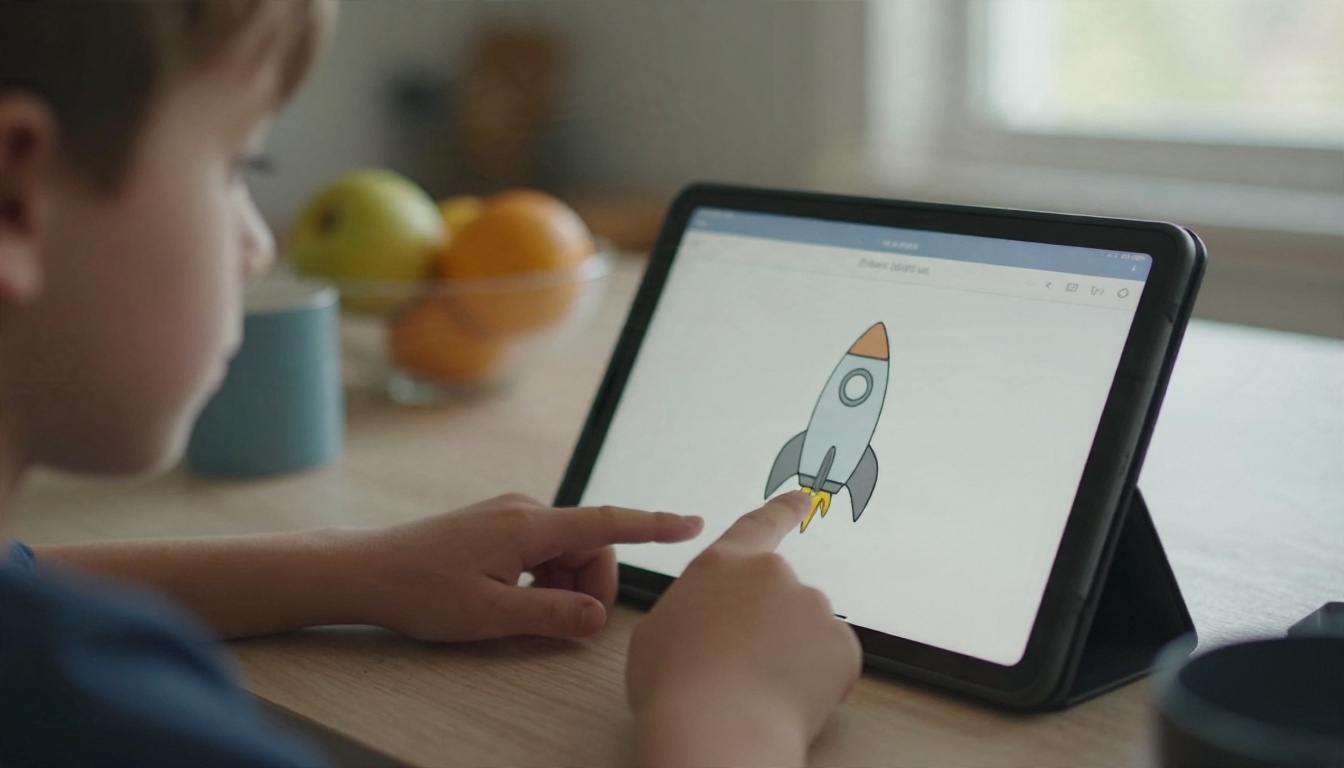
These run in a web browser on a laptop, Chromebook or tablet, so there is nothing to install. They are popular in classrooms because school devices are already locked down. Look for drag and drop pages, built-in image libraries, and a way to record a child's voice for read-along pages.
Tablet Apps with Touch Drawing
Tablet apps are the best match for younger children. Small fingers can draw directly on the page, add stickers and record narration. The tradeoff is that the free version often limits the number of books stored on the device.
Template Based Design Tools
General design platforms with education offers and slide tools are not "book apps" by name, but they work well. A child can build each page as a slide or a design canvas, then export the whole thing as a PDF. This route is flexible and often cheaper over time.
The Limits You Will Hit
Free tiers are designed to let you start and then nudge you toward a paid plan. Knowing the usual limits in advance saves frustration, especially in the middle of a school term.
Book Count Caps
The most common restriction is a hard cap on the number of books in one library. For a family with one child, a cap of a few dozen books may be plenty. For a class of thirty students writing weekly, it runs out within a month.
Export and Print Restrictions
Check what leaves the app. Many free plans allow viewing online but block PDF export, EPUB export or high-resolution print files. If a child wants to give grandparents a printed copy, this limit matters more than any feature on the editing screen.
Collaboration Locks
Group stories are one of the best classroom activities, but live collaboration is frequently a paid feature on the free-to-teacher plans. Ask whether several students can edit one book at the same time and whether the teacher can review it before it is shared.
⚠️ Watch out: A free classroom trial that expires mid-project can lock students out of books they have already started. Export a PDF backup of every book before any trial ends.
| Limit | Impact at home | Impact in class |
|---|
| Book count cap | Low | High |
| No PDF export | Medium | High |
| No real-time collaboration | Low | High |
| Watermark on output | Medium | Medium |
| Ads in the editor | High | Very high |
| Limited audio recording | Medium | Medium |
Pricing Compared
Prices move often, so treat the structures below as a pattern rather than a quote. Always confirm current amounts on each vendor's official page before you commit.
Home Use Costs
Home plans usually come in three shapes: a free tier with limits, a monthly subscription, or a yearly subscription at a discount. Printed copies are normally a separate purchase, priced per book. For one child making a handful of stories a year, a free tier plus occasional printing is typically the cheapest route.
Classroom and School Costs
Education plans are generally billed per teacher per year or per school per year, often with a quote for bigger districts. Some vendors discount heavily for schools, and some offer limited free access to individual teachers so they can try the tool before asking for a budget.
| Pricing model | Who it suits | Watch for |
|---|
| Free tier forever | Single child, casual use | Caps and ads |
| Monthly plan | Short projects, summer breaks | Easy to forget and keep paying |
| Yearly plan | Families that write often | Larger upfront payment |
| Per teacher license | One classroom | Student accounts may be separate |
| School or district quote | Whole schools | Setup and training time |
| Pay per printed book | Gifts and keepsakes | Shipping adds up |
✅ Best practice: Write down how many books you expect to make in a year, then divide the plan price by that number. A plan that looks expensive can be cheaper per book than a "free" tool that charges for every export.
Safety and Privacy for Young Authors
A children's book is personal. It can contain a child's name, drawings of their family, their voice and sometimes their photo. That makes the privacy side of any book creator at least as important as the price.
Age and Consent
In many countries, online services have rules about collecting data from children under a certain age, and the school or parent often has to give consent. Check whether the app allows accounts without a personal email, and whether the teacher can create student logins.
Sharing Settings
Look for private by default sharing. The best setups let a teacher or parent decide who can view each book, and let them turn off public links at any time. For finished books you want to share more widely, password protection is a simple and useful layer.
A short checklist before a child's book goes public:
- Remove last names, school names and addresses from pages and captions.
- Use a drawn avatar instead of a face photo when possible.
- Choose link access with a password rather than fully open search.
- Keep a parent or teacher as the owner of the account.
Alternatives Worth Trying
If the free plan of one book app does not fit, you do not have to give up. Several routes lead to the same result, a finished book a child is proud of.
Drawing First, Digital Second
Let the child draw on paper, then photograph or scan each page. This keeps screen time low and gives the book a handmade feel. Pages can be assembled in any editor, or combined into one PDF.
Template First, Words Second
For children who prefer typing, a slide deck or design template gives structure. One page per slide, a short caption per page, and a title slide are enough. Export to PDF when you are done.
| Alternative | Best for | Free option | Main limit |
|---|
| Slide tools (browser based) | Ages 8 to 12 | Yes, with a basic account | Few picture book layouts |
| Design platforms with education offers | Ages 7 to 14 | Free for qualifying schools | Some elements are paid |
| Online story builders | Ages 6 to 10 | Limited free stories | Printing is paid |
| Drawing apps plus PDF export | Ages 4 to 8 | Often yes | Manual page assembly |
| Paper drawings plus scanner app | All ages | Yes | Scan quality varies |
| PDF to flipbook publishing | Sharing finished books | Free plan or trial | Needs a finished PDF |
Real-World Examples
Seeing how this works in practice helps more than a feature list.
- A grandparent gift: A nine year old draws twelve pages of a family camping trip, scans them, and builds a PDF. The family shares it as a flipbook link by message, so relatives overseas can flip through it on a phone.
- A class anthology: Thirty students each write one page. The teacher merges them into a single PDF, then publishes it as a flipbook for parents on open evening. The School Newsletter Creator is a good fit for the same workflow.
- A year-end keepsake: A primary school collects drawings and class photos into a yearbook using the Yearbook Flipbook Maker.
- A homeschool library: A parent keeps every child's book in one private shelf, each protected by a password, and shares with grandparents only.
How to Publish a Kids Book with Flipbooks AI
Most free book apps stop at the editor. Where Flipbooks AI helps is the sharing step: it takes a finished PDF and turns it into an online book that flips like paper, works on phones and carries no watermark. Here is the full path.
Step by Step Instructions
- Prepare the PDF. Export the child's book from any app, slide tool or scanner app as a PDF. Use landscape pages for picture books and keep file size reasonable.
- Sign up. Create a free account on Flipbooks AI.
- Upload and convert. Drag the PDF into the dashboard. The PDF to Flipbook Converter processes each page in moments and keeps drawings sharp.
- Customize the look. Pick a background color, add the school or family logo, choose the page-turn effect and place the book on a virtual shelf. Add narration or short audio clips so younger children can listen along.
- Set privacy. Turn on password protection for private books, or keep the link unlisted.
- Share. Copy the direct link, or use the embed flipbook on a website option to place the book on a class blog.
For longer stories and chapter books, the Interactive E-Book Publisher and the E-Book Flipbook Generator offer more layout choices. Teachers who publish worksheets and reading packs can also try the Course Material Publisher.
What You Get at Each Level
| Feature | Free start | Standard | Professional |
|---|
| No watermarks | Yes | Yes | Yes |
| Unlimited flipbooks | No | Yes | Yes |
| Password protection | Yes | Yes | Yes |
| Embed on a website | Yes | Yes | Yes |
| Audio and video inside pages | Yes | Yes | Yes |
| Offline downloads | No | Limited | Yes |
| Analytics and lead capture | No | No | Yes |
Teachers who want to see how many parents opened the class anthology will find analytics in the Professional plan, and the full list of plans lives on the pricing page.
💡 Pro tip: Export at the final page size from the start. Resizing a book after the drawings are placed often cuts off the edges of a child's artwork.
Pick the Right Path
Here is a quick way to decide.
- One child, a few books a year: Use a free tier or a slide tool, then publish through a free flipbook account.
- One classroom, weekly writing: Choose a classroom plan with student logins, and keep PDF backups of every book.
- A whole school: Request a quote, and ask about data privacy and single sign-on before you sign.
- Keepsakes for family: Draw on paper, scan, and share a password-protected flipbook with relatives.
Common Mistakes to Avoid
- Starting a big project on a free trial without exporting backups.
- Ignoring the export limits until the book is finished.
- Sharing a public link with a child's full name inside.
- Paying for a yearly plan before testing the editor with the child.
Ready to Publish?
A child's first book deserves more than a file buried in a folder. Create your free account on Flipbooks AI, upload a PDF and have a shareable flipbook in a few minutes. Browse all flipbook tools to find a template for your use case, or compare pricing plans when you are ready to publish more than a few books.



