Every Saturday night, somewhere, a volunteer is wrestling with a bulletin. The layout is finished in Word or Canva, the PDF is exported, and then comes the part nobody enjoys: getting it into an app, a portal, or a stack of photocopies. If you are searching for a Bulletin Plus app alternative, you probably want the same result with fewer logins, fewer fees, and no extra software for your members to install. That is where Flipbooks AI fits. It turns the PDF you already made into a page-turning online flipbook that opens from a single link or QR code, on any phone, tablet, or computer.
This article compares the app-based approach with the flipbook approach, shows you a step-by-step setup, and gives church secretaries, school office staff, and nonprofit coordinators a practical checklist for switching without losing a single Sunday.
Why Bulletin Apps Frustrate Small Teams
Bulletin apps solve a real problem. They give a parish or a school one place to post announcements, and they usually come with a polished interface. The trouble starts when your team is three volunteers and a part-time secretary, and the tool becomes one more thing to maintain.
The Hidden Cost of App Lock-In
When your bulletin lives inside a single app, your content lives there too. Moving later means re-uploading archives, re-training volunteers, and telling every member to find you somewhere new. Many subscription tools also tie the best layouts or the archive to a paid tier, so the cost creeps up as your needs grow.
Common complaints from small teams include:
- Monthly fees that are hard to justify for a congregation or PTA running on donations
- Template limits that force your bulletin into a layout that does not match your branding
- Double work when the printed version and the app version need separate edits
- Account management for every volunteer who touches the bulletin
⚠️ Pricing and features change often. Before you commit to any tool, including the ones compared here, check the current plan details on the vendor's own site.
Members Will Not Install Another App
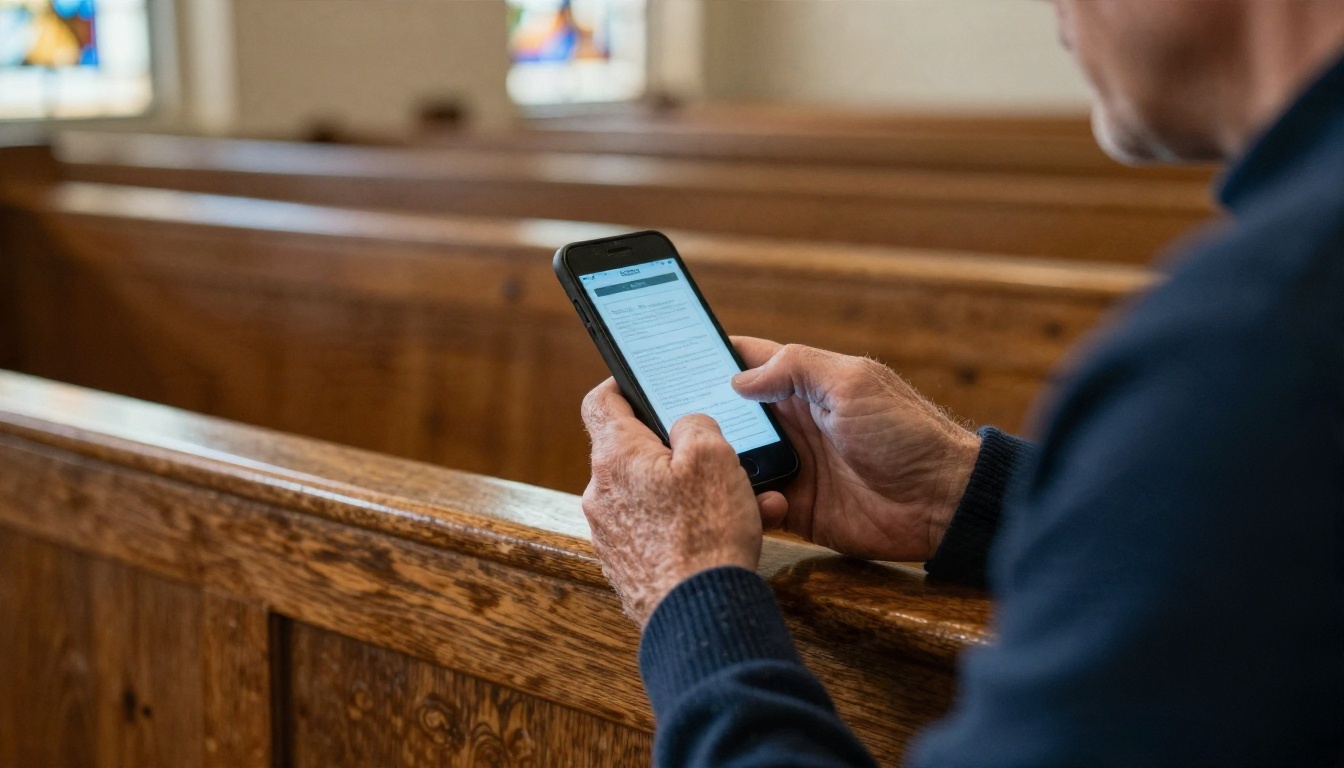
Think about your oldest regular attendee. Now think about the parent who already has forty apps and a full phone. Asking either person to download something just to read the weekly announcements is a real barrier. A link in a text message, an email, or a QR code on the back of a pew card is different. It opens in the browser they already use.
What a Flipbook Does Differently
A flipbook is a PDF presented as a digital publication, with pages that turn, zoom, and load in any browser. You keep your design. The tool simply gives it a better home.
Your PDF Stays Your Layout
Your bulletin already has a look: the header your parish has used for ten years, the school crest, the font your communications chair loves. A flipbook preserves that exactly, because the source is the PDF itself. There is no template to fight and no second version to maintain.
One Link for Every Device
Each flipbook gets a shareable link, an embed code for your website, and a QR code you can print. The pages are mobile responsive, so text stays readable on a small screen. Members can pinch to zoom, swipe to turn pages, and tap any link you placed inside the bulletin.
Paper, App, and Flipbook Compared
Here is how the three common options stack up for a small organization.
| Feature | Printed Paper | Typical Bulletin App | Online Flipbook |
|---|
| Cost per week | Paper, ink, volunteer time | Subscription fee | Free tier available |
| Member installs anything | No | Usually yes | No |
| Keeps your own design | Yes | Often limited to templates | Yes, uses your PDF |
| Reaches homebound members | Only if mailed | Yes, if they have the app | Yes, via link or email |
| Easy to embed on a website | No | Sometimes | Yes |
| Searchable archive | Filing cabinet | Inside the app | Public or private links |
| Setup time | None | Account plus onboarding | Upload a PDF |
Bulletin Plus vs Flipbooks AI at a Glance
Bulletin Plus is an app-style bulletin and announcement tool. Flipbooks AI is a publishing tool built around the PDF you already have. They solve overlapping problems from different directions, so the right choice depends on how your team works.
| Question | App-Style Bulletin Tool | Flipbooks AI |
|---|
| How do members read it? | Inside the app or portal | In any browser from a link or QR code |
| Where does the design come from? | Built in the tool | Your own PDF from Word, Canva, or InDesign |
| Watermarks | Varies by plan | No watermarks, ever |
| Password protection | Varies | Yes, for private or members-only issues |
| Website embed | Varies | Yes, with a copy-and-paste code |
| Reader analytics | Varies | Yes, on the Professional plan |
| Offline download | Varies | Yes |
| Best for | Teams who want one all-in-one portal | Teams who already produce a PDF |
💡 If your weekly process is "design in Canva, export PDF, send to the printer," a flipbook slots into the last step without changing anything upstream.

How to Create a Bulletin Flipbook with Flipbooks AI
The whole process takes a few minutes once you have a PDF. Here is the workflow, from the first upload to the Sunday share.
Step 1: Upload Your PDF
- Go to Flipbooks AI and create an account.
- Click to start a new flipbook and drag in your bulletin PDF.
- Wait a few seconds while the pages convert. Each page becomes a crisp, zoomable image with working links preserved.
If you want a dedicated starting point, the PDF to Flipbook Converter does exactly this and nothing else.
Step 2: Customize the Look
Open the settings panel and adjust the details that make the bulletin feel like yours:
- Branding: add your parish or school logo and choose a matching background color
- Page effects: pick a page-turn style, or keep it simple with a soft slide
- Multimedia: embed a short welcome video from your pastor or principal, or an audio clip of the choir
- Links: make sure donation, sign-up, and calendar links are clickable
For school communications, the School Newsletter Creator gives you a layout tuned for weekly parent updates. For event inserts and service orders, try the Event Program Maker.
Step 3: Share It Everywhere
When the flipbook is ready, you will find several sharing options:
- Direct link for email, text messages, and social posts
- QR code to print on pew cards, door signs, and the back of the paper copy
- Embed code for your website, using the Embed Flipbook on Website tool
- Password protection when an issue contains prayer lists, family contact details, or staff notes
Step 4: Add Pro Features When You Need Them
The Professional plan adds analytics and lead generation, so you can see how many people opened this week's bulletin and which pages they spent time on. Offline downloads let members save a copy for a flight or a poor signal at the cabin. See the pricing plans for the full list of what each tier includes.
✅ Best practice: name each issue with the date, such as "Bulletin 2026 11 15." Your archive stays easy to search a year from now.

Church Bulletin Use Cases
Churches have a rhythm that a flipbook handles well: a weekly issue, seasonal specials, and a steady stream of announcements that change every few days.
The Weekly Sunday Bulletin
Upload the new PDF every Friday or Saturday, copy the link into your email newsletter, and let the QR code on the pew card point to the same address. Because the link can stay the same when you replace the file, many teams reuse one printed QR code all year. Check your account settings to see how replacing a file works for your plan.
A typical weekly workflow looks like this:
| Day | Task | Who |
|---|
| Wednesday | Collect announcements and event updates | Church secretary |
| Thursday | Finish layout and export the PDF | Communications volunteer |
| Friday | Upload to the flipbook, send the link by email | Church secretary |
| Sunday | Place QR cards in pews, display on a lobby tablet | Welcome team |
| Monday | Check reader analytics if on the Professional plan | Pastor or admin |
Seasonal and Special Issues
Advent, Lent, a building campaign, a wedding, or a funeral program can each become their own flipbook. The Interactive E-Book Publisher suits longer devotional booklets, and the Newsletter Flipbook Publisher works well for a monthly parish letter.
Serving Homebound Members
A link in an email reaches a member who cannot attend in person, and a family member can open it on a tablet and read it aloud. Offline downloads help when the care home Wi-Fi is unreliable.

School Bulletin Use Cases
Schools send more paper than almost any other organization, and a lot of it ends up at the bottom of a backpack. A shared link is much harder to lose.
The Weekly Parent Newsletter
A school office can export one PDF each Thursday and send the same link to every family. Parents who read on their phones get a clean, zoomable page, and the principal can embed the latest issue on the school website's home page.
Handbooks, Calendars, and Yearbooks
Beyond the weekly bulletin, schools can publish the family handbook, the term calendar, and even the Yearbook Flipbook Maker output at the end of the year. A Course Material Publisher page helps teachers share reading packets without printing them.
Reaching Busy Parents
Parents rarely read long emails, but they will scan a visual bulletin. Put the three most important dates on page one, then use a short video message on page two.

Free vs Paid: What You Actually Need
Most small organizations can start on a free plan and upgrade only if a specific need appears. Here is a rough way to decide.
| Your Situation | What to Look For | Where to Start |
|---|
| One small church, one bulletin a week | A free plan with no watermark | Free tier |
| Multiple ministries or a larger parish | Unlimited flipbooks | Standard plan |
| A school or nonprofit tracking readership | Analytics and lead generation | Professional plan |
| A members-only archive | Password protection | Compare on the pricing page |
Nonprofits that also publish yearly reports to donors can reuse the same account with the Non-Profit Annual Report tool, so the bulletin and the annual report live under one login.
💡 Ask one volunteer to try the free plan for two weeks alongside your current tool. Real use tells you more than any feature list.
Switching Without Dropping a Sunday
Moving off an app does not have to be dramatic. Run both systems side by side for a short time, then retire the old one.
A Simple Switching Checklist
- Export your last four bulletins as PDFs from your current tool or design software.
- Upload them as a small test archive so you can see how they look on a phone.
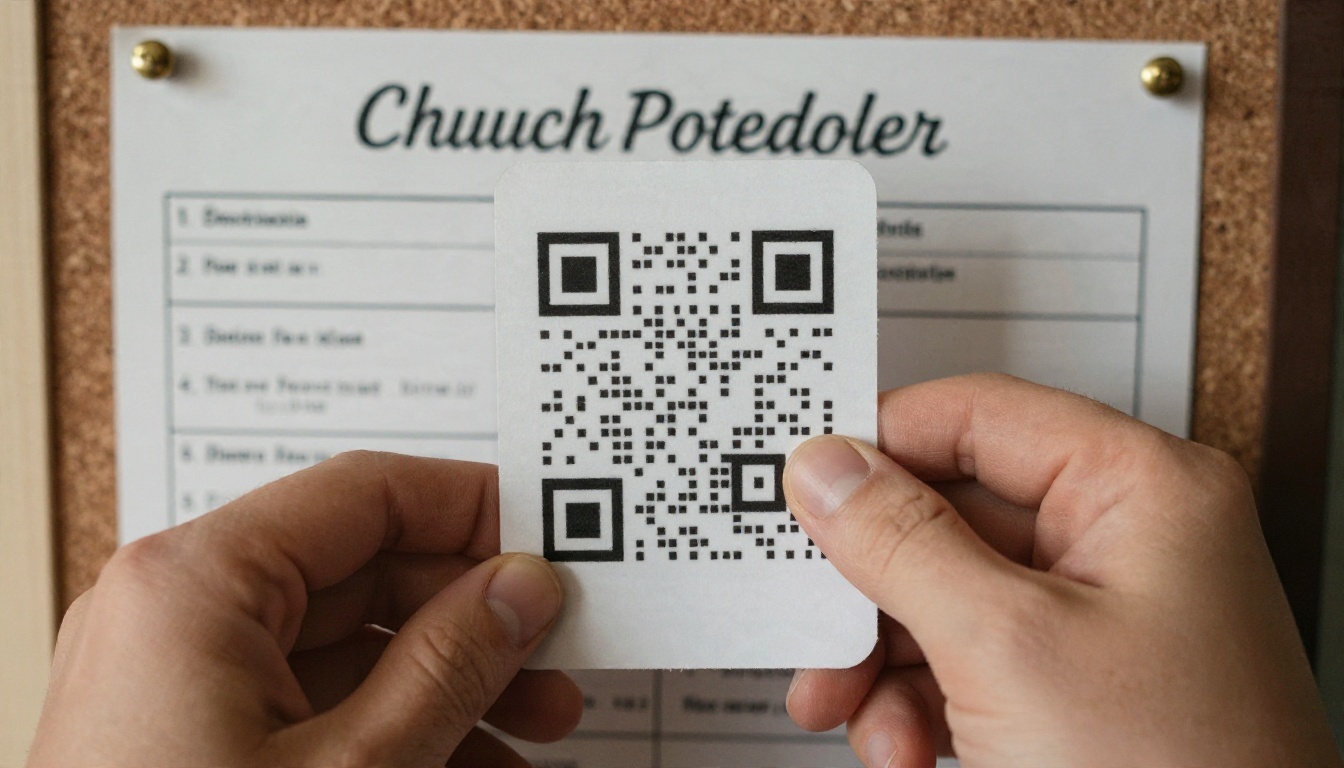
- Print a QR code and tape it to the existing noticeboard.
- Announce the change once from the pulpit or in the school email, with one sentence and the link.
- Keep paper copies for members who prefer them, at least for the first month.
- Retire the old app after you have confirmed that the link works for your regulars.
Three Mistakes to Avoid
- Uploading low resolution scans. Export directly from your design software. A scan of a printed page looks soft on a phone.
- Burying the link. Put it in the email subject line, the website header, and the QR card. People will not hunt for it.
- Forgetting accessibility. Use readable font sizes, strong contrast, and real text instead of text inside images, so the PDF remains easy to read and screen readers can work with it.
Ready to Publish Your First Bulletin
If your team already produces a PDF, you are one upload away from a better bulletin. Create your free account on Flipbooks AI, upload this week's issue, and send the link to one friendly member as a test. Browse all the flipbook tools to find a layout for newsletters, programs, handbooks, or reports, and compare pricing plans when you are ready to add analytics or a members-only archive. Your congregation or your parents will not need to install a thing, and your volunteers will get their Saturday nights back.



