You embedded a product demo into your PDF, sent it to a client, and got back one line: "The video doesn't play." That reply is common, and it is not your fault. The PDF format can technically hold video, but almost nothing outside one desktop app will play it. If you publish catalogs, reports or brochures, you need to know where playback works and where it quietly fails. A platform like Flipbooks AI exists to close exactly that gap.
Here is the short version, followed by the details: which viewers support video, what limits apply, how to prepare your files, and what to use when the PDF route falls short.
The Short Answer
Yes, a PDF can contain video. No, most people will not be able to play it.
Adobe Acrobat Pro lets you place an MP4 on a page as a rich media object. When a reader opens that file in desktop Adobe Acrobat or Reader, the video can play inside the page, usually after a security prompt. Open the same file in Chrome, Firefox, Safari, a phone's built-in viewer, or an email preview, and you typically see a static poster image or a blank rectangle.
💡 Pro tip: If your audience is the general public, assume your PDF is opened in a browser or on a phone. Design for that, not for the one desktop app that supports embedded media.
Why PDFs Struggle With Video
The PDF format was built in the early 1990s to freeze a page layout so it prints the same everywhere. Video support was bolted on later, first through plugins and then through rich media annotations. Each viewer decides for itself whether to implement those features, and most chose not to. Browser vendors in particular favor speed and security, so their built-in PDF readers skip interactive media entirely.
Embedded vs Linked Video
There are two very different things people mean by "video in a PDF":
- Embedded video: the file sits inside the PDF. It makes the document heavy, and only a few viewers can play it.
- Linked video: a button or text link opens a YouTube, Vimeo or hosted file in a browser. This works almost everywhere, but the viewer leaves the page.
Linked video is the safe fallback. Embedded video is the fragile option.
Which Viewers Play Embedded Video
Support varies a lot by app. The table below summarizes typical behavior. Exact results depend on version, operating system and security settings, so test before you send anything important.
| Viewer | Embedded video playback | Typical behavior |
|---|
| Adobe Acrobat / Reader (desktop) | Usually yes | Plays rich media MP4, often after a trust prompt |
| Chrome built-in PDF viewer | No | Shows a static poster or empty box |
| Firefox built-in viewer | No | Static page only |
| Safari / macOS Preview | No | Static page only |
| Microsoft Edge viewer | Generally no | Static page, links still work |
| iOS and Android built-in viewers | Generally no | Static page, links open a browser |
| Adobe Acrobat mobile app | Limited | Inconsistent, depends on version and file |
| Email previews (Gmail, Outlook) | No | Preview shows page image only |

The Adobe Acrobat Exception
Acrobat is the only mainstream viewer where embedded video has a reliable history. In Acrobat Pro you add a video through the rich media tools, choose an MP4 with H.264 video and AAC audio, set a poster image, and save. Readers on desktop Acrobat generally see it play.
Even then, you will hit friction:
- The reader may see a security warning asking them to trust the content.
- Corporate IT policies often disable rich media entirely.
- Older Flash based video no longer works anywhere, since Flash was retired.
- The file size balloons, which makes emailing difficult.
What Browsers Do Instead
When a browser opens your PDF, it renders each page as a picture plus clickable links. It does not run the media layer. That means hyperlinks, bookmarks and form fields may work, while embedded video does not. This is why a "click to play" link beats an embedded file for reach.
Limits You Will Hit in Practice
Even if you accept Acrobat as your audience, several walls remain. This is where many projects stall.

File Size and Email Limits
A one minute 1080p clip can add tens of megabytes. Many email providers cap attachments at roughly 20 to 25 MB, so a video heavy PDF bounces or gets stripped. Hosting the PDF on a cloud drive helps, but then readers download a huge file just to view one page.
Security Blocks
Embedded media is executable-adjacent content, so security teams distrust it. Many organizations disable it by policy, and some antivirus tools flag PDFs that contain rich media. If your recipient works at a bank, a hospital or a government office, expect the video to be blocked.
No Analytics
A PDF tells you nothing about what happened after you sent it. You cannot see whether the video was watched, how far people got, or which page they stopped on. For marketing, sales and training teams, that blind spot is expensive.
Mobile Reality
Most traffic now arrives on phones. Mobile PDF viewers focus on rendering text and images, and embedded video support is minimal. A phone user who taps your "video" usually gets nothing.
⚠️ Warning: Never assume a video works because it played on your own machine. You probably have Acrobat installed with permissive settings. Your reader likely does not.
Test Your PDF Before You Send It
A quick test routine saves embarrassing replies. Run through this list with any PDF that contains media.
- Open the file in Chrome, Firefox and Edge.
- Open it on an iPhone and an Android phone.
- Send it to yourself through Gmail or Outlook and open the preview.
- Open it in desktop Acrobat Reader on a machine you do not normally use.
- Check the file size against your email provider's limit.
If any of those fail, you have three options: switch to linked video, compress and simplify, or move to a format built for multimedia.
Prepare Video the Right Way
Whether you embed, link or move to a flipbook, clean source files make everything easier.
Choose the Right Format
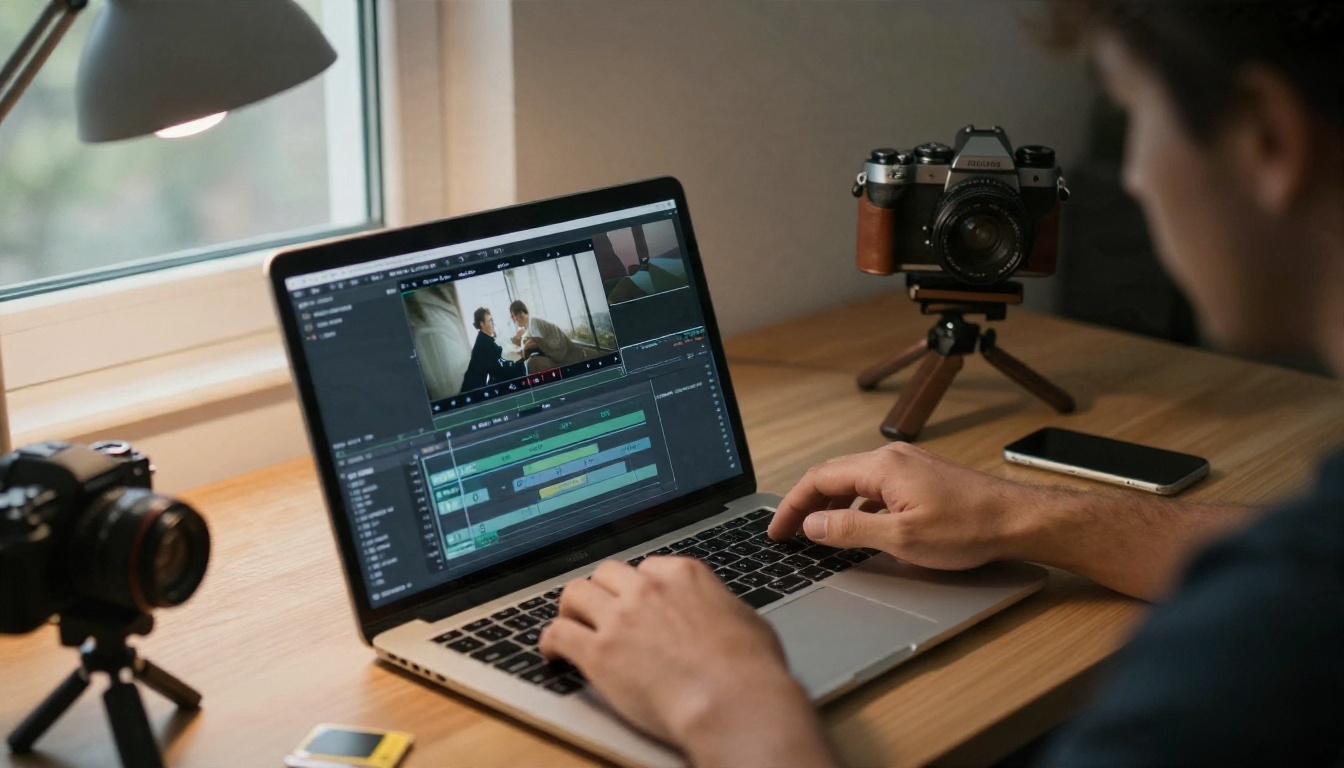
MP4 with H.264 video and AAC audio is the most widely compatible combination. It plays in nearly every browser and operating system. Avoid exotic containers, uncompressed exports and proprietary codecs.
Keep Clips Short
Short clips load faster and hold attention. Aim for 15 to 60 seconds per page. If you have a long webinar, host it on a video platform and link to it from the page instead of embedding the raw file.
Compress Without Wrecking Quality
Export at 720p or 1080p, use a moderate bitrate, and trim any dead air at the start. Here is a rough guide to what to expect:
| Clip length | Resolution | Approximate size | Best use |
|---|
| 15 seconds | 720p | 3 to 6 MB | Product teaser |
| 30 seconds | 1080p | 10 to 20 MB | Demo or promo |
| 60 seconds | 1080p | 20 to 40 MB | Feature walkthrough |
| 5 minutes | 1080p | 100 MB and up | Host externally and link |
Add a Poster Image and Captions
A poster frame gives the page a clean look even where playback fails. Add captions or a short text description next to the video so people who cannot press play still get the message.
✅ Best practice: Always add a text line such as "Watch the 40 second demo" with a visible link under any embedded video. It works as a fallback in every viewer.
Flipbooks Play Video on Any Device
A flipbook turns your PDF into a web page that behaves like a book. Because it runs in the browser rather than in a PDF viewer, video plays wherever a normal web page plays video. That includes phones, tablets, laptops and embedded website widgets.

PDF vs Flipbook Side by Side
| Feature | Plain PDF | Flipbook |
|---|
| Video playback in browsers | Rarely | Yes |
| Video on phones | Rarely | Yes |
| Page turn effect | No | Yes |
| Share as a single link | Needs hosting | Built in |
| Embed on a website | Awkward | Simple embed code |
| Reader analytics | None | Available on higher plans |
| Password protection | Basic | Built in |
| File size for readers | Whole file downloaded | Loads progressively |
Why It Works on Mobile
A flipbook is responsive. The layout adjusts to the screen, and video uses the device's standard player. No plugin, no trust prompt, no corporate policy fight. A reader on a train taps the page and the clip starts.
How to Add Video to a Flipbook
The workflow with Flipbooks AI takes a few minutes. Your PDF stays the source of truth, and you layer video on top.
Step by Step
- Create your account. Go to Flipbooks AI and sign up. You can try the platform before choosing a plan.
- Upload your PDF. Use the PDF to Flipbook Converter. Each page becomes a flipbook page, and text and images stay sharp.
- Add your video. Place a video on the page where it belongs, either by uploading a file or pointing to a hosted clip. Audio can be added the same way.
- Customize the look. Set your logo, brand colors and page effects, so the flipbook looks like your company, not a template.
- Preview on desktop and phone. Check that the video starts, that the poster frame looks right, and that the page turn feels natural.
- Share it. Copy a direct link, or use the embed code to place the flipbook on your site. Add a password if the content is private.
Pro Features Worth Using
Higher plans add the tools that PDFs cannot offer at all:
- Analytics: see which pages get opened and where readers drop off.
- Lead generation: ask for an email before the flipbook opens.
- Offline downloads: let readers save a copy for later.
- No watermarks: your brand stays clean on every plan.
- Unlimited flipbooks: available on the Standard plan and above.
Compare options on the pricing page to see which tier matches your volume.
💡 Pro tip: Keep the original PDF for printing and downloads, and publish the flipbook for screens. You get both without redoing the layout.
Real Scenarios Where Video Matters
Different teams use embedded video differently. The right choice depends on who reads the document and where.

Product Catalogs
A furniture brand can show a 20 second clip of a table being assembled right beside the product photo. Shoppers see scale, finish and function without leaving the page. The Product Catalog Generator and the Digital Catalog Maker fit this use well.
Real Estate Brochures
An agent can place a short walkthrough on the page for each listing, then send one link to buyers. The Real Estate Brochure Creator handles the layout, and buyers can watch the walkthrough from a phone without installing anything.

Training Manuals
Safety procedures and onboarding steps are easier to follow when a short clip demonstrates them. A Training Manual Flipbook keeps text, diagrams and demonstration clips on one page, and analytics show which sections employees actually open.
Menus and Price Lists
A restaurant can add a brief clip of a signature dish being plated. The Restaurant Menu Creator keeps the menu easy to update, so seasonal changes do not mean a new PDF every week.
Which Option Fits Which Case
| Situation | Best choice | Reason |
|---|
| Internal file for Acrobat users only | Embedded PDF video | Works in the one supported viewer |
| Public download from a website | Linked video in PDF | Works in any browser |
| Marketing catalog or brochure | Flipbook | Plays everywhere, tracks reads |
| Email attachment | Link to hosted flipbook | Avoids size limits |
| Private client presentation | Password protected flipbook | Control over access |
Common Mistakes to Avoid
Most failed video PDFs share the same few problems.
- Testing only in Acrobat. A file that plays for you may fail for everyone else.
- Embedding long videos. Big files bounce from inboxes and frustrate readers.
- Skipping the fallback link. Without a text link, a failed player leaves nothing to click.
- Forgetting mobile. Check every clip on a phone before you publish.
- Ignoring analytics. If you cannot see viewing behavior, you cannot improve the content.
⚠️ Warning: Do not rely on screenshots of a video player pasted into a page. Readers click them, nothing happens, and trust drops fast.
Ready to Make Your Video Play
Embedding video in a PDF is possible, but it is a narrow path: one desktop app, a security prompt, a heavy file and no insight into what happens next. For anything meant to reach customers, clients or students, a flipbook gives the same layout with playback that works in a browser, on a phone, and inside your website.
Convert your first document today. Get started for free on Flipbooks AI, browse the full list of flipbook tools, or compare pricing plans to pick the tier that fits your video and analytics needs.



