You have a polished PDF, a client waiting in your DMs, and a paperclip icon that simply isn't there. Instagram's chat was built for photos, videos, and voice notes, not documents, so the PDF you spent hours on has nowhere to go. The good news: a link does the same job, and a well-prepared link often does it better. In this article you'll see exactly what Instagram allows, where the limits bite, and how a tool like Flipbooks AI turns a plain PDF into a page-turning link that opens in one tap.
💡 Quick answer: No, you can't attach a PDF file in an Instagram DM. You can send a link to your PDF, a flipbook, or a cloud file, and Instagram will make that link clickable in the chat.
The Short Answer on Instagram PDFs
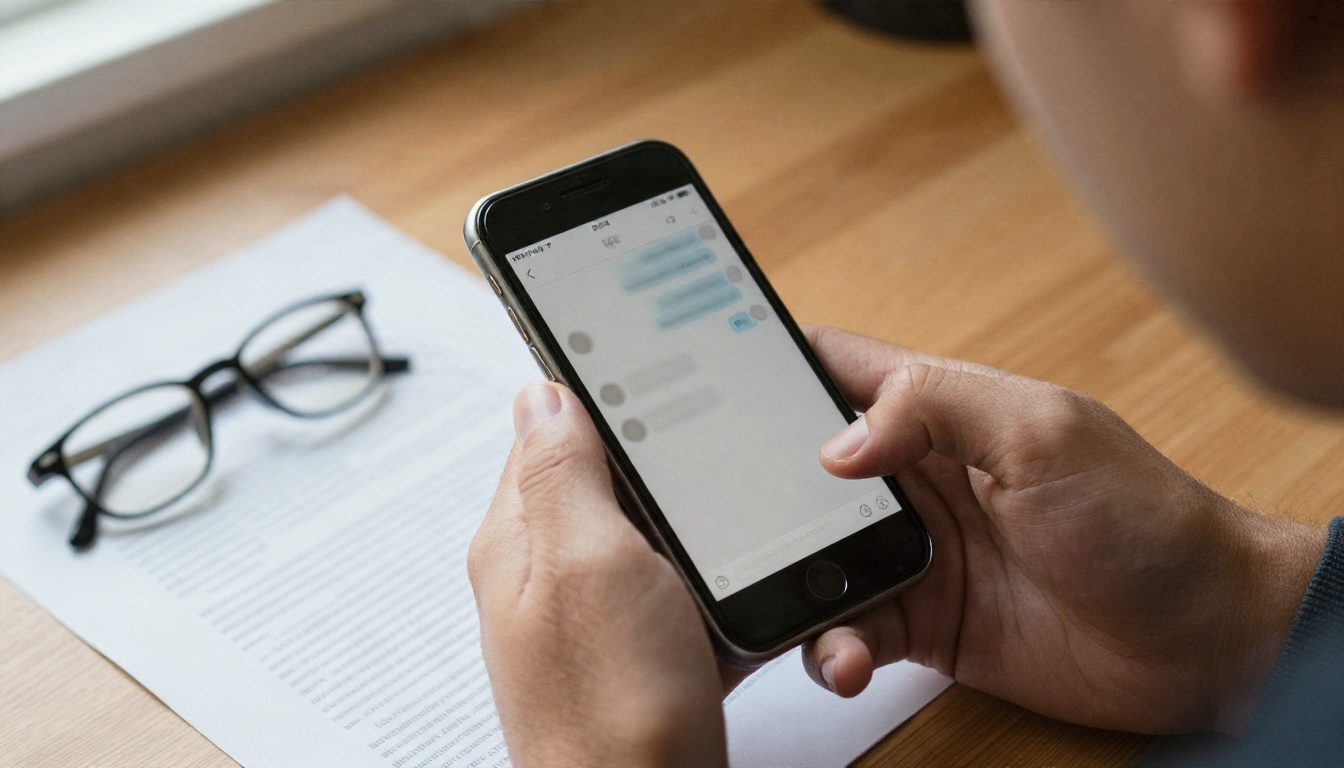
Instagram has focused its messaging on visual content. At the time of writing (November 2026), the chat composer lets you send images, videos, voice messages, GIFs, stickers, posts, and links. It does not offer a document picker, so there is no native way to attach a PDF, a Word file, or a ZIP archive. Features do change, so check your own app, but plan around the limitation because it has stayed in place for years.
What DMs Actually Accept
Here is how the most common file types behave when you try to send them through Instagram direct messages.
| Content type | Can you send it in a DM? | Notes |
|---|
| Photo | Yes | Compressed on upload, small text gets blurry |
| Video | Yes | Length and size limits apply, quality drops |
| Voice message | Yes | Good for quick explanations |
| GIF or sticker | Yes | Built into the composer |
| Link (URL) | Yes | Clickable, shows a preview in most cases |
| PDF file | No | No document attachment option |
| Word, Excel, ZIP | No | Same restriction as PDF |
Why Instagram Blocks Documents
There are a few practical reasons, and none of them are personal. Documents can carry malware, which is a real concern in a chat app with billions of users. Files also create storage and moderation headaches, since Instagram scans media for policy violations and a PDF is harder to scan at scale than a photo. Finally, the product direction is clear: the platform wants people to stay inside a visual feed, not trade spreadsheets.
For you as a sender, the takeaway is simple. Stop searching for a hidden attachment button and start thinking in links.
Instagram DM Limits You'll Hit
Even without PDFs, DMs come with ceilings that affect how you share work. Knowing them saves you from a frustrating back and forth with a prospect.
Media and Message Caps
Photos and videos sent in chat are compressed, so a screenshot of a price list can turn soft and unreadable on a client's phone. Videos have length and file size caps, and multi-photo sends are limited per message. Voice notes have a time ceiling too. Instagram doesn't publish a tidy limits chart and the numbers shift between app versions, so treat any exact figure you see online with caution.
Practical consequences:
- Multi-page documents can't travel as one item. You'd have to send many images.
- Fine print (terms, tables, specs) gets damaged by compression.
- File names, page counts, and metadata disappear when you screenshot.
- Large catalogs become dozens of separate messages that are hard to follow.
Link Behavior in Messages
Links in DMs are clickable, which is why they are your best option. A few quirks are worth knowing:
- Links from people you follow open normally.
- Links from strangers land in message requests, where they can be filtered or ignored.
- Some long or unusual URLs get flagged as suspicious, especially from new accounts that send many links quickly.
- Link previews depend on the destination page having proper preview data.
⚠️ Warning: If you send the same link to many new contacts in a short window, Instagram's spam systems may restrict your messaging. Space out outreach and personalize each message.

Five Workarounds That Actually Work
Let's walk through every realistic way to get a PDF's content in front of someone through Instagram.
Send a Link Instead
Host the PDF somewhere public and paste the URL into the chat. It takes ten seconds and the recipient reads on their own device without downloading anything extra. The quality of that hosting page matters a lot, which we'll compare below.
Screenshots and Image Carousels
You can export each PDF page as an image and send them as photos, or post them as a carousel. This works for a two or three page flyer. It falls apart for anything longer: compression hurts legibility, there's no search, no zoom comfort, and no link clicks inside the pages.
Cloud Drive Links
Google Drive, Dropbox, and OneDrive all produce shareable URLs. They're free and familiar. The downside is the experience: on mobile, many recipients hit a sign-in prompt, an "open in app" nag, or a plain gray viewer with no branding.
Move the Chat to Email or WhatsApp
You can ask for an email address or a WhatsApp number and send the PDF there. This is reliable for serious deals, but you create friction. Some people won't leave Instagram, and asking for contact details too early can end the conversation.
Here's how the five options compare.
| Workaround | Speed | Mobile reading | Branding | Tracking views | Best for |
|---|
| Link to a flipbook | Fast | Excellent | Full | Yes (Pro) | Catalogs, portfolios, menus |
| Cloud drive link | Fast | Average | None | Limited | Internal or casual sharing |
| Screenshots as photos | Slow | Poor | None | No | One page flyers |
| Carousel post | Slow | Fair | Some | Basic insights | Teasers, not full documents |
| Email or WhatsApp handoff | Medium | Good | Depends | Rarely | Contracts, private files |

Why a Flipbook Beats a Raw PDF Link
A bare PDF link opens a viewer that was designed for desktop monitors. On a phone, the reader pinches, drags sideways, loses their place, and often gives up by page three. Most Instagram traffic is mobile, so the viewing experience decides whether your document gets read.
A flipbook is the same content wrapped in a mobile-responsive reader with realistic page turns, fast loading, and a clean URL. Nothing to download. No app prompt. No sign-in wall.
| Feature | Raw PDF link | Cloud drive link | Flipbook link |
|---|
| Opens in one tap on mobile | Sometimes | Often needs sign-in | Yes |
| Page-turning feel | No | No | Yes |
| Custom branding and colors | No | No | Yes |
| Password protection | No | Basic permissions | Yes |
| Embedded video and audio | No | No | Yes |
| View analytics | No | Limited | Yes (Professional plan) |
| Watermarks | None | None | None on Flipbooks AI |

Think about who is on the other end. A buyer scrolling between Stories wants something instantly readable. If your link opens a crisp, branded reader that fits their screen, you look prepared. If it opens a clunky gray viewer, you look like everyone else.
How to Create a Flipbook with Flipbooks AI
If you want the link-based route done properly, this takes about five minutes. Start by opening Flipbooks AI and creating a free account.

Upload Your PDF
- Sign in and choose to create a new flipbook.
- Drag your PDF into the upload area, or pick it from your computer. The PDF to Flipbook Converter processes each page and keeps text sharp.
- Wait a few moments while the pages convert. Your screen will show the flipbook preview with the first page open.
💡 Tip: Export your PDF at a sensible file size before uploading. A compact file loads faster for people on mobile data, which is exactly where Instagram readers are.
Customize the Look
Once the preview loads, open the design settings. This is where a plain document turns into something that looks like your brand.
- Branding: add your logo and match the background to your palette.
- Colors: pick tones for the toolbar and buttons so they echo your Instagram profile.
- Page effects: choose how pages turn, from a soft curl to a simple slide.
- Multimedia: embed videos and audio to bring a product demo or a voice greeting into the page.
If you share portfolios, the Digital Portfolio Creator fits well. For product lines, try the Digital Catalog Maker.
Share the Link
When the design looks right, publish and copy your link. You then have three main sharing options:
- Direct link: paste it into a DM, a Story link sticker, or your bio.
- Embed code: place the flipbook on your site using the Embed Flipbook on Website tool, then share that page URL.
- Password protection: lock private material, such as a client proposal, and send the password in a separate message.
Pro Features Worth Using
On the Professional plan you get analytics to see how many people opened your flipbook and how far they read, plus lead generation forms that collect an email before someone reads the full document. You can also allow offline downloads so a reader can save a copy. Standard plans and above include unlimited flipbooks, and no plan adds a watermark. See the pricing plans for the full breakdown.
Using Links in Bio, Stories, and DMs
Having a good link is half the work. Placing it where people will tap is the other half.
Link in Bio
Your profile is permanent real estate. Instagram lets profiles list several links now, so give your flipbook a clear label such as "Spring catalog" or "Rate card." In DMs, you can simply say "It's in my bio" when a link request feels awkward to type out, though a direct link is always faster for the reader.

Story Link Sticker
Stories support a link sticker that viewers can tap. Post a short Story with a teaser photo from your PDF, add the sticker, and write "Tap to flip through." Because a flipbook opens quickly on mobile, viewers stay long enough to actually read.
Saved Replies for Business
If you run a business account, create a saved reply (sometimes called quick replies) that holds your flipbook link and a friendly line. When someone asks "Do you have a price list?", you answer in one tap. This is the closest thing to an instant "attachment" Instagram offers.
Here's a sample message you can copy and adapt:
"Thanks for asking! Here's our latest catalog, it opens right in your phone and you can flip through the pages: [your flipbook link]. Tell me which items catch your eye and I'll share availability."
Real Examples from Small Businesses
Seeing the pattern in action makes it easier to copy.
- A boutique owner receives DMs asking about new arrivals. She exports her lookbook as a PDF, converts it to a flipbook, and keeps the link in a saved reply. Customers browse the pages and reply with item numbers.
- A freelance designer used to send five screenshots per inquiry. Now she shares one portfolio flipbook link, protects client work with a password, and checks analytics to see which projects get the most attention.
- A small agency sends proposals to leads who first contacted them on Instagram. The proposal sits behind a lead form, so the team gets the prospect's email before the full document opens.
- A café owner shares a seasonal menu using the Restaurant Menu Creator, then updates the file whenever prices change without resending anything.

Three Mistakes to Avoid
- Sending a huge file link with no preview. A raw download link can look suspicious. Use a branded page people recognize as safe.
- Pasting the link with no context. Always add one sentence about what's inside and why it helps them.
- Forgetting mobile. Open your own link on a phone before sending. If it takes more than a couple of seconds or needs a login, fix it first.
✅ Best practice: Test your link from a second account that doesn't follow you. That shows what a stranger in a message request would see.
Send Your PDF the Smart Way
Instagram won't let you attach a PDF, and that's unlikely to bother the people you're messaging as long as your link is quick and good-looking. Turn the document into a flipbook, keep the link handy in a saved reply, and place it in your bio and Stories.

Ready to try it? Get started for free on Flipbooks AI, browse all available tools and templates to find the right format for your content, or compare pricing plans to see when analytics and lead capture make sense for your business.



