Company Newsletter Topics: Ideas for Employees, Content Sections and Free Template
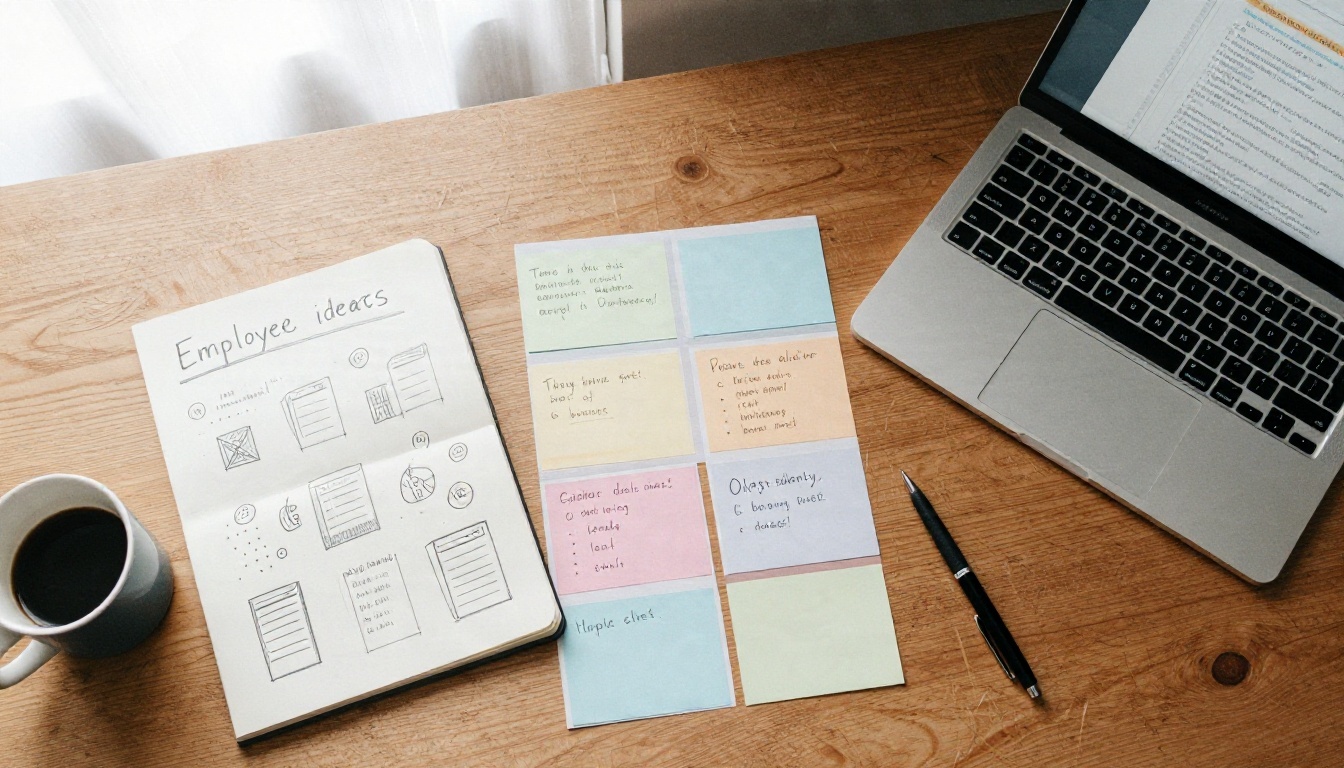
Stuck on what to put in your next internal newsletter? This article lists 30 company newsletter topics employees open and finish, shows the content sections that work, and gives you a free template plus a simple way to publish it as a flipbook.
Most internal newsletters die the same way. The first issue is packed with leadership messages, the second one arrives late, and by the fourth issue nobody opens it. The problem is rarely effort. It is almost always the topics. When a newsletter is built around what the company wants to say instead of what employees want to read, it gets ignored. This article gives you 30 company newsletter topics that people actually finish, the content sections that keep each issue easy to scan, and a free template you can copy today. When your draft is ready, you can turn the PDF into a page-turning issue with Flipbooks AI and send one clean link to the whole team.
Why Employee Newsletters Still Work
Chat tools are fast, but they are also noisy. Important updates get buried between GIFs and quick questions. A newsletter gives you one calm, curated place where news, people and useful tips live together. It also creates a record: a monthly issue can be saved, searched and shared with new hires who join six months later.
What Staff Actually Want
Ask employees what they want from internal communication and the answers are surprisingly consistent. They want to know what is changing, why it matters to their work, and who is behind the names in the org chart. They also want a little fun. A newsletter that delivers those four things earns attention without begging for it.
Clarity: short updates with a clear "what this means for you" line.
Faces: real people, real photos, real stories.
Usefulness: tips, shortcuts and reminders that save time.
Belonging: recognition, milestones and community moments.
Newsletter vs Email vs Chat
Not every message belongs in a newsletter. Use this quick comparison to decide where each type of update should live.
Channel
Best for
Weak at
Typical read time
Team chat
Quick questions, urgent alerts
Anything people need to find later
Seconds
All-staff email
Single announcements, policy notices
Storytelling, visuals
1 minute
Intranet page
Reference material, HR documents
Pushing news to people
Varies
Newsletter
Stories, roundups, recognition, context
Time-critical alerts
4 to 7 minutes
💡 Pro tip: Send urgent news by email or chat, then add the full story to the next newsletter. Employees learn that the newsletter is where the context lives.
30 Company Newsletter Topics Employees Read
Below are 30 topics grouped by what they do for the reader. You do not need all of them in every issue. Pick one or two from each group and rotate the rest.
Company News and Leadership Updates
This is the section most newsletters lead with, and most readers skip. The fix is to keep it short and attach a human angle.
Quarter in numbers: three figures, one sentence each, no jargon.
Wins of the month: a signed client, a shipped feature, a safety record.
Leadership Q&A: one executive answers three questions submitted by staff.
What changed and why: a plain-language note on any new policy or process.
Roadmap preview: what the company is working on next quarter.
Customer voice: a short quote or story from a real customer.
Open decisions: what leadership is still deciding and how staff can weigh in.
People and Culture Stories
People read about people first. These topics build the sense that the company is more than a logo.
New joiner spotlight: a photo, a role summary and two fun facts.
Work anniversaries: names, years and one memory from a teammate.
Day in the life: follow one role from morning to evening, especially roles other teams rarely see.
Internal promotions: how someone moved up and what advice they have.
Team shout-outs: peer-nominated thanks for help that went unnoticed.
Behind the desk: a short interview with someone from finance, IT or facilities.
Volunteer and community days: photos and results from company-supported causes.
Work Tools and Practical Tips
These are the sections people forward to colleagues, which is the best sign of a useful newsletter.
Tool of the month: one feature of software your team already owns.
Security reminder: one clear habit, such as spotting a phishing message.
Benefits reminder: deadlines for enrollment, wellness budgets, learning stipends.
Process refresher: how to book travel, submit expenses or request equipment.
Training calendar: upcoming workshops with dates and sign-up links.
Ask IT or HR: answers to the three most common questions this month.
Fun and Community Topics
A little lightness makes the heavier sections easier to read.
Photo of the month: a team-submitted picture from the office or the road.
Book, podcast or playlist picks: recommendations from different departments.
Mini quiz or puzzle: answers revealed in the next issue.
Pet and family corner: optional, photo-based and always opt-in.
Local lunch spots: a rotating map of favorites near each office.
Birthday and celebration board: names only, with consent.
Office history: an old photo of the building, the first product or the first team.
Wellness break: a stretch, a walking route or a recipe.
Staff poll results: what the team voted for and what happens next.
Here is how these groups map to different audiences, so you can tailor the mix.
Audience
Best topic groups
Suggested split per issue
Office teams
News, tools, culture
30% news, 30% tools, 40% culture
Remote teams
Culture, community, tools
20% news, 30% tools, 50% culture and fun
Frontline and shift workers
Recognition, benefits, safety
30% news, 40% practical, 30% recognition
Small businesses under 50
Wins, people, customer stories
25% news, 25% tools, 50% people
⚠️ Watch out: Avoid topics that single people out without permission, such as personal milestones, health or family details. Always ask first.
Content Sections That Keep Readers Coming Back
Topics give you material. Sections give you a rhythm. When readers know that page two always holds the people story and page four always holds the practical tip, they scan faster and trust the format.
A Repeatable Section Structure
Aim for five to seven recurring sections. Anything more and the newsletter starts to feel like a binder.
Top story: the one thing everyone should know, in 150 words or fewer.
People spotlight: a photo-led profile or recognition.
Tip or tool: something useful the reader can apply the same day.
Dates to remember: deadlines, events, holidays.
Community corner: a poll, a quiz or a photo.
Call to action: one clear request, such as completing a survey or joining an event.
Sample Issue Layout
Use the table below as a blueprint for a six-page issue. It works well as a PDF and translates cleanly into a digital flipbook.
Page
Section
Word count
Visual
1
Masthead and top story
150
Large header photo
2
People spotlight
200
Portrait and pull quote
3
Company wins and numbers
150
Simple chart or icons
4
Tool of the month and tips
200
Screenshot or checklist
5
Dates, events, benefits
120
Calendar-style table
6
Community corner and next steps
150
Photo grid
✅ Best practice: Keep each section visually distinct with a consistent heading color, but use the same fonts across every issue. Familiarity makes the newsletter feel official without making it stiff.
Free Company Newsletter Template
Copy the structure below into Word, Google Docs, Canva or any design tool you already use. Replace the bracketed text, export as a PDF and you have a ready issue.
[COMPANY NAME] NEWSLETTER
Issue [number] | [Month, Year]

TOP STORY
Headline: [One clear sentence]
Summary: [Two to three short paragraphs]
What this means for you: [One line]

PEOPLE SPOTLIGHT
Name and role: [Name, team]
Three questions: [Q1 / Q2 / Q3]
Photo: [Portrait, natural light]

WINS OF THE MONTH
1. [Win and who made it happen]
2. [Win and who made it happen]
3. [Win and who made it happen]

TOOL OR TIP OF THE MONTH
What it is: [Feature, shortcut or habit]
How to use it: [Three steps]

DATES TO REMEMBER
[Date] [Event or deadline]
[Date] [Event or deadline]

COMMUNITY CORNER
[Poll, quiz, photo of the month or book pick]

NEXT STEP
[One action you want readers to take]
Contact: [Name and email of the editor]
How to Fill It Fast
Writing the whole issue from scratch is what burns people out. Use this speed routine instead:
Collect submissions during the month in one shared document.
Ask two people for photos and three people for short quotes.
Write the top story last, once you know what else is in the issue.
Read the draft aloud once. If a sentence is hard to say, shorten it.
Export as a PDF and send it for a quick check by one leader and one non-manager.
How to Create Your Newsletter with Flipbooks AI
A PDF attachment is easy to ignore and hard to open on a phone. A flipbook solves both problems. Readers get a page-turning issue in the browser, with no download, no login and no pinching to zoom. The Newsletter Flipbook Publisher is built for this exact job, and every issue stays free of watermarks.
Click to start a new flipbook and drag in your newsletter PDF. The PDF to Flipbook Converter turns each page into a flippable spread in seconds.
Check the preview. Pages should appear in order, with links and images sharp on both desktop and mobile.
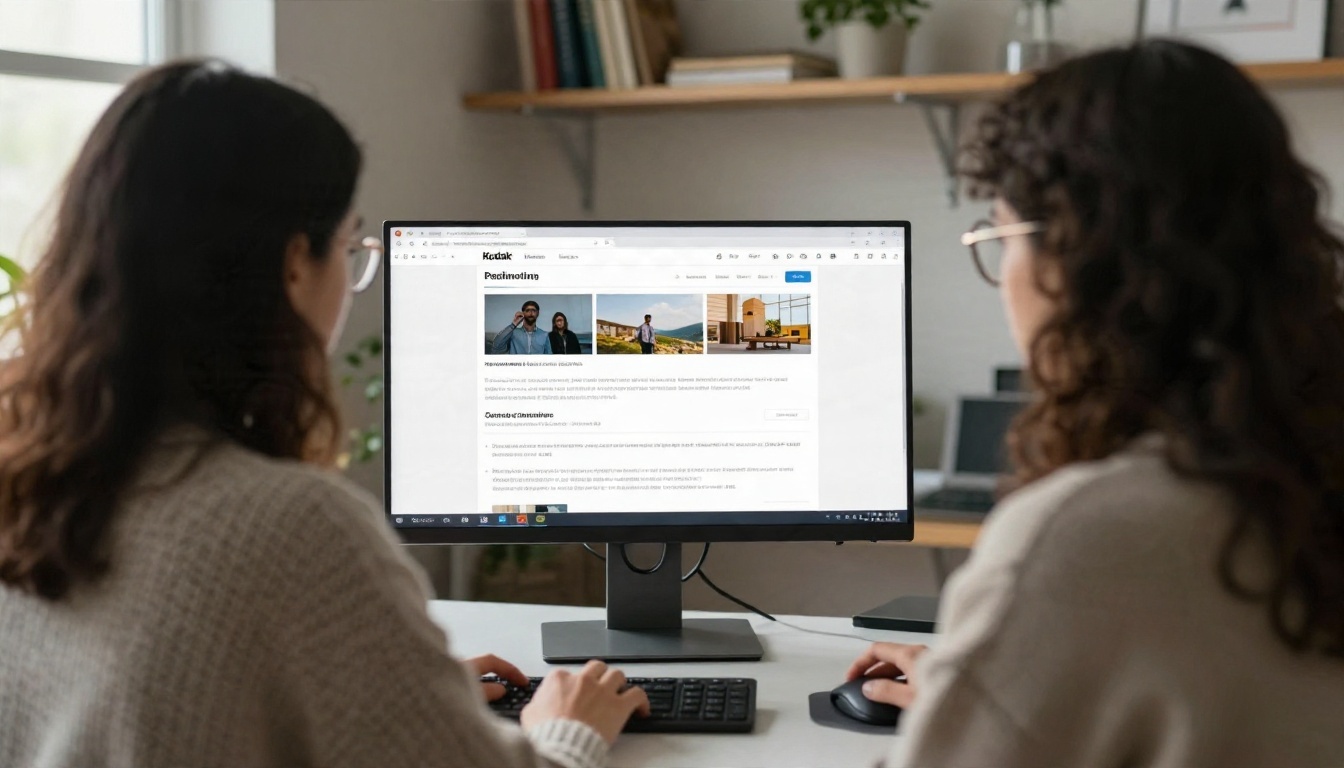
💡 Screenshot description: After upload you will see a thumbnail strip of your pages on the left, a live preview in the center and a settings panel on the right.
Brand and Customize
Open the settings panel and match the flipbook to your company identity:
Custom branding: add your logo and set the background color to your brand palette.
Page effects: choose the page-turn style and sound that feels right for your culture.
Multimedia: embed a short welcome video from a leader or an audio message for a special edition.
Mobile layout: the flipbook is responsive, so shift workers can read it on a phone in the break room.
Share and Protect
Once the issue looks right, you have several ways to get it to people:
On the Professional plan you get analytics and lead generation. For an internal newsletter, analytics tells you which pages people spend time on and where they drop off. If the people spotlight on page two gets the most attention, give it more space next month. If nobody reaches page five, move the dates and deadlines forward. Compare options on the pricing page to see which plan fits your team size.
Build a Calendar You Can Keep
A newsletter does not need to be monthly. It needs to be predictable. A smaller issue that always lands on the first Tuesday beats a big one that arrives whenever someone has time.
A Simple Monthly Schedule
Week
Task
Owner
Week 1
Send call for submissions and photos
Editor
Week 2
Collect stories, interview the spotlight person
Editor and contributors
Week 3
Draft, design and send for review
Editor and one reviewer
Week 4
Final edits, convert to flipbook, publish
Editor
For frontline or school-style communities, you may also like the School Newsletter Creator for a more event-driven format, or the Training Manual Flipbook tool when you want to turn a recurring tip section into a lasting reference.
3 Common Mistakes
Making it a leadership broadcast. If more than a third of the issue is executive messaging, readership drops. Share the space.
Writing for everyone and no one. A newsletter for office staff and shift workers needs different tones and timing. Segment when you can.
Skipping the feedback loop. Add a one-question poll at the end of every issue: "What should we include next time?" Then actually use the answers.
⚠️ Warning: If you promise a regular schedule and miss two issues in a row, readers stop expecting it. Start with a quarterly cadence if monthly feels risky, then speed up.
Your Next Issue Starts Today
You now have 30 topics, a section structure, a six-page layout and a template. The only missing piece is the first draft. Pick three topics from the lists above, fill in the template, and export it as a PDF.
Ready to publish? Get started for free on Flipbooks AI and turn your PDF into a clean, mobile-friendly issue with one shareable link. Browse all flipbook tools to find formats for annual reports, press kits and more, or compare pricing plans to choose the one that fits your team.