You bought the pretty notebook in January, abandoned it by March, then downloaded three apps that now sit unopened on your phone. Sound familiar? Choosing between a digital or paper planner is less about taste and more about how your days actually run. This article breaks down the real trade-offs, points you to free templates, sorts mobile app options by type, and puts honest numbers on printing costs. You will also see how a simple PDF planner can become a page-turning online version with Flipbooks AI, so you get the feel of paper with the convenience of a link.
Digital or Paper: Which Fits You?
Neither format wins outright. Paper rewards slow, deliberate planning. Digital rewards speed, reminders and flexibility. Most people who stick with a system for a full year end up with a blend of the two.
Side by Side Comparison
| Factor | Paper planner | Digital planner or app |
|---|
| Setup time | Minutes | 30 to 90 minutes for a custom setup |
| Upfront cost | $10 to $40 for a bound planner | Free to about $30 for a template pack |
| Ongoing cost | Yearly refill or reprint | Free tier or a monthly subscription |
| Reminders | None unless you check it | Automatic alerts and repeats |
| Editing | Crossing out, rewriting | Instant drag, copy and undo |
| Battery needed | No | Yes |
| Searchable | No | Yes |
| Memory benefit | Strong, handwriting aids recall | Moderate |
| Sharing | Photo or scan only | Link, sync or shared calendar |
Who Thrives on Paper
Paper suits people who plan once a day, enjoy a ritual, and get distracted the moment a screen lights up. If you think best with a pen, a physical page forces you to choose what matters, because space is limited. Students, writers and anyone who journals alongside planning tend to stay loyal to it.
Who Thrives on Digital
Digital suits people with unpredictable schedules, shared commitments or a lot of recurring tasks. If your week changes three times before Wednesday, rewriting a page gets old fast. Parents coordinating school runs, freelancers juggling client deadlines and small teams usually move to apps for the reminders alone.
💡 Quick test: Look at how you handled your last three appointments. If you wrote them down in one place and remembered to check it, paper works. If you relied on a phone alert, go digital or at least hybrid.

Where to Find Free Templates
Free templates are everywhere, but quality varies wildly. A good one has generous writing space, consistent margins and a layout that matches how you think, whether that is by day, by week or by project.
Printable PDF Layouts
Printable PDFs are the easiest starting point. Look for these formats:
- Weekly spreads with a two page layout and a notes column
- Daily pages with hourly blocks and a top three priorities box
- Monthly calendars with space to jot deadlines
- Habit trackers with a 31 day grid
- Meal planners with a linked shopping list area
- Budget sheets for monthly income and spending
Many design blogs, office suite template galleries and community marketplaces offer these at no charge. Check the file's page size before downloading, because A5, Letter and Half Letter all print differently.
Templates Built Into Apps
Most note and calendar apps ship with starter layouts. Task managers include project boards, and notebook apps include daily and weekly pages. These cost nothing, and they are the quickest way to test whether digital planning suits you before you spend a cent.
Spotting a Template Worth Keeping
Before you commit, run any template through this checklist:
- Is there enough room to write your longest typical entry?
- Does it include a spot for the one thing that matters most today?
- Can you edit it, or is it locked?
- Does it print cleanly in black and white?
- Will it still make sense on a messy week?
| Template type | Best for | Typical cost | Editable |
|---|
| Free printable PDF | Paper users on a budget | $0 | Usually no |
| App starter layout | Beginners testing digital | $0 | Yes |
| Paid tablet planner pack | Stylus users | $5 to $30 | Limited |
| Custom spreadsheet | Budget and habit tracking | $0 | Yes |
⚠️ Watch the licence. Many free templates allow personal use only. If you plan to share or sell a planner you adapted, check the terms first.
Mobile App Options Worth Trying
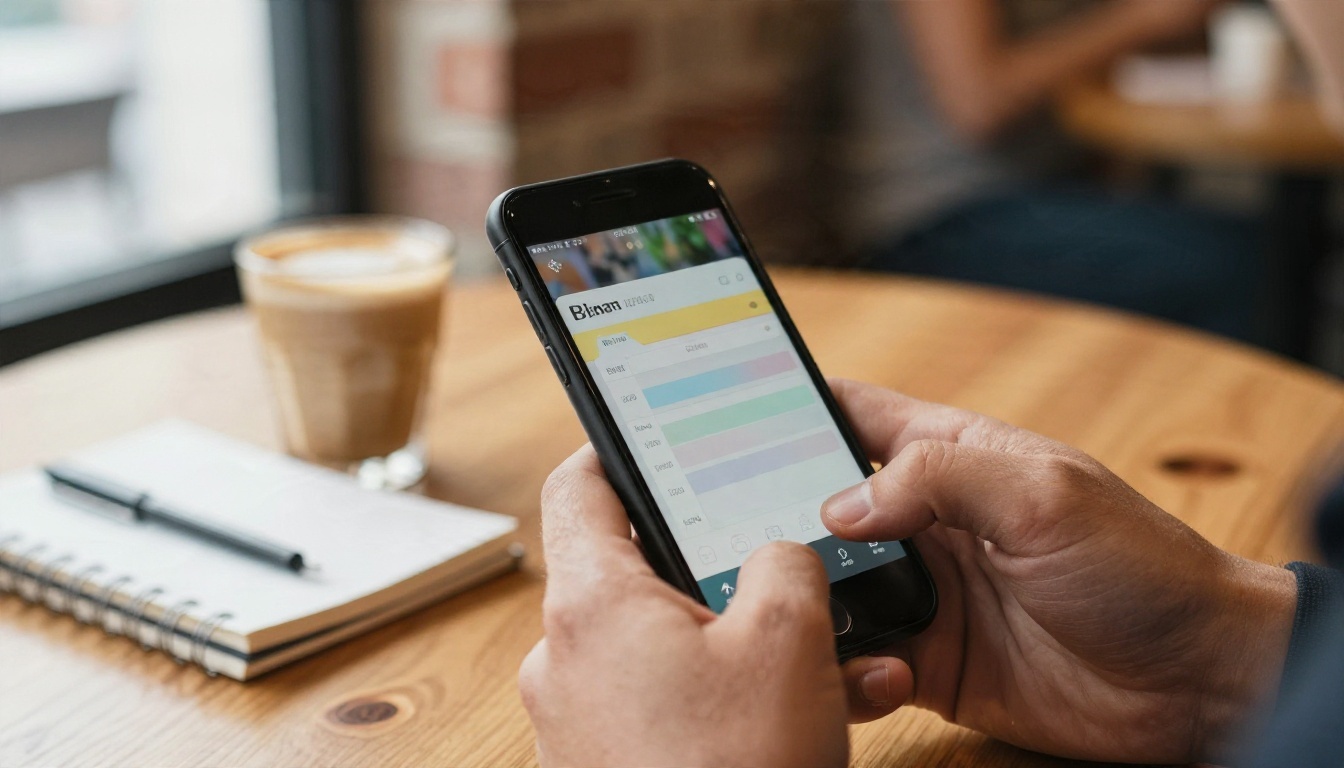
The app store is crowded, so think in categories rather than brand names. Pick the category that matches your habits, then test two or three apps inside it.
Calendar First Apps
These put time at the centre. You see your day as blocks, and tasks sit on the schedule. They shine for people with many meetings or fixed commitments. Most are free, with paid tiers for extras like shared families or smart scheduling.
Note and Stylus Apps
If you love handwriting but want the screen, tablet notebook apps let you write on digital planner pages with a stylus. You can import a PDF planner, add stickers, move pages and search handwriting. Expect a one time purchase or a modest subscription, plus the cost of a tablet and stylus if you do not own them.
Task Manager Apps
These are list driven. You capture tasks, add due dates, tag projects and let the app surface what is due today. They suit anyone whose life is a pile of small jobs rather than a calendar of events. Free tiers usually cover personal use well.
| App category | Strength | Weak spot | Typical price |
|---|
| Calendar first | Time blocking, alerts | Clunky for long lists | Free to $5 per month |
| Note and stylus | Handwriting feel | Needs tablet | One time $10 to $30 |
| Task manager | Fast capture, recurring tasks | Less visual | Free to $8 per month |
| All in one workspace | Custom dashboards | Easy to over build | Free to $10 per month |
✅ Best practice: Trial one app for a full two weeks before judging it. The first three days always feel awkward, so give it time before you switch.
The Real Cost of Printing
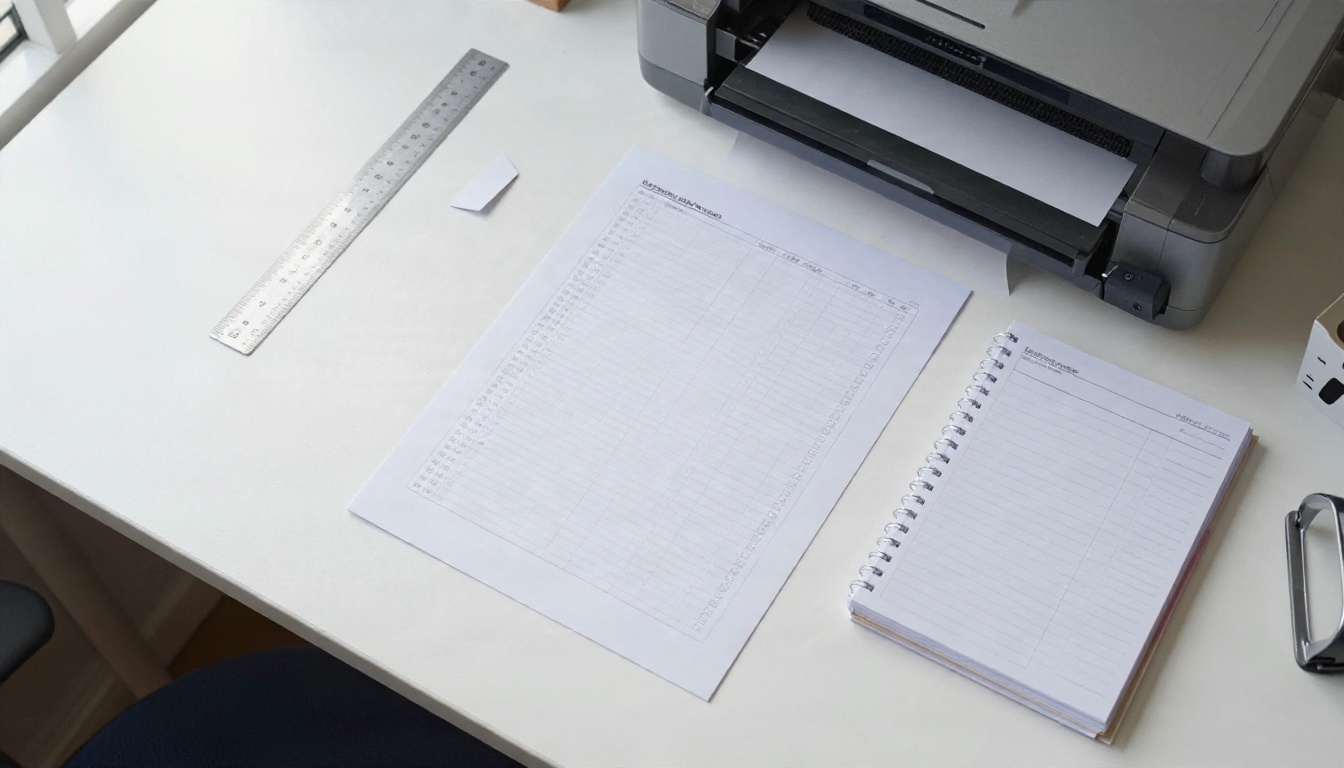
Printing a planner yourself feels free until the ink warning flashes. Here is how to work out your true cost per page, using ballpark figures. Your actual numbers will shift with your printer model and local prices.
Home Printing Math
A typical home inkjet spends roughly 3 to 8 cents per black and white page and 10 to 25 cents per colour page when you count ink alone. A laser printer is often cheaper per page, about 1 to 3 cents in black and white, though toner has a higher purchase price up front. Add paper at around 1 to 3 cents a sheet.
A 12 month daily planner has about 365 pages, or 183 sheets if you print double sided. At 5 cents per page, that is roughly $18 in ink, plus a few dollars in paper and a binder.
Print Shop and Binding
Copy shops usually charge about 8 to 15 cents per black and white page and 50 cents to a dollar for colour. Spiral or comb binding adds roughly $3 to $8. Expect a full printed and bound year to land between $30 and $80, depending on colour and paper weight.
One Year Cost Comparison
| Option | Estimated yearly cost | Effort | Notes |
|---|
| Bought paper planner | $15 to $40 | Low | No printer needed |
| Home printed, black and white | $15 to $30 | Medium | Cheapest with a laser |
| Home printed, colour | $40 to $90 | Medium | Ink adds up fast |
| Print shop, bound | $30 to $80 | Low | Clean finish |
| Free app | $0 | Medium | Tier limits apply |
| Paid app plus tablet pack | $20 to $100 | Medium | Tablet not included |
💡 Cost saver: Print only the months ahead. Planning changes, and unprinted pages cannot go to waste when you switch systems in April.
Cutting Your Ink Bill
- Choose templates with light grey lines instead of solid black blocks
- Print in draft mode for daily pages
- Use double sided printing to halve paper use
- Skip decorative backgrounds, because they burn ink without helping you plan
- Print quarterly, not yearly
A Hybrid Setup That Works
The most durable system often mixes both. Plan the big picture in an app, where reminders and syncing do their job. Then handle the daily detail on paper, where focus is easier.
Print, Scan and Share
A simple hybrid flow looks like this:
- Print a weekly spread each Sunday.
- Write your priorities and appointments by hand.
- Photograph or scan the finished spreads at month end.
- Save them as a PDF for your records.
- Turn that PDF into a shareable online version when others need to see it.
This is handy for family schedules, shared project timelines or a printable planner you want to hand out to clients, customers or a community.
Real World Examples
- A freelance designer prints a monthly view for her wall and keeps a task app for client deadlines.
- A teacher builds a term planner in a spreadsheet, exports it to PDF and shares it with parents as a link.
- A small shop owner keeps a paper daily log and publishes a seasonal promotions calendar to customers online.
- A family shares one digital meal planner while the parents each keep their own paper notebook.
How to Create a Planner Flipbook
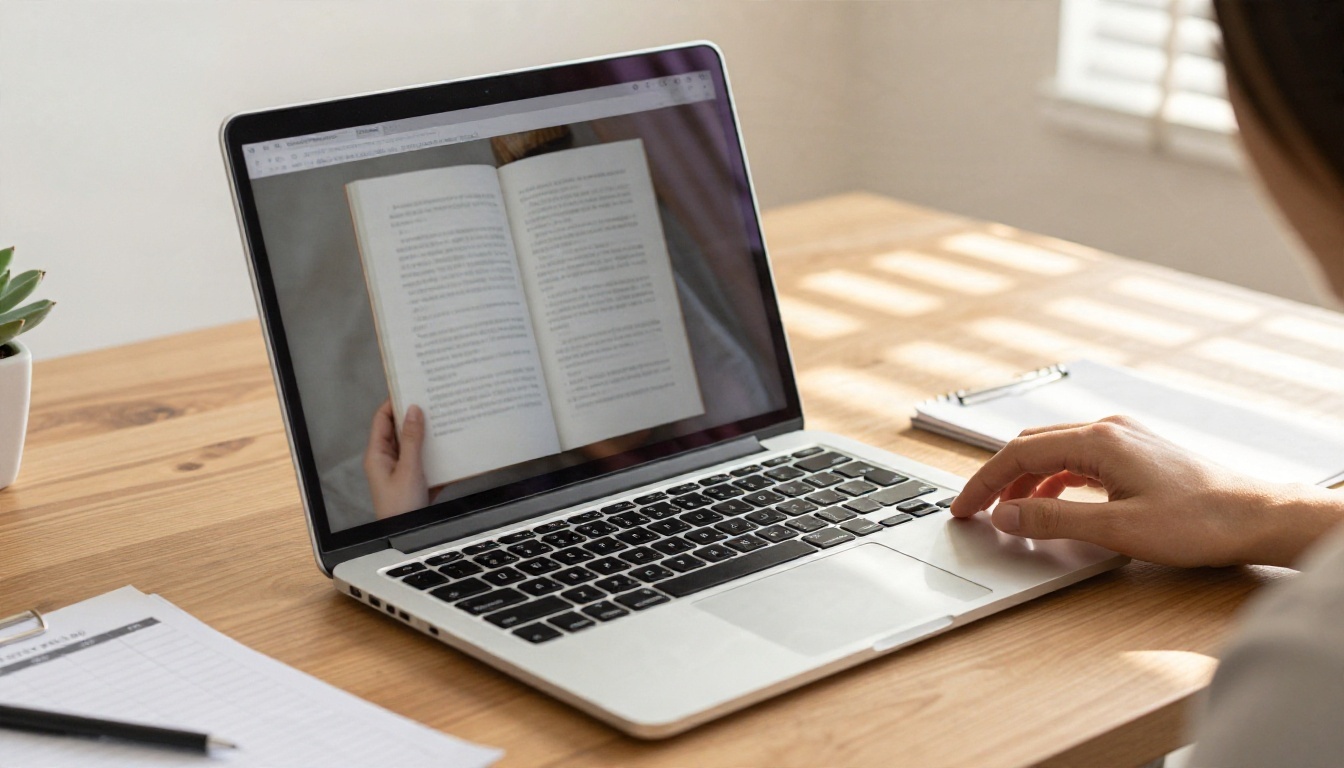
If you design or adapt your own planner, a flipbook lets people browse it like a real book on any screen. The tool you need is a PDF to Flipbook Converter, and the process is short. You can also look at the Interactive E-Book Publisher if your planner includes extra content like worksheets or tips.
Step by Step Setup
- Get started. Go to Flipbooks AI and create an account. You can try it before committing to a plan.
- Export your planner as a PDF. Use your design app, spreadsheet or word processor. Keep the page order the same as you want readers to see it.
- Upload the PDF. Drag the file into the uploader. The platform converts every page into a smooth page turning flipbook in moments.
- Customise the look. Add your custom branding, pick background colours, adjust page flip effects and drop in video or audio if you want a short intro or a tip walkthrough.
- Check mobile. The layout is mobile responsive, so test it on your phone before you publish.
- Share it. Copy a direct link, grab an embed code for a blog or portfolio using the Embed Flipbook on Website tool, or add password protection for a private family or client planner.
Extras on the Professional Plan
If you distribute planners to an audience, the Professional plan adds analytics so you can see which pages get opened most, lead generation forms to collect emails before readers view your planner, and offline downloads so people can keep a copy without a connection.
| Feature | What it does for a planner |
|---|
| No watermarks | Keeps your design clean |
| Password protection | Keeps family or client planners private |
| Embed codes | Puts your planner on any website |
| Offline downloads | Lets readers use it without internet |
| Analytics | Shows which sections people read |
| Lead generation | Builds an email list from free templates |
💡 Creator tip: Offer a free sample month as a flipbook, then link to the full printable version. Readers can preview the layout before they download or buy.
Mistakes to Avoid
Most planner failures are setup failures, not willpower failures.
Three Common Traps
- Over designing. A complicated spread takes longer to fill than it saves. Start plain.
- Buying before testing. Print a free template or try a free app tier for two weeks first.
- Ignoring where you plan. If you plan on the bus, a heavy A4 binder is the wrong choice. If you plan at a desk, a phone screen is too small.
Signs It Is Time to Switch
- You skip more than three days in a row
- You keep a second list somewhere else
- You dread opening it
- You miss appointments because you forgot to look
If two or more apply, change one variable, such as page layout or format, not the whole system.
Pick Your Planner Today
Here is a simple way to decide. If you value focus and handwriting, print a free template this week and track the cost of ink. If you need reminders and sharing, trial one app category for two weeks. If you want both, plan in an app and keep paper for daily priorities.
When you have a planner design you like, turn it into something others can open on any device. Get started for free on Flipbooks AI, browse all flipbook tools to find the right fit, or compare pricing plans to see which one suits your project. Ready to go further? Sign up and choose a plan in a couple of minutes.



