A photo on its own shows you a moment. A photo with a voice, a song or the sound of waves behind it makes you feel like you are standing in that moment again. That is the whole appeal of a digital photo album with audio, and it is easier to build than most people expect. With a tool like Flipbooks AI, you can turn a folder of pictures into a page-turning album, attach music and spoken stories, and share it with anyone through a simple link.
This article walks through the full process: why sound matters, how to choose and record audio, a step-by-step tutorial, a comparison of free options, and every practical way to share the result. No design skills are needed, and no software to install.
Why Sound Changes a Photo Album
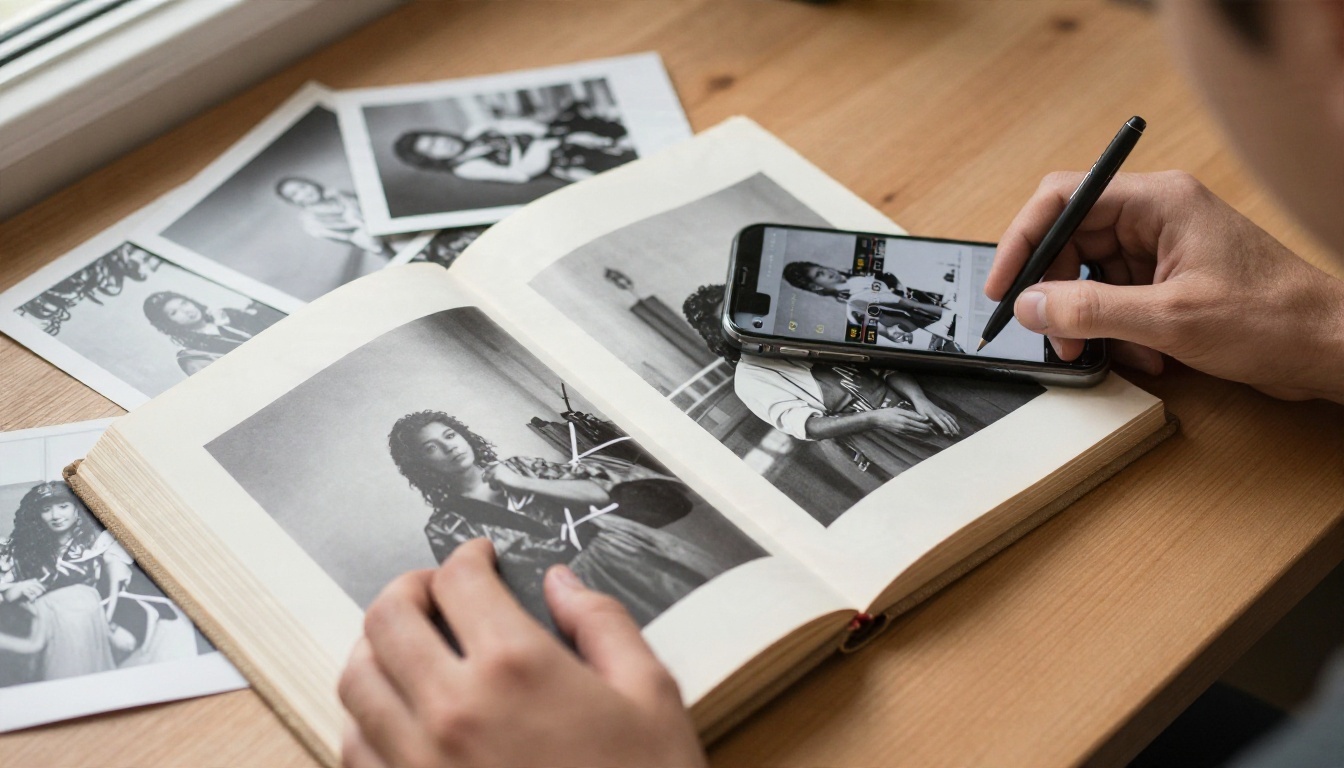
Most digital albums are silent grids of thumbnails. People scroll, say "nice," and leave within thirty seconds. Add audio and the behavior changes: viewers slow down, stay on each page, and often replay the album with someone else.
What Audio Adds to Memory
Sound is closely tied to recall. A song from a summer trip brings back the heat of the car. A grandmother's laugh on a recording says more than a caption ever could. When you pair these sounds with images, the album becomes something people experience rather than skim.
There is also a practical benefit. Voice notes can name the people in each photo, which solves the classic problem of nobody remembering who stands in the back row of the 1987 family portrait.
Four Types of Audio to Use
| Audio type | Best for | Typical length | Effort |
|---|
| Background music | Weddings, holidays, slideshows | Full album | Low |
| Voice narration | Family history, travel stories | 10 to 60 seconds per page | Medium |
| Ambient sound | Beach, city, nature photos | 5 to 30 seconds | Medium |
| Recorded messages | Gifts, anniversaries, memorials | 30 to 120 seconds | Low |
💡 Pro tip: Mix two types. Quiet background music across the whole album plus short voice notes on the pages that matter most gives the best balance.
Plan the Soundtrack Before Uploading
Ten minutes of planning saves an hour of re-editing. Before you touch any tool, decide the mood, the length and the audio sources.
Pick Music That Fits the Mood
Match the tempo to the photos. A slow acoustic track suits a wedding or a memorial. A brighter, faster song works for a road trip or a birthday. Avoid lyrics when you also plan to add voice notes, because two voices at once make both hard to follow.
A few rules that work well in practice:
- Choose instrumental tracks for albums with narration.
- Keep one track per album unless the album has clear chapters.
- Check the volume on both phone speakers and headphones before sharing.
- Use files you own or have permission to use, especially when the album will be public.
⚠️ Warning: Commercial songs are protected by copyright. For a private album shared with family this is rarely a problem, but for anything public, use royalty-free music or your own recordings.
Record Voice Notes That Sound Natural
You do not need a studio. A modern phone in a quiet room is enough. Sit near a soft surface such as a sofa or a bed with blankets, because soft materials absorb echo. Hold the phone about a hand's width from your mouth and speak as if you were telling the story across a kitchen table.
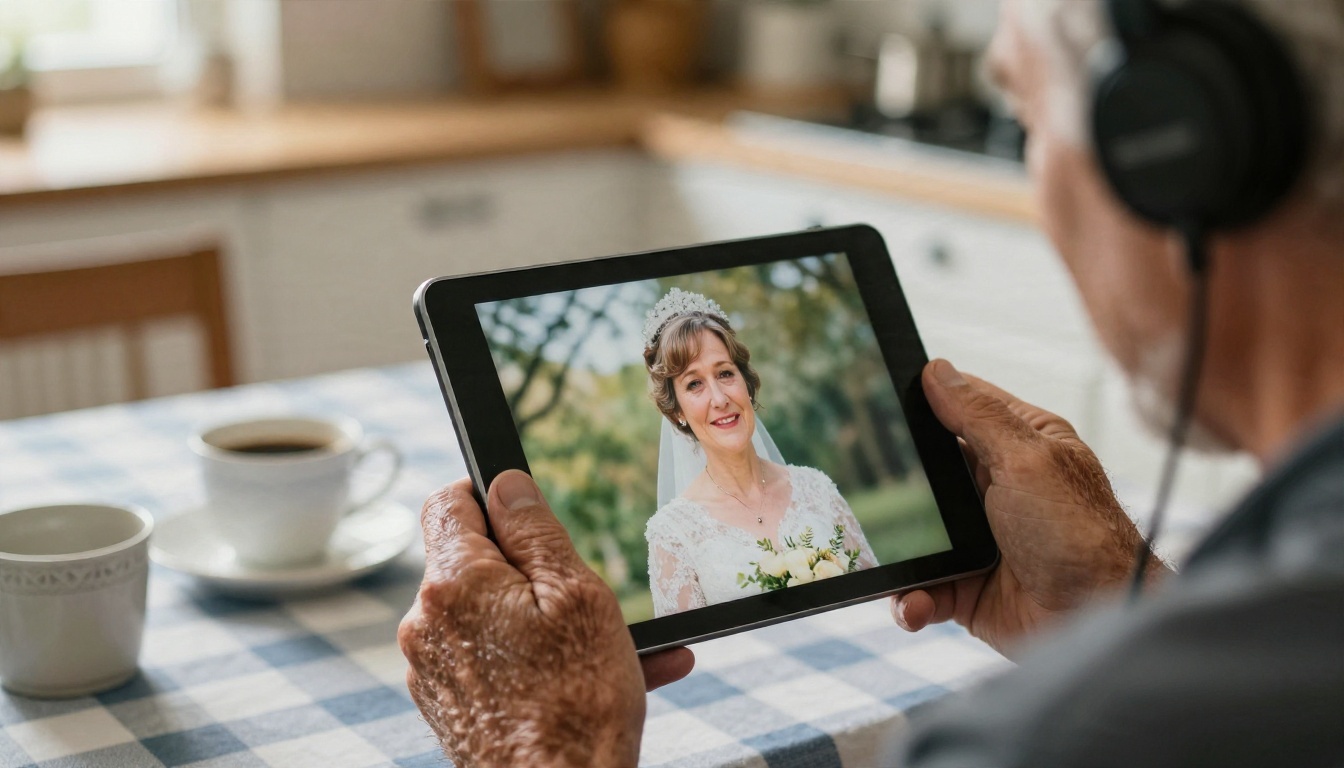
Some of the most valuable recordings come from relatives who are not used to being recorded. Ask open questions, such as "Where was this taken?" or "What do you remember about that day?", and let them talk. You can trim the best 20 seconds later.
Prepare Your Files
| File type | Recommended format | Why |
|---|
| Photos | JPG or PNG | Universal support, good quality |
| Music | MP3 | Small size, plays everywhere |
| Voice notes | MP3 or M4A | Clear speech at low file size |
| Final album source | PDF | Converts cleanly to a flipbook |
Name your files in order, for example 01-beach.jpg, 02-sunset.jpg. It sounds trivial, but it prevents a lot of reshuffling later.
How to Create an Audio Photo Album with Flipbooks AI
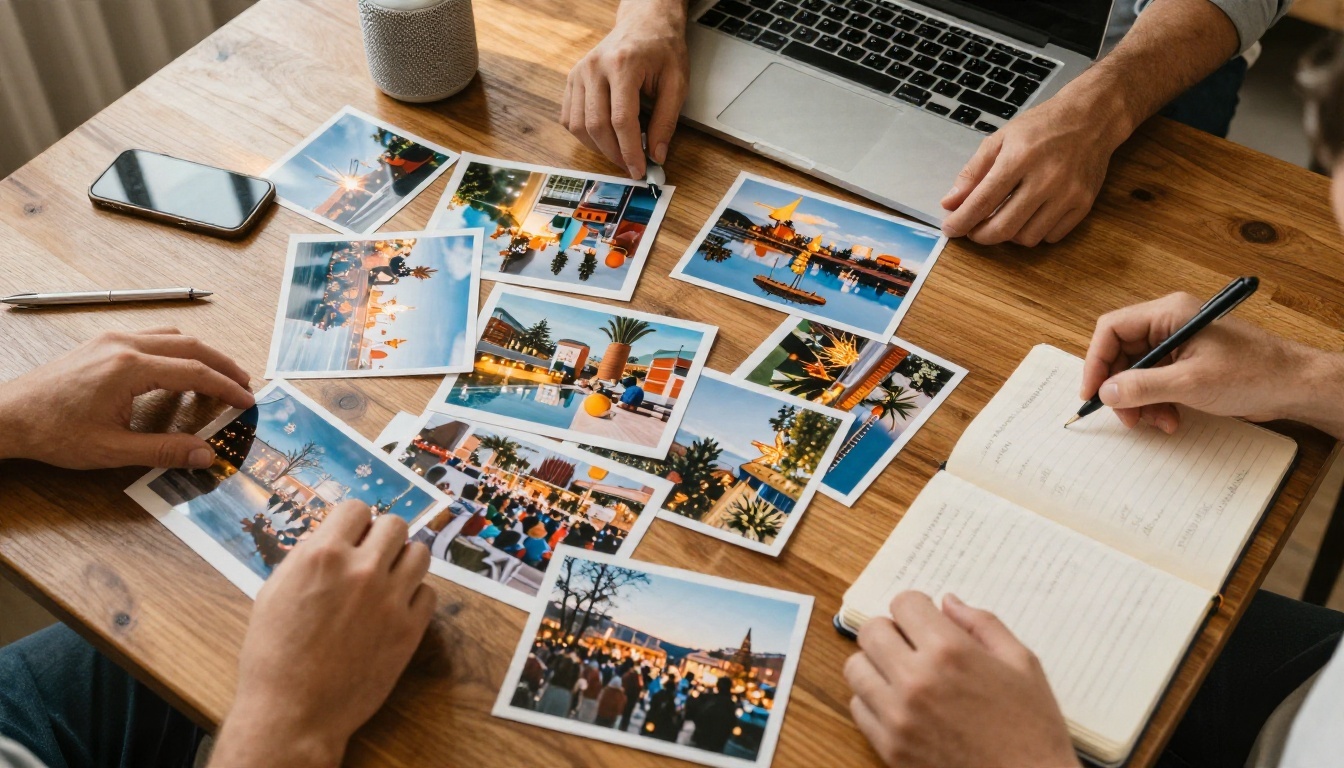
The simplest route is to build your layout as a PDF, then convert it into an interactive flipbook where audio can be attached. Here is the process from start to finish.
Step 1: Build Your Album as a PDF
Use any layout tool you already know, such as a word processor, a slide editor or a free design app. Place one to three photos per page, add short captions, and export the file as a PDF. If you only have loose pictures, many phones can combine them into a PDF directly.
Step 2: Upload and Convert
- Go to Flipbooks AI and create an account.
- Click to start a new flipbook and upload your PDF.
- Wait a few seconds while the page-turning version is generated.
The PDF to Flipbook Converter handles the conversion and keeps your images sharp. For wedding material, the dedicated Wedding Album Flipbook tool is a good starting point, and for pure photo layouts the Photography Portfolio tool works well too.
Step 3: Add Music and Voice Notes
- Open the editor and select a page.
- Choose the option to embed audio.
- Upload your MP3 or M4A file and place it on the page.
- Repeat for each page that needs narration.
- Preview the flipbook and adjust the volume.
Because the platform supports embedded video and audio, you can mix a soundtrack with spoken notes and even short clips of the same event.
Step 4: Customize the Look
Open the design settings and choose a background colour that suits the photos. Warm cream or soft grey tends to flatter family pictures, while dark charcoal makes landscape photography stand out. Then pick the page-turn effect and, if you like, add custom branding such as a title or a small logo. There are no watermarks, so the album looks like yours alone.
Step 5: Share It
Copy the direct link, grab the embed code, or protect the album with a password. The next section looks at each option in detail.
✅ Best practice: Preview on a phone before sending. The layout is mobile-responsive, but you will want to confirm that the audio plays the way you expect on small screens.
You can try it free and upgrade later if you need unlimited albums or more features.
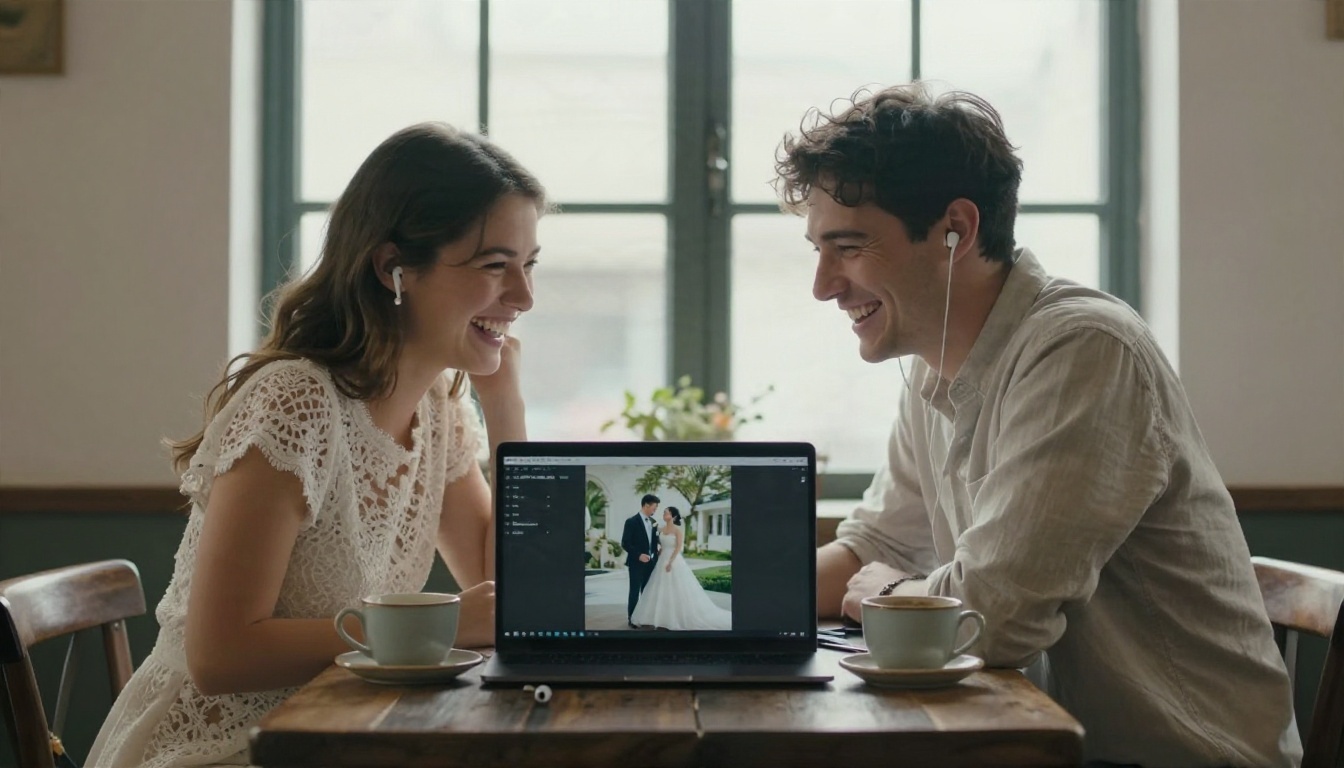
Free options exist at every stage: editing audio, laying out photos, and publishing. The trick is knowing where each one stops being useful.
Free Options Worth Trying
| Tool type | What it does well | Where it falls short |
|---|
| Phone voice recorder | Quick, clear voice notes | No editing beyond trimming |
| Free audio editors | Trim, fade, adjust volume | Takes a little practice |
| Free slideshow makers | Fast photo and music combos | Video file, not an interactive album |
| Cloud photo services | Easy sharing of images | Little or no real audio control per page |
| Flipbook platforms | Page-turning albums with embedded audio | Free plan limits vary |
Slideshow makers deserve a special mention. They produce a video where music plays and photos change automatically. That is fine for a three-minute tribute, but the viewer cannot flip back, pause on a page, or listen to a voice note only when they want to. A flipbook gives the viewer control, which most people prefer for larger collections.
Where Free Limits Show Up
Free plans usually restrict one or more of these: the number of albums, the file size, branding, and analytics. Before committing months of work to any platform, check the following:
- How many albums can you keep active?
- Is there a watermark on the finished album?
- Can you download a copy for offline viewing?
- Is audio supported on every page, or only as a single background track?
Compare the pricing plans so you know what changes when you need more than a single album.
Sharing Options That Work
An album nobody can open is just a file. Think about who will view it, on which device, and whether it should stay private.
Share by Direct Link
The fastest option. Paste the link into a message, email or group chat, and the album opens in any browser. No app, no download, no account for the viewer. This is the best choice for grandparents and anyone who is not comfortable with technology.
Embed on a Website or Blog
If you run a family site, a travel blog or a wedding page, use the embed code to place the album directly on the page. The Embed Flipbook on Website tool explains the process, and it only takes a copy and a paste.
Protect It with a Password
Family albums often include children, addresses or private moments. Password protection keeps the album available only to the people you choose. Send the link in one message and the password in another for an extra layer of privacy.
Offline Downloads
Some viewers will open the album at a hospital, on a plane, or at a cabin with weak signal. An offline download solves that. It is also a handy way to keep a personal backup.
Sharing Methods at a Glance
| Method | Privacy | Setup time | Best for |
|---|
| Direct link | Medium | 10 seconds | Quick family sharing |
| Embed code | Public | 2 minutes | Blogs, wedding sites |
| Password protected | High | 1 minute | Private or sensitive albums |
| Offline download | High | 1 minute | Travel, backups, gifts |
| QR code on a print | Medium | 5 minutes | Cards, invitations, frames |
💡 Pro tip: Print the link as a QR code and tuck it inside a greeting card or a framed print. The recipient scans it and hears the album open with your voice.
Real Examples You Can Copy

Ideas are easier to act on when you can picture them. These four setups cover the most common situations.
A Wedding Album with the Couple's Song
The couple picks their first-dance song as background music and adds a short thank-you message from each parent on the last page. Guests receive a password-protected link a week after the event. Many couples add a spoken line to the vows page, so anyone flipping through hears the real moment rather than just seeing it.
A Travel Album with Narration
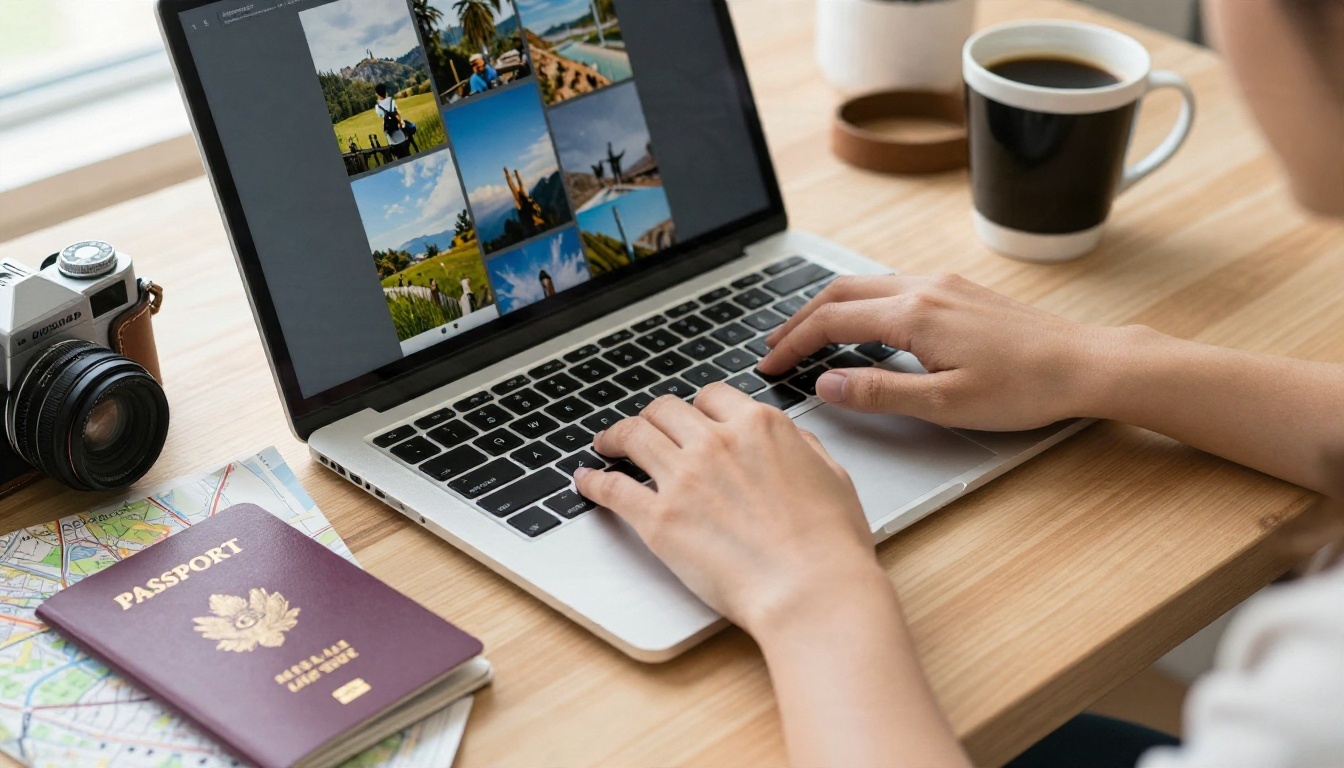
A traveller records a 20-second voice note for each destination: what the place smelled like, what went wrong, what they would do again. Ambient clips of a market or a train platform go on the matching pages. The result reads like a small documentary. If you plan to make several, see the Travel Guide Flipbook tool.
A Family History Album
An older relative tells the story behind each portrait. One voice note per page is enough. Years later, these recordings often become the most treasured part, because they preserve a voice and a way of speaking that no photograph can hold. Back up this album in more than one place.
A Gift for a Milestone
For an anniversary or a retirement, collect voice messages from friends and family and place each one beside a photo of that person. Add a quiet instrumental track underneath. The recipient gets a gift they can replay for decades, and it costs far less than a printed hardcover book.
Common Mistakes to Avoid
Most disappointing albums fail for the same handful of reasons. Here is how to dodge them.
Music That Is Too Loud
Background music should sit under a voice, never over it. If you can hear every lyric clearly while narration plays, lower the track. A good test: play the album at normal volume and see whether you can follow a conversation in the room.
Recordings That Are Too Long
Attention drops quickly. Aim for under 60 seconds per voice note, and trim pauses and filler. If a story runs long, split it across two pages.
Too Many Photos, Too Little Story
A hundred similar pictures tire anyone out. Pick the twenty to forty strongest, group them by event or theme, and let audio carry the narrative between them.
Skipping the Phone Test
Many people open links on a phone. Test the album on a small screen, with and without headphones, before you send it to relatives.
Forgetting a Backup
Keep the original photos, the audio files and the PDF in one folder, and copy that folder to a second location. A cloud drive plus an external disk covers most situations.
| Mistake | Quick fix |
|---|
| Loud music over speech | Lower the track or use instrumental only |
| Long recordings | Trim to 60 seconds or split pages |
| Public link for a private album | Add a password |
| No backup | Save copies in two places |
| Untested on mobile | Preview on a phone first |
Ready to Make Yours?
You already have the photos. The voices and songs are probably on your phone too. All that is left is to put them together in a format people can open with a single tap.
Start now: create your free account on Flipbooks AI, upload your first PDF and attach a song or a voice note to the first page. Browse all flipbook tools if you want a layout built for a specific purpose, and compare pricing plans when you are ready for unlimited albums, analytics and more control over who sees your work. If you decide to upgrade, you can sign in and go straight to pricing.
An album with sound is something people return to. Make the first page today while the stories are still easy to record.



