A digital story book is a picture book, family tale or illustrated lesson that lives on a screen and turns its pages like paper. Parents read one at bedtime, teachers project one on a classroom board, and authors send one to an editor with a single link. The format works because it keeps the part people love, the page turn, and drops the printing bill. Below you will find real digital story book examples, an honest comparison of free makers, page flip design rules that hold up on phones and tablets, and every practical way to share the result. If you already have a PDF, Flipbooks AI turns it into a flipping book in minutes, with no watermark added.
What a Digital Story Book Is
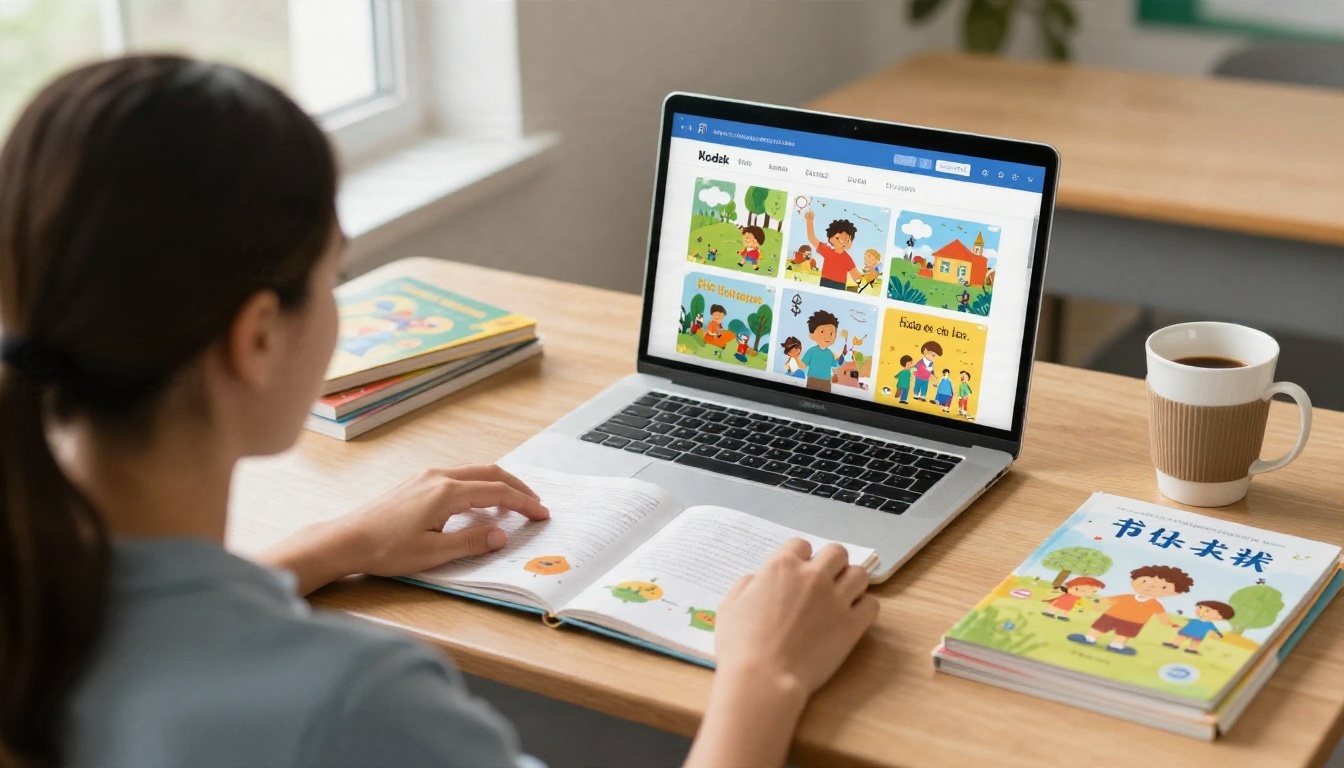
At its simplest, a digital story book is a sequence of illustrated pages presented in a viewer that mimics a real book. You see a spread, you tap or drag a corner, and the page curls over with a soft shadow. Behind that effect sits an ordinary file, usually a PDF exported from a design app, a slide deck or a scanned sketchbook.
Digital vs Printed Story Books
Printed books win on smell and shelf presence. Digital ones win on reach, cost and speed. The table below shows where each format earns its place.
| Factor | Printed story book | Digital story book |
|---|
| Cost per copy | Paper, ink, shipping | Near zero after creation |
| Time to publish | Weeks | Minutes |
| Updates and fixes | New print run | Replace the file, same link |
| Audio and video | Not possible | Narration, music, clips |
| Reach | Local, limited by stock | Anyone with a link |
| Tracking readers | None | Views, time on page, leads |
| Feel in the hand | Excellent | Good, page flip simulates it |
💡 Pro tip: You do not have to choose. Many authors print a short run for gifts and keep a digital edition for everyone else.
Who Makes Them
Four groups create most digital story books today: parents preserving a child's stories, teachers building reading material, independent authors testing picture book ideas, and small publishers who need a shareable proof before committing to print. Each group has different priorities, which is why the examples below look so different from one another.
Digital Story Book Examples That Work

Abstract advice only goes so far. Here are four patterns that consistently work, with the reason each one succeeds.
Children's Picture Books
The classic case. A 24 to 32 page book with one illustration per spread and two or three sentences of text. The best ones keep text in the same position on every page so a small reader's eye settles into a rhythm. Add a gentle page turn sound and a recorded narration, and a child can "read" along without help.
Classroom Readers

Teachers write short stories around a spelling pattern, a science topic or a class trip, then share a link with families. One teacher might build a seasonal reader each month. Another might publish a class anthology where every pupil contributes a page. If you plan to build a library of lessons, the Course Material Publisher and the School Newsletter Creator follow the same workflow.
Family Albums and Memory Books
A grandparent records the story of how they met, adds old photographs and sends the link to the whole family. A new parent builds a "the day you were born" book. A couple turns a trip into a story with a Wedding Album Flipbook or a travel diary. These books are rarely public, so password protection matters more than polish.
Author Previews and Portfolios

Illustrators and writers use a digital story book as a pitch. An agent opens one link and sees the whole dummy with real page turns, not a pile of attachments. A Digital Portfolio Creator works the same way for a broader body of work.
| Example | Best for | Typical length | Must have feature |
|---|
| Bedtime picture book | Parents, young children | 24 to 32 pages | Audio narration |
| Classroom reader | Teachers, pupils | 8 to 20 pages | Mobile friendly layout |
| Family memory book | Relatives, friends | 20 to 60 pages | Password protection |
| Author dummy | Agents, editors | 32 pages | Clean spreads, fast load |
| Recipe story book | Home cooks | 15 to 40 pages | Large photos |
Choosing a Free Maker

"Free" can mean very different things. Some makers are free but stamp their logo on every page. Others cap you at one book. A few lock the share link behind a paywall. Before you invest hours, check the fine print.
What a Good Free Maker Offers
- No watermark on any page or on the viewer toolbar
- Real page flip with sound, not a plain slideshow
- Mobile responsive viewing that adapts to portrait screens
- PDF import, so you design in the tool you already know
- A share link and embed code included from day one
- Reasonable file limits for illustrated pages that are image heavy
Free Maker Types Compared
| Maker type | Strength | Common limit | Fit for story books |
|---|
| Design app with built in flip view | Easy layout | Watermark or export caps | Good for drafts |
| Slide deck exported as PDF | Everyone has it | No page flip on its own | Needs a converter |
| Dedicated flipbook platform | Real page turn, sharing, analytics | Plan limits on volume | Best overall |
| Basic PDF viewer link | Zero setup | Flat scroll, no flip | Weak |
The strongest workflow is simple: design in whatever app you like, export a PDF, and hand it to a flipbook platform. The PDF to Flipbook Converter does exactly that, and the Interactive E-Book Publisher adds multimedia on top.
⚠️ Watch out: If a free maker exports only to its own proprietary format, your book is stuck there. Always keep the source PDF.
Page Flip Design Rules
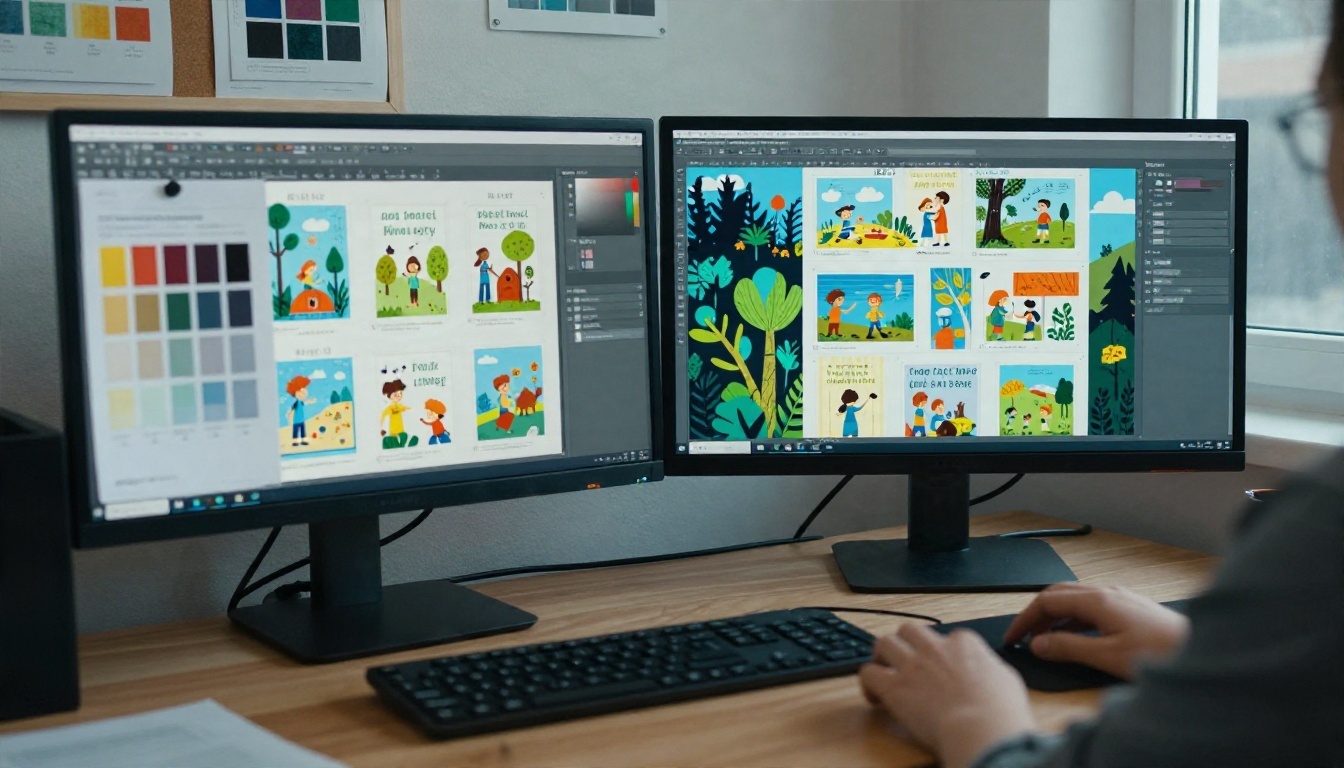
A page flip is not decoration. It controls pacing. A good flip makes the reader want the next page, and a clumsy layout breaks the spell.
Layout and Spreads
Design in spreads, meaning two facing pages treated as one canvas, but keep the important content away from the center gutter. On a phone, the viewer usually shows a single page, so every page must also work alone. A reliable approach is to place the main character on one page and the setting or action on the other.
- Keep a safe margin of at least 5 percent around all text
- Put text in the same zone on every page
- Use a single focal point per page
- Export at 150 to 200 dpi, which is sharp on screens without bloating the file
Color and Type
Warm paper tones, such as soft cream or pale oat, reduce glare and feel closer to print than pure white. For type, choose a rounded sans serif or a friendly serif at a size that stays readable on a phone. Contrast matters more than style: dark text on a light, calm area of the illustration beats pretty lettering over a busy background.
| Element | Recommended setting | Why it works |
|---|
| Body text size | 18 to 24 pt on a letter page | Readable when scaled to a phone |
| Line length | 35 to 50 characters | Easy for early readers |
| Background | Cream or soft tint | Less glare than white |
| Illustration resolution | 150 to 200 dpi | Sharp but light |
| Pages | Multiple of 4 | Clean spreads and print ready |
Sound and Motion
Page turn audio, a short piece of background music and a recorded voice make a story book feel alive. Keep the volume low, and always give the reader a mute button. Motion should be restrained: a page curl is lovely, a spinning transition on every page is tiring.
✅ Best practice: Read the whole story aloud once while flipping through your draft. Any page where you stumble is a page that needs less text.
Make a Story Book Step by Step
Here is how to create a digital story book with Flipbooks AI, from a finished PDF to a link you can send.
Upload and Convert
- Open Flipbooks AI and create an account. You can start free and check the pricing plans later.
- Click to create a new flipbook and upload your PDF. Illustrated books of 30 to 60 pages convert in moments.
- Wait a few seconds while pages are processed. The result is a real page flip viewer, with no watermark.
- Scroll through the preview and check that every spread looks right.
Customize the Look
- Set the background color or image behind the book. A soft tone that matches the cover illustration works well.
- Add your custom branding, such as a logo, author name or school crest, if you want it.
- Choose the page effects: flip sound on or off, page curl speed and shadow depth.
- Layer in multimedia. Embed narration audio on page one, a short video of the illustrator at work, or links to a printed edition.
Share the Finished Book
- Copy the direct link for messages and email.
- Use the embed code to place the book on a blog or school site. The Embed Flipbook on Website tool shows how.
- Turn on password protection for family or classroom books that should stay private.
- Open the link on your phone before you send it. This single check catches most layout surprises.
Pro Features Worth Having
Writers who send books to many people can use the Professional plan for analytics, which show opens and time spent per page, and lead generation, which asks for an email before reading. Offline downloads let readers keep the book for a flight or a school trip. Compare options on the pricing page.
| Feature | Everyday use | Where it matters |
|---|
| No watermarks | Clean look | Every book |
| Unlimited flipbooks (Standard and above) | A new book each month | Teachers, publishers |
| Password protection | Private family books | Memory books |
| Analytics and lead capture (Professional) | See who reads, collect emails | Authors, small publishers |
| Offline downloads | Read without Wi-Fi | Travel, classrooms |
| Audio and video embeds | Narration, behind the scenes | Children's books |
Sharing Your Story Book
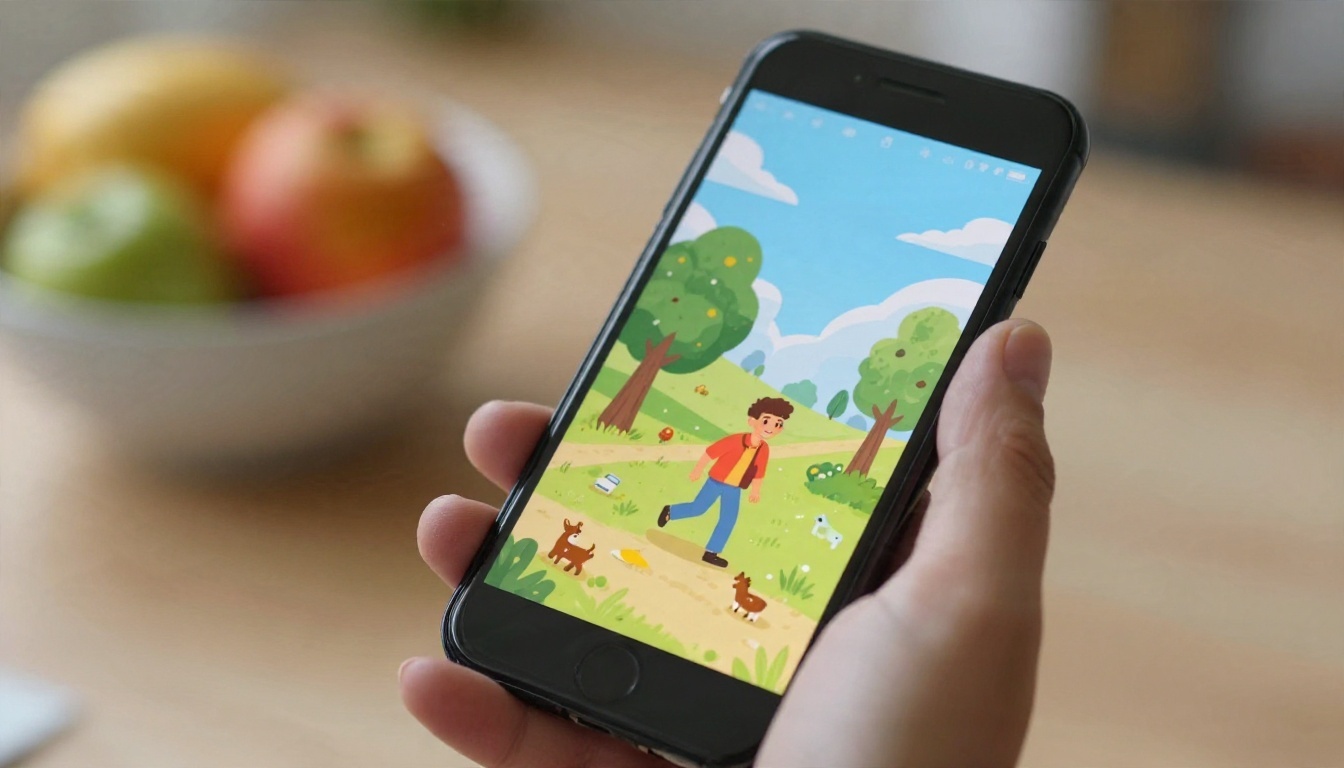
A great book that nobody opens is a quiet disappointment. Sharing is half the work, so plan it before you publish.
Links and QR Codes
A plain link is the fastest route. Paste it into a family chat, a classroom newsletter or an email to an editor. For physical places, turn the link into a QR code: print it on a bookmark, a classroom poster or the back of a printed edition, so anyone with a phone can open the digital version in seconds.
Embeds on Your Own Site
If you run a blog, a school page or an author site, embedding keeps readers on your domain. The book appears inside the page and flips in place. This helps with search visibility too, since your page carries the content and context around the story.
Privacy and Passwords
Children's stories often include names and photos. Treat them with care.
- Use password protection for any book showing real children
- Avoid listing the link on public pages
- Share the password through a separate message
- Replace the file, not the link, when you make corrections
| Sharing method | Speed | Privacy level | Best for |
|---|
| Direct link | Instant | Medium | Family, colleagues |
| QR code | Instant | Medium | Posters, bookmarks |
| Website embed | Minutes | Public | Authors, schools |
| Password protected link | Instant | High | Memory books, pupils |
| Offline download | Instant | Reader controlled | Travel, low signal |
Mistakes to Avoid
Most weak digital story books fail for the same handful of reasons. Spot them early and your book will feel professional.
3 Common Mistakes
- Tiny text. Type that looks fine on a laptop becomes unreadable on a phone. Test at phone size.
- Heavy images. A 120 MB PDF loads slowly and loses readers. Compress illustrations to 150 to 200 dpi.
- Ignoring the first page. The opening spread decides whether a reader keeps going. Make it clear, warm and uncluttered.
Quick Pre-Publish Checklist
- Every page readable on a phone
- Cover illustration sharp and centered
- Audio tested with and without sound
- Links working, password set if needed
- Source PDF saved in two places
Publish Your First Story Book
You now have the shape of a good digital story book: a clear idea, tidy spreads, a smooth page flip and a smart way to share it. The fastest way to test all of it is to take one finished PDF and turn it into a flipbook today. Get started for free on Flipbooks AI, browse the full set of flipbook tools for recipe books, travel stories and school projects, or try the E-Book Flipbook Generator for longer titles. When you are ready to publish more, compare the pricing plans and pick the one that fits your shelf.



