Your wedding photos deserve better than a folder named "FINAL_final_2" on a hard drive. A digital wedding album gives you the feel of turning real pages, the convenience of a single link, and the freedom to share it with your grandmother in another country in about ten seconds. With a tool like Flipbooks AI, you can turn a simple PDF into a page-flipping album that works on any phone, tablet or laptop.
This article walks through what makes a digital album worth building, the design ideas that actually look good, real-world examples you can borrow, a side-by-side look at free tools, and a full tutorial for building and sharing your own. If you are a couple, a photographer, or the sibling who got volunteered to "put something together," you are in the right place.
Why Go Digital With Your Album
Printed albums are lovely, but they are expensive, heavy and hard to duplicate. A digital version does not replace the printed heirloom. It sits beside it and does the jobs paper cannot.
What Couples Actually Want
Most couples ask for the same handful of things once the wedding is over:
- A fast way to relive the day without scrolling through 900 thumbnails.
- One link for everyone, so relatives stop asking for photos in the group chat.
- A story, not a dump. Curated pages feel very different from a raw gallery.
- Privacy. Not every wedding photo belongs on a public feed.
- A backup that survives a lost phone or a failed hard drive.
A flipbook handles all five. It reads like an album, loads like a web page, and can be locked behind a password.
Print vs Digital Compared
| Feature | Printed Album | Digital Flipbook Album |
|---|
| Typical cost | $150 to $800+ | Often free to low cost |
| Copies for family | Each copy costs extra | Unlimited, one link |
| Delivery time | 3 to 8 weeks | Same day |
| Edits after publishing | Reprint required | Replace the PDF |
| Video and audio | Not possible | Can be embedded |
| Works abroad | Needs shipping | Opens anywhere |
| Long-term feel | Heirloom quality | Easy to archive and reshare |
💡 Pro tip: Treat the digital album as your "first edition." Share it within a week of the wedding, then order a printed version from the same PDF layout later.
Design Ideas That Work
A good wedding album is edited, paced and consistent. You do not need design training. You need a few simple decisions made early.
Start With a Story Arc
Think of the day in chapters rather than a timeline of 400 photos. A reliable structure:
- Opening spread: one strong portrait or a detail shot of the rings and invitation.
- Getting ready: hands, dresses, shoes, flowers, quiet moments.
- The ceremony: the aisle, the vows, the kiss, reactions from family.
- Portraits: couple, wedding party, families.
- The reception: speeches, first dance, food, the dance floor.
- Closing spread: a calm, final image, often at sunset or a night exit.
Aim for 40 to 60 pages for a full wedding. Shorter albums of 20 to 30 pages suit elopements and small ceremonies.
Layouts for Every Page
Mixing layouts keeps the pacing alive. Repeating the same four-photo grid for 50 pages is the fastest way to lose a viewer.
| Layout | Best For | Photos per Page |
|---|
| Full bleed | Opening, closing and big emotional moments | 1 |
| Two-up spread | Pairing a wide shot with a close detail | 2 |
| Grid of four | Getting ready details, table settings | 4 |
| Collage with margins | Dance floor, candid party moments | 5 to 7 |
| Single image with caption | Vows, quotes, speeches | 1 plus text |
| Timeline strip | Ceremony sequences | 3 to 5 |
Color, Type and Mood
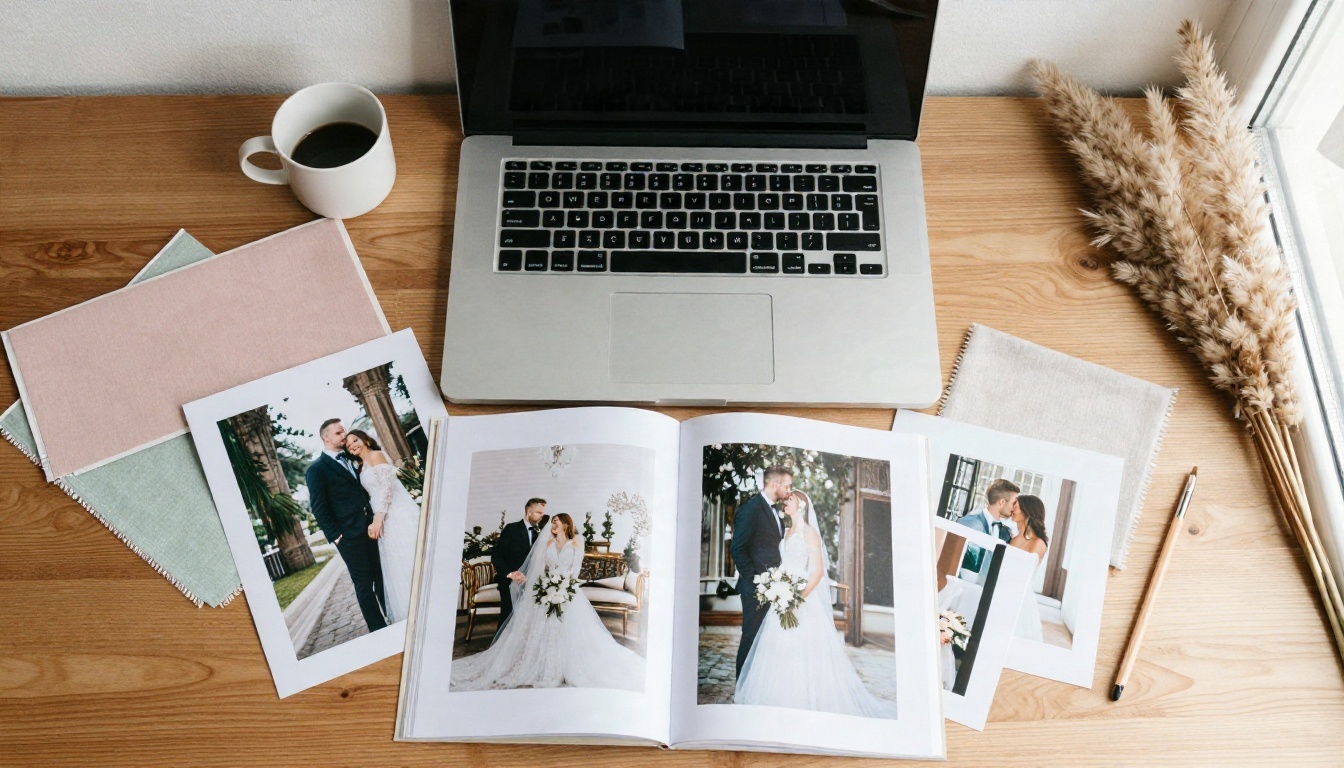
Pick a palette from the wedding itself. If the bouquets were blush and sage, use soft off-white backgrounds with sage or warm gray accents. Dark backgrounds suit evening receptions and dramatic black and white sets.
- Fonts: one serif for headings, one clean sans for captions. Never more than two.
- Backgrounds: off-white or warm cream feels more like paper than pure white.
- Captions: short. A line of a vow or a date is better than a paragraph.
- Consistency: keep margins and photo borders identical across pages.
⚠️ Watch out: Heavy filters or mixed editing styles make an album feel patchy. Edit all photos with the same preset before you design pages.
Real Examples to Borrow
Ideas land better with a scenario. Here are three setups that work well for different weddings.
The Intimate Elopement
A couple eloped in the mountains with ten guests. They built a 24 page album using mostly full-bleed landscapes, with the two of them small in the frame. Each spread carried one line of handwritten text, such as the location and time. The album went to both families by link, with a password, within two days.
Why it works: the scale of the scenery tells the story, and the short length respects the small guest list.
The Big Family Wedding
A 180 guest wedding needs structure. This couple used a chapter system: each section opened with a full-page title photo, followed by grids and collages. A final "Everyone Here" section held large group shots, so cousins could find themselves quickly.
Why it works: chapters let people jump to the part they care about, and the group section gets the most replays.
The Photographer's Client Album
Wedding photographers increasingly deliver a digital preview album before the print order is placed. Clients can flip through a 30 page selection on their phone, share it with parents, and approve spreads before anything is printed.
Photographers who want a polished delivery can look at the Photography Portfolio tool, which uses the same page-flip format for showcasing sets.
Plenty of free options exist. They differ in what they limit, so it helps to know what to look for before you spend hours designing.
What Free Plans Usually Limit
| Limit | Why It Matters |
|---|
| Watermarks | A logo stamped on every page cheapens the album |
| Page count caps | Many free plans stop at 10 to 20 pages |
| Expiring links | Your album disappears after 30 days |
| No password option | Private photos become public by link |
| Low resolution export | Photos look soft on large screens |
| No embed support | You cannot place it on a wedding website |
Where Flipbooks AI Fits
Here is how common approaches stack up for a typical wedding album.
| Approach | Page Flip Feel | Password Protection | Embed on Website | Watermark Free |
|---|
| Shared cloud folder | No | Partial | No | Yes |
| Social media post | No | No | Limited | Yes |
| Slideshow video | No | Depends | Yes | Yes |
| Generic PDF attachment | No | Rare | No | Yes |
| Flipbooks AI | Yes | Yes | Yes | Yes |
Flipbooks AI never adds watermarks, works on mobile, and supports password protection. You can also use the dedicated Wedding Album Flipbook page as a starting point, or the general PDF to Flipbook Converter if your PDF is ready.
How to Create a Wedding Album with Flipbooks AI
The whole process takes about 20 minutes once your photos are chosen. Here is the full walkthrough.
Step 1: Build Your PDF
Design your pages in any tool you like: Canva, Adobe InDesign, Affinity, or even Google Slides. Export to PDF at high quality, with one page per album page.
- Use a landscape or square page size for a classic album feel.
- Keep image files under 500 KB each if possible, so pages load quickly on phones.
- Name your file clearly, for example
Anna-and-Luis-Wedding-Album.pdf.
Step 2: Upload and Convert
- Go to Flipbooks AI and create an account.
- Click to create a new flipbook.
- Upload your PDF. Conversion usually takes under a minute.
- Check that every page rendered correctly, especially full-bleed photos near the edges.
Step 3: Customize the Look
Once the PDF is converted, you can fine-tune the experience:
- Branding and colors: set a background color that matches your wedding palette.
- Page effects: choose a realistic page curl and sound for the "real album" feel.
- Multimedia: embed a short ceremony clip or play a favorite song as background audio.
- Cover page and title: add the couple's names and wedding date.
💡 Pro tip: Embed the first dance video on the reception spread. People will tap play before they read a single caption.
Step 4: Set Privacy and Publish
Turn on password protection before you share anything. Choose something easy to say aloud, like the date of the wedding or the venue name. Then publish and copy your link.
Pro Features Worth Using
Some features sit on the Professional plan and are mostly useful for photographers and planners:
| Feature | Who Benefits |
|---|
| Analytics | Photographers who want to see which pages clients view most |
| Lead generation | Planners and studios collecting contact details before access |
| Offline downloads | Couples who want a copy for a flight or a long trip |
| Unlimited flipbooks | Studios building one album per client (Standard plan and above) |
Share It Online Safely
Sharing is where a digital album shines. It is also where privacy mistakes happen, so pick the method that fits your guest list.
Links, Embeds and Passwords
| Method | Best For | Privacy Level |
|---|
| Direct link | Close family and friends | Medium |
| Link plus password | Mixed guest lists, extended family | High |
| Embed on wedding website | Guests who visit your site anyway | Depends on site |
| QR code on thank-you cards | Guests at the event or by mail | Medium, add password for more |
| Offline download | Backup and travel | Private |
If you already have a wedding site, follow the steps in the Embed Flipbook on Website tool to place the album on a page with a single snippet of code.

A Simple Sharing Plan
- Day 1: Send the link and password to parents and the wedding party.
- Day 3: Share with the wider guest list in your thank-you message.
- Week 2: Add a QR code to printed thank-you notes.
- Month 1: Update the PDF with any extra photos from guests and replace the file.
✅ Best practice: Always test the link on your own phone, in a private browser window, before you send it to anyone.
Common Mistakes to Avoid
Three problems show up again and again.
1. Including too many photos. An album with 300 near-identical shots feels like a data dump. Cut ruthlessly. If two photos look the same, keep the one with the better expression.
2. Ignoring mobile. Most relatives will open your link on a phone. Tiny captions and thin fonts become unreadable. Test on a small screen and increase text size where needed.
3. Skipping the password. Wedding albums include children, home addresses on invitations, and candid moments you may not want public. A password takes ten seconds to add and prevents most problems.
Other small things worth checking before you publish:
- Names spelled correctly in every caption
- Consistent photo editing across all pages
- A final proofread of the title page and dates
- A backup copy of your PDF in two places
Ready to Build Yours?
A digital wedding album is one of the easiest projects to finish and one of the most appreciated. Choose your best photos, pick a calm palette, give each chapter room to breathe, and share it with a single link.
Here is where to go next:
Your wedding day lasted a few hours. The album can last a lifetime, and sharing it takes only a link.



