A guest walks into a room at 11 p.m., hungry, and the laminated room service menu is nowhere to be found. Or worse, it is sticky, outdated, and lists a burger that left the kitchen six months ago. A QR menu fixes that in one scan. This article shows how to add a QR menu to hotel rooms, how to build it for free with Flipbooks AI, and which card sizes actually work on nightstands, desks, and doors.
You do not need an app, a developer, or a new point of sale system. You need a PDF, a link, a QR code, and a small card in the right spot.
What guests expect now
Most travelers carry a phone everywhere, and they already scan codes at restaurants, airports, and museums. Walking up to a card and pointing a camera feels normal. Flipping through a binder of tired paper pages feels dated.
Here is what guests tend to want from an in-room menu:
- Instant access without calling the front desk
- Photos and clear prices so there are no surprises on the bill
- Current items, including today's specials and breakfast hours
- Dietary labels for allergies, vegan, and halal or kosher options
- Their own language, ideally without asking
The hidden cost of printed directories
Printed in-room directories look cheap but they are not. Every price change means a reprint. Every missing page means a complaint. Housekeeping spends time replacing damaged inserts, and nobody tracks which pages guests actually read.
| Cost factor | Printed room directory | QR menu card |
|---|
| Reprint after price change | Full reprint per room | Update the file once |
| Hygiene | Handled by hundreds of guests | Guest uses own phone |
| Seasonal menus | Slow, wasteful | Swap in minutes |
| Languages | One or two printed | Multiple versions via links |
| Tracking | None | Views and clicks (Professional plan) |
| Replacement effort | Per room, per loss | Reprint a small card |
💡 Pro tip: Keep the printed card, drop the printed book. The card is tiny, cheap, and survives for months. The menu behind it can change every day.
Menus worth including
Do not stop at room service. A hotel QR code is a doorway, and one card can lead to several useful pages. Start with the menus guests ask about most.
| Menu type | Typical guest question | Best format |
|---|
| Room service | "What can I order tonight?" | Photo menu with prices |
| Breakfast | "When and where is it served?" | One page with hours |
| Bar and minibar | "What does that bottle cost?" | Simple price list |
| Spa and wellness | "Can I book a massage?" | Treatment list with durations |
| Local recommendations | "Where should we eat nearby?" | Short map and list |
| Housekeeping and amenities | "Can I get extra pillows?" | Request form or contact line |
If you run a spa, the Spa & Wellness Menu tool fits neatly here. For dining, the Restaurant Menu Creator gives you a page layout that reads well on small screens.
One link or many
You have two choices. Print one QR code that points to a single flipbook containing everything, or print separate codes for each service. For rooms, one code is almost always better. Guests do not want to choose between four squares on a card.
Combine your menus into a single PDF with a clear table of contents on page one. Then turn that PDF into a flipbook. Guests tap the section they want and ignore the rest.
This is the free setup most hotels are looking for. You turn a PDF into a mobile friendly flipbook, copy the link, and generate a QR code from it. The whole process takes about 20 minutes for a first menu.
Create your account at Flipbooks AI to follow along. You can try it free before deciding on a plan.
Step 1: Prepare your PDF
Design the menu in whatever tool you already use: Canva, Word, InDesign, or Google Docs. A few rules make it work better on phones:
- Use a portrait page with large type (11 pt minimum for body text)
- Keep one service per page so guests find things quickly
- Put the front desk extension and kitchen hours on page one
- Compress images so the file stays light, ideally under 15 MB
- Export as PDF
Step 2: Upload and convert
Open the PDF to Flipbook Converter, upload the file, and let the platform build the flipbook. Pages turn like a real booklet, and the layout adapts to phones, tablets, and laptops.
For hotels that want a more tailored look, the Menu Flipbook Designer and the Hotel Brochure Designer give you layouts built around hospitality.
Step 3: Brand it
Customization is where the menu starts to look like your hotel and not a generic file. Inside the editor you can:
- Add your logo and set brand colors
- Choose a page turn effect or a simple slide
- Add links from menu items to booking pages or spa reservations
- Embed video or audio, such as a short clip of the chef plating the signature dish
- Keep it clean with no watermarks, ever
✅ Best practice: Match the flipbook background color to the card you print. When the guest scans, the screen feels like a continuation of the card.
Step 4: Choose sharing options
Once the flipbook is ready, you get a direct link and an embed code. Each option has a use.
| Sharing option | Use it for | Notes |
|---|
| Direct link | The QR code on room cards | Shortest path, works in any camera app |
| Embed code | Your hotel website's dining page | See Embed Flipbook on Website |
| Password protection | Staff manuals or VIP lounge menus | Guests enter a code you share at check in |
| Offline download | Rooms with weak mobile signal | Guest saves the menu to their phone |
Step 5: Turn on analytics
On the Professional plan, you can see how many people opened the menu and which pages they spent time on. That tells you if the spa page gets attention or if breakfast is being ignored. It also supports lead generation features, which can help for newsletters or direct booking offers. Check the pricing plans to compare what each tier includes.
Step 6: Generate the QR code
Copy your flipbook link and paste it into any free QR code generator. Download the code as an SVG or high resolution PNG. Do not screenshot it from a browser, because low resolution codes blur when printed.
Before printing, test the code on at least three phones: one iPhone, one Android, and one older model. Test in a dim room too.
Card Sizes That Work in Rooms
The card is the part guests touch, so size matters. Too small and the code is hard to scan. Too large and it looks like an ad on a luxury nightstand.
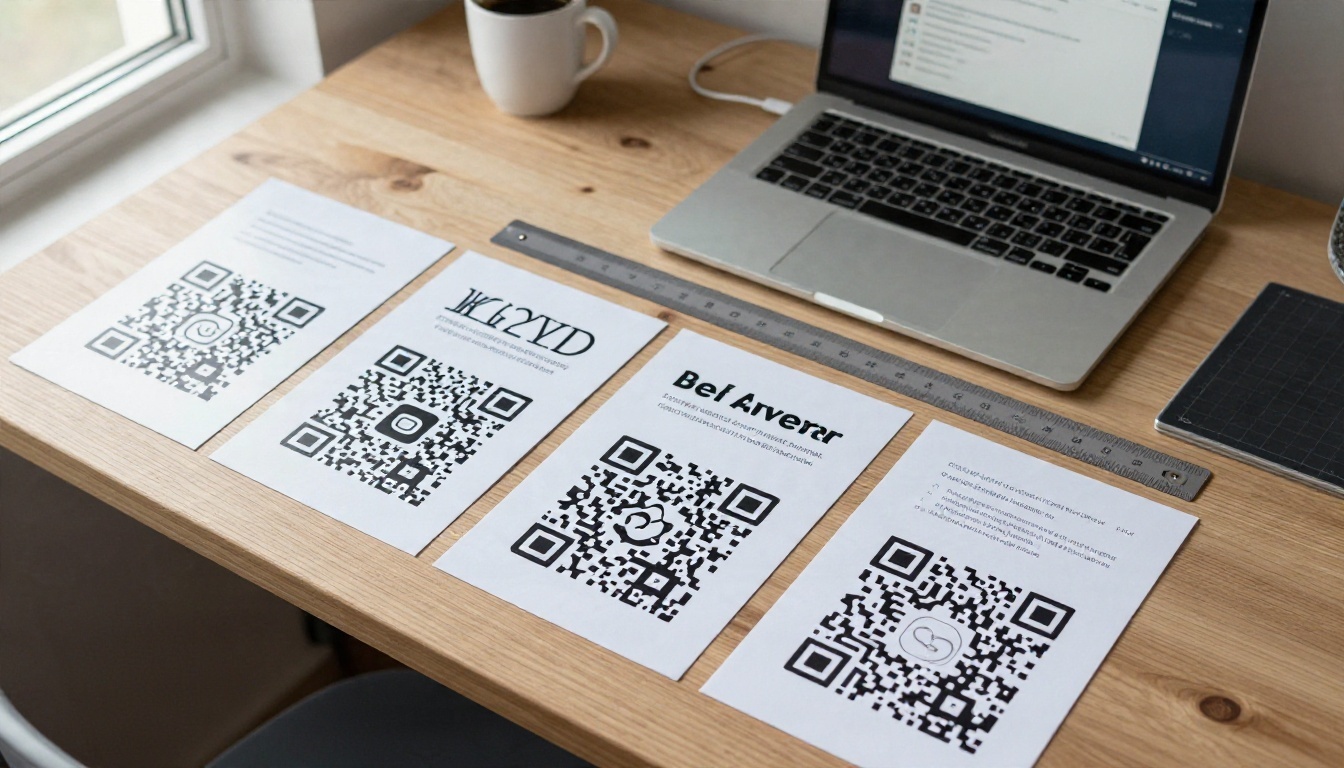
Common card formats
| Card type | Size (inches) | Size (mm) | Best location | Notes |
|---|
| Tent card | 4 x 6 | 102 x 152 | Nightstand, desk | Most popular, stands on its own |
| A6 tent card | 4.1 x 5.8 | 105 x 148 | Nightstand, desk | European standard |
| Slim tent card | 4 x 8 | 102 x 203 | Tall desks, minibar tray | Room for a short intro line |
| Flat card | 3.5 x 5 | 89 x 127 | Inside a drawer or folder | Good for a quiet, minimal look |
| Door hanger | 3.5 x 8.5 | 89 x 216 | Door handle | Doubles as a breakfast order slip |
| Round sticker | 2 x 2 | 50 x 50 | Phone, TV remote tray | Use sparingly, adhesive can mark surfaces |
| Mirror cling | 3 x 3 | 76 x 76 | Bathroom mirror corner | Static cling, no residue |
For most rooms, the 4 x 6 inch tent card is the best choice. It fits a short heading, the QR code, and a line of instruction without feeling crowded.
The QR code size rule
A reliable rule is the 10 to 1 rule: the scanning distance should be about ten times the width of the code. A guest holding a phone at 12 inches from a card needs a code about 1.2 inches wide at minimum.
| Scan distance | Minimum code width | Recommended width |
|---|
| 8 in (20 cm), bedside | 0.8 in (2 cm) | 1.2 in (3 cm) |
| 12 in (30 cm), desk | 1.2 in (3 cm) | 1.6 in (4 cm) |
| 24 in (60 cm), door or wall | 2.4 in (6 cm) | 3 in (7.5 cm) |
| 6 ft (180 cm), mirror or TV | 7 in (18 cm) | 8 in (20 cm) |
Always leave a quiet zone, which is a blank border around the code at least four modules wide (roughly the width of four of its smallest squares). Without it, some cameras struggle to find the edges.
Print specifications
- Paper: 300 to 350 gsm matte stock. Gloss causes glare under bedside lamps.
- Contrast: Black code on white or very light background. Avoid dark on dark.
- Finish: Matte lamination or a soft touch coating to survive spills.
- Fold: Pre scored tent folds sit better than hand creased ones.
- Text: Maximum 2 or 3 short lines. For example, "Scan for room service" and the extension number.
⚠️ Warning: Do not place a logo over the center of the code unless you test it thoroughly. Some generators allow logos, but they reduce error tolerance, and worn cards fail first.
Where to Place Cards
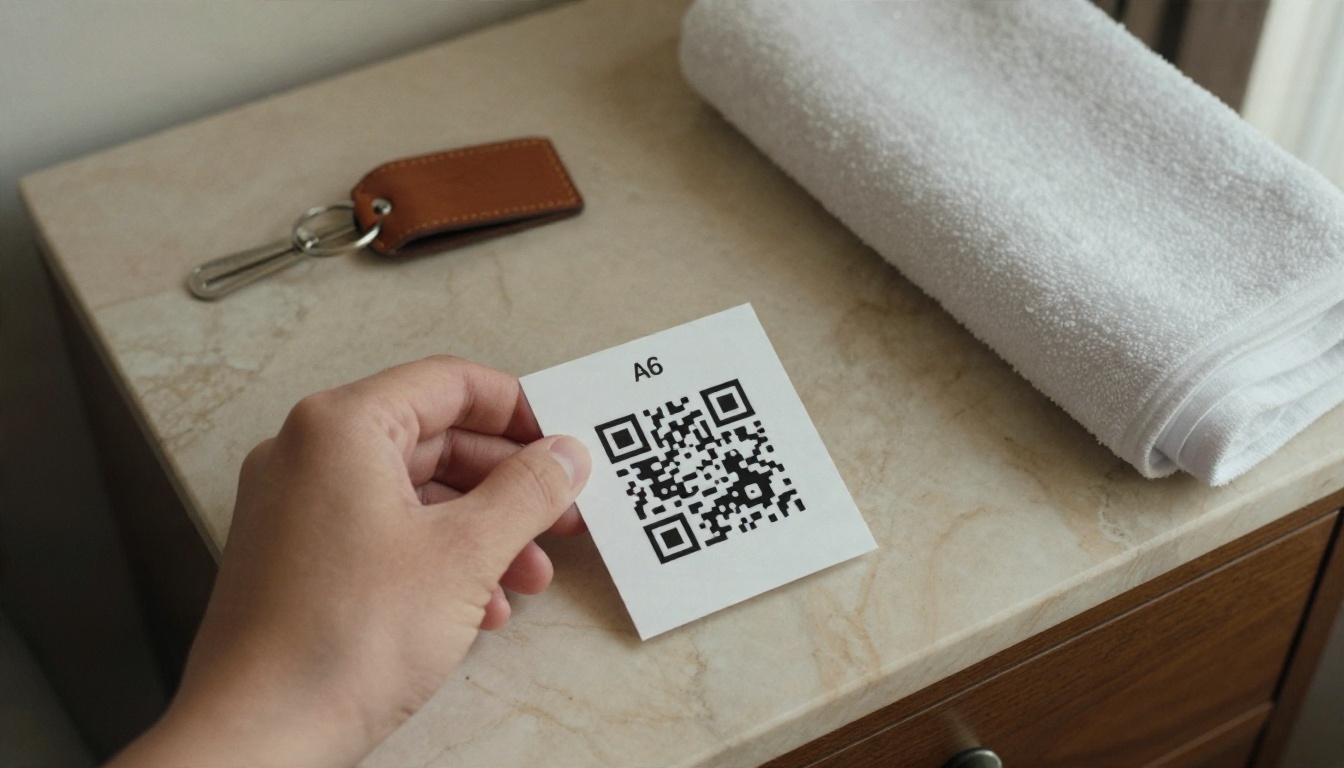
Best spots by room type
Guests look in predictable places. The nightstand and desk are where phones, chargers, and glasses already live.
| Location | Visibility | Good for |
|---|
| Nightstand | High | Room service, late night orders |
| Writing desk | High | Full hotel menu, business services |
| Minibar tray | Medium | Bar and snack price list |
| TV remote tray | Medium | Entertainment and dining combo |
| Bathroom shelf | Low | Spa and wellness treatments |
| Door hanger | High on arrival | Breakfast order slip |
Matching card to guest moment
Think about when each guest needs what:
- Arrival: A welcome card on the desk with the full menu link
- Evening: A nightstand card focused on room service
- Morning: A door hanger with breakfast times and a scan code
- Bathroom: A small spa card near the mirror
Suites with more space can carry two cards. Standard rooms should get one, placed where it is seen without moving anything.
Free Setup Checklist
You can launch with very little money. Here is a realistic budget for a 40 room property.
| Item | Free route | Paid route (optional) |
|---|
| Menu design | Canva or Google Docs | Freelance designer |
| Flipbook hosting | Free trial or plan at Flipbooks AI | Standard or Professional plan |
| QR code | Free generator | Branded dynamic QR service |
| Card printing | Office printer on 300 gsm card | Local print shop, matte finish |
| Testing | Staff phones | Mystery guest feedback |
| Updating | Edit the PDF and re-upload | Scheduled seasonal refresh |
Here is the sequence in a single pass:
- Finalize the menu content with the kitchen and spa teams
- Export to PDF and convert it to a flipbook
- Brand it, set password protection if needed, and copy the link
- Generate the QR code from the link
- Design a 4 x 6 inch card with the code, a short line of text, and the front desk number
- Print 5 test cards, scan on several phones
- Print for all rooms and add 20 percent spare
- Brief housekeeping on card placement and replacement
💡 Pro tip: When you update the menu, re-upload the file so the same link keeps working. Your printed QR cards stay valid and you never reprint for a price change.
Mistakes That Make Guests Ignore It
Sending guests to a slow page
If the menu takes eight seconds to load on hotel Wi-Fi, guests give up and call the desk. Compress images, keep the PDF light, and consider the offline download option for properties with patchy signal.
Hiding the card
A card tucked behind the tissue box does nothing. Place it where a guest's eyes land when they sit down.
Printing the code too small or too glossy
Glare and tiny codes are the top two reasons for failed scans. Stick to matte stock and the sizes in the table above.
Forgetting a call to action
"Scan me" alone is vague. "Scan for room service and breakfast" tells the guest what they get. Add a phone extension as a backup for guests who prefer to call.
Skipping the test
Test in a dim room with a phone at low battery and a cracked screen. That is how guests really scan.
Real-World Examples
A 30 room boutique hotel replaced its leather room folders with a single 4 x 6 tent card on each desk. The owner uploaded a six page PDF covering breakfast, room service, and local restaurant picks. When the chef changed the dinner menu, one file update fixed every room in minutes.
A city business hotel used door hangers with a QR code for breakfast orders. Guests scanned, saw hours and photos, and called in orders before checking out. The front desk reported fewer questions about breakfast times.
A resort with a spa put a small 3 x 3 inch cling card on bathroom mirrors that linked to a spa menu. They paired it with a Professional plan flipbook to see which treatments were being opened most, then adjusted the featured page each week.
A short stay apartment operator used password protection to share a house manual and local dining list with guests only. The password was printed on the check in confirmation, so the link was not publicly browsable.
| Property type | Card format | Menu content | Result to track |
|---|
| Boutique hotel | 4 x 6 tent card | Dining and local picks | Fewer front desk calls |
| Business hotel | Door hanger | Breakfast and room service | Breakfast order volume |
| Resort | Mirror cling | Spa treatments | Spa page views |
| Apartment rental | Flat card in folder | House manual, password | Fewer check in questions |
You already have most of what you need: a menu, a phone, and a printer. The rest takes an afternoon. Build the flipbook, test the code, print a handful of cards, and watch how guests use them in the first week.
Ready to build yours? Create your account on Flipbooks AI and upload your first PDF. Browse all flipbook tools to find the right layout for dining, spa, or local recommendations, or use the Digital Price List Generator for minibar and service pricing. When you want analytics and lead generation, compare pricing plans and pick the tier that fits your property.



