A silent photo album is just a drawer of pictures with better lighting. Add a song that was playing on that road trip, at that wedding, or in that kitchen, and the same photos suddenly feel like a memory instead of a file. The good news: you don't need a design degree, a video editor, or a paid subscription to make one. With a PDF and a tool like Flipbooks AI, you can build a page-turning album, attach music, and send it to anyone through a single link.
This tutorial shows the whole process, from picking photos to publishing. You'll see which tools work, how to choose music that doesn't clash with your pictures, what to do about privacy, and how to avoid the mistakes that make albums feel clunky on a phone.
Why a Silent Album Falls Flat
Most people store their best photos in three places: a phone gallery, a cloud folder nobody opens, and a shared WhatsApp group that scrolled away years ago. Sending a zip file of 400 images doesn't help either. Nobody opens it.
An online album with music solves a different problem. It gives people a beginning, a middle, and an end, and it tells them where to look next.
Photos Need a Soundtrack
Sound changes how long people stay on a page. A slow acoustic track makes viewers linger on a portrait. An upbeat song makes a beach sequence feel like it's moving. You're not adding decoration, you're setting the pace.
💡 Pro tip: Pick the song first, then sequence your photos to its mood. It's much easier than doing it the other way around.
What "Free and Shareable" Really Means
When people search for a free album maker, they usually want four things at once:
- No watermark slapped across every page
- No download required for the person receiving it
- Music that actually plays on phones and laptops
- A link they can paste into a message, an email, or a QR code
Flipbook-style albums check all four boxes. The viewer clicks a link, the pages turn like a real book, and the audio plays in the browser. Check the pricing page for the current limits of the free option before you start, so there are no surprises when you publish.
Pick Your Photos and Story
The biggest quality jump comes before you touch any software. An album with 30 well-chosen photos beats one with 300 random ones, every time.
Gather From Every Device
Pull your pictures into one folder on your computer. Check these places:
- Your phone's camera roll and any "Favorites" album
- Cloud storage such as Google Photos or iCloud
- Messaging apps where friends sent you shots from the same event
- A camera memory card you haven't emptied yet
- Scanned prints from an actual shoebox
Rename the folder after the event and the year. Future you will be grateful.
Cut Ruthlessly, Then Order
Go through the folder twice. On the first pass, delete blurry shots, near-duplicates, and anything where someone is mid-blink. On the second pass, pick the strongest photo from each moment.
Then sequence them. Chronological order works for weddings and trips. Theme order works better for a family archive (kids, holidays, grandparents).
✅ Best practice: Aim for 20 to 40 photos for a short album and up to 80 for a long event. Beyond that, split it into two albums.
Build the Album File
A flipbook starts as a PDF. That's the part most people don't expect, and it's what keeps the process simple: you design pages in a tool you already know, export, and upload.
Choose a Layout Tool
You don't need anything exotic. Here's how the common options compare:
| Tool | Cost | Best for | Photo quality on export |
|---|
| Canva | Free tier available | Fast templates, collages | High |
| Google Slides | Free | Simple one-photo-per-page albums | Good |
| PowerPoint | Paid or free web version | Offline editing | Good |
| Microsoft Word | Paid or free web version | Captioned albums | Medium |
| Apple Pages | Free on Apple devices | Clean, minimal layouts | High |
Set the page size to landscape if most of your pictures are horizontal. A square page works well for a mix of orientations.
Export as PDF
Export at the highest quality setting. Keep the file under a reasonable size (50 MB is a safe ceiling for smooth uploads), and compress only if you have to. A blurry photo in a big album looks worse than a smaller album with sharp pictures.
Some practical layout rules:
- One hero photo per page for your best shots
- Two to four photos per page for collages and quieter moments
- Short captions in a readable font, no longer than a sentence
- Generous margins, since pages are viewed on small screens too
How to Create a Photo Album with Flipbooks AI
Once your PDF is ready, the rest takes a few minutes. This is the exact flow, and the same steps apply whether you're building a birthday album or a wedding album flipbook.
Step by Step
- Open the platform. Go to Flipbooks AI and create an account. Signing up takes a minute.
- Upload your PDF. Drag the file into the upload area, or use the PDF to Flipbook Converter. Each PDF page becomes a flipbook page.
- Wait for conversion. Small albums are ready almost immediately. Larger files take a little longer.
- Preview the page flip. Click through the pages and confirm the order, the crop, and the readability of your captions.
- Add your audio. Attach your music file in the multimedia options so it plays while people browse. Audio and video embeds are part of the platform's features.
- Customize the look. Choose a background color that complements your photos, set the page effects, and add your own branding or a simple title.
- Publish and copy the link. Your album now has its own web address.
💡 Pro tip: Preview on your phone before sending anything. If a caption is hard to read there, increase the font size in your PDF and re-upload.
Customize Colors and Effects
A neutral background (soft grey, warm cream, or deep charcoal) lets photos stand out. Bright backgrounds fight with color-heavy images. If your album is for a business, such as a photographer showing a shoot, check out the Photography Portfolio tool, which is set up for exactly that.
The platform also does not add watermarks, which matters when you're sending an album to relatives who'll judge anything that looks like a template ad.
Pro Features Worth Knowing
For personal albums, the free route is usually enough. If you're sharing professionally, the higher plans add more:
| Feature | Personal album | Professional use |
|---|
| Page-turn viewer | ✅ | ✅ |
| Audio and video embeds | ✅ | ✅ |
| Password protection | ✅ | ✅ |
| Offline downloads | Useful for travel | Useful for clients |
| Analytics and lead generation | Rarely needed | Valuable on the Professional plan |
| Unlimited flipbooks | Handy for many events | Standard plan and above |
See the full breakdown on the pricing page.
Choose Music That Fits
The song is half the album. A mismatch is more noticeable than you'd expect: a punchy pop track over somber family portraits feels awkward in seconds.
Match Mood to Moments
Think about the pace of your pages and the feeling you want at the end.
- Weddings: Piano, strings, or a soft acoustic version of your first-dance song
- Trips: Light indie, summer pop, or instrumental guitar
- Baby albums: Gentle lullabies and quiet piano
- Memorial albums: Slow, warm instrumentals, never anything abrupt
- Graduations and birthdays: Upbeat, bright, recognizable songs
A track that runs three to five minutes suits most albums. For long albums, pick one with a calm, steady tempo that won't tire people out.
Stay Legal with Licensing
Using a famous song in a private album is one thing. Publishing it where strangers can find it is another. For anything public, use royalty-free music.
| Music source | Cost | Licensing | Best for |
|---|
| Your own recordings | Free | You own it | Family voices, home performances |
| Royalty-free libraries | Free or paid | Clear terms | Public or business albums |
| Creative Commons tracks | Free | Check attribution rules | Casual sharing with credit |
| Commercial hit songs | Purchase required | Restricted | Private, password-protected albums only |
⚠️ Warning: Don't upload a copyrighted song to a public album and assume it's fine. If privacy matters, use a password and keep the link within your circle.
A neat trick: record a 30-second voice message from a grandparent or a friend and use it as the opening audio. It costs nothing, and it's more memorable than any chart song.
Share It by Link
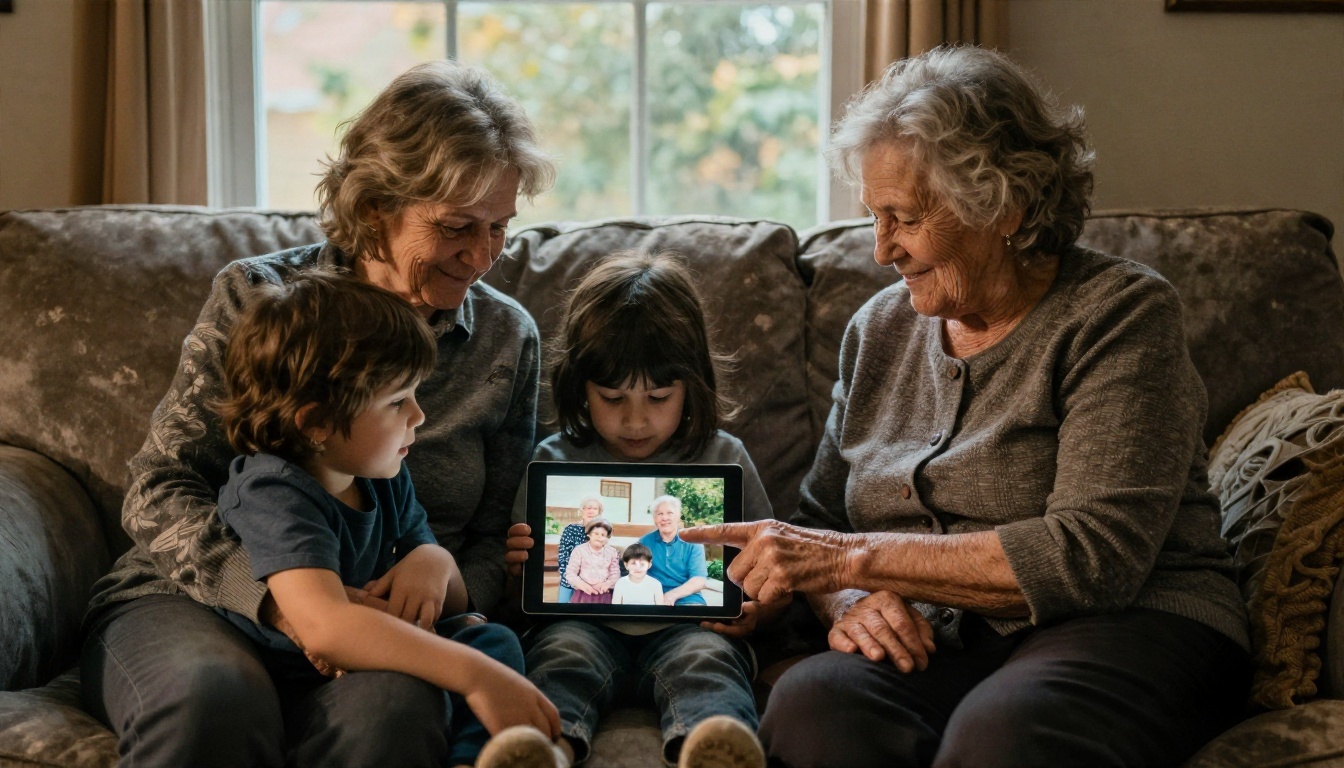
This is where an online album beats a printed one. You can send it to a relative in another country in four seconds.
Direct Link, Embed, or QR Code
You have several ways to deliver the album, and each fits a different situation:
| Sharing method | Effort | Best for | Notes |
|---|
| Direct link | Very low | Messages, email, social posts | Works on any device |
| Password-protected link | Low | Private family albums | Share the password separately |
| Embed code | Medium | Blogs, wedding sites, portfolios | See the Embed Flipbook on Website tool |
| QR code | Low | Printed invitations, thank-you cards | Generate a QR from your link |
| Offline download | Low | Trips, poor connections | Available as a platform feature |
Keep Private Albums Private
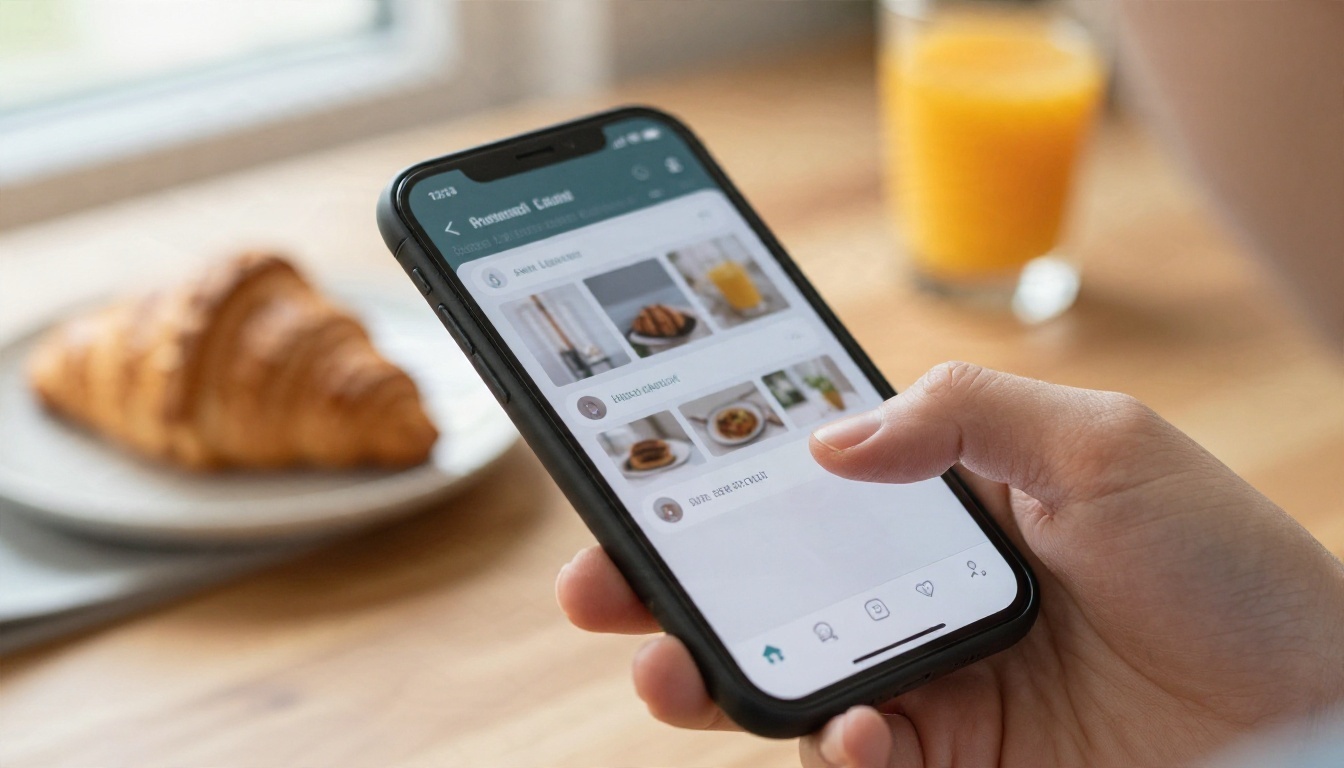
If the album shows children, a home, or anything personal, turn on password protection before you share. Then send the link and the password in two separate messages. It's a small step that prevents a link from wandering into the wrong inbox.
A quick privacy checklist:
- Remove photos that show street numbers, license plates, or documents
- Skip location captions on images of kids
- Use a password for anything not meant for the open web
- Tell recipients whether they can forward the link
Check Who Opened It
If you're a photographer or a small business, the Professional plan includes analytics and lead generation, so you can see how many people viewed your album and capture contact details from interested visitors. It's overkill for a family trip, but a real advantage for client galleries.
Real Examples That Work
Here are three setups you can copy.
The Wedding Thank-You Album
A couple exports 40 favorite photos into a Canva PDF, uses a soft piano version of their first-dance song, and shares a password-protected link in their thank-you emails. Guests open it on their phones during their commute. Several of them forward it to people who couldn't attend.
The Trip Recap
A friend group returns from ten days on the coast. One person builds a 30-page PDF with two photos per page and short captions like "Day 4, the wrong bus." They add an upbeat instrumental track, publish the album, and drop the link into the group chat. Everyone sees the same story, in the same order, and nobody has to ask for the photos again.
For longer trips, a dedicated Travel Planner style flipbook from the tools directory helps you organize itineraries, maps, and photos together.
The Family Archive
A granddaughter scans old prints, groups them by decade, and adds a recording of her grandmother singing a folk song. The album gets a password. Within a day, three cousins have sent in names and dates for people nobody could identify. The album becomes a living record.
Quick Comparison of Use Cases
| Scenario | Photos | Music style | Sharing method |
|---|
| Wedding | 30 to 60 | Piano, strings | Password link, QR on cards |
| Trip | 25 to 50 | Upbeat instrumental | Direct link in group chat |
| Baby's first year | 40 to 80 | Lullaby, soft acoustic | Private link for grandparents |
| Memorial | 20 to 40 | Slow, warm instrumental | Password link, family only |
| Photographer's gallery | 20 to 30 | Subtle ambient | Embed on website |
Mistakes to Avoid
After building a few of these, the same errors come up again and again.
Too Many Photos
People get attached to every shot. Viewers don't. If a page doesn't add something new, remove it.
Loud or Mismatched Music
Audio that starts at full volume startles people, and a mismatched mood spoils the pictures. Choose a track with a soft intro, and check the volume on both a phone and a laptop.
Tiny Text and Heavy Compression
Captions that look fine on a monitor can be unreadable on a phone. Use a larger font than you think you need. And don't over-compress the PDF: a small file isn't worth muddy photos.
Skipping the Phone Preview
Most recipients will open your link on a phone. Always test on one.

✅ Best practice: Send the link to one friend first. Ask what confused them, what dragged, and whether the music felt right. Five minutes of feedback saves you from re-sending a fix to fifty people.
Print Albums vs Online Albums
You can still do both. Many people keep a printed copy for the shelf and an online album for sharing. Here's the honest comparison:
| Factor | Printed album | Online album with music |
|---|
| Cost per copy | Moderate to high | Free to low |
| Time to deliver | Days or weeks | Seconds |
| Music | Not possible | Built in |
| Updates | Reprint needed | Re-upload the PDF |
| Reach | One household at a time | Anyone with the link |
| Durability | Can fade and tear | Backed up online |
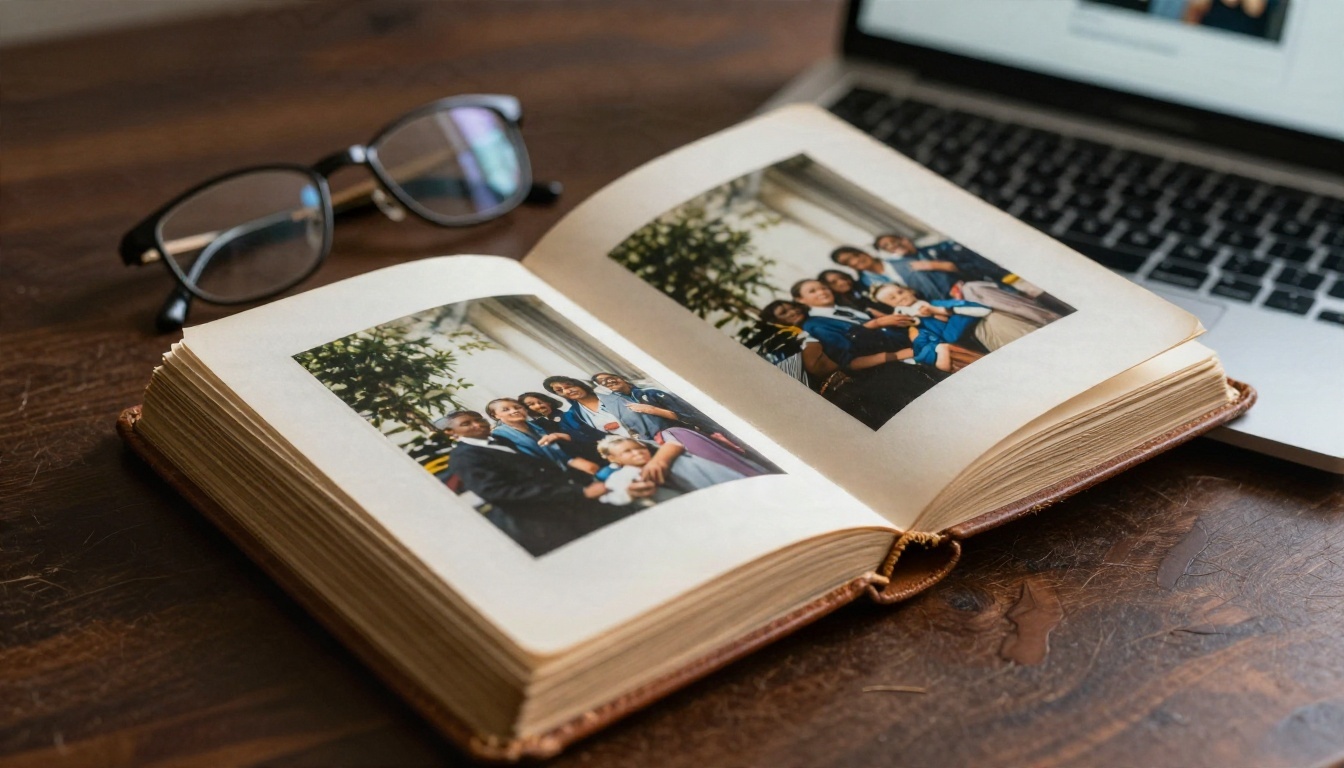
The two work well together. A printed album is for the coffee table. A digital one, with music, is for the grandmother who lives three time zones away.
Ready to Make Yours?
You already have the hardest part: the photos. The rest is a short checklist.
- Pick 20 to 40 of your best pictures
- Build the pages in Canva, Slides, or Pages and export a PDF
- Choose a song that matches the mood
- Upload to Flipbooks AI, add the audio, and publish
- Share the link, with a password if the album is private
Create your first album for free and see how it feels to send a whole story in one link. If you want more room, such as unlimited flipbooks or analytics, compare the plans and pick what fits. And if you have a different project in mind, such as a recipe collection or a yearbook, browse all the flipbook tools for a starting point.



