You finished the proposal, the menu, or the catalog on your laptop, and now a client wants it on WhatsApp in the next five minutes. Emailing it to yourself and then opening the file on your phone is slow and clumsy. The good news: you can send a PDF straight from your computer, and you have three solid ways to do it. Two of them use WhatsApp itself, and the third uses a free link built with Flipbooks AI that sidesteps file size limits and gives your document a far better reading experience than a plain attachment.
This tutorial walks through each method with exact steps, shows where each one shines, and lists the fixes for the errors people hit most often. By the end you will know which option to pick for a one-off contract, a 60-page catalog, or a price list you update every week.
Three Ways to Send a PDF
Before the steps, here is how the three methods stack up. Pick the row that matches your situation and jump to that section.
| Method | Setup time | Best for | File size | Tracking | Works without phone nearby |
|---|
| WhatsApp Web | 1 minute | Quick one-off files | Large, but slow to upload | None | No, phone must link once |
| WhatsApp Desktop App | 3 minutes | Daily senders | Large, but slow to upload | None | Yes, after linking |
| Free flipbook link | 3 minutes | Big, branded, or updated files | Not an issue, you send a link | Views and leads (Professional) | Yes |
💡 Pro tip: An attachment is a copy. A link is the original. If the document might change after you send it, a link is the safer choice because everybody sees the latest version.
Share a PDF With WhatsApp Web
WhatsApp Web runs in any browser, so there is nothing to install. It mirrors the account on your phone, which means every chat, contact, and group you already have shows up on your laptop.
Link your phone in a minute
- Open web.whatsapp.com in Chrome, Edge, Firefox, or Safari.
- On your phone, open WhatsApp and go to Settings, then Linked Devices.
- Tap Link a Device and point the camera at the QR code on your laptop screen.
- Wait a few seconds while your chats load.
You only do this once per browser. If you tick the option to stay signed in, the laptop remembers you next time.
⚠️ Warning: Never link a device on a shared or public computer unless you plan to log out right after. Anyone who opens that browser can read your chats.
Send the PDF step by step
- Open the chat or group where the file should go.
- Click the paperclip (or plus) icon next to the message box.
- Choose Document.
- Select the PDF from your laptop folders and confirm.
- Add a short caption, such as "Updated pricing for Q4", so the recipient knows what they are opening.
- Press Send.
The drag and drop shortcut
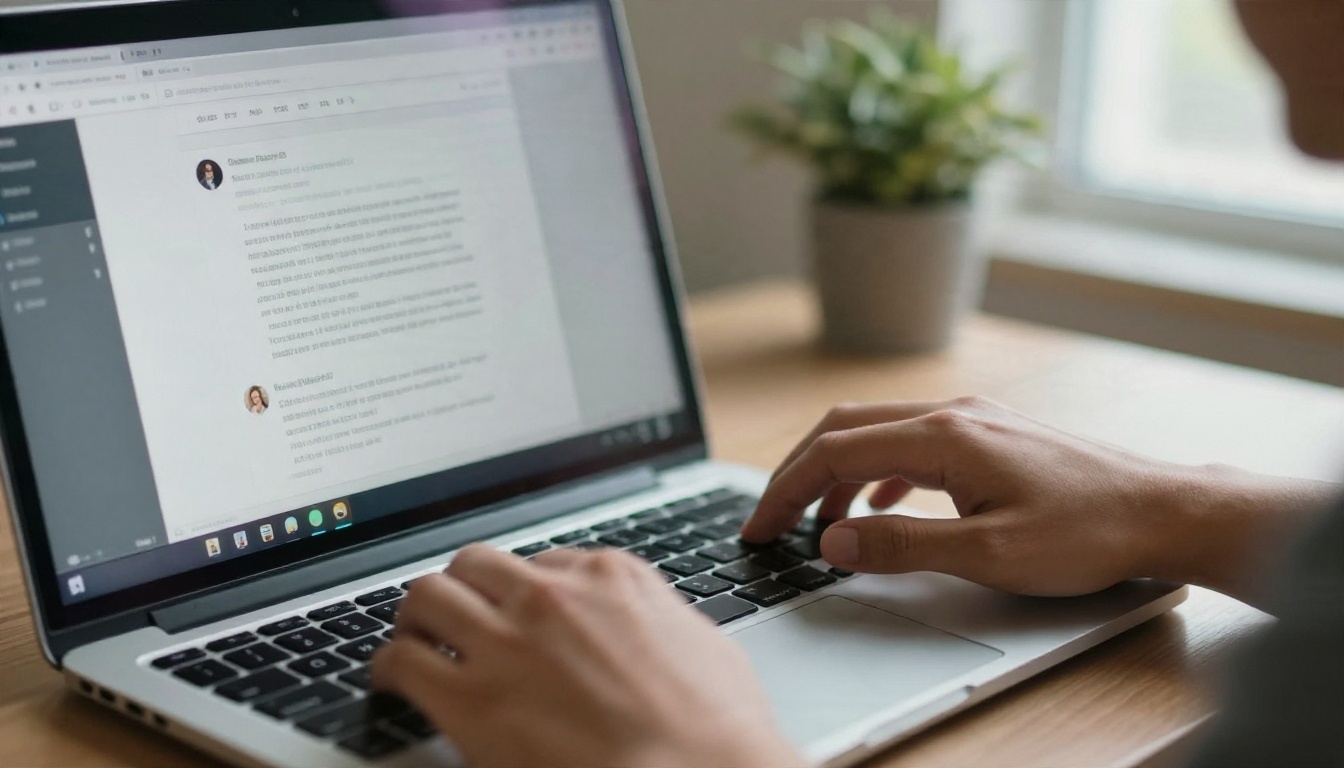
Skip the menu entirely. Open the folder that holds your PDF, then drag the file onto the chat window. A preview appears, you add a caption, and you hit send. You can also copy the file with Ctrl + C (or Cmd + C on Mac) and paste it into the message box with Ctrl + V. Both shortcuts save about ten seconds per file, which adds up when you send documents all day.
Use the WhatsApp Desktop App
The desktop app does the same job as the web version but feels more like a native program. It is a better pick if WhatsApp is open on your screen most of the workday.
Install on Windows or Mac
- Download WhatsApp from the Microsoft Store (Windows) or the Mac App Store or the official WhatsApp site.
- Open the app and scan the QR code with your phone, just as you did for the web version.
- Wait for the initial sync to finish.
Once linked, the app keeps working in the background and gives you desktop notifications, so you will not miss a reply when you send a file and wait for approval.
Send files faster with the app
The sending steps match the web version: click the paperclip, choose Document, pick your PDF, add a caption, and send. The app adds a few perks:
- Drag and drop works from any folder or even from your desktop.
- Notifications pop up even when the window is minimized.
- Search lets you find a document you sent months ago by typing part of the file name.
- Multi-file selection lets you attach several PDFs at once.

Message yourself to move files
Here is a trick many people miss. WhatsApp lets you open a chat with your own number. Send a PDF to yourself from the laptop, and it lands on your phone instantly, ready to forward to anyone. It works as a free, private shuttle between devices with no cable and no cloud drive involved.
Share a Free Link Instead
Attachments work, but they have real weaknesses. WhatsApp compresses images, not PDFs, yet a heavy file still crawls over a weak mobile connection. The recipient has to download it before reading. Fonts and layout depend on whichever PDF viewer their phone happens to use. And once you press send, you have no idea whether anyone opened the file.
Why a link beats an attachment
A link solves all of that. You paste a short URL into WhatsApp, and the receiver taps it to read your document instantly in the browser. With Flipbooks AI, that link opens a page-turning flipbook that looks sharp on phones, tablets, and desktops, with no watermark and no app to install.
| Feature | Plain PDF attachment | Flipbook link |
|---|
| Download needed before reading | Yes | No, opens in the browser |
| Mobile-friendly layout | Depends on viewer | Responsive by design |
| Update after sending | Send a new file | Same link, fresh content |
| Password protection | Needs separate tool | Built in |
| Track opens | No | Yes, with the Professional plan |
| Branding | None | Logo, colors, custom look |
| Offline copy | Already downloaded | Optional offline download |
Create a flipbook link in five steps
This is the quickest route from a PDF on your laptop to a link in your chat.
- Open the platform. Go to Flipbooks AI and create a free account if you do not have one yet.
- Upload your PDF. Drag the file into the uploader, or use the PDF to Flipbook Converter. Conversion takes moments, even for long documents.
- Customize the look. Add your logo, choose background colors, and pick a page-turn effect. You can also embed videos or audio on specific pages, which is handy for product demos.
- Set sharing options. Copy the direct link, grab the embed code for your website, or add a password if the content is private.
- Paste into WhatsApp. Return to WhatsApp Web or the desktop app, paste the link into the chat, and send. WhatsApp usually shows a preview card so the recipient knows what to expect.

✅ Best practice: Name your flipbook clearly before copying the link. A title like "Autumn Price List 2026" looks far more trustworthy in a chat preview than "Document1 final v3".
Customize and Protect Your Link
A link is not just a convenience. It is also a small branding opportunity and a privacy tool.
Branding, password, and embeds
Add your logo and brand colors so the document feels like yours from the first tap. If the file contains pricing, contracts, or internal notes, switch on password protection and send the password in a separate message. When you also want the document on your website, use the Embed Flipbook on Website tool and paste the generated code into your page. The same document then serves your WhatsApp contacts and your site visitors from one source.
Track who opened it
Wondering whether the client actually read the proposal? The Professional plan adds analytics and lead generation, so you can see views and, when you enable a form, collect contact details before the reader gets in. Standard plans and above include unlimited flipbooks, which suits anyone who publishes a new document every week. Check the pricing plans to see which tier matches your volume.
| Capability | Standard plan | Professional plan |
|---|
| Unlimited flipbooks | ✅ | ✅ |
| No watermarks | ✅ | ✅ |
| Password protection | ✅ | ✅ |
| Custom branding | ✅ | ✅ |
| Offline downloads | ✅ | ✅ |
| Analytics | No | ✅ |
| Lead generation | No | ✅ |
Real Situations Where Each Option Wins
Theory is useful, but the right choice becomes obvious when you picture an actual day at work.
Four everyday examples
- A freelance designer needs to send a signed one-page invoice. WhatsApp Web with drag and drop takes ten seconds. An attachment is perfect here because the invoice is small and final.
- A real estate agent shares a 40-page property booklet with several buyers. A link built with the Real Estate Brochure Creator loads quickly on any phone and can be updated when the price changes.
- A restaurant owner sends the weekly menu to a catering client. With the Restaurant Menu Creator, the same link always shows the current menu, so no one cooks from an outdated copy.
- A teacher distributes reading material to a parent group. The Course Material Publisher lets everyone open the lesson without filling their phone storage.

Which method should you choose?
| Your situation | Recommended method |
|---|
| Single small file, needs to arrive now | WhatsApp Web |
| You message from your laptop all day | Desktop app |
| Document is large, branded, or changes often | Free flipbook link |
| You must know if it was opened | Flipbook link with analytics |
| Content is confidential | Flipbook link with a password |
| Moving a file between your own devices | Message yourself |
You can also browse the full list of flipbook tools to find a template for catalogs, brochures, reports, or portfolios.
Fixes for Common Problems
Even a simple task can go sideways. These are the issues that come up most.
The PDF will not upload
First, confirm the file opens normally on your laptop. A corrupted PDF fails everywhere. Next, check that the file name does not contain odd symbols, and try renaming it with plain letters and numbers. If WhatsApp Web still refuses, refresh the page or restart the desktop app. As a last resort, log out and link the device again.
The file is too large or slow
WhatsApp allows big documents, but upload speed depends on your internet connection, and the recipient's mobile data plan matters too. If the file is bulky, compress it or switch to a link. A flipbook link means you upload once and the reader streams only the pages they view.
The recipient cannot open it
This usually happens when the other person has no PDF reader or an outdated one. A browser-based link removes that problem completely. Another cause is an expired or password-protected file, so double-check that you sent the password along.
| Problem | Likely cause | Quick fix |
|---|
| Upload fails | Corrupted file or unusual name | Rename, re-export the PDF |
| Stuck on "Sending" | Weak connection or sync lag | Check Wi-Fi, reload the app |
| QR code will not scan | Old WhatsApp version on phone | Update the phone app |
| Chat history missing | Phone offline | Reconnect the phone to the internet |
| Reader sees tiny text | PDF viewed on a small phone | Share a mobile-friendly flipbook link |
| Cannot open password file | Password not shared | Send the password separately |
💡 Quick check: Before sending anything important, open the chat on your own phone and confirm the file or link looks right. Thirty seconds of testing prevents a very awkward follow-up message.
Send Your First PDF Today
Whichever route you choose, the process is short. For a quick attachment, open WhatsApp Web, drag the PDF into the chat, and press send. For a daily routine, install the desktop app and keep it open beside your work. For anything large, branded, or likely to change, build a free link and paste it into your conversation.
Ready to try the link method? Get started for free on Flipbooks AI, upload your first PDF, and share it in under three minutes. When you want analytics and lead capture, compare the pricing plans or go straight to upgrade your account. Your next WhatsApp message could carry a document that looks as polished as the work behind it.



