You hit send on a PDF, and a minute later you wish you hadn't. The attachment is now sitting in someone's inbox, their downloads folder, and maybe a forwarded thread you will never see. Once a file leaves your hands as a raw attachment, you have almost no say in where it goes. The good news is that you can change how you share from today. With Flipbooks AI, you turn a PDF into a browser based flipbook and keep control through three simple levers: disable downloads, set an expiry, and use private links.
This article walks through each lever, shows when to use it, and gives you a practical routine you can run every time a document leaves your desk.
Why Document Access Gets Out of Hand

Most people don't plan to over share. It happens in small steps: a quick email, a shared drive link set to "anyone with the link," a forwarded message to a colleague who forwards it again. Each step feels harmless. Together they create a trail of copies you can't track or recall.
The Attachment Problem
An attachment is a copy, not a view. The moment someone opens it, they own a file that can be saved, renamed, edited, and sent anywhere. You can't expire it. You can't see who opened it. You can't take it back.
A link to a hosted document is different. The file stays in one place, and you decide who can open it, for how long, and what they can do with it. That single shift from copy to view is the foundation of everything below.
Who Pays When Files Leak
The cost depends on what leaked. A price list reaching a competitor costs you margin. An unreleased catalog appearing on a forum costs you launch momentum. A contract or HR file in the wrong hands can cost you trust and, in regulated fields, real legal exposure.
⚠️ Most leaks are not hacks. They are ordinary forwards, old links that never died, and downloads that outlived the project they were made for.
Sharing Methods Compared
| Method | Can the recipient keep a copy? | Can you set an expiry? | Can you see who opened it? | Risk level |
|---|
| Email attachment | Yes, always | No | No | High |
| Public cloud link | Usually yes | Sometimes | Limited | Medium to high |
| Password protected flipbook link | Only if you allow it | You control the lifespan | Yes, with analytics on the Professional plan | Low |
Disable Downloads First
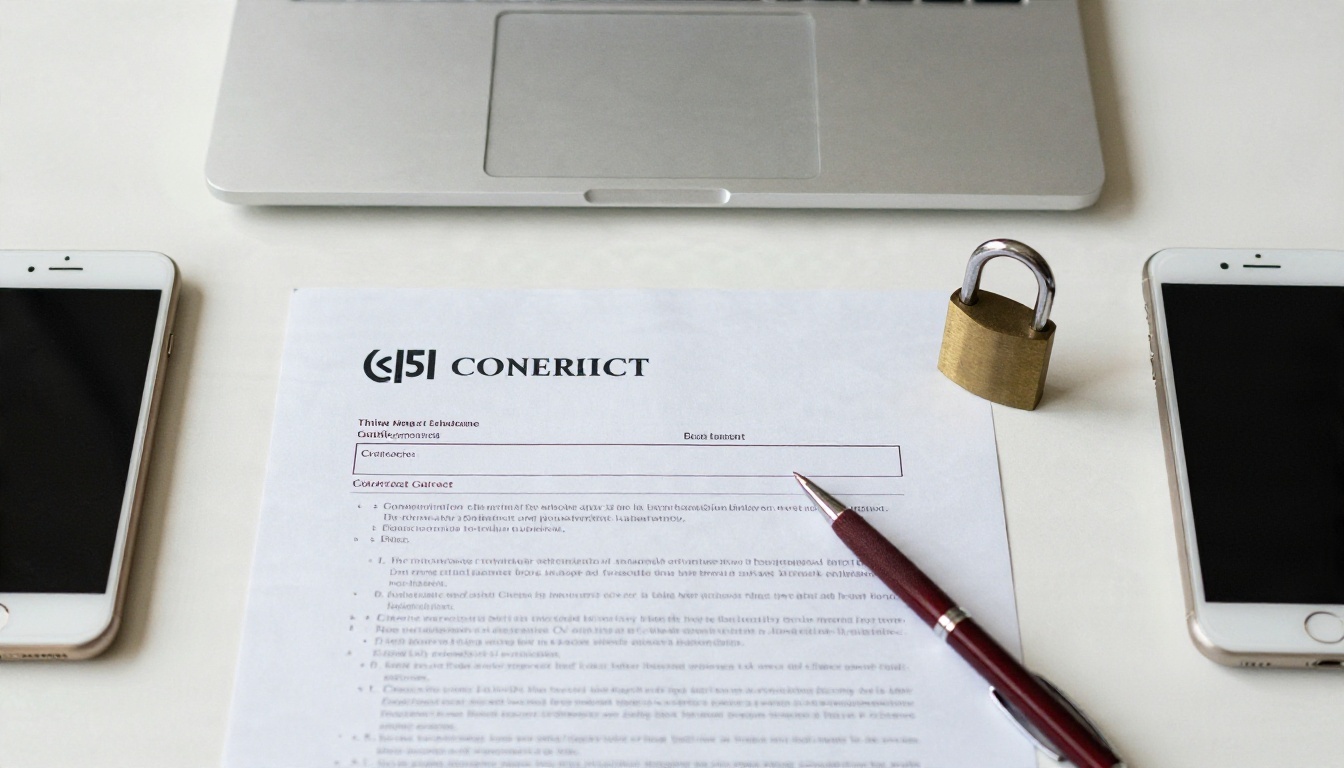
If you only change one habit, change this one. When readers can only view a document in the browser, the easiest route to making a copy is closed.
What Download Blocking Does
Turning off downloads removes the obvious "save a copy" path. Readers flip through pages in a browser, zoom, and read, but they don't walk away with a file on their drive. It is the digital version of letting someone read a document in your office instead of handing them the original.
Be honest about the limit, though. Anyone who can see content can, in theory, take a screenshot or photograph the screen. Download blocking stops casual copying and accidental forwarding, which is where the vast majority of leaks begin. For truly sensitive files, combine it with a password and a short expiry.
Steps to Turn Off Downloads
- Convert your PDF into a flipbook with the PDF to Flipbook Converter.
- Open the flipbook's sharing or publishing settings.
- Leave offline downloads off for public or semi public readers.
- Turn them on only for trusted people who truly need an offline copy, such as a client who travels without reliable internet.
- Open the share link in a private browser window and check that no download option appears.
💡 Test as a stranger. Always open your final link in a private window, signed out, before you send it. What you see is what your recipient sees.
When Downloads Are Fine
Not everything needs locking. A public brochure, a menu, or a free e-book is made to travel. For those, allow downloads and let readers take it with them. Reserve the lock for drafts, pricing, contracts, internal reports, and anything with a confidentiality note.
| Document type | Downloads | Reason |
|---|
| Public menu or brochure | Allow | Made to be shared widely |
| Wholesale price list | Disable | Prices change and shouldn't circulate |
| Draft contract | Disable | Version control matters |
| Internal annual report | Disable | Limited audience |
| Free e-book or lead magnet | Allow | The goal is reach |
Set an Expiry Date

Access that never ends is access you will forget about. Most documents have a natural shelf life: a quote is valid for 14 days, a pitch is relevant until the vote, a proposal is dead once a client signs with someone else. Your sharing should follow the same clock.
Pick the Right Lifespan
Match the expiry to the real purpose of the document, not to your mood on the day you share it.
| Use case | Suggested lifespan | What happens at the end |
|---|
| Sales quote | 7 to 14 days | Unpublish, send updated version if needed |
| Investor deck | 3 to 7 days | Unpublish after the meeting |
| Candidate or HR pack | 24 to 72 hours | Unpublish, archive internally |
| Event program | Until the event ends | Replace with a recap |
| Client project review | Until final sign off | Unpublish or swap the link |
A Manual Expiry Routine That Works
Not every setup has a built in countdown timer, and that is fine. A reliable routine works just as well:
- Decide the end date at the moment you share, not later.
- Add a calendar reminder titled with the document name and recipient.
- Unpublish or replace the flipbook on that date so the old link stops showing the file.
- Send a fresh link if the relationship continues, so each round gets its own lifespan.
✅ Best practice: use one link per recipient or per round. If a link ends up somewhere it shouldn't, you can kill that one link without disrupting anybody else.
Use Private Links and Passwords

A private link is the third lever, and it is the one that decides who gets in to begin with. The goal is simple: the link alone should not be enough to open a sensitive file.
Public, Unlisted, or Private
These terms get mixed up constantly, so here is the plain version.
| Access type | Who can open it | Good for |
|---|
| Public | Anyone, and search engines may find it | Marketing material, menus |
| Unlisted link | Anyone who has the link | Low risk documents shared with a small group |
| Password protected link | Only people with the link and the password | Contracts, pricing, internal reports |
An unlisted link is not private. If it is forwarded, it works for the new person too. A password is what turns a link into a real gate.
Password Rules That Work
- Never put the password in the same message as the link.
- Send it through a second channel, such as a text message or a quick call.
- Use a unique password per document or per recipient group.
- Skip obvious choices like company names, years, or "1234."
- Change the password when the team or the deal changes.
⚠️ A password pasted right under the link in the same email protects nothing. If the email is forwarded, both travel together.
How to Lock a Flipbook with Flipbooks AI

Here is the whole routine in one place. You can create an account and have your first locked flipbook running in a few minutes.
Upload and Convert Your PDF
- Sign in at Flipbooks AI.
- Click to create a new flipbook and upload your PDF.
- Wait a moment while the file is converted into a page turning flipbook.
- Check that every page looks right on both desktop and phone, since flipbooks are mobile responsive.
No watermarks are added to your flipbook, so a document sent to a client still looks like yours.
Brand It and Lock It
- Add your logo and choose brand colors so the document looks trustworthy and recognizable.
- Pick page effects and layout options that suit the document. Calm and minimal works best for contracts and reports.
- Add a password in the sharing settings for any private file.
- Keep offline downloads off unless a recipient needs a copy.
- Add videos or audio only if they are meant for the viewer, since embedded media lives inside the same protected flipbook.
Share, Embed, and Track
- Copy the direct link and send it by email or chat.
- Use an embed code if the flipbook belongs inside a client portal or a members only page. The Embed Flipbook on Website tool shows how.
- Send the password separately.
- On the Professional plan, open analytics to see how readers interact with the file, and use lead generation forms when you want to know who is reading before they get in. Check the pricing plans for details.
- When the deal closes or the deadline passes, unpublish the flipbook or replace it with a fresh version.
💡 Name your flipbooks with a date and recipient, such as "Quote Harbor Cafe Nov 2026." Six months later, you will know instantly what is safe to remove.
Plan Features at a Glance
| Feature | Why it matters for access control | Plan |
|---|
| Password protection | Gates a link so a forward alone can't open it | See pricing |
| Offline downloads on or off | Decides whether readers can keep a copy | See pricing |
| Unlimited flipbooks | One locked link per recipient or round | Standard and above |
| Analytics and lead generation | Shows who is reading and how | Professional |
| Custom branding, no watermarks | Looks professional while staying private | All plans |
Real Examples You Can Copy

Rules are easier to follow when you can picture them in your own work. Here are three situations where these controls pay off right away.
A Designer Sharing Unfinished Work
A freelance designer needs client feedback on a brochure that isn't paid for yet. Sending a PDF risks the client using the artwork before the invoice clears. Instead, the designer publishes a view only flipbook, with downloads off and a password set, using the Online Brochure Designer workflow. The client reviews it, approves it, and receives the final files after payment.

A Real Estate Agent With Off Market Listings
Off market properties are valuable precisely because few people know about them. An agent builds a listing pack with the Real Estate Brochure Creator, sets a password, and sends it to two serious buyers. After the viewing weekend, the agent unpublishes the flipbook. Nothing lingers in anyone's inbox.

An HR Team Sending Onboarding Material
HR often sends policies, handbooks, and role details that include internal names and figures. A Training Manual Flipbook with a password and no downloads lets new hires read everything on day one. When someone leaves, the link is replaced, and the old one stops working.
| Scenario | Downloads | Password | Expiry | Result |
|---|
| Designer proof | Off | Yes | Until approval | Artwork stays protected until paid |
| Off market listing | Off | Yes | Weekend | No lingering copies |
| HR onboarding | Off | Yes | Replace on exit | Old links stop working |
| Public menu | On | No | None | Maximum reach |
Revoke Access When Things Change

Setting up controls is half the job. The other half is cleaning up after the moment has passed.
A Quick Monthly Audit
Once a month, spend ten minutes on this checklist:
- Open your list of published flipbooks.
- Sort out anything tied to a finished deal, event, or project.
- Unpublish or delete what is no longer needed.
- Change passwords on anything that stayed live but involved people who have left.
- Check analytics, if you are on the Professional plan, for unexpected reading patterns.
Mistakes to Avoid
- Reusing one link for everyone. One leak then affects everybody.
- Sharing the password with the link. It defeats the whole point.
- Forgetting the end date. Old links are the quietest risk.
- Trusting "unlisted" as private. It only hides the link, not the content.
- Skipping the private window test. Always view your link the way a stranger would.
✅ Treat every shared document as borrowed, not given. If you set it up that way from the start, taking it back is easy.
Lock Down Your Next Document
Stopping document access doesn't take special software or a security team. It takes three habits: view only by default, an end date on every share, and a private, password protected link for anything sensitive. Start with the very next file you send.
Ready to try it? Create your free account on Flipbooks AI and convert your first PDF. Browse the full set of flipbook tools to find the right layout for catalogs, reports, or brochures, or compare pricing plans when you are ready for analytics and lead generation. When you are set to pick a plan, sign in and head straight to pricing.



