You can lay out a good magazine for free, and you can also burn through a few hundred dollars a year on tools that do the same job. The gap between those two outcomes comes down to picking the right magazine editor software for the way you actually work. This article lines up free programs, browser based editors, tablet apps and paid suites, then shows what happens after the layout is done: getting the issue in front of readers. If you already have a PDF and just want it online, you can turn it into a page turning issue on Flipbooks AI in a couple of minutes.
💡 Quick answer: Use a free or low cost layout tool to design the issue, export a PDF, then publish it as an interactive flipbook. Design and distribution are two separate jobs, and mixing them up is the most common way people overspend.
What Magazine Editor Software Actually Does
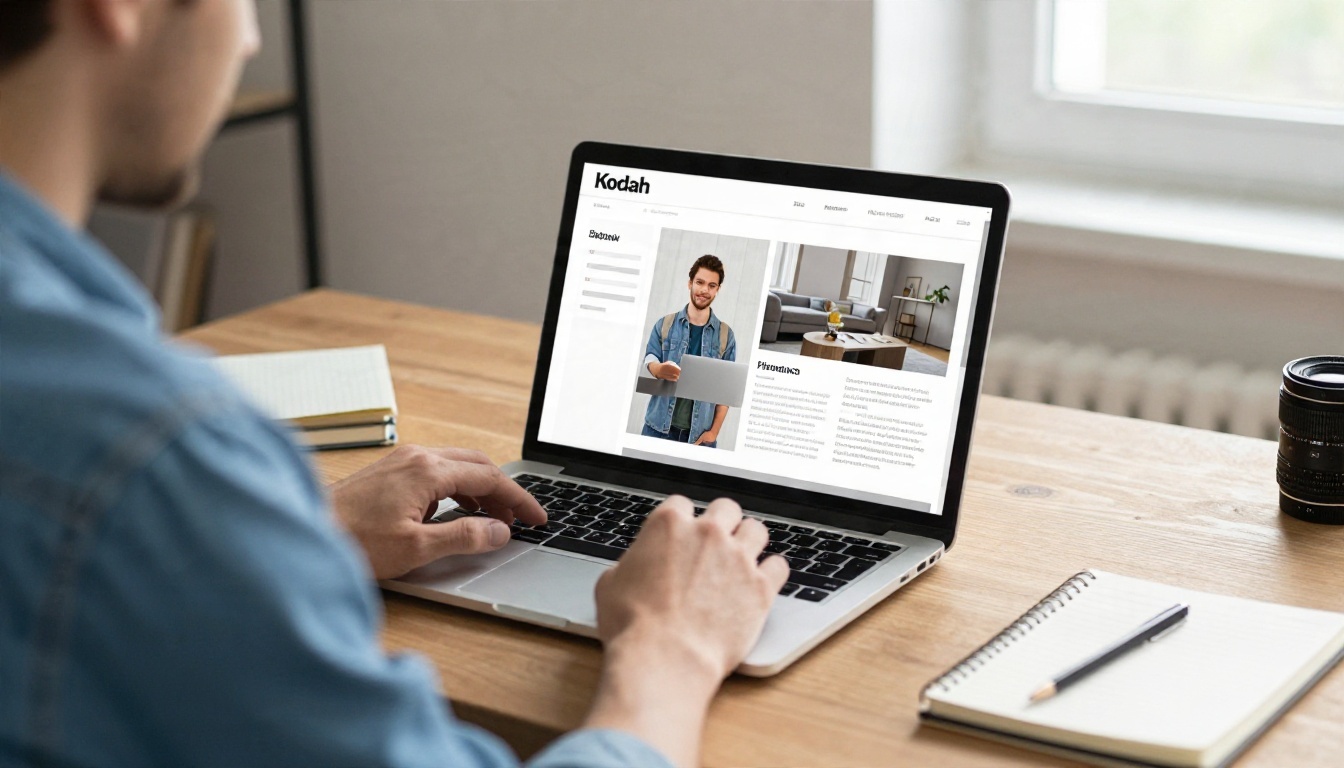
Every tool in this comparison falls into one of three buckets. Knowing which bucket you need saves hours of trial and error.
Layout and Design Editors
These are the programs where you place text, photos and ads on a page. Think InDesign, Affinity, Scribus and Canva. They control typography, columns, bleed, color profiles and export quality. If your magazine will ever be printed, this is the bucket that matters most.
Publishing and Hosting Platforms
These take a finished PDF and turn it into a readable, shareable digital issue. Issuu, Flipsnack, Publuu and Flipbooks AI live here. They handle page flip effects, links, embeds, sharing and sometimes analytics.
All in One Builders
A few products try to do both, offering templates plus hosting under one subscription. They are convenient for a first issue, but you usually give up fine typographic control or pay more per month than two separate tools would cost.
⚠️ Watch out: Many "free" plans are really trials. Check for watermarks, page limits and export restrictions before you spend three evenings building an issue inside a tool.
Free Options Worth Your Time
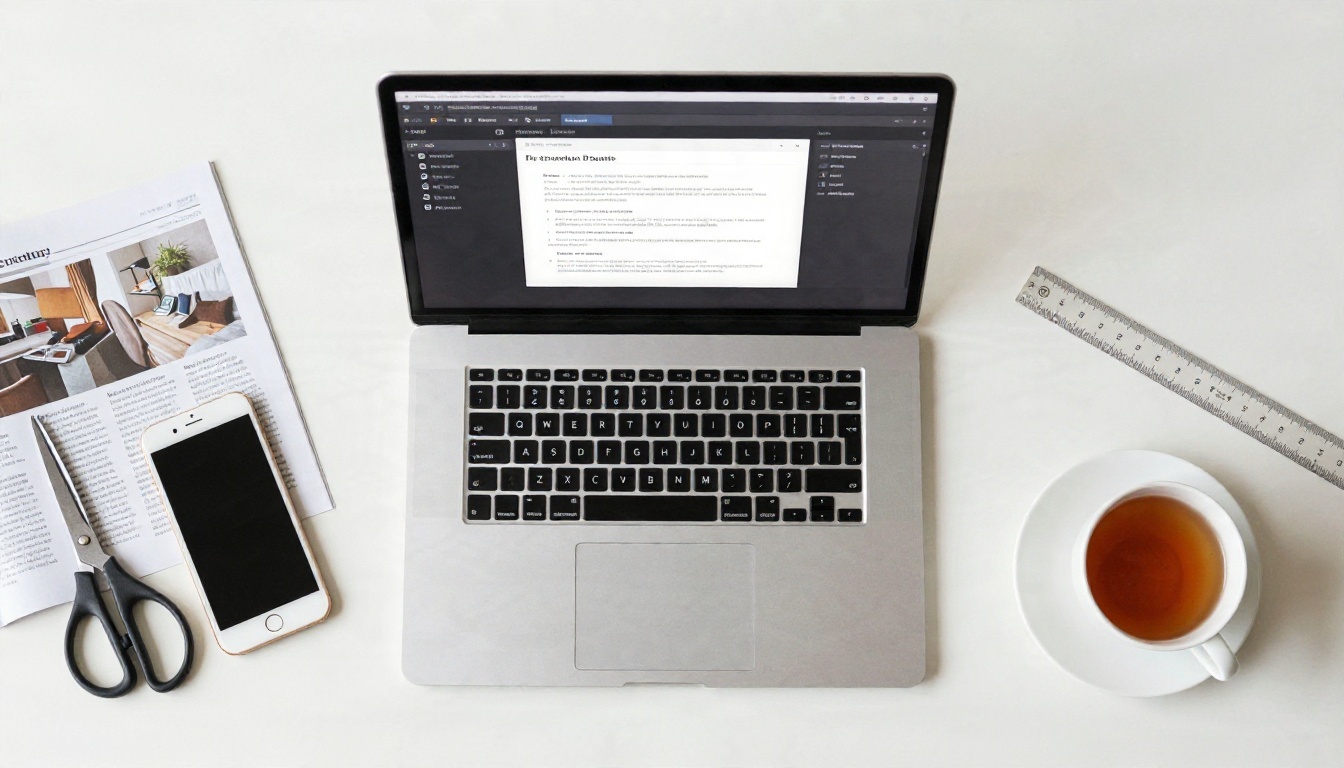
Free no longer means weak. Several programs produce print ready files without a subscription.
Scribus for Print Purists
Scribus is open source desktop publishing software for Windows, macOS and Linux. It supports CMYK color, spot colors, bleed settings and PDF/X export, which puts it ahead of many paid web tools for print work. The interface looks dated and the workflow takes patience, but nothing is locked behind a paywall.
Affinity for Polished Layouts
Affinity Publisher has long been the favorite InDesign alternative, and since Canva took over the brand, the Affinity app has been available at no charge, with optional paid AI features. It offers parent pages, baseline grids, styles and strong PDF export. It is the best free choice if you want a professional feel without a monthly fee. Check the current licensing terms on their site, since they have shifted recently.
Canva Free for Quick Issues
Canva's free tier gives you magazine templates, a large photo library and drag and drop editing. The limits show up in print: color control is basic and some premium assets need a Pro plan. For a short digital newsletter style magazine it is hard to beat for speed.
Google Docs and Apple Pages
Not glamorous, but if your magazine is mostly text, a school publication or a club bulletin, these free word processors can export clean PDFs. Pages in particular has decent magazine templates on every Mac.
| Free Tool | Best For | Print Ready? | Main Limit |
|---|
| Scribus | Print magazines on a budget | Yes, PDF/X support | Dated interface, slower workflow |
| Affinity | Professional looking layouts | Yes | Check current licensing terms |
| Canva Free | Fast digital issues | Limited | Premium assets are paid |
| Google Docs | Text heavy bulletins | Basic | Little typographic control |
| Apple Pages | Mac users, simple issues | Basic | Few advanced layout tools beyond templates |
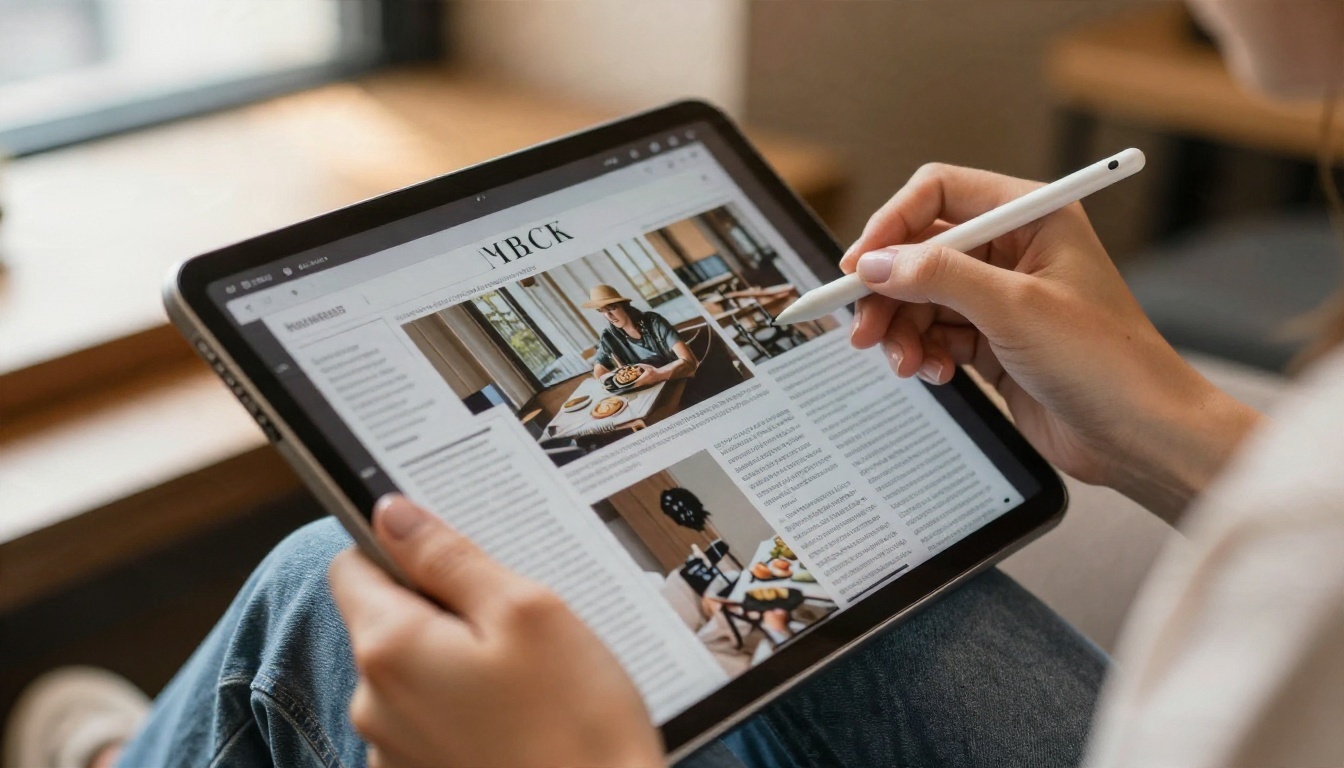
Browser based editors win on convenience. There is nothing to install, files live in the cloud and teammates can comment on the same page. The tradeoff is dependence on a subscription and an internet connection.
Template Driven Editors
Canva, Adobe Express and Marq (formerly Lucidpress) let you start from a magazine template, swap photos and change brand colors. They suit marketing teams who need a branded issue on a schedule. Marq in particular focuses on brand control, which is useful when several people edit the same file.
Hosted Readers
Issuu, Flipsnack, Publuu and Joomag start from the PDF side. You upload a finished file, and the platform produces a digital edition. Some add light editing, but their real value is distribution. A few things to compare before you commit:
- Does the free plan add a watermark or limit the number of publications?
- Can you embed the issue on your own website without the platform's branding?
- Is password protection available, and on which plan?
- Do you get reader analytics, or only a view counter?
💡 Pro tip: If your readers arrive from social media or email, test the issue on a phone before you publish. More than half of digital magazine traffic is mobile, and a page that looks perfect on a monitor can be unreadable on a six inch screen.
Apps for Tablet and Phone
Editing a magazine on a tablet is more realistic than it was a few years ago. Three setups are worth knowing.
- Canva and Adobe Express apps: Good for adjusting text, swapping images and exporting a PDF while away from your desk.
- Affinity on iPad: A genuine layout tool with a stylus friendly interface, suited to editors who sketch ideas by hand.
- Pages and Google Docs apps: Handy for quick copy edits and proofreading.
For the heavy lifting, such as setting a 48 page issue with consistent styles, a laptop or desktop remains faster. Treat apps as a review and touch up layer rather than the main workspace. For readers, the best "app" is often no app at all: a mobile responsive flipbook opens in the browser with no download required.
Pricing Compared Side by Side
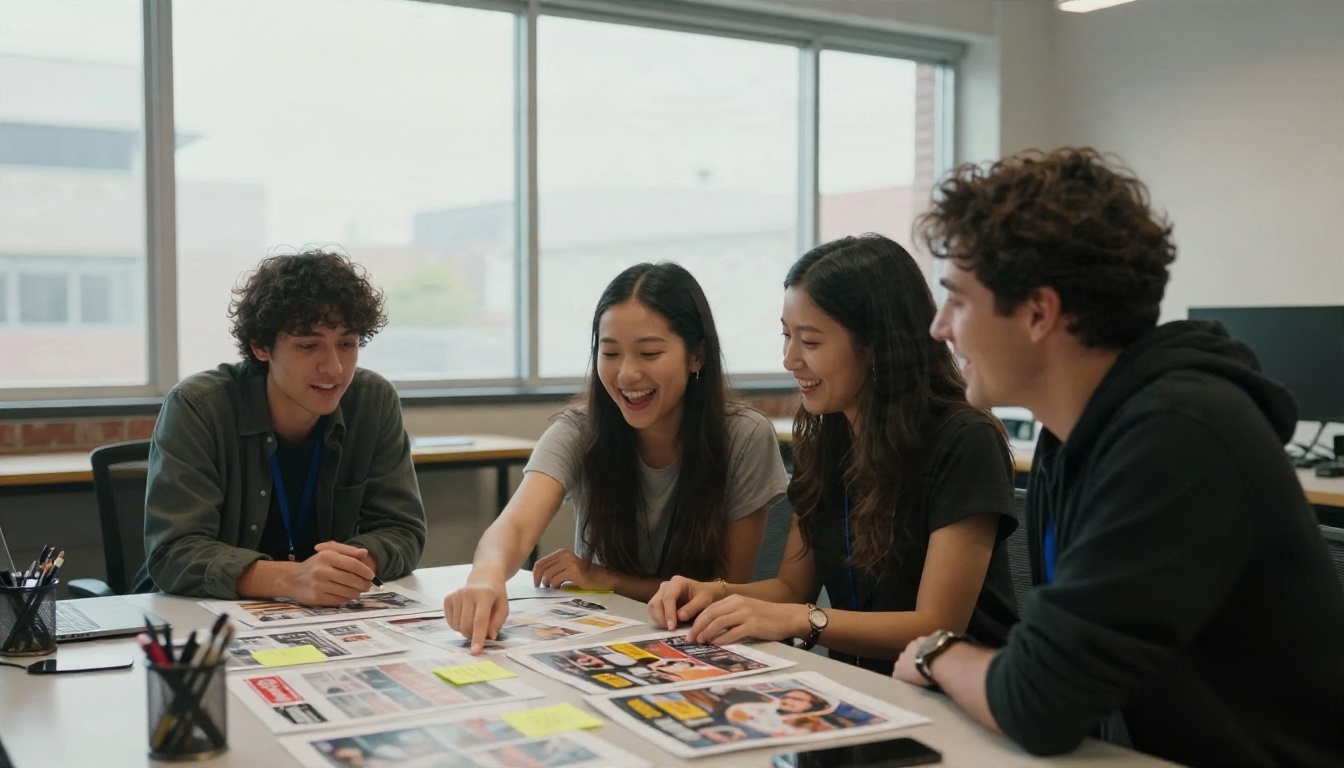
Prices below are approximate and change often, so treat them as a starting point and confirm on each vendor's site.
Layout Software Costs
| Tool | Typical Cost | Billing | Notes |
|---|
| Scribus | $0 | None | Open source |
| Affinity | $0 for the core app | None | Optional paid AI features |
| Canva | $0 free, about $15 per month Pro | Monthly or yearly | Team plans cost more per seat |
| Adobe InDesign | About $23 per month single app | Subscription | Industry standard for print |
| QuarkXPress | Subscription or one time license, several hundred dollars | Varies | Still used in legacy workflows |
| Microsoft Publisher | Retired in October 2026 | None | Migrate existing files elsewhere |
Publishing Platform Costs
| Platform | Free Plan | Paid Plans | Typical Gotcha |
|---|
| Issuu | Yes, limited | Roughly $19 to $99+ per month | Branding and features depend on tier |
| Flipsnack | Trial or limited | Subscription, tiered | Higher tiers needed for custom branding |
| Publuu | Limited | Subscription, tiered | Publication limits by plan |
| Flipbooks AI | See pricing | Tiered plans | No watermarks, ever |
The Hidden Costs
The monthly fee is only part of the budget. Add these before you decide:
- Stock photography: Free libraries such as Unsplash and Pexels cover most needs, but licensed images add up quickly.
- Fonts: Free Google Fonts are enough for most magazines. Premium type families can cost more than the software.
- Printing: Print on demand is convenient, though per copy costs are far higher than offset printing at volume.
- Your time: A tool that saves four hours per issue is worth a lot more than the subscription it replaces.
How to Publish a Magazine with Flipbooks AI

Once the layout is finished in whichever editor you chose, the next step is making it easy to read. The Magazine Flipbook Creator and the E-Magazine Publishing Tool are built for exactly this.
Step by Step
- Open your account. Head to Flipbooks AI and sign in or create an account.
- Upload your PDF. Drag the exported file into the upload area. The platform uses the PDF to Flipbook Converter to turn each page into a flippable spread. Expect a short wait for longer issues.
- Customize the look. Add your logo and brand colors, choose a background, and adjust the page turn effect. You can also add video and audio to individual pages.
- Set access rules. Make the issue public, or protect it with a password for subscribers and members.
- Share it. Copy the direct link, or paste the embed code into your site using the Embed Flipbook on Website option.
- Offer a download. Turn on offline downloads for readers who want to save the issue.
✅ Best practice: Export your PDF at 150 DPI for screen reading. It keeps photos sharp while holding the file size down, so pages load quickly on mobile connections.
Features Worth Having
- No watermarks, on any plan.
- Unlimited flipbooks on the Standard plan and above, handy for monthly or weekly issues.
- Password protection for private or paid content.
- Analytics and lead generation on the Professional plan, so you see which pages hold attention and who is reading.
- Mobile responsive design, so issues read well on any screen.
Compare the plans on the pricing page to see which tier matches your publishing schedule.
Print or Digital: Which Output Wins?
This choice affects your software far more than most people expect.
When Print Needs Stronger Tools
Print demands bleed, CMYK color, crop marks and font embedding. Scribus, Affinity and InDesign handle those well. Browser tools can export print PDFs, but check the settings carefully, because RGB exports can look dull on paper.
When Digital Is Enough
If readers will see the issue on a screen, you can skip most print requirements. A clean layout in Canva or Affinity, published as a flipbook, gives you interactivity that paper cannot: clickable links, embedded video, instant updates and global reach with no shipping costs.

💡 Hybrid approach: Many small publishers print a limited run for events and sell or share a digital edition for everyone else. One PDF feeds both outputs.
Here is a practical way to choose, based on who you are and what you are making.
| Your Situation | Recommended Layout Tool | Recommended Publishing Route |
|---|
| Student or club newsletter | Canva Free or Google Docs | Flipbook, see the School Newsletter Creator |
| Solo creator, first issue | Canva or Affinity | Flipbook with a shareable link |
| Small business catalog magazine | Canva Pro or Affinity | Digital Catalog Maker |
| Fashion or lifestyle title | Affinity or InDesign | Interactive Lookbook Designer |
| Agency with brand rules | InDesign or Marq | Flipbook with password protection and analytics |
| Print first publisher | Scribus, Affinity or InDesign | Print run plus digital edition |
Three Common Mistakes
- Paying for a hosting platform before you have an issue. Design first, publish second.
- Ignoring export settings. A great layout with a 90 MB PDF will load slowly and frustrate readers.
- Skipping a mobile test. Open the finished issue on your phone before you announce it.
A Realistic Example
A freelance travel photographer wants a quarterly magazine to showcase her work. She designs the pages in Affinity at no cost, exports a compressed PDF, and uploads it to a flipbook platform. Readers get a smooth page turn on any device, she embeds the issue on her portfolio site, and her only recurring cost is the publishing plan. Compare that with a team paying for InDesign seats plus a hosting subscription for a hobby project, and the value of matching the tool to the goal becomes obvious.
Ready to Publish Your Issue?
You do not need the most expensive magazine editor software to produce a magazine people enjoy reading. Pick a layout tool that fits your skills and budget, keep your PDF export clean, and put the finished issue where readers can open it in one tap.
Your layout is the creative part. Publishing should be the easy part.



