You need a booklet by Friday. Maybe it is a menu, a welcome pack for guests, a product sampler or a program for an event. You do not want to learn a heavy design suite, and you definitely do not want to pay for print runs before anyone has seen the content. An online booklet maker solves that: you build or upload your pages in a browser, and the result lives at a link anyone can open. Tools like Flipbooks AI go one step further and turn a plain PDF into a page-turning booklet that works on phones, tablets and desktops.
This article walks through what free options really give you, how templates save time, how PDF upload works, and how sharing links, embeds and passwords keep your booklet under control.
What an Online Booklet Maker Does
At its simplest, a booklet maker arranges pages in a fixed order, gives them a consistent look, and exports or publishes the result. The online part means no installation, no file juggling between machines, and no "which version is final?" confusion.

Booklet, Flipbook, PDF: Which Is Which
These three words get mixed up constantly, so here is the short version.
| Format | What it is | Best for | Main drawback |
|---|
| Printed booklet | Folded and stapled paper pages | Handouts, events, in-store | Print cost, no updates after printing |
| PDF | A fixed document file | Email attachments, archives | Heavy download, no page-turn feel |
| Online booklet / flipbook | Pages displayed in a browser with page-turn effects | Sharing via link, embedding, mobile reading | Needs a platform to host it |
A flipbook is simply the online version of a booklet. You keep the page structure, but readers open it with one click instead of downloading anything.
Who Actually Needs One
- Restaurants and cafes that change prices or dishes every season
- Hotels and rentals that want a welcome pack guests can open on their phone
- Real estate agents sending property brochures to several buyers at once
- Teachers and trainers distributing course material
- Freelancers showing a portfolio without attaching a 40 MB file
If you update content often, an online booklet beats print every time, because the link stays the same while the pages change.
Free Options Worth Trying
Free is possible, but "free" means different things depending on the tool. Before you invest an evening building something, check three things: watermarks, page limits and how long the link stays alive.
What Free Plans Usually Include
Most free tiers give you a taste: a limited number of booklets, a cap on pages, basic templates and a shareable link. That is enough to test a layout and show a client a draft.
Where Free Gets Frustrating
Here are the usual traps:
- Forced watermarks stamped across your pages, which makes the booklet look unfinished.
- Expiring links that die after 30 days, leaving your QR code pointing nowhere.
- Locked exports, where downloading your own work needs a paid plan.
- Ads or promoted content shown to your readers.
⚠️ Always open your published booklet in a private browser window before sharing it. That is the fastest way to spot watermarks, ads and broken links the way your readers will see them.
Free Options Compared
| Type of tool | Typical free limits | Template quality | Online sharing link |
|---|
| Word processor or slide app | No limits, but manual layout | Basic | Only as a PDF export |
| Design-first editor | Limited free templates, some locked | High | Often yes, with branding |
| PDF to flipbook converter | Page or file size caps | You bring your own design | Yes, core feature |
| Print-on-demand service | Free to design, pay to print | Medium | Rarely |
If you already have a designed PDF, a converter is the quickest route. If you are starting from nothing, a design-first editor gets you a layout, and you can export the PDF and convert it afterward. Our PDF to Flipbook Converter handles that second step.
Templates That Save Hours
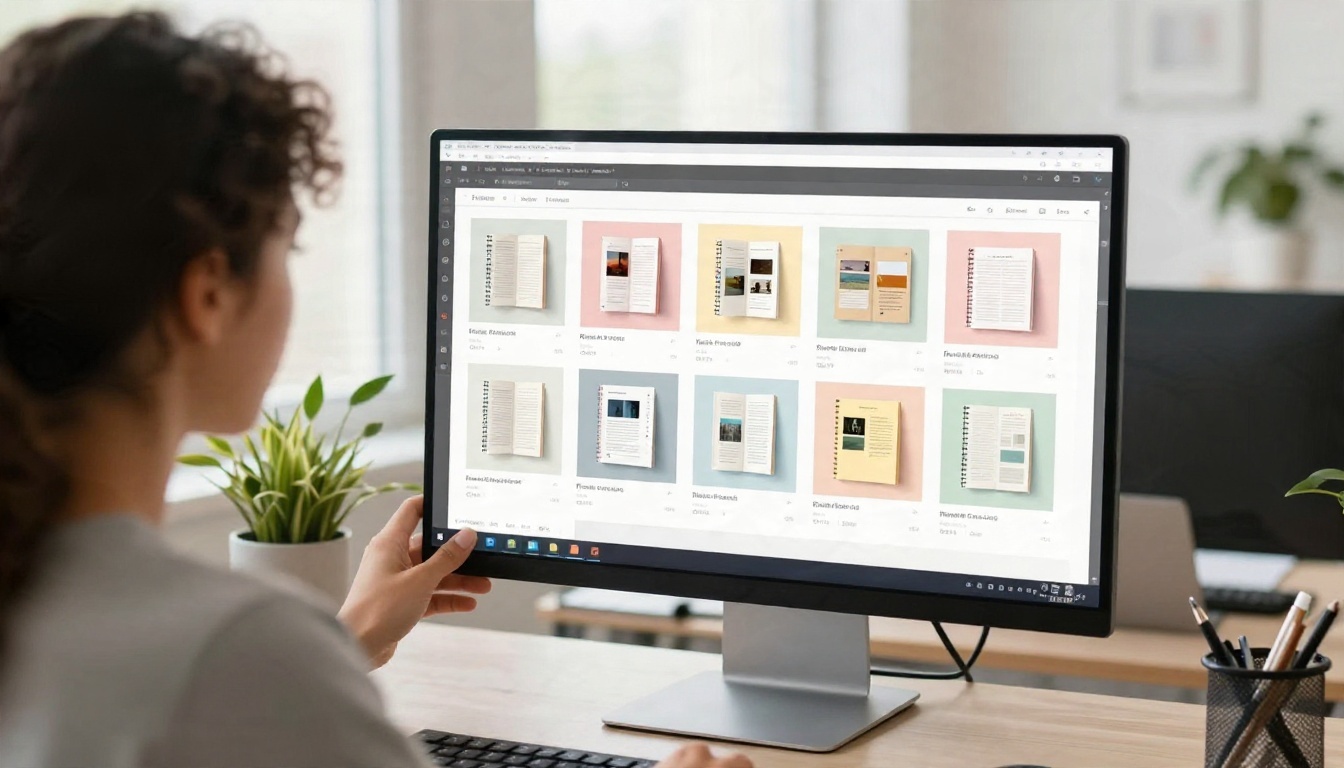
A good template removes the blank-page problem. You swap text, drop in photos, and the margins, fonts and spacing are already handled.
Pick a Template by Purpose
Do not choose the prettiest one. Choose the one built for your content type.
| Purpose | Look for | Typical page count |
|---|
| Menu | Large type, price columns, section dividers | 4 to 8 |
| Product sampler | Grid layouts, image-led pages | 8 to 16 |
| Event program | Schedule tables, speaker bios | 8 to 12 |
| Welcome pack | Short sections, icons, contact page | 4 to 12 |
| Portfolio | Full-bleed images, minimal text | 12 to 24 |
Purpose-built tools help here. The Restaurant Menu Creator, Event Program Maker and Online Brochure Designer all start from the right structure for their job.
The Multiple-of-Four Rule
Printed booklets are folded sheets, so the page count must be a multiple of four: 4, 8, 12, 16 and so on. Online booklets do not have that limit, but if you might print later, respect it from the start. Otherwise you end up with blank pages at the back.

💡 Pro tip: Design at A5 or US Half Letter size. It reads well on a phone screen and prints cleanly as a folded A4 or Letter sheet.
PDF Upload Without Headaches
Uploading a PDF is the shortest path from "finished" to "published." Still, a few details decide whether the result looks sharp or sloppy.

Prepare the File First
Run through this checklist before you upload:
- Export as single pages, not printer spreads, unless you want two-page spreads on purpose.
- Embed fonts so text does not shift.
- Compress images to a sensible size. Around 150 to 200 DPI is plenty for screens.
- Keep file size reasonable. Under 30 MB uploads faster and loads faster for readers.
- Check links. Clickable URLs and email addresses inside your PDF should carry through to the online version.
- Name the file clearly, like
spring-menu-2026.pdf, so you can find it later.
Common Upload Problems
| Problem | Likely cause | Fix |
|---|
| Blurry pages | Low-resolution images in source | Re-export at 150 DPI or higher |
| Missing fonts | Fonts not embedded | Export with "embed fonts" enabled |
| Pages in wrong order | Spreads exported as single sheet | Re-export as individual pages |
| Upload fails | File too large | Compress images, split into volumes |
| Black backgrounds | Transparency flattening issue | Flatten transparency before export |
✅ Best practice: Keep your editable source file and your published PDF in the same folder. When you update, re-export, re-upload and the old link keeps working in most platforms.
How to Create a Booklet with Flipbooks AI
If you want a clean result without watermarks, here is the process on Flipbooks AI. It takes about five minutes if your PDF is ready.
Step-by-Step Setup
- Create an account. Head to the account page and sign up. You will land on your dashboard, where all your booklets live.
- Upload your PDF. Click the upload button and drop in your file. The platform converts each page into a flipbook page automatically. You will see a progress bar, then a preview with page-turn animation.
- Check the preview. Flip through every page. Look for cropped text, wrong order and low-resolution images.
- Add your branding. Set your logo, background color and accent colors so the viewer matches your brand.
- Pick page effects. Choose how pages turn, whether single page or double spread, and set the sound on or off.
- Add multimedia. Embed videos or audio on specific pages, like a chef's welcome clip on the menu or a short tour on a property page.
- Publish and copy your link. Your booklet gets a shareable URL immediately.

Branding and Page Effects
Branding is where a booklet stops looking like a generic file and starts looking like yours. Add a custom logo, adjust the toolbar colors, and choose a background that matches your front page. Because the platform never stamps a watermark on your pages, the result looks like it came from your own website.
Pro Features Worth Paying For
Free is great for testing. Paid plans matter when the booklet becomes part of your business.
| Feature | Free to try | Standard | Professional |
|---|
| No watermark | ✅ | ✅ | ✅ |
| Unlimited flipbooks | | ✅ | ✅ |
| Password protection | | ✅ | ✅ |
| Offline downloads | | ✅ | ✅ |
| Analytics | | | ✅ |
| Lead generation forms | | | ✅ |
Plan details can change, so check the current pricing page before you decide. If you want to see who opens your booklet and which pages they read, the Professional plan adds analytics and lead capture.
Sharing Links, Embeds and Privacy
Publishing is only half the job. How you share the booklet decides who sees it and how many of them actually open it.

Link, Embed or Download
| Method | How it works | Best use |
|---|
| Direct link | Paste a URL in email, chat or social posts | Quick sharing, newsletters |
| QR code | Print the link as a code on tables, posters, packaging | Menus, events, in-store |
| Embed code | Place the booklet inside your own web page | Websites, landing pages |
| Offline download | Readers save a copy to read without internet | Trade shows, travel |
Want the embed route? The Embed Flipbook on Website tool shows how to paste a snippet into any page builder.
Password Protection
Not every booklet should be public. Price lists for wholesale clients, internal training material and draft proposals deserve a password. With password protection you share the link openly, but only people with the password can read the pages.
⚠️ Never put the password in the same message as the link. Send it separately, by phone or in a second email.
Make It Easy on Phones
Most readers will open your link on a phone. A mobile-responsive booklet adjusts page size to the screen, so nobody has to pinch and zoom. Test yours on your own phone before sending it out.
Real Examples by Industry
Theory is nice. Here is how actual small businesses put an online booklet to work.
A Cafe With a Seasonal Menu
A neighborhood cafe changes its menu four times a year. Instead of reprinting everything, the owner uploads the new PDF, keeps the same link, and the QR code on each table keeps working. Printed copies are still available at the counter for guests who prefer paper.

A Boutique Hotel Welcome Pack
A small hotel builds a 12-page welcome booklet: Wi-Fi details, breakfast hours, local restaurant tips and a map. Guests open it from a link in the confirmation email, so they arrive already knowing where to find things. The Hotel Brochure Designer is built for exactly this kind of layout.

A Real Estate Agent's Property Pack
An agent prepares one booklet per listing: photos, floor plan, neighborhood notes and contact details. A single link goes to every interested buyer, and with analytics on a Professional plan the agent sees which pages got the most attention. The Real Estate Brochure Creator is a fast starting point.
Quick Comparison of Use Cases
| Use case | Recommended length | Sharing method | Privacy |
|---|
| Cafe menu | 4 to 8 pages | QR code and link | Public |
| Hotel welcome pack | 8 to 12 pages | Email link | Public or password |
| Property pack | 8 to 16 pages | Link per listing | Often password |
| Wholesale price list | 10 to 30 pages | Link and download | Password |
| Training manual | 20+ pages | Embed in intranet | Password |
For more options, browse all the flipbook tools and pick the one that matches your content.
Mistakes That Waste Your Time
- Starting in a design tool with no page plan. Sketch the page list first: front page, contents, main sections, contact page.
- Too much text per page. Phone readers skim. Keep paragraphs short and let images carry the mood.
- Skipping the preview. Always flip through the published version, not just the editor.
- Forgetting a call to action. End the booklet with one clear next step: book, call, buy or reply.
- Ignoring file names and versions. Name every export with a date so you always know which one is live.
Ready to Publish Yours?
You now have everything needed to go from idea to shareable booklet: a template that fits your purpose, a clean PDF, a platform without watermarks, and a sharing method that suits your audience.
Start with one booklet, share one link, and see how readers respond. You can refine pages any time without changing the URL.



