You have a perfect product manual, a spec sheet your supplier finally sent, or a wholesale catalog that took weeks to finish. Now you need to put it in front of buyers, partners and customers without emailing a 40 MB attachment every time. That is where a PDF to link workflow earns its place. With a tool like Flipbooks AI, you upload the file once and get a clean, shareable web address that opens instantly on any phone, tablet or desktop.
This article walks through how Amazon sellers can host a PDF online, where a link is actually useful, what Amazon's rules limit, and how to avoid the mistakes that get listings flagged. It also includes a step-by-step tutorial, three comparison tables and real examples from sellers in different niches.
⚠️ Policy note: Amazon's rules about external links change and differ by marketplace and content type. Always read the current Seller Central policies before placing any link inside a listing, and treat this article as a practical workflow, not legal advice.
Why Amazon Sellers Need a PDF Link
Selling on Amazon looks like a single-channel business, but you handle documents all day. Supplier quotes, certificates, instruction manuals, size charts, wholesale price lists and brand decks all start life as PDFs. Moving them around is where time disappears.

The Problem With Attachments
Raw PDF attachments create small, constant friction:
- Size limits reject large catalogs with high resolution photos.
- Outdated copies circulate for months because nobody deletes the old email.
- No visibility. You never know whether the buyer opened the file or which page they read.
- Poor mobile experience. Pinching and zooming through a static PDF on a phone is miserable.
- Messy folders. Shared drive links often ask visitors to sign in or request access.
What a Hosted Link Gives You
A hosted link solves each of those problems at once. You update the file in one place and every copy of the link shows the newest version. The document loads in a browser without a download, looks sharp on small screens and can sit behind a password when the content is private.
With Flipbooks AI's PDF to Flipbook Converter, the PDF becomes a page-turning flipbook with a short link, no watermarks and optional branding. That feels far more professional than a raw file download.
What Amazon Allows and Blocks
Before you paste a URL anywhere, you need to know where it is welcome. This is the part most articles skip, and it is where sellers get into trouble.

Rules Inside Your Listing
In general, Amazon restricts external URLs in the customer-facing parts of a listing. That usually includes the title, bullet points, product description and enhanced brand content, along with questions and answers. The platform wants shoppers to stay on Amazon, and it limits anything that routes them elsewhere or hints at taking a sale off-platform.
⚠️ Do not place links that push buyers to another store, ask for off-Amazon contact, or promise discounts outside the platform. These are classic reasons for listing suppression or account warnings.
If you want a manual or safety document attached to the product itself, check whether Seller Central offers a native document upload field for your category. Where a native field exists, use it instead of an external URL.
Where Links Work Fine
Your PDF link is still extremely useful across everything that happens around the listing. You can use it in:
- Supplier and manufacturer communication
- Wholesale and B2B outreach that happens outside Amazon
- Your own website, blog or Shopify store
- Social profiles, email signatures and newsletters
- A QR code inside the box that opens a setup manual
- Internal team documents such as standard operating procedures
The table below summarizes the typical situation. Rules vary, so verify each row in the current policy pages.
| Where you share the link | Typical status | Notes |
|---|
| Listing title, bullets, description | Generally restricted | External URLs are usually not allowed |
| Enhanced brand content | Generally restricted | Follow the content guidelines for your account |
| Buyer-seller messages | Limited | Follow current messaging policy, avoid marketing |
| Packaging insert with QR code | Usually acceptable | Keep it to manuals and support, never review requests |
| Your own website or store | Fully your decision | Ideal home for catalogs and documentation |
| Supplier or wholesale email | Fully your decision | Best use case for private, password protected links |
Best PDFs to Host Online
Not every document deserves a public link. These are the types that give sellers the best return for the least effort.

Manuals and Setup Sheets
Fewer returns start with clearer instructions. A hosted manual can include diagrams, assembly steps and troubleshooting tips, and you can fix a typo without reprinting thousands of inserts. Print a small QR code on the box, and the customer opens the latest version of the manual in seconds.
Catalogs and Wholesale Price Lists
If you sell wholesale or private label, a live catalog beats a static spreadsheet. Build one with the Digital Catalog Maker or the Product Catalog Generator, then share the link with distributors and retail buyers. Pair it with a Digital Price List that you can edit whenever costs change.
Compliance and Care Sheets
Certificates, safety data, ingredient lists and care instructions are easy to lose in email chains. Host them behind a password and share the link with auditors, retail partners or your fulfillment team only when needed.
| PDF type | Main audience | Best sharing setup |
|---|
| Instruction manual | End customers | Public link, QR code on packaging |
| Wholesale catalog | Retail buyers | Branded flipbook, analytics enabled |
| Price list | Distributors | Password protected link |
| Compliance certificate | Partners and auditors | Private link with password |
| Brand deck | Agencies, investors | Presentation style flipbook |
| Size chart | Shoppers on your own site | Embedded flipbook on product page |
How to Create Your PDF Link
Here is the full workflow with Flipbooks AI, from file to shareable link. It takes only a few minutes for a typical document.
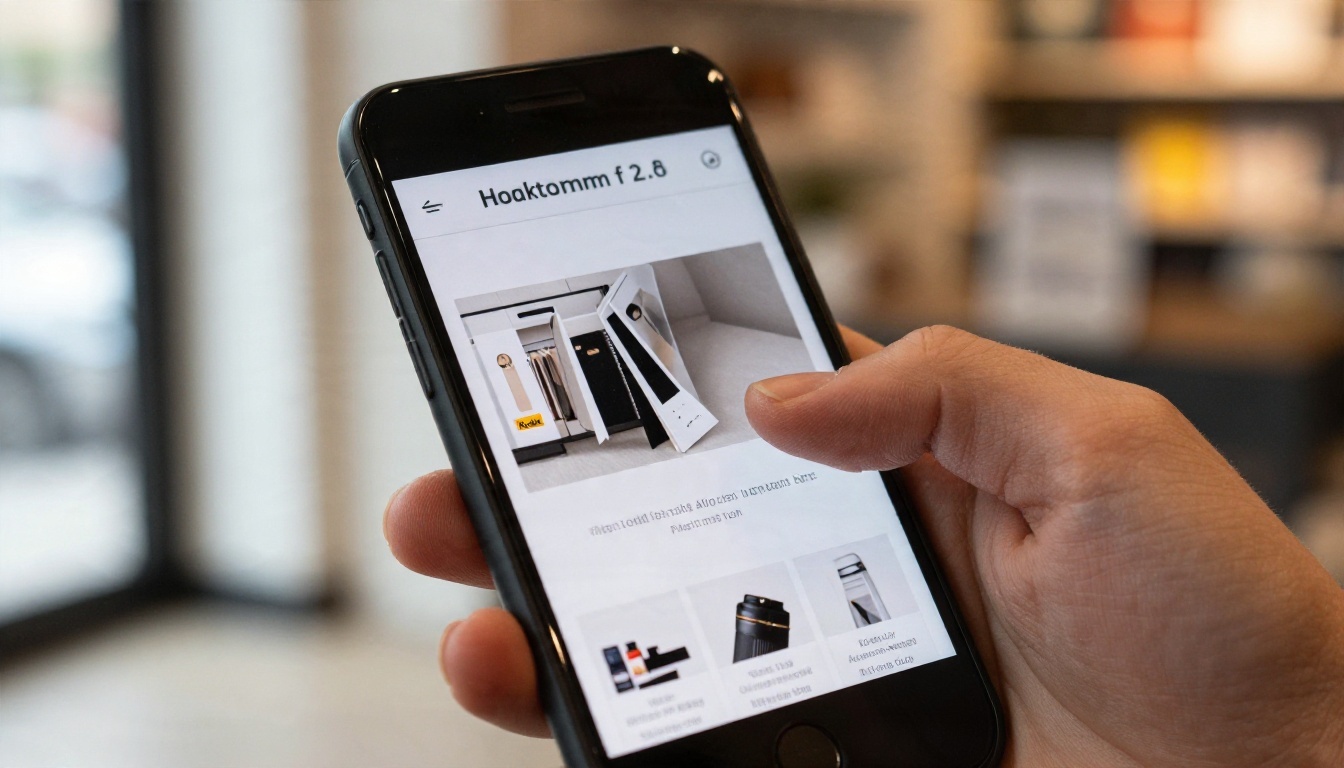
Step by Step Tutorial
- Create your account. Go to Flipbooks AI and sign up. You can start with the free option and upgrade later from the pricing page.
- Upload the PDF. Drag your file into the upload area. The converter reads each page and rebuilds it as a responsive flipbook. Use a PDF exported at a sensible resolution so pages load fast.
- Check the preview. Flip through every page on desktop and mobile view. Confirm that text is readable and product photos look sharp.
- Customize the look. Add your logo, pick brand colors, choose a page-turn effect and set a background. You can also embed videos or audio, such as a short assembly demo placed next to the relevant instructions.
- Set access. Keep the flipbook public for customers, or turn on password protection for supplier and wholesale documents.
- Copy the link. Copy the short URL, or grab the embed code if you want the document to live inside your own page. The Embed Flipbook on Website tool explains the options.
- Create a QR code. Generate a QR code from your link and add it to your packaging insert, label or business card.
- Update when needed. Replace the PDF later and the same link serves the new version, so nothing on the printed material has to change.
💡 Pro tip: Name each flipbook clearly, such as "Water Bottle Manual v3", so your dashboard stays organized as your catalog grows.
Extra Features Worth Turning On
- Offline downloads let customers save the manual for use without Wi-Fi, which matters for outdoor and travel products.
- Mobile-responsive design keeps small text readable on a phone screen.
- Custom branding keeps your logo front and center instead of a third-party name.
- Analytics and lead generation on the Professional plan show page views and capture email addresses from wholesale visitors. Compare plans on the pricing page.
PDF Link vs Other Hosting Options
Sellers usually start with whatever is already open: a cloud folder, email or a free file host. Each option works, but each has a trade-off.

Comparing the Common Choices
| Option | Reading experience | Branding | Tracking | Password protection |
|---|
| Email attachment | Download required | None | None | None |
| Cloud drive link | Basic viewer, may need sign in | Minimal | Limited | Sometimes |
| Free PDF host | Basic viewer, often with ads | Third-party branding | Rare | Rare |
| Flipbook link | Page-turning, mobile-responsive | Your logo and colors | Page level analytics (Professional) | Yes |
When a Plain PDF Is Enough
A single-page certificate that a partner needs to print does not need a flipbook. Use a plain file for short, print-ready documents. Choose a flipbook when the document is long, visual, or will be opened often on a phone.
Real Examples From Amazon Sellers
Theory is nice, so here are scenarios you can copy.
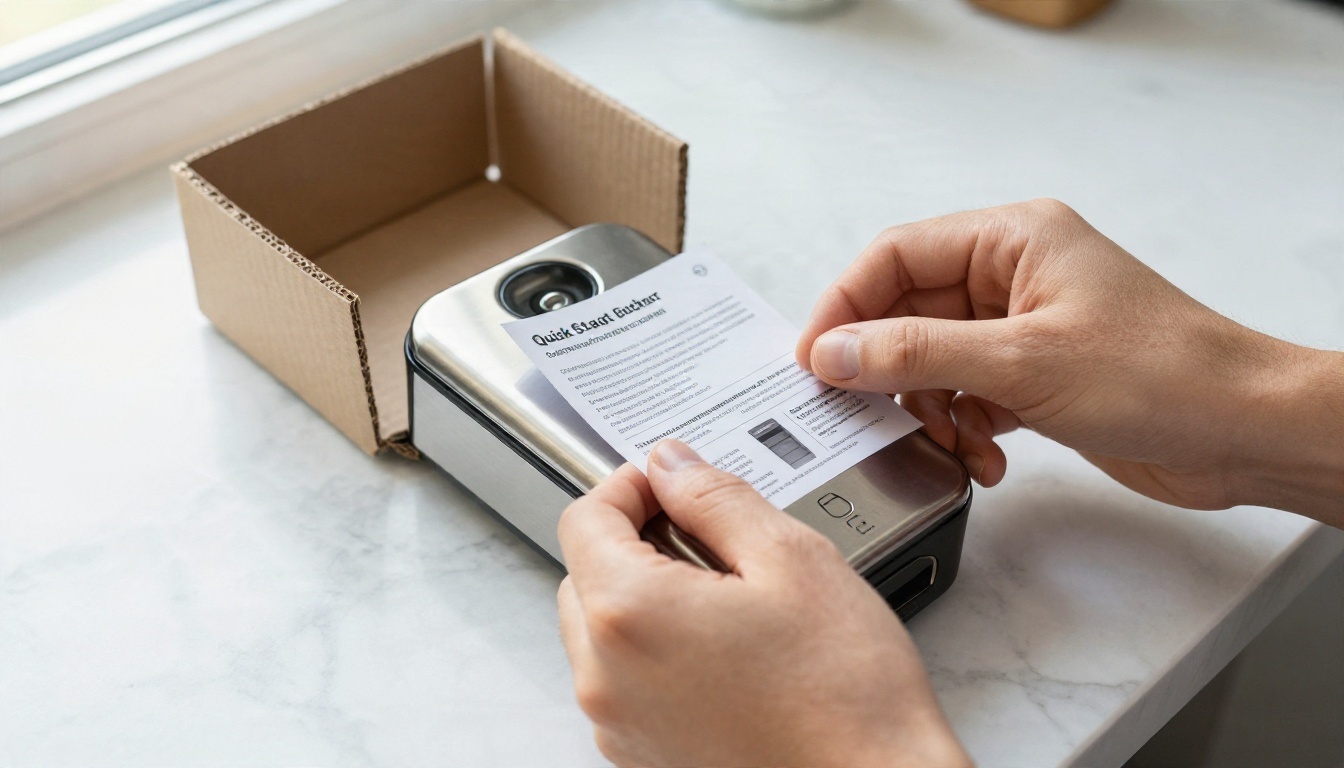
Kitchen Gadget Brand
A seller of kitchen tools prints a small QR code on the inside of the box flap. It opens a branded flipbook with a quick start page, cleaning steps and recipes. Support questions drop because answers are one scan away, and the manual can be updated without reprinting packaging.
Skincare Private Label Seller
A skincare brand hosts an ingredient and usage booklet and links it from a card inside each parcel. The same document is shared by email with boutique retailers who ask about wholesale. A Product Catalog flipbook shows every SKU with pricing, and analytics reveal which pages buyers revisit.
Wholesale Reseller
A reseller sends a password protected flipbook of their price list to approved retail partners. When costs change, they replace the PDF and the same link shows the new prices. Anyone who still has an old email sees current numbers instead of a stale copy.
Agency Pitching Amazon Brands
An agency that manages Amazon accounts turns its case studies into a Sales Presentation flipbook and shares one link with prospects. It looks polished, loads fast and avoids the attachment limits that bounce large decks.
Mistakes That Cost Sellers Time
Hosting a file online is easy. These slips are what usually go wrong.

Putting the Link in the Wrong Place
The most common error is pasting a URL into a title, bullet or description field and hoping it slips through. It rarely does. Use the link on your own channels and in packaging, and use native fields inside Seller Central whenever one exists.
Skipping Mobile Testing
Most customers scan a QR code with a phone. If your PDF has tiny text, a heavy file size or a layout built for A4 landscape, it will frustrate them. Preview on a real phone before you print anything.
Forgetting Access Settings
Confidential price lists should never be public. Turn on a password and use a separate flipbook for each audience so you can revoke access without breaking customer-facing documents.
Ignoring Updates
Printed material lives for months. A link that points to an outdated manual causes returns and negative feedback. Replace the PDF whenever the product changes, and keep a short changelog on the last page.
✅ Best practice: Keep a simple spreadsheet listing every hosted document, its link, the audience and the date it was last updated.
Ready to Publish Your PDF Link?
A strong PDF link gives you a single source of truth for manuals, catalogs and price lists, whether the audience is a buyer holding a phone in the kitchen or a distributor reading at a desk. You keep control of the content, update it in seconds and see how people use it.
Here is a quick path to start today:
- Create your free account on Flipbooks AI.
- Upload your best PDF with the PDF to Flipbook Converter.
- Add branding, a password if needed, and copy your link.
- Compare pricing plans when you want unlimited flipbooks, analytics and lead generation.
- Browse all flipbook tools for catalogs, brochures, presentations and more.

Ready to move beyond clumsy attachments? Get started on Flipbooks AI and give every PDF a link that looks as professional as your brand.



