You have 400 photos from a summer trip, a camera roll that nobody scrolls, and a vague plan to "do something with them." A photo flipbook is that something: a real page-turning album that opens in a browser, works on any phone, and can be shared with a single link. Tools like Flipbooks AI turn a set of images into a digital book in minutes, and many people start without spending anything.
The catch is that "photo flipbook app" covers a messy range of products. Some are true apps you install. Others are browser tools with no download at all. Some are free with a giant watermark stamped across every page, and some hide the export button behind a paywall. This article sorts through all of it: what free really gets you, how flipbooks behave on mobile, what pricing looks like, and how to build your first one.
What a Photo Flipbook App Does
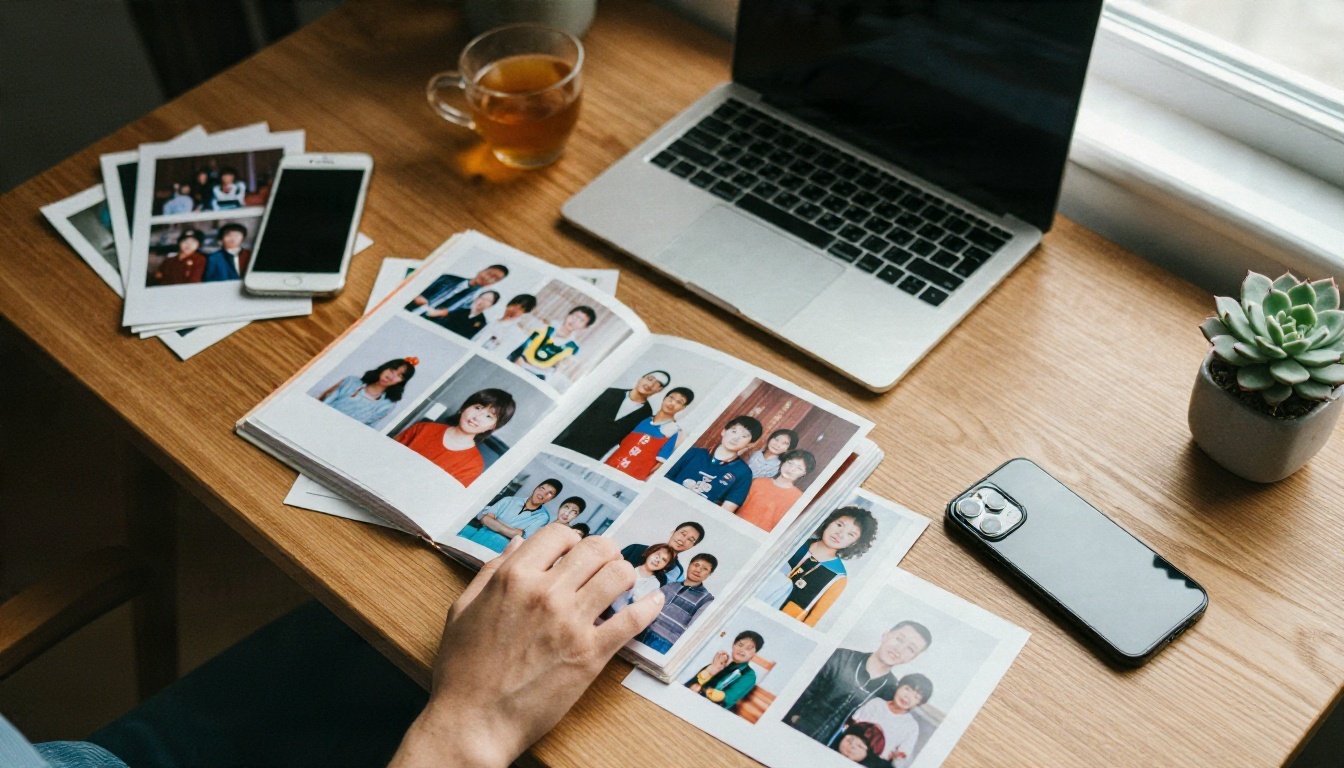
A photo flipbook app takes images, usually as a PDF or a batch of JPGs, and arranges them into pages that turn like a printed book. Readers see a realistic curl, hear an optional page sound, and can zoom into details. The result lives online, so there is nothing to attach to an email and no file size limit to fight.
Flipbook vs Slideshow vs Album
These three get mixed up constantly. They solve different problems.
| Format | How it feels | Best for | Weak spot |
|---|
| Photo flipbook | Pages turn like a real book | Trips, weddings, portfolios | Needs layout planning |
| Slideshow | One image at a time, often with music | Quick event recaps | No sense of a "book" |
| Cloud album | Grid of thumbnails | Dumping hundreds of shots | Nothing curated or designed |
| Printed photo book | Physical object | Gifts and keepsakes | Cost, shipping, no edits |
A flipbook sits between the cloud album and the printed book. You get the curated feel of a book with the instant sharing of a link.
Who Actually Uses Them
The audience is wider than you might expect:
- Travelers who want a trip diary friends can flip through
- Couples sharing a wedding album flipbook with relatives abroad
- Photographers building a photography portfolio for clients
- Families preserving scanned prints from older generations
- Small businesses showing lookbooks or product shots
💡 Pro tip: Decide the audience before you pick a tool. A private family album needs password protection. A public portfolio needs a clean embed. Those two needs point to different plans.
Free Online Options That Work
Free is where most searches begin, and it is also where most disappointment happens. The word means different things depending on the tool.
What "Free" Usually Means
In this category, free tends to fall into four buckets:
- Free with a watermark. You can build and share, but a logo appears on every page.
- Free with a page cap. You get a handful of pages, often ten to twenty, then a prompt to upgrade.
- Free trial. Everything works for a short window, then the flipbook goes offline.
- Free viewer only. You can open flipbooks made by others but not create your own.
None of these is dishonest, but each shapes what you can do. A watermark is fine for a private draft and awkward for a wedding gift. A trial that deletes your work after a week is a trap if you forget about it.
Free Tier Limits Compared
Here is how the common free models stack up in practice. Exact limits change often, so treat this as a pattern, not a price list.
| Free model | Watermark | Page limit | Sharing link | Good for |
|---|
| Watermarked free plan | Yes | Often generous | Yes | Private drafts |
| Page-capped free plan | Sometimes | Low | Yes | Tiny albums |
| Time-limited trial | Usually no | None during trial | Yes, until it expires | Testing features |
| Viewer-only app | Not applicable | Not applicable | Opens links only | Reading, not making |
Watermarks and Hidden Catches
Before you upload a single photo, check these five things:
- Does the watermark appear on every page or only the last one?
- Is the shared link permanent, or does it expire?
- Can you download the result, or only view it online?
- Does the tool compress your images heavily?
- Who owns the uploaded files, and can they be deleted?
⚠️ Warning: Some free tools keep the right to display your uploads publicly. Read the terms before you load private family photos.
On Flipbooks AI, the stated position is no watermarks, ever. That matters if the album is a gift or a client deliverable, because nothing needs to be cropped out or explained away.
Using a Photo Flipbook on Mobile
Most people will open your flipbook on a phone, so mobile behavior deserves as much attention as the design itself.
App or Browser Based
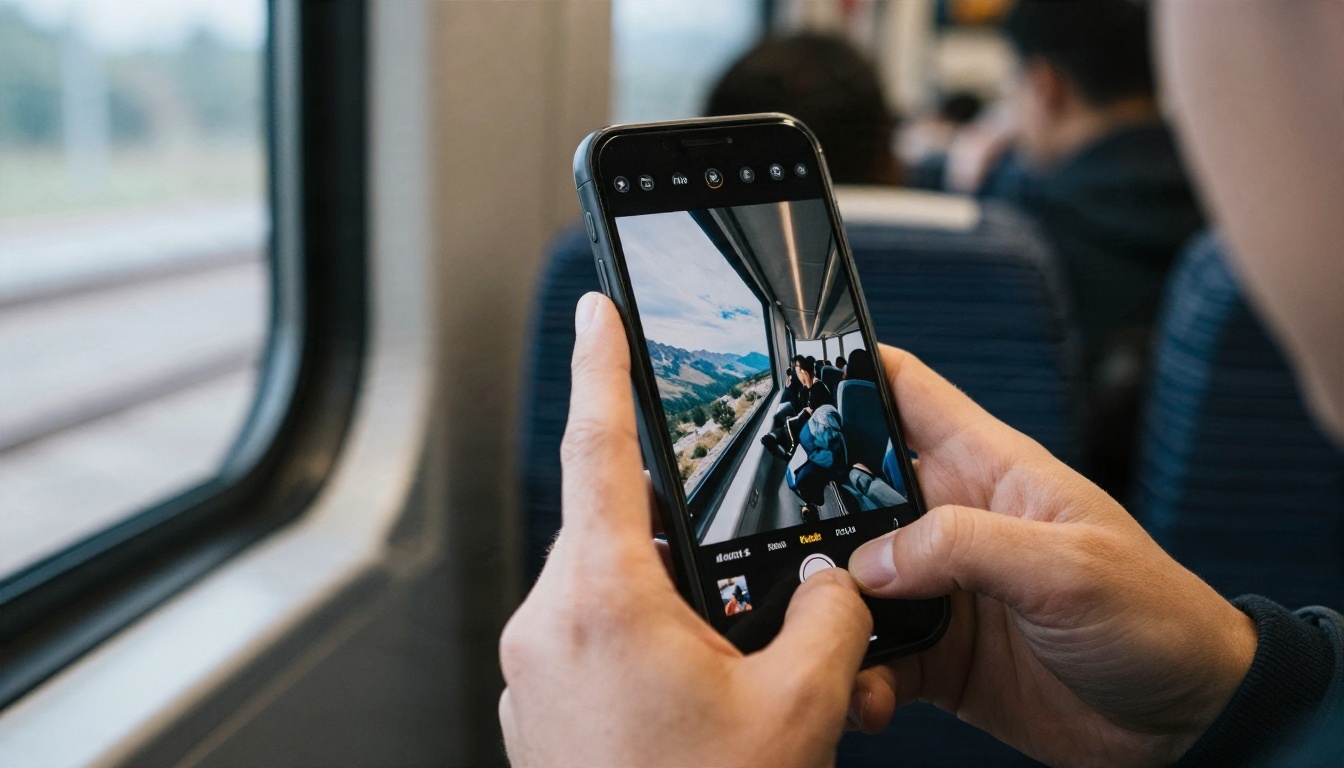
There are two ways to reach a flipbook on a phone. A dedicated app gives you a library and offline reading. A browser tool needs nothing installed and works the same on iPhone, Android, and tablet.
| Factor | Installed app | Browser based |
|---|
| Setup | Download and sign in | Open a link |
| Storage used | Yes | Almost none |
| Offline reading | Often | Only if the tool allows downloads |
| Sharing with others | Recipient may need the app | Anyone with the link |
| Updates | Manual or automatic | Always current |
For sharing, browser based wins. Your aunt does not want to install anything to see your vacation. A mobile-responsive flipbook opens straight from a text message and resizes to the screen.
Phone Viewing Tips
A flipbook that looks great on a laptop can feel cramped on a six-inch screen. A few adjustments help:
- Use landscape photos sparingly. On a portrait phone they shrink. Mix in vertical shots.
- Keep text large. Captions under 14 points become unreadable on small screens.
- Limit each page to one or two photos. Collages turn to mush on mobile.
- Test on a real phone before you send the link to anyone.
- Compress huge files. A 200 MB PDF loads slowly on mobile data.

Tablets are the sweet spot. The larger screen shows two-page spreads the way a printed album would, so a wedding or travel book feels natural on the couch.
How to Create a Photo Flipbook with Flipbooks AI
Building one takes about ten minutes if your photos are ready. This walkthrough uses Flipbooks AI because it handles the PDF conversion and mobile display for you. The core of the process is the PDF to Flipbook Converter.

Step 1: Prepare Your Photos
Pick your best 20 to 60 images. Put them into a layout app, a slide deck, or any tool that exports to PDF, one photo or collage per page. Name the file clearly so you can find it later.
Step 2: Upload and Convert
- Go to Flipbooks AI and create an account.
- Choose to create a new flipbook.
- Drag your PDF into the upload area, or tap to pick it from your phone.
- Wait while the file converts into turnable pages. Short albums finish in moments.
✅ Best practice: Export your PDF at a resolution of around 150 dpi. Sharper than that rarely shows on screens, and the file stays light.
Step 3: Customize the Look
Once converted, adjust the details that make it yours:
- Branding and colors: match the background to your photos or your brand
- Page effects: choose the curl style and sound
- Multimedia: drop in video clips or audio, such as a favorite song
- Cover page and title: set a thumbnail that people want to open
Step 4: Share It Your Way
You have several sharing options:
- Direct link for texts, chats, and email
- Embed code to place the album on a blog or site, see Embed Flipbook on Website
- Password protection for private albums that only family should see
- Offline downloads so someone can read it without a connection
Step 5: Pro Features Worth Knowing
If the album is for clients or an audience, the Professional plan adds analytics and lead generation. You see how many people opened it, which pages held attention, and can collect contact details before a reader gets in. That is useful for photographers and small businesses. Personal albums rarely need it. Compare tiers on the pricing page.
Real Pricing Explained
Pricing is where free options and paid ones separate. Most tools follow one of a few models.
Typical Price Models
| Model | How you pay | Pros | Cons |
|---|
| Per-flipbook fee | One payment per album | Cheap for a single project | Costs climb with volume |
| Monthly subscription | Recurring fee | Unlimited creation on higher tiers | Easy to forget about |
| Annual plan | Yearly payment | Lower monthly cost | Larger upfront spend |
| Free with ads or watermark | Nothing, but branded | No cost | Looks unfinished |
Which Plan Fits You
Ask three questions:
- How many albums will you make this year? One or two suggests a short paid period. Ten or more suggests a plan with unlimited flipbooks, which on Flipbooks AI starts at the Standard plan.
- Do you need privacy? Password protection matters for family and client work.
- Do you need to measure results? Analytics and lead capture live in the Professional plan.
| Your situation | Likely need | Plan direction |
|---|
| One-time family album | Clean output, no watermark | Entry paid plan, cancel after |
| Frequent traveler | Many albums, mobile friendly | Standard and above |
| Working photographer | Branding, analytics, leads | Professional |
| Wedding gift | Password, offline download | Entry paid plan |
For current rates and what each tier includes, check the Flipbooks AI pricing page directly, because numbers shift and a blog post can go stale.
💡 Money saver: If you only need a flipbook for one event, subscribe for a single month, build everything, download the offline copy, and cancel. Annual billing only pays off if you create regularly.
Real-World Photo Flipbook Examples
Theory only goes so far. Here is how people put these to work.
The Freelance Photographer
A portrait photographer sends prospective clients a single link instead of a bulky ZIP. The flipbook opens on a phone in seconds, and analytics show which pages were viewed longest. A tool like the Portfolio Flipbook Builder fits this workflow well.
The Travel Diary
A couple returning from three weeks abroad builds a 40-page album with captions and a soundtrack of local music. They send the link to both families. Nobody needs an account, and nobody needs to download anything.
The Family Archive
Someone scans old prints from a shoebox, saves them as a PDF, and uploads it with password protection. Grandparents open it on a tablet and flip through the pages together with grandchildren.
Common Mistakes to Avoid
Most failures come from the same few slips.
- Uploading huge uncompressed files. Slow loading makes mobile viewers give up.
- Ignoring the watermark until the end. Check the output on a free plan before you invest hours.
- Packing too many photos on a page. Phones shrink everything.
- Skipping the phone test. Open the link on a real device before sharing.
- Forgetting privacy settings. A public link is public. Add a password for private moments.
- Letting a trial lapse. Download an offline copy before it ends.
⚠️ Heads up: Always keep your original photos and the source PDF. A flipbook is a presentation layer, not a backup.
Ready to Build Yours?
A good photo flipbook app comes down to three things: output with no watermark, a layout that works on mobile, and pricing that matches how often you create. Free options are fine for testing and private drafts. Once the album matters, a clean paid plan usually costs less than the frustration of working around limits.

Here are your next steps:
Your photos deserve better than a forgotten camera roll. Turn them into something people can open, flip, and enjoy on any screen.



