You can have the best story and the most beautiful illustrations in the world, and still lose weeks because the files were built at the wrong size. Picture book dimensions, page count, bleed and PDF settings are decided before the first sketch, and changing them later means redrawing everything. This article gives you the real numbers: the standard trim sizes, why 32 pages is the default, how to calculate bleed, what printers expect, and how to export a PDF that passes the first check. At the end, you will also see how to turn the same file into an online page-turning edition with Flipbooks AI.
Standard Picture Book Sizes
There is no single legal size for a picture book. There are, however, a handful of trim sizes that printers stock, that bookstores shelve easily and that readers recognize at a glance. Staying close to one of them keeps your unit cost down and your layout predictable.
The Most Common Trim Sizes
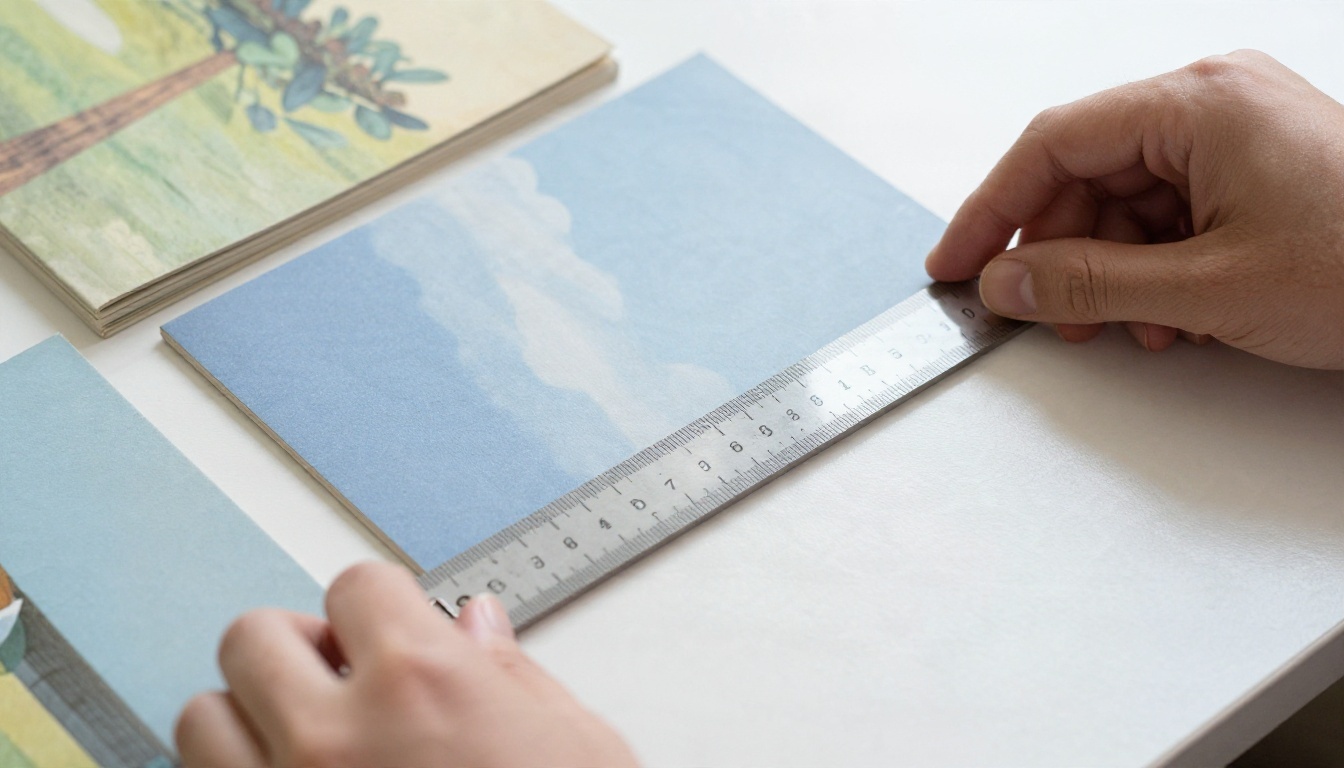
Trim size is the final dimension of the finished page after the book is cut. Here are the formats you will meet most often, listed in inches with the metric equivalent.
| Format | Trim size (in) | Trim size (mm) | Orientation | Best for |
|---|
| Small square | 7 x 7 | 178 x 178 | Square | Board books, gift editions |
| Standard square | 8 x 8 | 203 x 203 | Square | Most self-published picture books |
| Large square | 8.5 x 8.5 | 216 x 216 | Square | Trade picture books, illustration-heavy stories |
| Portrait | 8 x 10 | 203 x 254 | Portrait | Character-driven stories, tall scenes |
| Landscape | 10 x 8 | 254 x 203 | Landscape | Wide scenery, journeys, panoramas |
| Large portrait | 8.5 x 11 | 216 x 279 | Portrait | Workbooks, activity and educational books |
| Oversize square | 10 x 10 | 254 x 254 | Square | Art-forward books, premium hardback editions |
💡 Pro tip: If you are unsure, start with 8.5 x 8.5 in. It is a very common trim size across print-on-demand services, it feels generous in a child's hands, and it gives you a clean square canvas for a two-page spread.
Portrait, Square or Landscape?
Shape is a storytelling decision as much as a technical one. Ask what your pictures need to do.
- Square works for balanced, centered compositions and keeps the book neutral when the reader holds it open.
- Portrait suits stories about a single character, a tall tree, a giraffe, a staircase. Vertical movement feels natural.
- Landscape is ideal for journeys, horizons, crowds and anything that needs width. Spreads become cinematic.
A practical example: an illustrator working on a story about a fox crossing a long autumn forest chose 10 x 8 in landscape so the path could stretch over both pages without a visible break at the gutter. The same story in portrait would have forced a lot of tiny vertical cropping.
Page Count Rules That Matter
Page count is not a creative preference. It is dictated by the way paper is folded and bound.
Why 32 Pages Is the Default
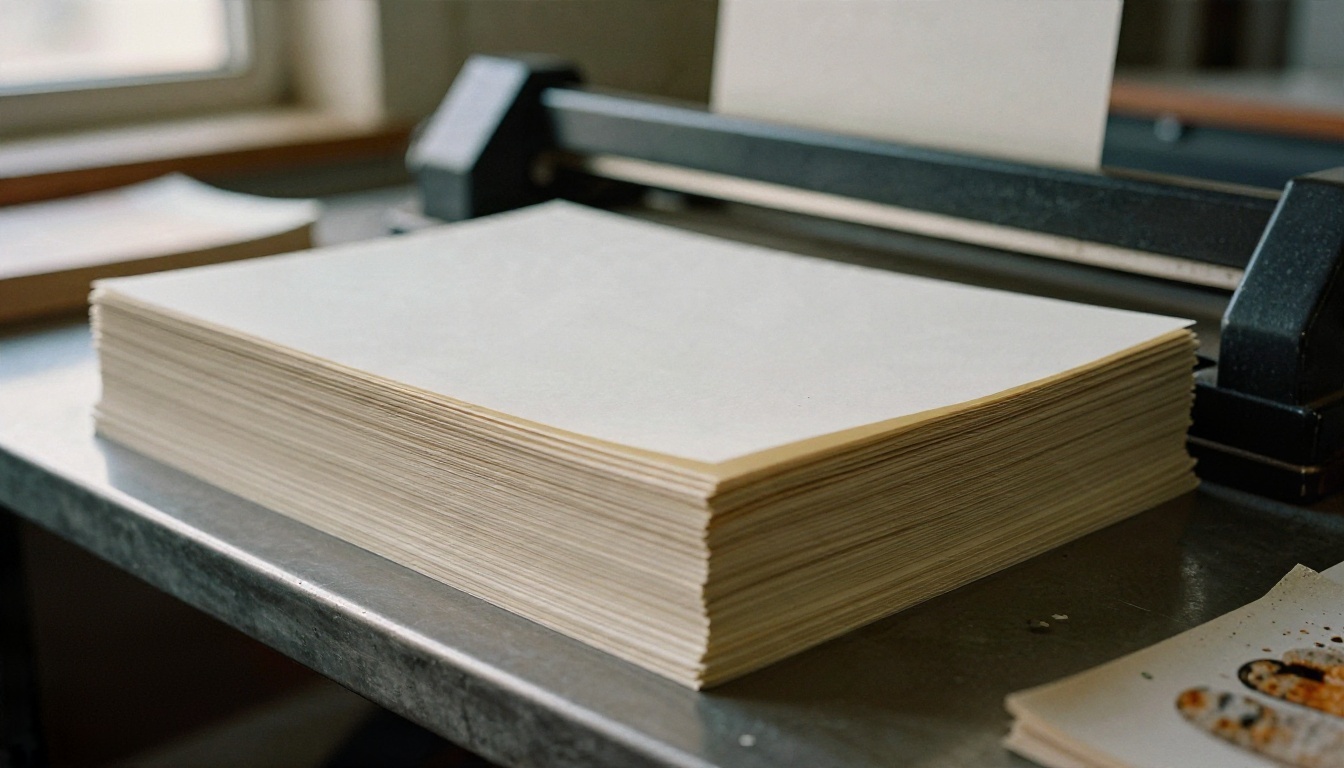
Traditional offset printing runs large sheets that are folded into sections called signatures. A signature usually holds 16 pages (sometimes 8). Two signatures give you exactly 32 pages, which is why the classic picture book is 32 pages long. The count includes everything: endpapers, title page, copyright page and dedication, not only the story.
A typical 32-page layout looks like this:
- Pages 1 to 3: half title, title page, copyright and dedication
- Pages 4 to 29: the story itself, usually 12 to 14 spreads
- Pages 30 to 32: closing spread, author note or blank back page
That leaves roughly 26 to 29 pages of actual story, which is why picture book text stays short, often under 600 words for ages 3 to 6.
Page Count Options at a Glance
| Page count | Story spreads | Typical use | Notes |
|---|
| 24 | 9 to 10 | Board books, early concept books | Minimum for many print-on-demand services |
| 32 | 13 to 14 | Standard picture book | The industry default |
| 40 | 17 to 18 | Longer stories, fairy tales | Common for premium trade books |
| 48 | 21 to 22 | Illustrated nonfiction, anthologies | Higher paper and shipping cost |
| 64 | 29 to 30 | Early chapter hybrids | Closer to a young reader format |
⚠️ Warning: Always use a multiple of 8, and ideally a multiple of 16, for offset printing. Print-on-demand accepts other even counts, but a count that does not fit the signature means blank pages at the end or a rejected file.
What Counts as a Page
A single sheet of paper has two sides, and each side is one page. So a 32-page book has 16 sheets, not 32. When your printer asks for a page count, they mean sides, and when your PDF editor shows "spreads", each spread holds two pages. Mixing up these units is the most frequent reason a layout ends up with one stray page.
Bleed, Margins and Gutters
If your illustration touches the edge of the page, you need bleed. Most picture books do.
Bleed Math Example
Bleed is extra artwork that extends past the trim line so a slight cutting shift does not leave a white sliver. The common standard is 0.125 in (3 mm) on every outside edge. The gutter side, where pages are bound, does not need bleed.
Here is the calculation for a single page of an 8.5 x 8.5 in book:
- Width: 8.5 + 0.125 = 8.625 in
- Height: 8.5 + 0.125 + 0.125 = 8.75 in
For a full spread file (two pages side by side):
- Width: 17 + 0.25 = 17.25 in
- Height: 8.75 in
At 300 dpi, that single page is about 2588 x 2625 px, and the spread is about 5175 x 2625 px. Build your canvas at this size from the beginning, and you never have to stretch artwork later.
Safe Zones for Text
Keep every important element, especially text and faces, inside a safe zone.
| Area | Recommended distance | Why it matters |
|---|
| Outside edge (trim) | At least 0.25 in (6 mm) | Prevents text from being clipped |
| Top and bottom | At least 0.25 in (6 mm) | Protects against trimming drift |
| Gutter (binding side) | 0.5 in (13 mm) or more | Text must not disappear into the fold |
| Gutter for thick books | 0.625 to 0.75 in | More pages curl more at the spine |
✅ Best practice: Never place a face, an eye or a line of text across the gutter. A 3 mm shift in binding can split a character's face on the center of a spread.
Printing Specs Printers Expect
Once the dimensions are fixed, the next questions are paper, binding and color.
Paper, Binding and Cost
| Option | Look and feel | Typical page thickness | Cost level |
|---|
| Matte coated, 100 to 130 gsm | Soft, no glare, calm color | Medium | Low to medium |
| Gloss coated, 130 to 150 gsm | Vivid color, shiny | Medium | Medium |
| Uncoated, 120 to 150 gsm | Natural, warm, absorbs ink | Medium to thick | Medium |
| Board book stock | Thick, rounded corners | Very thick | High |
For binding, the three formats you will decide between are:
- Paperback (perfect bound): cheapest, best for samples and short runs
- Hardback (case bound): the traditional picture book look, sturdier, more expensive
- Saddle stitched: stapled at the fold, only for very thin books of 8 to 48 pages
Color and Resolution
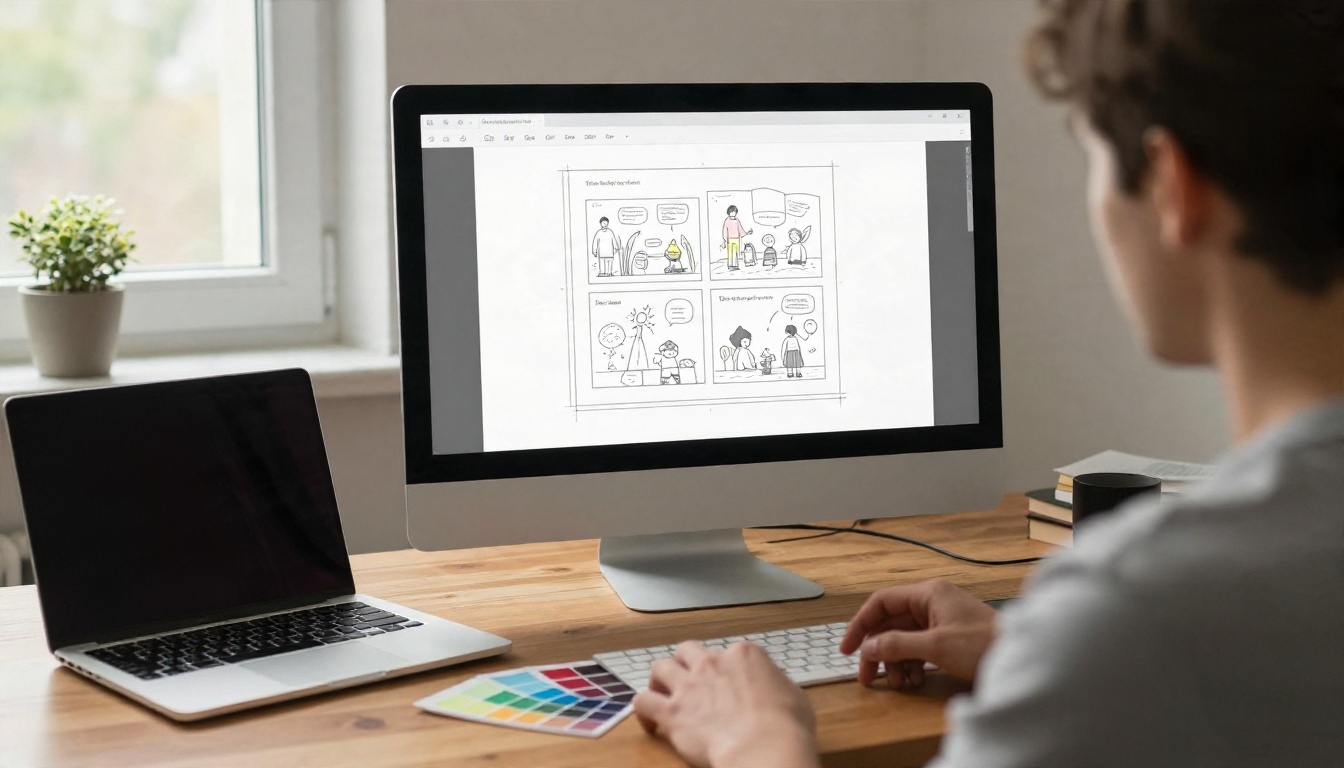
Printers work in CMYK, while screens work in RGB. Bright, saturated blues and greens on a screen can print duller. Convert early and check how your palette looks.
- Resolution: 300 dpi at final print size for every image
- Color mode: CMYK for print, RGB for screen and flipbook
- Black text: use pure 100% K black, not a mix of four inks, to avoid fuzzy edges
- Fonts: embed all fonts or convert text to outlines
- Ink coverage: keep total ink under about 240 to 300 percent, depending on the printer
💡 Order a proof copy before a large run. One printed sample will show you problems that a monitor hides, such as dark shadows that fill in or pastel colors that vanish.
PDF Export Settings That Work
A good export is boring. It has the right size, the right color, no missing fonts and no surprises.
Print PDF vs Screen PDF
You almost always need two files from the same layout.
| Setting | Print PDF | Screen PDF (for flipbook or web) |
|---|
| Color mode | CMYK | RGB (sRGB) |
| Image resolution | 300 dpi | 150 to 200 dpi |
| Bleed | 0.125 in on outside edges | None, export at trim size |
| Crop marks | Only if your printer asks for them | Off |
| Page order | Single pages, sequential | Single pages, or spreads if you prefer |
| Typical file size | 50 to 300 MB | 5 to 40 MB |
| Standard preset | PDF/X-1a or PDF/X-4 | High Quality or Smallest File Size |
Export Checklist
Follow these steps in order each time.
- Check the document size. Confirm the trim size plus bleed matches your printer's template.
- Flatten transparency if the printer asks for PDF/X-1a. PDF/X-4 keeps live transparency.
- Embed fonts and make sure no font shows a warning.
- Convert images to the right color mode and confirm that none dropped below 300 dpi.
- Export single pages unless the printer specifically requests spreads.
- Open the exported file and zoom in on edges, gutter and text. Do not trust the preview in your design app.
- Name files clearly, for example
foxwalk_8.5x8.5_print_v3.pdf.

Turn Your PDF Into a Flipbook
Many authors stop at print. That is a missed opportunity. Parents browse on tablets, teachers project stories on classroom screens, and publishers want a preview they can open with one link. A flipbook gives readers the page-turning feel of a real book without a download. If you are building a children's story, the Interactive E-Book Publisher and the E-Book Flipbook Generator are the closest matches.
Upload and Convert
Here is how to create a picture book flipbook with Flipbooks AI.
- Create your account. Go to flipbooksai.com/account and sign in.
- Prepare the screen PDF. Use the RGB version, trim size, no bleed, 150 to 200 dpi.
- Upload the file. Use the PDF to Flipbook Converter. Your pages convert into a turnable book in moments, with the gutter fold animated.
- Check the order. Confirm that the cover page, in the sense of the first page, shows first and the spreads line up.
💡 A square 8.5 x 8.5 in page converts cleanly into a wide two-page view on desktop and a single page on mobile, because the design is mobile-responsive.
Customize and Share
Once your book is converted, you can shape how it looks and who sees it.
- Branding: add your logo, pick a background color that matches your palette, and choose a page-turn effect and sound
- Multimedia: embed audio narration or short videos on a page, helpful for read-aloud editions
- Offline downloads: let readers keep a copy for car trips
- No watermarks: your story stays clean, on every plan
- Password protection: share a draft with an editor or agent privately
For sharing, you have three options:
| Method | Best for | Control level |
|---|
| Direct link | Email, social posts, QR codes on printed copies | Public or private |
| Embed code | Author website, school page, blog | Matches your site design |
| Password-protected link | Drafts, subscription content, school classes | Restricted |
Use the Embed Flipbook on Website tool when you want the book to sit directly inside a page. For authors who build a portfolio of several titles, the Digital Portfolio Creator keeps them in a single place.
If you want to see who opens your book, which pages hold attention and who leaves an email address, the Professional plan adds analytics and lead generation. Compare pricing plans to see which one matches your launch. The Standard plan and above include unlimited flipbooks, which is useful when you publish a whole series.
Mistakes to Avoid
These are the problems that show up again and again in rejected files.
- Starting with the wrong canvas. Designing at 8 x 10 and later "adjusting" to 8.5 x 8.5 leads to blurry, stretched art.
- Forgetting bleed. A white line along the edge of a full-color page is the classic result.
- Odd page counts. Print-on-demand will pad with blank pages, and offset printers will reject the file.
- Text in the gutter. Letters vanish into the fold on thicker books.
- Using RGB for print. Colors shift and brights go muddy.
- Low-resolution scans. A 72 dpi image looks fine on a laptop and soft in print.
- Sending only one PDF. Print and screen versions need different settings. One file cannot do both jobs well.
⚠️ Before you pay for a print run, flip through the exported PDF page by page. Then open the flipbook version on your phone. If both look right, your file is ready.
Ready to Publish Your Book?
Now you have the numbers: a standard trim size like 8.5 x 8.5 in, a 32-page structure built on 16-page signatures, 0.125 in bleed, 300 dpi images, and two separate PDF exports for print and screen. Fix those decisions first, and the rest of the production flows with far fewer surprises.
When your files are final, put them to work:
Pick your size, build the canvas, export two clean PDFs and publish both a printed book and a digital edition from the same layout.



