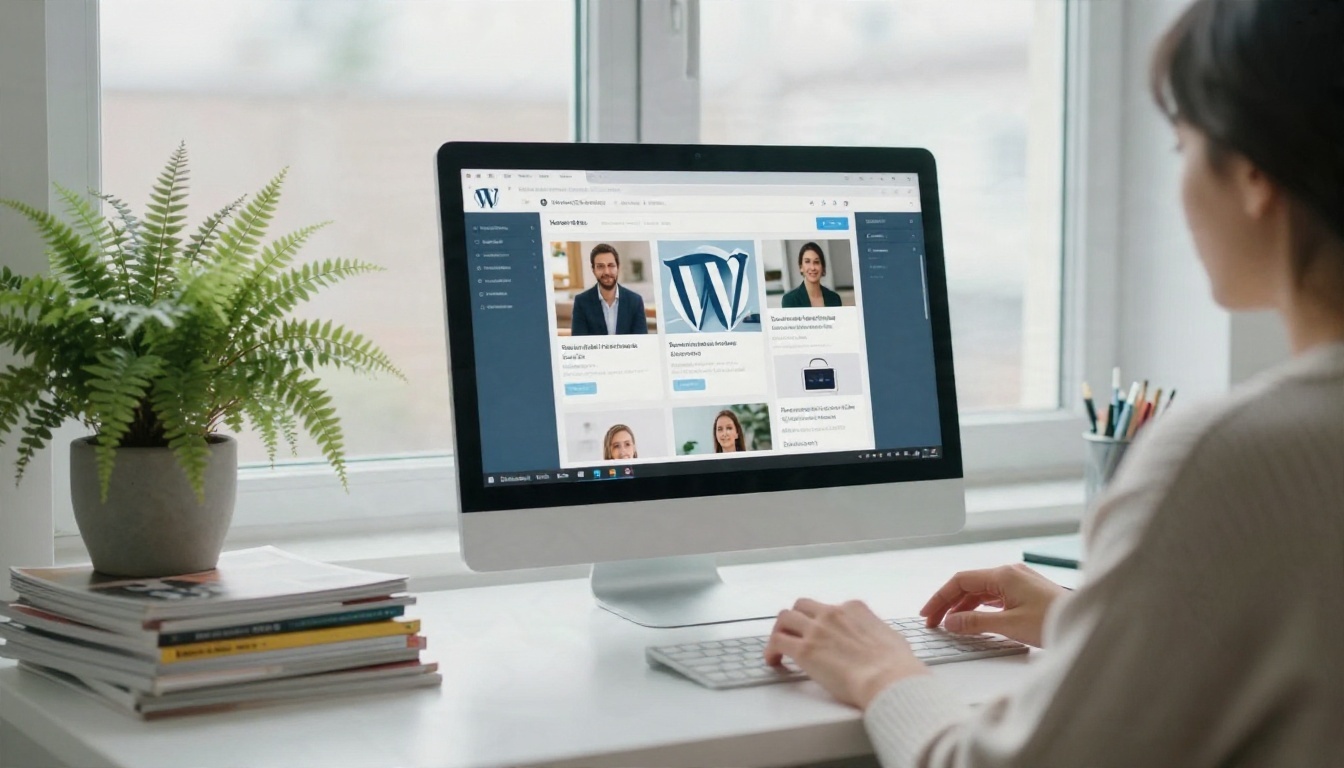
Prevent PDF From Being Downloaded: Embed on Your Website, Free Options, WordPress
Want people to read your PDF without walking away with the file? This article compares free options, shows how to embed a protected document on any website, walks through WordPress setup, and explains where real limits sit so you can pick the right level of protection.
You spent weeks on that price list, ebook, or client proposal. You upload it to your site as a PDF, and within a day it is sitting in a competitor's inbox. If you want to prevent a PDF from being downloaded, the first step is accepting that a raw PDF link hands over the file itself. The second step is choosing a delivery method that lets people read without receiving a copy. Tools like Flipbooks AI were built for exactly that gap, and this article shows every realistic route: free options, plain HTML embeds, and WordPress.
I will be straight with you about one thing up front. No method can stop a determined person from photographing their screen. What you can do is remove the easy download, add friction, and keep control of who reads what. For most businesses, that is the difference between a document that spreads everywhere and one that stays where you put it.
Why PDFs Leak So Easily
A PDF was designed to be portable. That is its strength and your problem. When someone opens a PDF in a browser, the whole file is transferred to their device before the first page renders. Saving it takes one click.
The Default Browser Behavior
Every major browser ships with a built in PDF viewer, and almost all of them show a download icon in the toolbar. Even if you hide that icon, the file URL is still public. Anyone can copy the address, paste it into a new tab, or use a download manager.
Here is what typically happens when you simply link a PDF:
The browser fetches the full file from your server.
The file lands in a temporary cache on the visitor's device.
A download button, print button, and "save as" option are all one click away.
Search engines can index the PDF and list the direct link in results.
Anyone with the URL can share it, and it works forever.
Honest Limits of Protection
⚠️ Be realistic: screenshots, screen recording, and phone photos can never be blocked by a website. Protection means making theft inconvenient and giving you control, not building a vault.
Think of protection in layers. Each layer filters out a larger share of casual copying.
Protection Layer
What It Stops
What It Does Not Stop
Hide the download button
Casual one click saves
Copying the file URL
Embed instead of link
Direct file access from the page
Screenshots
Password protection
Uninvited readers
Authorized readers who share a screen
Flipbook format (no raw file served)
Right click save of the PDF
Photographing the screen
Expiring or revocable access
Long term circulation
Content someone already copied
For a restaurant menu or a public brochure, the first two layers are plenty. For a paid ebook, a financial report, or a confidential proposal, you want the first four.
Free Options That Work
You do not need a budget to improve on a bare PDF link. Free options exist, though each has a trade off.
Drive and Cloud Links
Google Drive, Dropbox, and OneDrive all let you share a file as "view only." In Google Drive, you can open the sharing settings and untick the option that lets viewers download, print, and copy. It takes under a minute.
The catch: the setting is easy to bypass. Viewers can still screenshot, and a determined user can often pull the file through the browser's developer tools. Drive embeds also display Google branding and a pop out button, which looks out of place on a professional site.
Built In PDF Settings
Adobe Acrobat and several free editors let you set a permissions password that disables printing and copying. The file still downloads in full, though. Many PDF readers and online "unlock" tools ignore these restrictions entirely, so treat this as a speed bump rather than a lock.
💡 Pro tip: If your document is public marketing material, a free Drive link is fine. If it carries revenue or confidentiality, pay for a tool that never hands over the file in the first place.
Embed on Your Website
Embedding means the document is displayed inside a frame on your own page. The visitor reads it there, in context, with your branding around it. For a deeper look at the process, the Embed Flipbook on Website tool page shows the output in action.
Why Iframes Beat Direct Links
An iframe is a window to another page. Because the viewer lives inside that window, you control its interface. A well built viewer shows pages one at a time, offers zoom and page turn controls, and leaves out the download button.
Benefits of iframe embedding over direct linking:
Visitors stay on your page, which helps time on site and conversion.
The interface is yours to configure, including colors and logo.
The viewer can be updated without you changing the page.
Access rules live at the source, so you can revoke or change them in one place.
Mobile layouts adapt to the screen without pinch and scroll struggles.
Embedding in Plain HTML
Paste the embed snippet where you want the document to appear. A typical snippet looks like this:
Replace the link with the one from your flipbook dashboard. Set width to 100% so it fits any layout, and adjust height to match your page proportions. On a landing page, 600 to 700 pixels reads well on desktop. Responsive wrappers help on small phones.
✅ Best practice: Place the embed below a short text intro and above a clear call to action. Readers who finish a few pages are warm leads.
Protect PDFs on WordPress
WordPress powers a huge share of the web, and its default media library is part of the leak problem. Upload a PDF there and you get a public URL, like yoursite.com/wp-content/uploads/2026/11/file.pdf. Search engines can crawl it.
Block Editor Steps
The safest approach is to avoid hosting the raw PDF in your media library at all. Instead:
Create your protected document on an external viewer (a flipbook works well).
Copy the embed code.
In WordPress, open the page or post in the block editor.
Click the plus icon and add a Custom HTML block.
Paste the iframe snippet.
Preview the page on desktop and mobile.
Publish, then test in a private browser window.
The Custom HTML block works in both classic and block themes, and it requires no plugin. If your builder is Elementor, Divi, or similar, use the HTML or code widget the same way.
Plugin Route and Limits
Several free plugins add a PDF viewer to WordPress and hide the toolbar buttons. They are convenient, but the file generally still sits in your uploads folder. Anyone who finds the URL can open it directly.
WordPress Approach
Setup Time
Hides Download Button
Raw File Exposed
Direct media library link
1 minute
No
Yes
Free PDF viewer plugin
10 minutes
Often
Usually yes
Custom HTML block with external flipbook
5 minutes
Yes
No
Membership plugin with restricted pages
30+ minutes
Depends
Sometimes
⚠️ Watch out: If you used a plugin before and later switch, delete the old PDF from the media library. Otherwise the original link stays alive and indexable.
Make a Protected Flipbook with Flipbooks AI
Here is the full workflow for turning a PDF into a protected, embeddable flipbook. It takes about five minutes for a typical document, and there are no watermarks, ever.
Multimedia, including embedded video and audio on selected pages.
Background and toolbar options.
Because the design is mobile responsive, it works on phones without extra setup.
Share and Lock
Choose how people reach the document:
Embed code for your website or WordPress page.
Direct link for email and social posts.
Password protection for private content such as proposals and internal reports.
A common setup: embed the flipbook on a client portal page, add a password, and send the password in a separate message. That way a forwarded link alone is useless.
Track Readers
On the Professional plan you get analytics and lead generation. You can see which pages get attention, how long people stay, and capture an email before the document opens. Check the pricing page to compare plans. Offline downloads are also available as a deliberate choice for readers you trust, so you decide when a copy is allowed instead of leaving it to chance.
Feature
Why It Helps Protect Content
No raw PDF link served
Removes the easy save and share path
Password protection
Limits access to invited readers
Lead capture form
Identifies who opens the file
Analytics
Reveals unusual reading patterns
Custom branding
Keeps readers on your site and brand
Controlled offline downloads
Copies only when you allow them
Real World Examples
Protection needs vary a lot. Here are scenarios I see over and over.
A bakery publishes a seasonal catalog. The goal is reach, so the owner embeds it on the homepage and shares the link on social media. Downloads hardly matter, but a clean, branded viewer does. A Product Catalog works nicely.
A wholesaler shares a trade price list with approved retailers only. Leaked prices would hurt margins, so the list sits behind a password inside a flipbook. A Digital Price List Generator covers the format.
A consultant sends proposals. Rather than attaching a PDF to an email that gets forwarded, they send a password protected link and check analytics to see when the client opened it and which pages were read twice.
An author sells an ebook. The Interactive E-Book Publisher turns the manuscript into a readable flipbook behind a purchase gate.
Leaving the original PDF online. You embed a protected version but the raw file stays in your media library or old blog post. Delete or unpublish it.
Trusting a hidden button. Hiding a toolbar icon with CSS does nothing if the file URL is public.
Sending the password with the link. Use a second channel, such as a text message or phone call.
Ignoring mobile. More than half of readers open links on phones. Test the embed on a real device.
Forgetting search indexing. Add a noindex tag to private pages and keep them out of your sitemap.
Overprotecting public content. A password on a brochure only frustrates customers. Match the lock to the value.
💡 Quick audit: Search Google for site:yourdomain.com filetype:pdf. Whatever appears is publicly downloadable right now.
Finally, remember that legal protection counts too. A copyright notice on the first page, plus terms of use on the page that hosts the embed, gives you grounds to act if someone republishes your work.
Ready to Protect Your PDF?
You now have a clear order of operations: stop linking raw files, embed through a viewer that you control, add a password when the content is sensitive, and measure who actually reads it. Start with the free options if your document is low risk, and move to a dedicated flipbook when the content carries real value.
Ready to try it? Create your free account on Flipbooks AI, upload a PDF, and embed your first protected flipbook in minutes. Browse all flipbook tools to find a template that fits your document, or compare pricing plans to see which one adds analytics and lead capture.