A tablet on a stand looks simple until a customer closes your catalog, opens the camera roll, and starts browsing the manager's vacation photos. Good tablet kiosk software prevents that, and it also decides how much you pay each month, whether your catalog survives a Wi-Fi outage, and how much time you spend babysitting devices. If you publish product catalogs, price lists, or brochures, a platform like Flipbooks AI turns a PDF into a page-turning catalog that works well on a kiosk tablet. The software around it still needs the right pricing model, offline setup, and settings.
This article breaks down what kiosk software costs, how offline mode really works, and which settings deserve your attention before the first customer touches the screen.
What Tablet Kiosk Software Does
Kiosk mode versus a normal app
A normal tablet app lets anyone swipe up, switch apps, change settings, or open a browser. Kiosk mode locks the device to one app or one web page. Visitors can flip through your catalog, but they cannot leave it.
Most kiosk software handles four jobs:
- Lock the screen to a single app, page, or URL
- Restart the catalog after a period of inactivity
- Manage devices remotely, from updates to content changes
- Report health, such as battery level, connection status, and uptime
Why digital catalogs fit kiosks so well
Printed catalogs get dog-eared, outdated, and stolen. A digital catalog on a tablet stays fresh because you update one file and every device shows the new version. Visitors already know how to swipe and pinch, so there is no training. A flipbook adds familiar page-turn motion, zoom on product photos, and clickable links to order pages.
💡 Pro tip: Pick a catalog format that behaves the same on iPad and Android. Your kiosk software should not force you to maintain two versions of the same content.
The Real Cost of Kiosk Software
Pricing is where most buyers get surprised. The sticker price rarely matches the first-year bill.
Common pricing models
| Pricing model | How it works | Typical range (per device) | Best for |
|---|
| Per device, monthly | Flat fee for each tablet | $5 to $25 per month | Small fleets, 1 to 20 tablets |
| Per device, annual | Discount for paying yearly | $50 to $200 per year | Stable installations |
| Tiered plan | Bundle of devices and features | $30 to $300 per month | Growing retail chains |
| One-time license | Pay once, update fees later | $100 to $500 once | Single-location shops |
| Free or built-in | OS-level lock modes only | $0 | Testing and very small setups |
These ranges are market estimates, not quotes. Always confirm current prices on the vendor's site before you budget.
Hidden costs that add up
The monthly fee is only part of the picture. Watch for these extras:
- Content platform fees: the kiosk app might be cheap, but the catalog tool is billed separately
- Mobile device management (MDM): remote control often needs its own subscription
- Setup and support: some vendors charge for onboarding or phone support
- Hardware: stands, enclosures, chargers, and replacement tablets
- Cellular data: if the location has no reliable Wi-Fi
Sample first-year budget for 5 tablets
| Item | Low estimate | High estimate |
|---|
| Tablets (5 units) | $1,000 | $2,500 |
| Stands and enclosures | $250 | $900 |
| Kiosk software (annual) | $300 | $1,200 |
| Catalog platform (annual) | See pricing | See pricing |
| Setup time (your hours) | 8 hours | 20 hours |
⚠️ Warning: Per-device pricing sounds cheap with 2 tablets and painful with 40. Ask what the rate becomes at your expected scale, not just today's count.
Offline Mode Without the Headaches
Trade show halls, basements, rural stores, and busy lobbies share one problem: the connection is unreliable at the worst moment. A kiosk that shows a spinning wheel is worse than no kiosk at all.
How offline mode actually works
Offline mode does not mean the software works magically without data. It means the catalog files are stored on the device before the connection drops. The kiosk then reads those local files instead of fetching them from a server.
There are three common approaches:
- Downloaded file: the catalog is saved to the tablet as a file and opened locally
- Cached web page: the browser stores pages as visitors view them, which is unreliable for large catalogs
- Pre-loaded app content: the kiosk app bundles the catalog at install time
Option one is usually the safest for catalogs. Flipbooks AI supports offline downloads, so you can place the finished catalog on the device and keep it running through an outage.
Sync strategy: when to update
Offline devices still need fresh content. Decide on a schedule:
- Nightly sync when the store is closed and Wi-Fi is quiet
- Manual update before each event or season
- Triggered update whenever you publish a new version
Whatever you pick, show a small version number or date somewhere on the device. Staff can then confirm in two seconds that the tablet has the latest prices.
Offline checklist before opening day
💡 Pro tip: Links to external pages will fail offline. Add a short line such as "Ask a team member to place your order" on pages that depend on a live connection.
Settings That Matter Most
Most kiosk failures come from a handful of overlooked settings, not from bad software.
Lock-down settings
| Setting | What it does | Why it matters |
|---|
| Single app mode | Restricts the tablet to one app | Stops visitors from leaving the catalog |
| Disable notifications | Hides alerts and pop-ups | Prevents private messages on a public screen |
| Disable status bar swipe | Blocks quick settings access | Stops Wi-Fi or brightness changes |
| Password-protected exit | Requires a code to leave kiosk mode | Lets staff maintain the device safely |
| Auto-restart on crash | Reopens the catalog automatically | Avoids a dead screen for hours |
| Block app store | Removes install options | Stops accidental downloads |
On iPad, the built-in single app mode and MDM profiles do this job. On Android, screen pinning or a dedicated kiosk launcher works. On Windows tablets, Assigned Access is the standard tool.
Idle reset and attract loops
A visitor leaves the catalog on page 47, and the next person wonders where the cover went. Set an idle timer, usually 60 to 120 seconds, that returns the catalog to page one.
An optional attract loop can play a short slideshow of your best products when nobody is nearby. It draws attention without anyone touching the screen.
Display and power settings
- Brightness: 70 to 80 percent is usually readable without glare
- Auto-lock: set to "never" for the kiosk app, but keep a nightly schedule to save power
- Orientation lock: lock to landscape or portrait, matching the stand
- Auto-update: schedule OS updates outside business hours
- Battery care: avoid 24/7 charging on cheap tablets, since swollen batteries are a real risk

✅ Best practice: Write your settings down in a one-page checklist. When a tablet needs replacing, a new device can be ready in 15 minutes instead of an afternoon.
How to Build a Kiosk Catalog with Flipbooks AI
If your catalog already exists as a PDF, you are closer than you think. Here is a practical workflow using Flipbooks AI.
Step by step
- Create your account. Sign up at flipbooksai.com/account and pick a plan. Check the pricing page to see which features each tier includes.
- Upload your PDF. Drag in the file and the PDF to Flipbook Converter turns each page into a flippable spread. Use a high-resolution export so product photos stay sharp when visitors zoom.
- Customize the look. Add your logo, adjust colors, and choose page effects. Keep the background plain so the products stand out on a bright showroom floor.
- Add multimedia. Embed videos and audio where they help, such as a 20-second demo on a hero product. Remember that online-only media needs a connection, so test it offline.
- Set privacy. Use password protection if the catalog includes wholesale prices that only staff should see.
- Download for offline use. Save the offline version to each tablet so the catalog runs even when Wi-Fi fails.
- Lock the tablet. Open the catalog in your kiosk app or browser, then enable single app mode.
- Test as a customer. Flip pages, zoom, tap links, leave it idle, and confirm the reset works.
Pro features worth paying for
On the Professional plan, analytics show which pages visitors view most, and lead generation can capture contact details. Use pricing to compare tiers. Flipbooks AI never adds watermarks, so your branding is the only thing visitors see.
Tools for specific catalog types
Browse all flipbook tools if your use case is different.
Real-World Kiosk Examples
A furniture showroom
A showroom places one tablet next to each room set. Visitors flip through the full line, zoom on fabric swatches, and tap a link to request a quote. Because the catalog is an offline download, the kiosk runs fine even in the back of a large warehouse building where Wi-Fi is weak. Staff update the file every season and push it to all tablets overnight.
A farm supply store
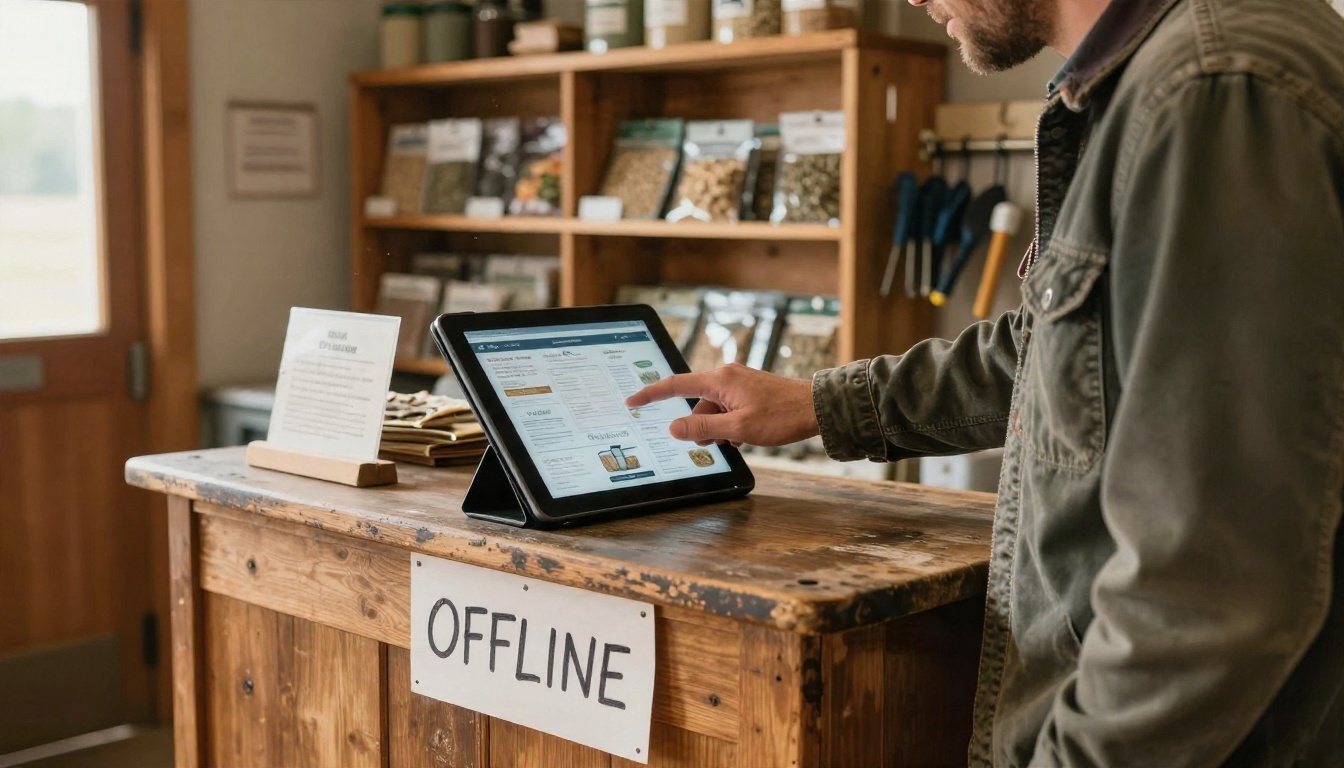
Rural stores often have patchy internet. A counter tablet with an offline catalog lets customers look up seed varieties and tool specs without waiting. The owner skips the monthly per-device fee by using a one-time kiosk license and a single catalog platform plan.
A boutique hotel lobby
Hotels use kiosks as digital brochures: local restaurants, spa menus, and tour options. A password-protected exit keeps guests inside the brochure, while an idle reset prepares the screen for the next arrival. For this use case, try the Hotel Brochure tool.

Which setup fits which business
| Business | Tablets | Offline need | Priority setting |
|---|
| Furniture showroom | 4 to 10 | Medium | Idle reset |
| Farm supply store | 1 to 2 | High | Offline download |
| Hotel lobby | 2 to 4 | Low | Password exit |
| Trade show booth | 2 to 6 | High | Battery and charging |
| Car dealership | 3 to 8 | Medium | Lead capture |
Common Mistakes to Avoid
- Skipping the offline test. Unplug the router before launch day. Surprises are cheaper in private.
- Choosing by monthly price only. A cheap app with weak support costs more when a tablet freezes at 11 a.m. on a Saturday.
- Forgetting physical security. Software cannot stop someone from walking away with the tablet. Use a locking enclosure or tether.
- Using a heavy PDF. A 400 MB catalog loads slowly on older tablets. Compress images and split very large catalogs by category.
- No update owner. Name one person responsible for updates. Otherwise the kiosk still shows last year's prices.
- Ignoring accessibility. Use readable fonts, strong contrast, and a mounting height that works for wheelchair users and children.
⚠️ Warning: Never leave a staff exit code at the factory default. Change it on every device and store it in your password manager.
Pick Your Setup Today
The right kiosk setup comes down to three decisions: a pricing model that scales with your device count, an offline plan that does not rely on store Wi-Fi, and a short list of locked settings that keep visitors inside your catalog. Get those right and the tablet becomes a quiet, reliable salesperson.
Here is a simple next move:
Ready to put a catalog on a tablet? Get started for free on Flipbooks AI and see how it looks on your own device.



