You do not need a print run, a distributor or a design agency to publish a magazine anymore. A virtual magazine costs nothing to ship, never goes out of stock and can reach a reader's phone seconds after you hit publish. With Flipbooks AI, a plain PDF becomes a page-turning issue with real paper-curl motion, and the same file can live on your website, in an email or behind a password.
This article shows what a virtual magazine actually is, which free templates deserve your time, what good page-flip examples look like, and exactly how to share the result online. Expect tables, a step-by-step tutorial and a few blunt warnings about mistakes that quietly kill readership.
What a Virtual Magazine Really Is
A virtual magazine is a digital publication that keeps the feel of a printed issue: spreads, covers, pagination, a rhythm of full-bleed photos and text columns. Unlike a raw PDF, it opens in the browser, flips like paper and adapts to any screen.
Page-Flip vs Plain PDF
A PDF is a document. A page-flip magazine is an experience. Readers tap or swipe, the page bends, and the layout fits their device. That small difference changes behavior: people stay longer, scroll less aimlessly and treat the issue as a finished product instead of an attachment to ignore.
| Feature | Plain PDF | Page-Flip Virtual Magazine |
|---|
| Opens in browser | Sometimes, with a clunky viewer | Yes, instantly |
| Page-turn animation | No | Yes |
| Mobile-friendly | Pinch and zoom only | Responsive layout |
| Embed on a website | Awkward | One snippet of code |
| Password protection | Limited | Built in |
| Reader analytics | None | Available on higher plans |
Who Publishes Them
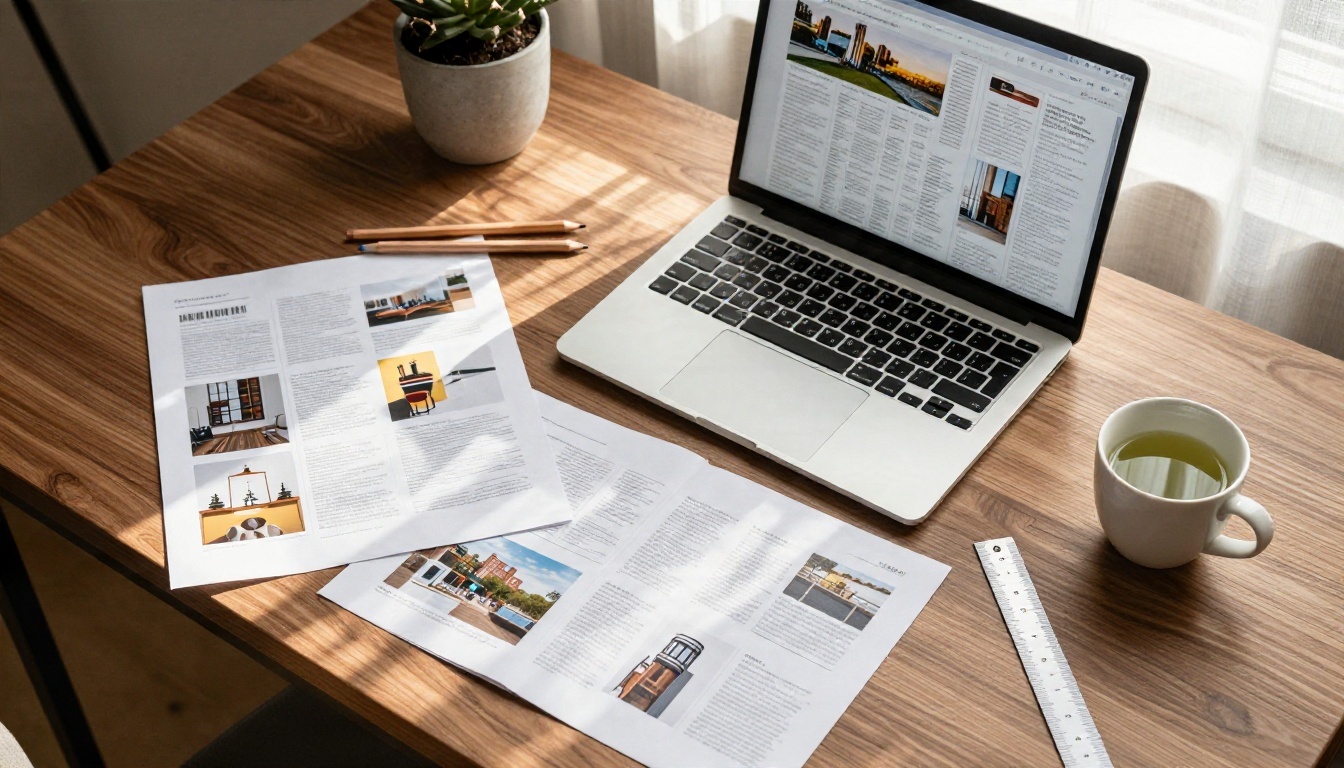
The audience is wider than most people assume. Independent writers, fashion boutiques, travel bloggers, schools, real estate agents and non-profits all publish digital issues because the barrier is so low. A florist sends a seasonal catalog. A school prints nothing and sends a monthly newsletter. A photographer assembles a quarterly portfolio issue.
💡 Pro tip: Decide the purpose of your issue before you open any template. A magazine meant to sell products needs a different structure from one meant to build a following.
Free Templates Worth Your Time
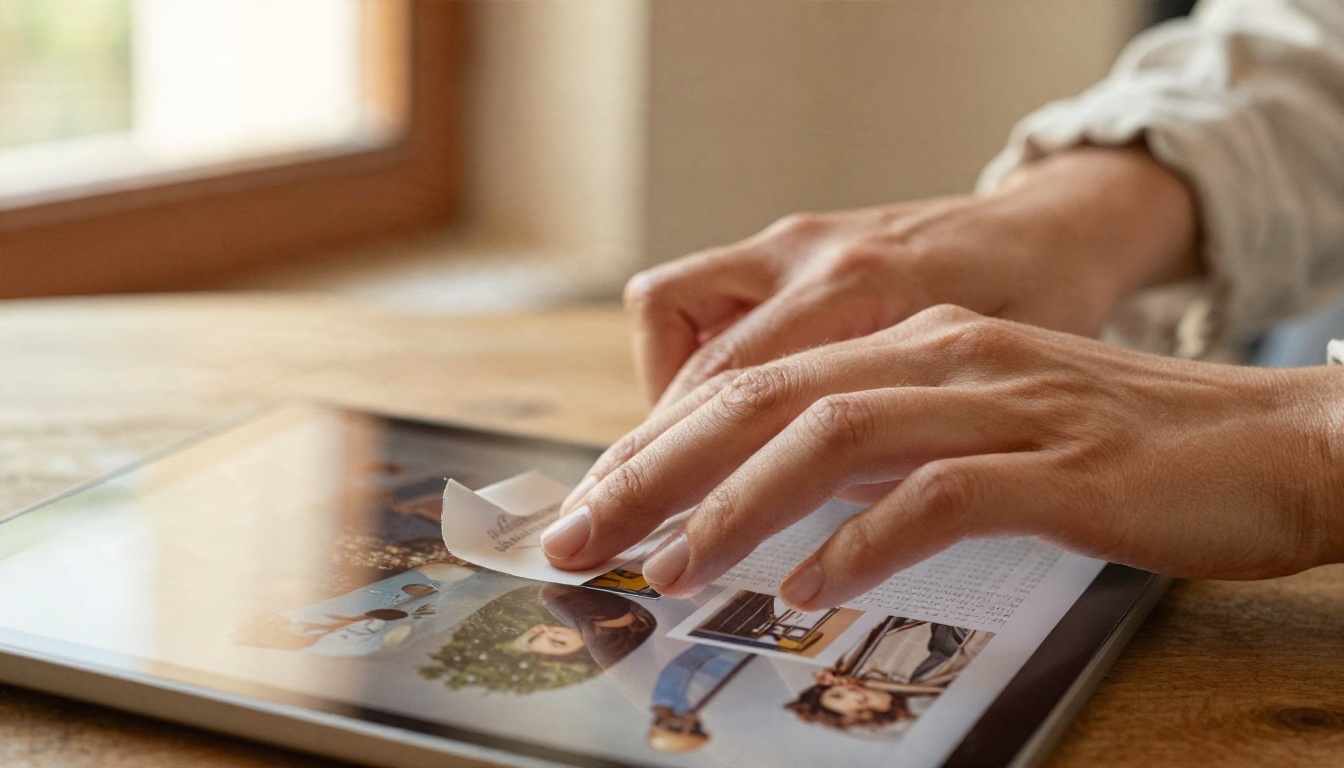
Templates are where most beginners lose a week. They download ten, compare them and never publish. Pick by purpose, not by how pretty the preview looks.
Template Types Compared
| Template Type | Best For | Typical Page Count | Layout Style |
|---|
| Lifestyle magazine | Bloggers, creators | 20 to 40 | Large photos, short columns |
| Fashion lookbook | Boutiques, designers | 12 to 30 | Full-bleed imagery, minimal text |
| Travel issue | Agencies, writers | 24 to 48 | Mixed photo and story spreads |
| Business newsletter | Companies, schools | 8 to 16 | Clean grids, headlines first |
| Catalog magazine | Shops, makers | 16 to 40 | Product grids with price blocks |
If your goal leans commercial, the Digital Catalog Maker pairs well with a magazine structure. For editorial work, the Magazine Flipbook Creator and the E-Magazine Publishing Tool are the natural starting points.
Choosing a Layout in Ten Minutes
Use this short filter and you will avoid template paralysis:
- Count your assets. Twelve strong photos do not fill a forty-page template.
- Check text density. If you write long features, pick wider columns and quieter backgrounds.
- Match your brand colors. A template that fights your palette costs hours of fixing.
- Test on a phone. If body text needs zooming, move on.
- Commit. Pick one and build the issue. You can always refine the next one.
✅ Best practice: Build your first issue at 12 to 20 pages. Short issues get finished, get shared and teach you what your readers actually open.
Page-Flip Examples That Work
Abstract advice only goes so far. Here are three scenarios that show how page-flip magazines behave in real projects.
Fashion and Lookbook Issues
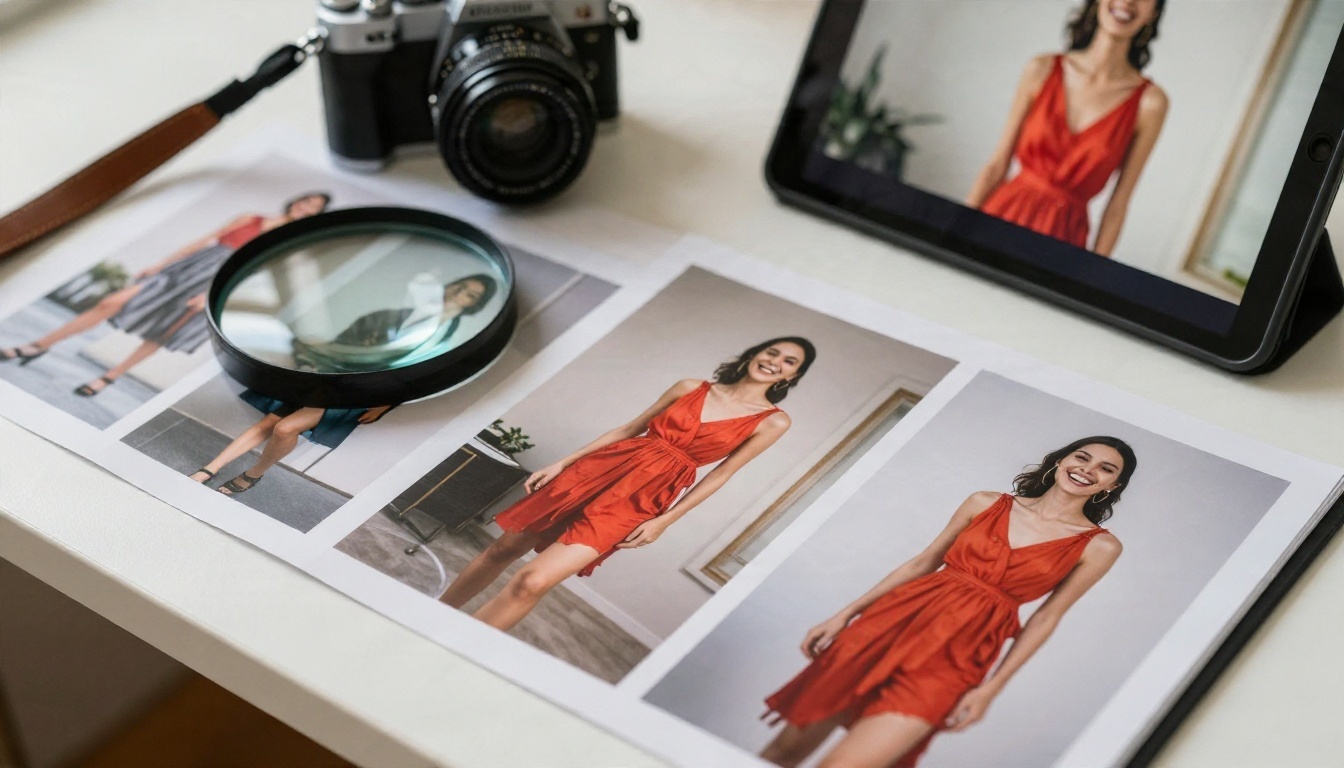
A boutique photographs its new season, drops the images into a full-bleed lookbook template and adds a single line of copy per spread. The result feels like a printed editorial, yet the owner can update it every month. Shoppers flip through on their phones in the changing room, which is exactly the moment buying decisions happen. The Interactive Lookbook Designer suits this style well.
Local Business Catalogs
A flower shop owner gathers her best arrangements, adds prices and a delivery note, and publishes a seasonal issue. Customers open it from a text message, flip to the spring bouquets and order by phone. No printing, no minimum order, and the issue can be corrected the same day if a price changes.

Travel and Lifestyle Stories
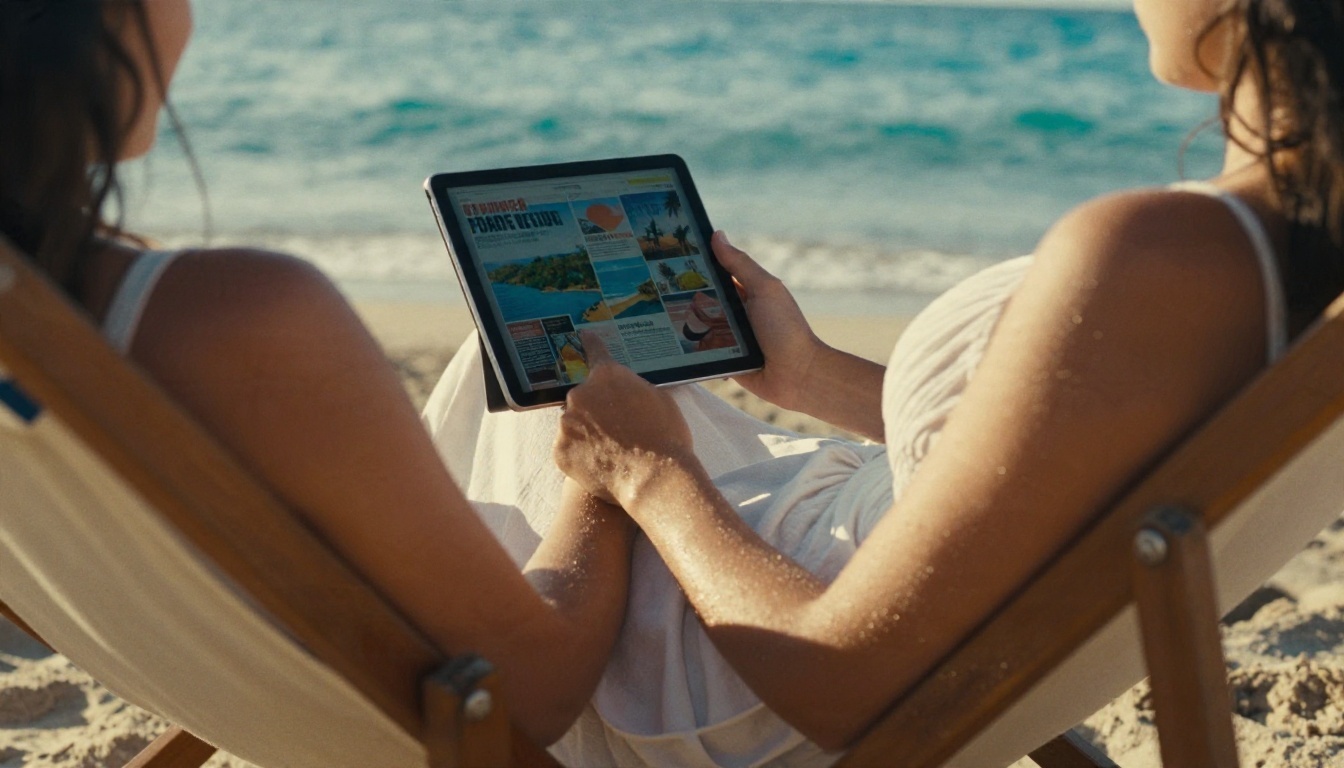
Travel writing thrives on imagery. A destination issue with sweeping photos, short itineraries and a map spread reads beautifully on a tablet. The reader on a beach lounger or a long train ride does not want to download anything. They want to tap a link and flip.
For longer itineraries, the Travel Guide Flipbook tool offers a ready structure.
How to Create a Virtual Magazine with Flipbooks AI
If you already have a PDF from Canva, InDesign, Word or Google Docs, you are about ten minutes from a live issue. The process below uses the PDF to Flipbook Converter at its core.
Step 1: Open Your Account
Go to Flipbooks AI and create an account. You can begin without a card, and every flipbook you make is free of watermarks, always.
Step 2: Upload and Convert
- Click the upload button in your dashboard.
- Choose your magazine PDF. Export it at 150 to 300 DPI for crisp images without a heavy file.
- Wait a few moments while the pages are converted into a flipbook.
- Preview the result. The screen shows each spread with a realistic curl when you drag a corner.
⚠️ Warning: Export spreads as single pages in reading order. A PDF with reversed or merged pages will flip in the wrong sequence.

Step 3: Customize the Look
Open the design panel and adjust what matters:
- Branding: add your logo and set the viewer colors to match your identity.
- Background: pick a flat color or a soft image behind the magazine.
- Page effects: choose the flip speed and the shadow depth.
- Multimedia: embed videos, audio or links straight onto the pages, so a recipe issue can play a short clip and an interview can include sound.
- Mobile view: check the single-page layout on a phone size preview.
Step 4: Publish and Share
Press publish. You get a direct link immediately, plus an embed snippet for your site. If the issue is private, switch on password protection before sharing anything.
Step 5: Go Further with Analytics
Higher plans add analytics, lead generation forms and offline downloads. These let you see which pages hold attention, collect emails before a reader reaches page five, and let subscribers save the issue for flights and commutes. Compare options on the pricing page. Unlimited flipbooks arrive with the Standard plan and above.
| Capability | Where It Helps | Plan Level |
|---|
| No watermarks | Professional look from day one | All plans |
| Password protection | Subscriber-only or client issues | Available on paid tiers |
| Unlimited flipbooks | Monthly or weekly publishing | Standard and above |
| Analytics | Seeing which pages get read | Professional |
| Lead generation | Collecting emails inside the issue | Professional |
| Offline downloads | Readers without a stable connection | Paid tiers |
Sharing Online Without Friction
A beautiful issue nobody opens is wasted work. Distribution deserves as much planning as design.
Direct Links
The simplest route is the best for newsletters, social bios and messaging apps. One link, no login, no download. Put it in your email footer and your Instagram bio, and send it by text to your regular customers.

Embedding on Your Website
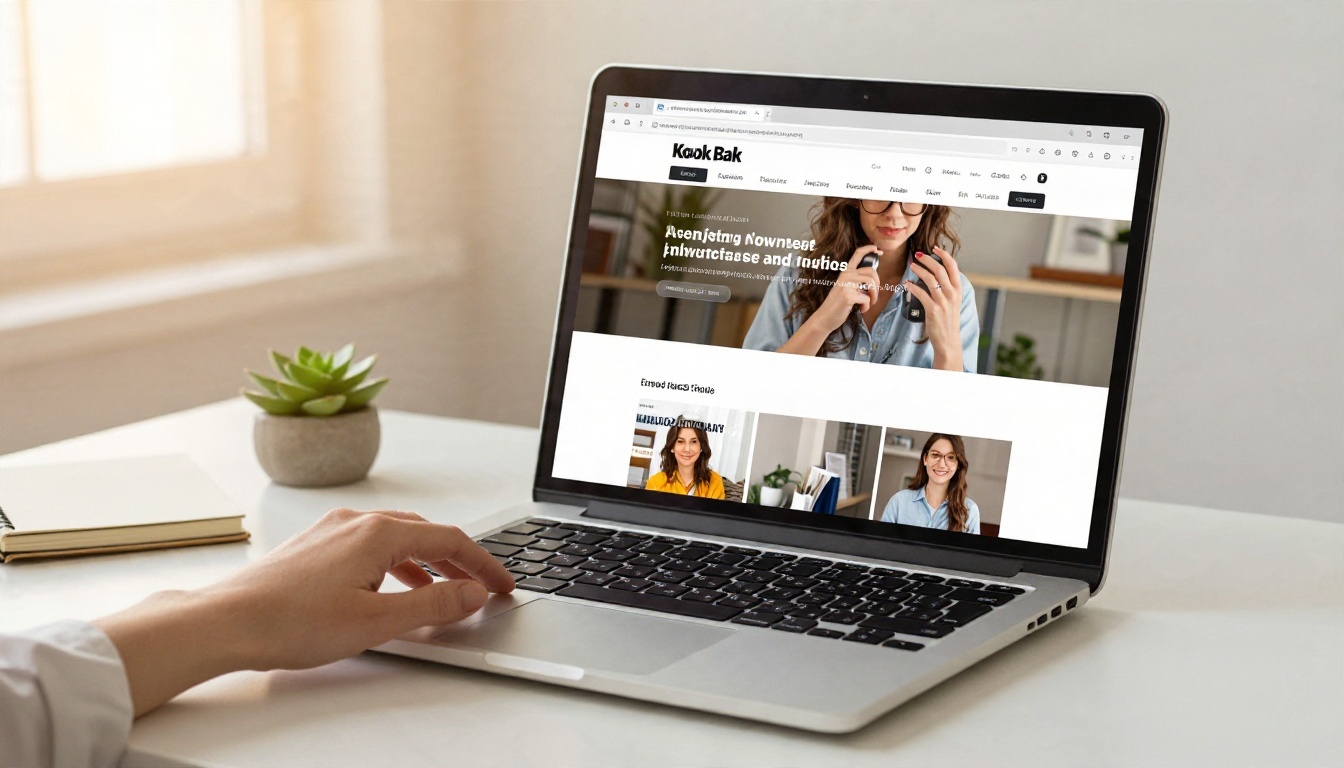
An embedded magazine keeps readers on your domain, which helps your site and your brand. Paste the snippet into a page, a blog post or a landing page. The Embed Flipbook on Website tool covers the process in detail, and it works with most site builders that accept custom HTML.
Password Protection
Not every issue should be public. Members-only content, client proposals, internal newsletters and pre-launch lookbooks benefit from a password. Share the link openly and the password privately. It is simple, and it keeps your premium material premium.
Sharing Channels Compared
| Channel | Setup Effort | Best Use | Reach |
|---|
| Direct link | Seconds | Email, chat, social | Broad |
| Website embed | Minutes | Blog, landing page | Steady, searchable |
| Password link | Seconds | Private or paid content | Controlled |
| QR code on print | Minutes | Shops, events, packaging | Local |
Free vs Paid: What You Actually Need
Free is excellent for testing. You validate the idea, learn what readers open and refine your layout. Paid plans make sense once you publish regularly, need data or want to protect content.
| Your Situation | Recommended Path |
|---|
| Testing a first issue | Start free and publish one short magazine |
| Monthly newsletter or catalog | Standard plan for unlimited flipbooks |
| Sales or lead-focused issues | Professional plan with analytics and lead forms |
| Client or members-only material | Any plan with password protection |
💡 Pro tip: Many creators start free, publish three issues, then upgrade only when they can point to a real need such as lead capture or heavy publishing volume.
Mistakes That Hurt Readers
Most failed digital magazines die from avoidable errors, not from bad ideas.
- Oversized PDFs. A 200 MB file loads slowly and readers leave. Compress images before export.
- Tiny type. Body text under 10 points becomes unreadable on phones.
- No call to action. Every issue needs one clear next step: a shop link, a signup, a contact button.
- Silent launches. Publishing without sharing is the same as printing and leaving boxes in the garage.
- Ignoring the first spread. The opening pages decide whether anyone reads on. Lead with your strongest image and a short, honest headline.
- Skipping a mobile test. Most readers will open your issue on a phone. Check it there first.
⚠️ Warning: Do not reuse licensed photos you have no rights to. Free to publish does not mean free to borrow. Use your own images or properly licensed ones.
A Simple Publishing Rhythm
Pick a cadence you can keep. A quarterly issue with real substance beats a weekly one that disappears after three weeks. Build a template once, swap the content each time and let consistency do the work. Readers return to publications that arrive on schedule.
Start Your First Issue Today
The tools are free to try, the templates are ready and the only missing piece is your content. Choose a short format, export a clean PDF, convert it and share the link with ten people. Their reactions will tell you more than any planning document.
Ready to publish? Get started for free on Flipbooks AI, browse all tools and templates to find your format, and compare pricing plans when you are ready for analytics, lead capture or unlimited issues. If you want to go straight to upgrading, use the account and pricing shortcut.



