Every December the same thing happens: someone asks, "So, how did the year go?" and nobody has a clean answer. A year in review document fixes that. It turns twelve months of scattered wins, numbers and photos into one tidy summary that people actually finish reading. In this article you will find real examples, a free printable template you can fill in today, and a simple way to share the result online using Flipbooks AI, so your recap opens with a single link instead of a heavy email attachment.
Whether you are writing for yourself, your team, your customers or your donors, the format is forgiving. You just need the right structure and a few honest details.
Why a Year in Review Works
Most people skip the review because it feels like homework. The truth is that a short, well-built recap saves time all year long. It becomes the reference you reach for when you write a performance self-assessment, plan next quarter, or answer a client who asks what you delivered.
What It Actually Is
A year in review document is a short, structured summary of what happened over a twelve-month period. It usually mixes three things:
- Numbers: revenue, sign-ups, miles run, books read, projects shipped.
- Stories: the moments behind the numbers, written in plain language.
- Direction: what you will keep, drop or start in the new year.
The best ones run between 4 and 12 pages. Anything longer tends to lose the reader, and anything shorter feels like a social media caption.
Who Writes One
The format fits more situations than people expect. A freelancer sends one to retainer clients in January. A department head shares one with leadership before budget season. A school publishes one for parents. A nonprofit uses one to thank donors and show where the money went.
💡 Pro tip: Write the review for one specific reader. A recap for your boss reads very differently from a recap for your family, and trying to please both usually pleases neither.
Year in Review Document Examples
Seeing a finished structure makes the blank page far less scary. Below are four common types, each with a layout you can copy.

Personal Year in Review
This is the most relaxed version. It works as a journal page, a photo book or a short digital booklet.
Typical pages:
- A cover with the year and one photo that sums it up.
- Twelve small snapshots, one per month.
- Numbers: trips taken, books finished, workouts logged.
- Three proud moments and three hard ones.
- Goals for the next year, limited to five.
Example: A reader tracks one photo and one sentence per month. By December she already has a twelve-page story, and the writing takes an evening.
Team or Department Recap
A team recap needs less poetry and more proof. Leadership wants to see outcomes, and teammates want to see their names.
Typical pages:
- Headline results in three bullet points.
- Milestone timeline across the quarters.
- Spotlight on individuals or sub-teams.
- Metrics versus targets.
- Priorities for the next year.
If your team already produces formal reports, the Report Flipbook Creator is a natural home for this type of document.
Small Business Annual Summary
A bakery, agency or online shop can send a yearly summary to customers and partners. It builds trust because it shows the people and decisions behind the brand.
Typical pages:
- A short letter from the owner.
- Sales, new products and new hires.
- Customer stories or testimonials.
- A behind-the-scenes photo spread.
- What is coming next, plus an offer for loyal customers.
Businesses that want a more formal layout can use the Annual Report Creator or the Corporate Report Maker.
Nonprofit Impact Recap
Donors want to know three things: what you did, who it helped, and how their gift was used. A strong nonprofit recap answers all three on the first spread. The Non-Profit Annual Report tool is built for exactly this, with room for photos, charts and thank-you messages.
Comparing the Four Formats
| Type | Best Length | Tone | Main Reader | Top Visual |
|---|
| Personal | 4 to 8 pages | Warm, reflective | You, family, friends | Monthly photos |
| Team recap | 6 to 10 pages | Direct, factual | Managers, teammates | Timeline and metrics chart |
| Small business | 6 to 12 pages | Friendly, confident | Customers, partners | Product and team photos |
| Nonprofit | 8 to 12 pages | Grateful, specific | Donors, volunteers | Impact numbers and portraits |
What to Put on Every Page
Regardless of the type, the same building blocks keep showing up in the documents people enjoy reading.
Numbers That Matter
Pick five to eight figures and stop there. A recap packed with thirty statistics reads like a spreadsheet. Choose numbers that show growth, effort or impact, and always add a comparison to last year so the reader has context.
- Good: "We shipped 42 projects, up from 31."
- Weak: "We shipped 42 projects."
Stories and Photos
A number tells the reader what happened. A photo and two sentences tell them why it mattered. Use real pictures from your year, not stock images. A slightly imperfect team photo beats a polished stock handshake every time.
Lessons and Misses
This is the section most documents skip, and it is the one readers trust most. Include one or two things that did not work and what you changed because of them. It signals honesty and gives your next-year plan a believable foundation.
✅ Best practice: Keep each page to one idea. If you cannot name the idea of a page in five words, split it in two.
Free Printable Year in Review Template
Not everyone wants to start in a design tool. If you like pen and paper, copy the layout below onto a blank sheet, or paste it into any word processor and print it. It fits on four pages when printed double-sided.
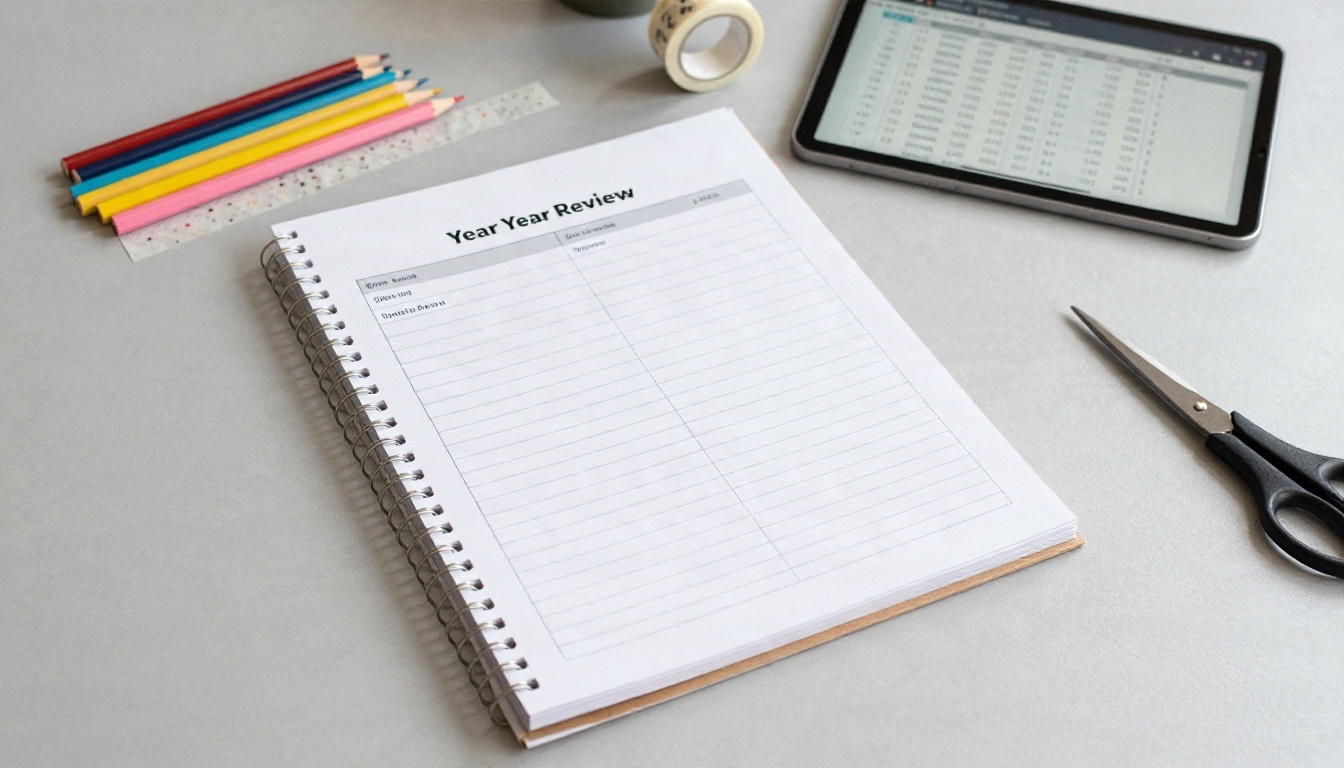
The Printable Page Layout
| Page | Heading | What to Fill In |
|---|
| 1 | My Year at a Glance | Year, one-line theme, favorite photo, three words that describe the year |
| 2 | By the Numbers | Five figures with last year's value beside each one |
| 3 | Highs and Lows | Three wins, two setbacks, one surprise |
| 4 | Next Year | Three goals, one habit to start, one habit to drop |
Fill-in Prompts
Print the page and answer these lines in order. Short answers are fine.
- The moment I was proudest of this year was ______.
- The hardest stretch was ______, and it taught me ______.
- The person who helped me most was ______.
- The best decision I made was ______.
- One thing I would do differently is ______.
- Next year I want to ______, and the first step is ______.
💡 Pro tip: Fill in the printable by hand first, then type it up. Handwriting slows you down just enough to produce more honest answers.
If you prefer a screen-first version, you can export your finished pages as a PDF and turn them into a page-turning booklet in a few minutes.
How to Create It with Flipbooks AI
A PDF is fine for printing, but it is clumsy to share. Large files bounce out of inboxes, and nobody likes pinching and zooming on a phone. Turning your recap into a flipbook gives readers a smooth, mobile-friendly experience that opens in the browser. The process takes about ten minutes.
- Write and design your pages. Use any tool you like, such as a word processor, a slide deck or a design app. Keep the page size consistent and export the finished file as a PDF.
- Create your account. Go to Flipbooks AI and sign in. You can start with a free account and move to a paid plan later.
- Upload the PDF. Drag the file into the uploader. The PDF to Flipbook Converter turns each page into a flippable spread, and it keeps your fonts, images and links intact.
- Customize the look. Add your logo, pick background colors that match your brand, and choose a page-turn effect. Output is watermark-free, so the document looks like yours alone.
- Add multimedia. Embed a short thank-you video, a voice note or background audio to give the recap some personality. Even a 20-second clip from the team makes a difference.
- Set your privacy. Keep it public, or turn on password protection if the recap contains internal numbers or client names.
- Publish and share. Copy the direct link, or grab the embed code to place the flipbook on your website. Details on each option are in the next section.
For school or club recaps, the Yearbook Flipbook Maker offers a ready-made layout that works well for photo-heavy pages.
Features Worth Using
| Feature | Plan | Why It Helps a Year in Review |
|---|
| Unlimited flipbooks | Standard and above | Publish a recap for every department or client |
| Password protection | Paid plans | Keep internal numbers private |
| Offline downloads | Paid plans | Let readers save a copy for later |
| Embedded video and audio | All plans | Add a personal message from you or your team |
| Analytics and lead generation | Professional plan | See who opened it and capture contact details |
| Custom branding | Paid plans | Match your logo and colors |
How to Share It Online
A beautiful recap that nobody opens is just a private diary. Pick the sharing route that matches your reader.

Pick the Right Sharing Method
| Method | Best For | Effort | Notes |
|---|
| Direct link | Email, chat apps, social posts | Very low | One URL, opens on any phone |
| Embed code | Blog, company site, intranet | Low | Use the Embed Flipbook on Website tool |
| Password-protected link | Clients, boards, internal staff | Low | Send the password in a separate message |
| QR code | Printed cards, event signage | Low | Print it on a holiday card or poster |
| Offline PDF download | Readers with weak internet | Very low | Enable downloads in your settings |
Real-world examples:
- A freelance designer emails a direct link to each client with a two-line note. The client opens it on a phone between meetings.
- An office manager embeds the team recap on the company intranet so new hires can read last year's story.
- A volunteer coordinator prints a QR code on thank-you cards, so donors can flip through photos from the year.
When to Send It
Timing changes how people respond. Here is a simple schedule that works for most situations.
- Mid-December: Send to close friends or family, who enjoy it before holidays get busy.
- Last week of December or first week of January: Send business recaps, when inboxes are quieter and people are in a reflective mood.
- Mid-January: Send a gentle follow-up with the link and a short question, such as "What would you add?"
⚠️ Warning: Check every name, figure and photo before you hit send. Once a link is out, you cannot control who forwards it, so avoid private details unless the flipbook is password protected.
If you want to measure results, the Professional plan includes analytics that show how many people opened the recap and how far they read. You can compare plans on the pricing page.
Mistakes to Avoid
After reading dozens of recaps, the same problems appear again and again. Here are the five most common ones.
- Too many pages. Anything past 12 pages loses most readers. Cut ruthlessly.
- No comparison. A figure without last year's value tells the reader nothing.
- Only good news. A recap that never admits a miss feels like marketing.
- Tiny text. People read on phones. Keep body text large and use plenty of white space.
- Sending a huge attachment. Large files get blocked or ignored. A link opens faster and is easier to forward.

A Quick Checklist Before You Publish
Ready to Publish Yours?
You already have the structure, the examples and the printable. All that remains is to fill in the pages and press publish.
Set aside one evening this month, fill in the four printable pages, and send the link to the people who shared your year. They will be glad you did.



