Most people who publish their first flipbook think the hard part is over once the PDF is uploaded and the pages are turning. They are wrong. The real work, the part that separates a forgettable digital document from a publication people actually read and share, happens before and after that conversion step. Flipbooks AI has helped thousands of creators and businesses publish polished interactive flipbooks, and the patterns of failure are remarkably consistent. Three mistakes show up again and again, costing creators readers, credibility, and conversions. This article breaks all three down in plain terms, shows you exactly what goes wrong, and tells you how to fix it.
Why Most Flipbooks Fall Flat
The promise of a flipbook is powerful: take a static PDF and turn it into an interactive, page-turning digital experience. But converting a file is not the same as creating an experience. A flipbook is only as good as the attention paid to three specific layers: the source material, the display format, and the brand identity.
The Gap Between a PDF and a Great Flipbook
A flipbook is a presentation layer. It wraps around your PDF and delivers it in a dynamic, interactive format. But if what is inside the wrapper is poorly formatted, too small to read on a phone, or completely devoid of brand identity, the wrapper does not save it. You end up with a polished container holding a disappointing product.
What Readers Notice First
Readers make snap judgments in under three seconds. Blurry text triggers an immediate back-button tap. A flipbook that does not fit the phone screen signals "low-effort." A flipbook with no logo or custom color does not stick in memory. These are not minor aesthetic concerns. They are the deciding factors between a reader who stays and one who leaves.
⚠️ A flipbook with poor source quality actively damages your brand. Readers associate file quality with business quality.
Mistake #1 - Uploading a Low-Quality PDF
This is the most common mistake, and it is also the most preventable. The quality of your output flipbook is fundamentally capped by the quality of your input PDF. If you upload a compressed, low-resolution, or poorly formatted document, no amount of interactive features will rescue the reading experience.
Resolution Issues That Kill Readability
Most PDFs shared over email or downloaded from websites have been compressed. Compression reduces file size but also reduces image clarity, text sharpness, and overall visual fidelity. When these compressed files are converted into a flipbook and viewed on a retina display or a large monitor, the degradation becomes very obvious.
The target: Your PDF should be exported at a minimum of 150 DPI for text-heavy documents and 300 DPI for image-heavy publications like catalogs, lookbooks, or brochures.
Font Embedding and Text Rendering
Fonts that are not embedded in the PDF often substitute with default system fonts during conversion. The result is a flipbook that renders in a completely different typeface than intended, destroying layout spacing and visual hierarchy. Always embed fonts before exporting.
Check your PDF export settings: In Adobe InDesign, select "All" under Fonts in the PDF export dialog. In Canva, use the "Download as PDF (Print)" option, which embeds fonts by default.
How to Prep Your PDF Right
Before uploading to any flipbook platform, run through this checklist:
| Checklist Item | What to Check | Why It Matters |
|---|
| Resolution | Minimum 150 DPI (300 DPI for images) | Sharp text and images on all screens |
| Font embedding | All custom fonts embedded | Consistent typography across devices |
| Color mode | RGB (not CMYK) | Accurate screen color rendering |
| Page size | Consistent across all pages | Prevents layout shifts between pages |
| File size | Under 200MB recommended | Faster load times for readers |
| Bleeds and margins | No critical content near edges | Safe zone for page-turn animation |
| Hyperlinks | All links tested and working | Interactive elements remain functional |
💡 Export your PDF in RGB color mode rather than CMYK. CMYK is for print. On screen, CMYK colors can appear dull and slightly off compared to what you designed.
✅ Always preview your PDF at 100% zoom before uploading. If text looks sharp at that zoom level on your screen, it will render well in a flipbook.
Mistake #2 - Ignoring Mobile Readers
Here is a number worth sitting with: over 60% of digital content is now consumed on mobile devices. That means the majority of your flipbook's audience is reading on a screen that is roughly 5 to 7 inches wide. If your flipbook is not optimized for that experience, you are losing more than half your readers before they reach page two.
How Flipbooks Break on Phones
The most common mobile failure mode is a flipbook designed in landscape that forces portrait-mode phone users to rotate their device or pinch-zoom constantly to read the text. The second failure mode is tiny text: a two-column layout that looks elegant on a 27-inch monitor becomes unreadable on a 6-inch phone.

The three mobile failure patterns:
- Pinch-zoom dependency: Layouts that require zooming in to read text
- Horizontal overflow: Content extending past the screen edge
- Touch target failures: Buttons and links too small to tap accurately
What Mobile-First Actually Means
Mobile-first does not mean designing only for phones. It means designing so that the smallest screen size is treated as the primary constraint. Single-column layouts, large body font sizes (minimum 14pt in the source PDF), high-contrast text, and generous padding around clickable elements all contribute to a mobile-friendly flipbook.
💡 When designing your source document, simulate how it will look on a 375px-wide screen. If any text line has more than 10 words, the font size is probably too small for mobile.
Testing Before You Publish
Most creators preview their flipbook on the same desktop they used to design it. That is not a real test. A real test involves opening the published flipbook on:
- A mid-range Android phone (not a flagship with a large screen)
- An older iPhone model (iPhone SE or similar)
- A tablet in both orientations
- A low-bandwidth connection (use your phone's cellular data, not WiFi)
| Device Type | Common Issue | Fix |
|---|
| Budget Android | Font rendering differs, slow load | Use system-safe fonts, compress PDF |
| iPhone SE | Very small screen, pinch-zoom needed | Increase font size, single-column layout |
| iPad Portrait | Good fit, but check margins | Test page-turn animation on narrow mode |
| Desktop | Usually fine, check two-page spread | Verify spread layout does not crowd text |
| Low bandwidth | Slow page loads, delayed images | Optimize image file sizes in source PDF |
⚠️ Publishing without mobile testing is like printing 1,000 brochures without proofreading. The mistake is already out in the world once you share the link.
Mistake #3 - Skipping Branding and Customization
The third mistake is the subtlest, but its impact is the most long-lasting. A flipbook with no custom branding is a missed opportunity, not just aesthetically, but commercially. Every page of your flipbook is a touchpoint with your audience. When those pages carry no visual identity, the reader remembers the content but forgets who published it.
Why Generic Flipbooks Get Ignored
Default flipbook interfaces, grey backgrounds, no logo, standard fonts, no brand colors, are the digital equivalent of handing someone a printed document on plain white paper in a generic font. It communicates nothing about who you are. It signals that you did not care enough to personalize the experience.
Real-world impact:
- Readers are less likely to share an unbranded flipbook
- Without a logo, readers cannot identify the source to revisit it later
- Unbranded publications feel less authoritative and less trustworthy
- Missed branding means missed recall when the reader is ready to buy
Colors, Fonts, and Logo Placement
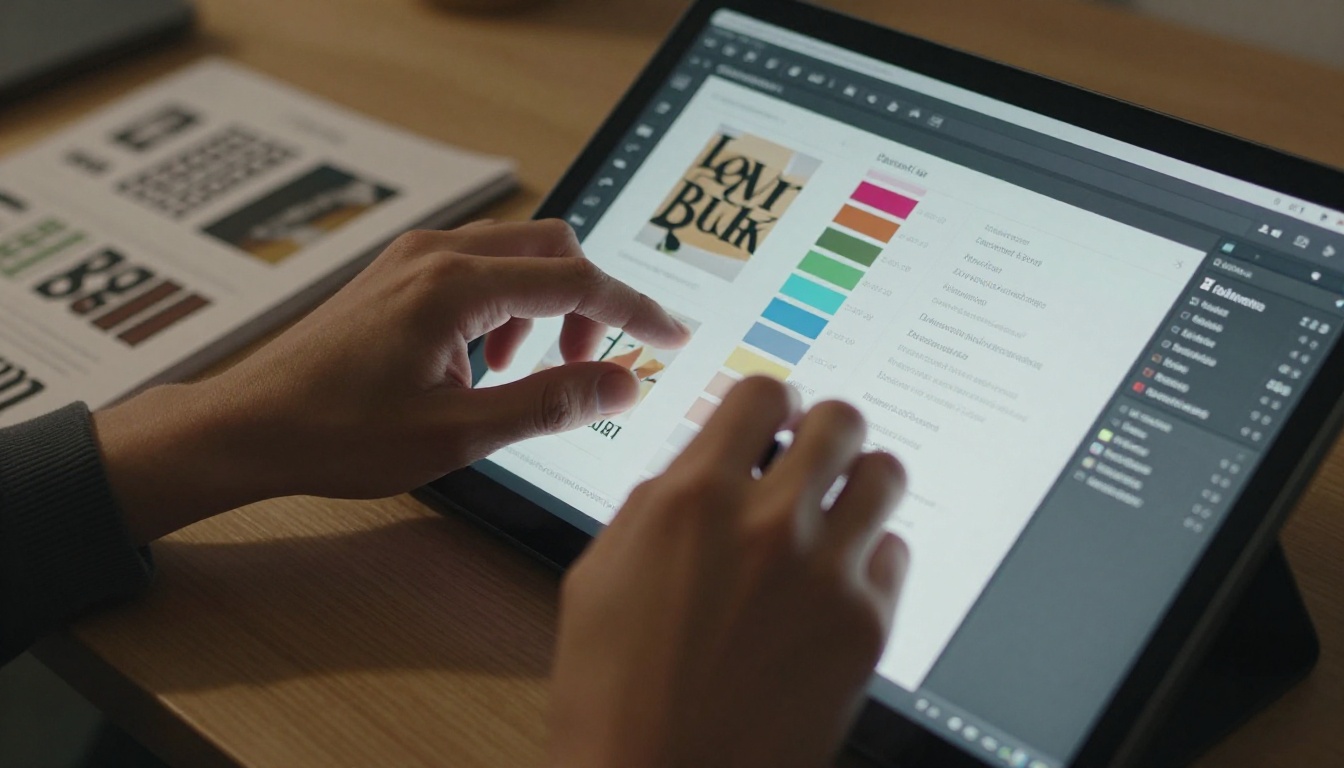
Branding in a flipbook is not just about placing a logo on the front page. It is about creating a cohesive visual experience that feels intentional from the first page to the last. That means:
Color palette: Your brand's primary and secondary colors should appear in the interface elements, buttons, and background. Not as decoration, but as a consistent signal.
Typography: Carry your brand fonts into the document itself. If your brand uses a specific heading font, use it in the PDF before converting.
Logo placement: The logo should appear on the front page, on the first interior spread, and ideally in the flipbook player interface. Readers who share a direct link will always see the interface, so the logo there is critical.
The Conversion Impact of Branding
This is where branding stops being a "nice to have" and becomes a revenue issue. Studies consistently show that brand recognition increases purchase intent. When your flipbook, whether it is a product catalog, a real estate brochure, or a restaurant menu, carries strong visual identity, readers associate the quality of the publication with the quality of what you are selling.
| Branding Element | Without Customization | With Customization |
|---|
| Logo | None, default platform interface | Custom logo in player and front page |
| Colors | Grey and white default UI | Brand primary and secondary colors |
| Typography | System default font | Brand font family |
| Background | White or default | Custom branded background |
| CTA Buttons | Generic label | Branded, custom-labeled buttons |
| Social Sharing | Platform name in share preview | Your brand name in preview |
| Reader recall | Low, forgettable | High, recognizable |
✅ Treat every flipbook like a branded product, not a file format. Before publishing, check that a stranger who sees the flipbook can immediately identify who made it.
How to Build a Flipbook That Avoids All Three
Flipbooks AI is designed to address all three of these mistakes directly. The platform makes it straightforward to upload a high-quality PDF, optimize for mobile, and apply full brand customization, without needing any technical skills. Here is how to do it step by step.
Step 1: Create your account
Go to Flipbooks AI and sign up. No credit card required for the free tier. Once inside the dashboard, you will see the upload button immediately.
Step 2: Prepare and upload your PDF
Before uploading, confirm your PDF passes the quality checklist from Mistake #1 above: minimum 150 DPI, fonts embedded, RGB color mode, consistent page sizes. Then drag and drop the file or click to browse.
Step 3: Set your branding
After upload, go to the Customize tab. Upload your logo. Set your brand colors using the color picker (hex codes accepted). Choose your viewer background and button style. This takes about three minutes and makes a dramatic difference in the final result.
Step 4: Check the mobile preview
Use the built-in device preview toggle to switch between desktop, tablet, and mobile views before publishing. If anything looks off, go back to your source PDF and adjust, then re-upload.
Step 5: Configure sharing settings
Choose whether your flipbook is public, password-protected (available on Standard plan and above), or private. Generate your embed code if you want to embed the flipbook on your website. Copy the direct share link for email or social media.
Step 6: Publish and monitor
Hit publish. On the Professional plan, you get access to analytics: page-by-page reading data, session duration, and lead generation forms. Use this data to improve your next flipbook based on how readers actually behave.
✅ Run through Steps 3 and 4 every time you publish, not just the first time. Even small PDF updates can affect mobile rendering.
One of the fastest ways to avoid all three mistakes is to start with a purpose-built tool rather than a blank PDF. Flipbooks AI offers a full library of specialized tools pre-optimized for specific formats and audiences.
Starting from a purpose-built template means the layout is already designed for that specific audience and screen size. The mobile optimization is built in. The structure is already well-suited for brand customization. You are starting from a strong position, not catching up after the fact.
Features available across plans:
- No watermarks, ever
- Unlimited flipbooks on Standard plan and above
- Password protection for private publications
- Embed videos and audio inside pages
- Mobile-responsive design on all output
- Custom branding on Standard plan and above
- Analytics and lead generation on Professional plan
- Offline downloads available
The Payoff of Getting It Right
When you fix all three mistakes, the difference in reader behavior is measurable. Pages get read further into the document. Readers return to share or revisit. Sales inquiries go up. Flipbooks that are sharp, mobile-ready, and branded perform better by every metric that matters.

The good news is that none of these fixes are complicated. They are entirely about attention to the right details at the right moments: before you export the PDF, during the upload and customization process, and before you hit publish. Spend an extra 15 minutes on those three checkpoints and your flipbook will be in a completely different category from what most creators publish.
💡 Save your brand settings in Flipbooks AI after your first flipbook. Every subsequent publication will automatically load your logo, colors, and preferences, cutting your setup time to almost nothing.
Ready to create a flipbook that actually works on every device and sticks in your reader's memory? Get started for free on Flipbooks AI and build your first polished publication today.
Browse all flipbook tools and templates to find the right starting point for your use case. Compare pricing plans to see which features fit your publishing volume and goals.



