You need a brochure by Friday, the budget is zero, and you would rather not hand over your email address to a tool you will use exactly once. That is the situation behind most searches for a free AI brochure maker. The good news: free options exist, several work with no sign up at all, and a few produce layouts that look agency-made. The less good news: nearly every free tool has a catch, from watermarks to low-resolution exports. This article lays out what each type of tool really offers, where the limits hide, which templates fit which business, and how to turn a finished brochure into a page-turning online version with Flipbooks AI.
What "Free" Really Means
The word free does a lot of heavy lifting on landing pages. Before you open a single editor, it helps to know what kind of free you are being offered, because that decides how much time you will waste.
Three Types of Free Tools
Most free brochure makers fall into one of three buckets:
- Truly free: no payment, no trial clock. These are usually office apps or simple browser editors with a small template set.
- Freemium: a free tier with a paid upgrade. You get real features, but the best templates, stock photos or export formats sit behind a plan.
- Free trial: full access for a short window, then a paywall. Great if you finish in one sitting, painful if you do not.
An AI brochure maker adds a twist. Instead of dragging boxes around, you describe your business, and the tool drafts copy, picks a layout and suggests images. That speed is real, but AI features are the most likely to be metered with credits.
Where Free Tools Cut Corners
Free tiers rarely fail at the design itself. They fail at the edges: the export step, the commercial license, the number of pages, or the logo stamped in a corner. Knowing this up front means you can pick a tool based on the last step of your project, not the first.
💡 Pro tip: Decide your final format before you start. If the brochure will be printed, you need a print-quality PDF. If it will be shared online, a flipbook link beats an attachment every time.
Online Options Compared
Online tools split into a few families. The table below compares them on the points that matter when you are not paying.
| Tool type | Sign up needed | Typical free limits | Best for |
|---|
| AI-first generators | Usually yes, sometimes a short trial without | Limited credits, watermark on export | Fast first drafts and copy ideas |
| Template editors | Often a free account | Premium templates locked, capped downloads | Polished, designer-made layouts |
| Browser editors, no account | No | Fewer templates, basic export | One-off, same-day jobs |
| Office apps you already own | No | Basic templates, manual layout | Simple tri-folds and flyers |
AI-First Generators
These tools ask a few questions (business name, audience, tone) and return a draft in under a minute. The writing is usually decent, the layouts are safe, and the images lean generic. Treat the output as a first draft, not a finished piece. Rewrite the headline, swap in your own photos, and cut any sentence that could describe a hundred other companies.
Template Editors
Template-based editors give you the most control. You pick a layout, replace the text and photos, and adjust colors. Many now include an AI assistant for copy suggestions. The free tier is usually generous on editing but strict on exporting, so check the download rules before you invest an hour in a design.
Office Apps You Already Own
Word processors and presentation software are the quiet heroes of free brochure design. They ship with tri-fold templates, export to PDF, and ask for no account. The trade-off is effort: alignment, image cropping and consistent spacing are on you. For a simple service list or event handout, that is often fine.
No Sign Up: What to Expect
Searching for "no sign up" is a privacy instinct, and a sensible one. Nobody wants another newsletter for a brochure they needed once.
The Upside
A tool that lets you design before asking for an account has clear advantages:
- Speed: you are designing within seconds, not confirming an email.
- Privacy: no profile, no marketing emails, no password to forget.
- Low commitment: perfect for a quick event flyer or a one-time price sheet.
The Catch
No-account tools usually cannot save your work to the cloud. Close the tab and the project may vanish. Export options are also narrower, and some stamp a small mark on the file.
⚠️ Warning: If a no-sign-up editor does not offer autosave, download a working copy every ten minutes. A browser crash can erase an hour of layout work.
A practical compromise: use a no-account editor for the design, export a PDF, and keep that PDF as your master file. Everything else, including sharing and tracking, can happen after the design is done.
Limits That Catch People Out
Limits are where "free" gets expensive in time. Here are the ones that surprise people most often, and what to do about each.
| Limit | What it looks like | Smart workaround |
|---|
| Watermark | A small logo or faint diagonal mark on the export | Choose a tool with clean exports, and check a sample before designing |
| Download cap | One to three exports per day or month | Finalize the design first, then export once |
| Low resolution | Only a screen-quality PNG or JPG | Look for PDF export that keeps vector text sharp |
| Page limit | Two to four pages on the free tier | Plan a tight tri-fold, or split content across files |
| Locked templates | "Pro" badges on the best layouts | Filter by free templates before you browse |
| Commercial license | Personal use only | Read the terms if the brochure will promote a business |
Watermarks and Exports
A watermark is the most visible limit and the easiest to avoid: test the export with a blank page before you build anything. Do not try to crop or edit a watermark out. Many terms forbid it, and the result usually looks worse than the mark itself.
Resolution and Print Bleed
If you plan to print, two numbers matter. Resolution should be about 300 dpi for photos. Bleed is the extra 3 mm of color that extends past the trim line so no white edge appears after cutting. Many free tools skip bleed entirely. If yours does, keep important text at least 5 mm from every edge and avoid full-bleed backgrounds.
✅ Best practice: Print one test copy at a local shop or on a home printer before ordering a big run. Colors on screen and on paper rarely match on the first try.
Templates by Industry
Good templates save more time than any AI feature, because the structure is already right. A real estate brochure needs different panels than a spa menu. Use this table to pick a format and a starting point.
| Business | Best format | Panels you need | Matching tool |
|---|
| Real estate | Bi-fold or tri-fold | Hero photo, floor plan, agent contact | Real Estate Brochure Creator |
| Hotels | Four to six pages | Rooms, amenities, location map | Hotel Brochure Designer |
| Restaurants | Single sheet or menu booklet | Signature dishes, hours, QR code | Restaurant Menu Creator |
| Automotive | Multi-page | Specs, trims, gallery | Automotive Brochure Generator |
| Spas and wellness | Tri-fold | Treatments, prices, booking info | Spa & Wellness Menu |
| Events | Program booklet | Schedule, speakers, venue map | Event Program Maker |
Real Estate
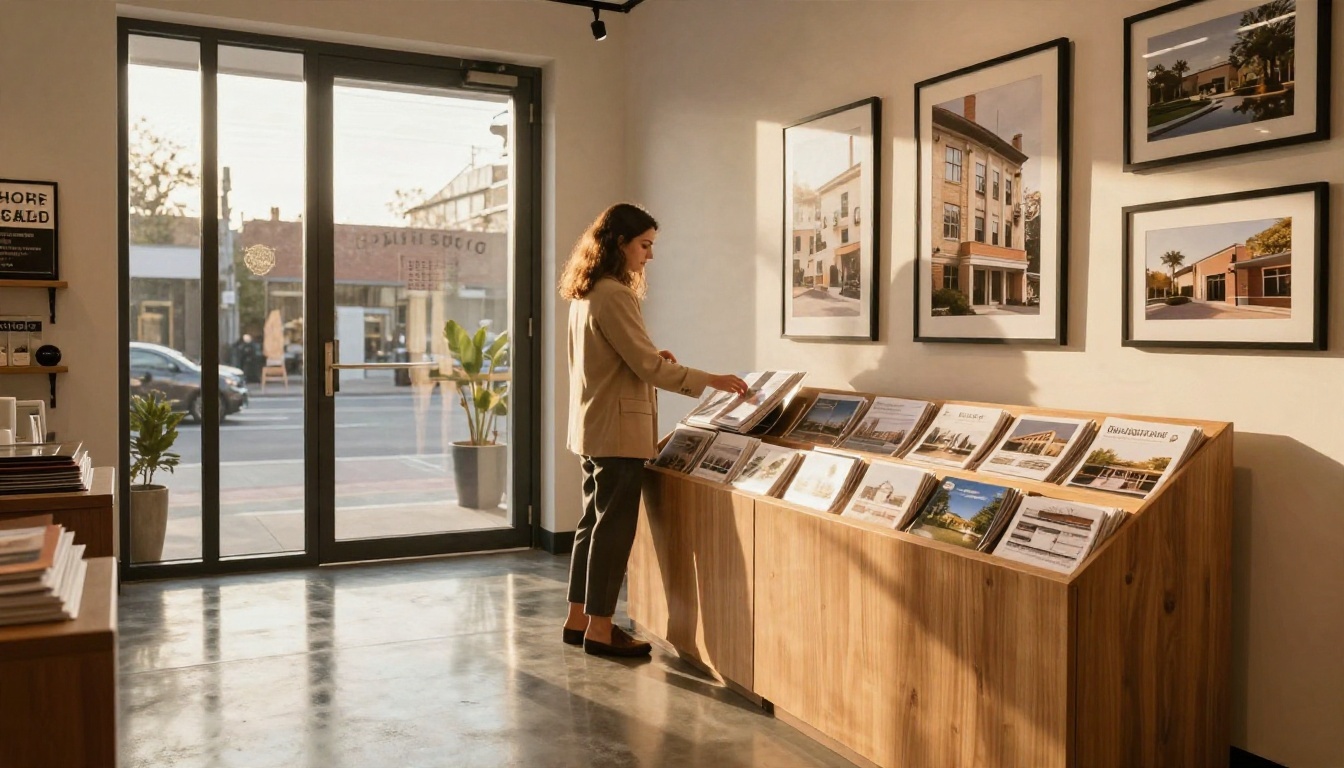
Agents live and die by first impressions. A strong property brochure leads with one excellent exterior photo, follows with room shots in a consistent style, and ends with a clear contact panel. Because listings change weekly, a digital version saves reprinting costs: update the PDF, republish, and the same link shows the new version.
Restaurants and Cafes
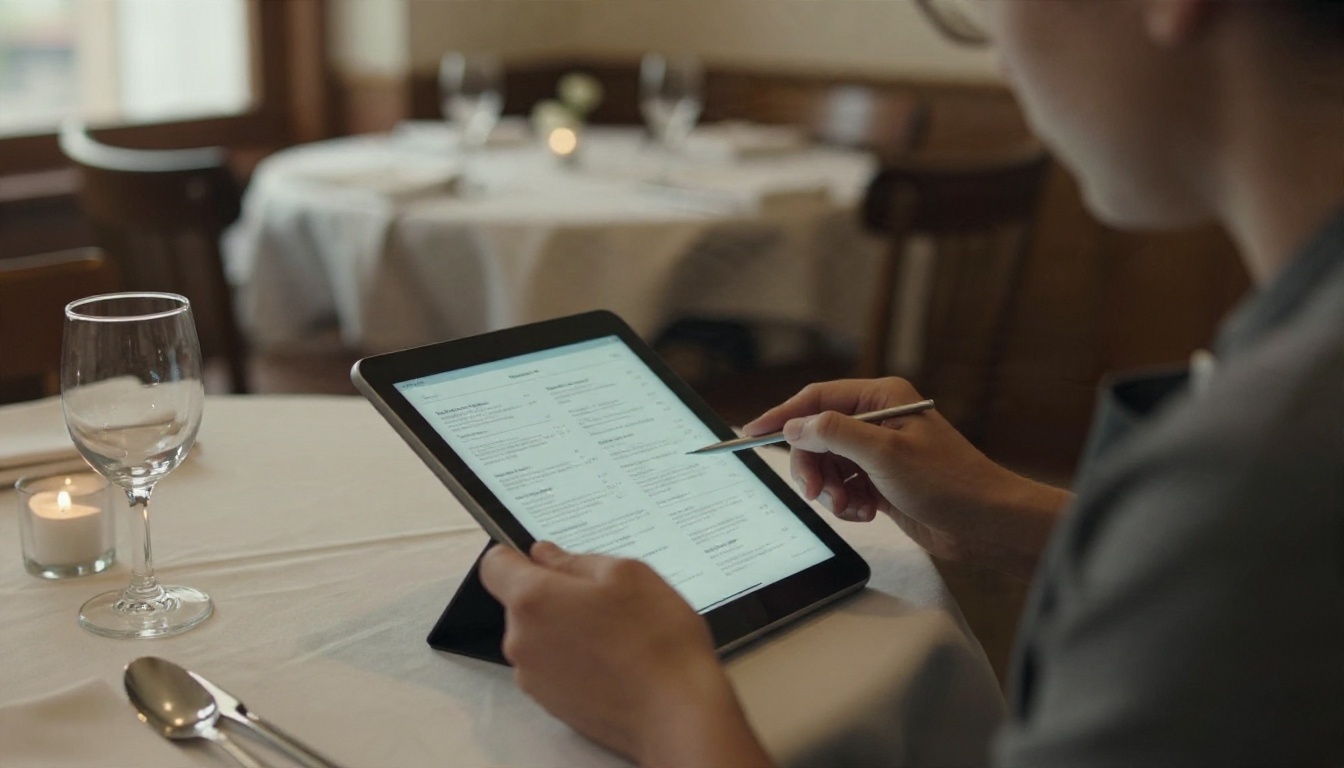
A restaurant can use a brochure for catering, private events or seasonal menus. Keep it to three or four dishes per panel, add a QR code that points to the online version, and update prices without touching a printer. The Menu Flipbook Designer is built around exactly this workflow.
How to Publish a Brochure with Flipbooks AI
Most free brochure makers stop at the PDF. That file works, but attachments get buried, and nobody can tell if anyone opened it. This is where a flipbook helps: it turns the finished brochure into a page-turning page with its own link, no watermark, and optional tracking.
Upload and Convert
Follow these steps once your brochure is exported as a PDF:
- Open the platform. Go to Flipbooks AI and create an account.
- Start a new flipbook. Choose the option to upload a file. A clean drag-and-drop area appears in the center of the screen.
- Upload your PDF. Drop in the brochure file. The conversion runs automatically and turns each page into a flippable spread.
- Check the preview. Flip through every page and confirm that text is sharp and images are not cropped.
If you want a dedicated starting point, the Brochure Flipbook Maker and the PDF to Flipbook Converter are both designed for this exact upload.
Customize and Share
Once the pages are in, polish the presentation:
- Apply branding. Add your logo and pick background colors that match your brochure.
- Choose page effects. Set the page-turn style so it feels natural on both desktop and phone.
- Add multimedia. Embed a short video or audio clip on a page, such as a property walkthrough or a welcome message from the owner.
- Pick a sharing method. Copy a direct link for email and social posts, or grab an embed code to place the brochure on your website. See the Embed Flipbook on Website tool for details.
- Protect private content. Turn on password protection if the brochure is for clients only, such as a pricing sheet or a pre-launch property.
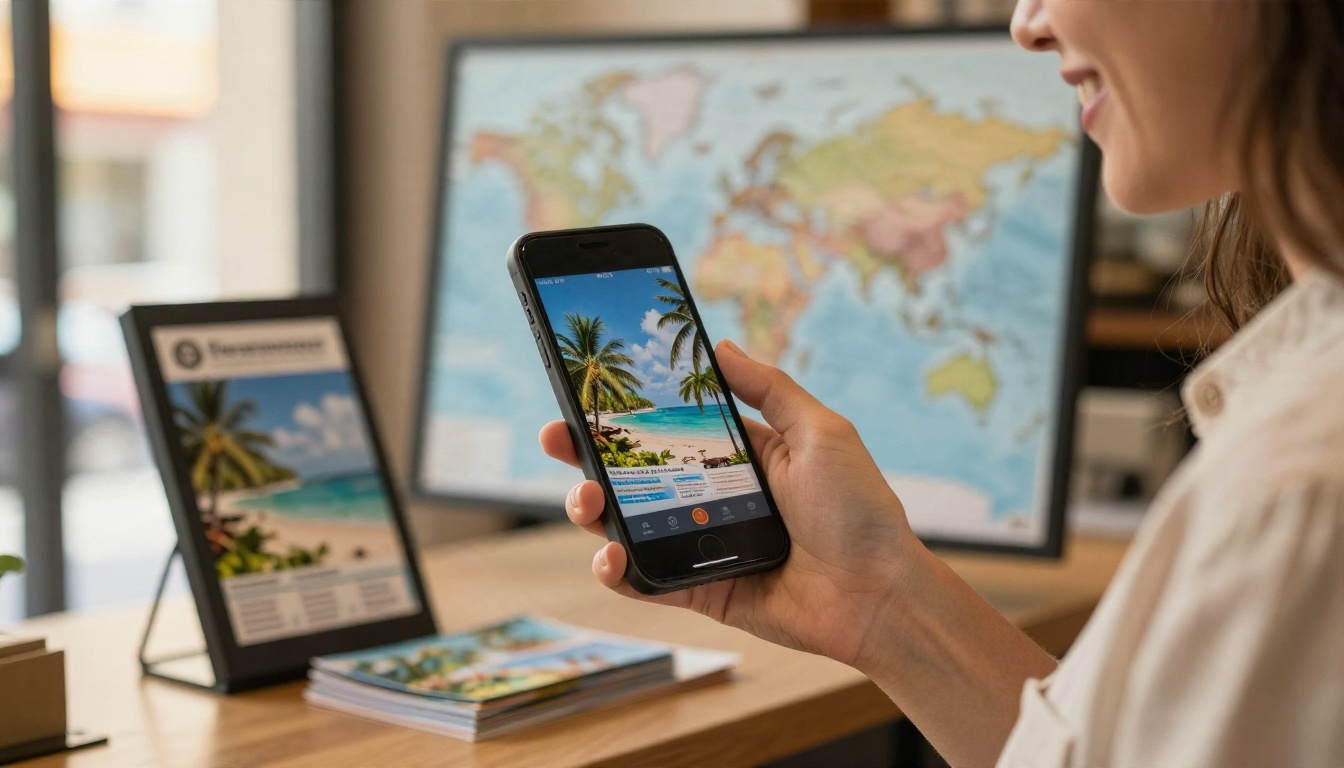
The layout is mobile-responsive, so the same link works on phones, tablets and laptops without any extra setup.
Track Leads and Downloads
Free brochure makers rarely tell you who opened your file. On the Professional plan, you get analytics to see views and page-level behavior, lead generation forms to capture contact details before a visitor reads on, and offline downloads for people who want a copy. Check the pricing plans to see which tier fits your volume. The Standard plan and above also remove limits on how many flipbooks you can publish, and no plan adds a watermark.
| Feature | Plain PDF attachment | Flipbook link |
|---|
| Page-turning feel | No | Yes |
| Works on mobile without zooming | Sometimes | Yes, responsive |
| Embed on a website | Awkward | Yes, with embed code |
| Password protection | Depends on the sender | Built in |
| View tracking | None | Analytics on the Professional plan |
| Update after sending | Resend a new file | Republish, same link |
Quick Checklist Before You Publish
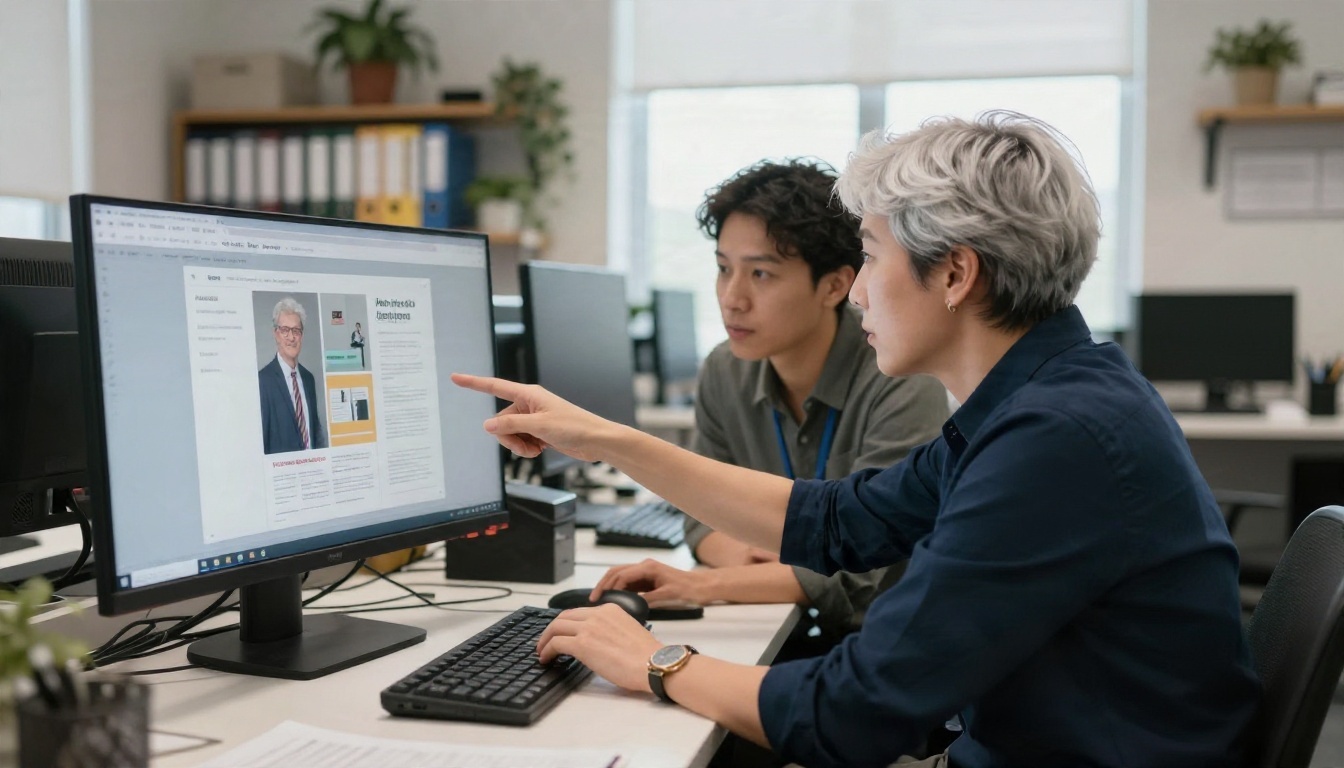
A second pair of eyes catches more errors than any spell checker. Before you send the brochure anywhere, run through this list:
- Headline: can a stranger tell what you offer in five seconds?
- Photos: are they your own, or properly licensed for commercial use?
- Contact details: is there a phone number, an email and a web address on the last panel?
- Call to action: does each page point toward one clear next step?
- Proofreading: names, prices and dates double-checked by someone else?
- File size: small enough to share quickly, large enough to stay sharp?
Common Mistakes
Three errors show up again and again in free-tool brochures:
- Too much text. Brochures are skimmed, not read. Cut every paragraph to two or three lines.
- Generic AI copy. If the text could belong to any competitor, rewrite it with a real detail: a price, a year, a customer name.
- Ignoring the final format. A design built for print looks cramped on a phone, and a screen-first design can fall apart on paper. Decide first, then design.
💡 Pro tip: Build a simple example brochure with only three panels: who you are, what you offer, how to reach you. Add more only when a panel earns its space.
Ready to Publish Yours?
The best free AI brochure maker is the one that matches your last step, not your first. Use a no-account editor or an office app for speed, use a template tool when polish matters, and treat any AI draft as a starting point you finish by hand. Then give the result a better home than an email attachment.
Your brochure is only useful once people can open it, read it and act on it. Make that last step as easy as the design was.



