You can build a good-looking magazine this week without hiring a designer or paying for a layout suite. An AI magazine generator drafts the pages, you adjust the settings that matter, and a tool like Flipbooks AI turns the finished PDF into an online issue that readers flip through on a phone, tablet or laptop. This article shows which free options are worth your time, which layout settings separate amateur pages from professional ones, and exactly how to publish.
What an AI Magazine Generator Does
An AI magazine generator takes a prompt, a pile of text or a set of images and returns a laid out issue: front page, contents, feature spreads, pull quotes and a back page. Some tools produce the whole document. Others only suggest layouts page by page. In both cases the output is a draft, not a finished product.
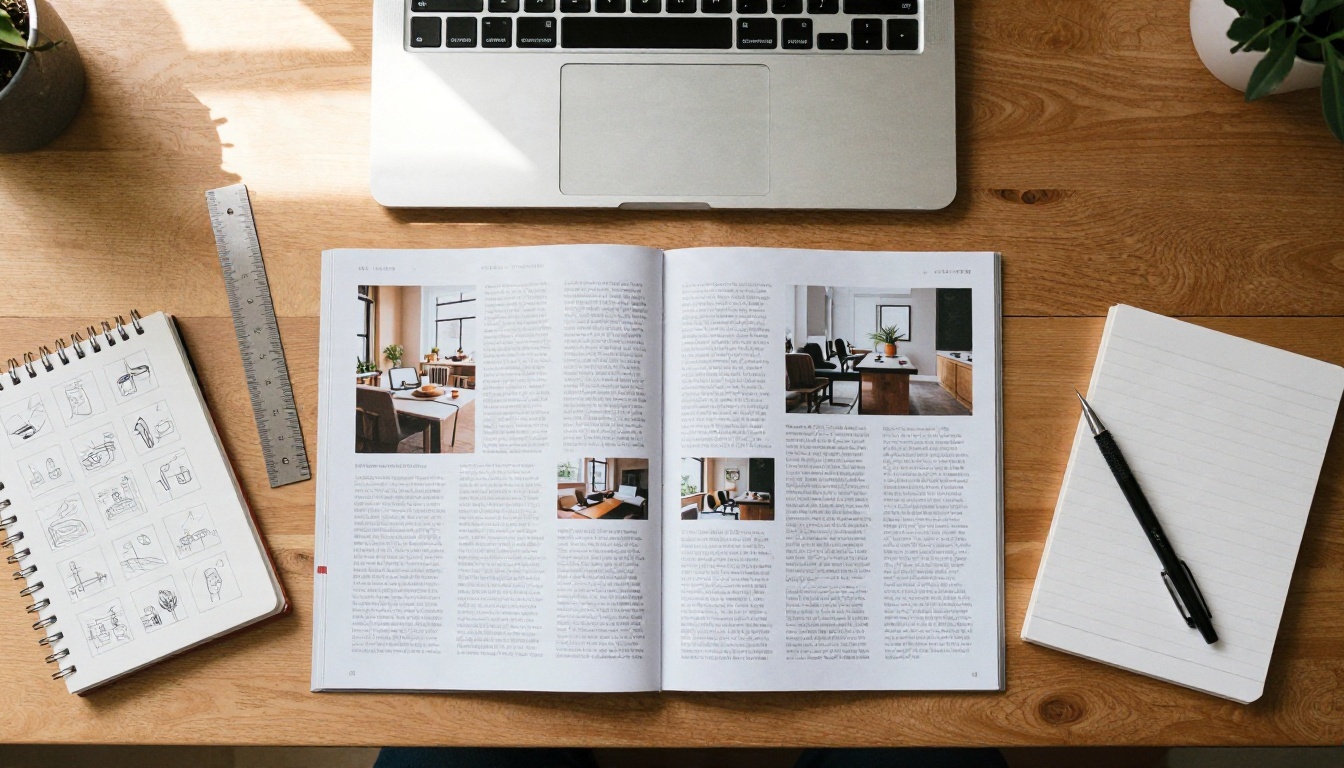
The Short Version of the Workflow
Almost every successful issue follows the same five steps:
- Brief the generator. Give it the topic, audience, tone and page count.
- Feed it real content. Your articles, photos and quotes beat generic filler every time.
- Adjust the layout. Margins, columns, fonts and spacing are yours to fix.
- Export a PDF. Use the highest quality export your tool offers.
- Publish as a flipbook. Upload the PDF and share a link or embed it.
💡 Pro tip: Write your headlines and captions yourself. AI is fast at arranging pages, but readers can spot a generic headline from across the room.
Where AI Helps and Where It Doesn't
AI is strong at first drafts, template selection, image cropping suggestions and repetitive formatting. It is weak at editorial judgment, brand voice and spotting a photo that quietly clashes with the page next to it. Treat it like a fast junior assistant: great for volume, in need of review.
| Task | AI handles it well | You should handle it |
|---|
| Page templates | Yes, instantly | Pick the one that fits your brand |
| Body text placement | Yes | Check widows, orphans and line breaks |
| Headlines and captions | Drafts only | Final wording |
| Image selection | Suggestions | Final choice and licensing |
| Brand color and tone | Rough match | Final approval |
Free Options Worth Trying
"Free" covers a wide range, from truly unlimited to a trial in disguise. Before you invest hours in a tool, check three things: whether exports carry a watermark, whether page count is capped, and whether you can download your own PDF.

Four Free Routes Compared
| Route | Best for | Typical free limit | Watch out for |
|---|
| AI layout assistants | Fast first drafts | Limited exports or credits per month | Watermarks on the exported PDF |
| Design apps with free tiers | Template based issues | Premium templates and stock locked | Page count caps |
| Word processors and slide tools | Text heavy newsletters | Rarely any limit | Basic typography controls |
| PDF plus flipbook publisher | Publishing a finished issue | Check the pricing page | Only as good as the PDF you upload |
The smartest free setup is a two tool stack: one tool to design the pages and one to publish them. Design apps often keep your issue locked inside their own viewer. A dedicated publisher gives you a clean link, an embed code and a layout that works on mobile.
What Free Plans Usually Limit
- Watermarks on exported files or shared links
- Page caps that force a short issue
- Locked templates and premium stock photography
- Low resolution exports that look soft on large screens
- No password protection or private sharing
⚠️ Warning: A watermark on page one of a client facing magazine undoes a lot of good design. Test a sample export before you commit to a tool.
Layout Settings That Matter
Most people lose time tweaking colors when the real problems are margins and hierarchy. Fix these settings first and the rest of the issue falls into place.
Page Size and Margins
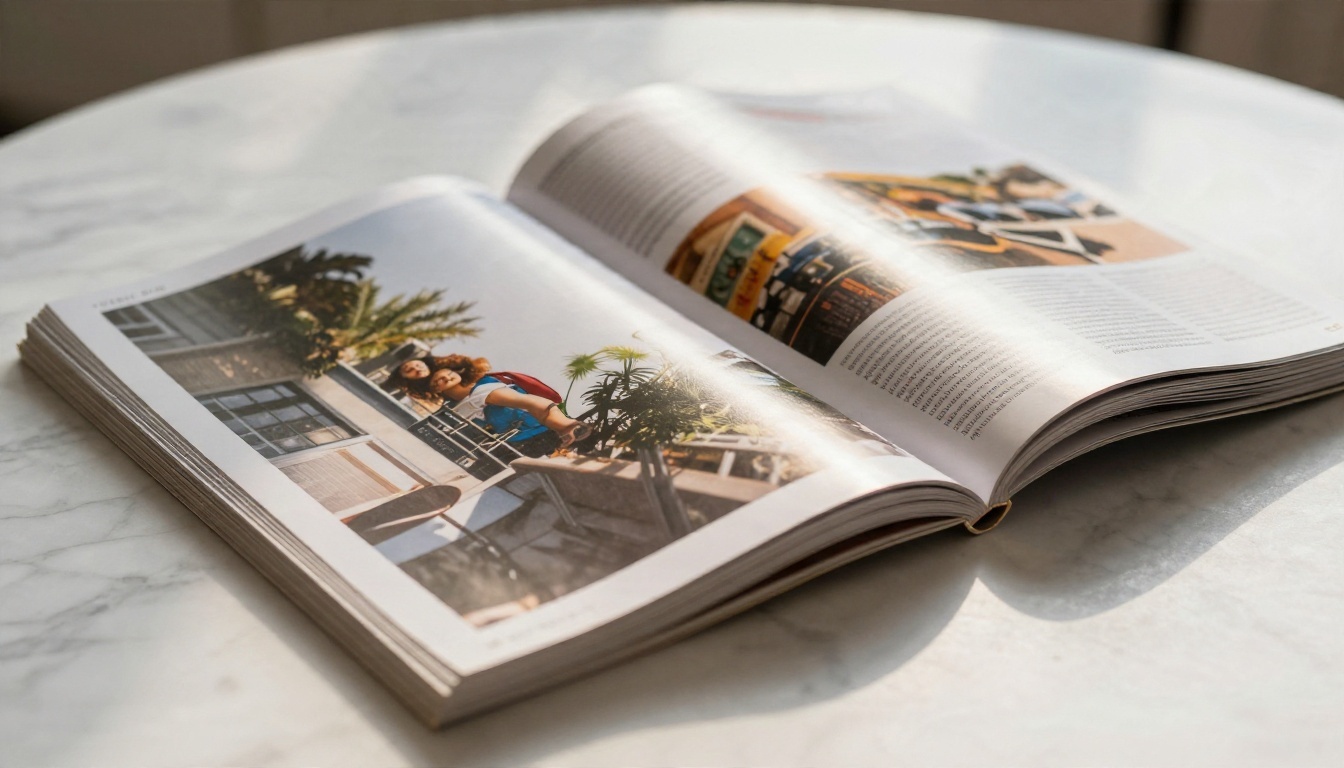
Choose your page size before you generate anything, because changing it later reflows every page. For a screen first magazine, a portrait page near 8.5 by 11 inches or A4 works well and prints cleanly if a reader wants a copy. Square pages suit photo heavy issues.
Set margins wide enough that text never feels trapped. About 0.5 to 0.75 inches on the outer edges and a slightly larger inner margin gives the spread room to breathe in a page flip viewer.
Fonts and Hierarchy
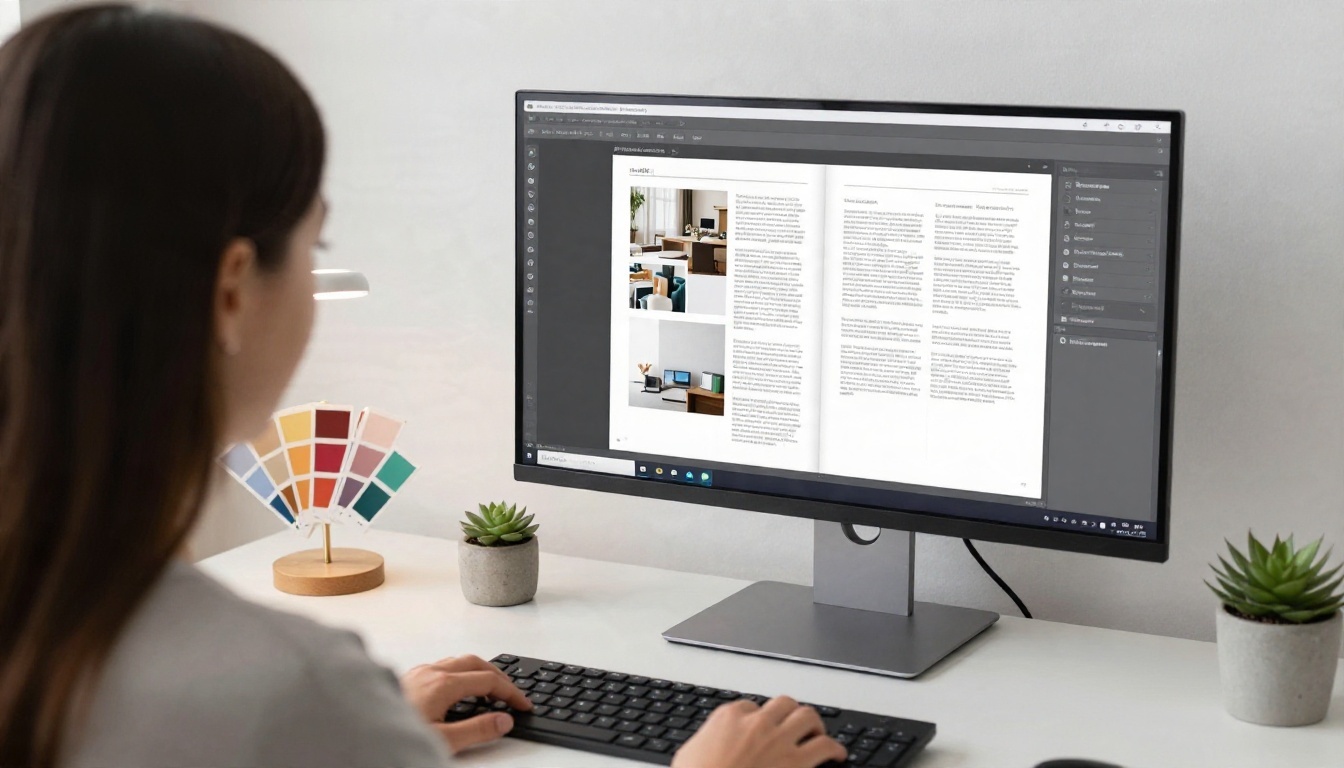
Stick to two typefaces: one for headlines, one for body text. Then set a clear scale so readers always know where to look first.
| Element | Suggested size | Style note |
|---|
| Feature headline | 36 to 54 pt | Bold, tight line spacing |
| Subheading | 16 to 20 pt | Medium weight |
| Body text | 9.5 to 11 pt | 1.3 to 1.5 line spacing |
| Caption | 8 to 9 pt | Italic or light weight |
| Pull quote | 18 to 24 pt | Offset with generous white space |
Images and Color
Use images at 150 dpi or higher at their final size for screen reading. Pick one dominant color and one accent, then stay with them. If an AI tool offers a palette, take it as a starting point and test it against your logo. A photo with strong contrast also helps text sit on top of it without a heavy overlay.
✅ Best practice: Print one spread at actual size, or zoom your PDF to 100 percent. If the body text strains your eyes, your readers will have the same problem.
How to Create a Magazine with Flipbooks AI
Once your PDF is ready, publishing takes a few minutes. The platform works with any PDF exported from your design tool, and it never adds watermarks. If you want a closer look at the format, the E-Magazine Publishing Tool page explains how issues display for readers.
Upload Your PDF
- Go to Flipbooks AI and create an account.
- Choose to create a new flipbook and select your magazine PDF.
- Wait while the file is converted into turnable pages. Most issues finish in moments.
- Check each spread in the preview, especially pages with small text.
The PDF to Flipbook Converter handles the conversion, so you keep your original layout exactly as designed.
Customize the Look
This is where an ordinary PDF starts to feel like a real publication:
- Branding: add your logo and choose background colors that match your issue.
- Page effects: pick the page turn style and sound that suit your audience.
- Multimedia: embed videos and audio so an interview can play right on the page.
- Mobile layout: the viewer is responsive, so spreads adapt to small screens.
💡 Pro tip: Match the viewer background to your front page color. The magazine then feels like part of your brand instead of a file sitting in a gray box.
Share and Protect
| Sharing option | Best for | Notes |
|---|
| Direct link | Newsletters and social posts | Fastest way to publish |
| Embed code | Blogs and landing pages | See Embed Flipbook on Website |
| Password protection | Members only or client issues | Keeps private content private |
| Offline download | Readers without a steady connection | Handy for events and travel |
For a recurring publication, the Newsletter Flipbook Publisher is a good fit. Browse the full set of flipbook tools if your issue is closer to a catalog or a lookbook.
Pro Features Worth Using
Free tools get an issue online. Paid features tell you whether anyone reads it. Check the pricing plans to see which tier matches your volume. Unlimited flipbooks come with the Standard plan and above, which suits anyone publishing monthly.

Analytics and Lead Capture
The Professional plan adds analytics and lead generation. You can see which pages hold attention, where readers drop off and how many people opened the issue. A lead form placed inside the magazine lets you collect an email address before a reader reaches your best feature. A publisher can use those numbers to decide which topics deserve the next issue.
Offline Downloads and Media
Offline downloads let subscribers keep an issue for flights, commutes or events. Combined with embedded audio and video, a magazine becomes more than static pages: a founder interview, a product demo or a recipe clip can sit beside the text it supports.
| Feature | Free workflow | Paid workflow |
|---|
| Publishing flipbooks | Limited | Unlimited on Standard and above |
| Watermarks | None | None |
| Analytics | Not included | Professional plan |
| Lead generation | Not included | Professional plan |
| Password protection | Check plan details | Available |
Real Examples and Common Mistakes
Magazines are no longer just for publishers. Here are setups that work today:
- A boutique hotel publishes a seasonal city magazine with local tips and room offers, linked from the booking confirmation email.
- A real estate agency builds a monthly listings issue, then uses the Real Estate Brochure Creator for single properties.
- A school sends a term magazine to parents through the School Newsletter Creator.
- A photographer shares a printed look portfolio with the Photography Portfolio tool.

Three Common Mistakes
- Trusting the first AI draft. Generated pages often repeat the same layout. Vary spread types so the issue has rhythm.
- Tiny text built for print. On a phone, 8 pt body copy is a strain. Keep body text near 10 pt and test it on a real device.
- Skipping the preview. Compression, fonts and cropped images show up only after conversion. Preview every spread before you share.
Before You Hit Publish

Run through this short list:
Ready to Publish Your Issue?
A free AI magazine generator gives you a head start, and the settings you choose decide whether the result looks professional. Design with two fonts, generous margins and sharp images, export a clean PDF, then put it online where people can actually read it.
Your first issue does not have to be perfect. It has to be live, so you can see what readers actually open.



