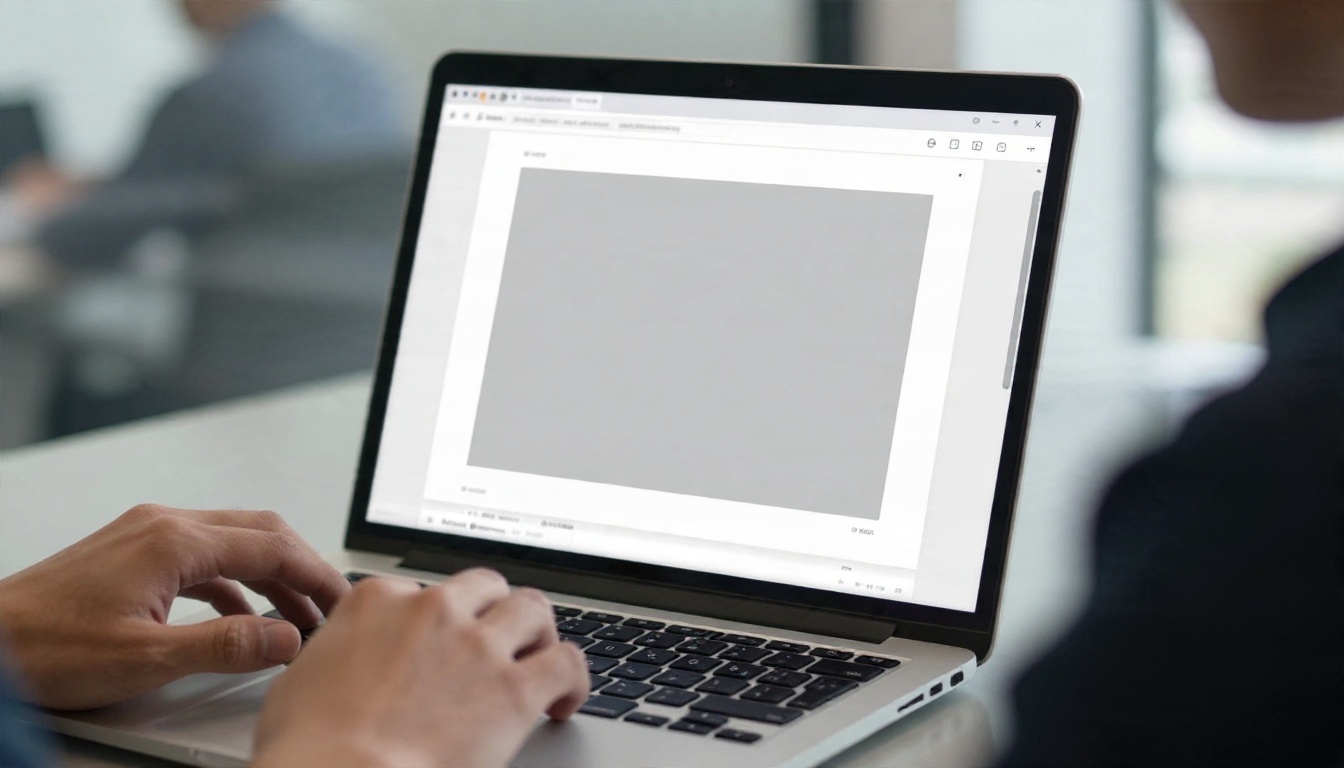
Yes, you can put a video in a PDF. The harder question is whether anyone will actually see it play. You spend an hour embedding a product demo, send the file to a client, and they open it in a browser tab to find a grey rectangle and nothing else. That gap between "technically possible" and "works for your reader" is what this article is about. We will look at how Adobe Acrobat handles video, exactly where it breaks, which workarounds are worth your time, and how a flipbook built with Flipbooks AI plays video on any screen without asking your reader to install anything.
The Short Answer
The PDF format has supported multimedia for years. Adobe added rich media annotations so a page could hold audio, video and even 3D models. So the feature exists. The catch is that a PDF file only stores the video. Playback depends entirely on the program that opens the file, and most programs ignore the video completely.
What the PDF Format Supports
PDF is built as a fixed-layout page description. Video support was bolted on through rich media and screen annotations. Those annotations tell a compatible viewer "play this clip when the reader clicks here." A viewer that does not know the instruction simply draws the poster image, or a blank frame.
Where Embedded Video Actually Plays
In practice, playback is reliable in one place: the desktop Adobe Acrobat and Adobe Reader apps, and even there it depends on version and security settings. Everywhere else the results range from patchy to nonexistent.
| Viewer | Embedded video plays? | What the reader sees |
|---|
| Adobe Acrobat / Reader (desktop) | Usually | Video, sometimes after a security prompt |
| Chrome built-in PDF viewer | No | Poster image or blank box |
| Microsoft Edge PDF viewer | No | Poster image or blank box |
| Firefox PDF viewer | No | Static page only |
| macOS Preview | No | Static page only |
| iPhone and iPad (Files, Mail) | No | Static page only |
| Android PDF apps | Rarely | Depends on the app |
| Email previews (Gmail, Outlook) | No | Static thumbnail |
⚠️ Treat this table as a reality check. If even a quarter of your audience opens files in a browser or on a phone, an embedded video will fail for them.
How to Embed Video in Adobe Acrobat
If your readers are all on desktop Acrobat, for example an internal team with managed laptops, embedding is a reasonable choice. Here is how it works in Acrobat Pro. Menu names shift slightly between versions, so treat these as the general path.
Step by Step in Acrobat Pro
- Open your PDF in Adobe Acrobat Pro.
- Go to Tools and open Rich Media (in some versions it sits under the Interactive Objects group).
- Choose Add Video.
- Drag a rectangle on the page where the video should appear.
- Select your video file. MP4 with H.264 video and AAC audio is the safest format.
- In the dialog, tick the option to add a poster image so the page does not look empty before playback.
- Click OK, then save the file.
- Open the PDF in a second viewer, such as a browser, to see what other readers will see.
Settings That Matter
A few choices decide whether the result is usable:
- Poster image: always set one. It becomes the fallback in viewers that cannot play video.
- Playback activation: "When page is opened" sounds slick but triggers security prompts. Clicking to play is friendlier.
- Video length: keep clips short. Every second adds to the file size.
- Resolution: 720p is enough for an inline player. Full 4K clips will bloat your document.
💡 Pro tip: Embed the video, then immediately test the finished file in Chrome, on your phone and in an email preview. If it fails in any of them, you already know what your readers will experience.
Where Embedded Video Breaks
Embedding is easy. Distribution is where the trouble starts.
Browsers and Phones
Most people no longer open PDFs in a dedicated app. They click a link, and the file loads in a browser tab or a mobile preview. Those viewers render text, images and vector shapes, and they skip rich media. Your reader taps the play area and nothing happens.

Security Prompts and Blocked Content
Even in Adobe Reader, multimedia content can trigger a trust warning, and corporate IT policies often disable it. Many companies lock down document features that can run code or load external media. A viewer who sees a yellow security bar before the first click is far more likely to close the file than to approve it.

File Size Problems
Video is heavy. A single 60 second clip can add tens of megabytes. That creates three more headaches:
- Email servers reject attachments above their size limit.
- Slow mobile connections stall while loading the file.
- Every edit means re-saving a huge document.
| Problem | Impact on reader | Typical result |
|---|
| Unsupported viewer | Video never plays | Reader assumes the file is broken |
| Security prompt | Extra click, extra doubt | Many close the file |
| Large file size | Slow download or bounced email | File never arrives |
| PDF/A or print profile | Multimedia stripped | Video disappears on export |
| Updating a clip | Re-embed and resend | Old copies stay in circulation |
⚠️ Archive formats such as PDF/A do not allow embedded multimedia. If your document needs to meet an archiving or compliance standard, video cannot live inside it.
Workarounds That Half Work
You are not stuck. Two simple approaches keep the PDF format and still get video in front of your readers, with some compromises.
Link to a Hosted Video
Upload the clip to a video host, then place a clickable thumbnail or button in the PDF that opens the video URL. This works in every viewer that supports links, which is nearly all of them. The downsides are real, though. The video opens in a separate tab, the reader leaves your document, and you rely on a third party staying online.
QR Codes for Print
If the PDF will also be printed, add a QR code under a screenshot of the video. Readers scan it with a phone and watch the clip. It bridges paper and screen, but it adds friction on a screen where the reader is already holding the device.
| Workaround | Works in all viewers | Keeps reader in document | Setup effort |
|---|
| Embedded video (Acrobat) | No | Yes, where supported | Medium |
| Hyperlinked thumbnail | Yes | No | Low |
| QR code | Yes | No | Low |
| Flipbook with embedded video | Yes | Yes | Low |
The Flipbook Alternative
A flipbook is a web-based version of your document. Instead of a file that depends on the viewer, your pages open in a normal browser, with the page-turning feel of a printed publication. Because it is built on web technology, video plays the same way it does on any website.

Why Flipbooks Fix the Problem
- No viewer lottery. The flipbook opens in Chrome, Safari, Edge, Firefox and mobile browsers alike.
- No giant attachments. You share a link or an embed instead of a heavy file.
- Mobile-responsive layout. The pages adapt to phone and tablet screens.
- Instant updates. Swap a video once and every reader sees the new version.
- Audio and video together. Add clips, background audio and links in the same page.
✅ Best practice: Keep your original PDF for printing and archiving, and publish the flipbook for screen reading. You get the best of both formats.
How to Add Video with Flipbooks AI
The PDF to Flipbook Converter turns your existing PDF into an interactive publication where video, audio and links actually work. Here is the full process.
Step 1: Create Your Account
Head to Flipbooks AI and create an account. You can compare plans on the pricing page before you decide how many flipbooks you need. Unlimited flipbooks come with the Standard plan and above.
Step 2: Upload and Convert
- Click the option to create a new flipbook.
- Upload your PDF. The same file you built in Acrobat, InDesign, Canva or Word works fine.
- Wait a moment while the pages convert into flipbook pages.
- Preview the result in your browser to check page order and sharpness.
You do not need to embed anything in the PDF itself. Leave your file clean and light.
Step 3: Add Your Video
- Open the editor and go to the page that needs a video.
- Choose the multimedia option and select a clip to upload or link.
- Place the player where your poster frame or placeholder sits on the page.
- Repeat for any other page. You can also add audio such as a voiceover or background track.
💡 Pro tip: Match the video frame to a screenshot already printed on the page. Readers see a familiar image, click it, and the clip plays right there.
Step 4: Customize the Look
Make the flipbook feel like your brand, not a generic viewer:
- Branding: add your logo and choose brand colors.
- Page effects: adjust the page-turning effect and background.
- No watermarks: your flipbook stays clean, on every plan, ever.
- Layout: set single-page or spread view for desktop readers.
Step 5: Share It Your Way
| Sharing option | Best for | Notes |
|---|
| Direct link | Email, chat, social posts | Opens in any browser |
| Embed code | Websites and landing pages | See the Embed Flipbook on Website tool |
| Password protection | Private proposals, client files | Only people with the password can open it |
| Offline download | Readers without a stable connection | Keeps the document usable away from the web |
Step 6: Track and Capture Leads
On the Professional plan, you get analytics and lead generation. See which pages readers open, how long they stay, and capture contact details before they view the document. That turns a video-rich brochure into a measurable sales asset. Check the pricing plans to see what each tier includes.
Real-World Examples
Abstract comparisons only go so far. Here is how video in a flipbook plays out in actual work.

Product Catalogs With Demo Clips
A furniture seller can show a 20 second clip of a drawer sliding open, right beside the product photo. Build it with the Product Catalog Generator or the Furniture Catalog Maker. Buyers on a phone see the motion without leaving the page.
Training Manuals With Walkthroughs
A training manager can pair each procedure with a short screen recording. The Training Manual Flipbook tool suits this well, because new staff can read a step, watch it done, and flip to the next one.

Property Brochures With Tours
Real estate agents can add a walkthrough video to the front page of a listing. The Real Estate Brochure Creator keeps the layout polished, and a single link goes out to every buyer.
Lookbooks for Small Shops
A boutique owner can show clothing in motion, something a static PDF cannot do on a phone. The Interactive Lookbook Designer is built for exactly this kind of visual storytelling.

Which Method Should You Pick?
Your choice depends on who reads the file and where they open it.
| Your situation | Best choice |
|---|
| Internal team, all on desktop Acrobat | Embedded video in the PDF |
| Print piece that also circulates as a file | PDF with QR code or hyperlinked thumbnail |
| Clients, customers or the public | Flipbook with embedded video |
| Private proposal with video | Password-protected flipbook |
| Archive or compliance copy | Plain PDF/A without video |
A simple decision rule helps: if you cannot control the viewer, do not depend on the PDF to play your video. Publish the document where the browser handles playback for you.
✅ Quick checklist before you send anything:
- Open the file in Chrome and on your phone.
- Confirm the video plays in both places.
- Check the file size is small enough to share easily.
- Keep a clean PDF copy for print.
Ready to Make Your Video Play?
Embedding a video in a PDF works for a narrow audience and fails for most others. If you want readers on any device to press play and watch, turn the document into a flipbook instead. Create your free account on Flipbooks AI, upload your PDF, and add your first video in minutes. Browse the full set of flipbook tools to find a template for your catalog, brochure or manual, or compare pricing plans to pick the tier that fits your project.



