Most people who design in Canva get to the end of their project, click download, and assume the work is finished. It is not. There is one step sitting between a beautiful Canva design and a professional, high-quality flipbook that the vast majority of creators either rush through or skip entirely, and the difference in output quality is dramatic. If your flipbooks have come out blurry, lost their clickable links during conversion, or looked flat compared to the original Canva file, this is the reason. Flipbooks AI processes thousands of PDFs into interactive flipbooks, and the ones that arrive correctly prepared consistently produce sharper, faster, and more functional results.
What the Skipped Step Actually Is
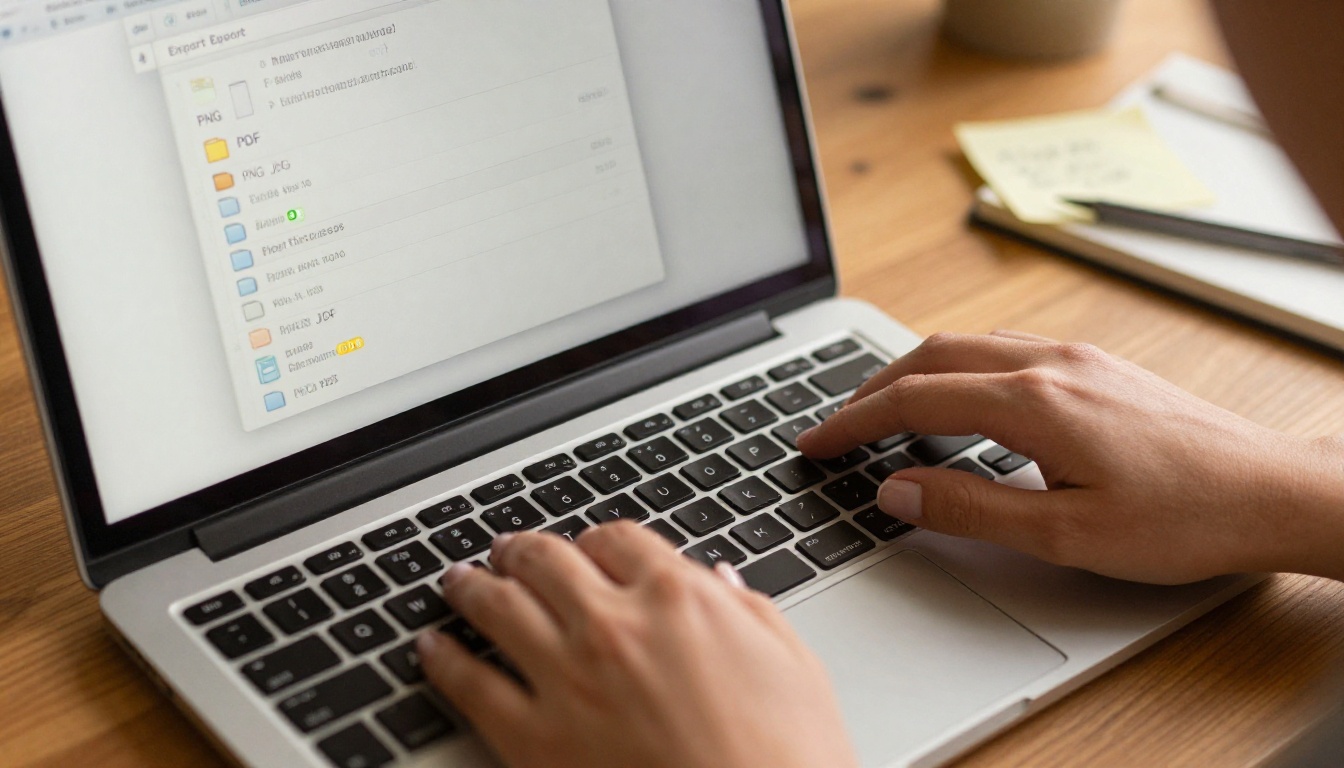
The skipped step is not the conversion itself. Most people know they need to convert their file. The step they skip is the PDF export configuration inside Canva before that conversion takes place.
Canva offers two distinct PDF export types, multiple compression settings, and several options around bleed, crop marks, and color profiles. Every one of these settings affects how your flipbook renders at full resolution, how fast it loads on mobile, and whether your embedded hyperlinks survive the conversion process intact.
Why It Gets Skipped
The skip happens for an understandable reason: Canva's export dialog looks deceptively simple. There is a format dropdown, a button, and a download. Most users never scroll below the fold to see the additional settings or realize those settings are directly controlling the quality of everything that comes after. The assumption is that "PDF" is just "PDF," but in digital publishing, the type of PDF and how it is configured matters enormously.
What You Actually Lose
A PDF exported with Canva's default "Standard" quality settings looks acceptable in a browser at normal zoom. But at full width in a flipbook viewer on a large monitor or tablet, the softness becomes noticeable. Images that were crisp in your Canva workspace appear slightly degraded after two rounds of compression: once during Canva's export, and once during flipbook processing. The deeper problem is links. Canva's Standard PDF type does not reliably preserve hyperlinks in all conversion tools, which means your carefully designed call-to-action buttons silently stop working after upload.
⚠️ Warning: Canva's "Standard" PDF export does not preserve embedded hyperlinks in all flipbook converters. If your design contains clickable buttons or URLs, you must export as "PDF Print" to maintain full link integrity.
Setting Up Canva Correctly Before Export
Before touching the export dialog, your Canva file itself needs to be configured for flipbook output. This takes under two minutes and prevents problems that are frustrating to diagnose after the fact.
Page Size and Dimensions
Flipbooks display content horizontally in a two-page spread format. Designing in portrait orientation for a flipbook viewer means your content displays at reduced size, losing the immersive quality that makes flipbooks effective. The most reliable formats are:
| Format | Dimensions | Best For |
|---|
| Presentation 16:9 | 1920 x 1080 px | Pitch decks, reports, annual summaries |
| A4 Landscape | 297 x 210 mm | Brochures, menus, newsletters |
| US Letter Landscape | 11 x 8.5 in | Business documents, proposals |
| Square 1:1 | 1080 x 1080 px | Product catalogs, lookbooks |
Set your dimensions at the very beginning of the project. Re-sizing in Canva after your design is complete will cause elements to shift, overflow, or rescale incorrectly.
Bleed, Safe Zones, and Fonts
Three settings that most Canva users never think about until something goes wrong:
- Bleed: Add 3mm of bleed if your design uses full-bleed backgrounds or photography that extends to the page edge. Without it, thin white borders can appear between the flipbook page and viewer chrome.
- Safe zones: Keep all text and critical elements at least 5mm from the page edge. Some flipbook viewers clip edges slightly on smaller screens.
- Fonts: Canva embeds fonts by default in PDF Print exports. If you are using a custom uploaded font in Canva Pro, check that it appears correctly in a PDF preview before uploading to any platform.
💡 Pro tip: Enable the bleed guide in Canva via File > Show bleed and crop marks before you start designing. This ensures your background colors and full-bleed images are sized to account for it from the start, not retrofitted as an afterthought.
The PDF Export Settings That Change Everything

This is where the critical decision happens. Canva's download dialog for PDF has settings that most users scroll past without reading. Each one has a direct impact on your final flipbook.
PDF Standard vs. PDF Print
| Export Type | Resolution | File Size | Hyperlinks Preserved | Use Case |
|---|
| PDF Standard | Screen optimized | Small (1-3 MB) | Not reliably | Quick email sharing only |
| PDF Print | Full resolution | Larger (5-20 MB) | Yes, consistently | Flipbook conversion, professional output |
For flipbook conversion, always choose PDF Print. The larger file size is handled by the platform during processing and does not affect the final load speed of your published flipbook.
Flatten PDF: Leave It Off
When you click PDF Print, Canva shows a secondary "Flatten PDF" checkbox. Flattening merges all text and interactive layers into a single raster image per page. This has three serious consequences for flipbooks:
- All hyperlinks in your design become dead image regions with no click behavior
- Screen reader and accessibility features stop working entirely
- Text becomes un-selectable, hurting readability and in-page search within the flipbook
Leave Flatten unchecked every time.
Compress Images in PDF: Also Off
Canva offers optional in-export image compression. Leave this unchecked as well. Starting with a compressed source image and then letting the flipbook platform apply its own optimization during processing stacks the compression, resulting in visibly softer images at full zoom. The flipbook platform handles optimization on its side. Your job is to give it the highest-quality source file possible.
Color Profile
Canva designs default to sRGB, which is correct for all digital publishing and flipbooks. If any element in your design was set to CMYK (occasionally done when designing for print), switch it back to sRGB before your digital export. CMYK colors can appear flat or desaturated in a web-based flipbook viewer, and the color shift is often noticeable on photos.
✅ Best practice: Before exporting, preview your entire design in Canva at 100% zoom on the largest page. Confirm all text is sharp, all interactive buttons are clearly visible, and no important content is clipped near the edges.
How to Convert Your PDF with Flipbooks AI
With a correctly exported PDF Print file from Canva, the actual conversion takes less than five minutes on Flipbooks AI.
Step 1: Upload Your PDF
- Create an account on Flipbooks AI if you have not done so.
- From your dashboard, click New Flipbook.
- Upload the PDF Print file you exported from Canva.
- The platform reads all text layers, hyperlinks, and full-resolution images from the source file before processing begins.
PDFs under 50MB typically process in seconds. Larger catalogs or portfolio books with many high-resolution photos may take up to 60 seconds.
Step 2: Apply Your Brand
Once your pages are processed, apply your visual identity to the viewer itself:
- Upload your logo for the viewer header
- Set brand colors for controls and the loading screen
- Choose a background color or pattern behind the flipbook spread
- Add a custom favicon if the flipbook will be embedded on your own domain
This is the step that separates a professional result from something that looks generic. A viewer that carries your logo and matches your brand colors feels native to your website or business, not a third-party plugin.
Step 3: Add Interactivity
Any hyperlinks from your Canva design that survived as PDF Print are already clickable in your flipbook at this point. Additional interactivity includes:
- Auto-generated table of contents from your page structure
- Zoom controls for readers who want to inspect detailed sections closely
- Audio overlays for guided reading experiences or product walkthroughs
- Lead capture forms on the Professional plan that gate access or collect emails before a reader can flip through
Step 4: Publish and Share
Publishing options on Flipbooks AI include:
- Direct link: A clean, shareable URL for email, social media, or messaging
- Embed code: Place the flipbook directly on any web page using the Embed Flipbook on Website tool
- Password protection: Lock it for private client proposals or internal documents
- QR code: Bridge print materials to the digital version with a scannable code
💡 Pro tip: For client proposals, use password protection and send the password separately from the link. For public catalogs or lookbooks, embed directly on your site for maximum readership and dwell time.
Where This Workflow Has the Most Impact
Marketing and Brand Teams
Marketing teams that work in Canva for campaigns, seasonal catalogs, and product launches can dramatically improve how those assets are distributed. Instead of attaching a compressed PDF to an email, they share one link to a branded interactive flipbook that reads cleanly on any device. The Interactive Lookbook Designer and Digital Catalog Maker are built specifically for this type of workflow.
A practical example: a fashion brand designs a seasonal lookbook in Canva, exports it as PDF Print without flattening, converts it on Flipbooks AI in under three minutes, and embeds it on their website while linking to it in their email campaign. Every page renders at full resolution on every device, and every "Shop Now" button links correctly because the PDF Print export preserved those hyperlinks.
Freelancers and Creative Professionals
Freelancers who produce proposals, portfolios, and media kits in Canva can convert these to shareable flipbooks and present them to clients on any screen, no file download required. The Digital Portfolio Creator and Portfolio Flipbook Builder handle this use case with no watermarks and full custom branding on every plan.
A photographer who designs their portfolio in Canva can export it correctly and have a stunning interactive portfolio live in minutes. The page-flip effect adds a tactile quality that flat PDFs attached to emails simply cannot replicate.
Educators and Training Professionals
Training manuals, course materials, and institutional newsletters designed in Canva convert directly to distributable flipbooks that recipients open in a browser with no software download required. The Training Manual Flipbook and Course Material Publisher tools are specifically tailored for educational and corporate training use cases.
Common Mistakes and How to Fix Them

Mistake 1: Wrong Export Type
What happens: User downloads "PDF Standard" because it is the first and default option.
The fix: Always scroll to "PDF Print" in Canva's download dialog. Accept the larger file size. It has no meaningful impact on the final flipbook's loading speed once processed.
Mistake 2: Flattening the PDF
What happens: User checks "Flatten PDF" thinking it simplifies or cleans up the file.
The fix: Leave it unchecked every time. Flattening destroys all hyperlinks and removes the text layer that makes your flipbook accessible and searchable.
Mistake 3: Designing in Portrait for a Horizontal Viewer
What happens: A beautifully designed A4 portrait layout displays at reduced size in a landscape flipbook viewer, losing all visual impact.
The fix: Decide on your format before designing. Use landscape or square dimensions. Changing dimensions after a complex layout is complete in Canva is time-consuming and often shifts elements unpredictably.
Mistake 4: Compressing Images in Export
What happens: User enables Canva's built-in compression before exporting to reduce file size.
The fix: Disable it. The flipbook platform applies its own optimization from your source file. Starting from a compressed source multiplies the quality loss.
| Mistake | Result | Fix |
|---|
| PDF Standard export | Lost hyperlinks, softer images | Use PDF Print |
| Flatten PDF checked | All links break | Leave unchecked |
| Portrait orientation | Reduced scale in viewer | Design in landscape/square |
| Compressed export | Double-compressed images | Disable compression in export |
A Faster, Cleaner Workflow

The full process from Canva design to published flipbook, done correctly, looks like this:
- Design in landscape or square format in Canva from the start
- Enable 3mm bleed if using full-bleed backgrounds or edge-to-edge photos
- Export as PDF Print, with Flatten unchecked and image compression disabled
- Upload to Flipbooks AI from your dashboard
- Apply brand colors and logo to the viewer
- Verify hyperlinks are working on at least one page before publishing
- Publish via direct link, embed code, or password-protected share
That single change, doing the export correctly at step 3, is what the vast majority of Canva users skip. It accounts for nearly every complaint about flipbooks looking blurry, losing links on conversion, or rendering poorly on phones and tablets.
The result, when done right, is a publication that holds full quality on every device. Flip through it on an iPhone, a 4K monitor, or an embedded viewer on your website, and the sharpness and interactivity are consistent throughout. That is what makes the process worth doing correctly from the start.
Ready to see the difference? Create your first flipbook for free and upload a PDF you already have from your last Canva project. Browse all available tools to find the right format for your use case. Or compare plans to see which features match your workflow best.



