A six-year-old draws a fox on Saturday morning. By Sunday evening, that fox is the hero of a real picture book that grandparents across the country can open on their phones. That is what a good children's book maker online makes possible, and you no longer need a design degree or a print budget to pull it off. If you want a clean, watermark-free way to turn finished pages into a page-turning book, Flipbooks AI handles the last mile: upload, style, and share.
This article walks through the free options that are actually worth your time, the templates that save hours, how app alternatives stack up against browser tools, and how to send a finished book to anyone by link. Whether you are a parent, a teacher, or a first-time author, you will find a path that fits.
What a Children's Book Maker Really Does
At its simplest, a children's book maker takes pictures and words and arranges them into pages in a fixed order. The better ones add page-turn animation, sound, and a shareable format so the book feels like a book instead of a slideshow.
Most tools fall into three jobs:
- Illustration helpers that generate or clean up artwork.
- Layout editors that place text and images on a page.
- Publishing tools that turn the finished pages into something readable online.
Few products do all three well. Knowing which job you need done first will save you from paying for features you never touch.
Online Tools vs Apps
Browser tools run on any laptop with nothing to install. Apps live on a phone or tablet and often work offline. Browser tools tend to win on sharing, because the book already lives on the web and a link is all you need. Apps tend to win on drawing with a finger or stylus.
Who Uses Them
- Parents making a keepsake about a trip, a new sibling, or a bedtime ritual.
- Teachers publishing student stories without printing thirty copies.
- Aspiring authors testing a story before pitching it.
- Therapists and tutors building short custom stories for individual children.

Free Options Worth Trying
Free is a real starting point, as long as you know where the limits sit. Most free plans fall into a predictable pattern, so it helps to check a few details before you invest hours into a project.
What Free Usually Includes
- A handful of basic templates and fonts.
- A limited number of pages or projects.
- Low or medium resolution export.
- A watermark or a promotional badge on the shared version.
Where Free Plans Fall Short
The most common surprise is the watermark that appears only after you finish. Another is a share link that expires after a few weeks. A third is a page cap that cuts off at twelve pages, when a standard picture book often runs around 24 to 32.
⚠️ Before you design a single page, open the sharing settings and check three things: does the link expire, is there a watermark, and can you download your own work?
| Free Option Type | Best For | Typical Catch |
|---|
| Slide software (presentation tools) | Quick drafts, classroom use | Looks like slides, no page-turn feel |
| Free design editors | Beautiful layouts | Watermark or locked templates |
| Drawing apps | Original artwork | No sharing format built in |
| PDF plus flipbook converter | Polished online reading | Needs a finished PDF first |
The last row is the quiet favorite. Build your pages in any tool you already know, export a PDF, and let a converter do the page-turn work. The PDF to Flipbook Converter is built for exactly that handoff.
Templates That Save Hours
A template is not cheating. Professional picture books follow a few well-worn structures, and borrowing one gives you time to spend on the story.
Picking a Page Size
Page size decides how the book feels on a screen. Square pages suit toddlers and photo-heavy stories. Landscape pages give illustrators room for wide scenes. Portrait pages feel closest to classic storybooks.
| Format | Page Shape | Works Best For |
|---|
| Square | 1:1 | Board books, photo stories, simple concepts |
| Landscape | 4:3 or 16:9 | Wide scenery, journey stories, screens and projectors |
| Portrait | 3:4 or 2:3 | Traditional picture books, chapter openers |
Layout Ideas by Age Group
- Ages 0 to 3: one large picture and one short line per page. Plenty of empty space.
- Ages 4 to 6: a full illustration with two or three sentences, placed on a calm area of the image.
- Ages 7 to 9: shorter illustrations mixed with longer text blocks, maybe a spot illustration at chapter starts.
💡 Read your text out loud at bedtime speed. If a page takes longer than about 20 seconds to read, split it in two.
App Alternatives Compared
Plenty of people search for an app first. That is fair, since a phone is the device most children already know how to tap. Still, an app is only one route, and it comes with trade-offs.
Phone and Tablet Apps
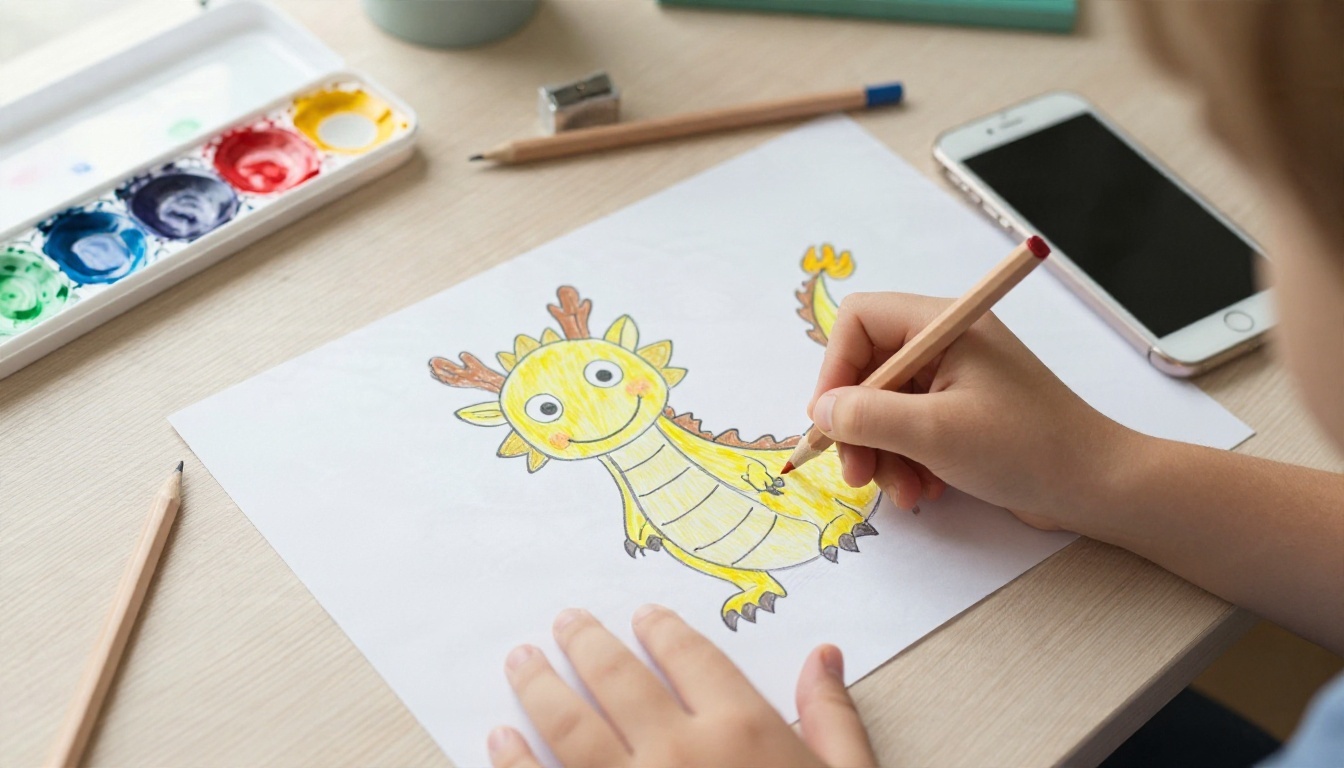
Apps shine when the artwork is made on the device. A child can sketch with a finger, snap a photo of a paper drawing, and drop it onto a page in minutes. The downsides are small screens for layout, limited export choices, and sharing that sometimes requires the other person to install the same app.
Desktop and Browser Software
A larger screen makes text alignment and image placement much easier. Browser tools add the bonus of working on school computers where installing software is not allowed.
| Approach | Strength | Weakness | Sharing |
|---|
| Phone app | Draw and photograph anywhere | Small layout area | Often tied to the app |
| Tablet app with stylus | Natural hand drawing | Export formats vary | Usually a file or PDF |
| Desktop design software | Full control of layout | Steeper setup | Needs a separate publishing step |
| Browser flipbook tool | No install, easy links | Needs finished pages | Link, embed, or password |
The practical answer for most families is a hybrid workflow: draw in whatever app feels natural, export pages as a PDF, then publish through a browser tool. You keep creative freedom and still end up with one clean link.
✅ Best practice: keep the original artwork files in a folder named after the book. If you ever want to reprint or revise, you will thank yourself.
How to Build a Book with Flipbooks AI
If your pages are ready, here is how to create a children's flipbook with Flipbooks AI. The whole process takes about ten minutes for a short story. For longer or more polished projects, the Interactive E-Book Publisher and the E-Book Flipbook Generator are good starting pages.
Start Here: Prepare Your PDF
Export your pages from whichever tool you used. Check that:
- Every page uses the same size and orientation.
- Text sits well away from the edges.
- Images are sharp enough for a full screen, ideally 150 DPI or higher.
- Pages are in reading order, with the front page first.
Upload and Convert
- Create an account or sign in.
- Choose to create a new flipbook.
- Upload your PDF. The platform converts each page into a flippable spread.
- Wait a moment while the preview loads, then flip through to confirm nothing shifted.
Customize the Look
Once the book opens in the editor, you can shape how readers experience it:
- Branding and colors: pick a background shade that matches the story. A soft blue works well for bedtime tales, a bright yellow for adventure.
- Page effects: choose a realistic page turn, so it feels like holding a real book.
- Multimedia: add audio narration so a child can hear the story read aloud, or embed a short video of the author reading.
- Mobile display: the layout adapts to phones, which is where most grandparents will open it.
💡 Record a family member reading each page. Audio narration is the detail children remember most.
Pro Features Worth Knowing
If you publish for a school, a library, or a small business, the Professional plan adds analytics so you can see how many people opened the book, plus lead generation if you want to collect emails before readers get access. Offline downloads let families keep the book for car rides and flights. Plans are listed on the pricing page, and the Standard plan and above include unlimited flipbooks. There are no watermarks, ever.
| Feature | Why It Matters for a Children's Book |
|---|
| No watermark | The finished book looks like yours alone |
| Audio and video embeds | Read-aloud narration and author clips |
| Password protection | Keep a family story private |
| Offline downloads | Reading without Wi-Fi |
| Analytics (Professional) | See how many readers opened it |
| Custom branding | Add a school or author identity |
Sharing by Link, Step by Step
Sharing is where many children's book tools stumble. You made something wonderful, and then you hit a wall of account requests. A link-first approach avoids that problem.
Direct Link
After publishing, copy the book's public address and paste it into a message, an email, or a class newsletter. Anyone with the link can open the book on a phone, tablet, or computer, with no download needed. For school communication, the School Newsletter Creator pairs well with a story link.
Embed on a Website
Authors with a blog or teachers with a class page can paste an embed code so the book shows up inside the page. See the Embed Flipbook on Website tool for details.
Password Protection
If the book includes photos of your own children, use a password. Share the link in one message and the password in another, ideally through a different channel.
| Sharing Method | Best Use | Privacy Level |
|---|
| Public link | Open to anyone, easy to forward | Low |
| Link plus password | Family stories, photos of children | High |
| Website embed | Author pages, school portals | Depends on the page |
| Offline download | Travel, areas with poor signal | High |
⚠️ Never post a book containing a child's full name, school, and photo on a fully public link. A password costs nothing and takes ten seconds.
Real Examples From Real Situations
A Classroom Project
A third-grade teacher asks each pupil to draw one page of a shared story about a lost kite. She scans the drawings, merges them into a single PDF, and uploads it. The class opens the book on the classroom projector, then parents receive one link by email. Thirty children see their work published without a single printed page. For longer units, the Course Material Publisher can hold the full lesson set.
A Family Keepsake
A grandmother writes a short book about the family cat, using photographs and watercolor sketches. She protects it with a password and sends the link to her grandchildren abroad. They read it on their tablets, hear her voice on each page, and ask for a second one the next week.
A First Draft for an Author
A new writer wants to test a story before approaching an illustrator. She builds a rough dummy with stick figures, converts it to a flipbook, and shares it with five parents. Their reactions tell her which pages drag and which ones get giggles.
Ready to Make Your First Book?
Here is a simple plan you can follow today:
- Write the story in 12 to 24 short lines.
- Sketch or photograph one image per page.
- Pick a page size and a template that suits the age group.
- Export your pages as a single PDF.
- Upload it to Flipbooks AI, add narration, and set a password if needed.
- Share the link and watch the first reader flip the pages.
When you want more room to grow, browse all flipbook tools to find a fit for catalogs, portfolios, or school publications. Compare pricing plans when you are ready for unlimited books, or get started for free and see how your first story looks on the screen.



