You spent months on the pencils, the inks, the lettering and the colors. Then you exported a PDF, emailed it, and watched readers open it in a browser tab where the pages scroll like a tax form. That is not how a comic is meant to be read. A free comic builder fixes this in minutes: you upload the PDF, and it becomes a page-flip reader with real turning pages, two-page spreads and a link anyone can open. This article shows how to do it with Flipbooks AI, what to prepare before you upload, and where this format works best for creators, publishers and shops.
Why PDF Comics Need a Flip Reader
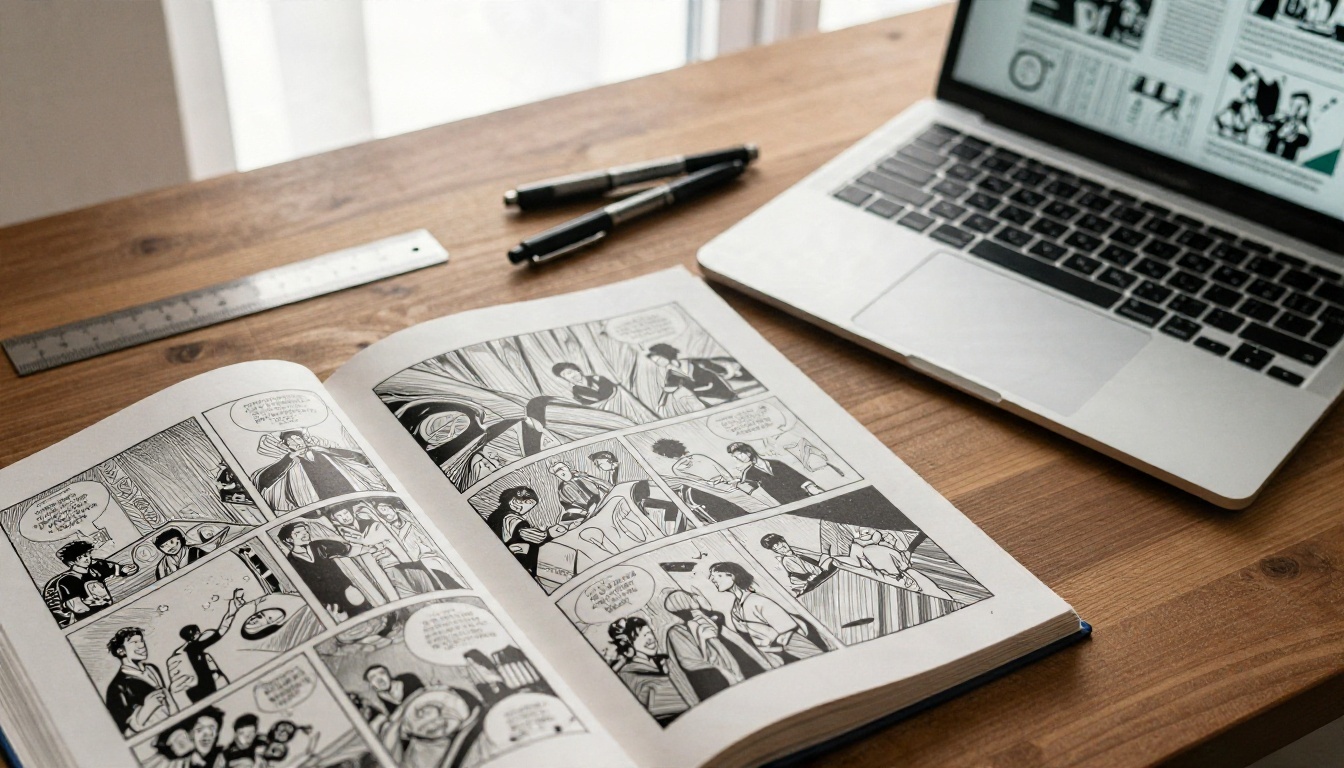
Comics are a visual rhythm. The reveal on a right-hand page works because the reader has to turn to get there. A long vertical scroll destroys that beat. A page-flip reader restores it, and that is why so many creators now convert a comic PDF to flipbook format before they share it.
The Problem With Raw PDFs
A standard PDF viewer was built for contracts and manuals. When you send a comic through it, a few things go wrong:
- Spreads break apart. Two facing pages that were drawn as one image show up stacked, so the splash is cut in half.
- Downloads are required. Many readers on mobile will not open a 60 MB file, so they never see page one.
- No reading rhythm. Scrolling removes the pause that makes a page-turn reveal work.
- No control. Anyone can save, forward or reupload the file as they wish.
What a Page-Flip Reader Changes
A flipbook reader presents your pages as a book. Readers click or swipe to turn, pages curl with a subtle shadow, and double-page spreads stay together. The file loads in the browser, so there is nothing to install.
| Feature | Plain PDF viewer | Page-flip comic reader |
|---|
| Page turn feeling | None, vertical scroll | Real flipping animation |
| Two-page spreads | Often split | Shown side by side |
| Mobile experience | Pinch and zoom | Swipe to turn, responsive |
| Sharing | Attachment or download | One link or embed code |
| Branding | None | Your colors and logo |
| Access control | None | Password protection |
| Watermarks | Depends on host | None on Flipbooks AI |
💡 Pro tip: If your comic has a big splash page, check that it lands on a left or right page the way you planned. The reader follows your PDF order, so a single blank page at the start can shift every spread.
What a Good Comic Builder Does
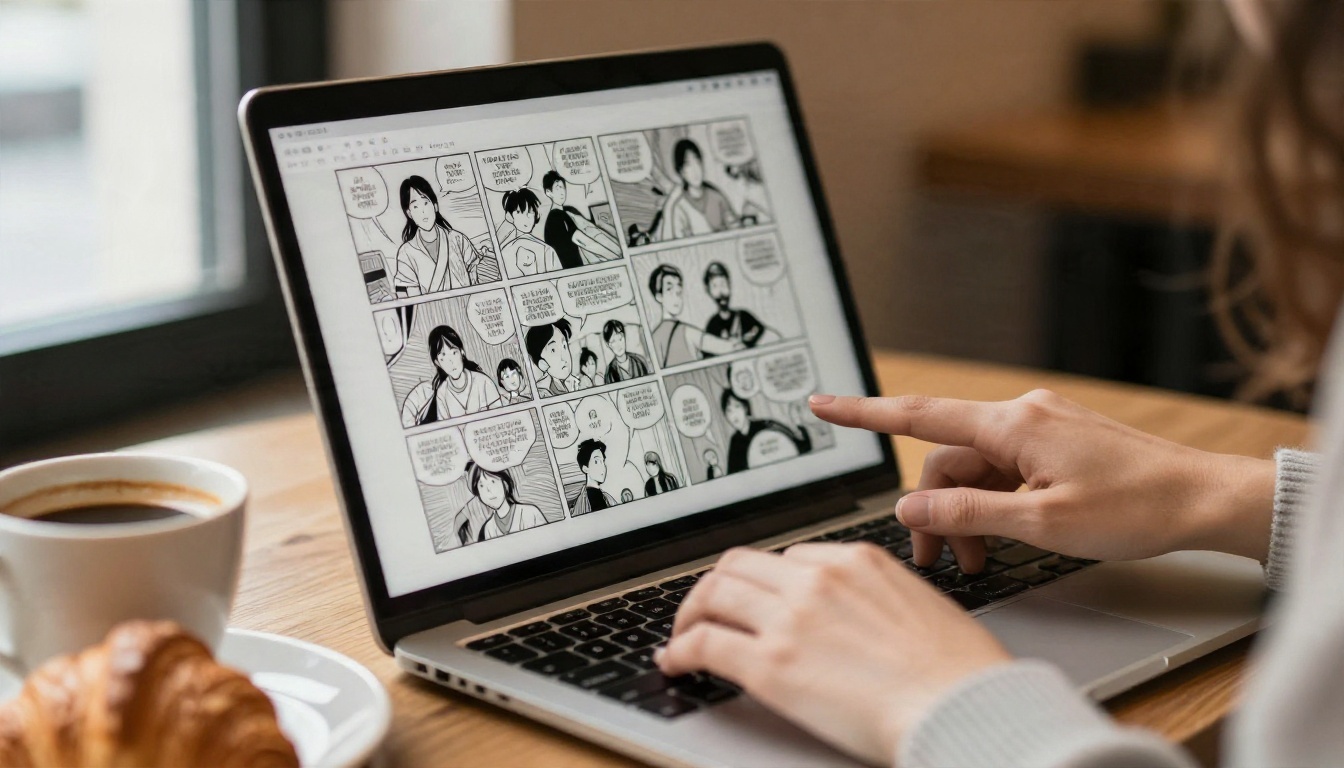
Not every online tool treats comics well. Some were designed for brochures and shrink pages into a tiny frame. Before you pick a comic reader online, check that it handles the details that matter to sequential art.
Spreads and Reading Order
Comics are read in a strict order, and a lot of them mix single pages with spreads. The builder should keep your page order exactly as exported, show a cover as a single page, and then pair interior pages the way a printed book does. Manga readers also need a right-to-left setting so the book opens from the other side.
Image Quality at Small Sizes
Line art with thin hatching and halftone dots is the first thing to turn muddy when a tool compresses images too hard. A good builder keeps panel borders crisp and lets readers zoom into a page without it falling apart.
Speed on Every Device
Most comic readers open links on a phone. If the first page takes ten seconds to appear, they leave. Look for lazy loading, where only the nearby pages load first, and a layout that adapts from desktop to phone without extra work.
| What to check | Why it matters for comics | Flipbooks AI |
|---|
| Spread support | Keeps splash pages intact | Yes |
| Zoom | Readers inspect line art and lettering | Yes |
| Mobile layout | Most readers arrive on phones | Yes, responsive |
| No watermark | Your art is not covered by a logo | Yes, never |
| Link and embed sharing | Fits socials, sites and newsletters | Yes |
| Password option | Good for early drafts and patrons | Yes |
Prepare Your PDF Before Uploading

The better the source file, the better the reader. Ten minutes of preparation will save you from re-uploading three times. Think of your audience: someone lying on a couch with a tablet, someone on a train with a phone, someone at a desk with a big monitor. Your pages must hold up on all of them.
Export Settings That Work
Use these settings as a starting point for a digital comic reader:
| Setting | Recommended value | Reason |
|---|
| Page size | One comic page per PDF page | Keeps the flip order accurate |
| Resolution | 150 to 200 PPI at final size | Sharp on screens, small file |
| Color mode | RGB | Screens display RGB, not CMYK |
| Image format | High quality JPEG inside PDF | Smaller than lossless, still clean |
| Bleed and crop marks | Off | Printer marks look odd in a reader |
| File size | Under 100 MB | Faster upload and conversion |
| Text | Keep lettering as vector if possible | Stays sharp when zoomed |
⚠️ Warning: Do not upload your print-ready file with crop marks and a bleed area. Readers will see the printer marks around every page. Export a separate screen version.
Scanning Hand-Inked Pages
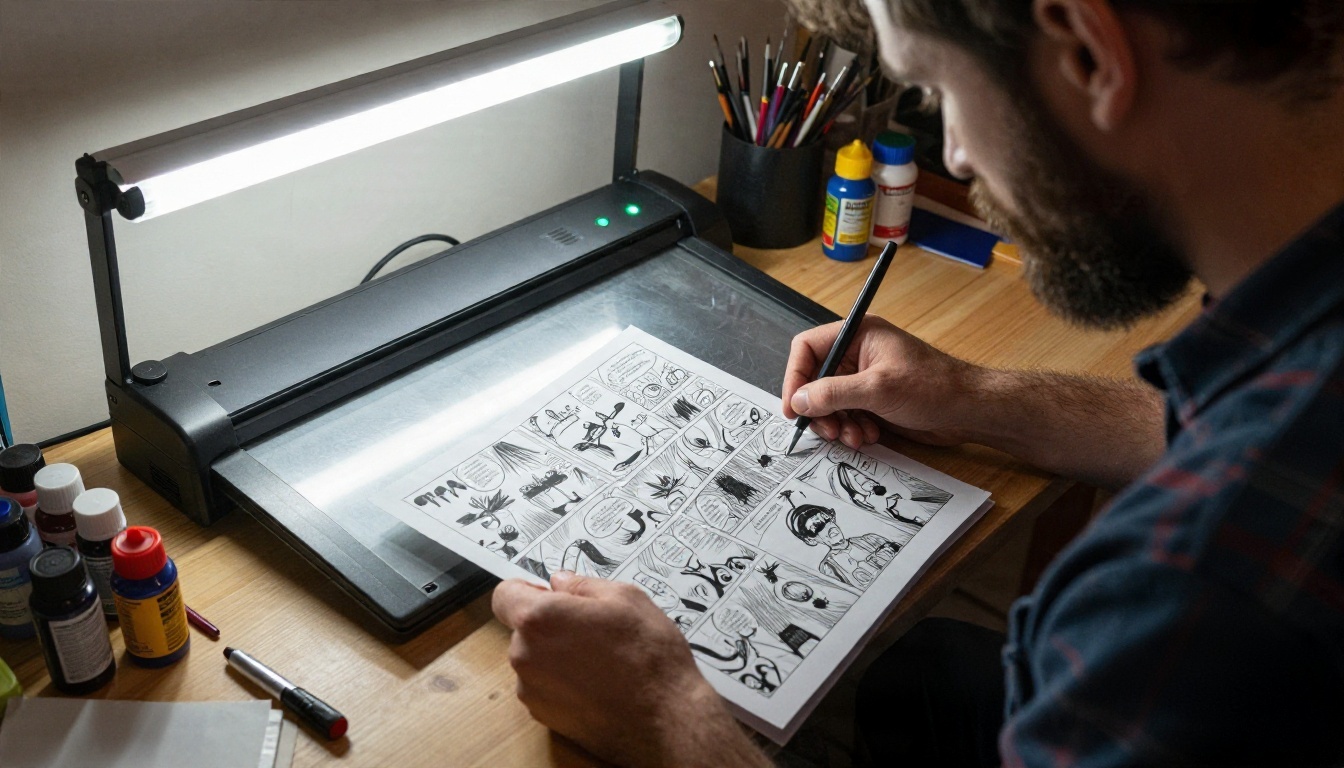
If you work on paper, scan at a higher resolution than you need, clean up the file, then export at a screen-friendly size. A flatbed scan at 600 DPI gives you room to straighten pages, fix smudges and crop evenly. Keep every page the same dimensions. Mixed page sizes in one PDF cause jumpy zoom behavior in any reader.
A quick checklist before export:
- Name pages in order so nothing gets shuffled.
- Check lettering for typos while zoomed in.
- Flatten layers so nothing hidden shows up later.
- Add the cover as page one and the back page as the last page.
- Test the PDF on your phone to see how it reads at small sizes.
How to Create a Comic Flipbook with Flipbooks AI
This is the hands-on part. The whole process is a few clicks, and you do not need design skills. For a quicker route, the PDF to Flipbook Converter handles the core conversion directly.
Step 1: Create Your Account and Upload
- Go to Flipbooks AI and create an account.
- Choose to create a new flipbook and drag your comic PDF into the upload area.
- Wait while the pages are converted. A 24 to 32 page issue usually finishes quickly.
- Open the preview. You should see your cover as a single page and the interior pages paired in spreads.
Step 2: Customize the Reader
Open the settings panel and adjust the look so it fits your series:
- Background color: A dark neutral works well for action comics, a soft cream suits slice of life and children's books.
- Branding: Add your logo, studio name or series title to the reader frame.
- Page effects: Keep the page curl and soft shadow for a real book feeling, or reduce the effect if you want a calmer read.
- Multimedia: Add a short audio loop, a trailer video or a link to your shop on specific pages.
- Sound: A subtle page-turn sound is optional and can be switched off.
💡 Pro tip: Put a link to your Patreon, Ko-fi or store on the last page, right after the final panel. Readers are most willing to act at the exact moment the story ends.
Step 3: Set Sharing and Privacy
You have several ways to publish:
| Sharing option | Best for |
|---|
| Direct link | Social posts, bios, messages and newsletters |
| Embed code | Your own webcomic site, see Embed Flipbook on Website |
| Password protection | Patron-only chapters, review copies, early drafts |
| Offline download | Readers who want the issue on a plane or in a cabin |
For private work, switch on password protection and send the password separately from the link. When the chapter is ready for everyone, remove it.
Step 4: Use the Pro Features
If you sell or promote your comic, the Professional plan adds analytics and lead generation. Analytics tell you which pages readers reach and where they stop. If most people quit at page 9, that page needs work. Lead generation lets you collect an email address before the reader opens the next issue, which builds a list you own. You can compare options on the pricing page, and the Standard plan and above allow unlimited flipbooks, which suits a series with many chapters.
Real Ways Creators Use Comic Readers
A page-flip reader is not only for webcomics. Here are common situations where it earns its place.
Webcomic Chapters on Your Own Site
Publishing on your own domain gives you full control of the experience. Embed each chapter on its page, keep your layout, and avoid the algorithm. Because the reader is mobile-responsive, one embed serves desktop and phone alike.
Convention Tables and QR Codes
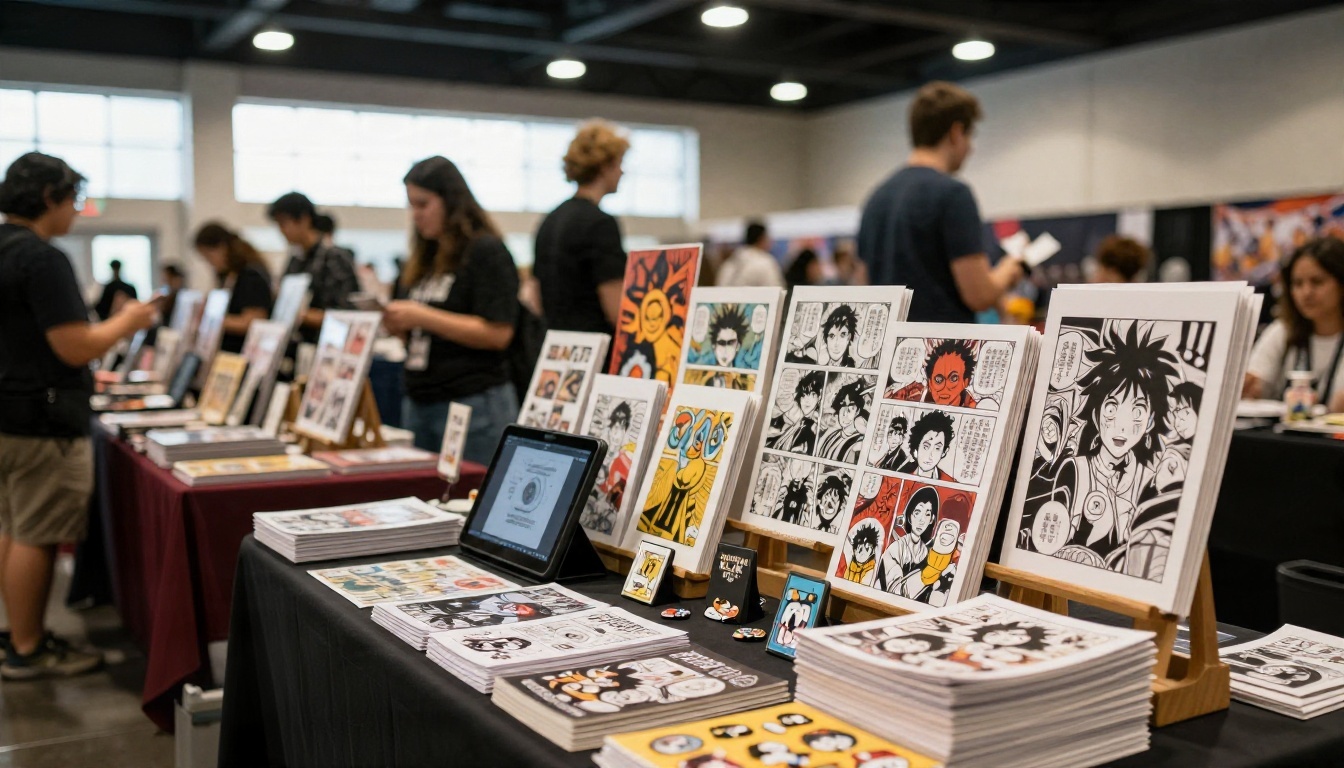
At a convention, you have seconds to catch attention. Put a small sign with a QR code that opens your first chapter in the reader. Visitors read on their own phones while you talk to the next person, and if they like it, they buy the print. Your free preview works for you even when you are busy.
Reading on the Move
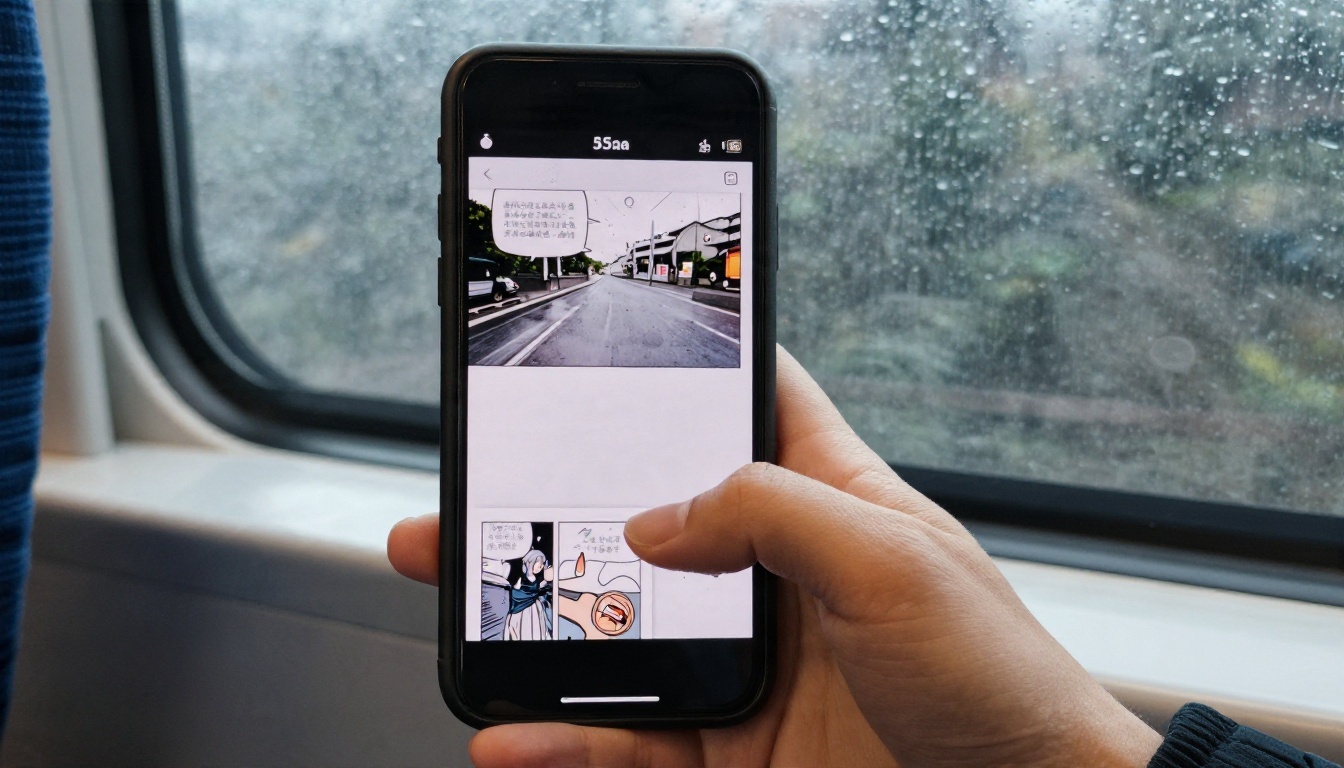
Many of your readers are on a train or a bus. They want to tap a link and be reading in two seconds. A flipbook reader loads in the browser, adjusts to the screen and lets them swipe with a thumb. No app store, no account, no download.
Sending Proofs to Collaborators

Writers, letterers, colorists and editors all need to read the book as a reader would. Send a password-protected link to the draft. They see the real page-turn pacing, and you avoid the "which version is this?" email chain. When a page changes, update the flipbook and the same link keeps working.
Comic Shops and Small Publishers

A shop can publish a digital preview of new releases, a seasonal catalog or a monthly newsletter. The Digital Catalog Maker and the Newsletter Flipbook Publisher fit this well. Small publishers can also use the Interactive E-Book Publisher for graphic novels that are sold as digital editions.
Mistakes That Hurt Your Comic Reader
Most problems come from the source file, not from the tool. Watch for these.
Pages in the Wrong Order
If your first page is blank or your cover is on page two, every spread after it will pair the wrong pages. Always check the first four pages in the preview before you share.
Text That Is Too Small
A lettering size that looks fine on a printed page can be unreadable on a phone. Test with your own phone at arm's length. If you must squint, increase the lettering size in the next issue or split dense pages.
Huge Files With No Plan
A 400 MB PDF is slow to upload and slow to load. Reduce the resolution to a sensible screen size. Most readers cannot see the difference between 200 PPI and 600 PPI on a laptop, but they can feel the difference in load time.
Forgetting the Last Page
The final page is the best advertising space you have. Add a link to the next chapter, your store, your mailing list or your social profiles. Do not let the story end on a dead page.
✅ Best practice: Treat your reader page like a store window. A clear title, a first page that hooks, and one call to action at the end will do more than any extra feature.
Quick Pre-Publish Checklist
- Pages are in order and the same size.
- The cover is page one and the back page is last.
- File size is reasonable and the preview loads fast on mobile.
- Lettering reads clearly on a phone.
- A link to your store or list sits on the final page.
- Password protection is set correctly, on or off.
Start Building Your Comic Reader
Your comic is already finished. The only thing standing between it and readers is a better way to open it. Upload the PDF, choose your colors, add your links and share one clean page-flip URL. You keep full credit for your art, with no watermark on any page.
Ready to publish your first issue? Get started for free on Flipbooks AI, browse all flipbook tools to find the format that suits your series, or compare pricing plans when you want analytics, lead capture and unlimited chapters. When you are ready to commit, you can also go straight to the plans after signing in.
Frequently Asked Questions
Can I use a free comic builder for a long graphic novel?
Yes, as long as the PDF is a sensible size. For a 150 page book, reduce image resolution to a screen-friendly level and test the upload with the first 20 pages before you send the full file.
Does the reader work for manga?
Yes. Export the pages in the correct reading order and use the right-to-left option if you want the book to open from the other side.
Will readers need to install anything?
No. The reader opens in the browser on desktop, tablet and phone, so a single link is all you share.
Can I keep my comic private?
Yes. Use password protection for drafts, patron chapters or review copies, and remove it when you are ready to go public.



