You have a story in your head, a few sketches on paper, and a budget of exactly zero. Good news: the best comic creation software for beginners is free, and plenty of professionals still use it. The harder question comes after the last speech bubble is lettered. Where do the pages go? A folder of PNG files is not a comic, and a bare PDF feels flat on a phone. That is where a flipbook comes in, and a platform like Flipbooks AI turns a finished PDF into a page-turning reader in a few minutes.
This article walks through free drawing programs, layout tools, and no-skill comic makers, compares them side by side, and then shows how to publish the result as a flipbook that opens on any screen.
What Comic Software Actually Does
Before picking a program, it helps to know which job you need done. Comic making is really four jobs stacked together, and few tools do all four well.
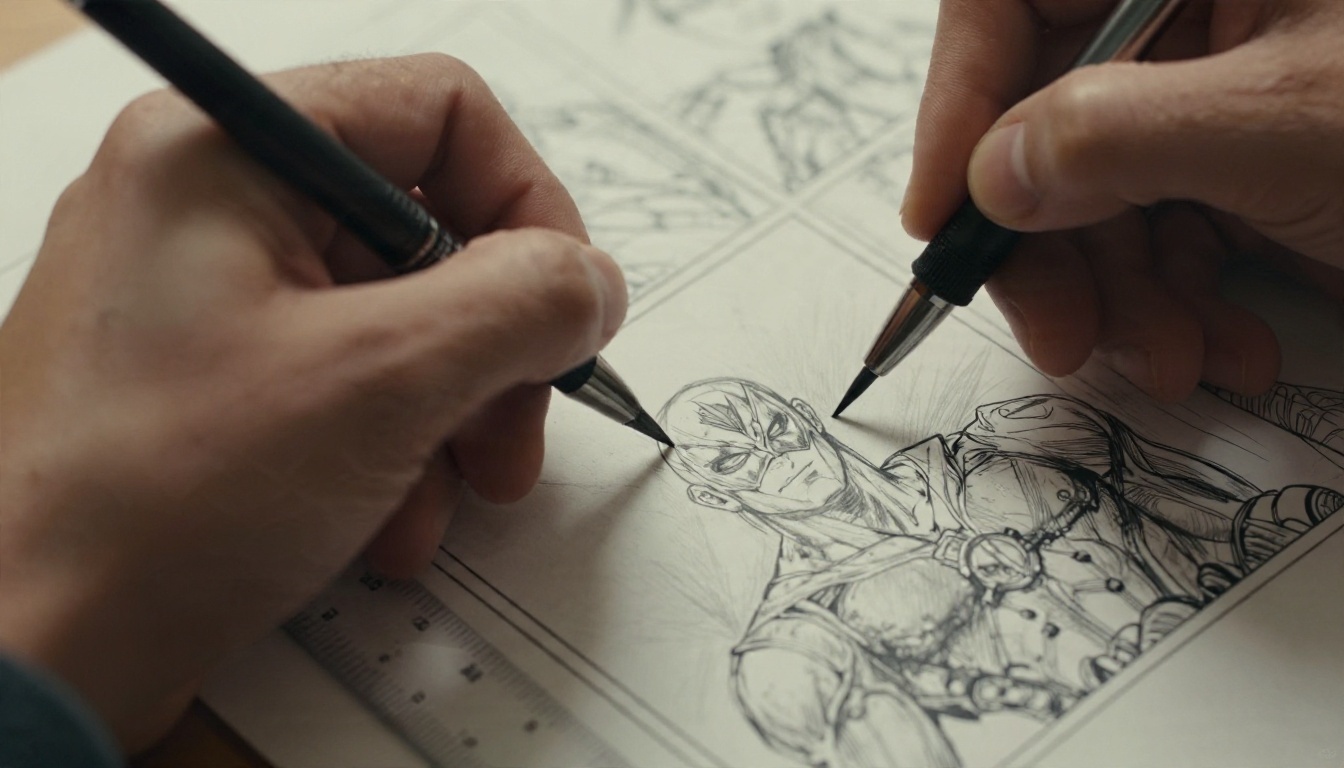
Drawing, Layout, and Lettering
Most people think of drawing first, but a comic page needs more than art:
- Drawing and coloring: brushes, layers, pressure sensitivity, and a canvas that behaves like paper.
- Panel layout: tools that cut a page into frames with clean gutters, so you are not ruling lines by hand.
- Lettering: text tools for speech bubbles, captions, and sound effects, ideally on their own layer.
- Export: a way to output every page at the right size, in the right file format.
A tool that excels at painting may have no panel tools at all. A comic maker made for classrooms may have great bubbles and weak brushes. Mixing two free programs is completely normal.
Why Export Format Matters
Your export decides how you can publish. PNG and JPG files work for single pages. A multi-page PDF is the best starting point for a flipbook, because the order, page size, and image quality travel together in one file. If your drawing program exports only images, you can combine them into a PDF later using a free layout tool or the print-to-PDF function on your computer.
💡 Pro tip: Decide on your page size before you draw page one. Resizing finished art later softens linework and misaligns your panels.
Best Free Comic Creation Software
These programs cost nothing, run on common hardware, and have active communities with tutorials on every feature.
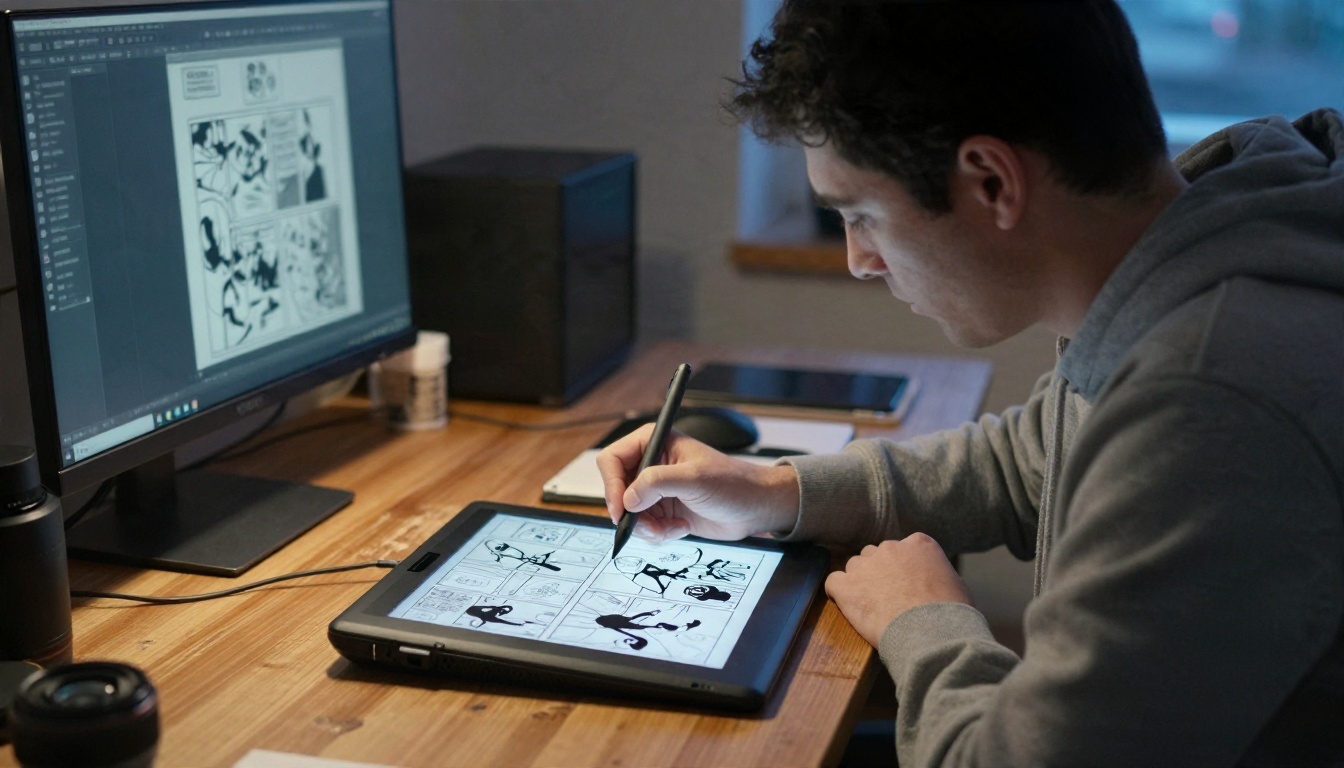
Krita for Painted Pages
Krita is a free, open-source painting program for Windows, macOS, and Linux. Its brush engine is superb, it handles large canvases, and it includes a comics project manager that helps organize pages and export in several formats. It also supports vector layers, which are handy for crisp speech bubbles. The tradeoff is a busy interface that takes an afternoon to settle into.
MediBang Paint for Quick Starts
MediBang Paint was built with manga and comics in mind. It has a panel-cutting tool, screentone patterns, and speech bubble presets, all in a lighter interface than most painting programs. It runs on desktop and mobile, and cloud saves let you start a page on a tablet and finish it on a laptop. It is a strong first pick if you want panels and lettering in the same place.
Ibis Paint X on Phones
Ibis Paint X is a mobile-first drawing app with a large brush library, layer support, and timelapse recording. It is not the most precise tool for page layout, but for short strips, diary comics, and sketches it is hard to beat when all you have is a phone and a few spare minutes. The free version is supported by ads.
Free Tools Compared
| Tool | Platform | Best for | Panel tools | Lettering | Learning curve |
|---|
| Krita | Windows, Mac, Linux | Painted, full-color pages | Via project manager | Text and vector bubbles | Moderate |
| MediBang Paint | Desktop and mobile | Manga and quick starts | Built-in panel cutter | Bubble presets | Gentle |
| Ibis Paint X | iOS and Android | Short strips on a phone | Basic | Basic text | Gentle |
| GIMP | Windows, Mac, Linux | Editing and cleanup | Manual | Text layers | Steep |
| Inkscape | Windows, Mac, Linux | Vector art and bubbles | Manual | Strong text control | Moderate |
| Scribus | Windows, Mac, Linux | Page layout and PDF export | Frame-based | Excellent typography | Steep |
✅ Best practice: Draw in Krita or MediBang Paint, then assemble the final pages in Scribus if you want precise margins and a clean multi-page PDF.
Free is a fine place to begin, but a few paid programs are built around comics so completely that a trial period is worth your time.
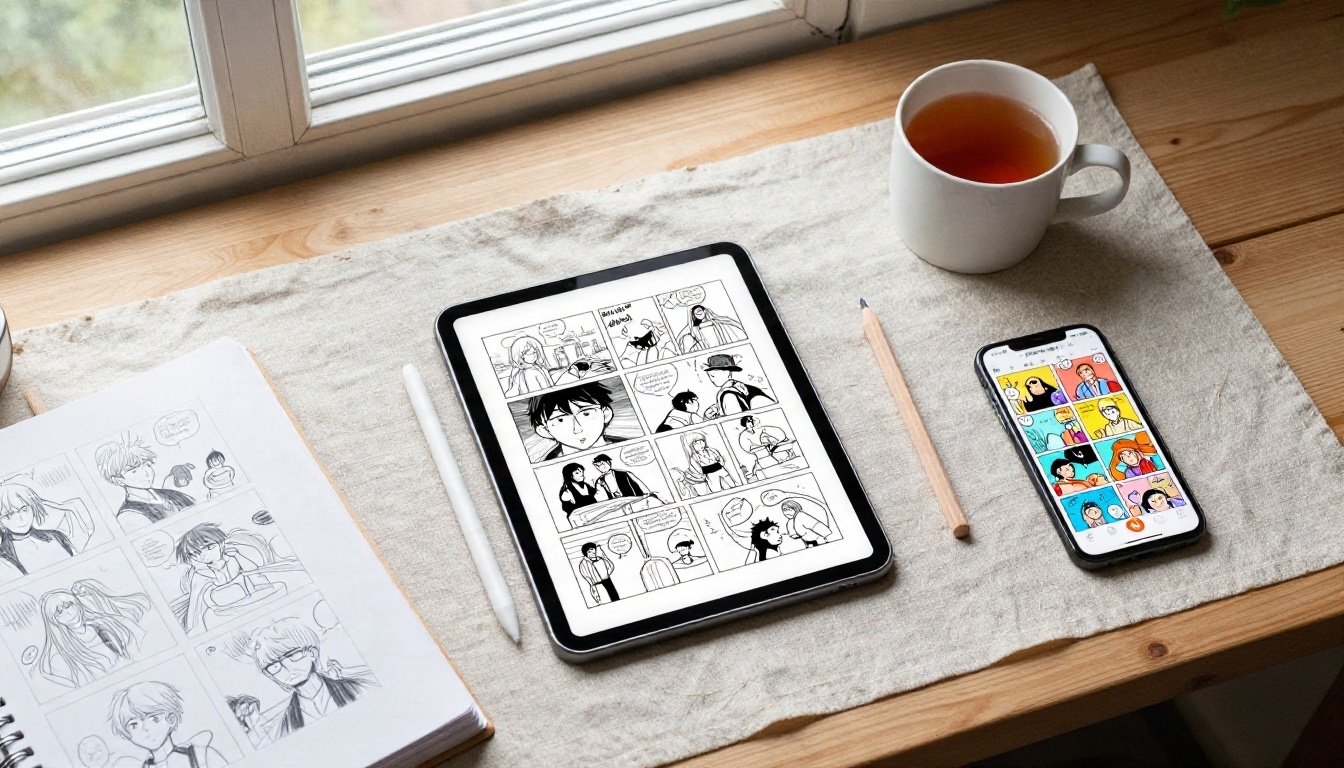
Clip Studio Paint
Clip Studio Paint is the industry favorite for comics and manga. It offers frame-border tools, perspective rulers, 3D reference models, and multi-page project files. It has a free trial, so you can test it on a real chapter before paying. If you plan to produce a long series, the time it saves on layout alone can justify the price.
Procreate and Other Tablet Apps
Procreate is a one-time purchase for iPad and has a natural, responsive brush feel. It has no dedicated comic page tools, so artists usually set up a grid of panels by hand or import templates. Similar apps exist for Android tablets. These work well for illustrated stories where each page is a single image, such as a short picture-driven narrative.
⚠️ Watch out: Subscription pricing and trial terms change often. Check the current offer on the vendor's own site before you commit.
Apps for Non-Artists
You do not need to draw to make a comic. Template-based makers let you assemble characters, backgrounds, and dialogue in minutes. They suit classrooms, marketing teams, and anyone telling a short story with photos or stock characters.
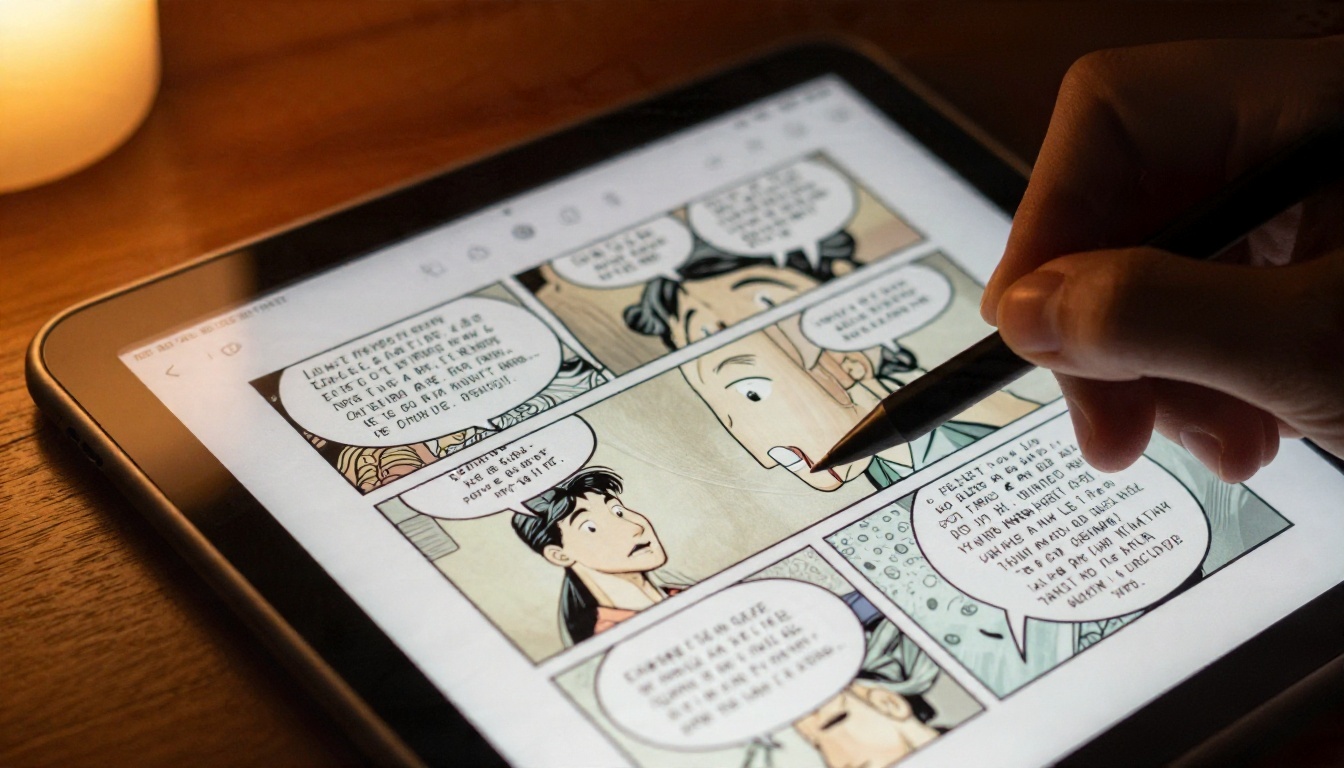
- Canva: drag-and-drop layouts with comic strip templates and a generous free tier.
- Pixton: character-based comic maker aimed at schools, with a limited free option.
- Make Beliefs Comix: a simple, free browser tool for short strips and writing prompts.
- Storyboard That: scene-based builder that works well for lesson plans and storyboards.
| App | Skill needed | Free plan | Custom art upload | Best use |
|---|
| Canva | None | Yes | Yes | Marketing comics and strips |
| Pixton | None | Limited | Limited | Classroom projects |
| Make Beliefs Comix | None | Yes | No | Quick, playful strips |
| Storyboard That | None | Limited | Yes | Lessons and storyboards |
A teacher, for example, can build a four-panel comic that explains a science concept, export it as a PDF, and publish it as a flipbook for the whole class to read on tablets.
From Sketch to Finished PDF
Whichever tool you choose, the production steps are nearly identical. Doing them in the right order saves hours of repair later.

Page Size and Resolution
Set your canvas first. For print-ready comics, 300 dpi at your final trim size is the standard. For screen-only reading, a page around 2000 by 3000 pixels is sharp on phones and large monitors without producing a heavy file. Leave a safe margin so lettering never sits too close to the edge.
Lettering Speech Bubbles
Put all text on its own layer or in its own text frames. Use a clean, readable comic font, keep bubbles inside the panel when you can, and read the page aloud to check the order. Readers move left to right and top to bottom (or right to left for manga), so place bubbles to match.
If you draw on paper, scan at 400 to 600 dpi, clean the file in a free editor, then add lettering digitally. Hand-lettering is lovely, but typeset text is easier to fix when a typo slips through.
Exporting the PDF
Export every page in order, then combine them into one PDF. Check three things before moving on:
- All pages are the same size.
- Images are sharp when you zoom to 200 percent.
- The file is under a reasonable size, ideally below 100 MB, so it loads quickly for readers.
💡 Pro tip: Name files with leading zeros, such as page_01 and page_02. Sorting then works correctly when you combine them.
How to Make a Comic Flipbook
A PDF is easy to share, but it is not the nicest way to read a comic. A flipbook gives readers the feel of turning real pages, with fast loading, zoom, and a layout that adapts to phones, tablets, and desktops. Here is how to publish your comic with Flipbooks AI.

Step-by-Step Tutorial
- Create your account. Go to Flipbooks AI and sign up. You can start for free and look at pricing plans later.
- Upload your PDF. Drag your finished comic into the upload area. The PDF to Flipbook Converter processes each page and builds the page-turn reader automatically.
- Check the preview. Flip through the pages. Confirm the order is right and that two-page spreads display as intended.
- Customize the look. Add your brand or series colors, a custom background, and page-turn effects. Upload your logo if you publish under a studio name.
- Add multimedia. Embed video or audio, such as a short author intro or a soundtrack for a dramatic chapter.
- Share it. Copy the direct link, or use the embed code to place the comic on your website. The Embed Flipbook on Website tool shows how.
✅ No watermarks: Flipbooks you publish never carry a watermark, so your comic looks like yours and nobody else's.
Customization Options
| Option | What it does | Why comic creators use it |
|---|
| Custom branding | Logo, colors, and background | Keeps a series visually consistent |
| Page effects | Realistic page turns | Recreates the print feel |
| Embedded media | Video and audio inside pages | Adds author notes or sound |
| Mobile-responsive layout | Adapts to any screen | Readers on phones get a clean view |
| Password protection | Restricts access | Shares early chapters with patrons only |
Sharing and Advanced Features
Once the comic is live, you have several ways to deliver it:
- Direct link: paste it into social bios, newsletters, and messages.
- Embed code: place the flipbook on a portfolio or storefront page.
- Password protection: gate a preview chapter for backers or reviewers.
- Offline downloads: let readers keep a copy for travel.
- Analytics and lead generation: on the Professional plan, see how many people read each chapter and collect email addresses from interested readers. Unlimited flipbooks are available from the Standard plan up, which suits serialized comics with a new chapter every month. See the plans for the full breakdown.
If you publish illustrated novels or longer stories, the Interactive E-Book Publisher and E-Book Flipbook Generator are good starting points.
Real-World Uses for Comic Flipbooks
Comics have moved well beyond the weekly newspaper strip. Here is where a flipbook version earns its place.
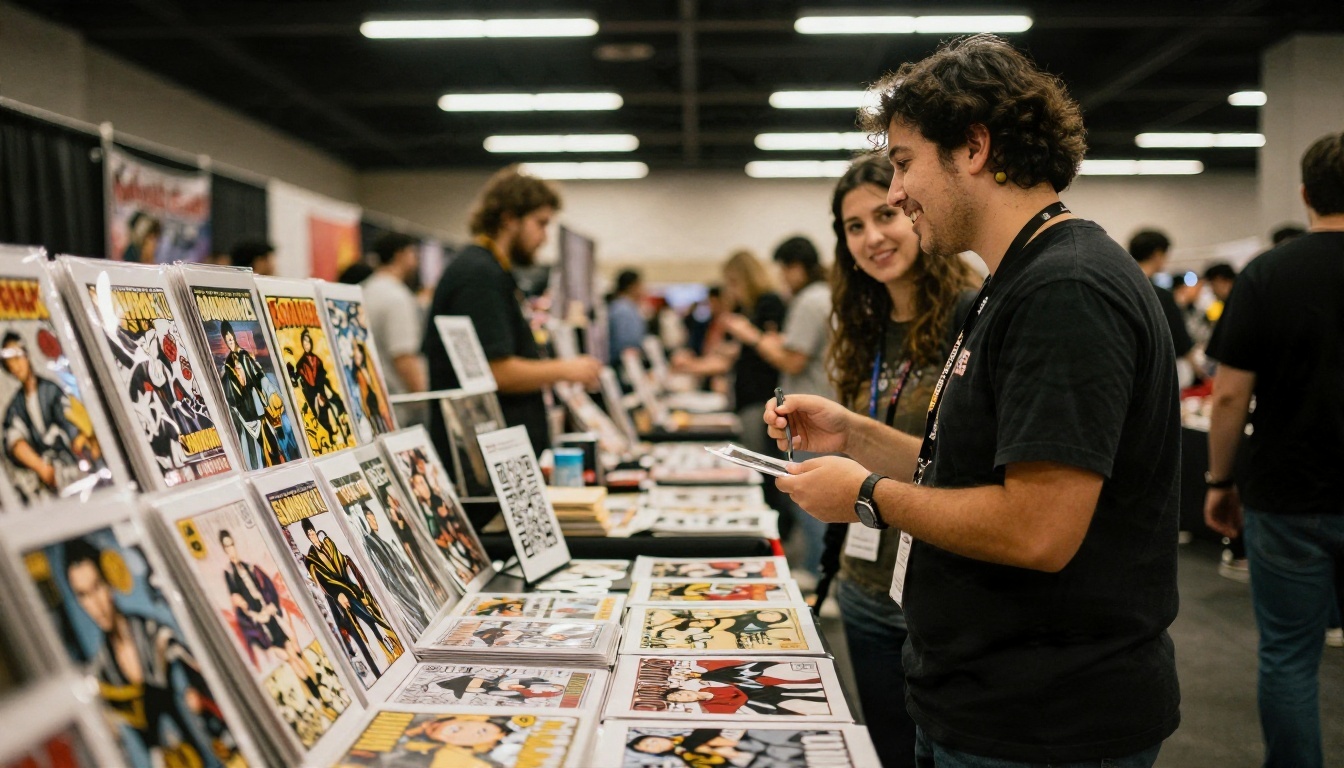
- Independent creators at conventions: print a QR code on your table card so visitors can read chapter one on their phone and buy the rest later.
- Teachers and trainers: a comic-style training story is easier to remember than a text handout. A Training Manual Flipbook can hold the whole lesson.
- Brands and nonprofits: explain a product or a cause with a short illustrated story and embed it on a landing page.
- Illustrators building a portfolio: show a full sequential story, not just single images, with the Digital Portfolio Creator.
- Webcomic writers: release collected chapters as a polished volume for readers who want everything in one place.
| Use case | Typical length | Best sharing method |
|---|
| Convention sampler | 8 to 16 pages | QR code to direct link |
| Webcomic volume | 60 to 120 pages | Embed on your website |
| Classroom comic | 4 to 10 pages | Password-protected link |
| Brand story | 6 to 12 pages | Embed on a landing page |
| Portfolio piece | 10 to 30 pages | Link inside a portfolio page |

Mobile readers matter most. A large share of comic readers scroll on phones, and a responsive flipbook scales each page to fit without sideways panning or tiny text.
3 Common Mistakes to Avoid
Most comic publishing problems come from the same few slips.
- Mixing page sizes. If one page is wider than the others, the flipbook shows jumps and gaps. Fix the canvas size at the start and stick with it.
- Tiny lettering. Text that looks fine on a monitor becomes unreadable on a phone. Test a page on your own phone before exporting everything.
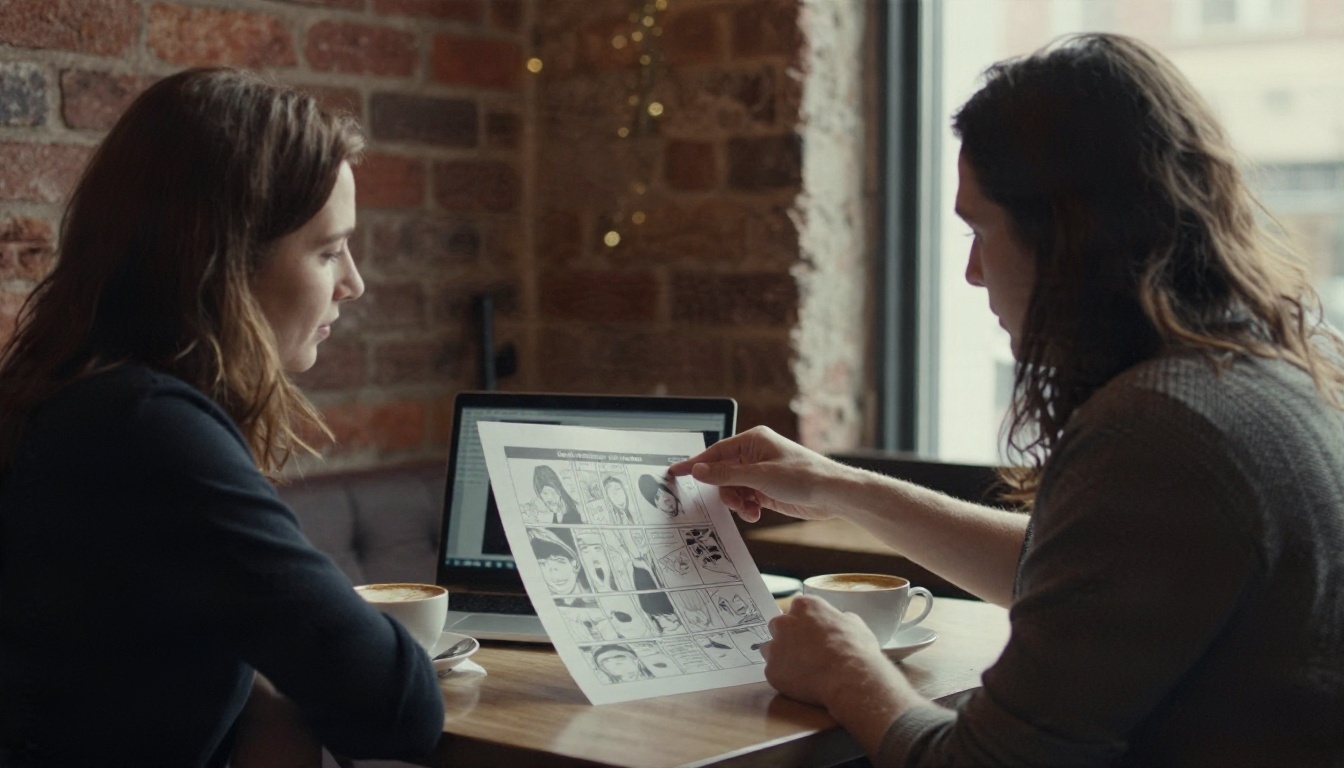
- Skipping a proof read. Ask a friend to read the PDF cold. Fresh eyes catch confusing panel order and typos that you stopped seeing weeks ago.
⚠️ Rights check: Only publish art, fonts, and brushes you have the license to use. Some free fonts and asset packs forbid commercial use, which matters if you plan to sell your comic.
A quick checklist before you publish:
- Pages are in order and the same size.
- Speech bubbles are readable at phone size.
- File size is reasonable for fast loading.
- Cover page is strong, since it is the first thing a reader sees.
- Credits and a contact link appear on the last page.
Ready to Publish Your Comic?
Free software has made it possible to draw, letter, and export a professional-looking comic without paying for a single license. Pick one drawing program, set your page size, finish a short first chapter, and export it as a PDF. Then give it a home that feels like a real book.
Get started for free on Flipbooks AI and turn your PDF into a flipbook in minutes. Browse all the flipbook tools to find the right format for your story, or compare pricing plans when you are ready for analytics, password protection, and unlimited flipbooks. Your readers are waiting for page one.



